Chats
Chats Calendar
 Meetings
 Contacts
 Mail
Mail Docs
Docs Drive
Drive AI Table
 AI Minutes
 Attendance
 Approval
 YiDA
YiDA Admin Console
1. Use Cases
The user component retrieves users from DingTalk Contacts and is used whenever you need to select people, such as when setting business trip applicants, asset owners, or maintenance staff. It can also be combined with Formula, and is used on workflow forms to designate approvers—for example, when the initiator selects approvers manually.For component attributes, usage, and examples, see Component interface.
2. Basic Features
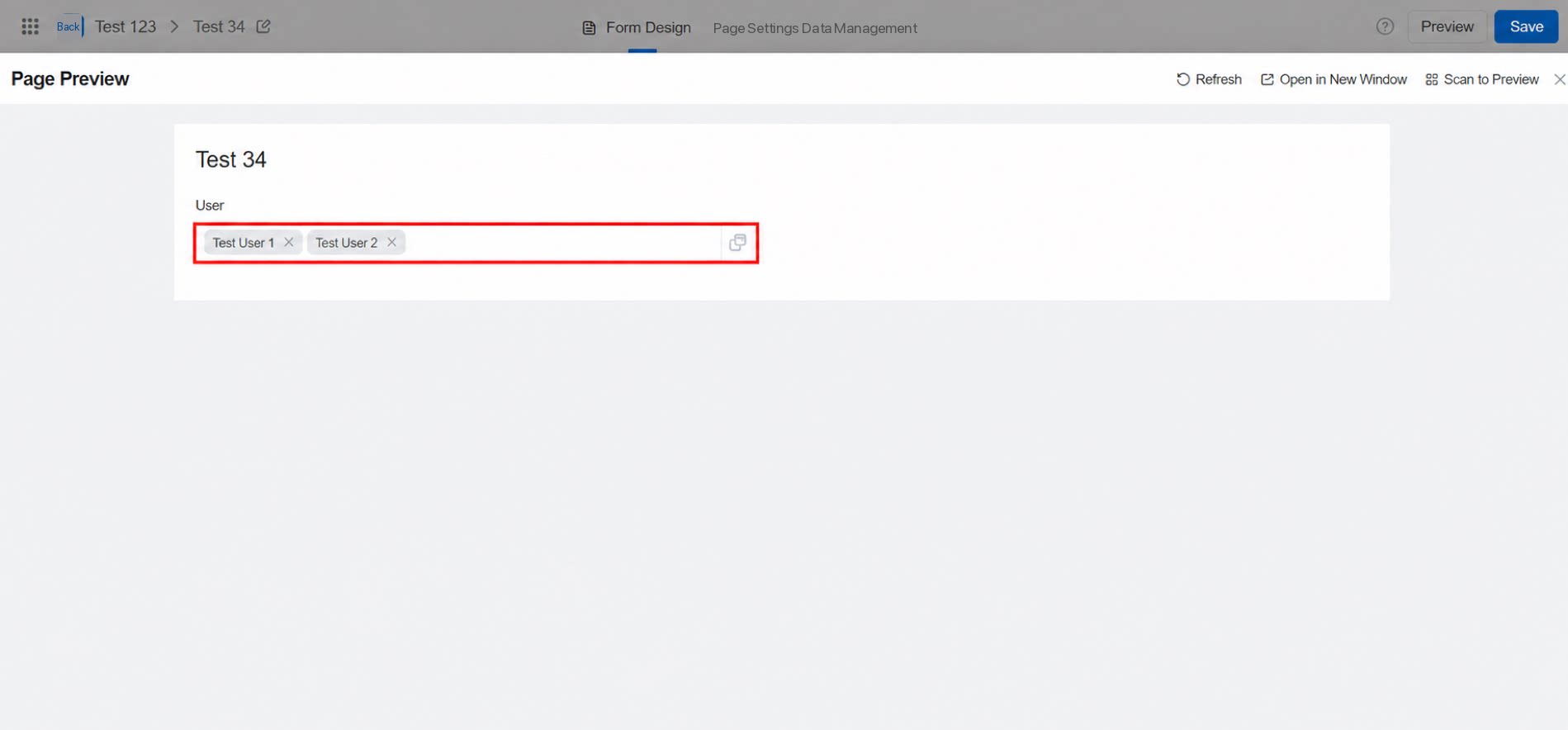
2.1 Multiselect Mode
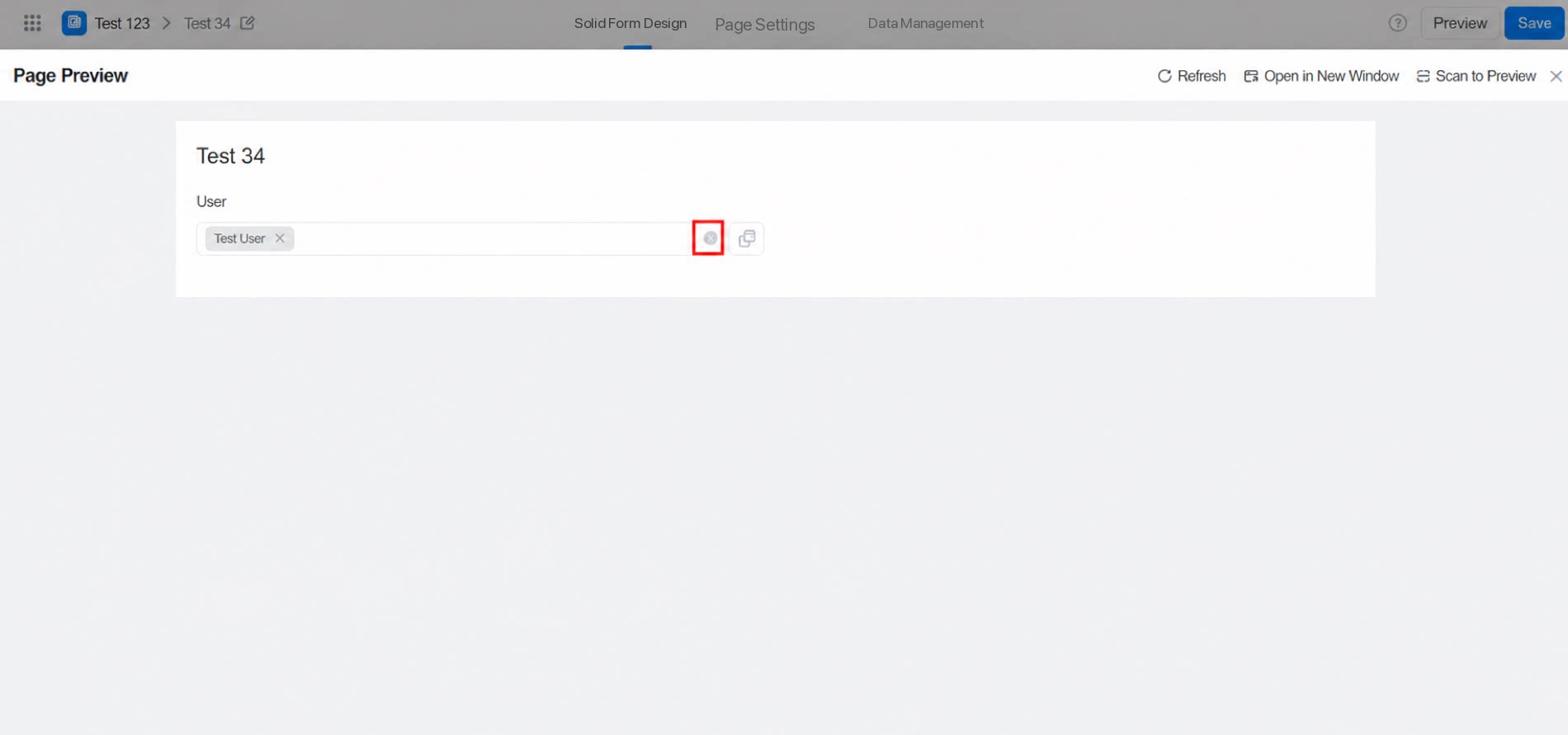
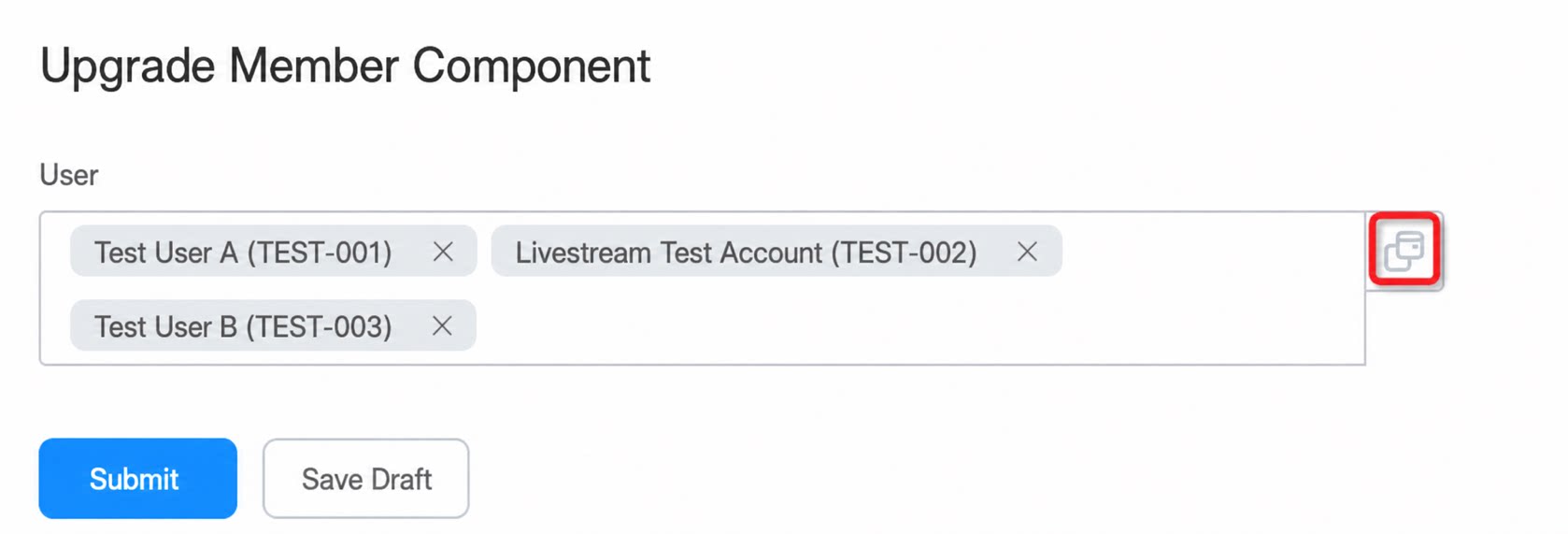
Select multiple users at once. Turn off this toggle when only one user should be selected.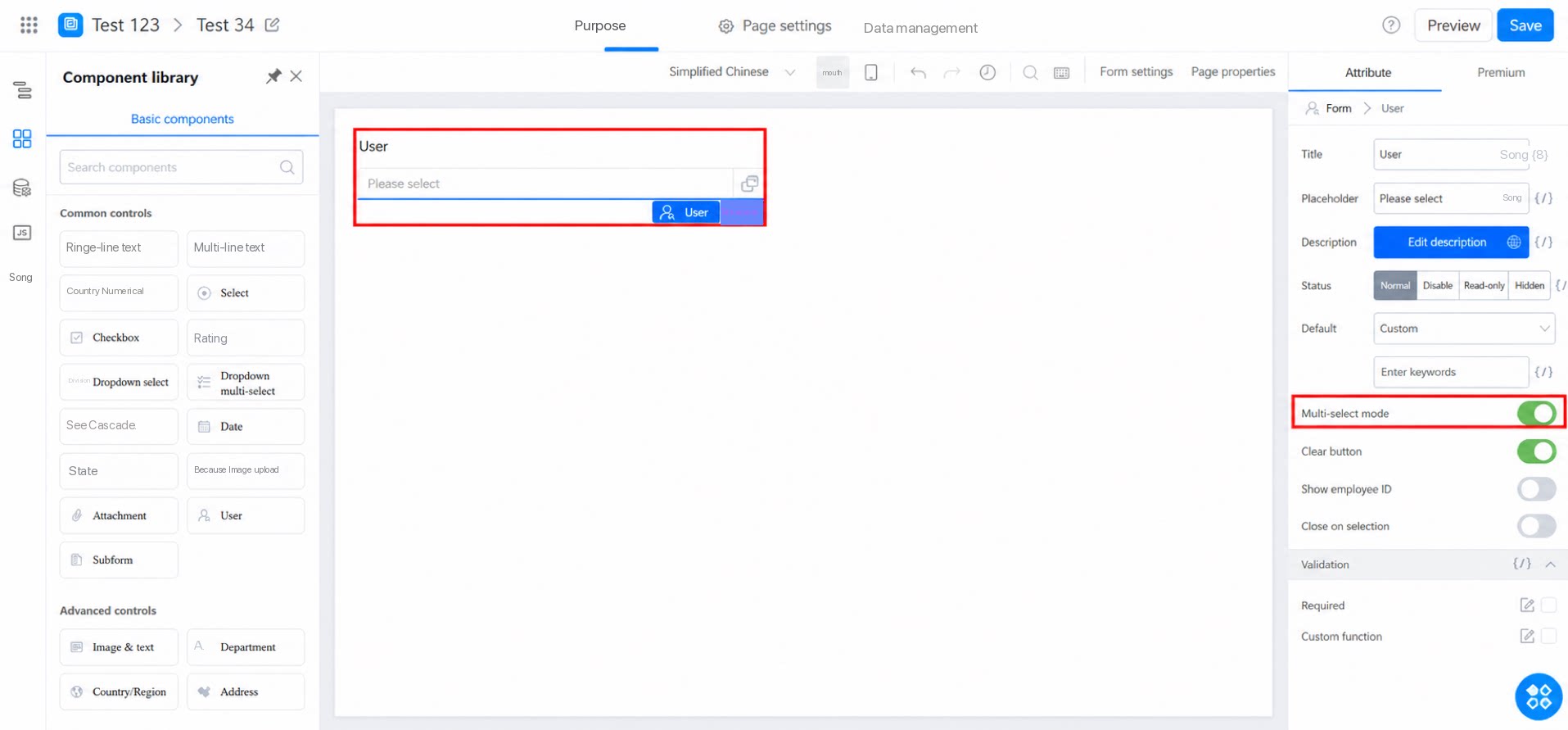
2.2 Default Users
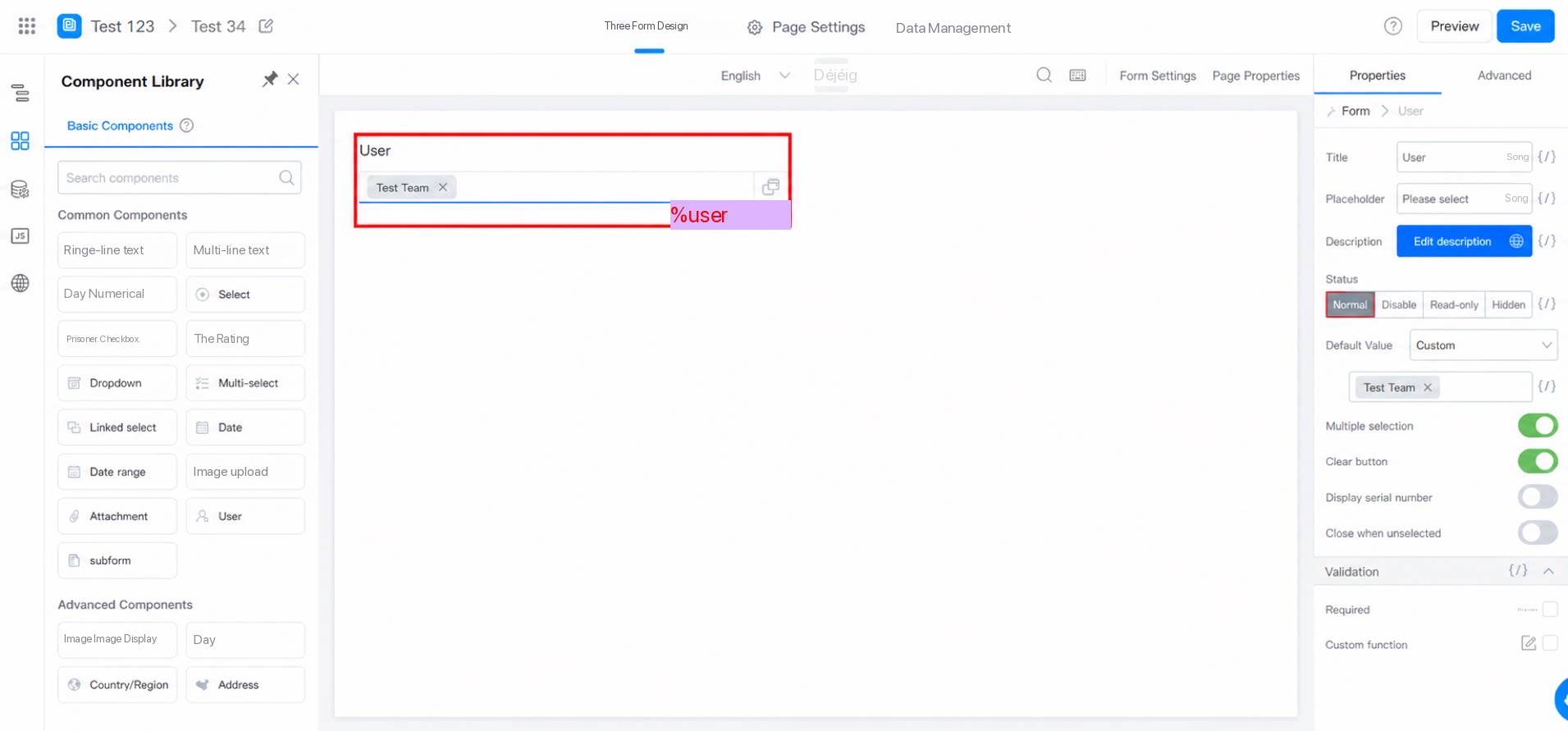
Set specific users as the Default value so they appear automatically on the submission page.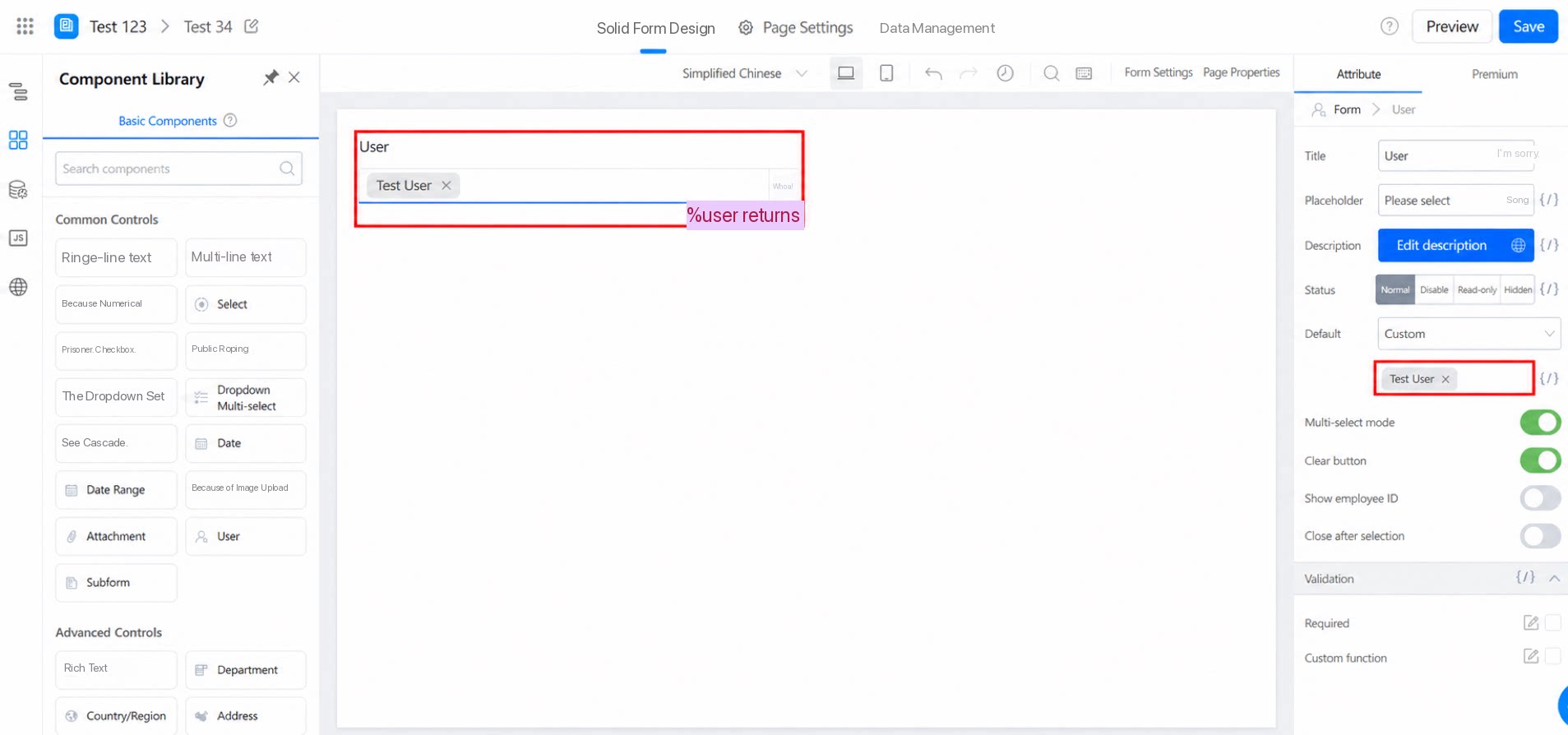
2.3 Show Employee ID
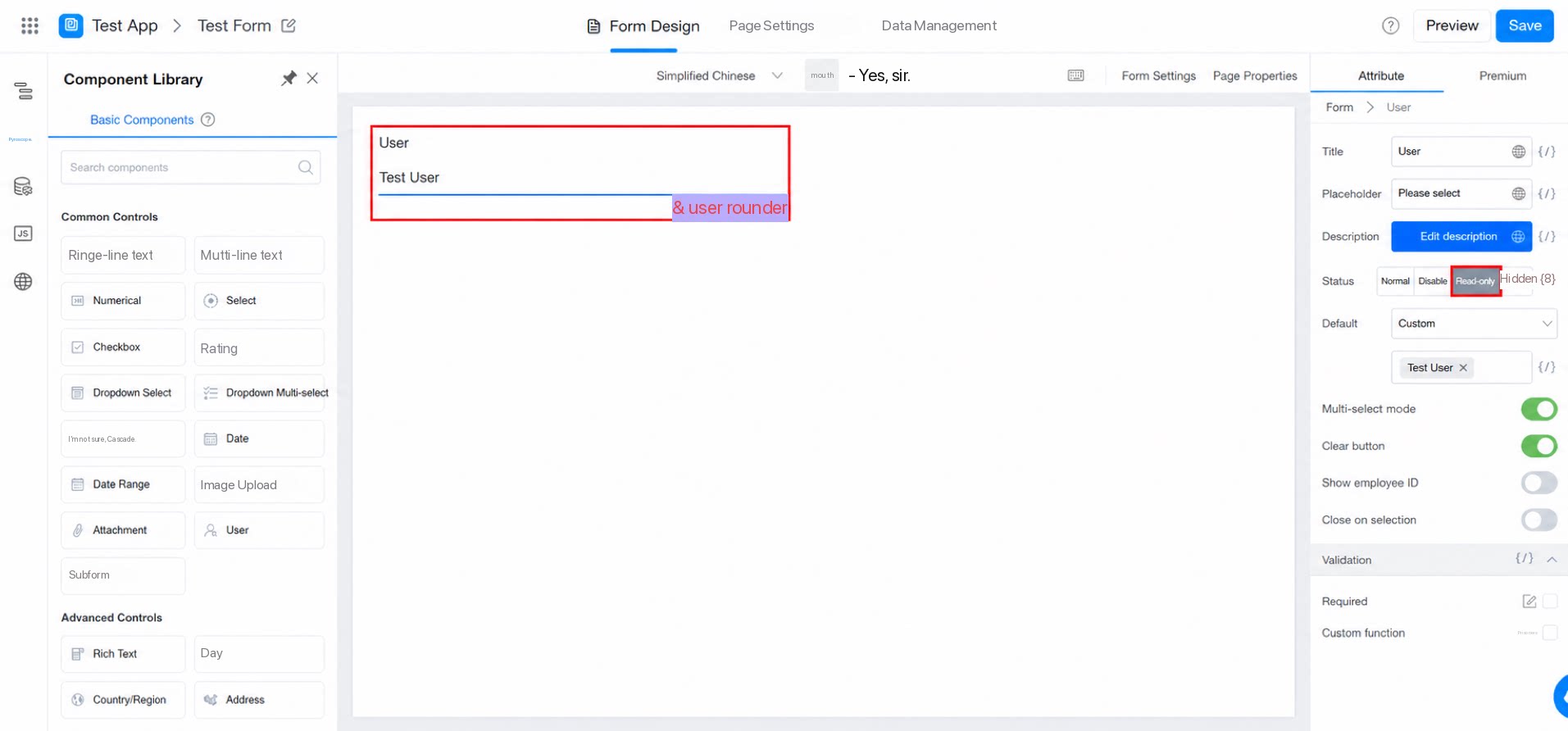
Choose whether to display the employee ID after each user’s name. The employee ID shown here is the employee’s UserID by default.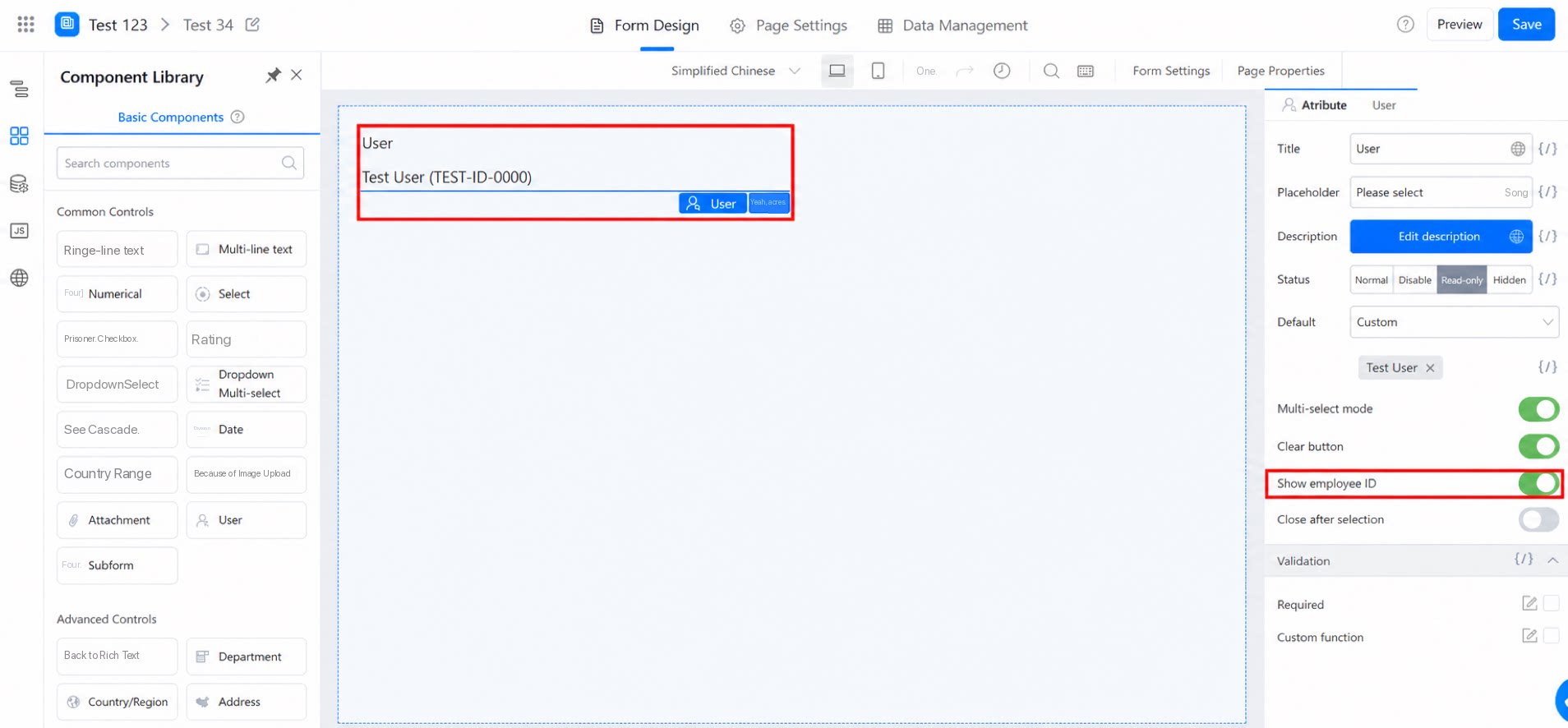
2.4 Advanced Search Mode (New User Component)
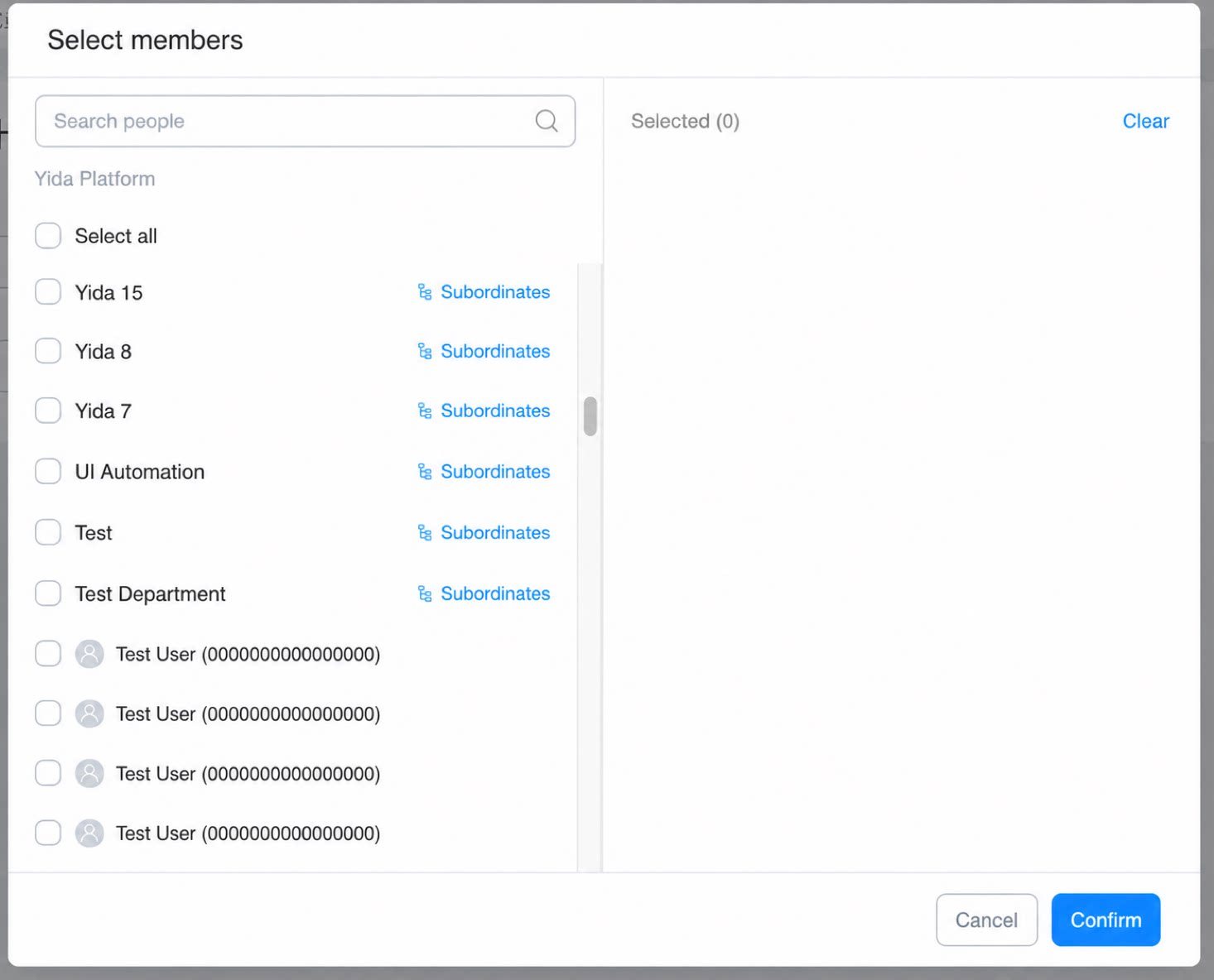
When you use the YiDA user component on the DingTalk desktop client or in a web browser, the new advanced search feature lets you select users based on the tree structure of Contacts and drill down through the organization. The advanced user selection entry is enabled by default on the desktop client. Click it to open a dialog that provides a full user selection page.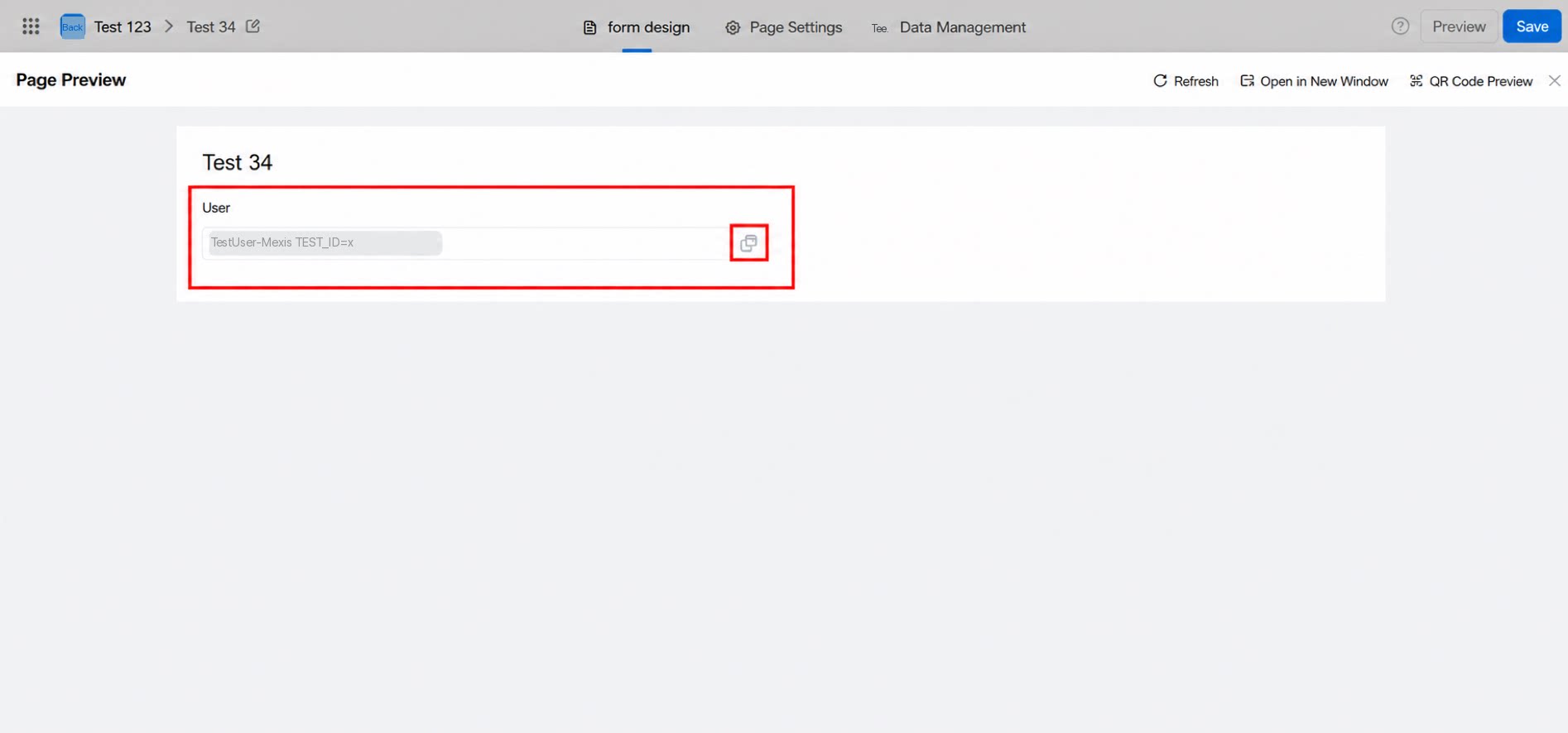
2.4.1 Use Cases
- Search and select target users by drilling down through the tree hierarchy of the organizational Contacts.
3. Formula Combinations
3.1 Get the Current Signed-In User’s Name
See the GETUSERNAME formula.3.2 Get the Current Signed-In User or Their Manager
See the USER formula.4. Notes
- The user component can select users from across the entire company, but only users from the current department are displayed by default. Use Search to select users from other departments.
- Due to container limitations, when this component is used inside an iframe on the DingTalk mobile client, users cannot be selected because the container does not inject JSAPI into the iframe. Avoid using this component in such scenarios.
5. FAQ
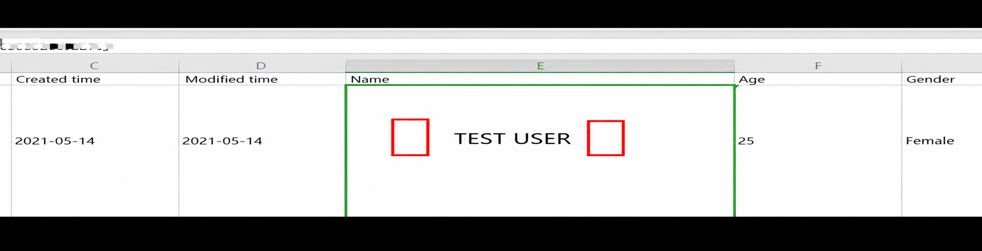
5.1 Why does the User component show blank entries when I enter names during bulk import?
5.1 Why does the User component show blank entries when I enter names during bulk import?
This is caused by an incorrect format. Follow the required format for bulk import. See Bulk import for details.
5.2 I want to use a Department component to select a specific department, and then restrict the User component to only users from that department. How can I do this?
5.2 I want to use a Department component to select a specific department, and then restrict the User component to only users from that department. How can I do this?
The user component does not currently offer a configuration option that directly limits the selection range. As a workaround, create an intermediate table containing departments and their users, then retrieve it through data linkage.
5.3 Bulk import into the User component fails and no data appears after import. What should I do?
5.3 Bulk import into the User component fails and no data appears after import. What should I do?
When bulk importing into the user component, follow the format Name + [Employee UserID]. The brackets must be half-width square brackets []. See the screenshot below: