

 Chats
Chats Calendar
 Meetings
 Contacts
 Mail
Mail Docs
Docs Drive
Drive AI Table
 AI Minutes
 Attendance
 Approval
 YiDA
YiDA Admin Console
During import, bulk-imported data can trigger the form’s existing validation rules, business rules, integration & automation flows, message notifications, and third-party callbacks—just as if the records were submitted manually.
- Supported component types: Single-line text, Multi-line text, Select, dropdown single select, Multiselect, dropdown multiselect, image upload, Attachment, User, Department, Numerical, Date, date range, subform, associated form (main table).
- Unsupported component types: image-text display, Rich Text, cascade select, Country/Region, location, Signature, associated form (sub-table).
- Bulk-imported data appears in the row order of the Excel file.
Steps
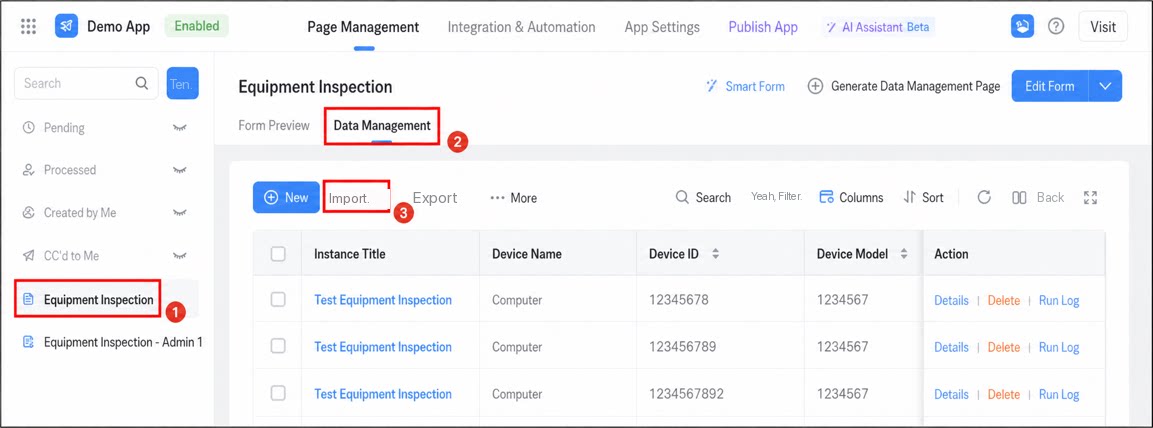
Follow these steps to bulk-import data.- Sign in to the YiDA workbench and open the app page management screen.
- Select the form to import data into, then click Data management > Import.
- Configure the import rules.
- Download the form data template and edit the data according to the sample.
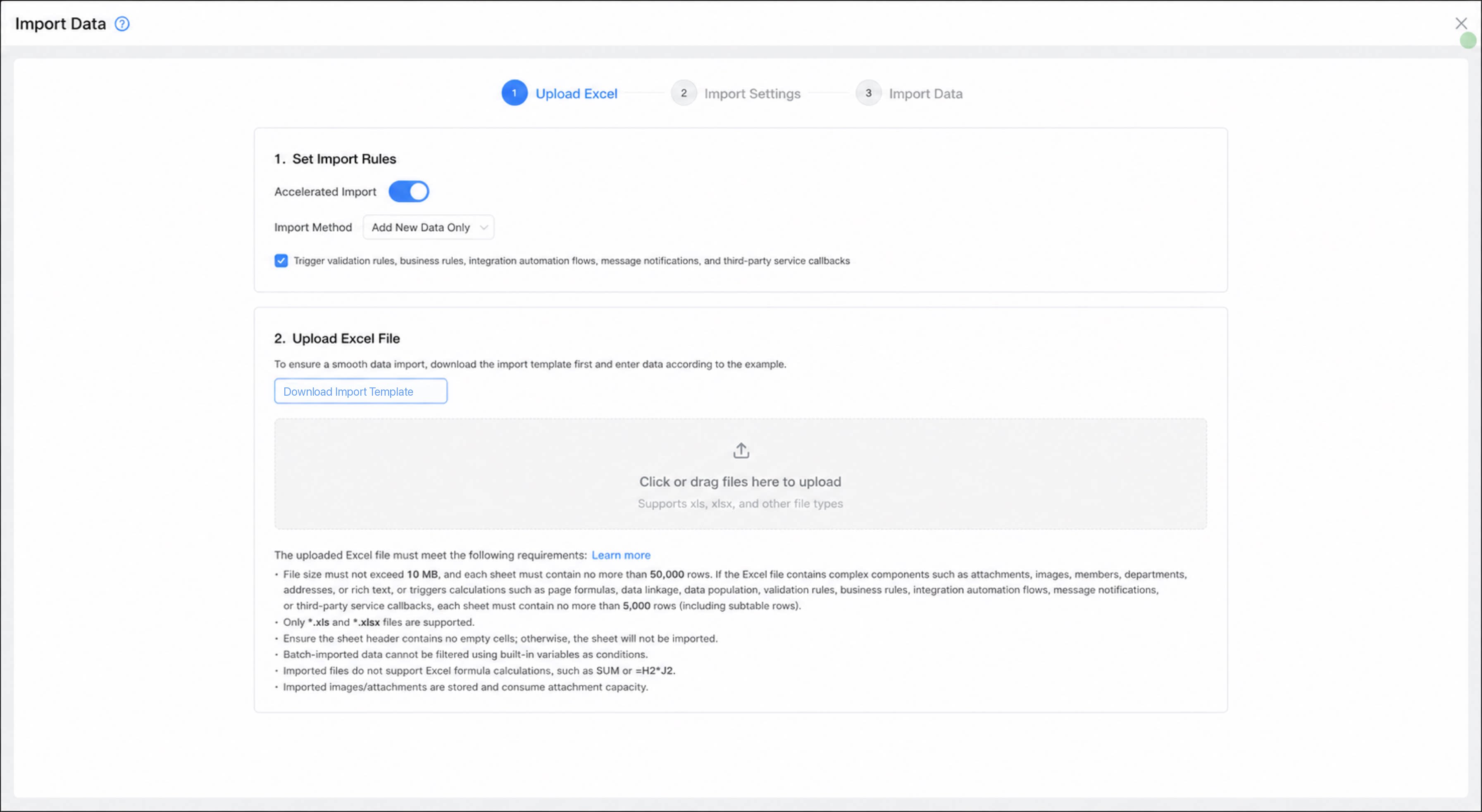
For a smooth import, download the template first and follow the provided sample.
-
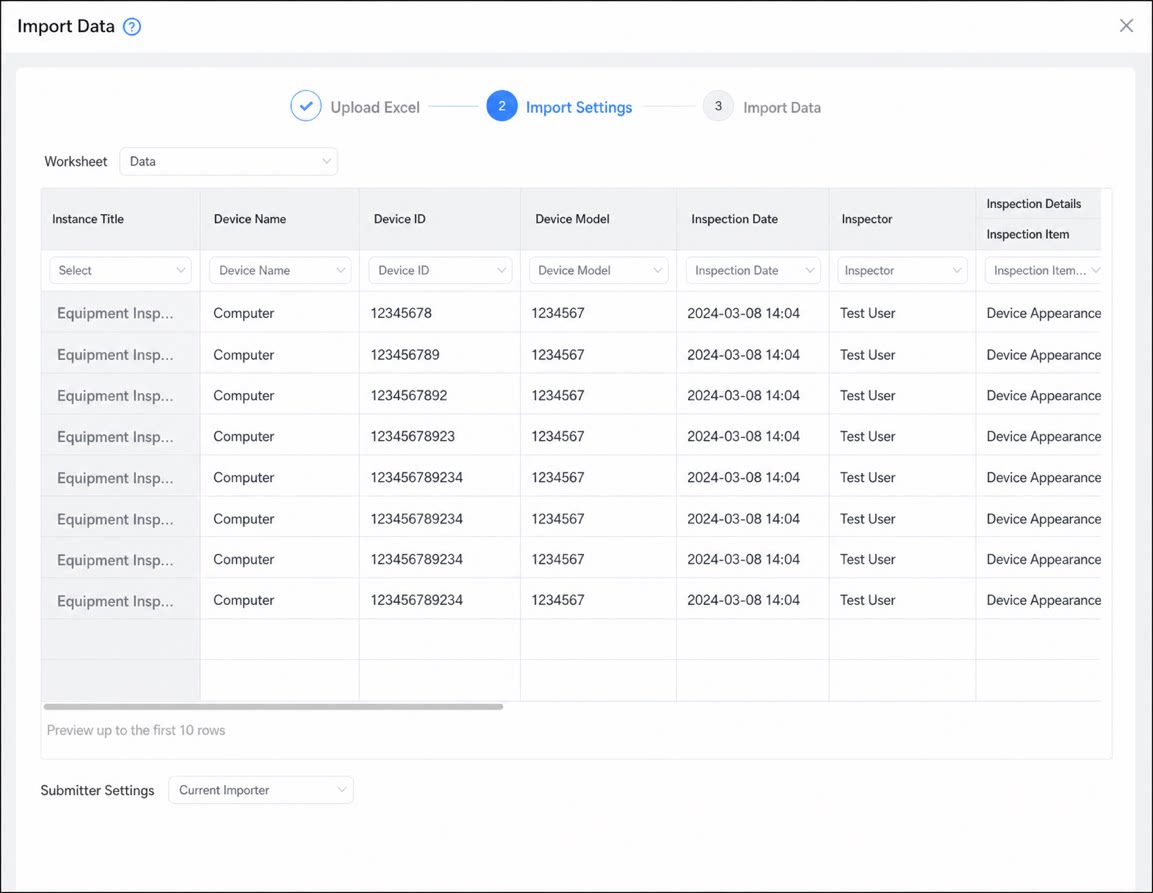
Upload the file to bulk-import.
.xlsand.xlsxfile types are supported. - After the upload completes, verify the data preview, configure the form’s Field mappings and Submitter, then click Import to start the import job.
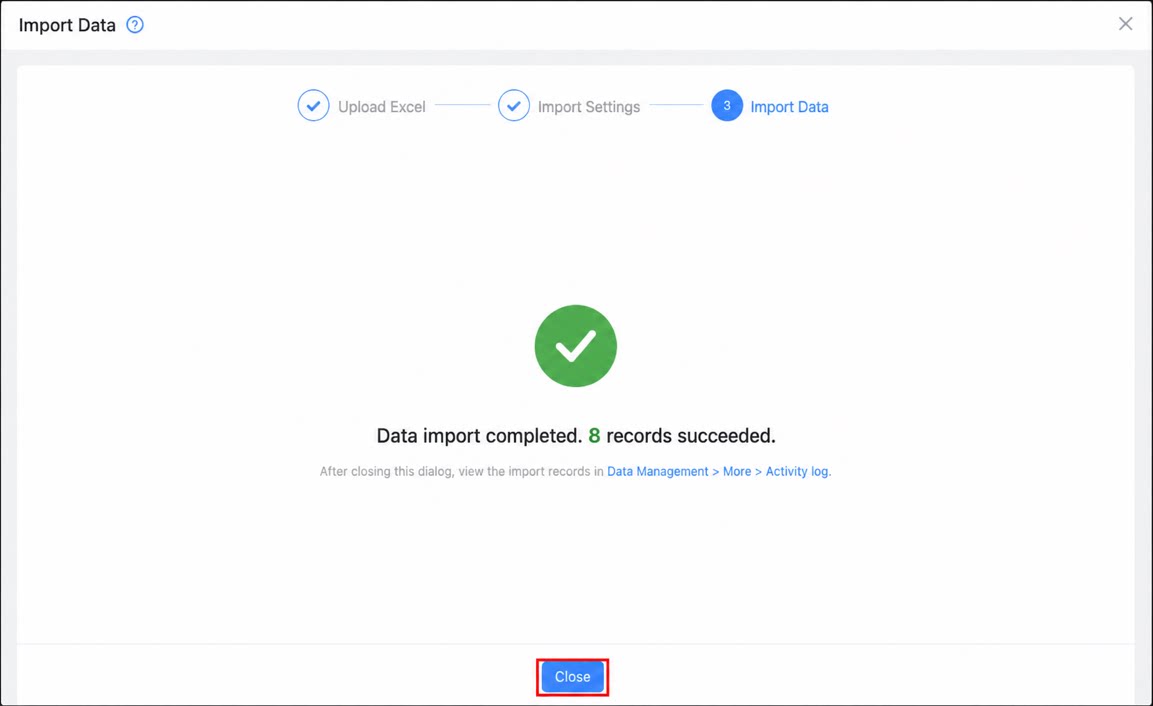
- When the import completes, click Close to finish.
Excel Format Requirements
Bulk import must strictly follow each component’s required format. Data in the wrong format fails to import. The Excel format requirements for each YiDA component are as follows:Notes
Keep the following in mind when uploading an Excel file:- File size must not exceed 10 MB, and a single sheet must not contain more than 5,000 rows.
- Only
.xlsand.xlsxfile formats are supported. - Make sure the header of the sheet you want to import contains no empty cells; otherwise the system will not import that sheet.
- Filtering bulk-imported data by built-in variables is not supported.
- Excel formulas such as
SUMor=H2*J2are not supported in the import file. - Imported images and attachments are stored and count toward your attachment quota.
- Cross-tab Pivot tables cannot be imported.
FAQ
- Q: How do I bulk-import subform data?
| Form definition | Form definition diagram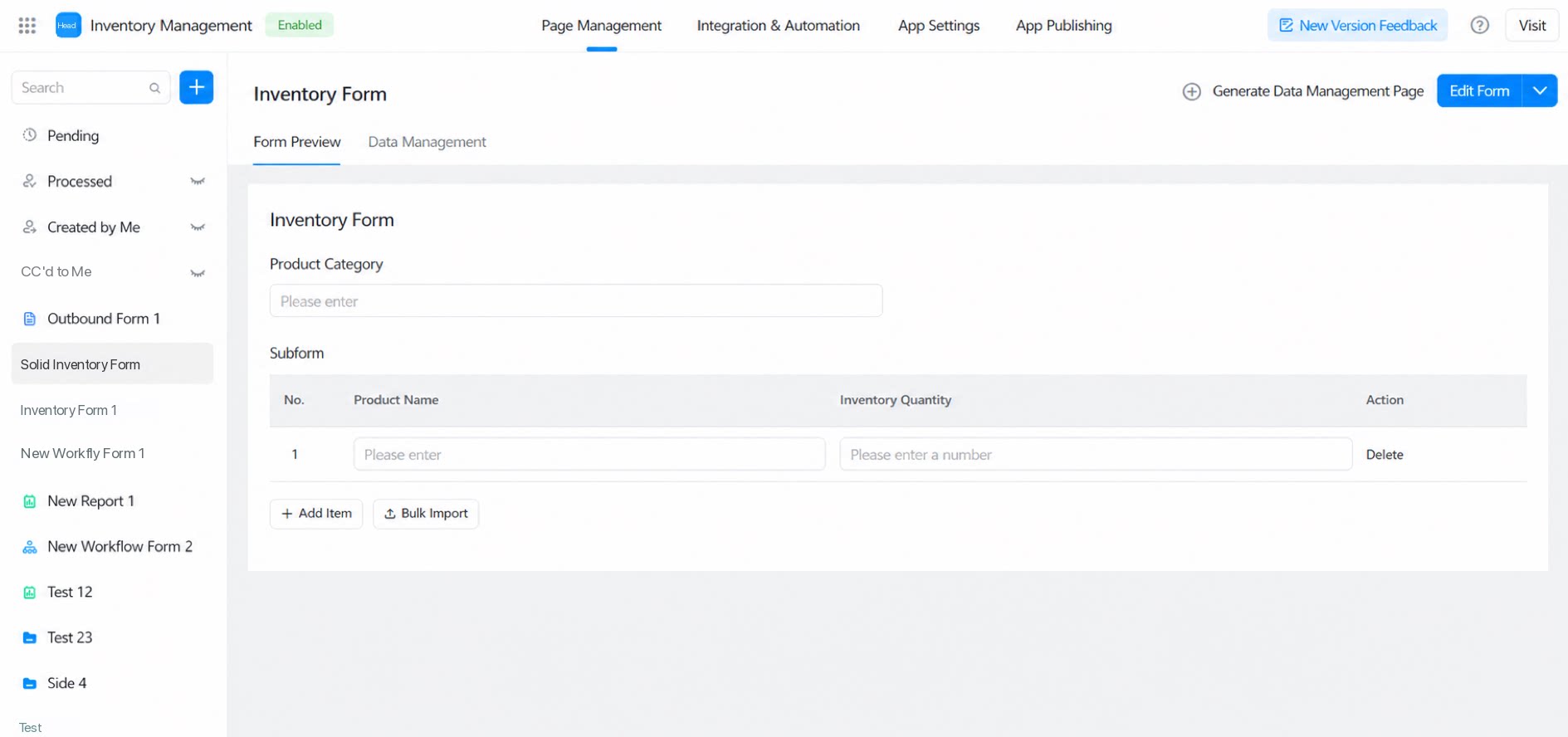 |
|---|---|
| Excel data view | Excel data view diagram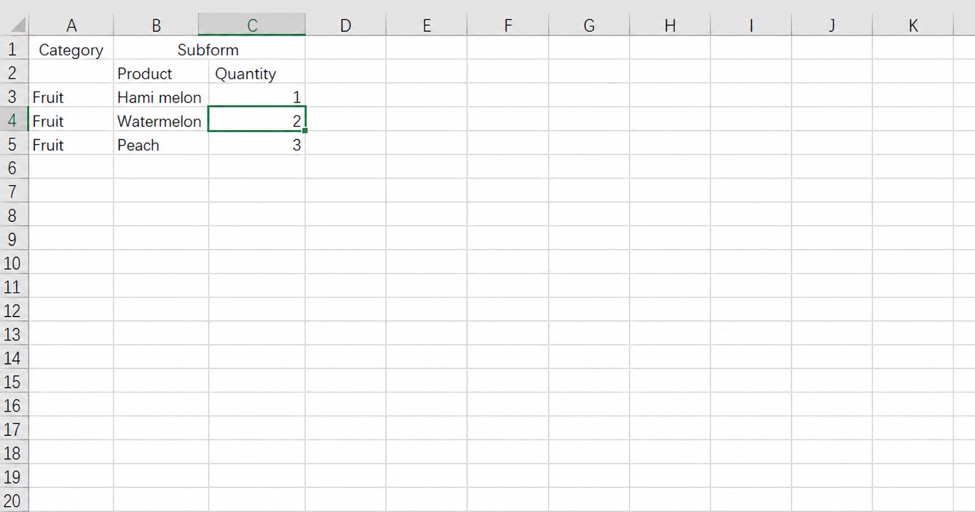 |
| Imported data view | Imported data view diagram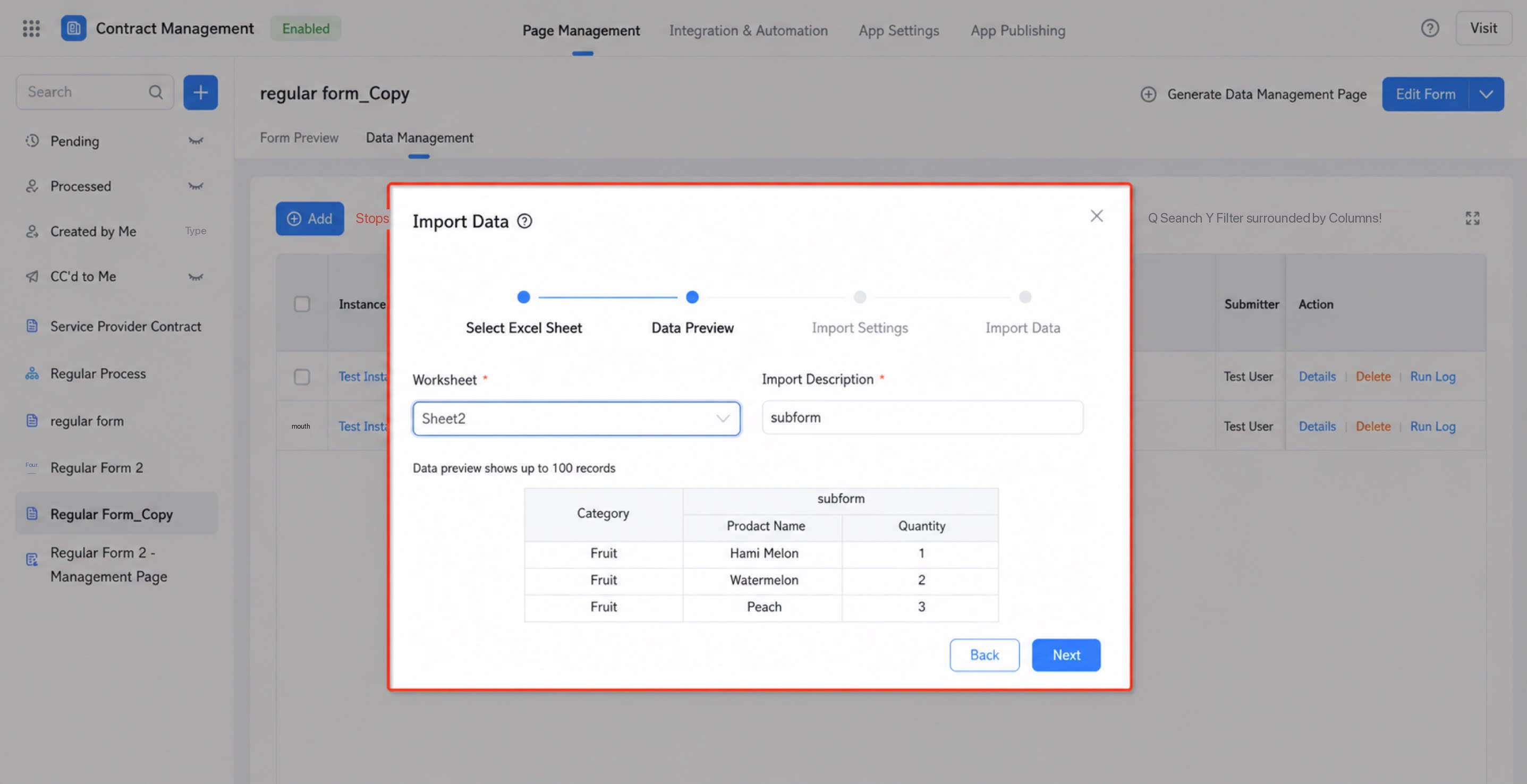 |
| Field mapping configuration | Field mapping configuration diagram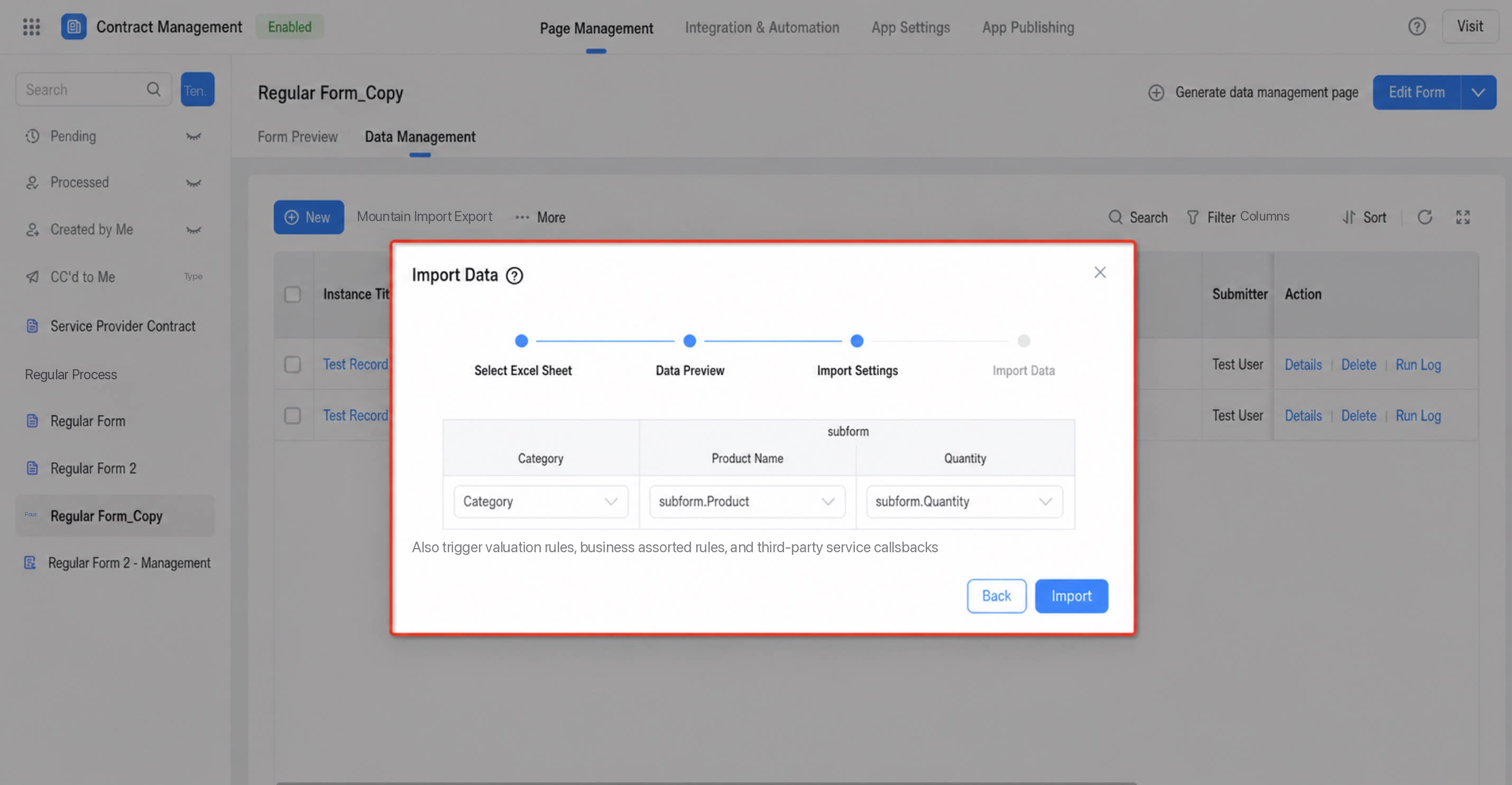 |
- Q: The message “Importing data, please wait…” keeps showing, but no data is added. Why?
SUM or =H2*J2). Excel files that contain such formulas cannot be imported, and forcing the import may cause various errors.
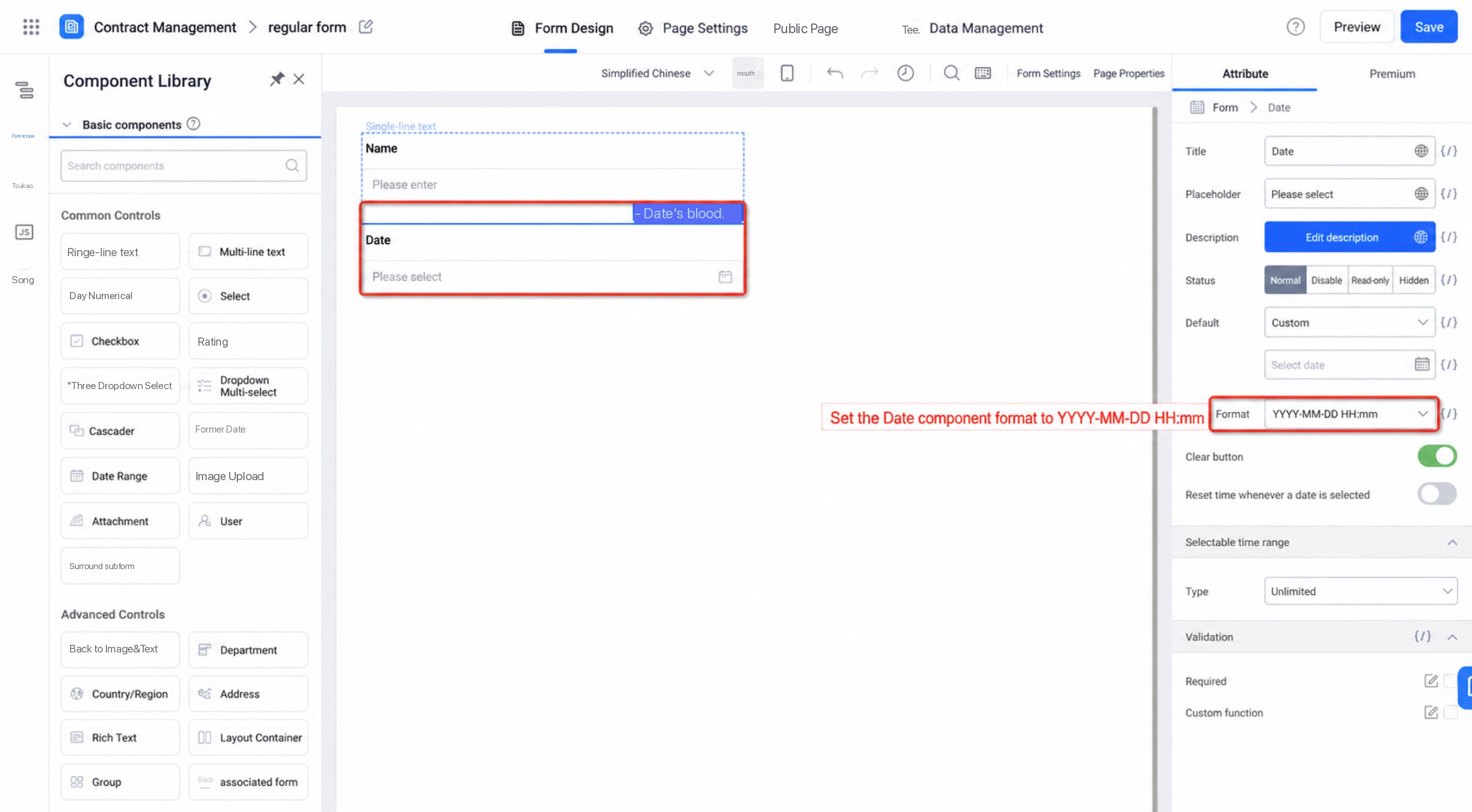
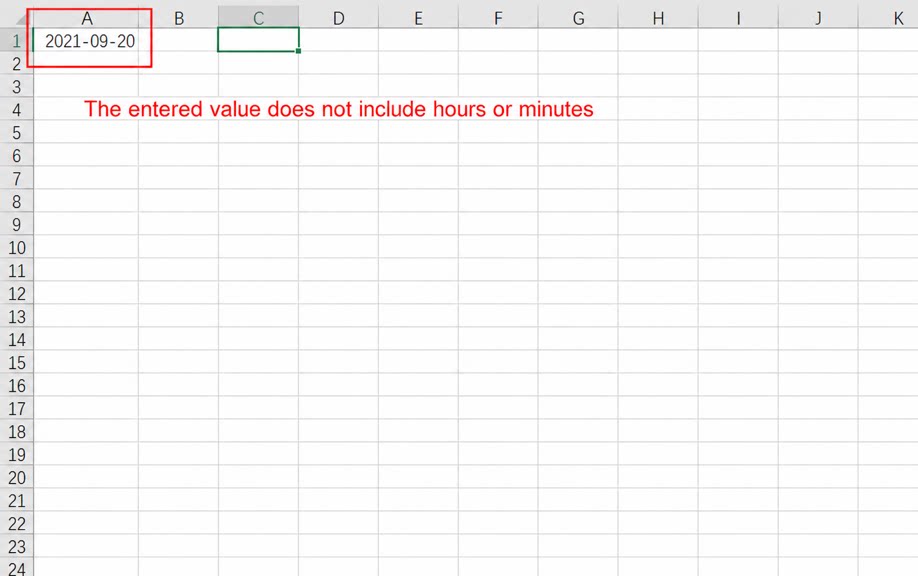
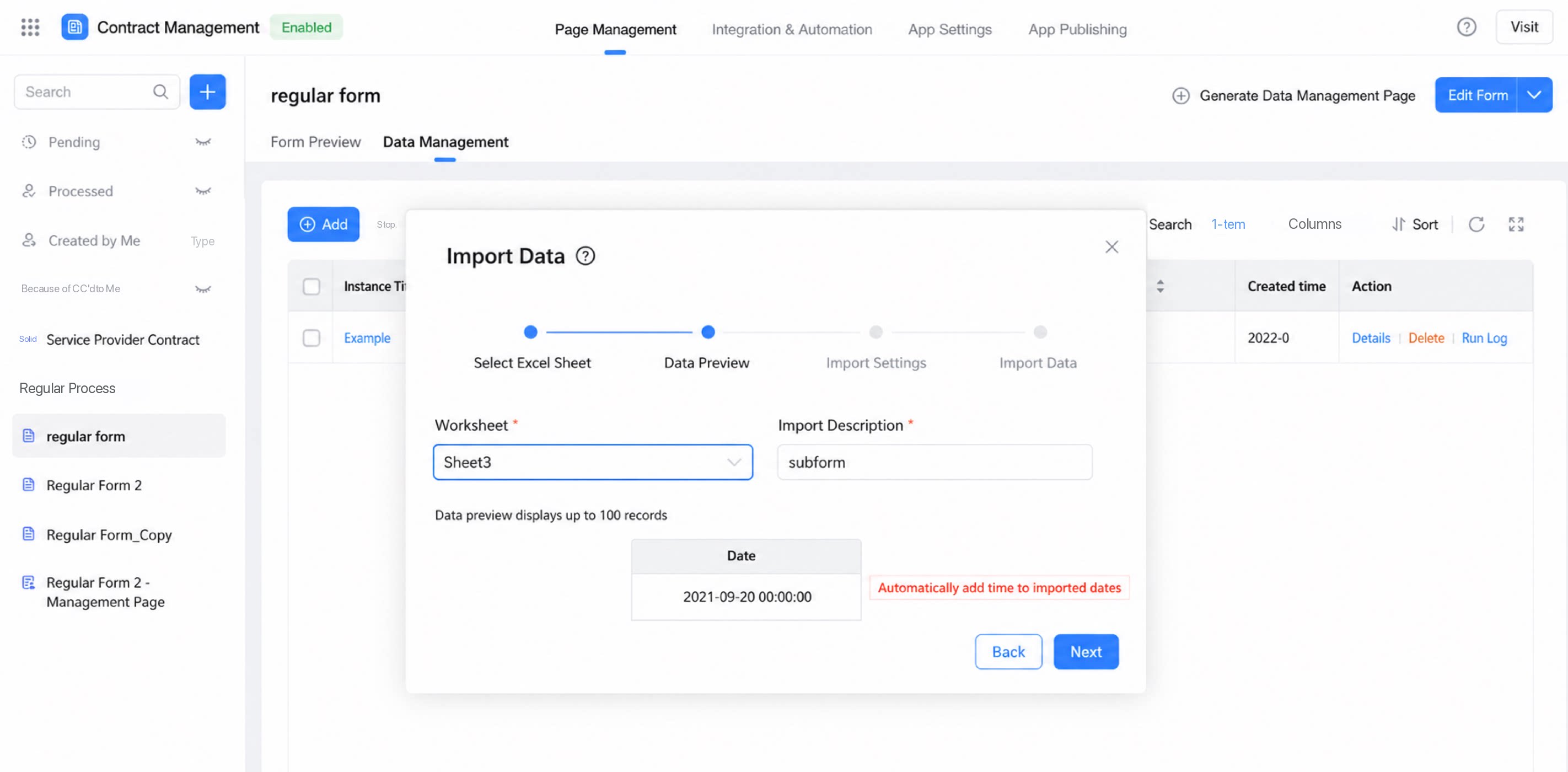
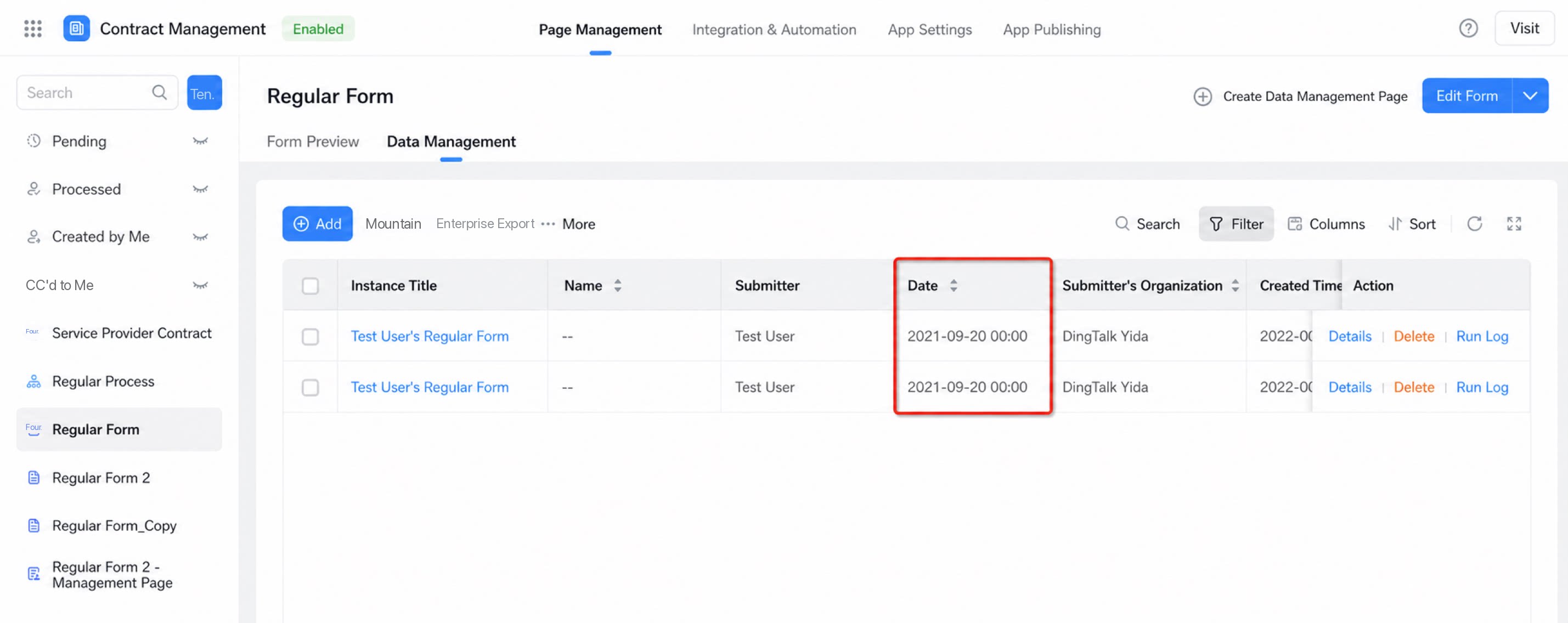
- Q: Why can the Date component be imported successfully even when the format differs from the one configured on the form?
- Q: Why do some numeric cells sometimes fail to import during bulk import?