

 Chats
Chats Calendar
 Meetings
 Contacts
 Mail
Mail Docs
Docs Drive
Drive AI Table
 AI Minutes
 Attendance
 Approval
 YiDA
YiDA Admin Console
1. Introduction
1.1 Feature Overview
YiDA supports exporting data from the data management page to Excel in bulk. You can customize the data range (rows), the field range (columns), and the export format for images/attachments (links or files).1.2 Use Cases
- Export useful data from the data management backend for archiving or backup.
- Bulk edit selected fields by exporting and then re-importing them.
1.3 Feature Demo
Export feature demo.mov
2. Export Steps
2.1 Export Entry Point
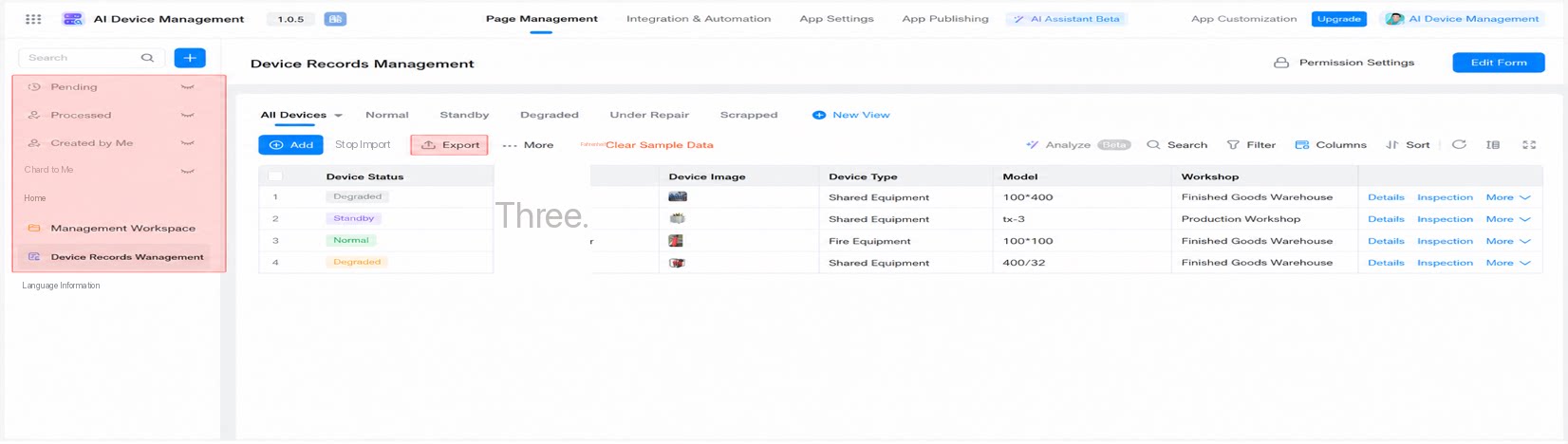
- As an app editor, sign in to the YiDA workbench and open the app whose data you want to export in bulk. Select the target form, go to the corresponding data management page, and click Export.
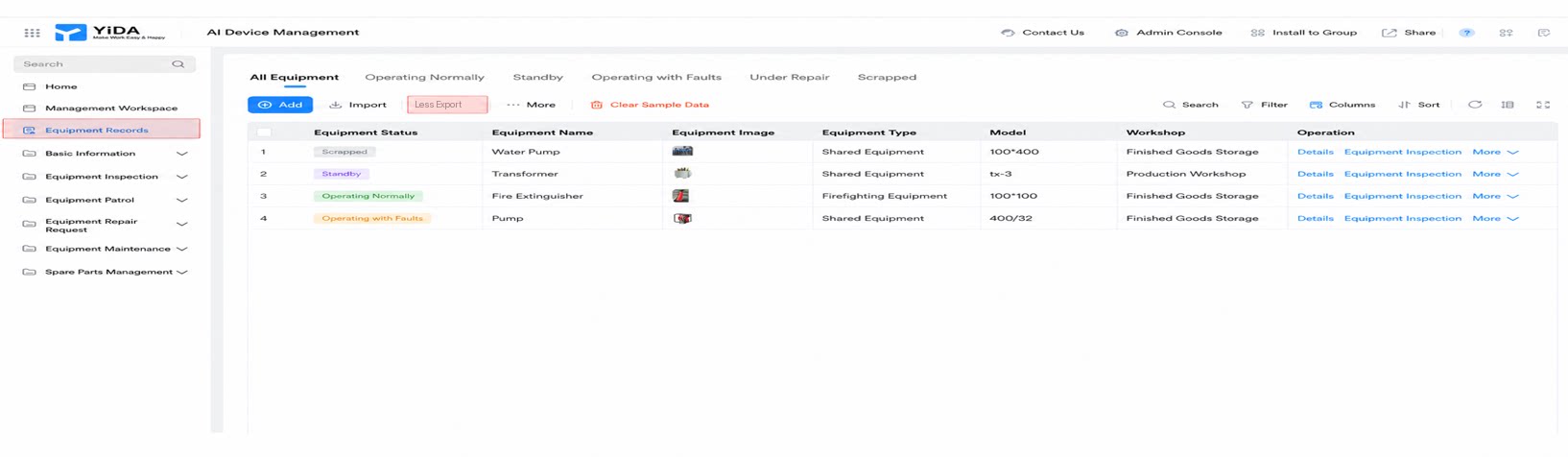
- As an app user, sign in to the YiDA workbench. If you have export permissions, click Export.
2.2 Select the Data to Export
2.2.1 Export All Data
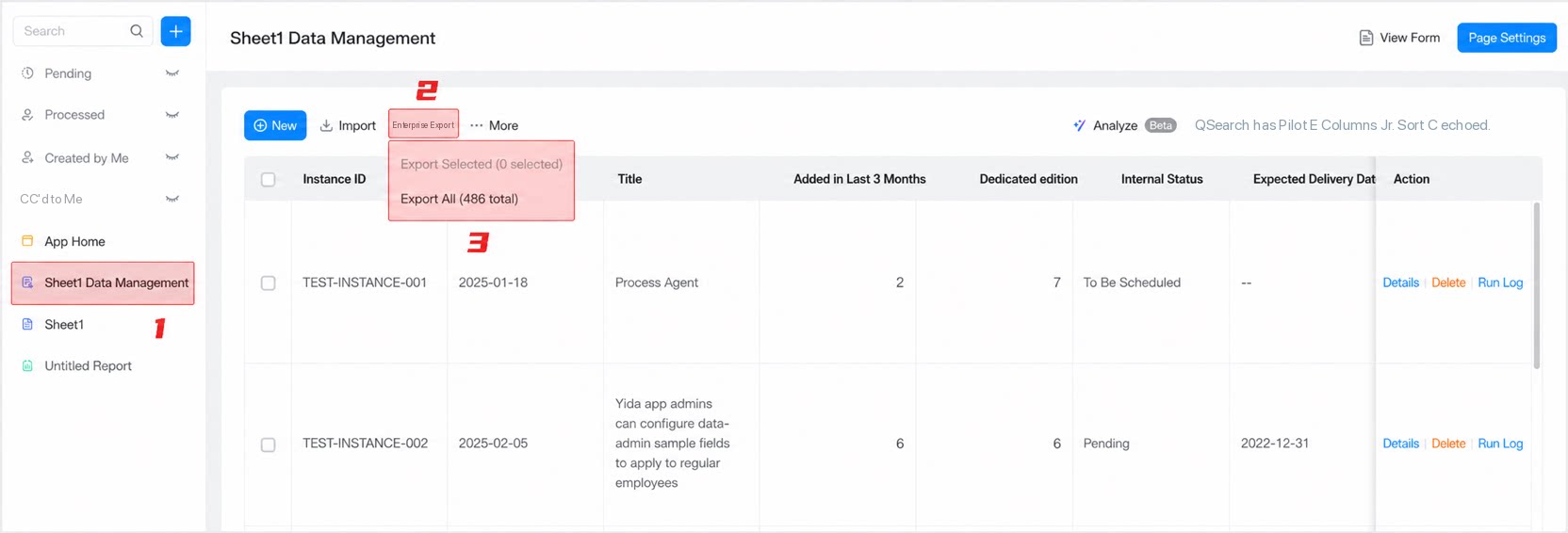
- Select the form you want to export, click Export, and choose Export all to export all data.
2.2.2 Export Selected Data
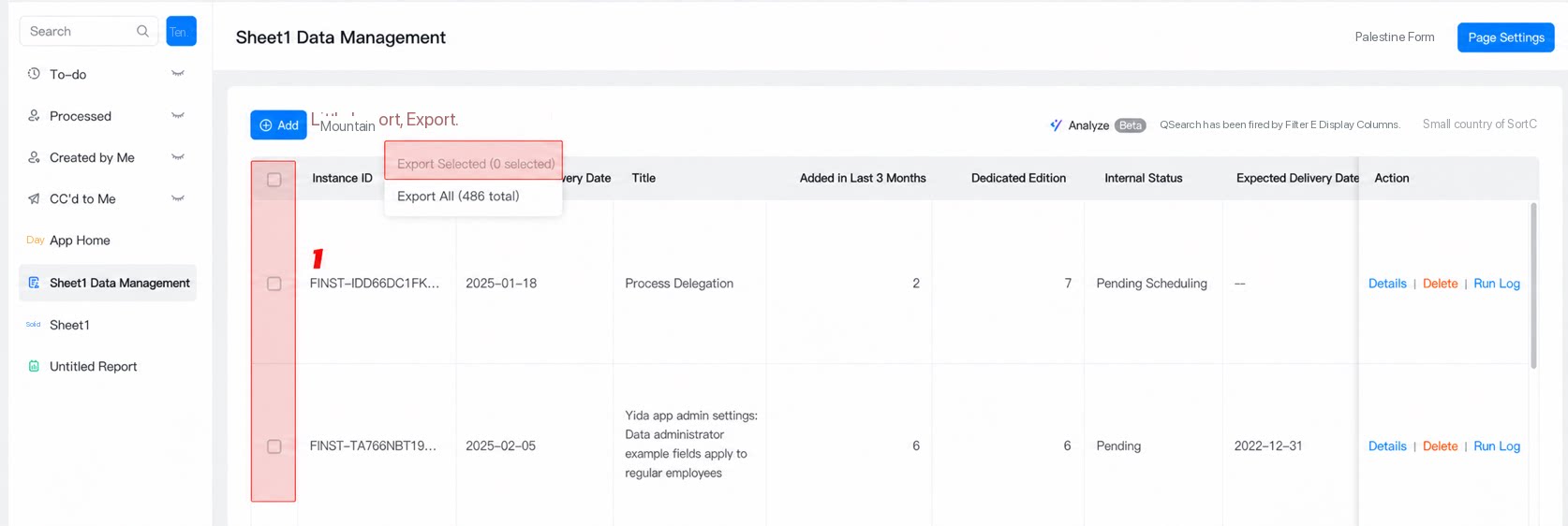
- On the target form, select one or more records, then click Export selected to export those records.
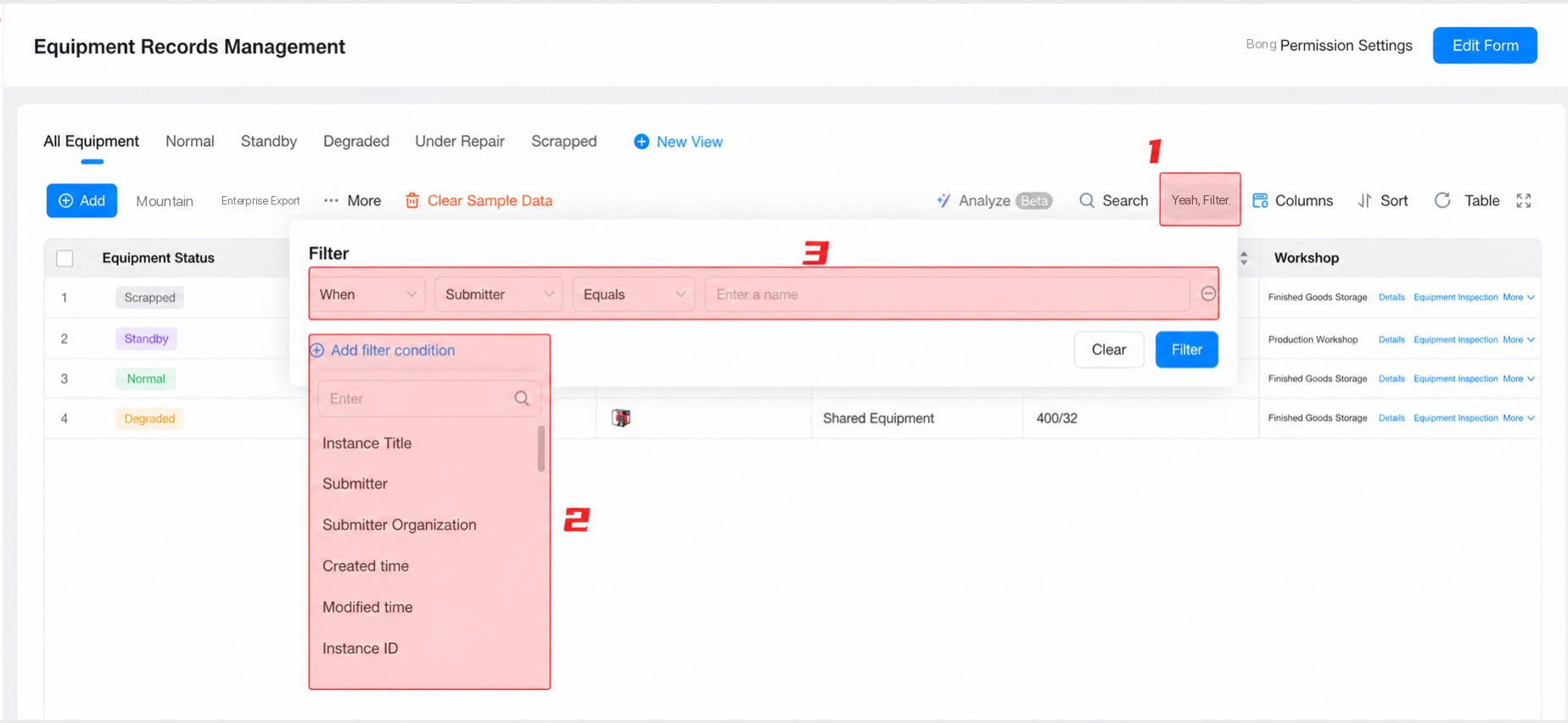
- Click Filter to open the filter panel.
- Click Add filter condition and select a filter attribute from the drop-down list. Choose an attribute and configure the condition. The filter is triggered when the selected attribute meets the specified condition.
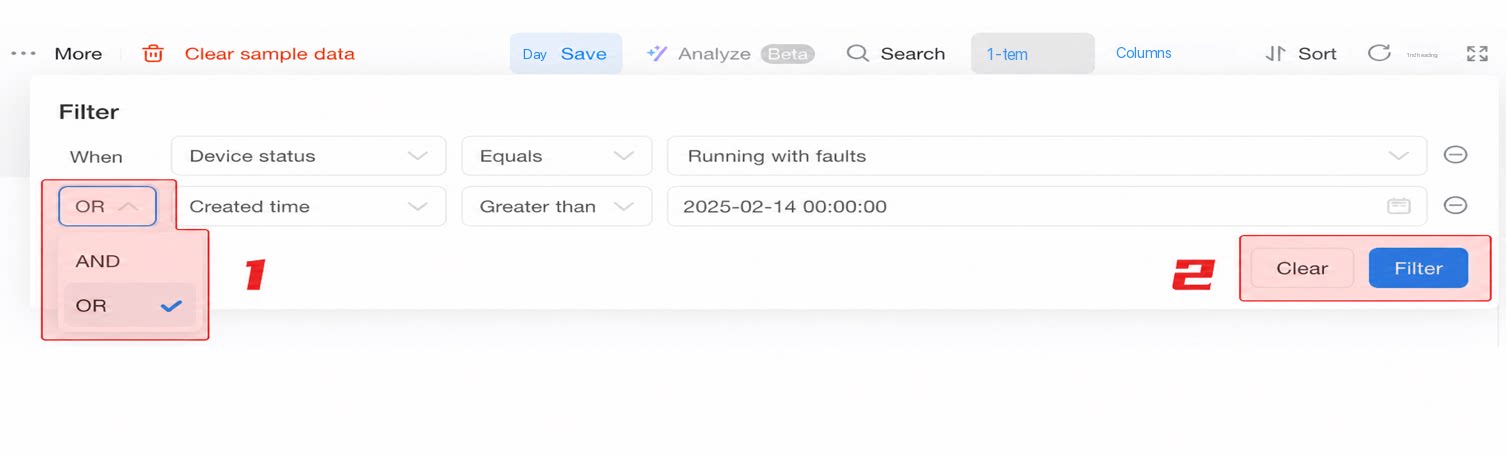
- You can add multiple filter conditions and combine them with OR/AND logic.
- After filtering, select the records you need and export the filtered data.
2.3 Export Settings
2.3.1 Export Settings
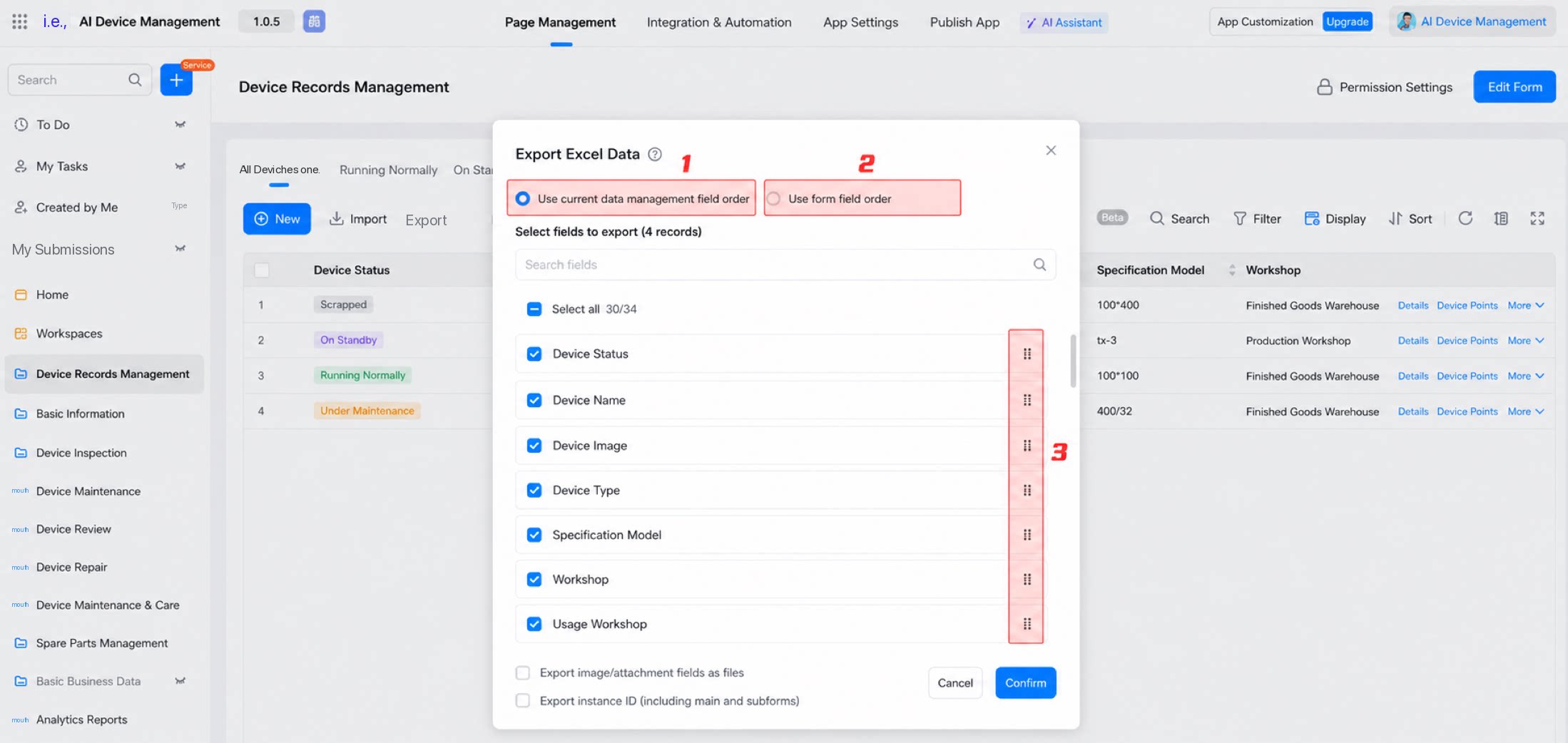
Set the field order
- If you choose option 1, Follow the current data management field order, the exported fields follow the order shown on the data management page.
- If you choose option 2, Follow the form field order, the exported fields follow the order defined in the form.
- If you choose option 3, Drag to sort, the exported fields follow the order you set by dragging.
Set the field range
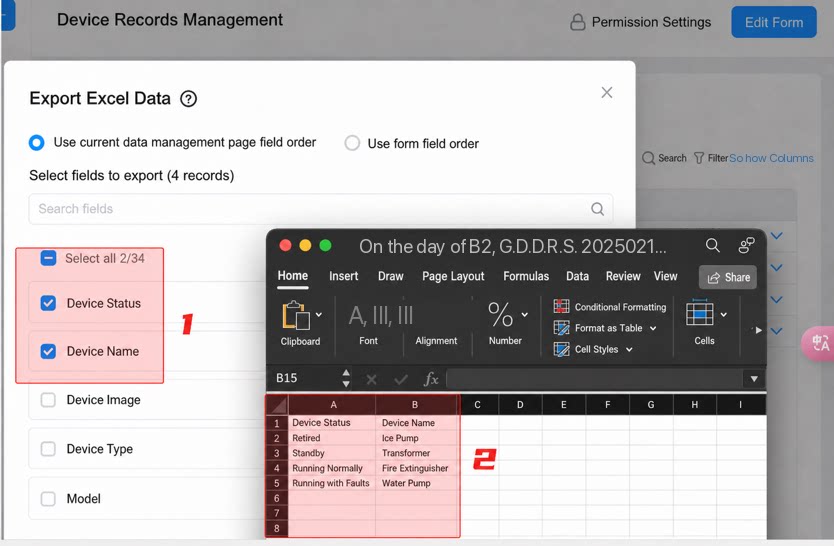
Setting the field range means selecting the columns you want to export, so you can customize which fields are included.- Enter a keyword in the input box to search fields in real time, as shown below:
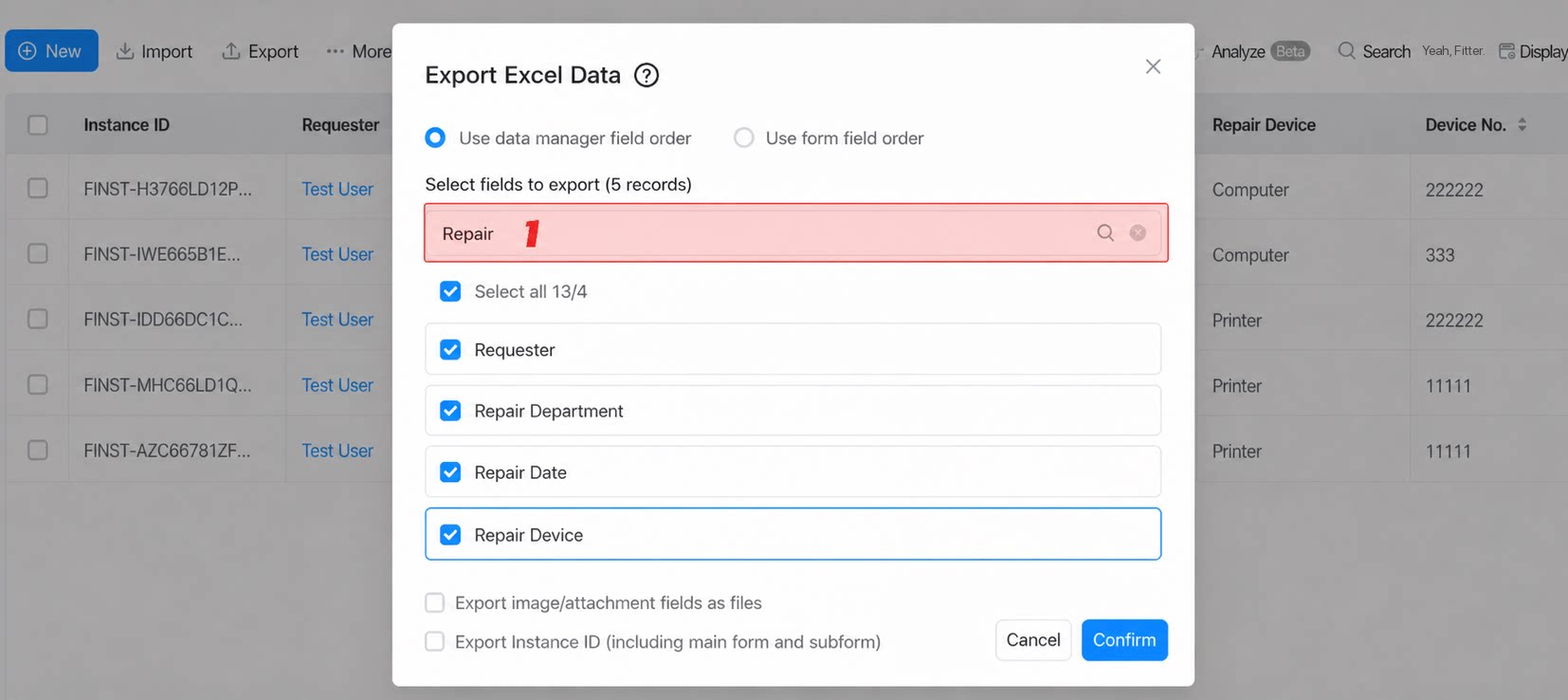
- Alternatively, use the checkboxes on the left to select fields. Only the selected fields are exported. For example, if you select only Device status and Device name, the exported file contains only these two columns.
2.3.2 Other Settings
Export images/attachments
1) If you do not select “Export image/attachment fields as files”:- Images and attachments are saved as online links in Excel. Data is stored as URLs, which is suitable for external business collaboration scenarios, such as sending product lists or quotations to customers. See the example below:
- If the file is an image, click the link to preview it. If the file is an attachment, click the link to download it directly.
- The exported files are packaged as a zip archive, suitable for data backup scenarios.
- Image/attachment addresses in the exported spreadsheet are absolute paths within the zip archive. Click a path to open the corresponding file in the local folder.
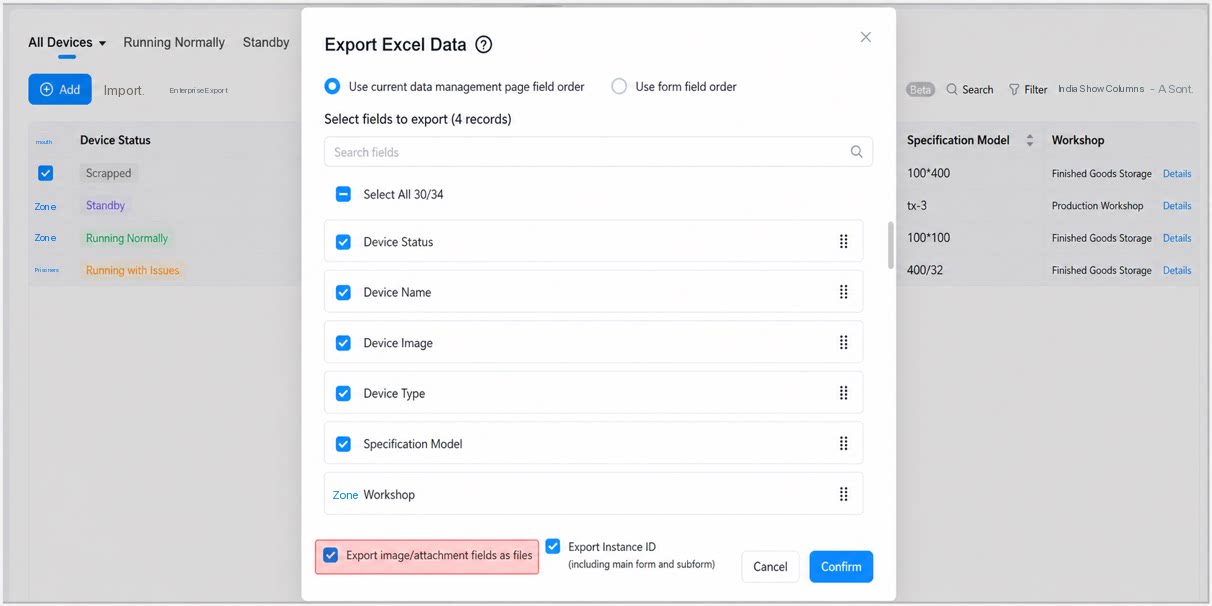
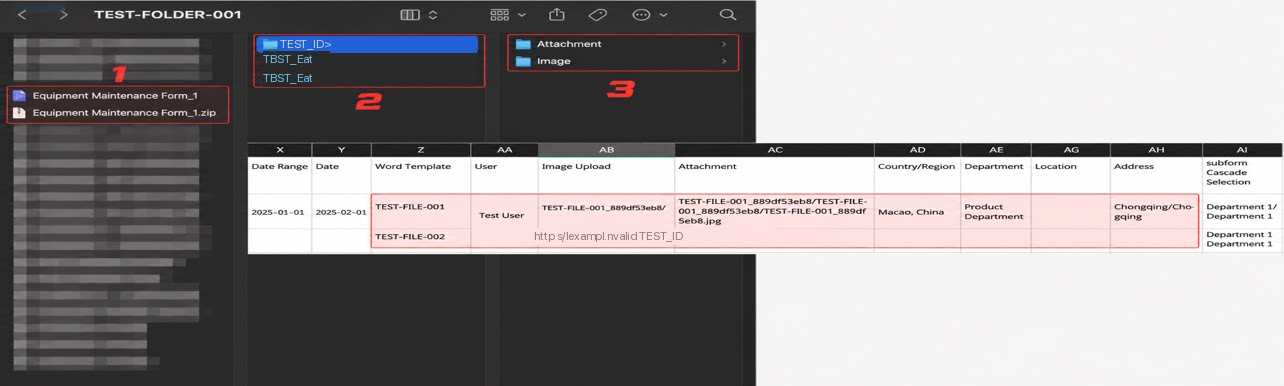
Downloaded attachments/images keep their original file names — the names used when they were uploaded. For example, if the file was uploaded as IMG_2017, it is exported as “IMG_2017.jpg”.Components that support exporting attachments/images: Image upload, Attachment, Word template, Signature, and Smart invoice.
Export instance ID
If you select “Export instance ID”, the instance ID of each record is exported to the Excel file (including the main form and subforms). If you later need to update the data, you can use the instance ID to match records. See the example below: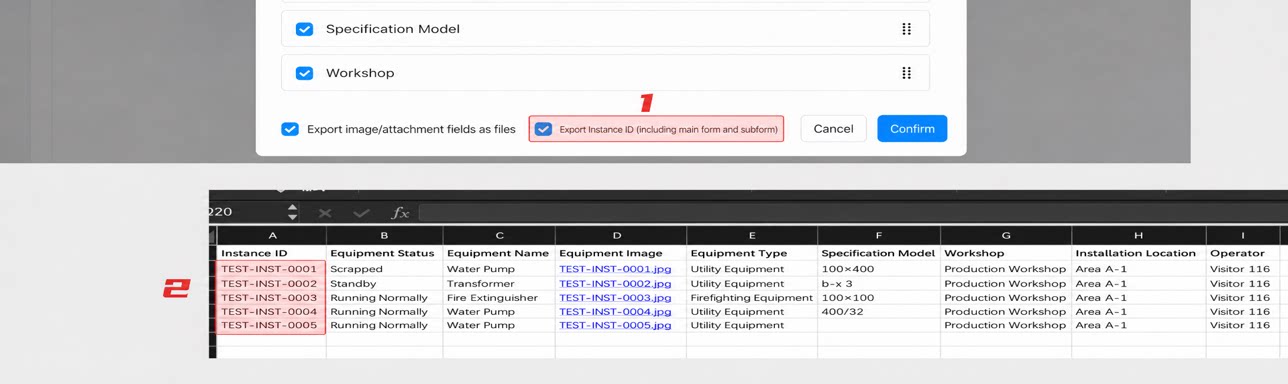
2.3 Export Records
- After configuring the export parameters, click Confirm to start exporting. The export progress is displayed.
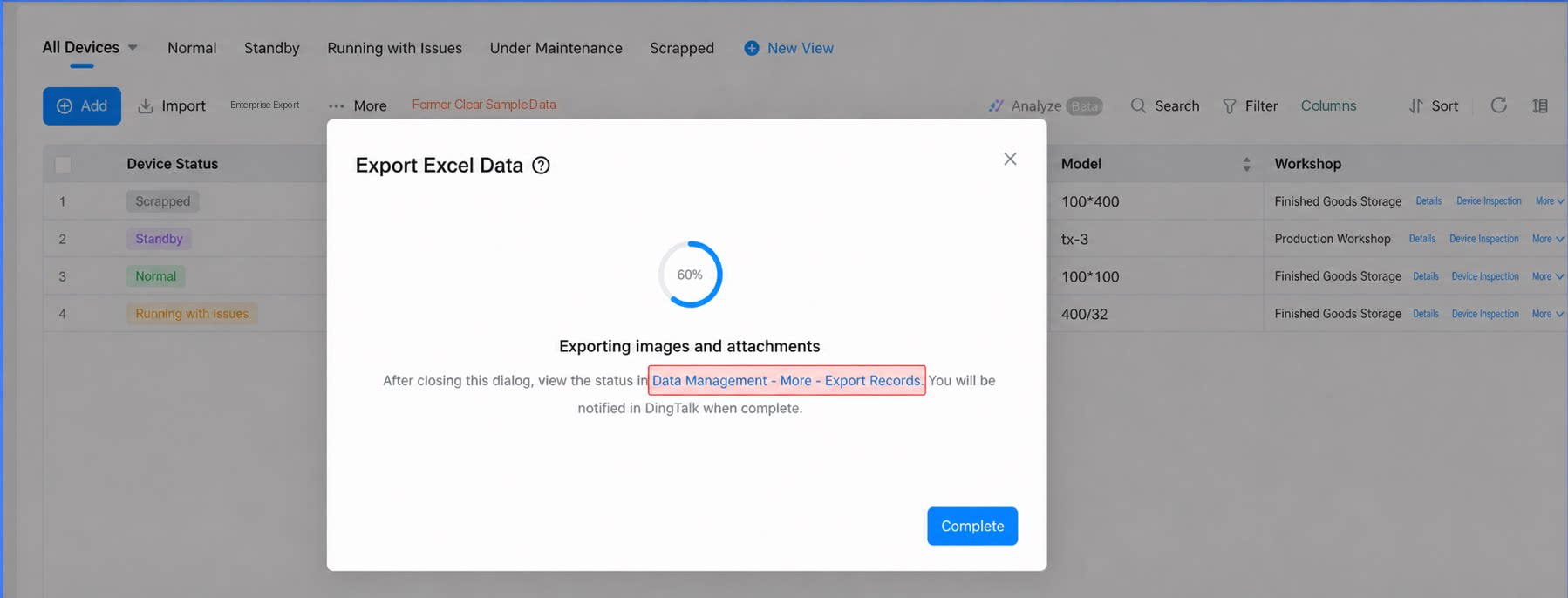
- During or after the export, click Data management > More > Export records to open the Export records page.
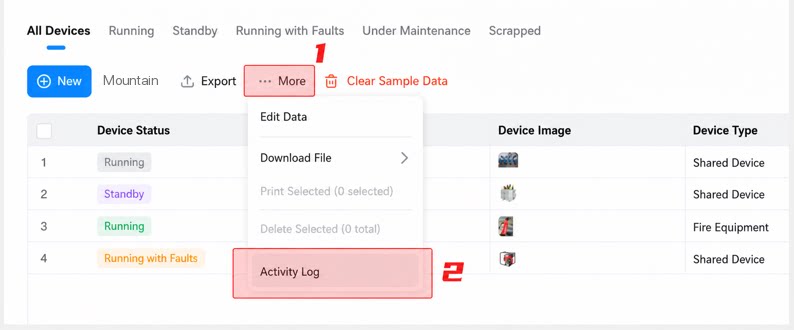
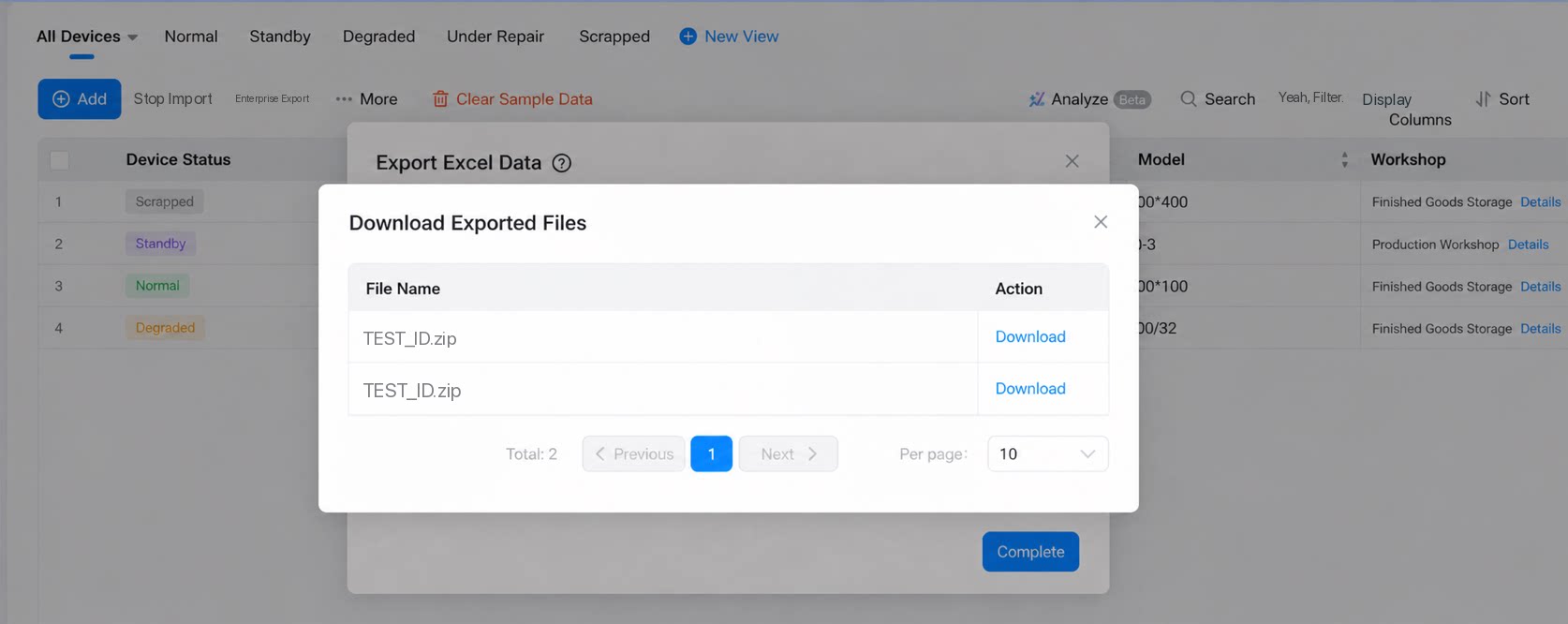
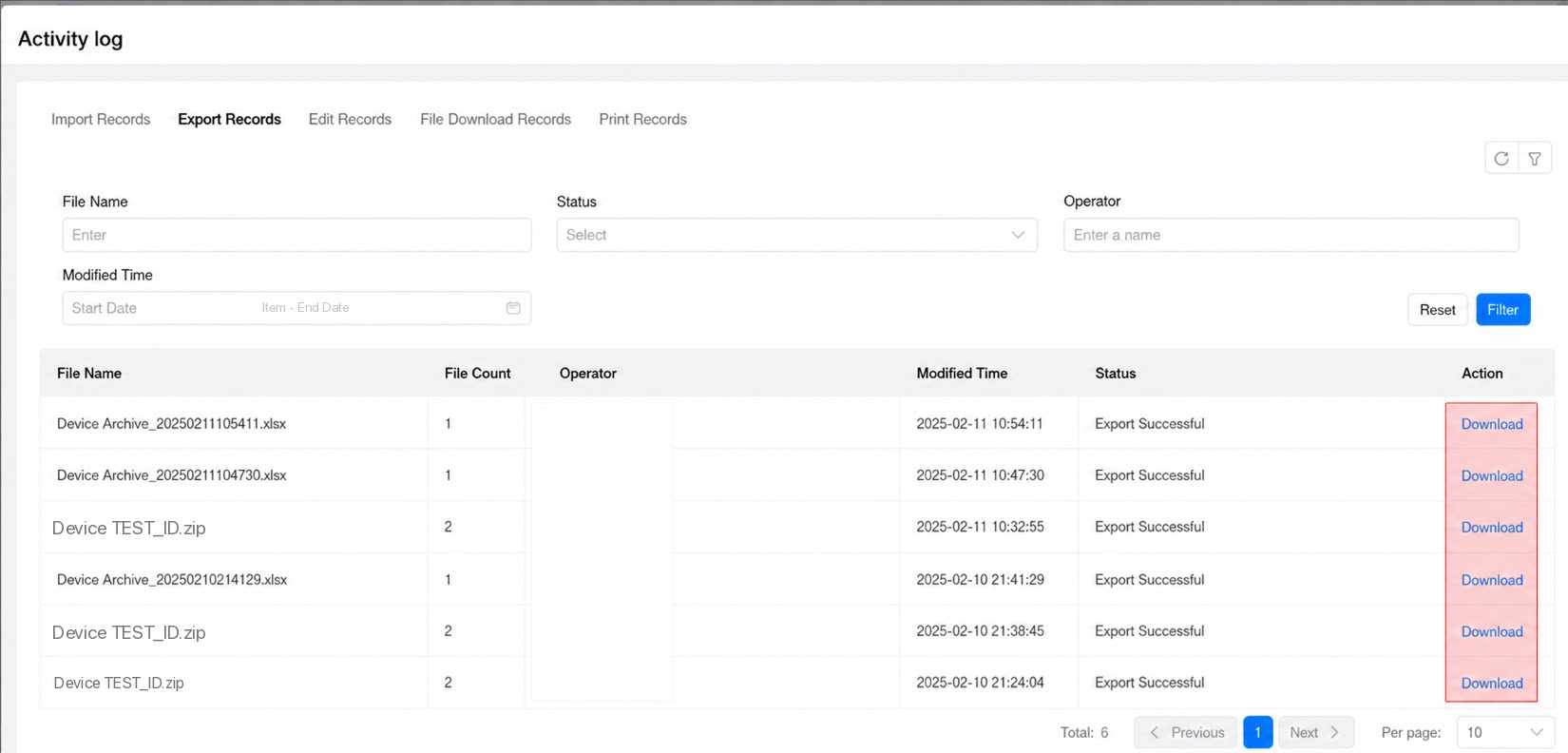
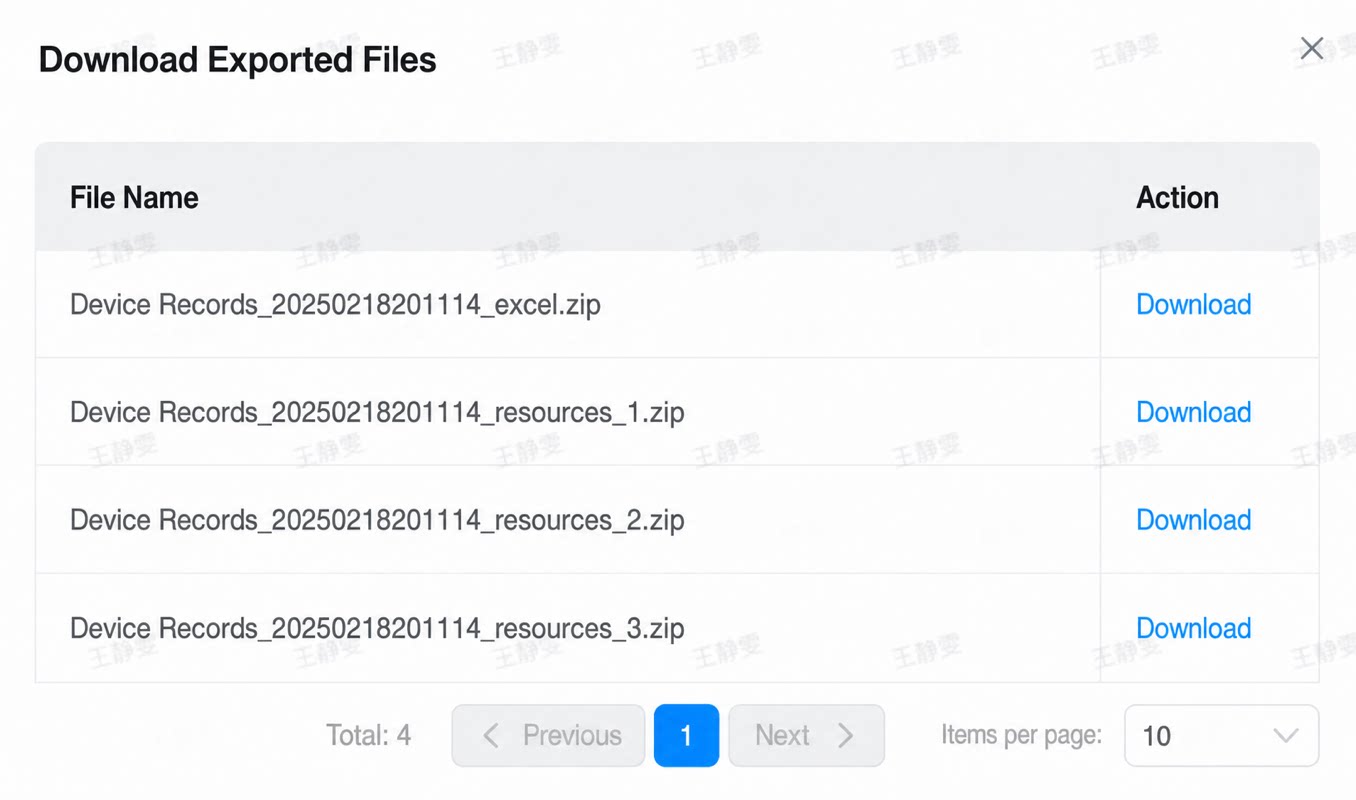
- To view export records, go to Data management > List page, click More > Activity log, and open the Export records page. Click Export records as shown below. Click Download to download the attachments/images again.
2.4 Exported Data Format
- When exporting a spreadsheet only, the export format is Excel, and the file name is: Form name + ”_” + date timestamp + file extension. For example: Equipment inspection form_20250218155439.xlsx.
- When exporting file data at the same time, the export format is a zip archive, and the file name is: Form name + ”_” + date timestamp + file extension. For example:
- Equipment inspection form_20250218152909_resources_1.zip. After extraction:
- If the exported data is very large, the system splits the download by data size (one zip file per 100 MB), as shown below:
- Instance ID
- Instance ID (the attachments of this instance are too large and have been split; please merge them into the main folder)
| Component type | Component name | Export supported | Exported data format | Example |
| Common components | Single-line text |
| Text format |  Text Text |
| Multi-line text |
| Text format |  Text Text | |
| Numerical |
| Number |  123 123 | |
| Rating |
| Number |  5 5 | |
| Select |
| Text format | Option 1 | |
| Multiselect |
| Text format. All selected options are exported, separated by commas. | Option 1,Option 2,Option 3 | |
| Date range |
| Date format | 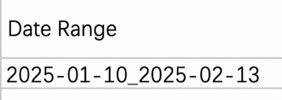 2025-01-01 to 2025-01-31 2025-01-01 to 2025-01-31 | |
| Date |
| Date format | 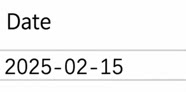 2025-01-01 2025-01-01 | |
| User |
| 1. If “Show user number” is not selected, only the user name is shown. 2. If “Show user number” is selected, both the user name and user number are shown. | John John (0023123123) | |
| Department |
| 1. If “Show full department path” is not selected, only the department name is shown. 2. If “Show full department path” is selected, the full department path is shown. | 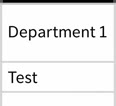 Department name only Department name onlyFull department path 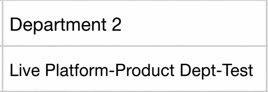 | |
| Image upload |
| 1. If “Export images/attachments” is not selected, downloadable URLs are exported. 2. If selected, relative paths are exported in Excel and the attachment/image files are exported at the same time. | If images/attachments > 100 MB and multiple records are exported, the format is as follows: If images/attachments > 100 MB and a single record is exported, the format is as follows: If images/attachments < 100 MB and a single record is exported: If images/attachments < 100 MB and multiple records are exported:     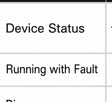 | |
| Attachment |
| |||
| Word template |
| |||
| Signature |
| |||
| Smart invoice |
| |||
| Subform |
| Text format | Text | |
| Premium components | Drop-down select |
| Selected option | Option 1 |
| Drop-down multiselect |
| All selected options are exported, separated by commas. | Option 1,Option 2 | |
| Cascading select |
| Text format | 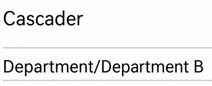 Level 1/Level 2/Level 3 Level 1/Level 2/Level 3 | |
| Country/Region |
| Text format | China | |
| Address |
| Text format | 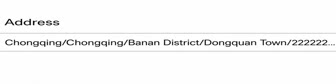 Address text Address text | |
| Location |
| Text format | Location text | |
| Associated form |
| Text format: field + instance ID | Field value + instance ID | |
| Serial number |
| Text format | Text | |
| Organization |
| Text | Text | |
| UnionPay |
| Text | Text | |
| Budget control |
| Text | Text | |
| Group | ❌ Not supported | / | / | |
| Associated query | ❌ Not supported | / | / | |
| Rich Text | ❌ Not supported | / | / | |
| Image and text display | ❌ Not supported | / | / | |
| Common components | ID number | ❌ Not supported | Not supported due to privacy protection | / |
| Phone number | ❌ Not supported | Not supported due to privacy protection | / |
3. FAQ
- Q: Why is subform data sometimes exported with a broken format?
- Q: What should I be aware of when using the export feature?