Chats
Chats Calendar
 Meetings
 Contacts
 Mail
Mail Docs
Docs Drive
Drive AI Table
 AI Minutes
 Attendance
 Approval
 YiDA
YiDA Admin Console
1. What Is a Data Management Page
A data management page aggregates and displays data from a form or workflow form.2. How to Create a Data Management Page
Path: Open the target form or workflow form, then click Generate data management page in the upper-right corner. See the example below.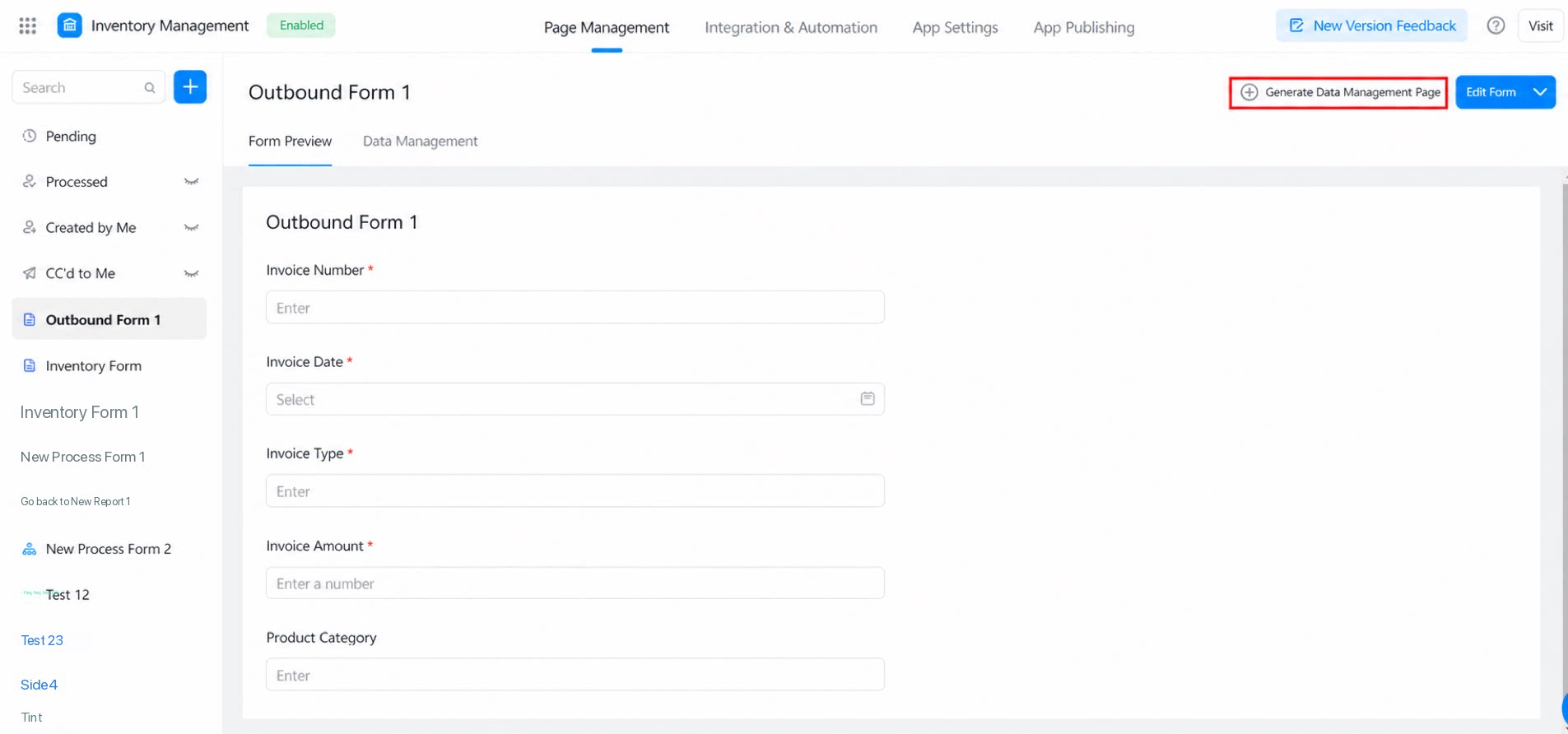
2.1 Data Display
The data list shows all fields by default. To customize the visible columns, click Settings in the upper-right corner of the list. Select the checkboxes for the columns you want to show, and drag them up or down to reorder.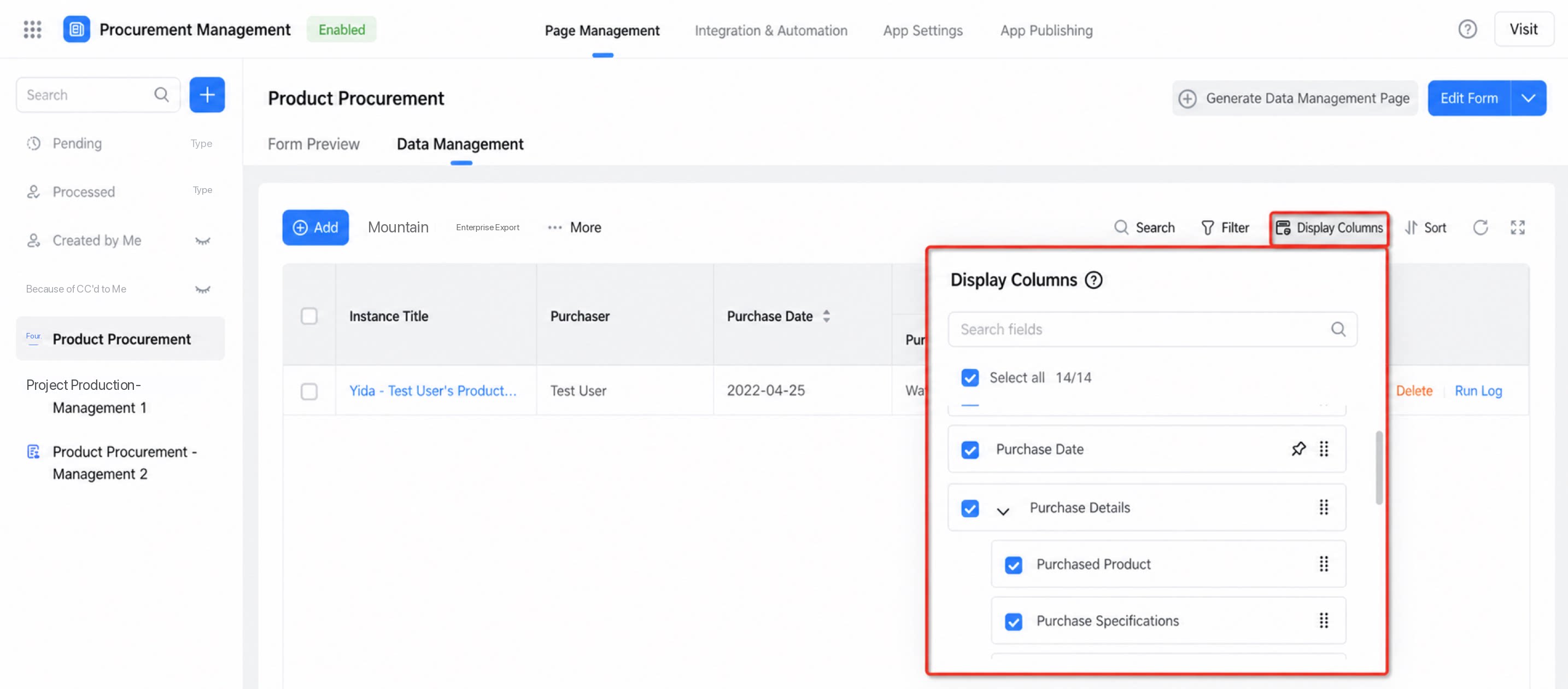
2.2 Data Actions
The data management page offers a rich set of features. Available actions may differ slightly between forms and workflow forms. The example below shows the data management page of a form. It provides many practical features, such as Create, batch export, batch import, batch edit, batch print, and file download. For each submitted record, you can also perform individual actions: view details, delete, and view run logs.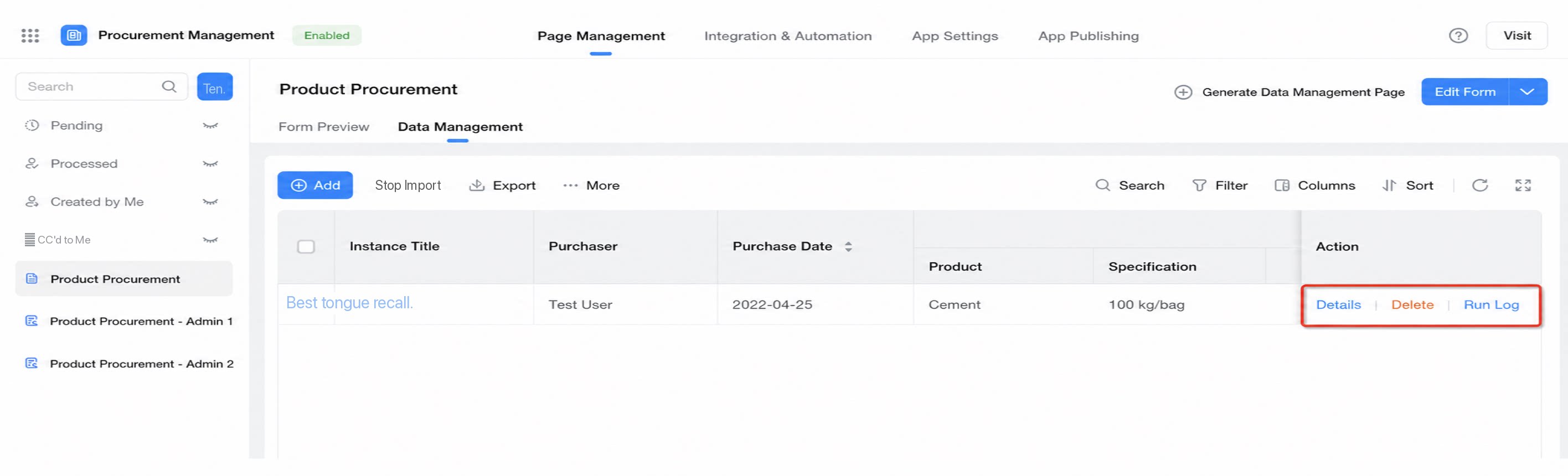
2.2.1 Date Component Import and Export Enhancements on the Data Management Page
Date components are enhanced for Excel batch export on the data management page, fixing the Excel import and export issues caused by multiple date components.- Export enhancements:
- Import enhancements:
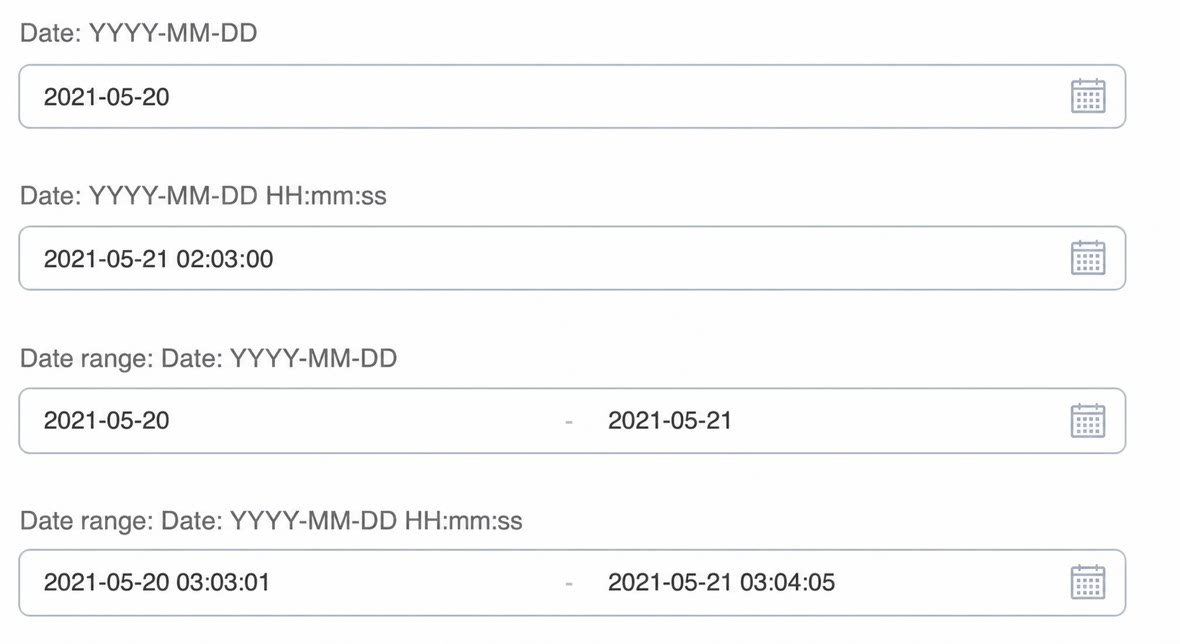
- Message notification scenarios:
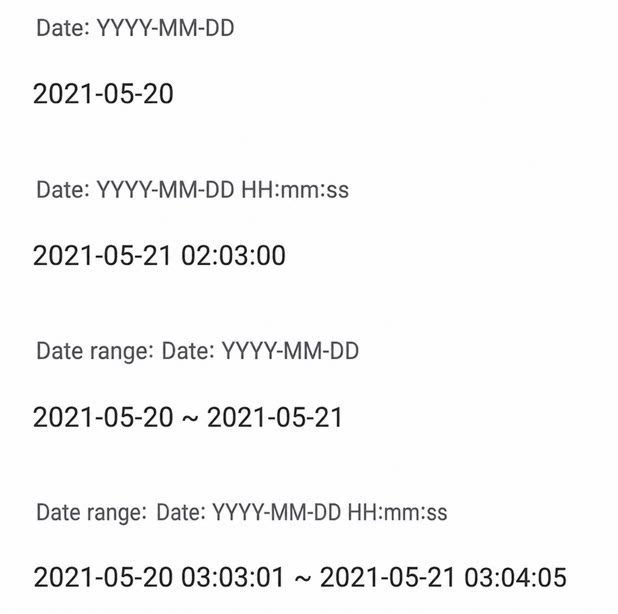
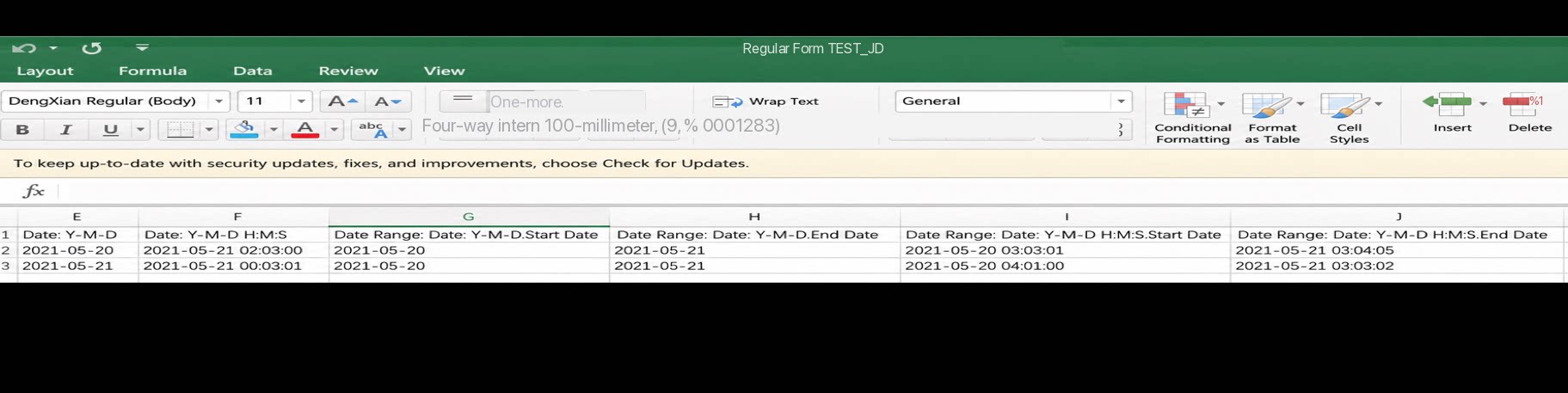
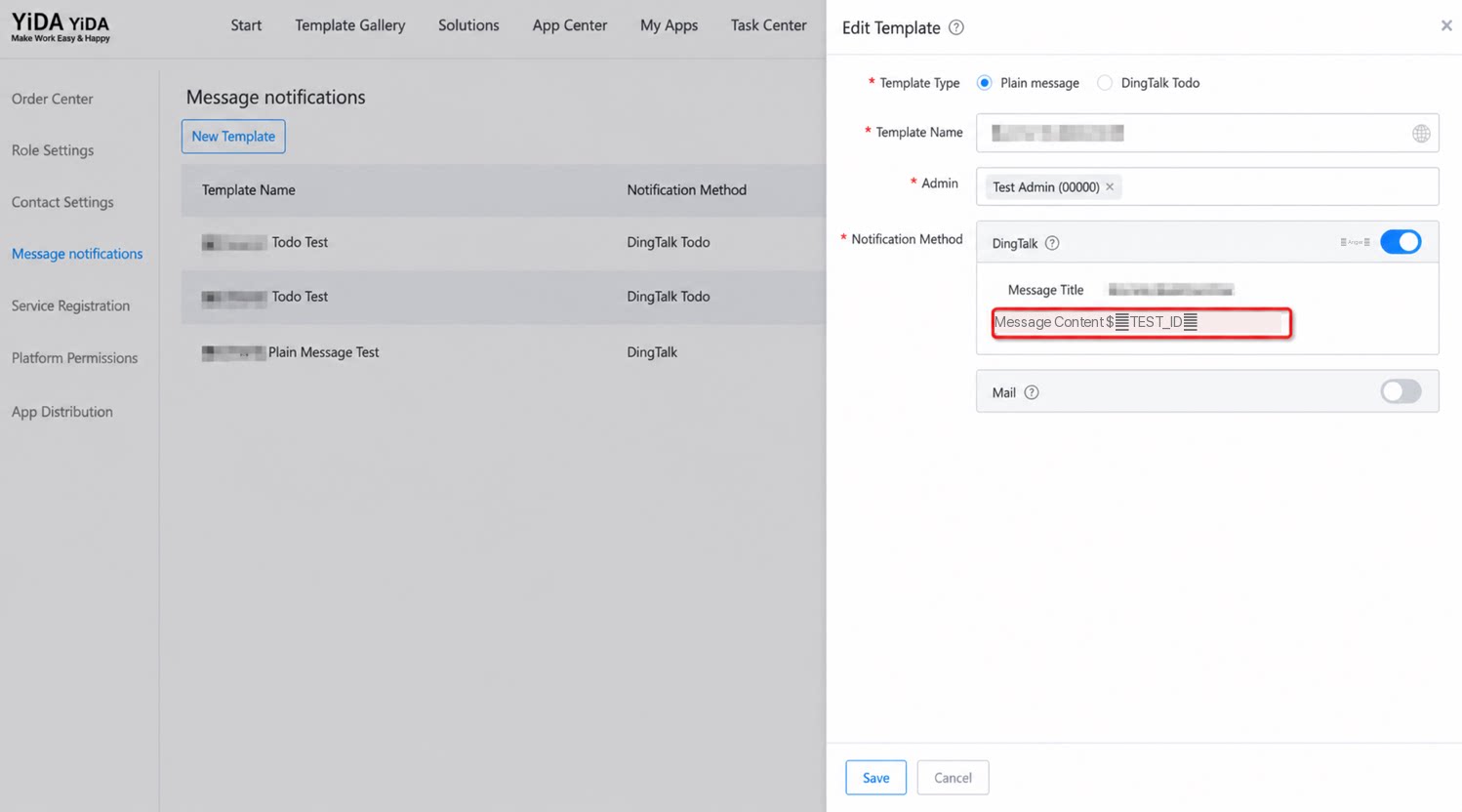
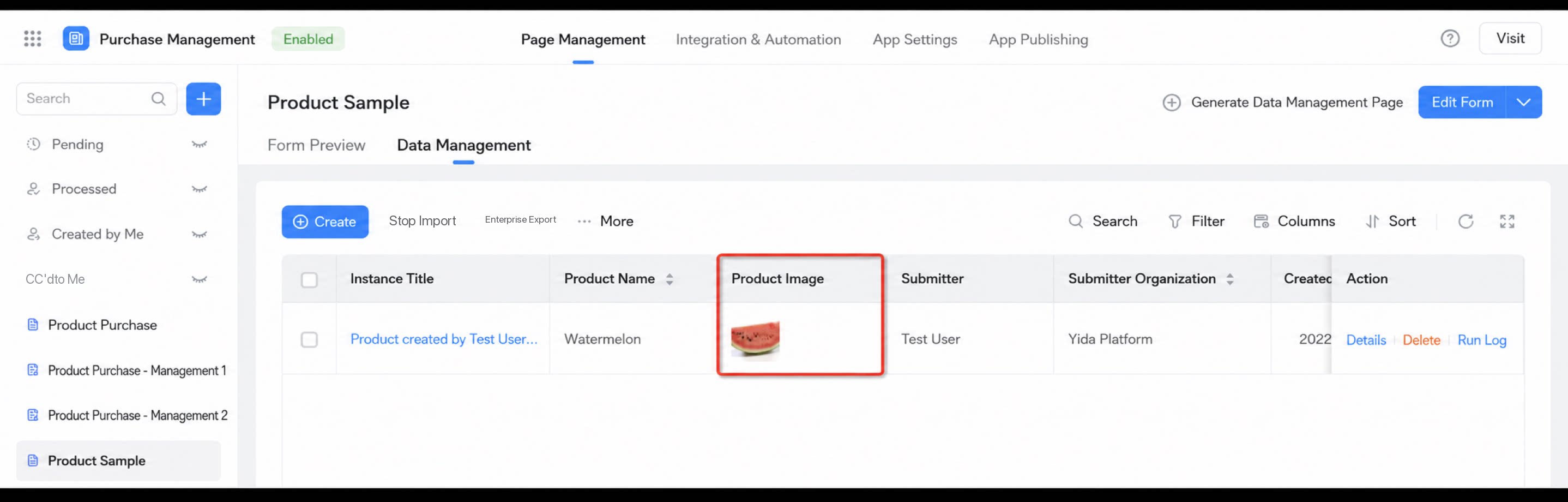
2.3 Real-Time Image Display on the Data Management Page
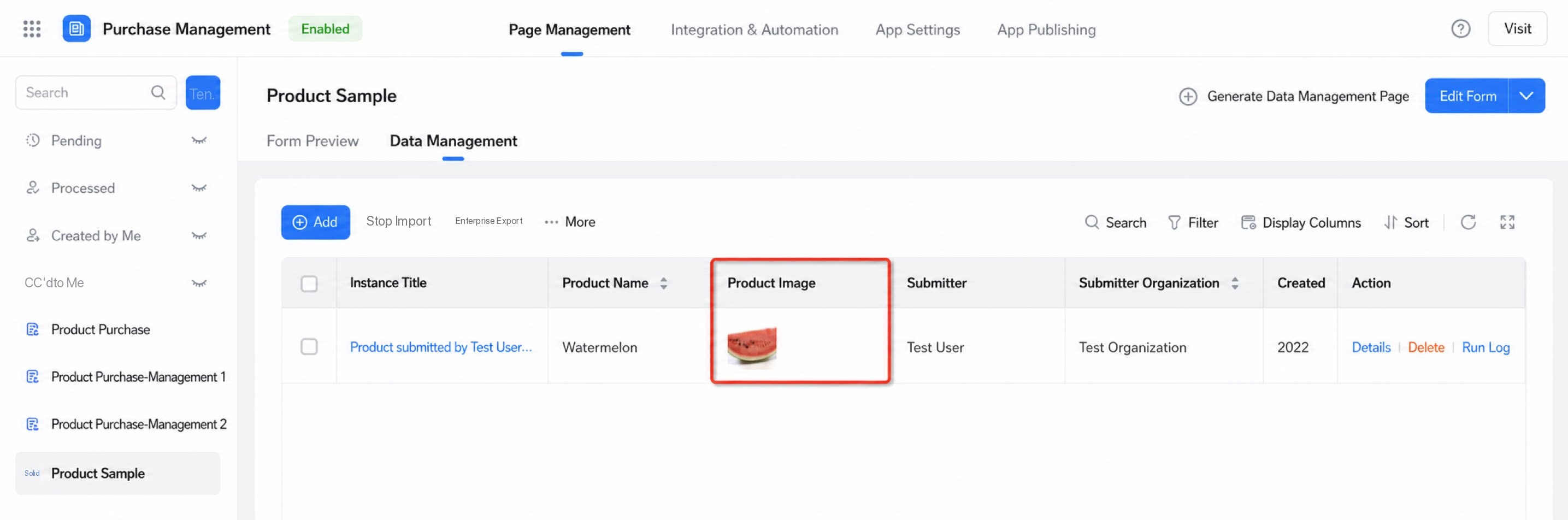
Images on the data management page are displayed in real time, at a glance. Content in the Image component appears directly. In multi-image mode, images are tiled automatically and adapt to mobile devices.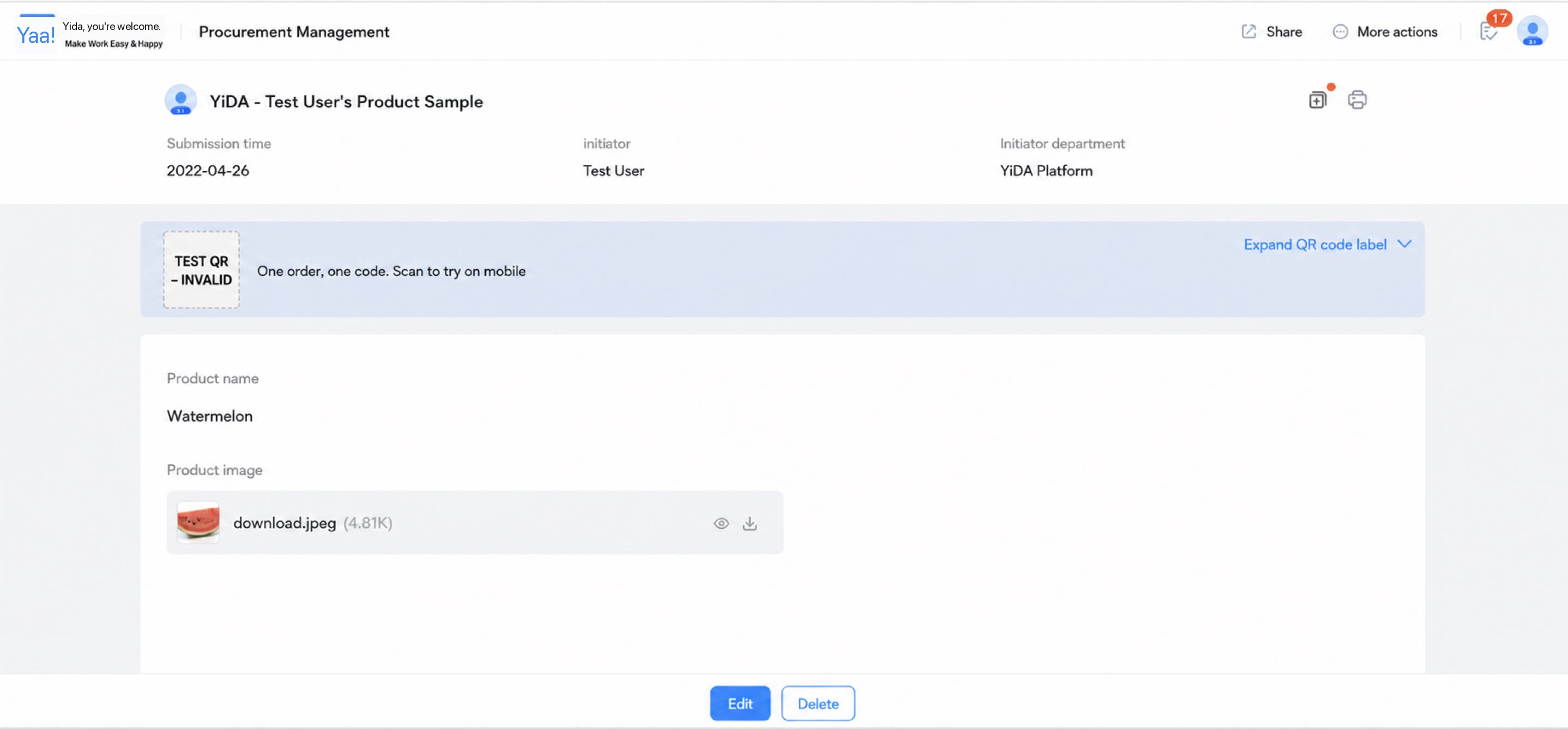
3. Page Permissions Settings
3.1 How to Set Page Permissions
The Page permissions setting on the data management page controls who can view the page. As shown in the example, when the page is visible to all users, everyone can see it.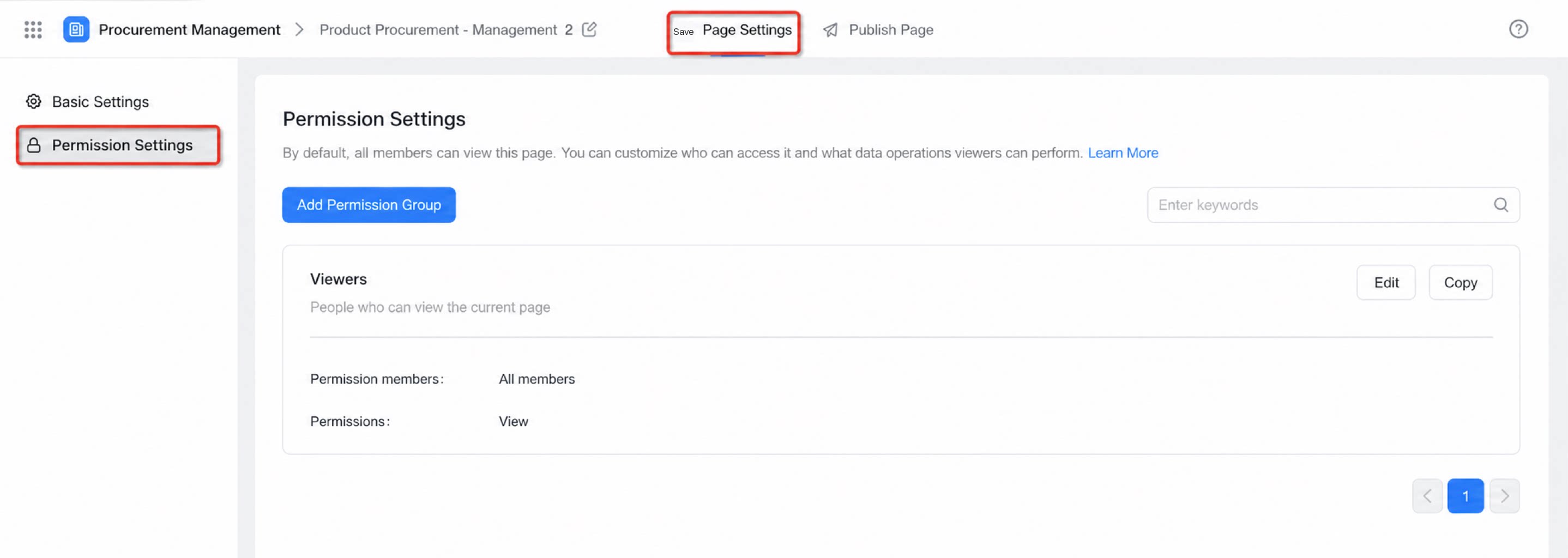
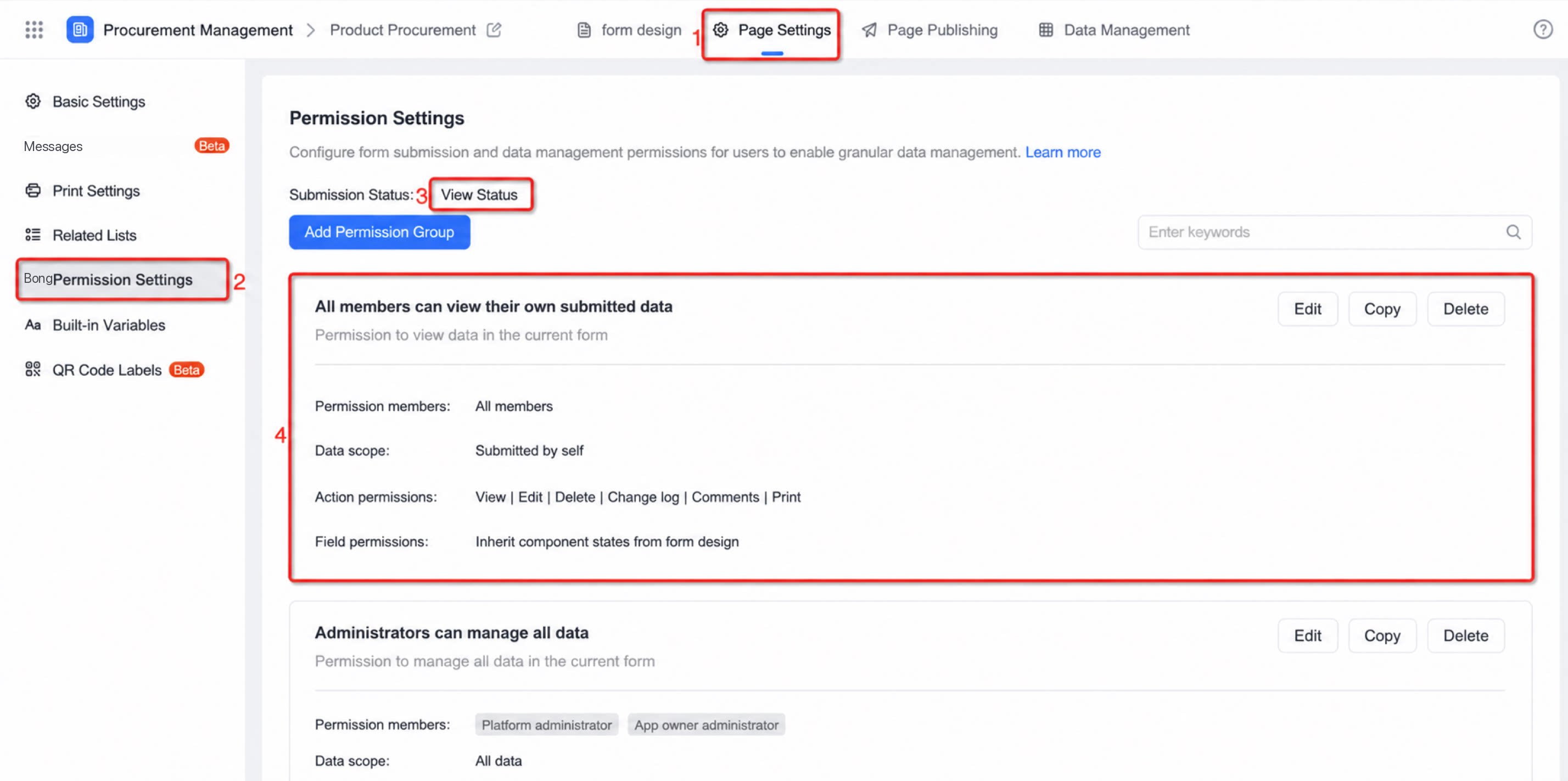
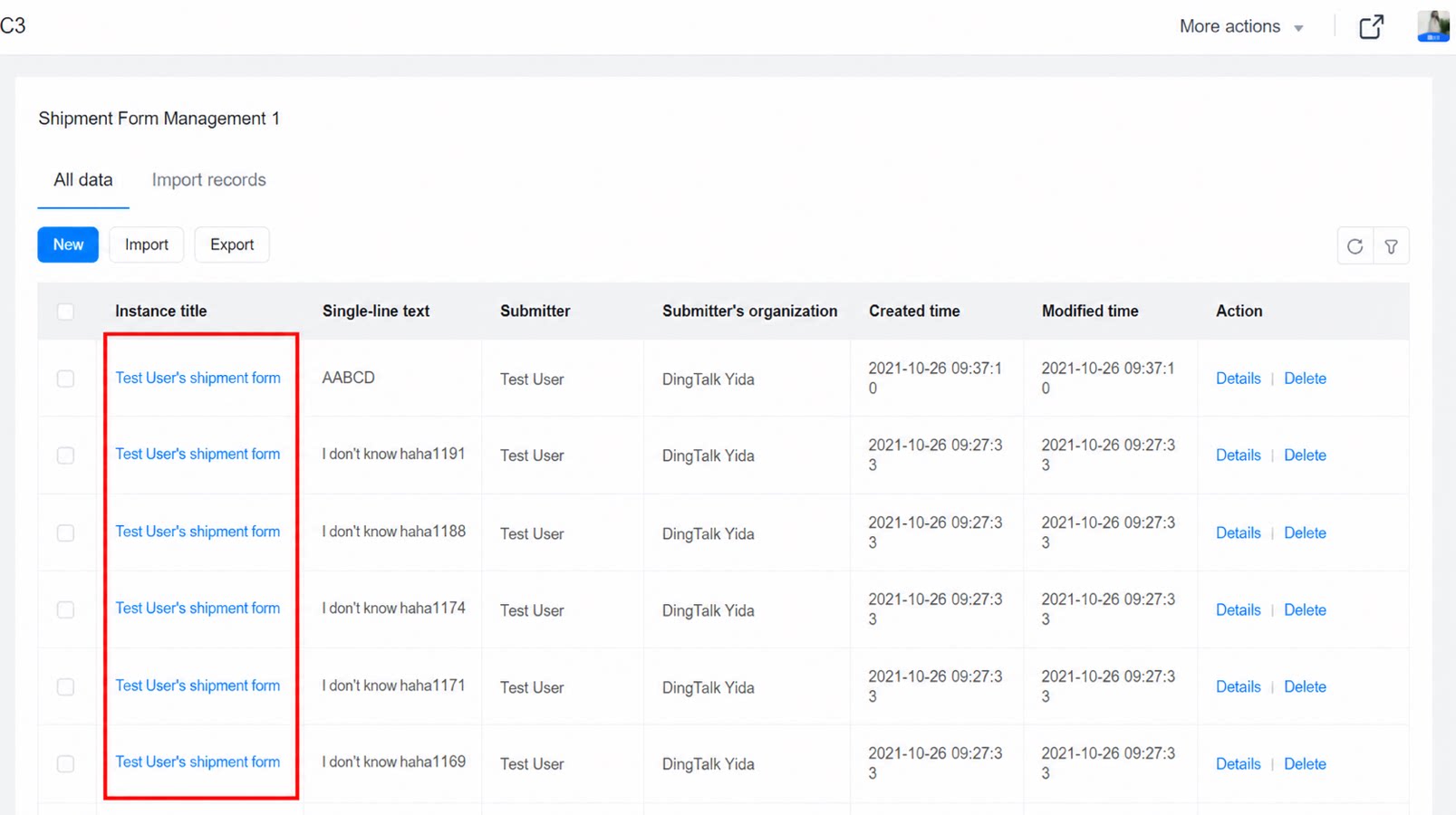
3.2 What Page Permissions Mean
The Page permissions settings control access to the current page, that is, whether a user can open it. Note: If no permissions are configured, any user with the Share link can access the page. To open the page only to specific users, configure the allowed viewers separately. See the example below: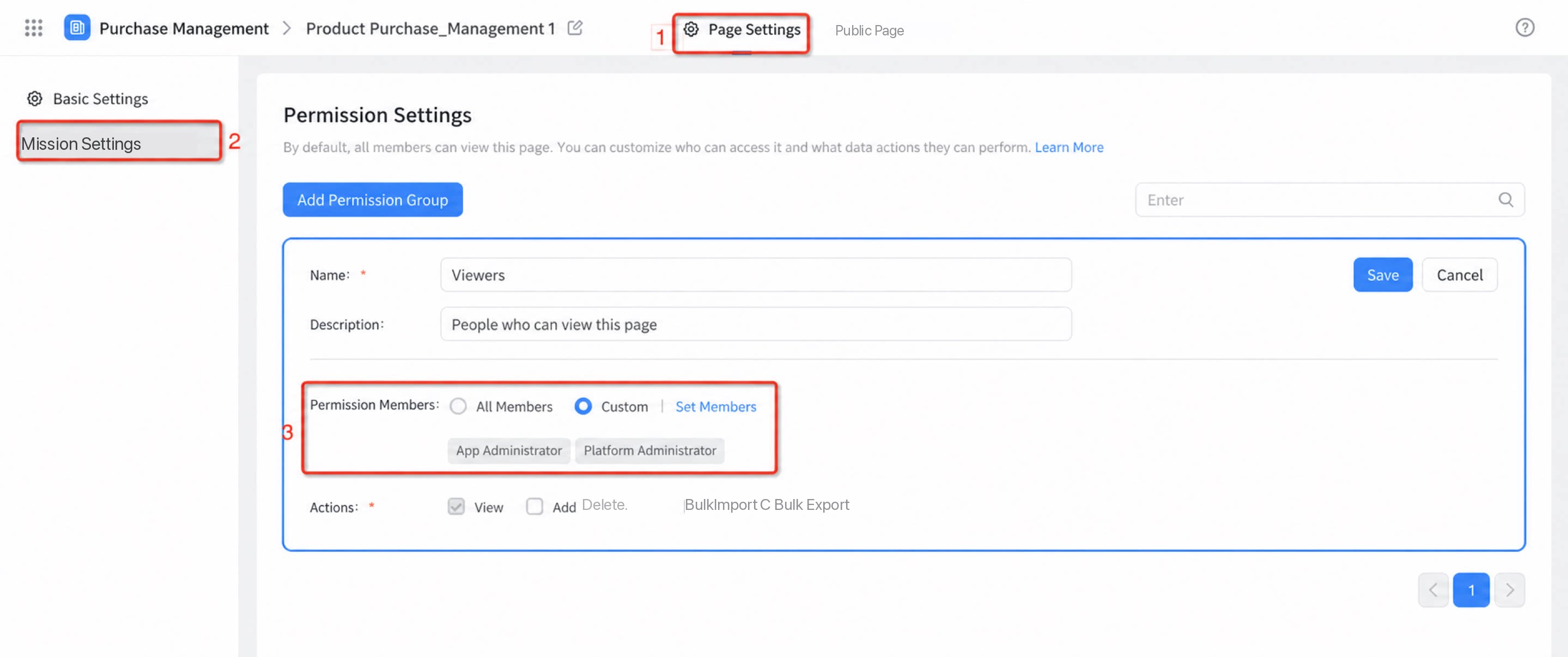
4. FAQ
4.1 How do I allow users to view only their own data?
4.1 How do I allow users to view only their own data?
Configure custom permissions on the form so that users can view only the records they created or are associated with.
4.2 Can I change the Create button on the page to another field?
4.2 Can I change the Create button on the page to another field?
Not supported at this time.
4.3 Can I view uploaded images on the data management page?
4.3 Can I view uploaded images on the data management page?
Yes. See the section above: 2.3 Real-time image display on the data management page.