Chats
Chats Calendar
 Meetings
 Contacts
 Mail
Mail Docs
Docs Drive
Drive AI Table
 AI Minutes
 Attendance
 Approval
 YiDA
YiDA Admin Console
1. Overview
1.1 Feature Overview
The number of fields that can participate in filtering on the data management page is limited. When a form contains too many fields, any fields beyond the filter limit are automatically placed in the “Non-searchable fields” list. To make specific fields searchable, customize the searchable fields.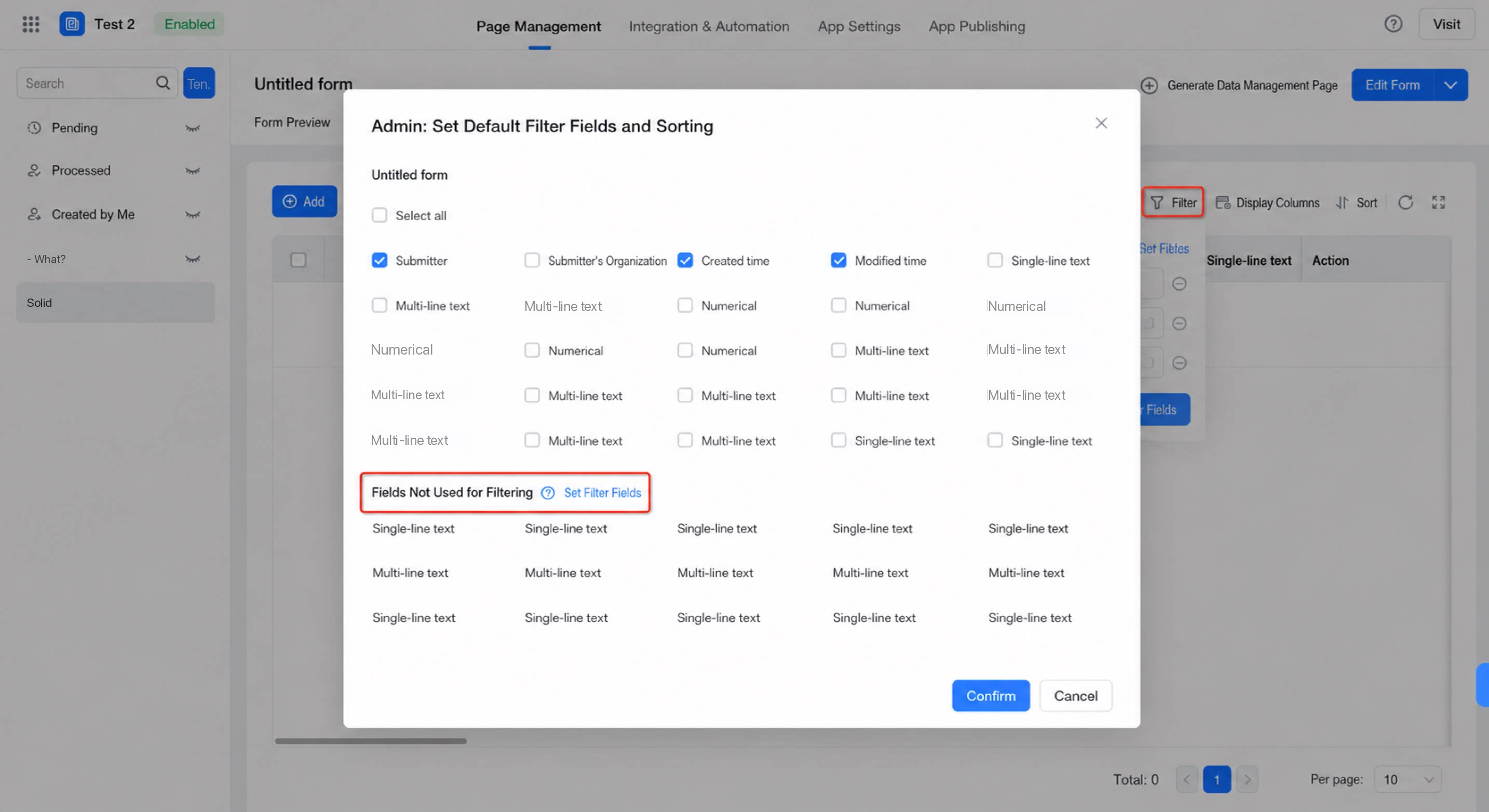
1.2 Use Cases
Whether a field participates in search affects API calls, data management page queries, component data linkage matching conditions, business association rules, and other scenarios. Report search is not restricted by this setting.2. Component Categories That Support Search
2.1 Search Types
The system currently supports four search types: exact search, fuzzy search, numerical search, and other search. Each component is automatically classified into one of these four types. Each search type has an upper limit on the number of fields that can participate in the search. Fuzzy search is case-insensitive. For example, given record 1: ABCD and record 2: abcd, entering either A or a returns both records. The classification is as follows:| Component name | Operator | Notes / Alias | |
| Standard components | Single-line text | Equals Match (like) | |
| Multi-line text | |||
| Numerical | Greater than / Less than / Between / Greater than or equal to / Less than or equal to | ||
| Rating | |||
| Select | Equals / Contains | ”Equals” allows a single selection only. ”Contains” allows multiple selections. | |
| Dropdown select | Equals / Contains | Supports fuzzy search by number or letter (searches the submitted option values). | |
| Checkbox | Equals / Contains (in) | ||
| Dropdown multiselect | |||
| Cascading select | Equals / Contains (each level uses eq) | ||
| Date | Greater than / Less than / Between / Greater than or equal to / Less than or equal to | ||
| Date range | Operators for both generated components default to Equals. | Two components are generated automatically. | |
| Image upload | Fuzzy match (like) | ||
| Attachment | |||
| User | Equals / Contains (in) | “Equals” allows a single selection only. ”Contains” allows multiple selections. | |
| Subform | Not exposed in the filter area. | ||
| Premium components | Department | Equals / Contains (in) | “Equals” allows a single selection only. ”Contains” allows multiple selections. |
| Country/Region | Equals / Contains (in) | “Equals” allows a single selection only. ”Contains” allows multiple selections. | |
| Address | Address: Equals / Contains (each level uses eq) Detailed address: Equals / Match (like) | Two components (address and detailed address) are generated automatically. ”Equals” allows a single selection only. ”Contains” allows multiple selections. | |
| Rich Text | Not exposed in the filter area. | ||
| Layout container | |||
| Group | |||
| Associated form | Supports fuzzy search by number or letter (select the associated form data when submitting). | ||
| Location | |||
| Signature |
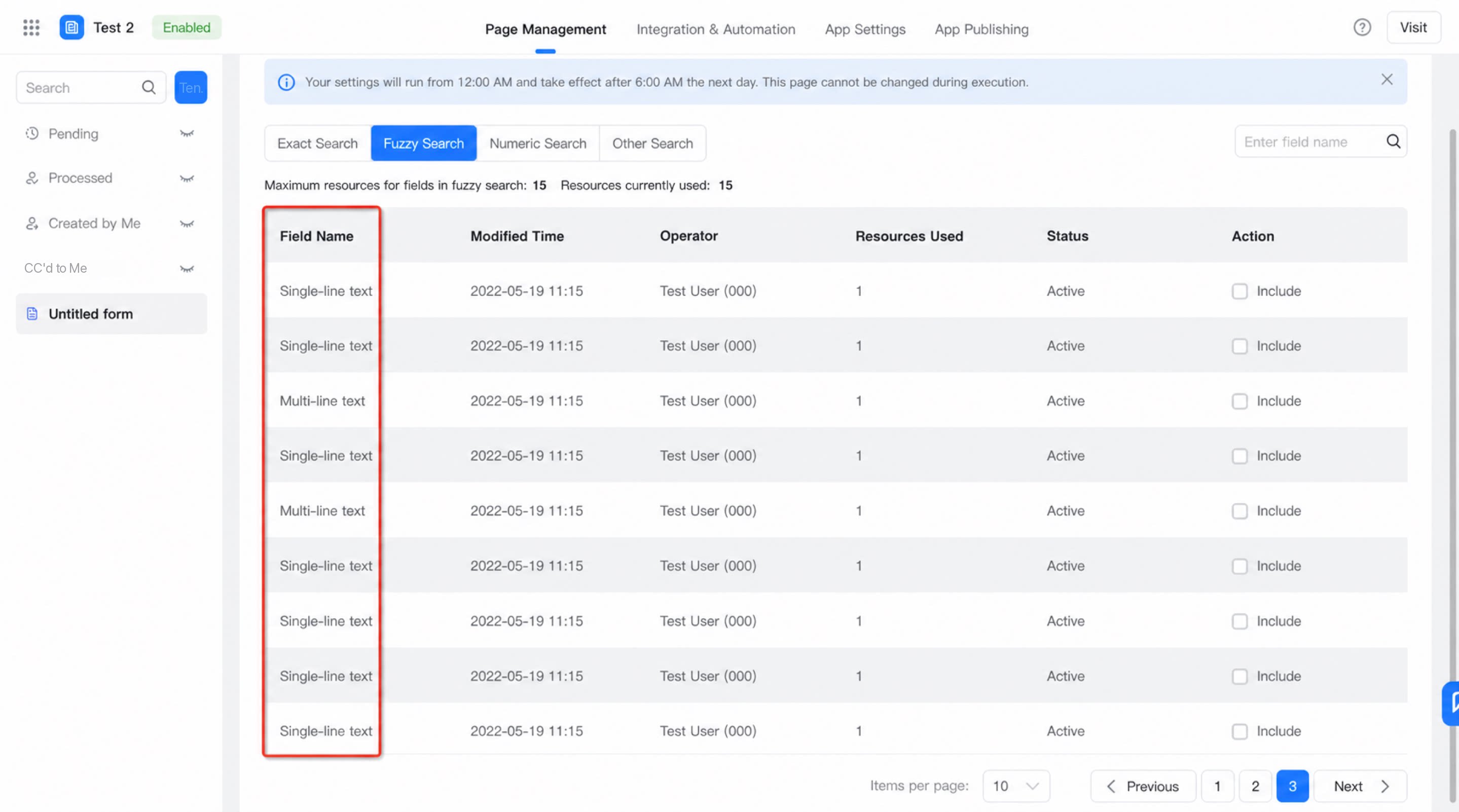
2.2 Steps
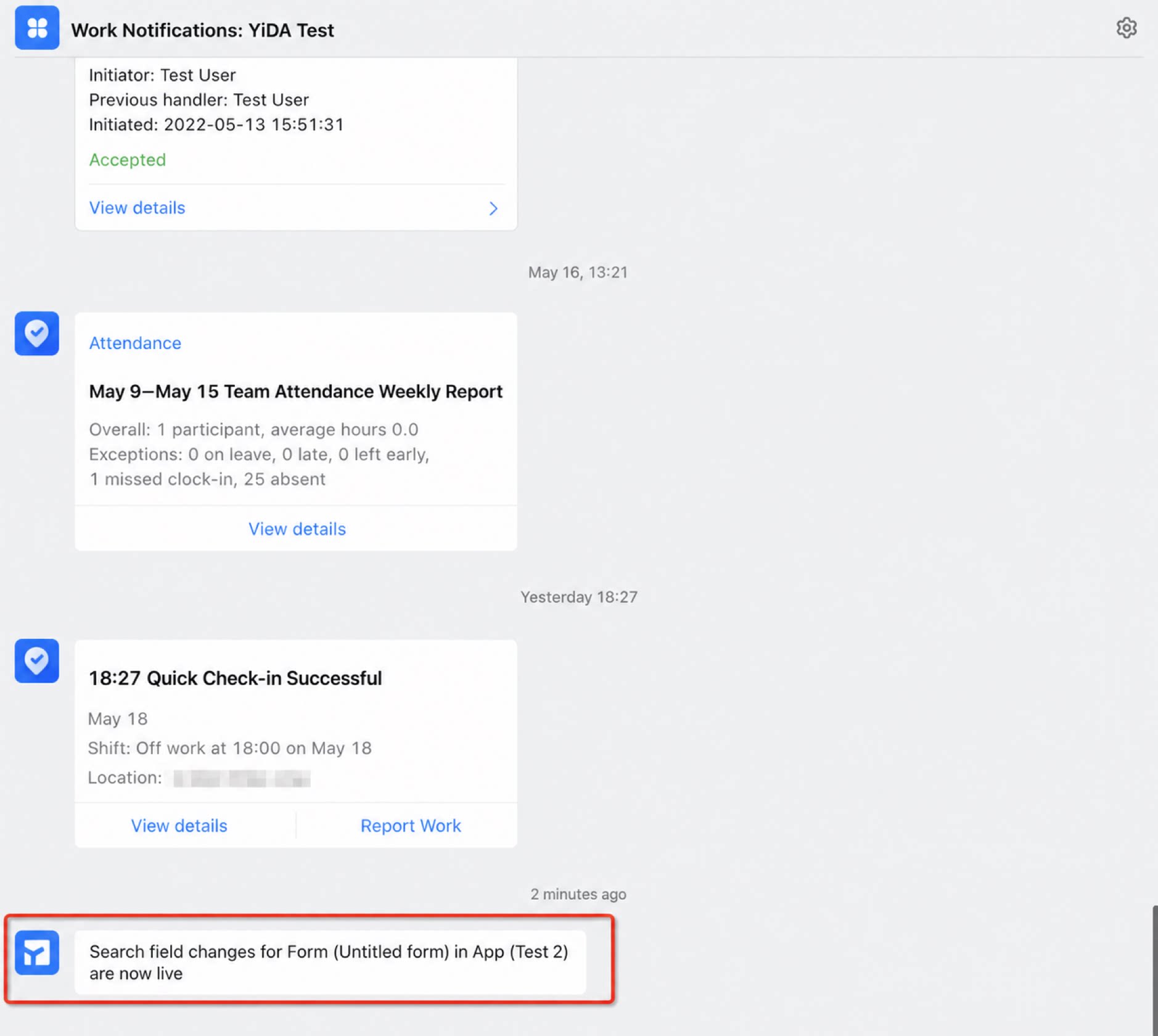
Data management page >> Configure Filter >> Admin configures default filter fields and sorting >> Configure searchable fields >> Search for the fields to include in search >> Turn on Participate >> Click Apply now.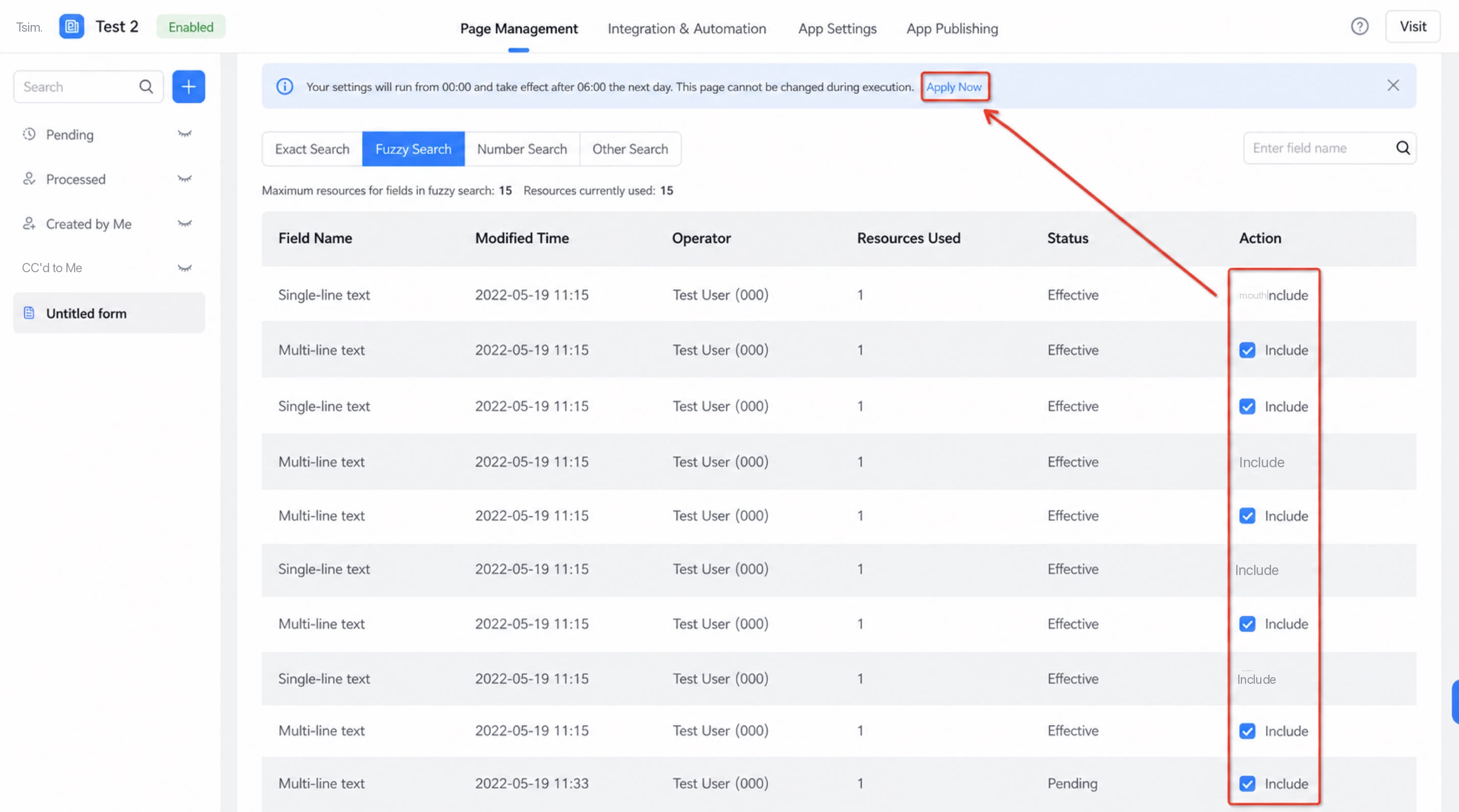
3. FAQ
3.1 Data linkage does not take effect
3.1 Data linkage does not take effect
If data linkage does not take effect, first check whether the field used as the data linkage condition in the associated table is included in search.
3.2 A business association rule did not execute successfully
3.2 A business association rule did not execute successfully
If a business association rule was triggered but did not execute successfully, first check whether the fields used as the primary or sub-conditions in the execution function are included in search on the data management page of the corresponding form.
3.3 Calling a YiDA API returns an app configuration error
3.3 Calling a YiDA API returns an app configuration error
If calling a YiDA API returns an app configuration error, first check whether the query fields passed in the searchFieldJson parameter are included in search on the data management page of the corresponding form.
3.4 The Configure searchable fields option does not appear on the data management page
3.4 The Configure searchable fields option does not appear on the data management page
This setting must be configured on the data management page under the form. It cannot be configured on a management page you create yourself.