

 Chats
Chats Calendar
 Meetings
 Contacts
 Mail
Mail Docs
Docs Drive
Drive AI Table
 AI Minutes
 Attendance
 Approval
 YiDA
YiDA Admin Console
1. Overview
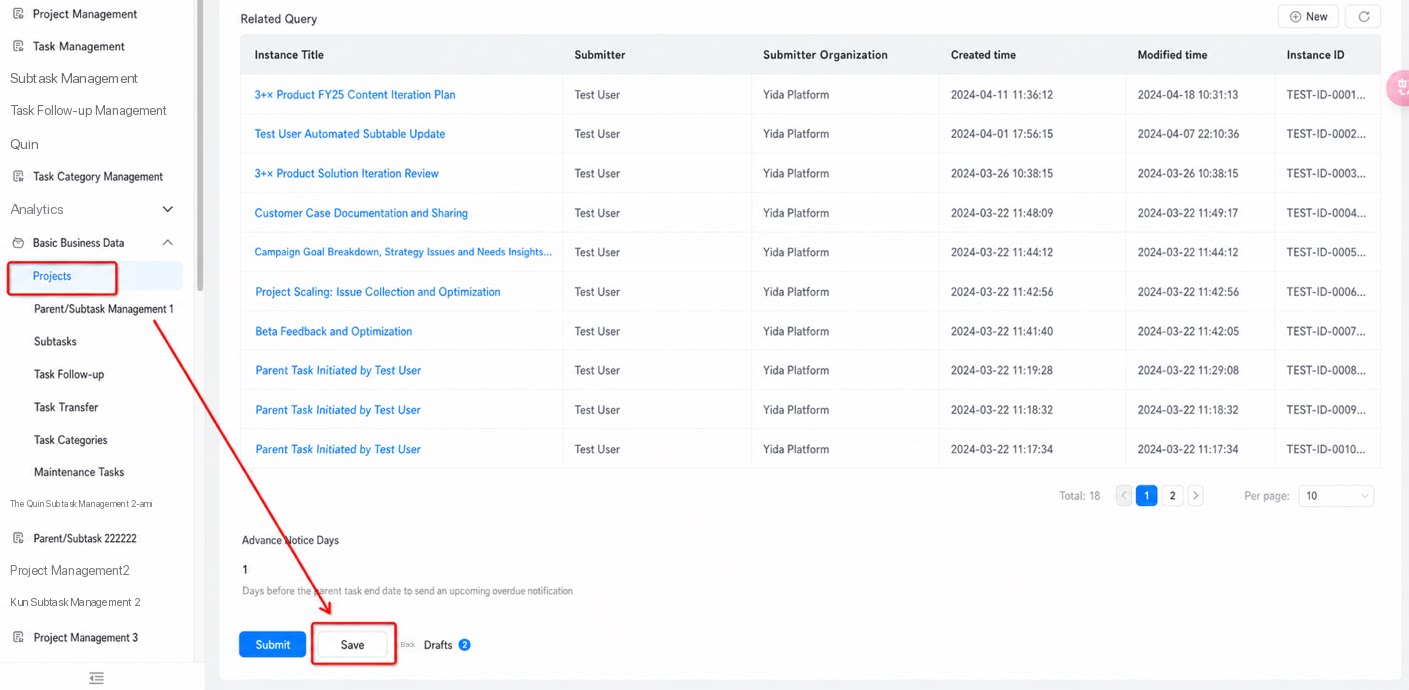
YiDA workflow forms and regular forms now support saving in-progress submissions as drafts, providing a better experience while users fill out forms. After entering data, click Save Draft to store the current input. Users can leave the page and later resume from where they stopped, without re-entering everything. This is especially valuable for complex forms, as it reduces frustration caused by data loss and improves the overall user experience.2. User Guide
2.1 Create a Draft
On the form submission page, click Save Draft to save the current data as a draft. Path 1: Data management page > Create data > Form submission page.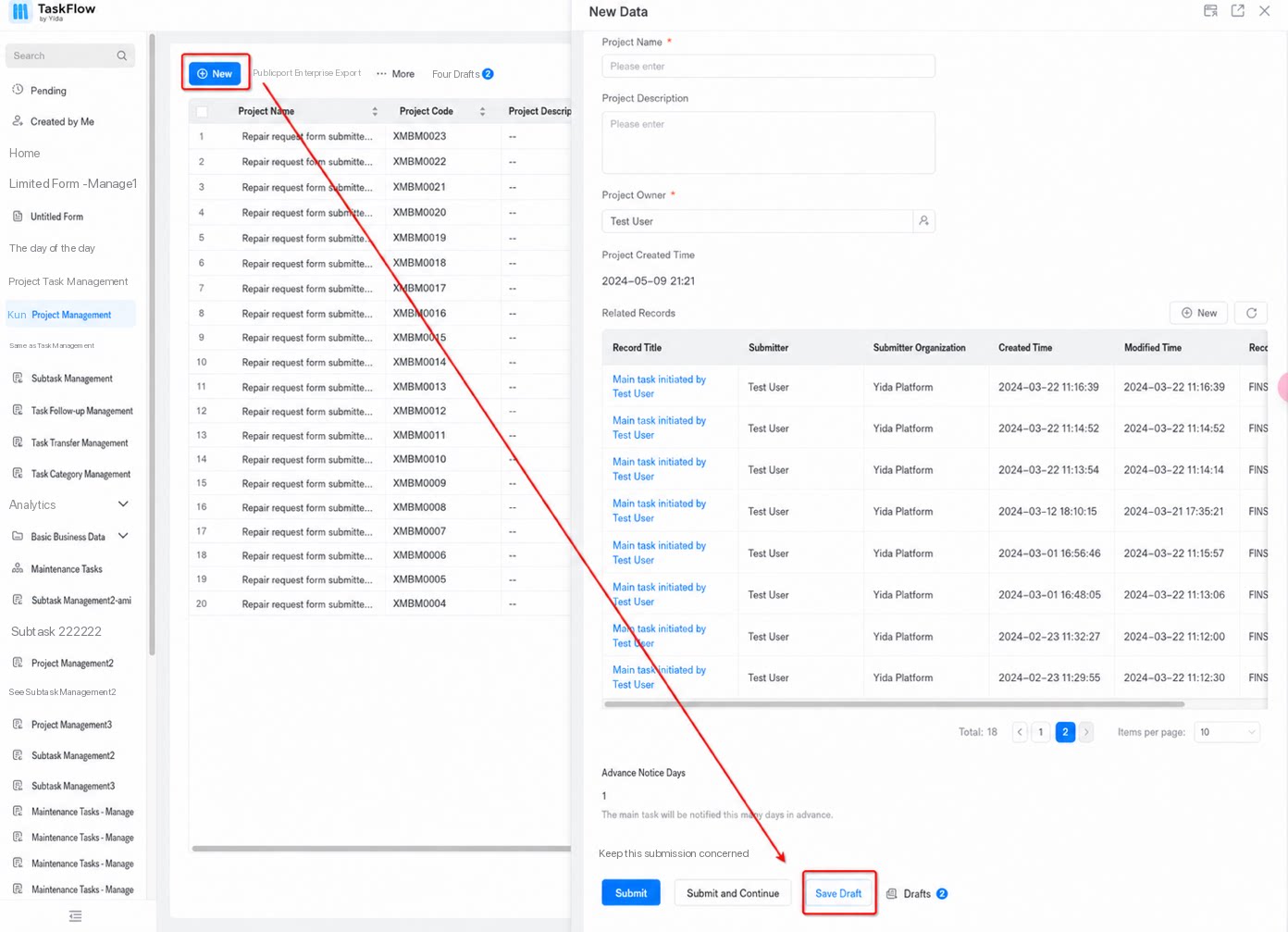
2.2 Use a Draft
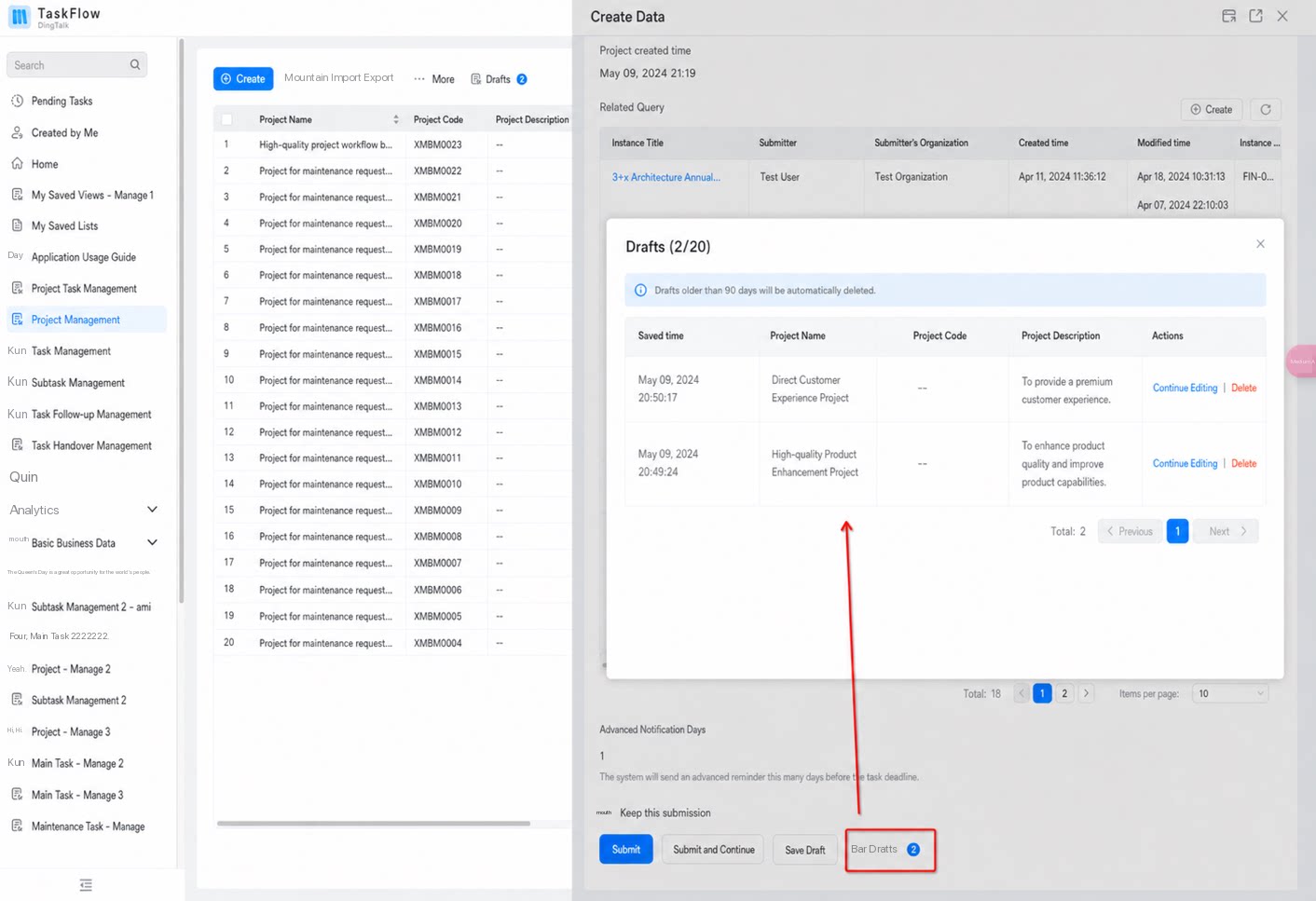
Open the draft list from the Drafts entry on the data management page or the form submission page, then select a draft to continue editing and submit. Path 1: Data management page > Drafts.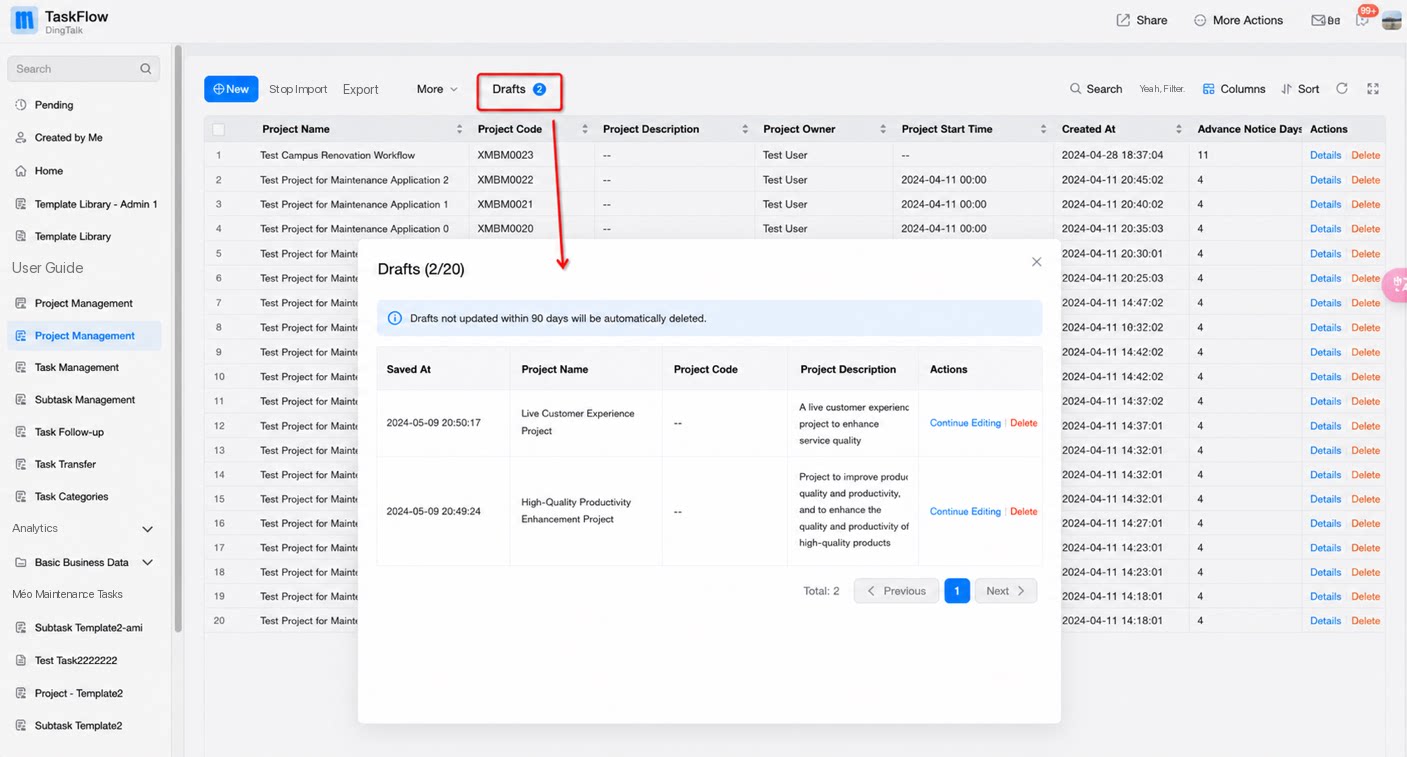
- Drafts are not supported on public submission pages.
- Each user can save up to 20 drafts per form.
- Serial number fields are not assigned when a draft is saved. The assignment rule runs only after formal submission.
- Draft data is not counted as valid stored data and does not participate in or trigger data linkage, report analysis, or data factory calculations.
- Validation (Required, Unique, format, business rules, etc.) is not performed when saving a draft.
- Draft data does not count toward the form’s data record limit, and attachments in drafts do not count toward the attachment upload quota.