Chats
Chats Calendar
 Meetings
 Contacts
 Mail
Mail Docs
Docs Drive
Drive AI Table
 AI Minutes
 Attendance
 Approval
 YiDA
YiDA Admin Console
- Scope: apps that use the new storage.
- View scope
1. Feature Overview
This section covers how to manage views and configure the Grid and Timeline view types described later in this article. Key advantages include:- Diverse view support.
- Flexible customization.
- Adaptation to multiple scenarios.
- Higher efficiency in data operations and task management.
2. View Management
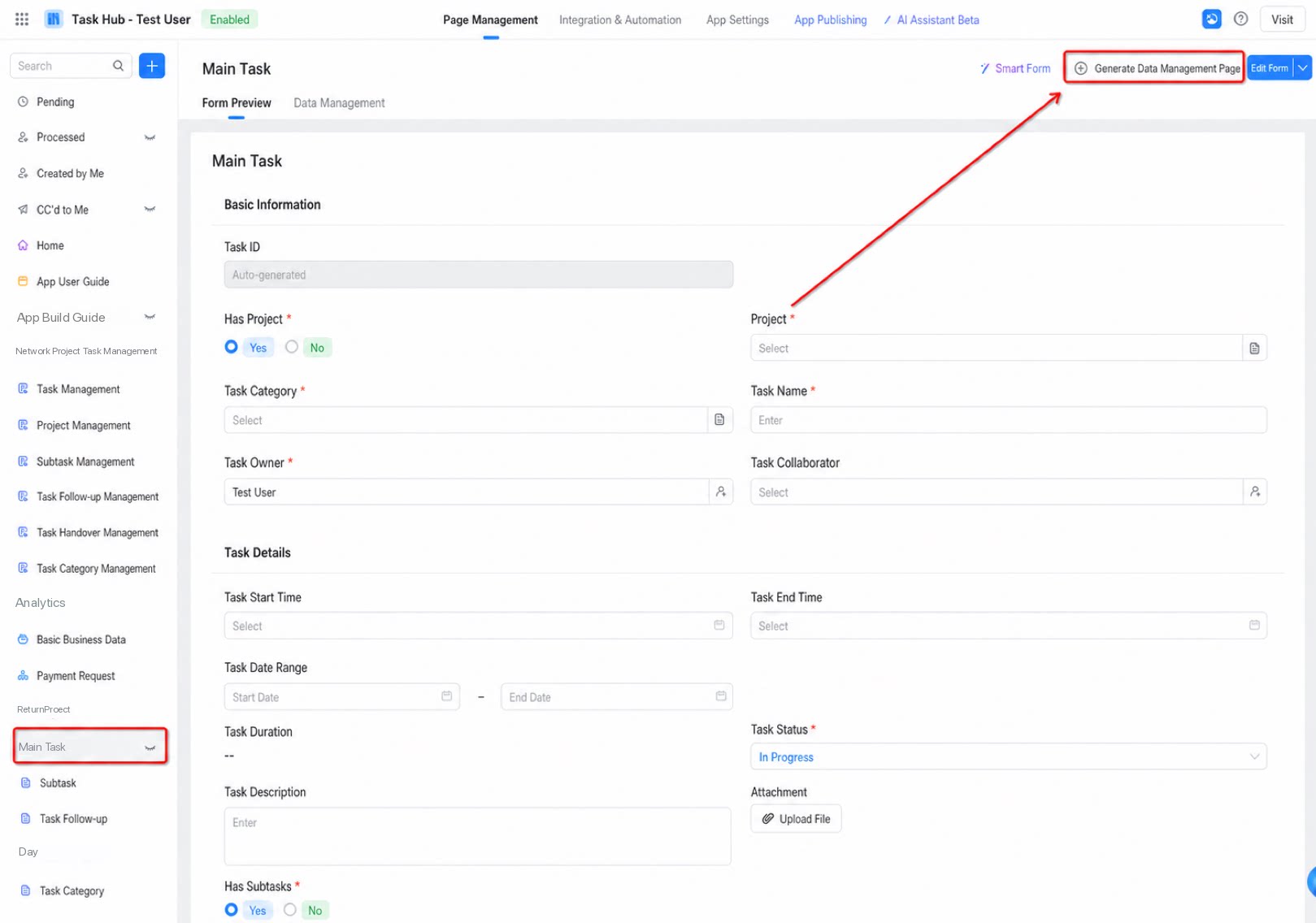
- For a regular form or workflow form, a Grid view named “All data” is provided by default when you create a data management page. You can add more views manually.
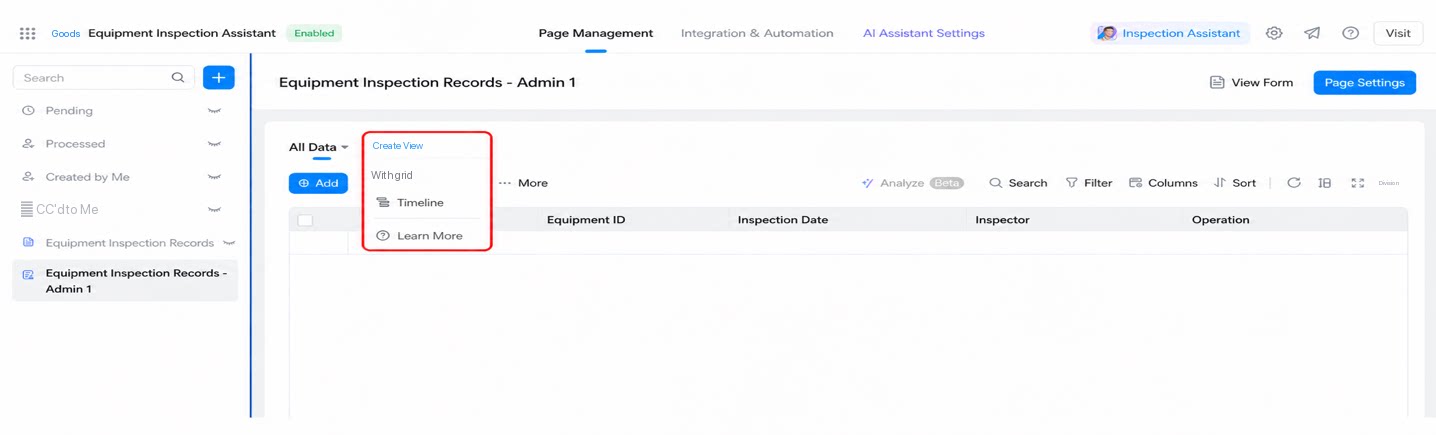
- To reorder multiple views, drag the title, or quickly set one as the first view.
- Admins can use the “Hide/Show” setting to hide or show a view in view mode.
- Basic operations such as Copy, Delete, and Rename are supported.
Notes: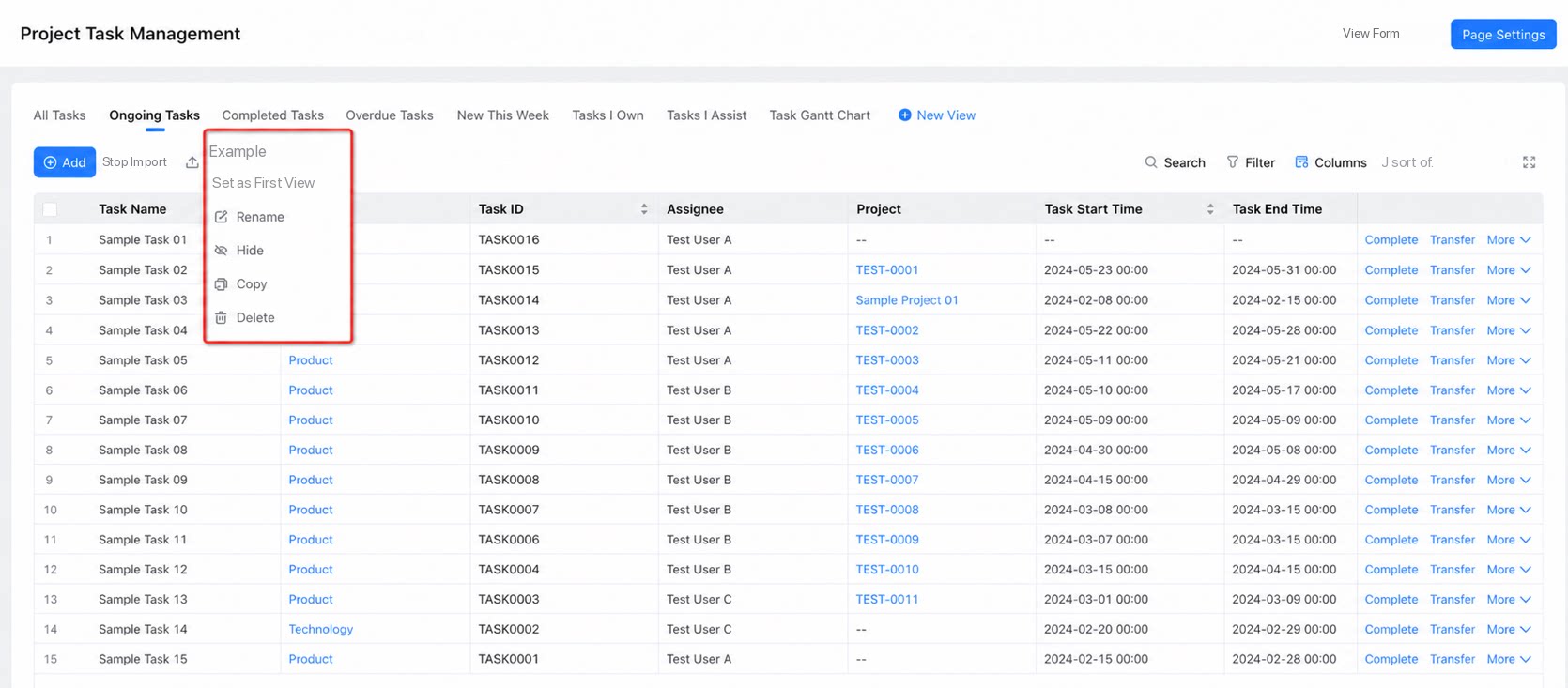
- Each data management page supports up to 12 views. To raise the limit, submit your business scenario and required count through the DingTalk request channel.
3. Grid View
3.1. Overview
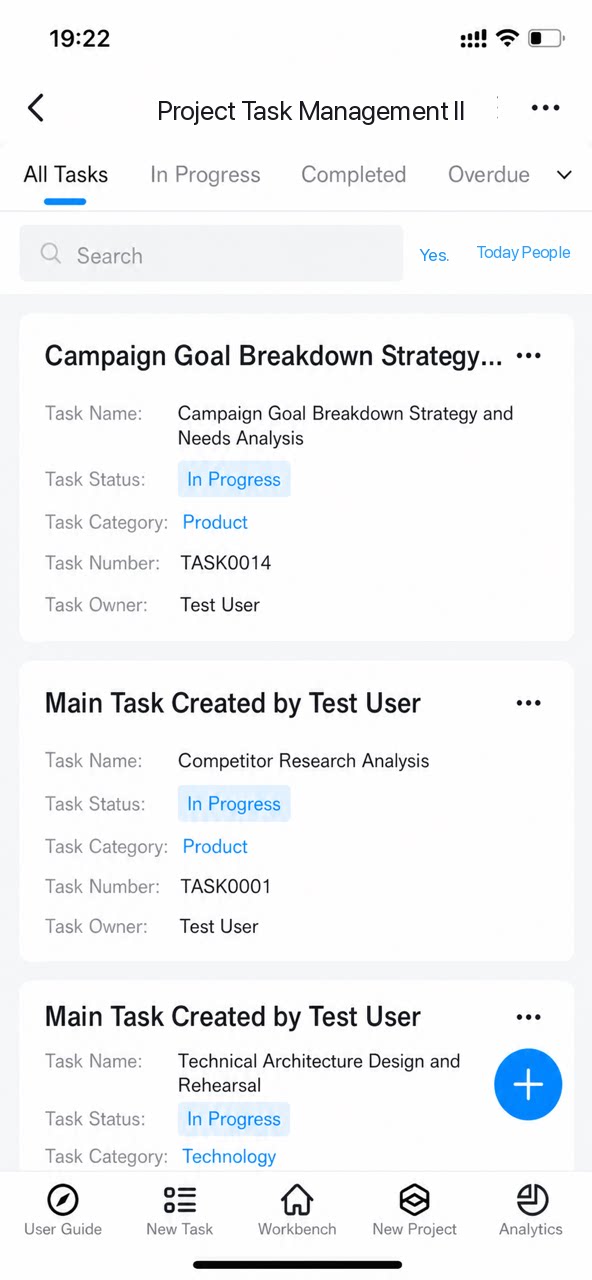
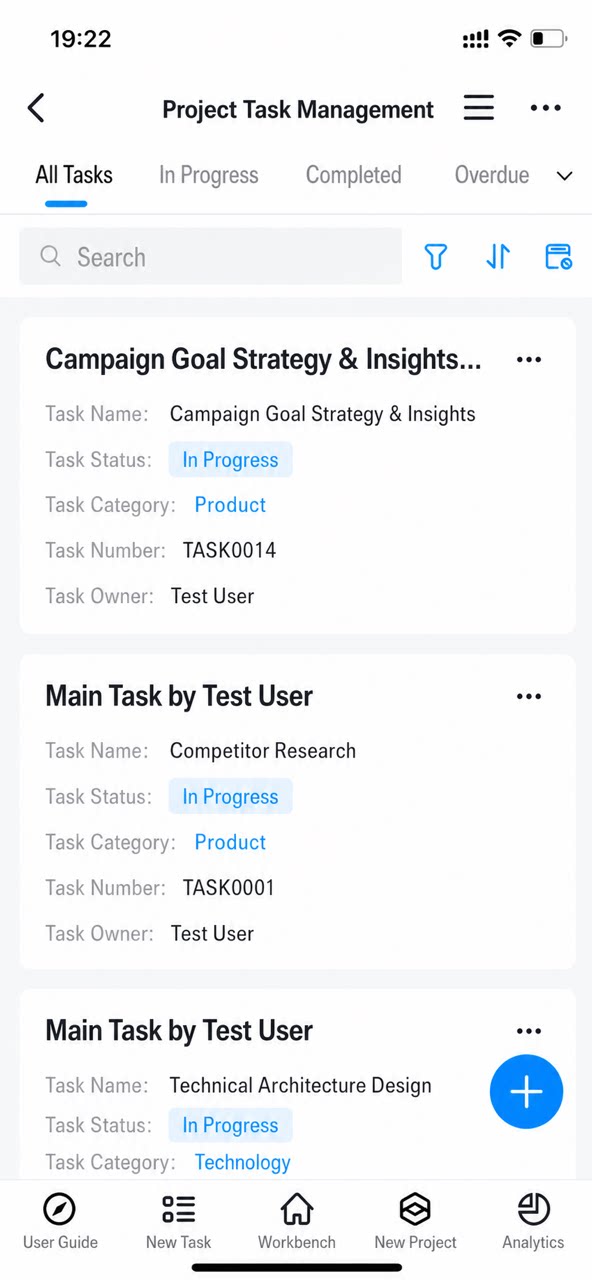
The Grid view displays form data in a table.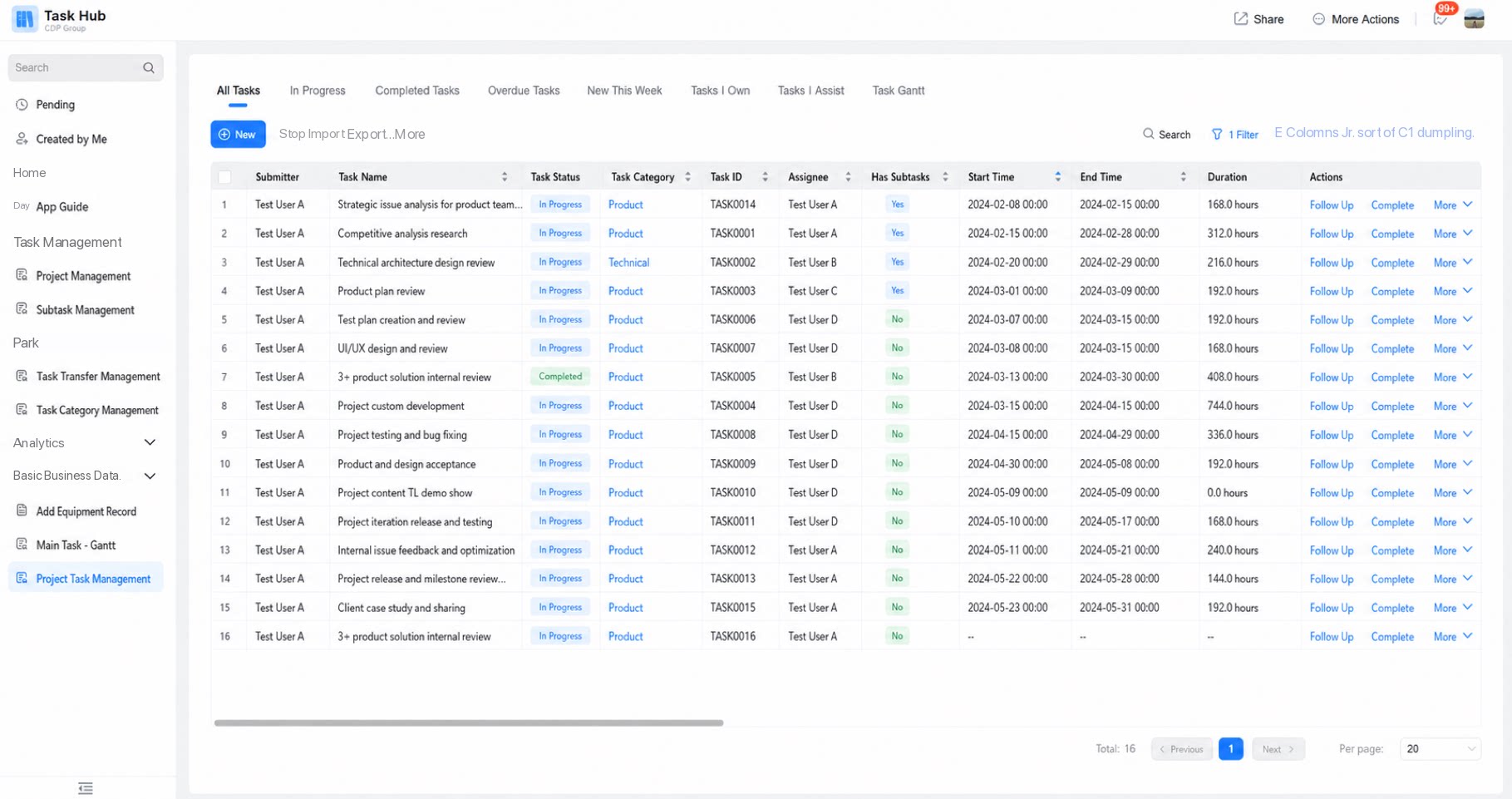
3.2. Use Cases
The Grid view displays multiple records at once. Use it when you need to view and manage large volumes of data.3.3. Setup Steps
3.3.1. Create a View
The generated data management page provides a default “All data” Grid view. Delete it or create new views based on your business needs.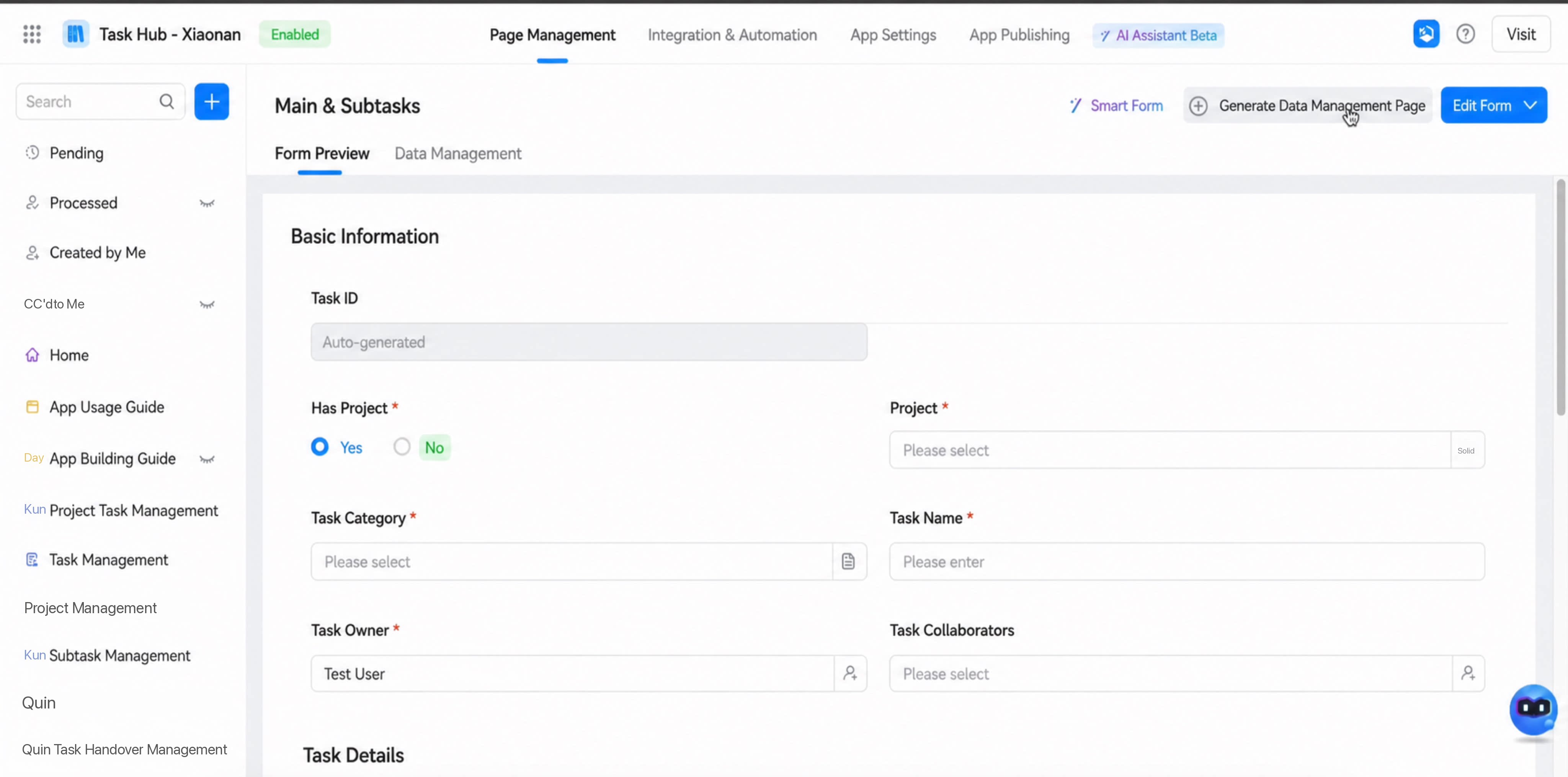
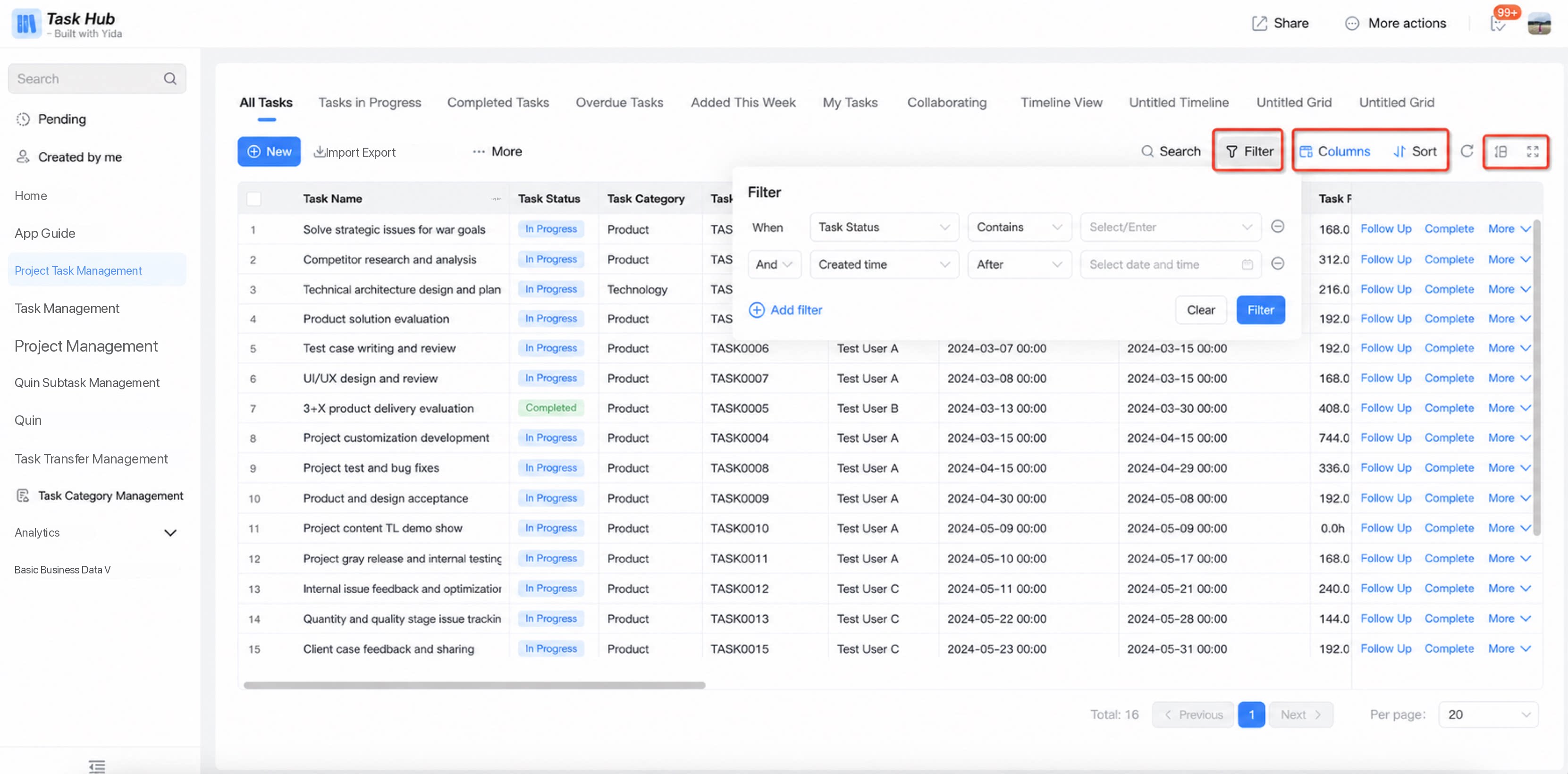
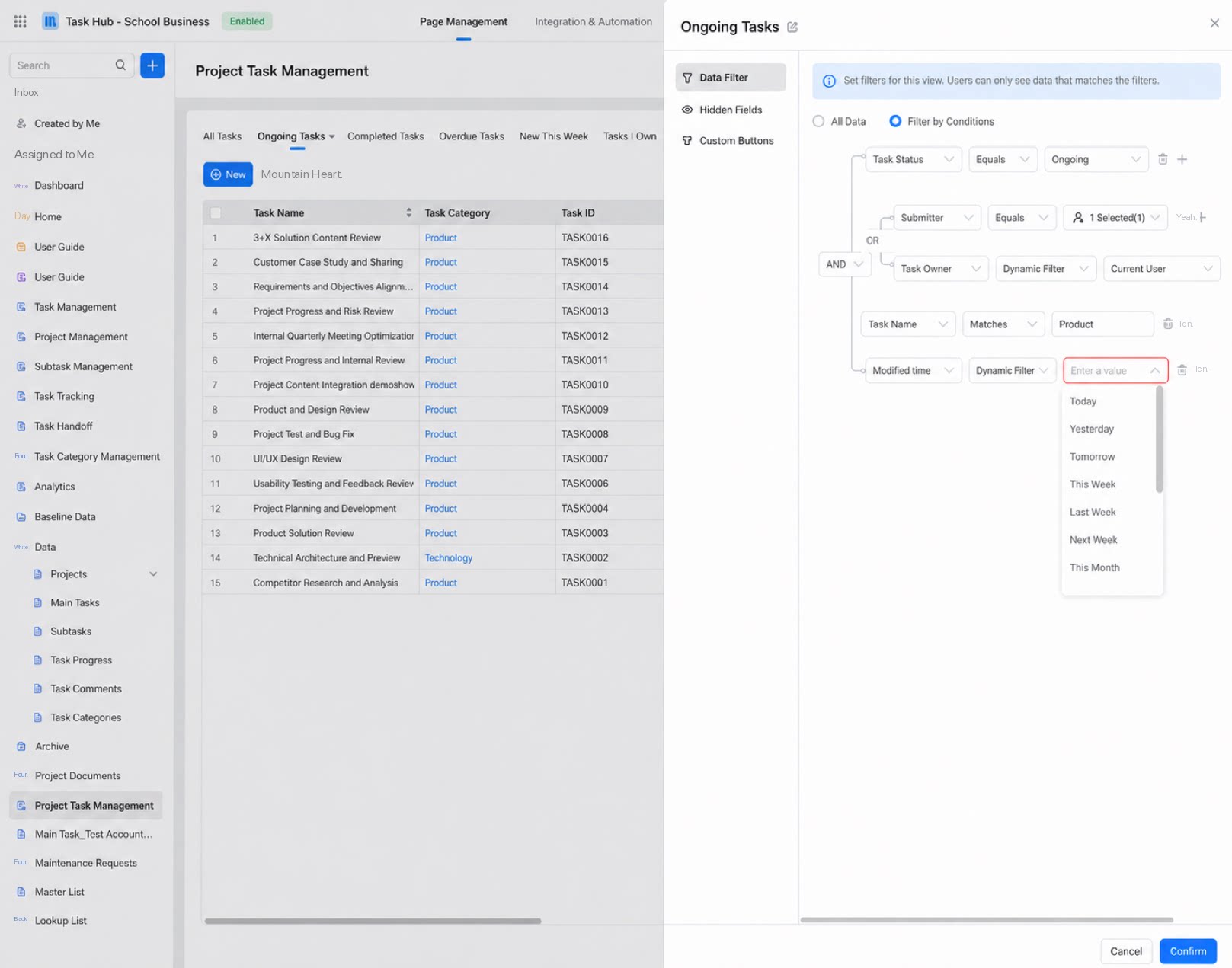
3.3.2. Data Filter
- Set a data filter for the view. Under this view, users can only see data that meets the filter conditions.
- Filters support multiple tiers, AND/OR logic, and different operator types. Click to view operator details.
3.3.3. Show or Hide Fields
Path: Select the Grid view > Grid settings > Show or hide fields.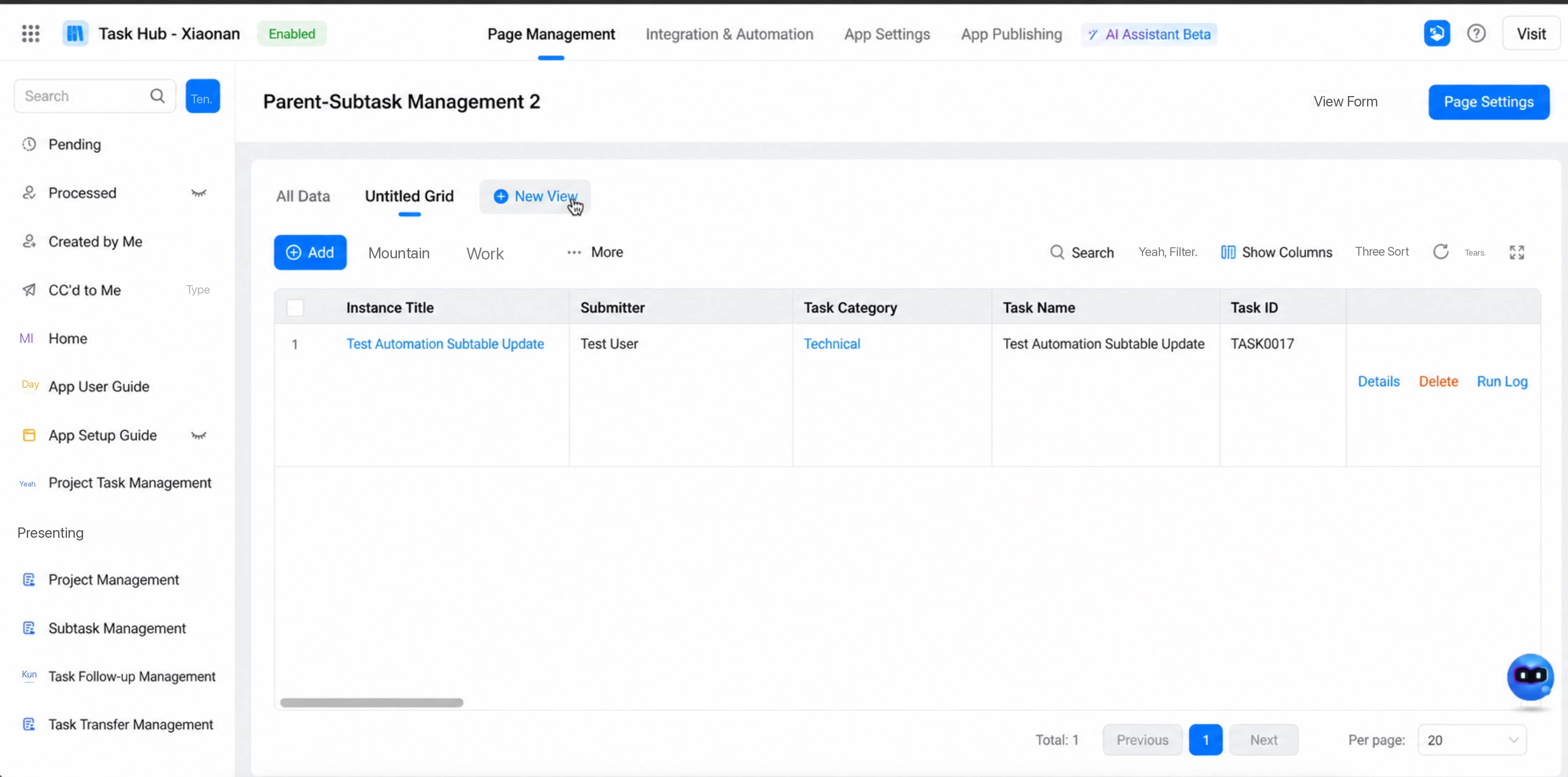 Set which fields to hide from users in this view. Hidden fields are invisible to all users in the table and cannot be sorted or filtered on the user side.
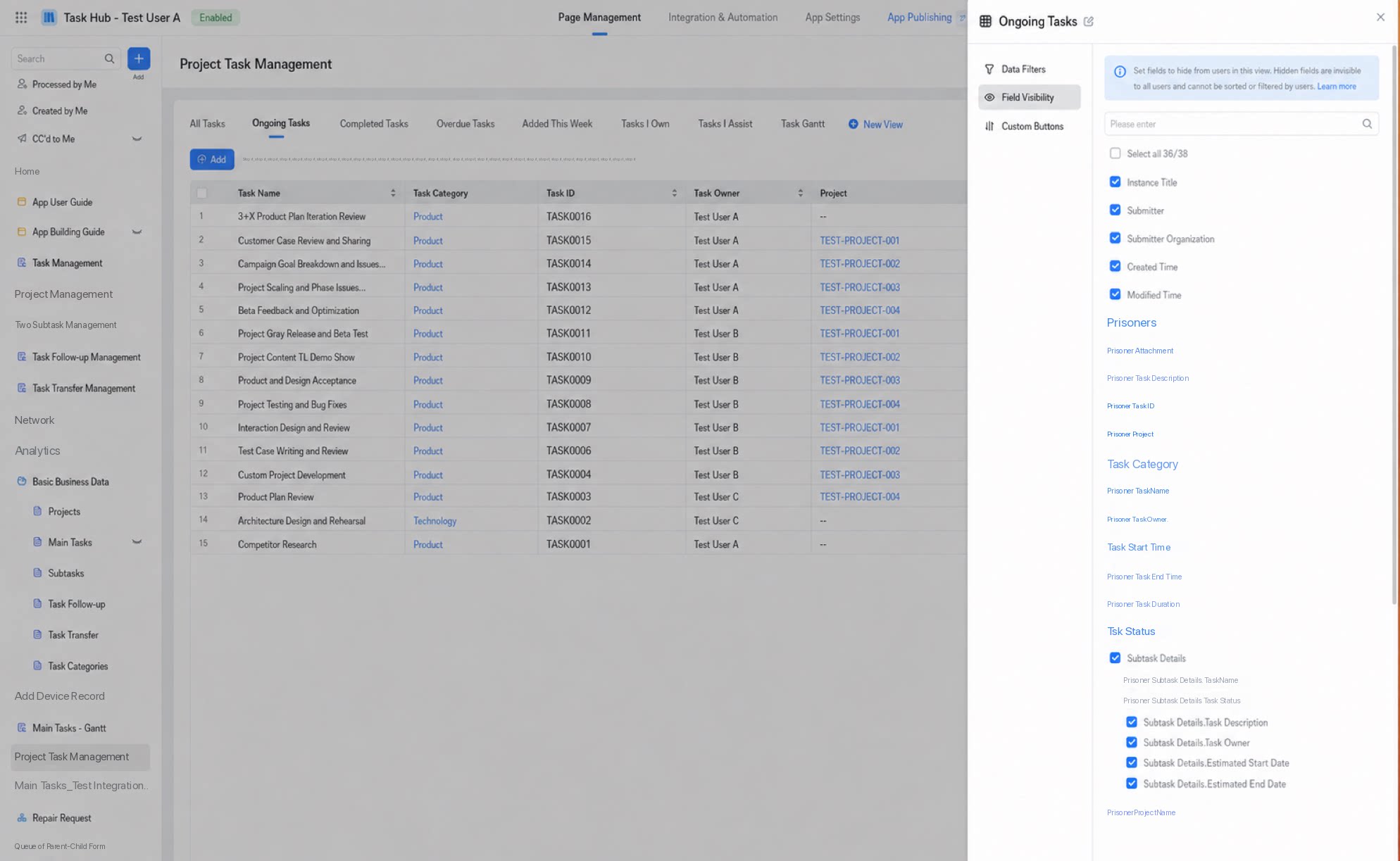
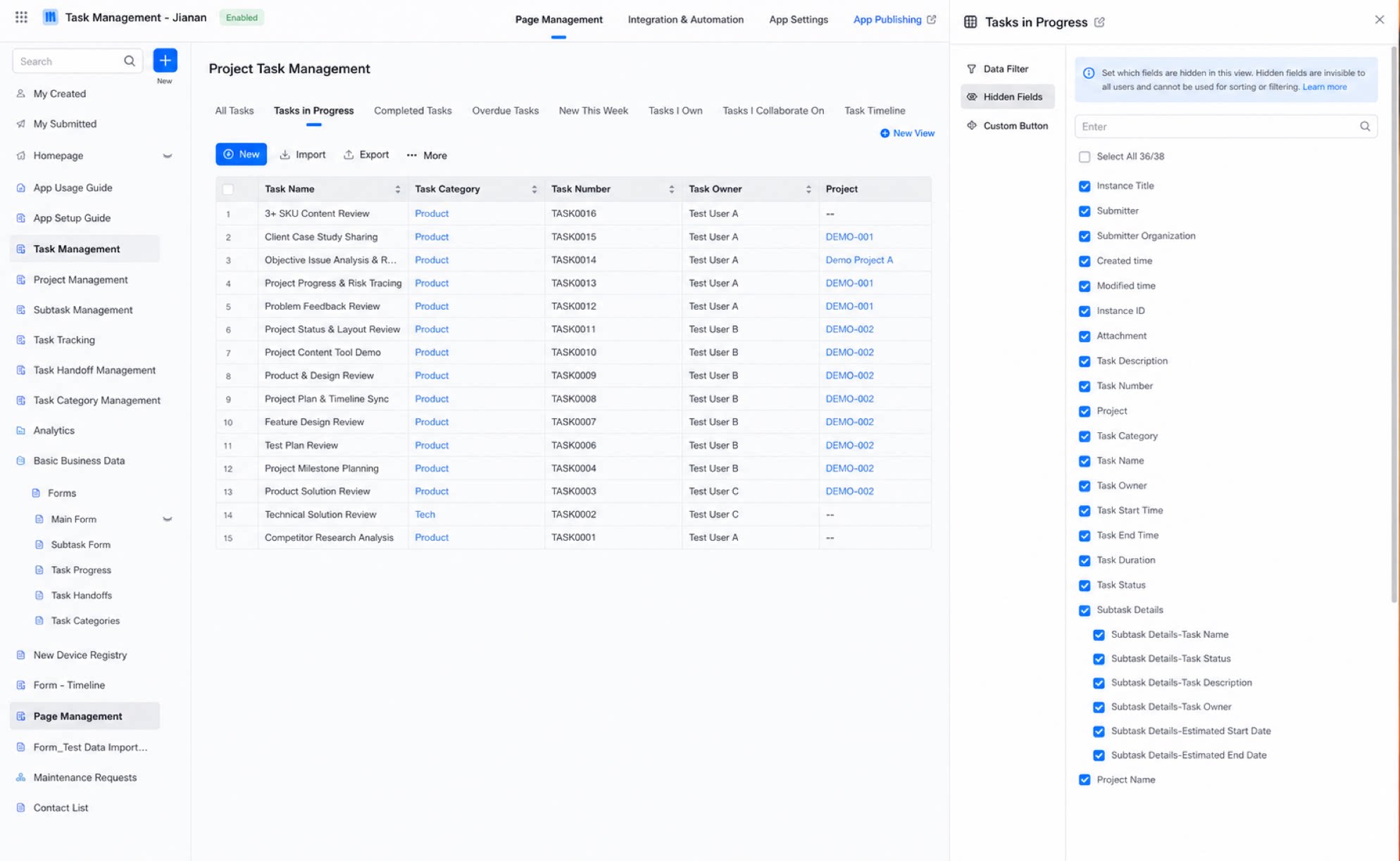
- The Show or hide fields setting only takes effect in the view list. It does not affect the Source records page or the fill-in page for a single record.
- Each user can only see fields within their permissions and can set Show fields separately when viewing data. This is not affected by the view settings.
3.3.4. Custom Button
- The List view supports adding custom buttons to the action column.
- If a custom button has availability conditions configured, the button appears on all records in the action column. When users click the button on records that don’t meet the conditions, a permission denied message appears.
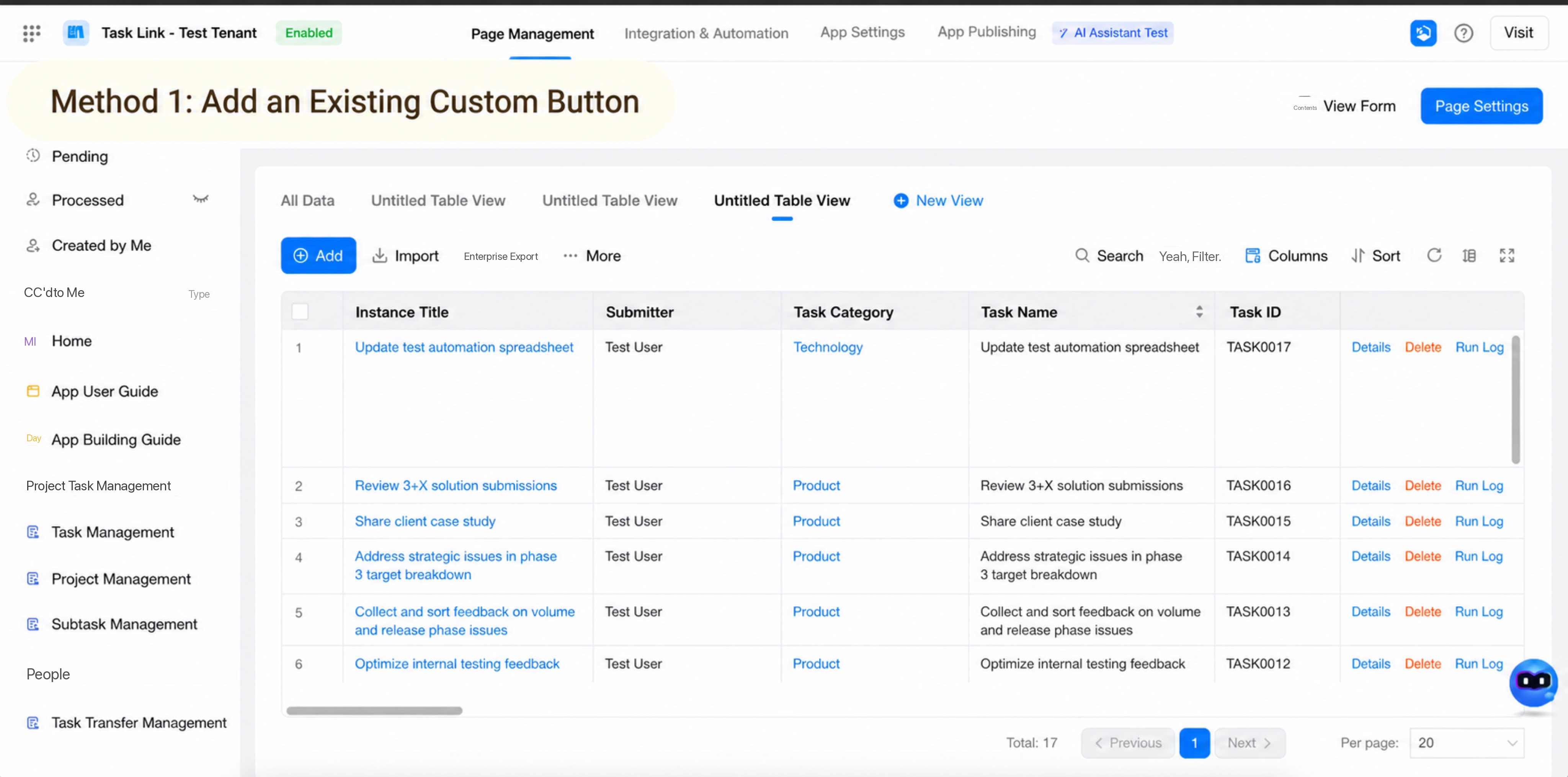
- Custom button in the action column
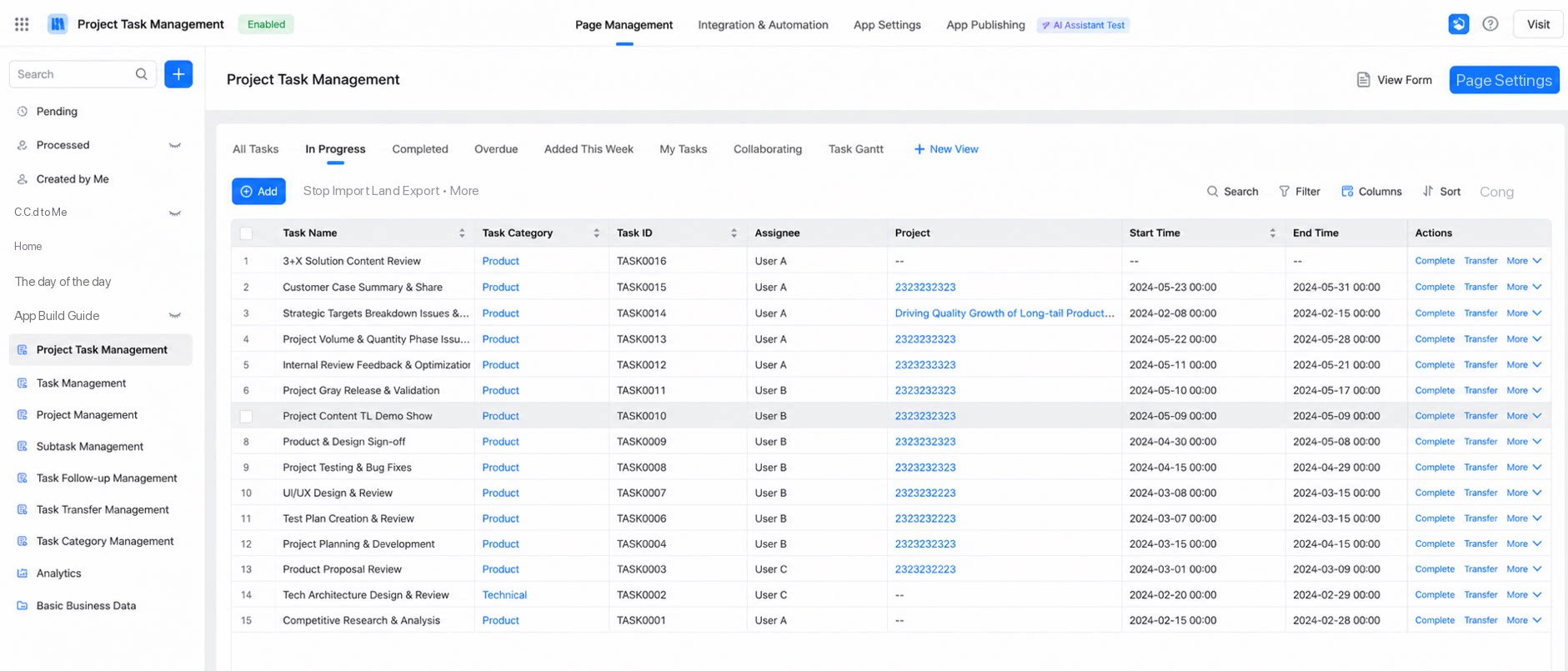
- Add an existing custom button to the action column
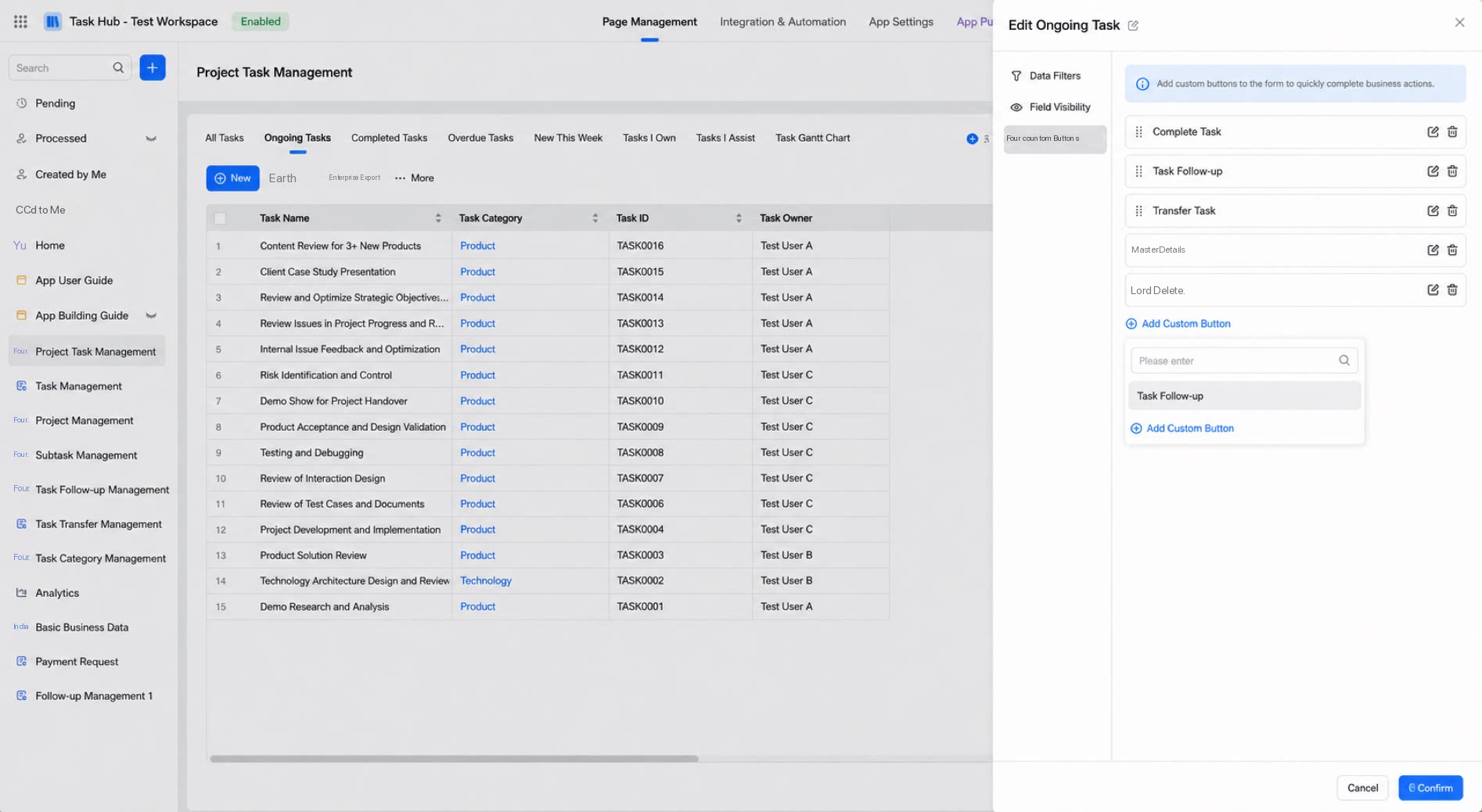
- Create a new custom button in the action column
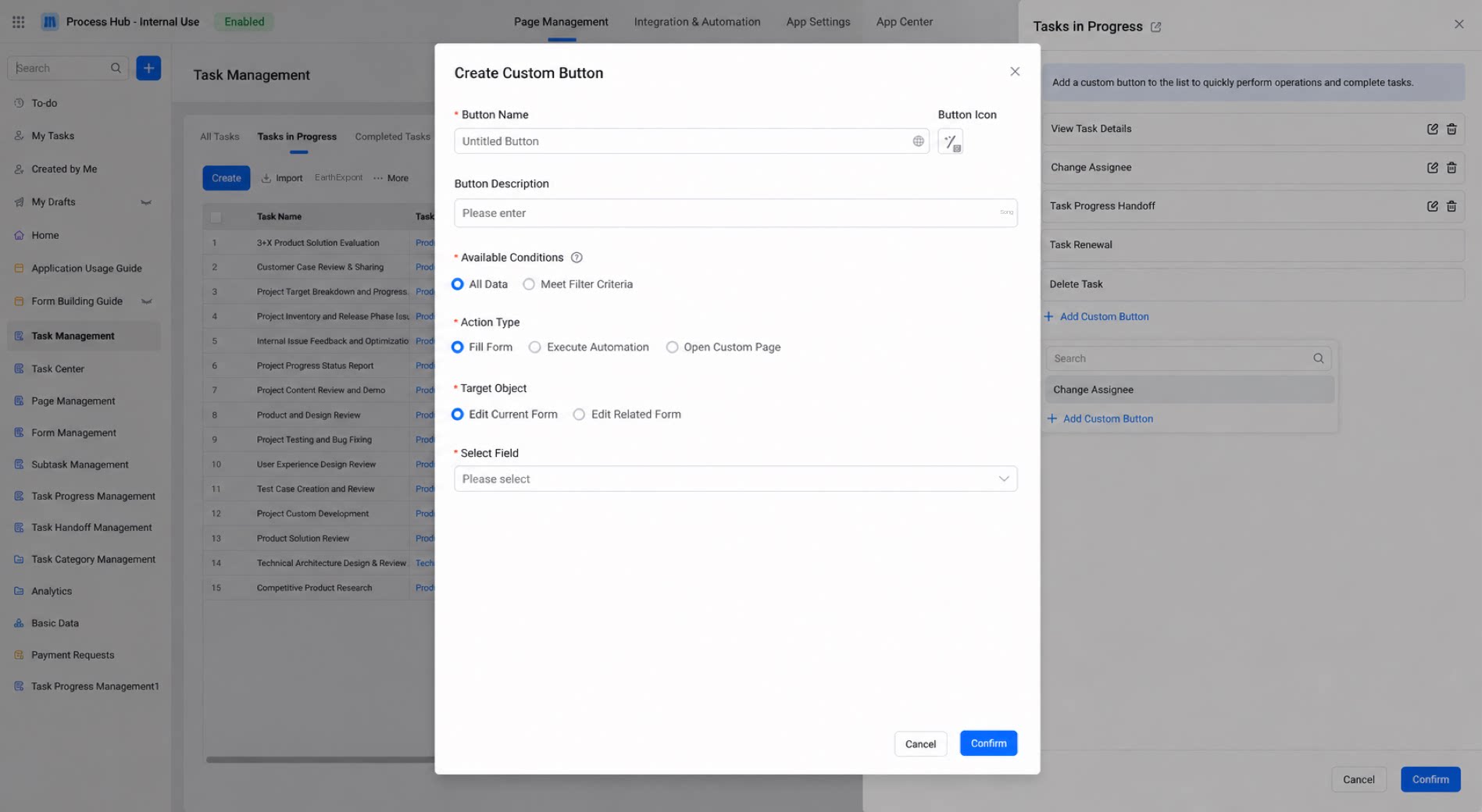
4. Gantt View
4.1. Overview
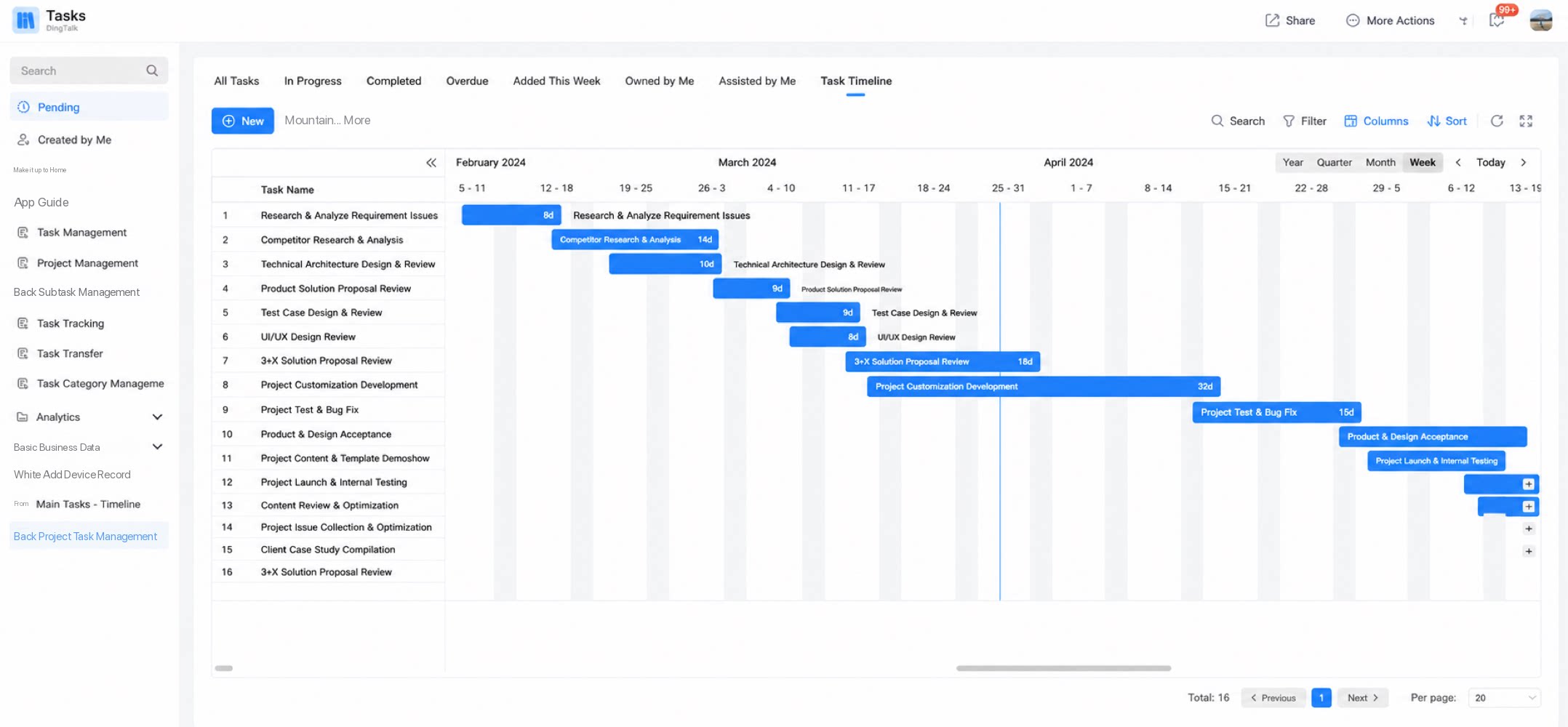
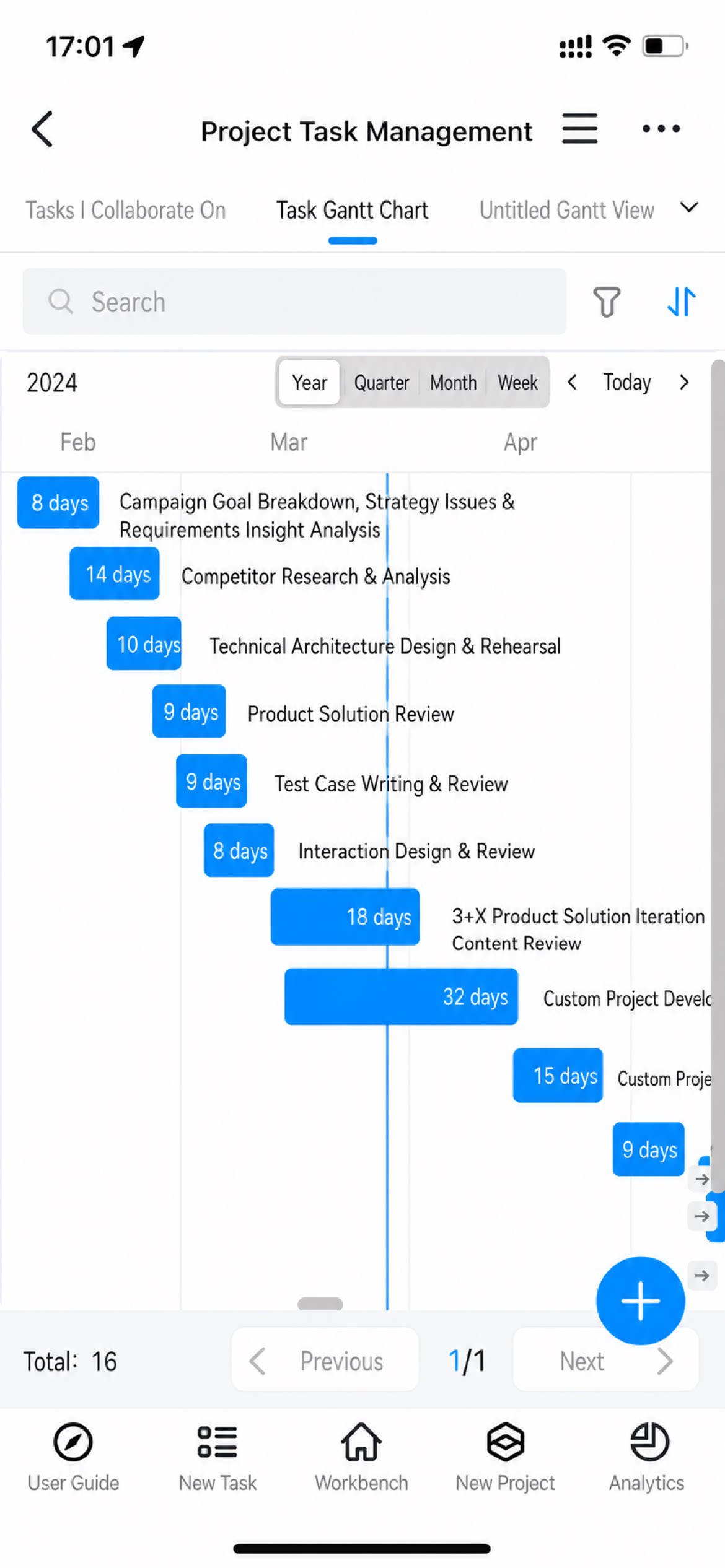
A Timeline is a horizontal bar chart that shows the time distribution and duration of task data. The length and position of each bar indicate the start date, end date, and duration of each activity. Bars are stacked as rows, so you can see at a glance:- What tasks exist
- The start and end dates of each task
- The duration of each task
- The sequence and overlap of multiple tasks
4.2. Use Cases
Use it for project task progress, production planning, engineering progress, scheduling, progress tracking, appointment management, and similar scenarios.4.3. Setup Steps
4.3.1. Create a View
Path: Page Management > select a form in the page navigation menu > generate the data management page > create a view > create a Timeline.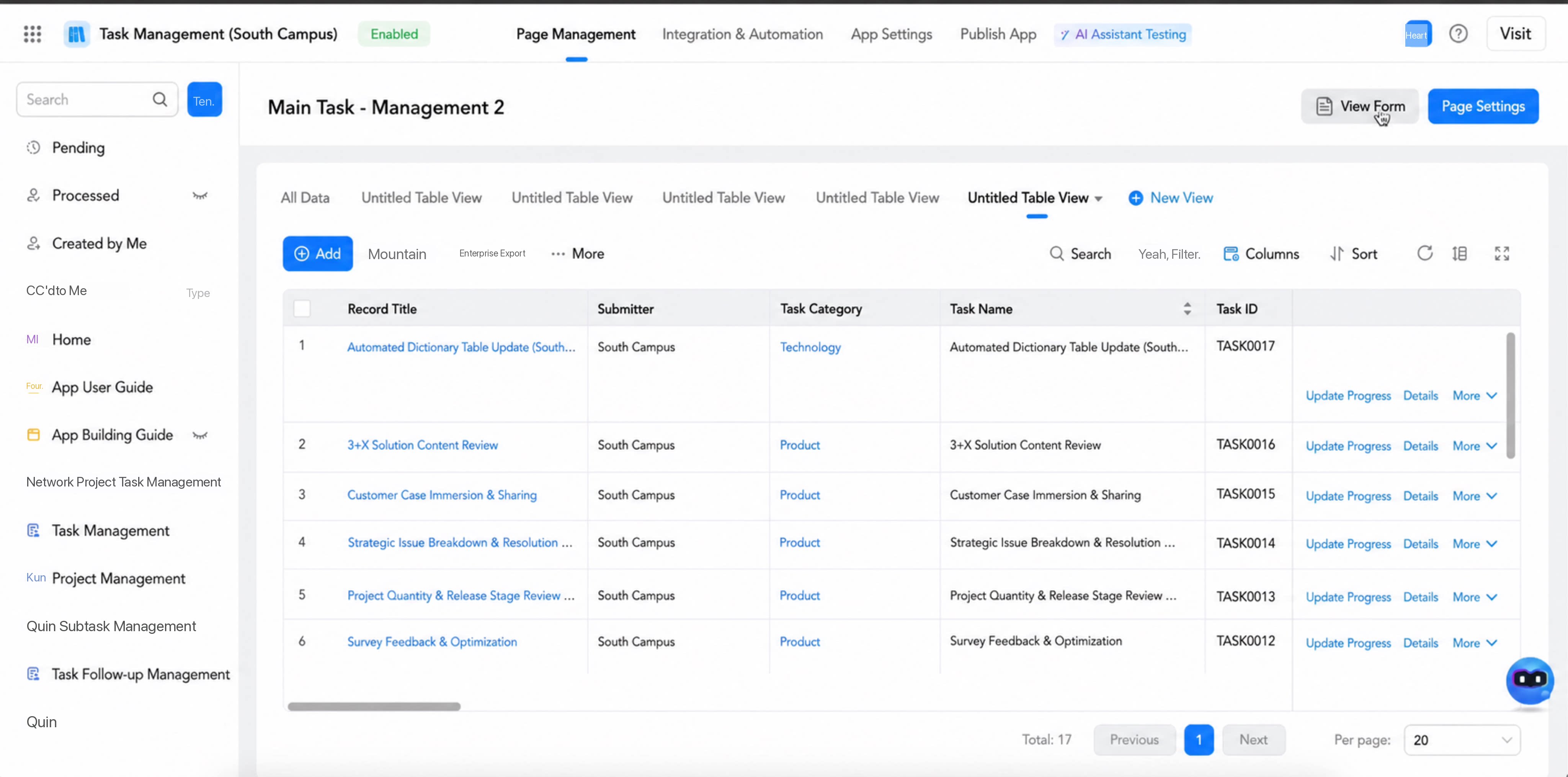
4.3.2. Time Range
Under Time range, set the base date fields for the Timeline, including the start date field, end date field, and time scale. Records are displayed as bars based on these fields.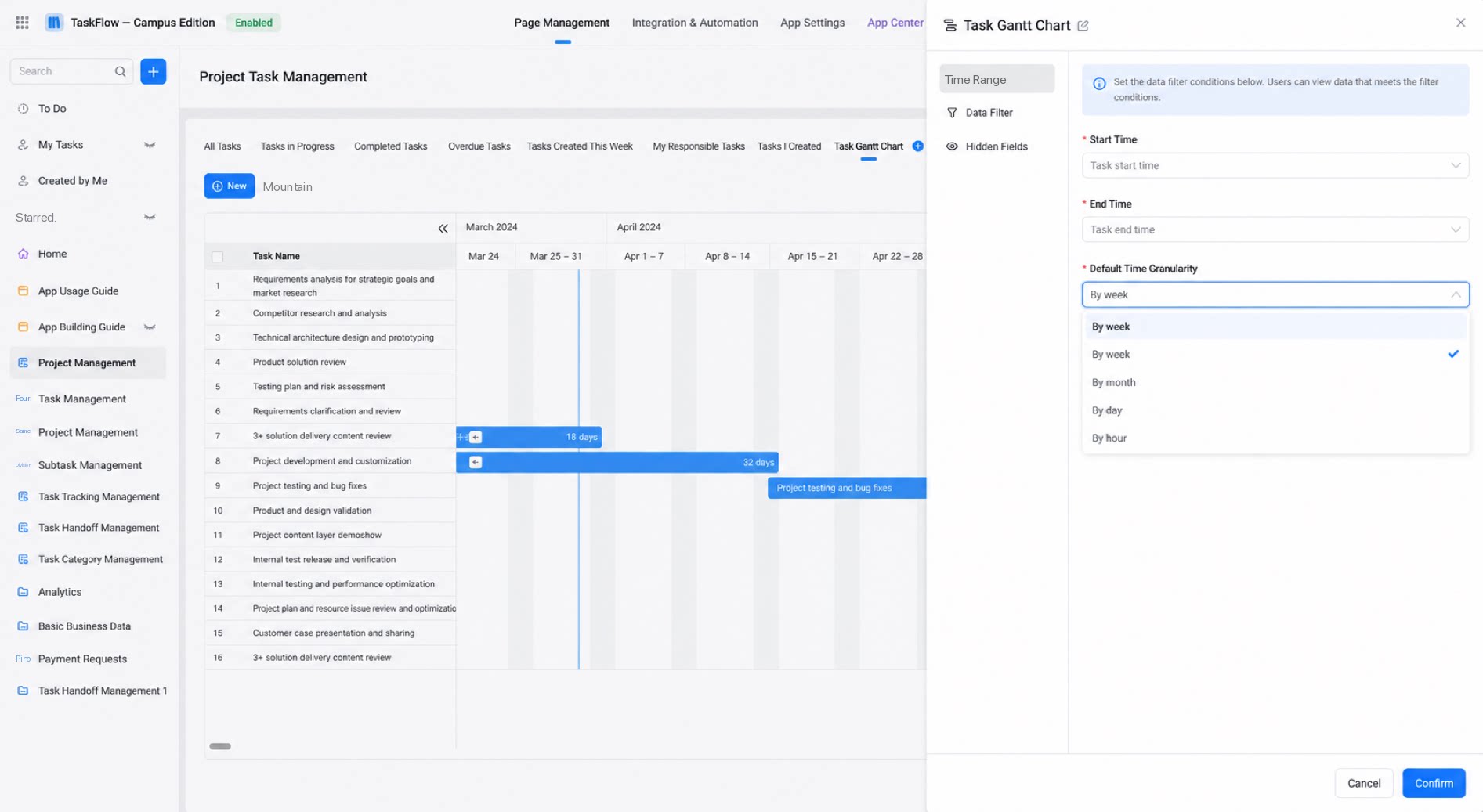
- “Start time” and “End time” default to the record’s “Created time” and “Modified time”. Select a date component or a date range component from the main form. If you select a date range component, “Start time” and “End time” use the same field.
- Time scale options: by year, quarter, month, or week.
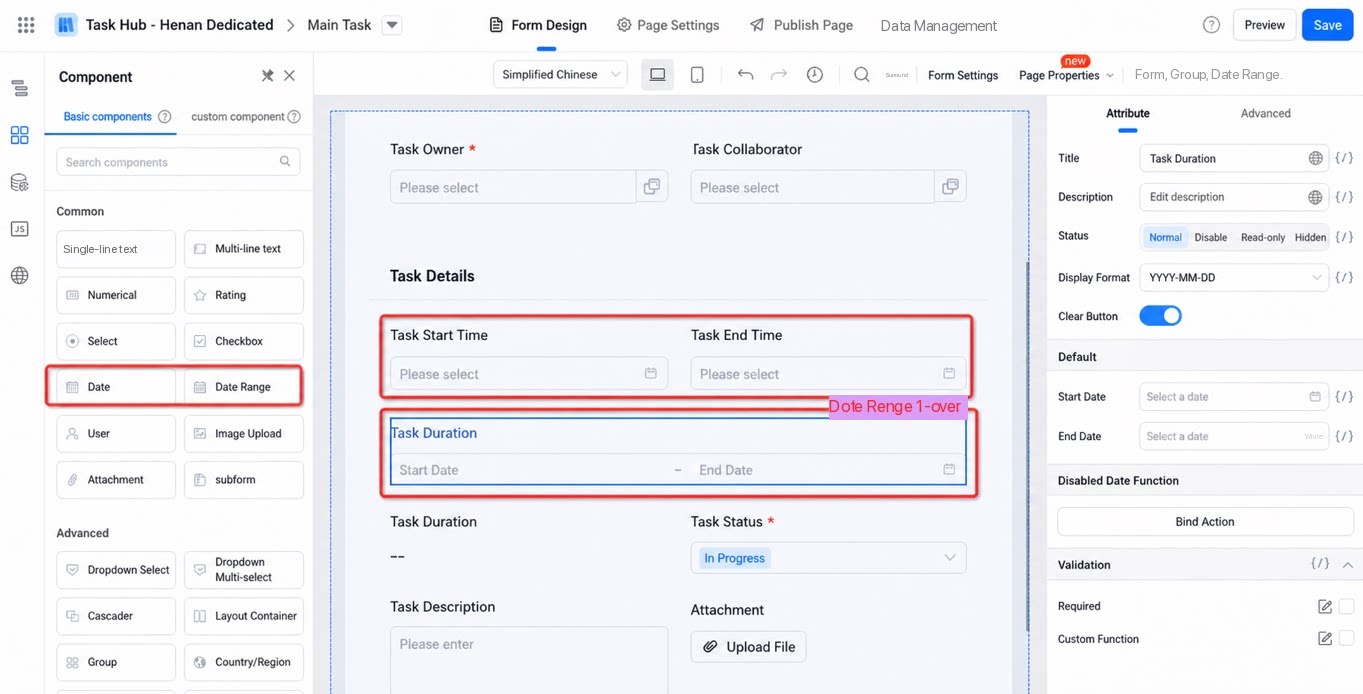
4.3.3. Data Filter and Field Visibility
- The data filter logic of the Timeline is the same as that of the Grid view.
- The field visibility logic of the Timeline is the same as that of the Grid view. Users set the Show fields in the left-side list.
5. General View Settings
General view settings are the default view configurations set by the admin in the admin backend. In view mode, users can temporarily modify the settings, but temporary changes cannot be saved. When users reopen the view, the admin’s default configuration is restored.5.1. Admin Mode
In the App Management backend, the admin configures the filter, displayed columns and order, record sorting rules, row height, and other settings, and then clicks Save to provide the default view configuration for view mode.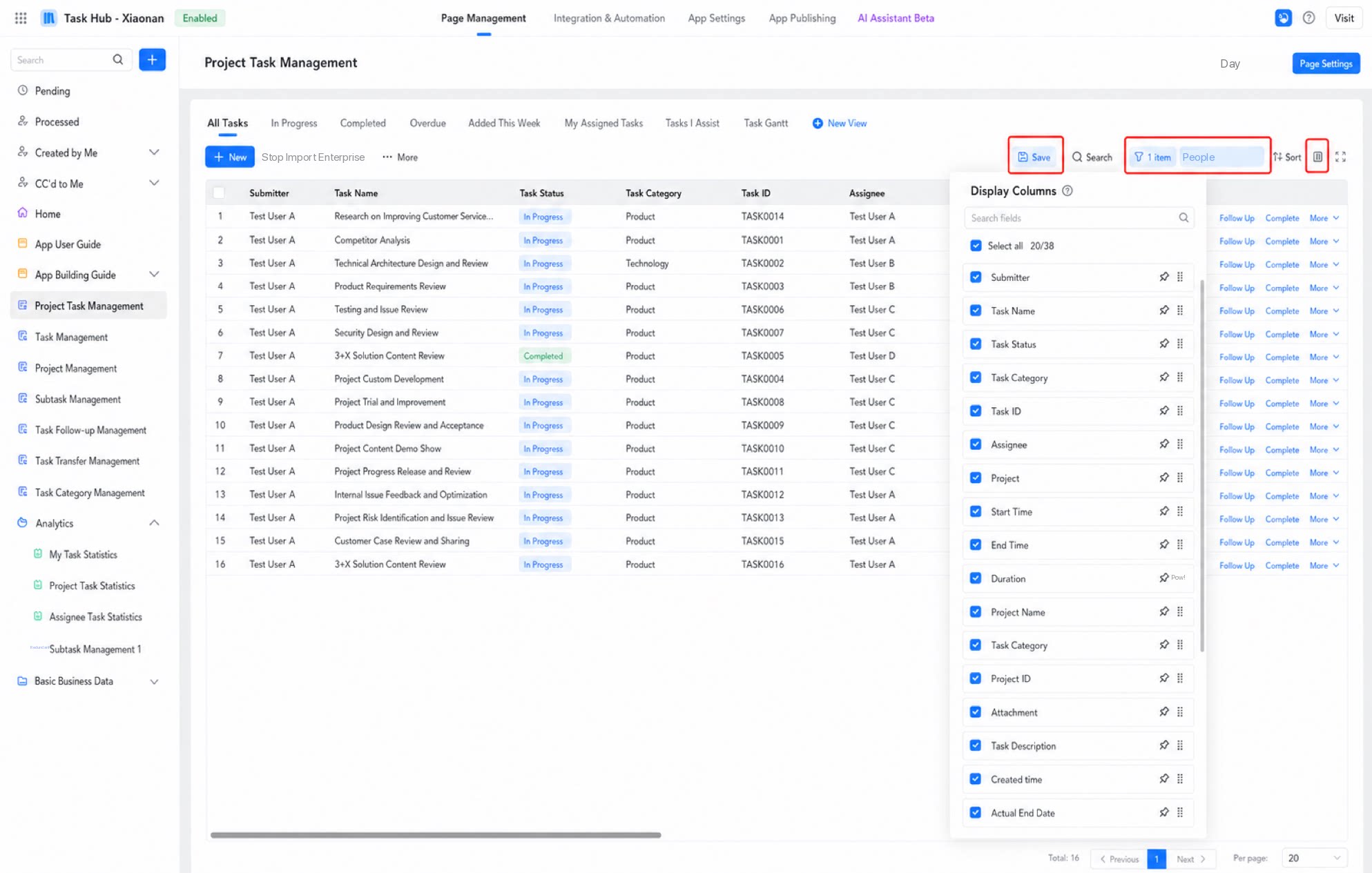
5.2. View Mode
In view mode, users can temporarily modify the filter, displayed columns and order, record sorting rules, and row height based on the admin’s default configuration. Temporary changes cannot be saved. When users reopen the view, the admin’s default configuration is restored.