Chats
Chats Calendar
 Meetings
 Contacts
 Mail
Mail Docs
Docs Drive
Drive AI Table
 AI Minutes
 Attendance
 Approval
 YiDA
YiDA Admin Console
1. What Is Bulk Submission
YiDA workflow forms let app admins submit workflows in bulk by uploading an Excel file from the app backend. Bulk submission currently supports the following capabilities: (1) Submit workflows on behalf of others. If a column in the Excel file contains initiator information, you can designate that column as the workflow initiator. (2) Submit workflows using the YiDA platform public account. For example, when tracking the resolution of external user complaints, the initiator should be a public account rather than an individual. (3) Dynamically assign workflow handlers based on a specific column in the Excel file. For example, in an Excel file that tracks external customer follow-ups, one column may contain the follow-up owner. You can designate that column as the workflow handler at submission time. (4) Delete bulk-submitted data by batch. If a bulk submission fails or does not meet expectations, you can delete the data directly by batch. (5) Format specifications for Excel column data.2. Bulk Submission Use Case
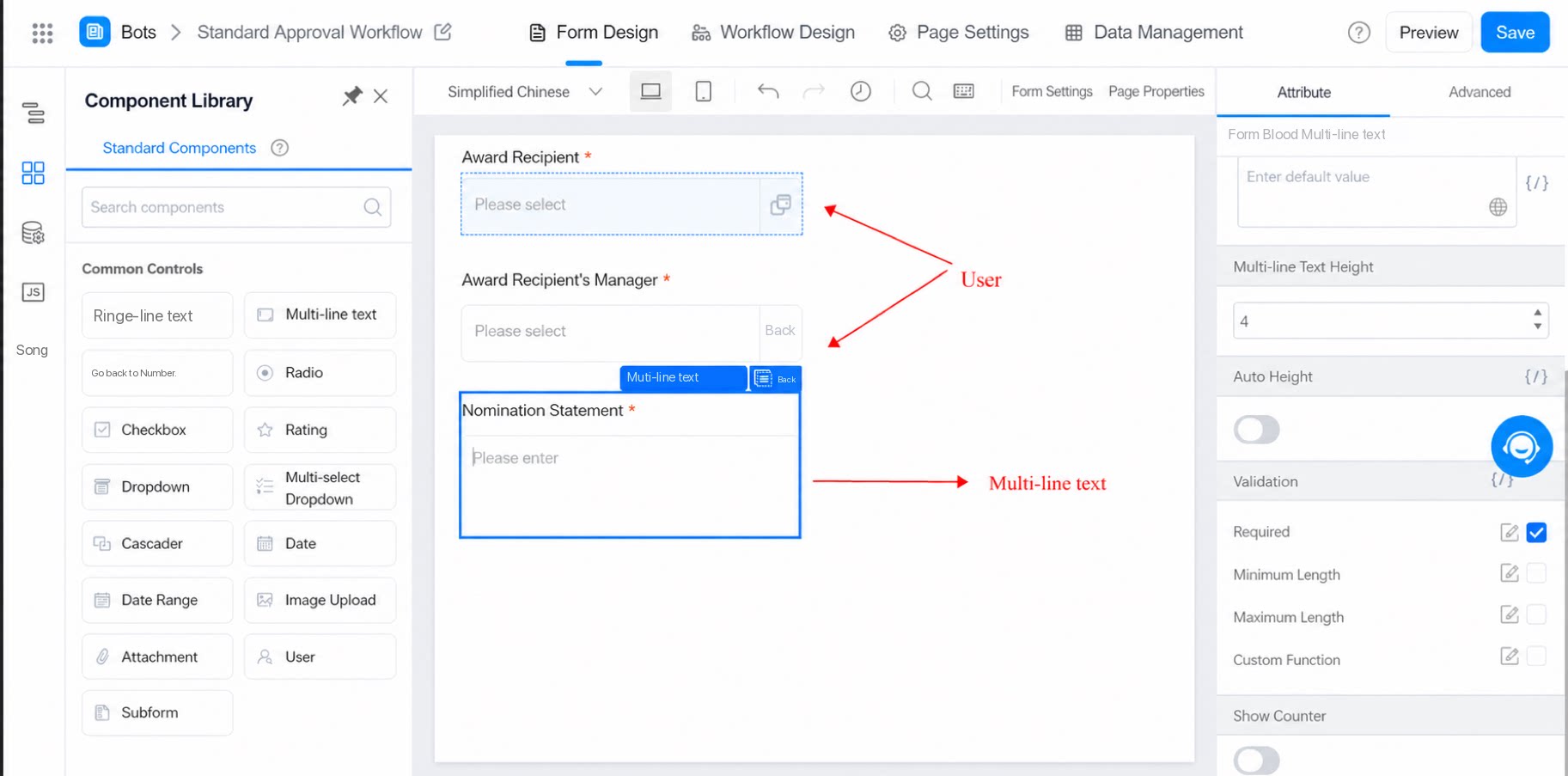
Scenario: A department wants to reward outstanding employees from the past quarter. Each outstanding employee’s manager writes a “nomination statement”. Once the manager submits the nomination, the employee receives a message notification to claim the gift.2.1 Procedure
2.1.1 Configure the Fields to Fill in on the Workflow Form
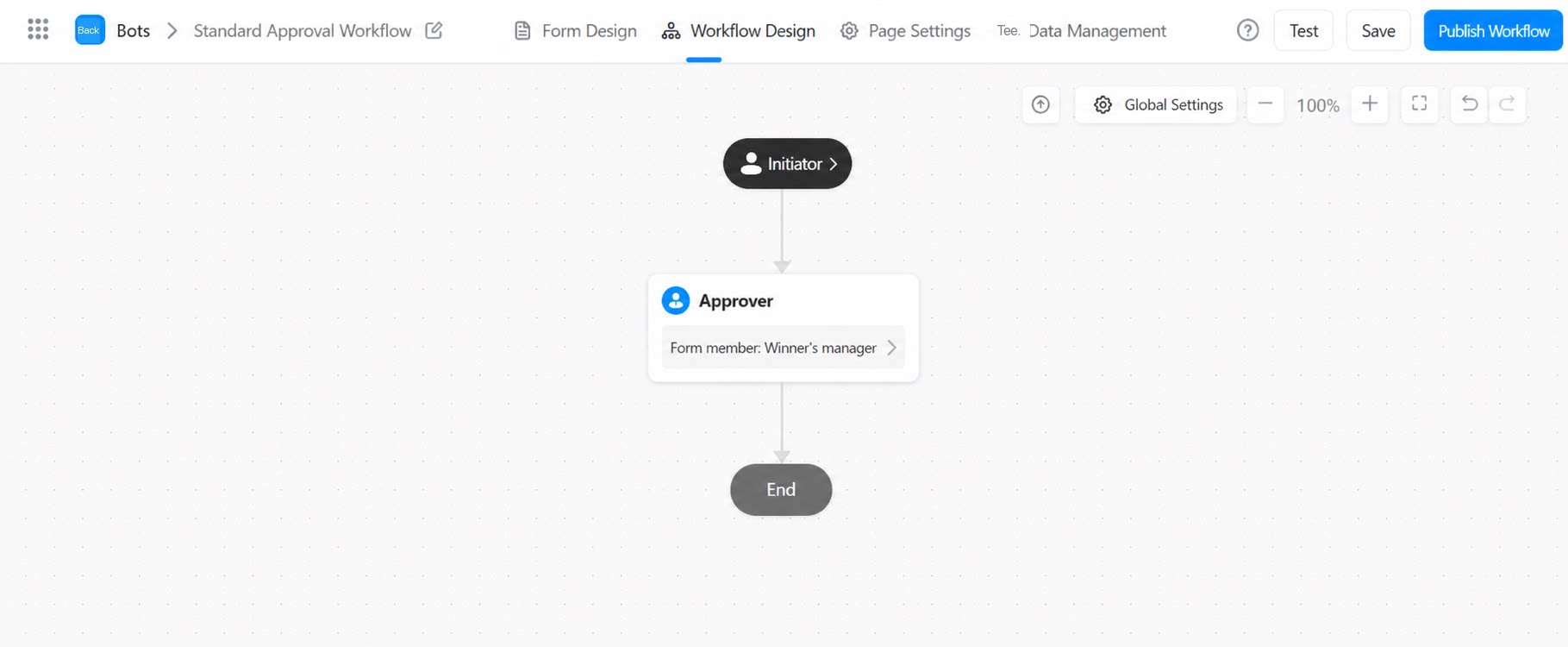
2.1.2 Configure the Workflow so That After Submission, the Recipient’s Manager Becomes the First Approver and Writes the Nomination Statement
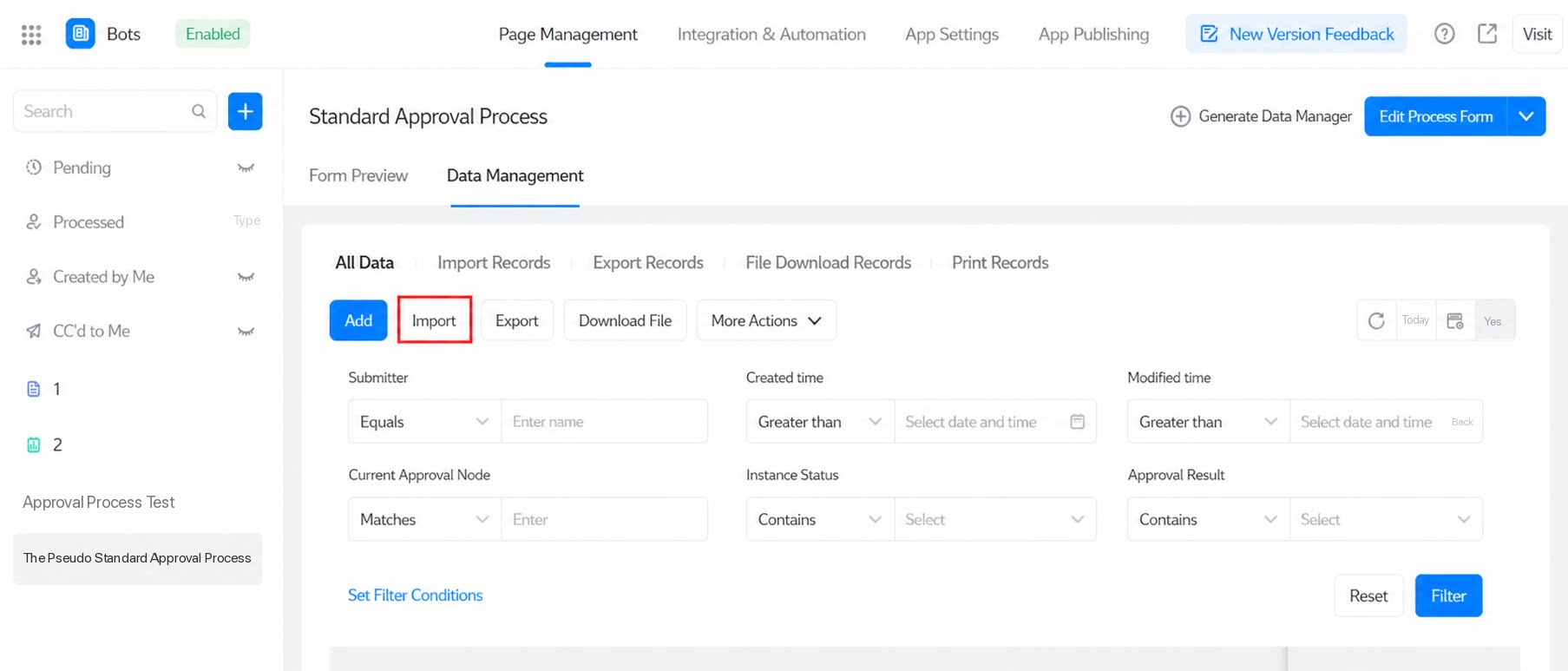
2.1.4 Select Excel Bulk Submission
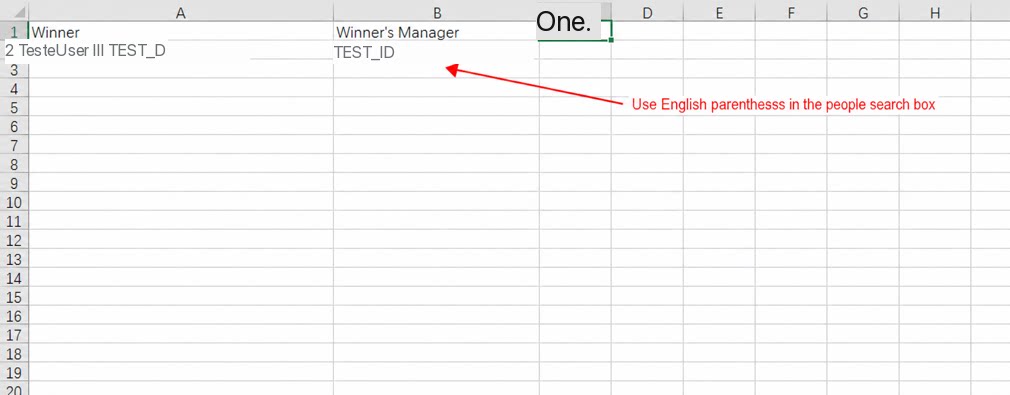
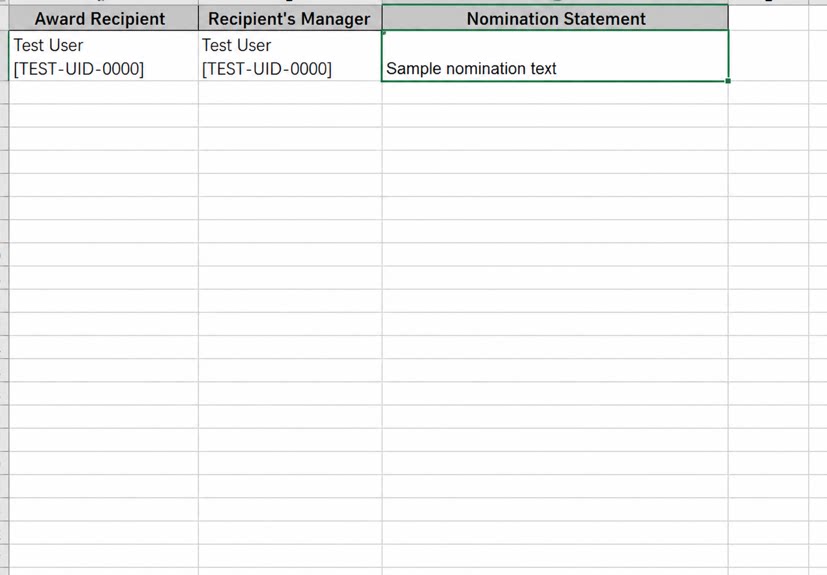
The Excel file content is shown below: Excel bulk submission Bulk submission from Data Management Note: The workflow bulk initiator can be customized Choose one of the following three types as the data initiator: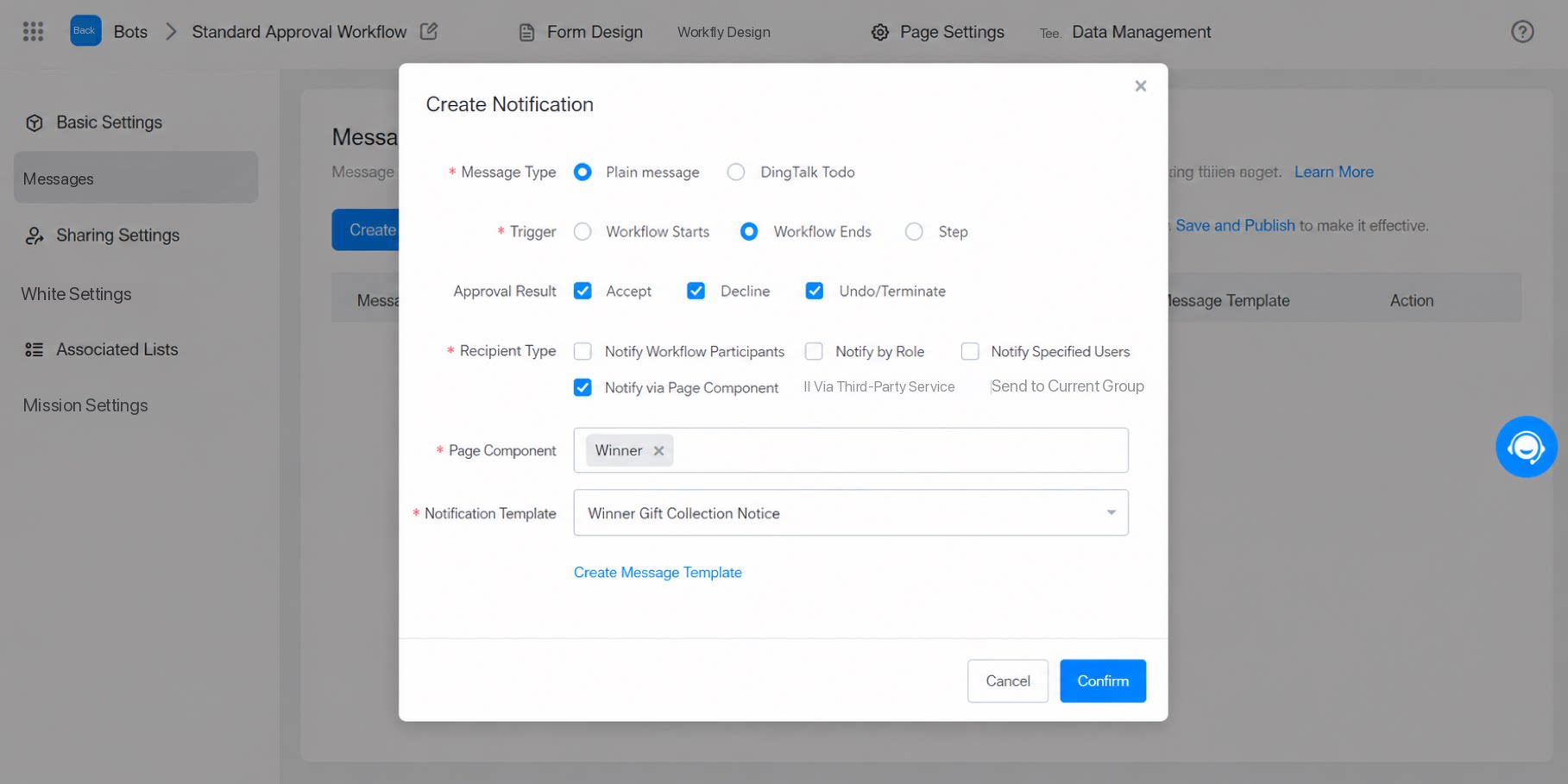
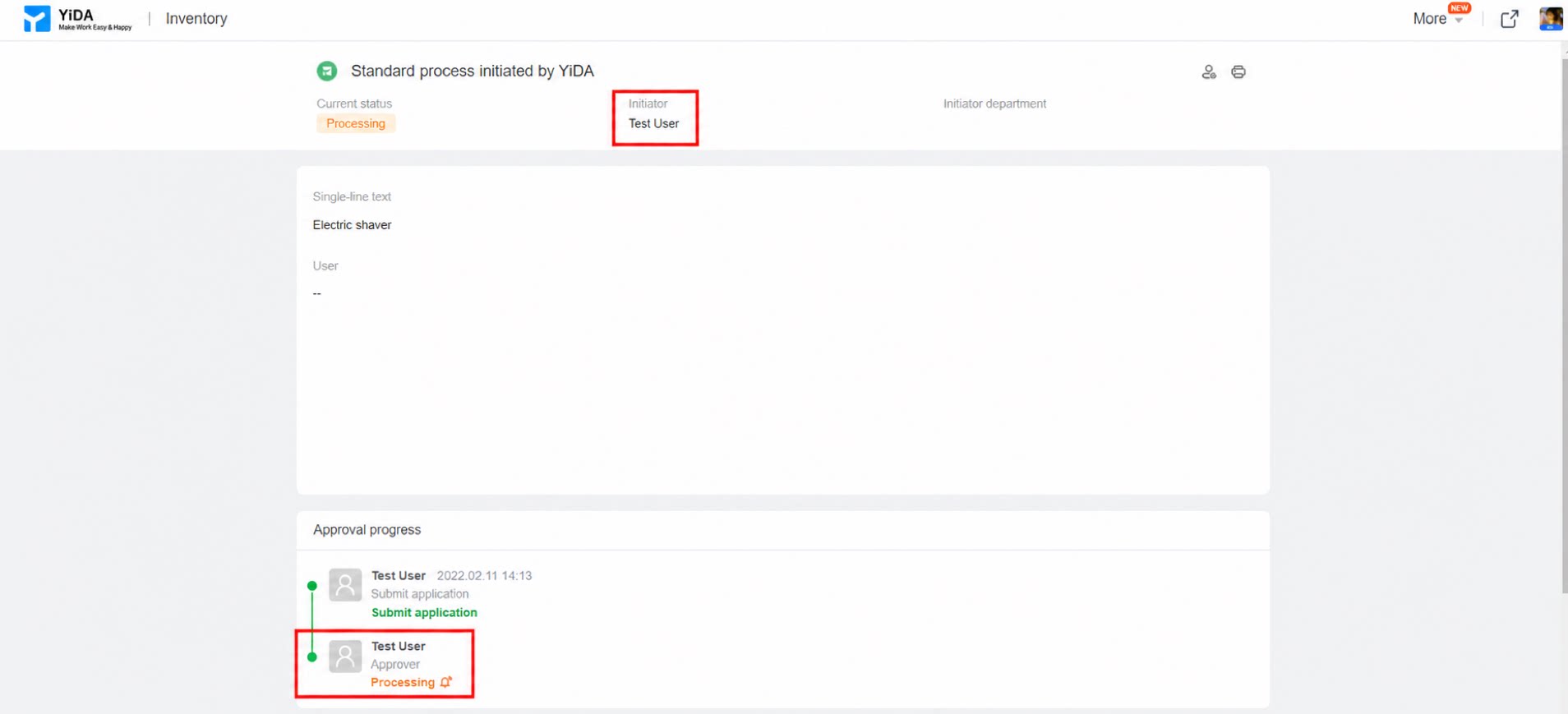
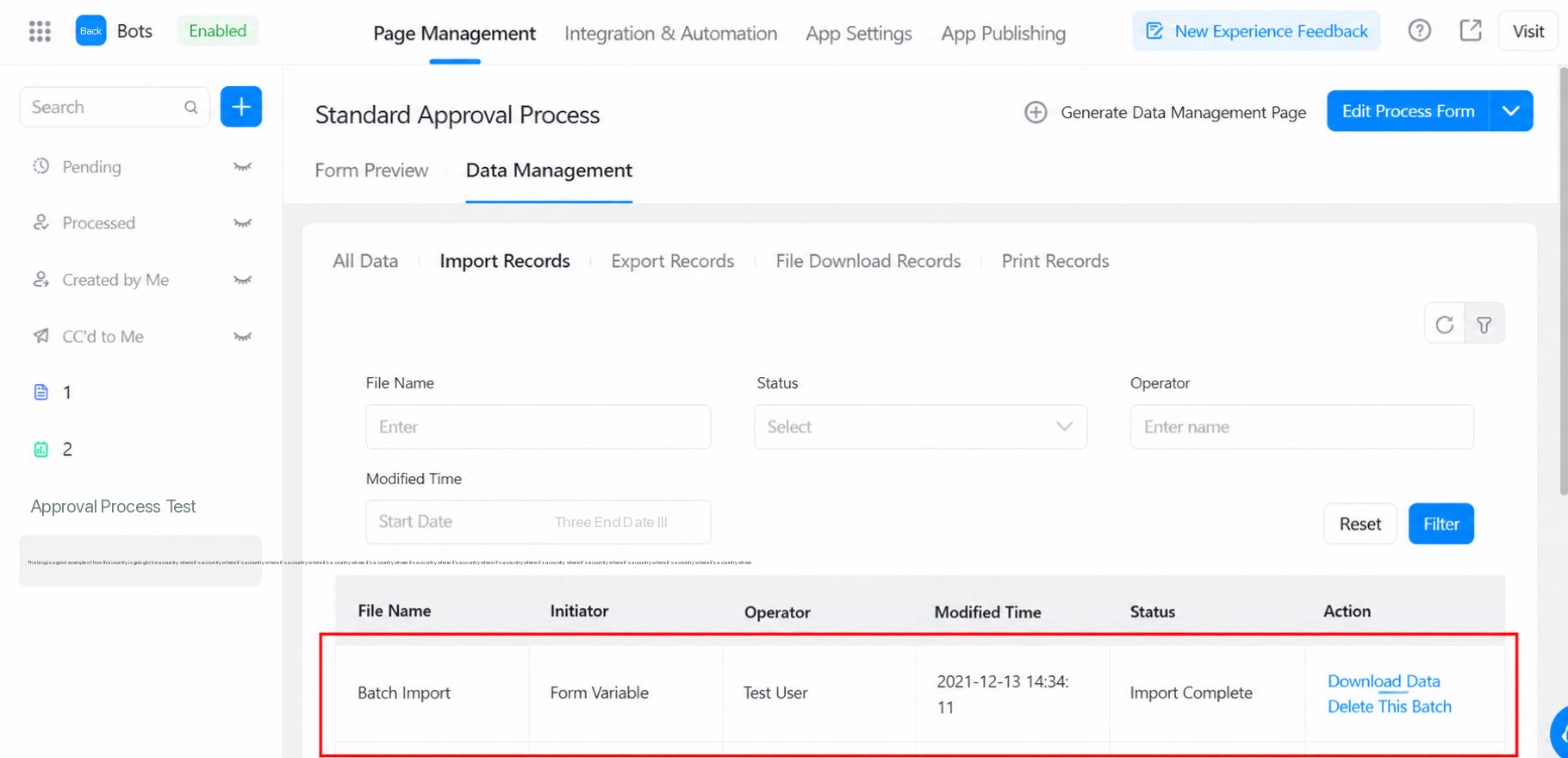
2.1.5 View Bulk Submission Results
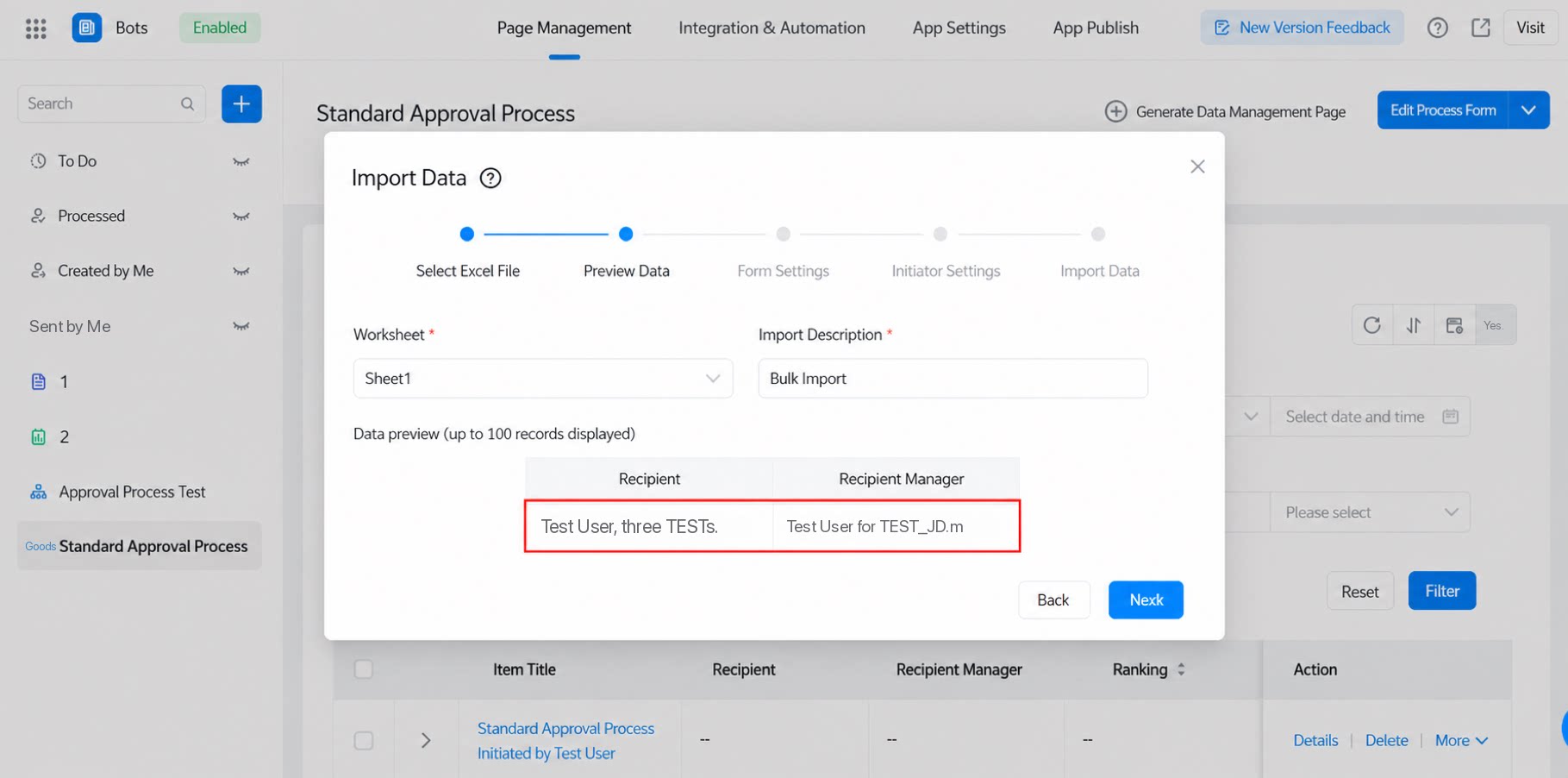
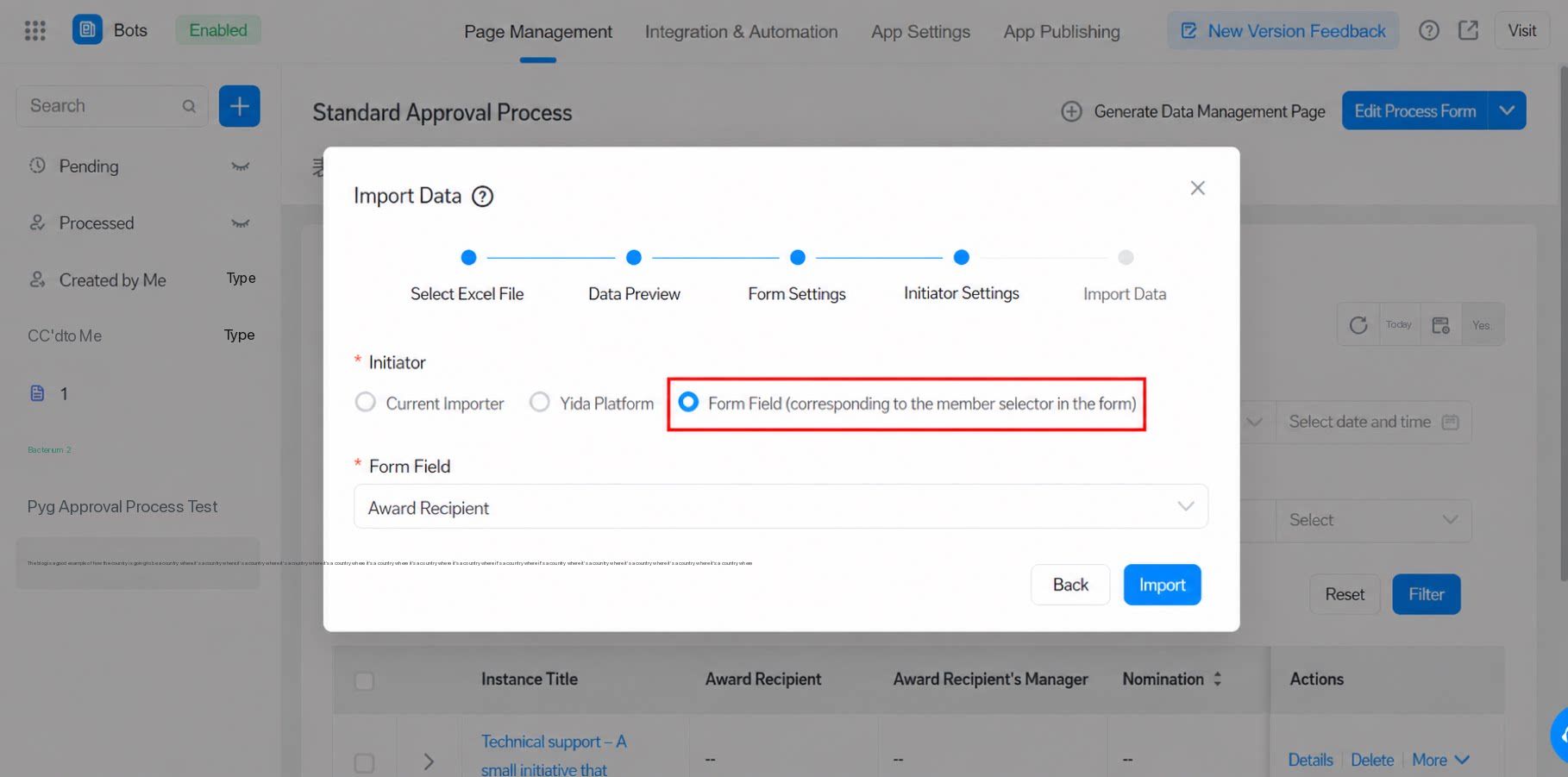
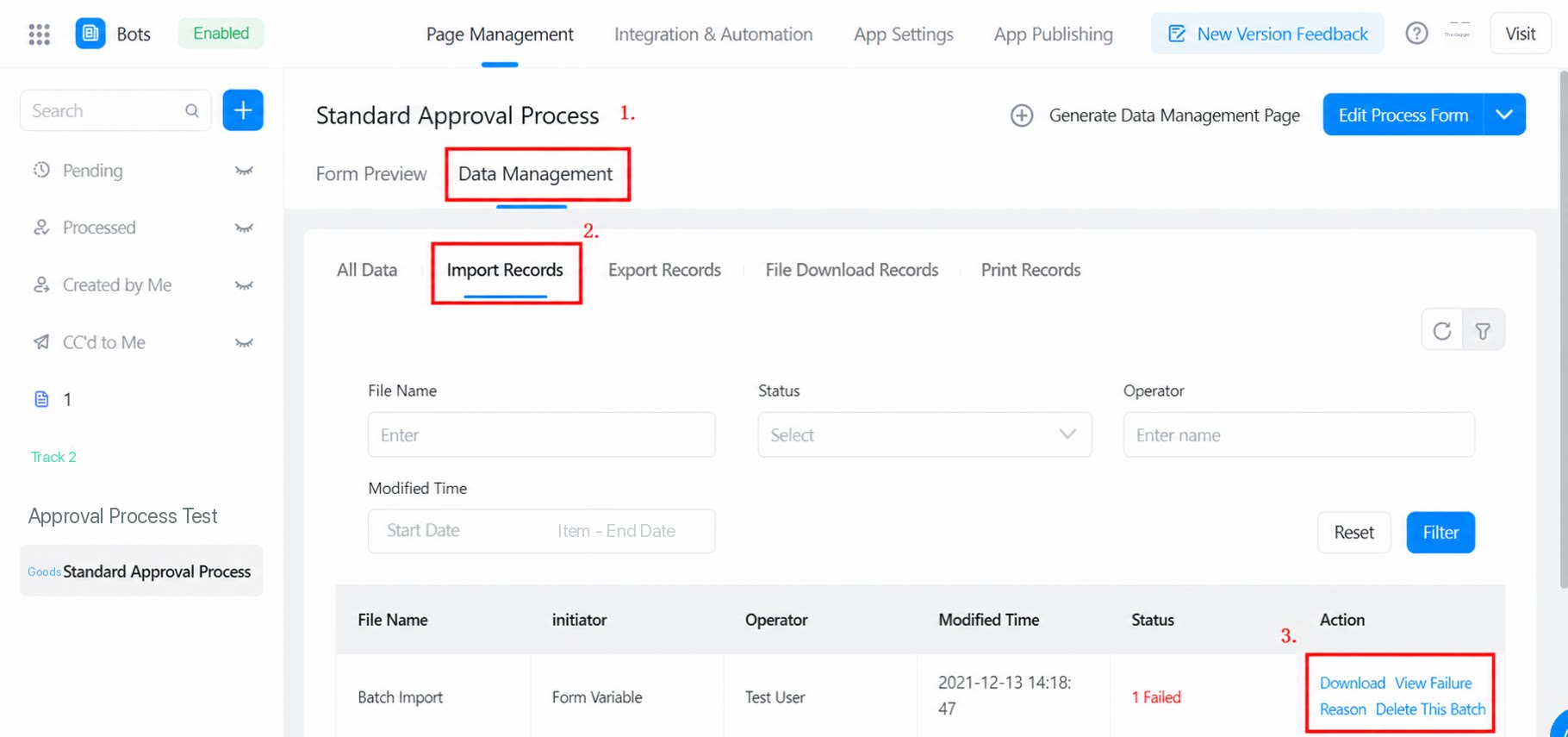
2.1.6 For Failed Records, You Can Delete the Entire Batch
Delete this batch of data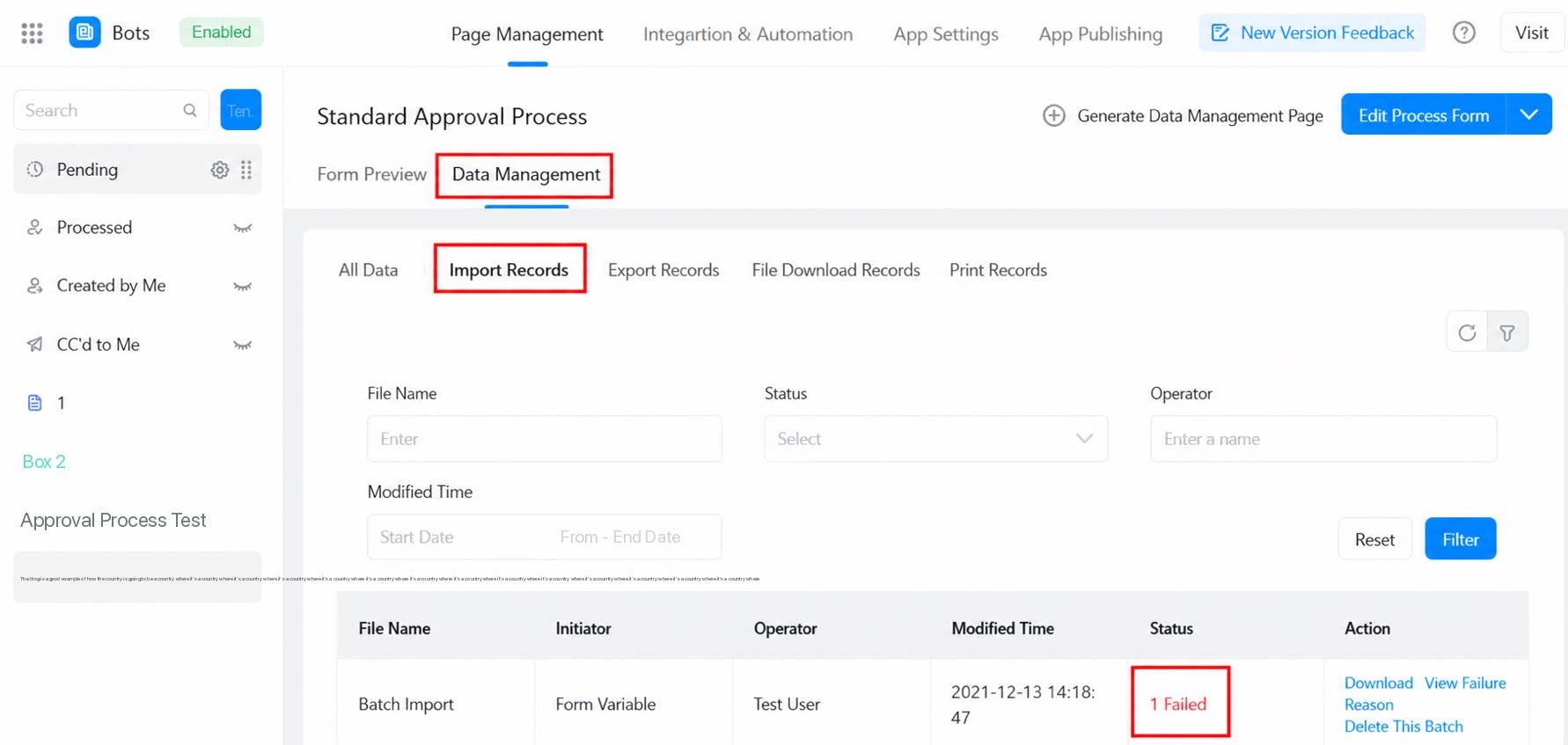
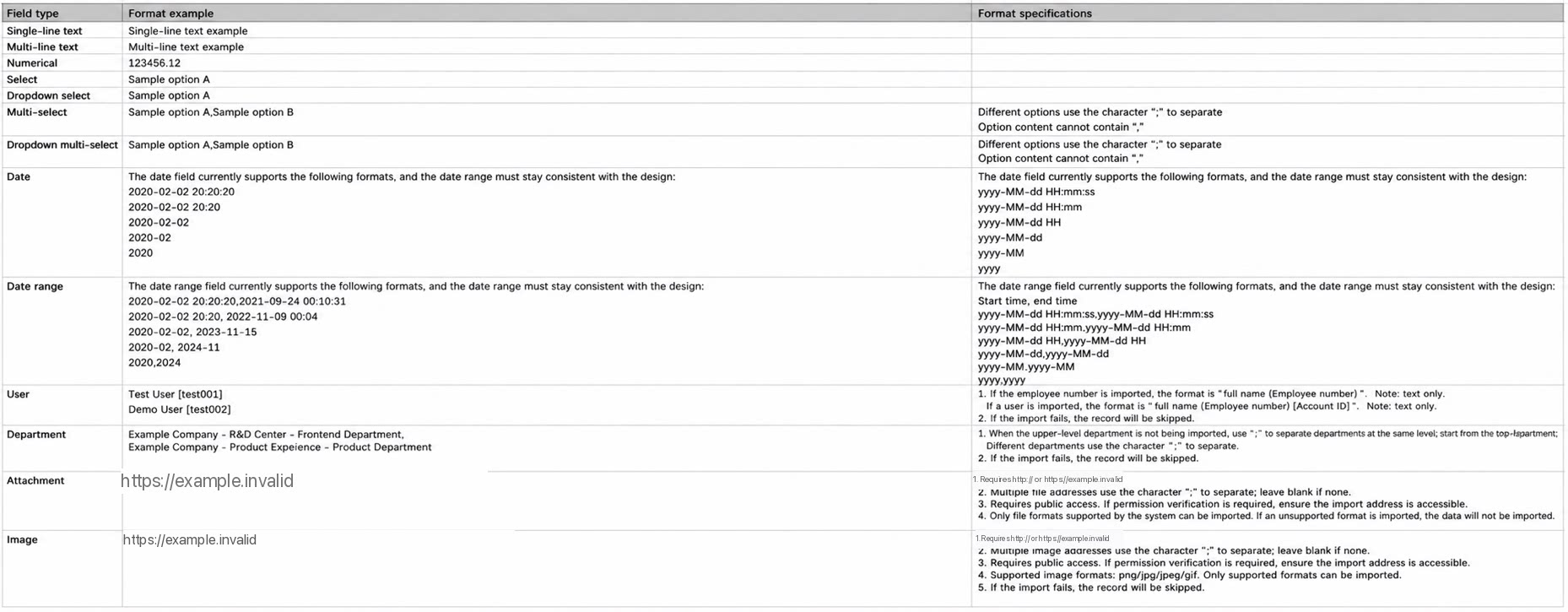
**Name1(EmployeeID1), Name2(EmployeeID2)**. The parentheses must be half-width English characters.
**Name1[EmployeeUserID1], Name2[EmployeeUserID2]**. The brackets must be half-width English characters.
3. FAQs
3.1 Why did the bulk submission fail?
3.1 Why did the bulk submission fail?
When bulk submission fails, check the following: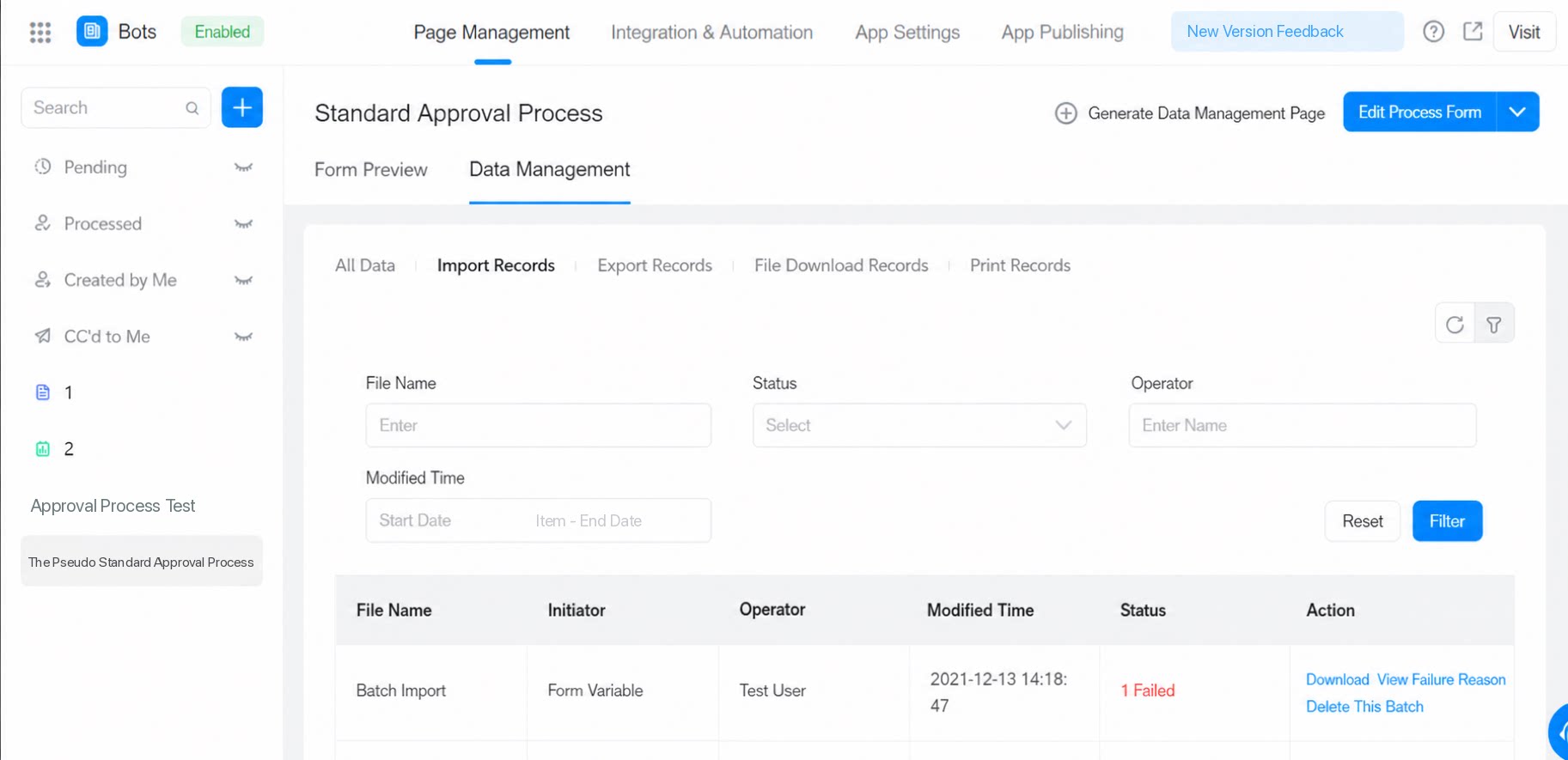 (1) Whether the app is published. Bulk submission works only after the app is published.(2) Whether the initiator is customized as the member component on the form. If so, verify that the user search box has a value and that the format is correct.(3) A maximum of 1,000 records can be imported at a time, and the file size must not exceed 20 MB.(4) Only
  (5) Make sure the header row of the sheet you want to import contains no empty cells. Otherwise, the data on that sheet will not be imported.(6) Bulk-imported data does not support filtering conditions based on “built-in variables”.
 (7) Imported files do not support Excel formula calculations such as
*.xls and *.xlsx files are supported.SUM or =H2*J2.(8) Imported images and attachments are re-uploaded to storage and consume attachment capacity.3.2 How do I approve when the initiator is set to [YiDA platform] during bulk import?
3.2 How do I approve when the initiator is set to [YiDA platform] during bulk import?
When the workflow approver is set to the initiator themselves and the imported data uses [YiDA platform] as the initiator, the workflow approval node displays [YiDA platform] as the approver, and the approval cannot be performed manually.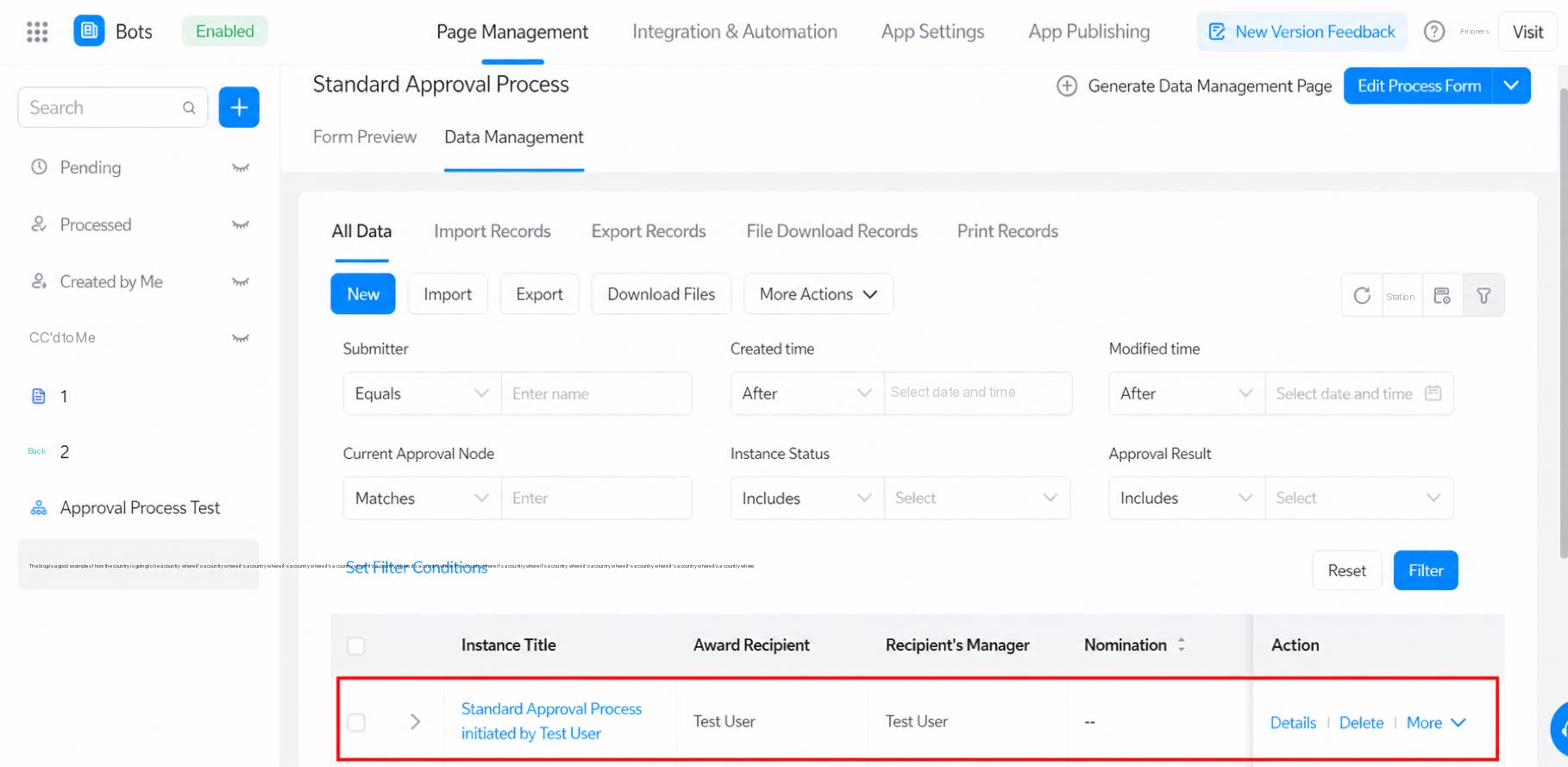 In this case, use the following open API to perform the approval.
- Endpoint: /yida_vpc/process/executePlatformTask.json
- Parameters
4. Data Import Format for Excel Components
As shown in the figure: