Chats
Chats Calendar
 Meetings
 Contacts
 Mail
Mail Docs
Docs Drive
Drive AI Table
 AI Minutes
 Attendance
 Approval
 YiDA
YiDA Admin Console
1. Batch Printing
1.1 Print Templates
Print settings are supported only in the Basic edition and Professional edition. The Free plan does not support configuring print templates.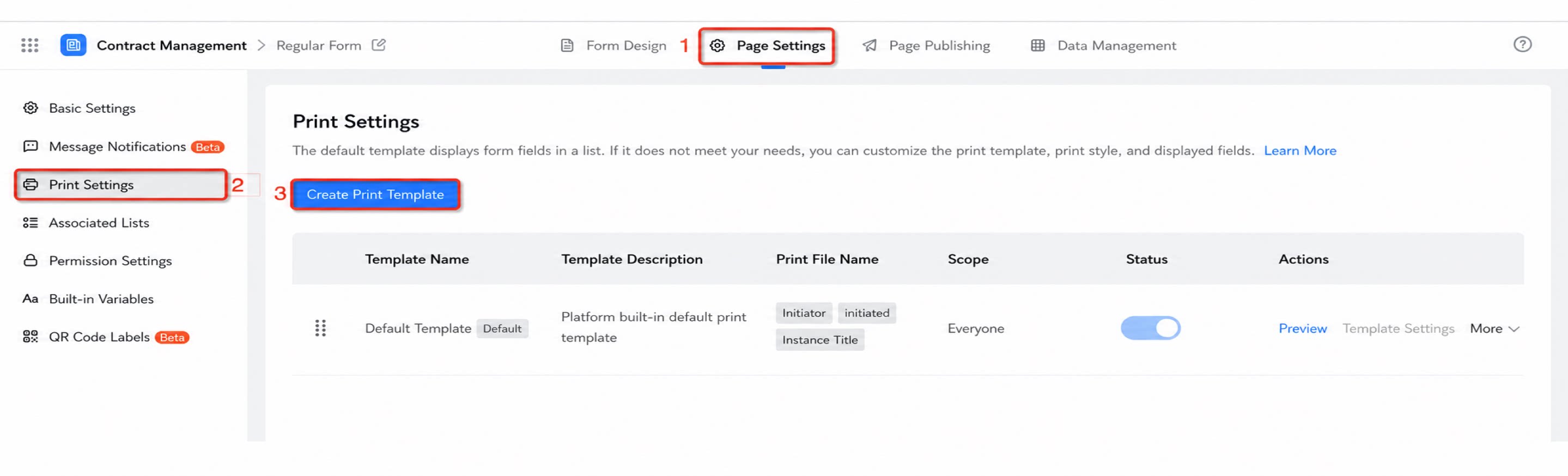
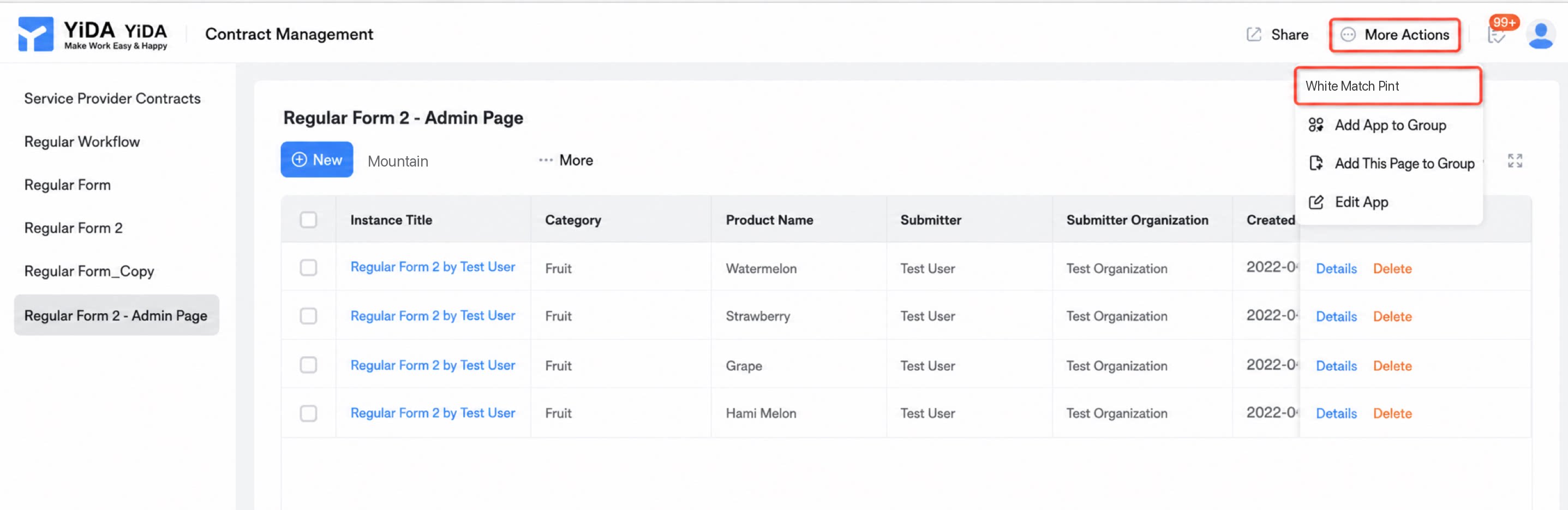
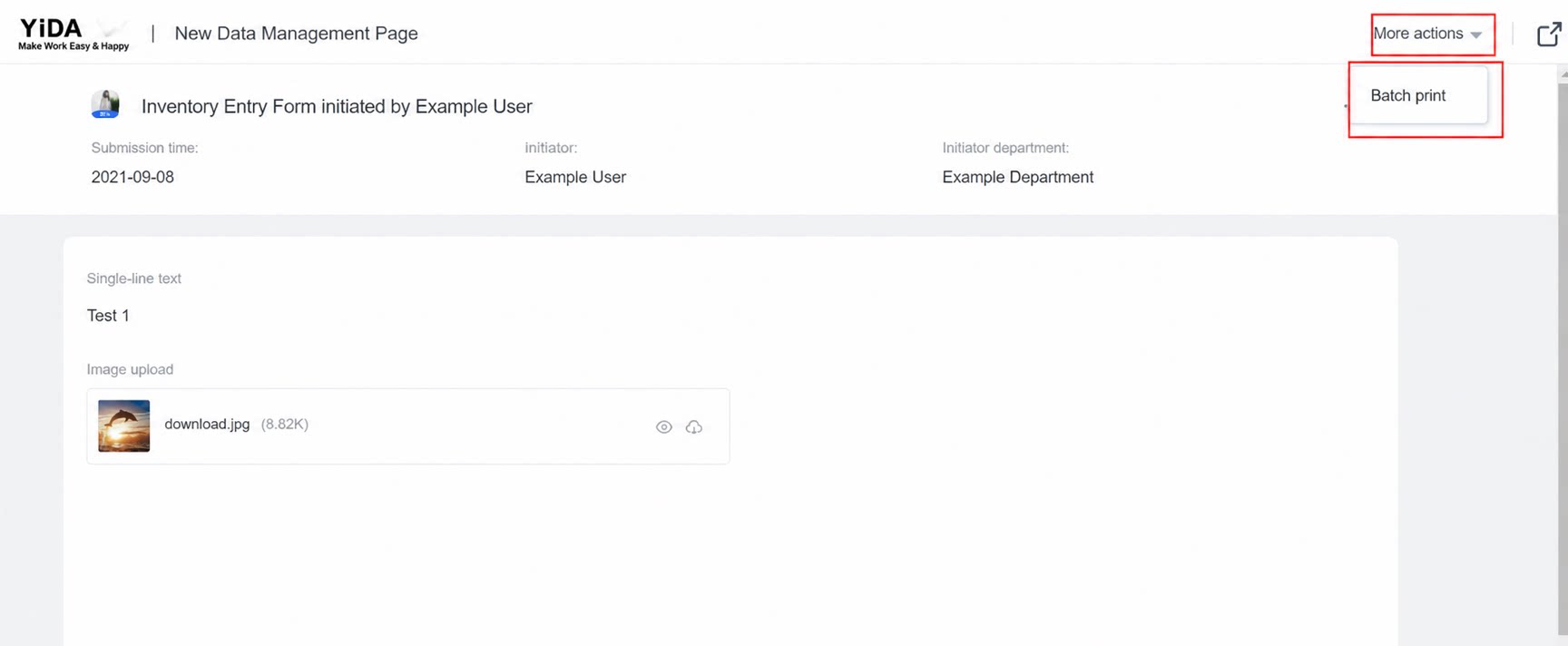
1.2 Batch Printing
Generate print files for the selected records based on a print template, and download them as a package.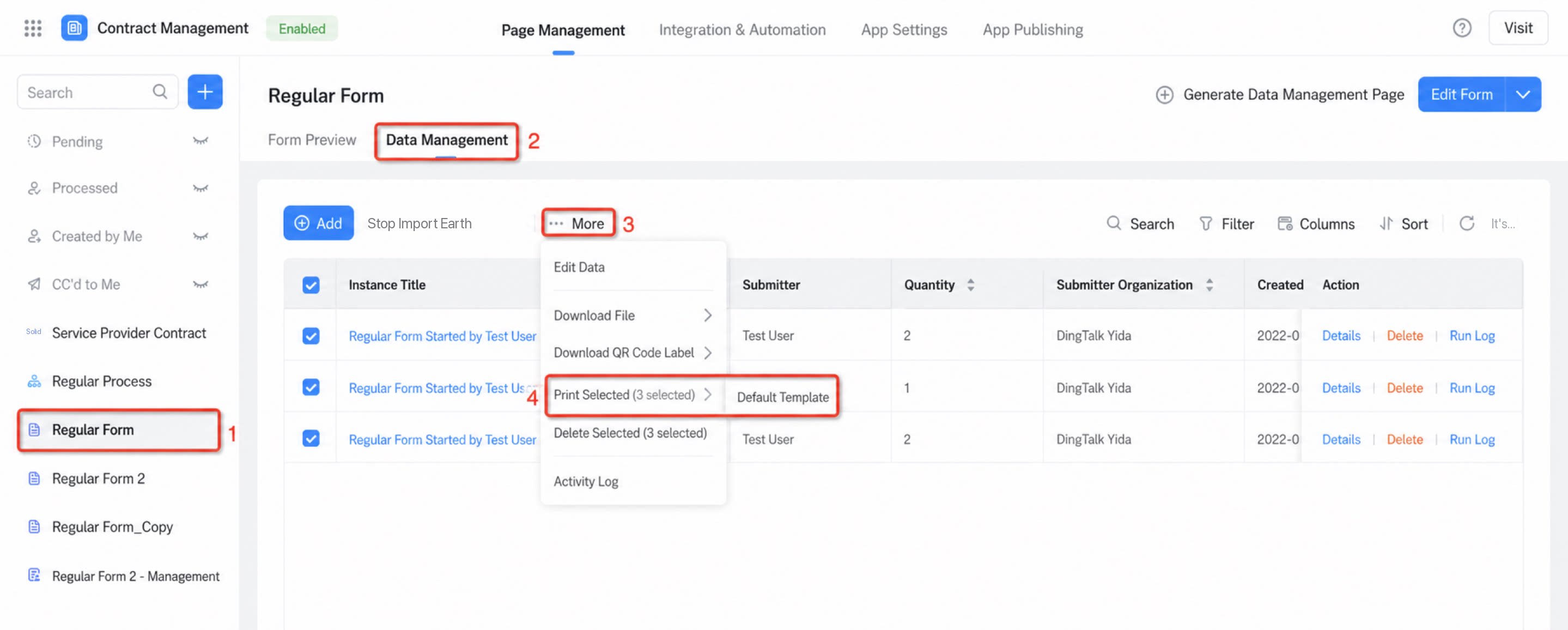
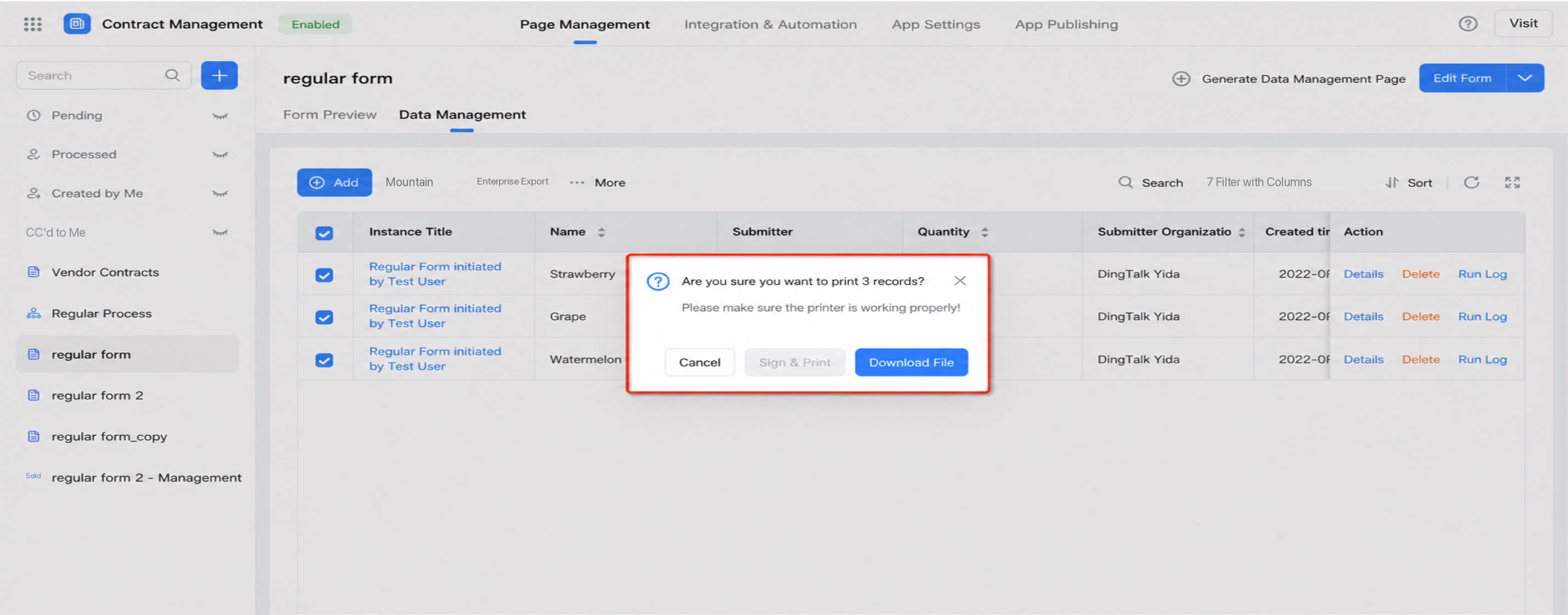
2. Two Ways to Download Batch Print Files
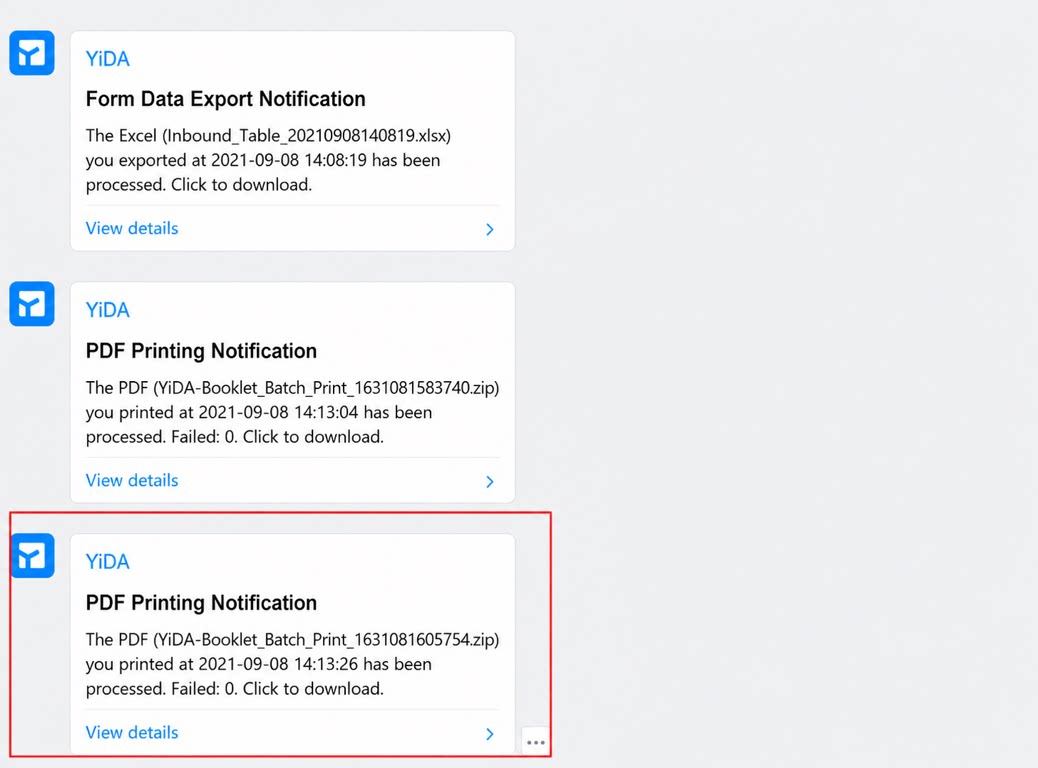
2.1 Work Notifications
Path: Work Notifications >> Click View details >> Redirect To the local download page >> Print the file.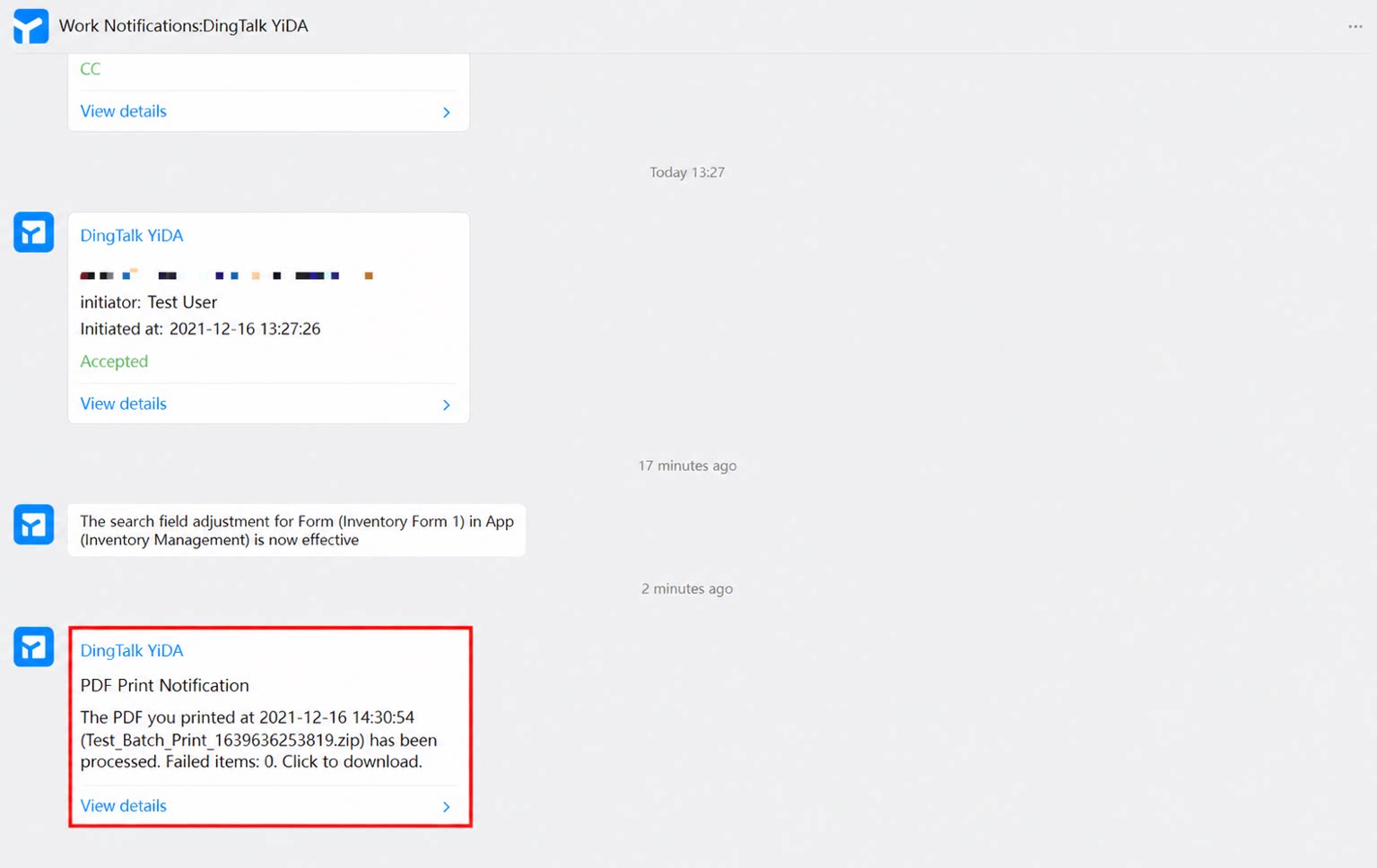
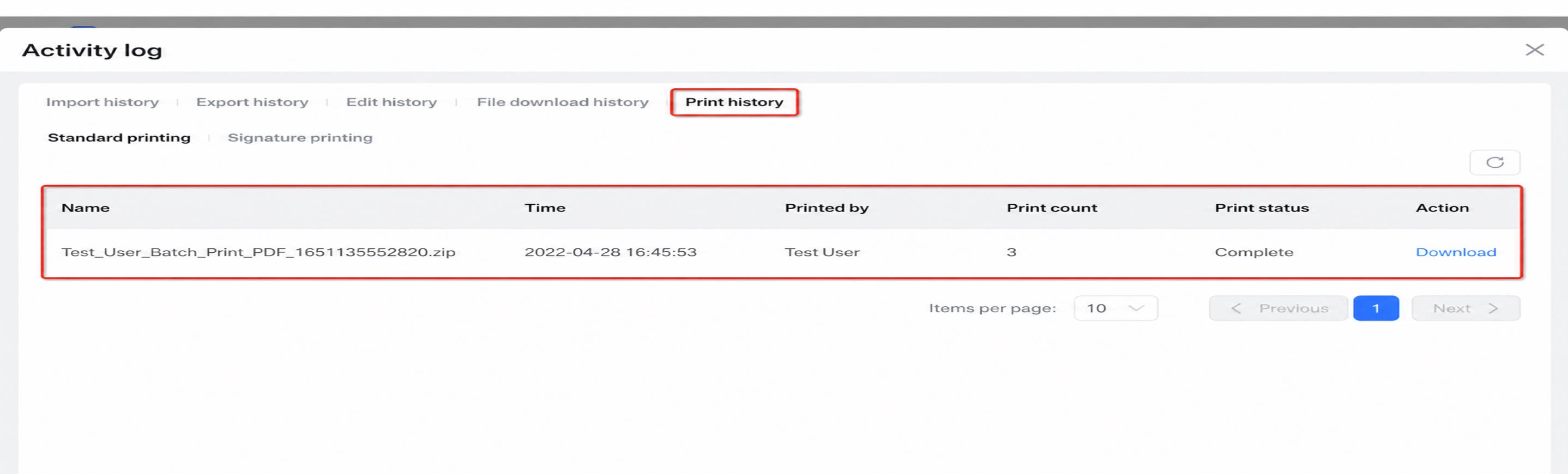
2.2 Print Records
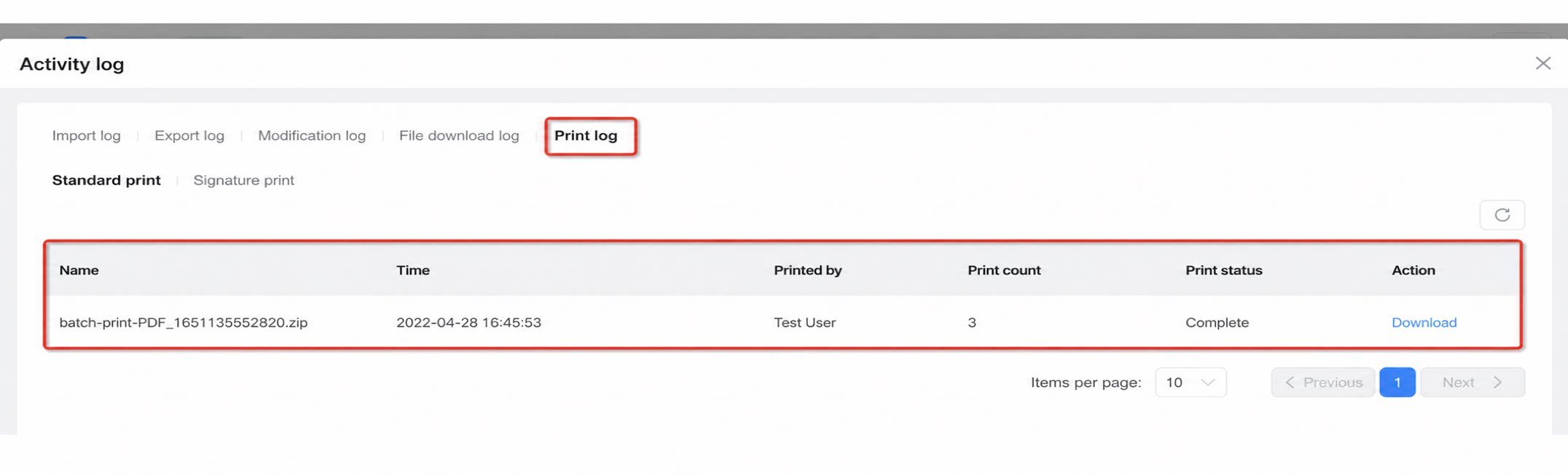
Path: Form >> Data management >> Print records >> Download (saves directly to your local device).