Chats
Chats Calendar
 Meetings
 Contacts
 Mail
Mail Docs
Docs Drive
Drive AI Table
 AI Minutes
 Attendance
 Approval
 YiDA
YiDA Admin Console
Publish Within the Organization
1
Step 1
Sign in to the YiDA workbench.
2
Step 2
Click My Apps, select the target app, and open the app details page.
3
Step 3
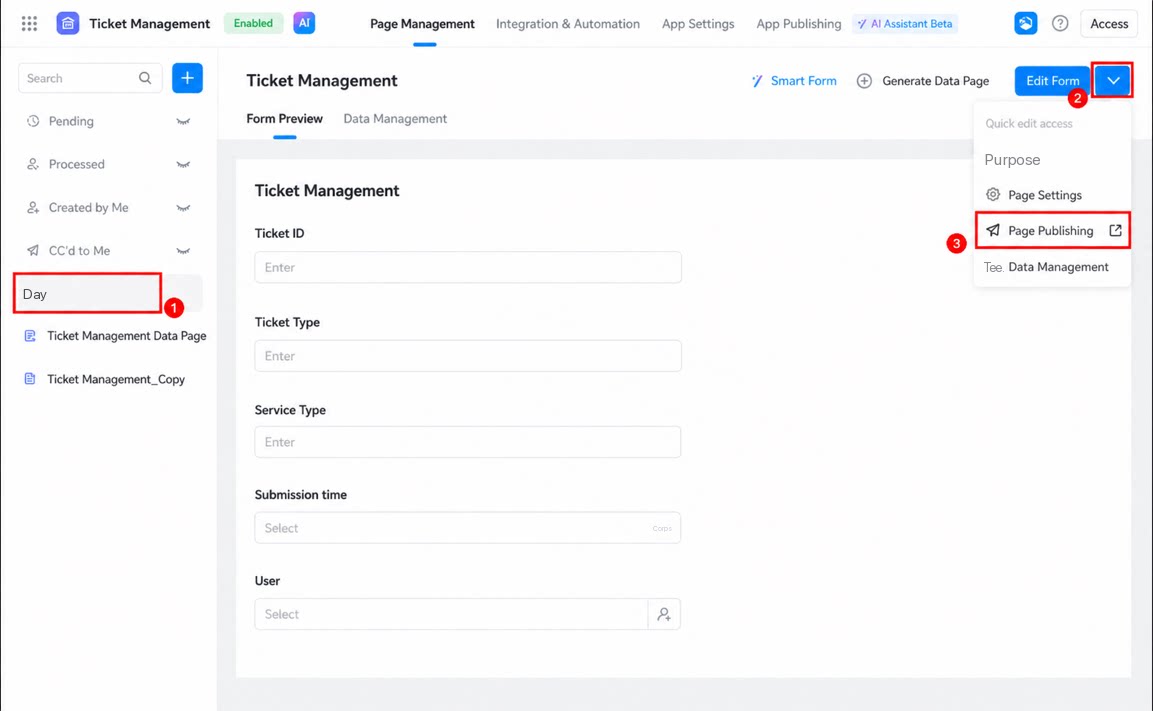
Select the page you want to publish individually, then click > Publish page. 
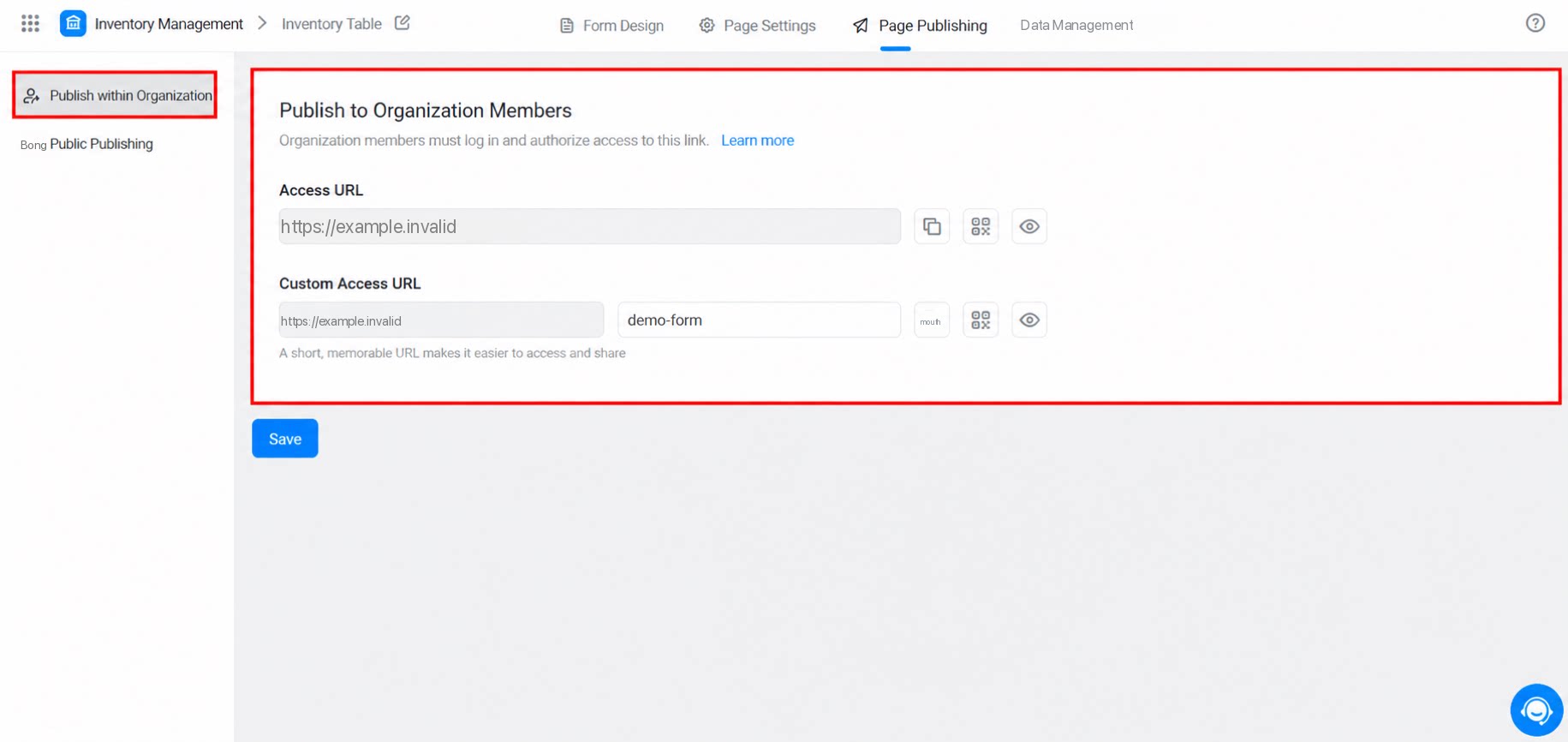
- Click Publish within organization.
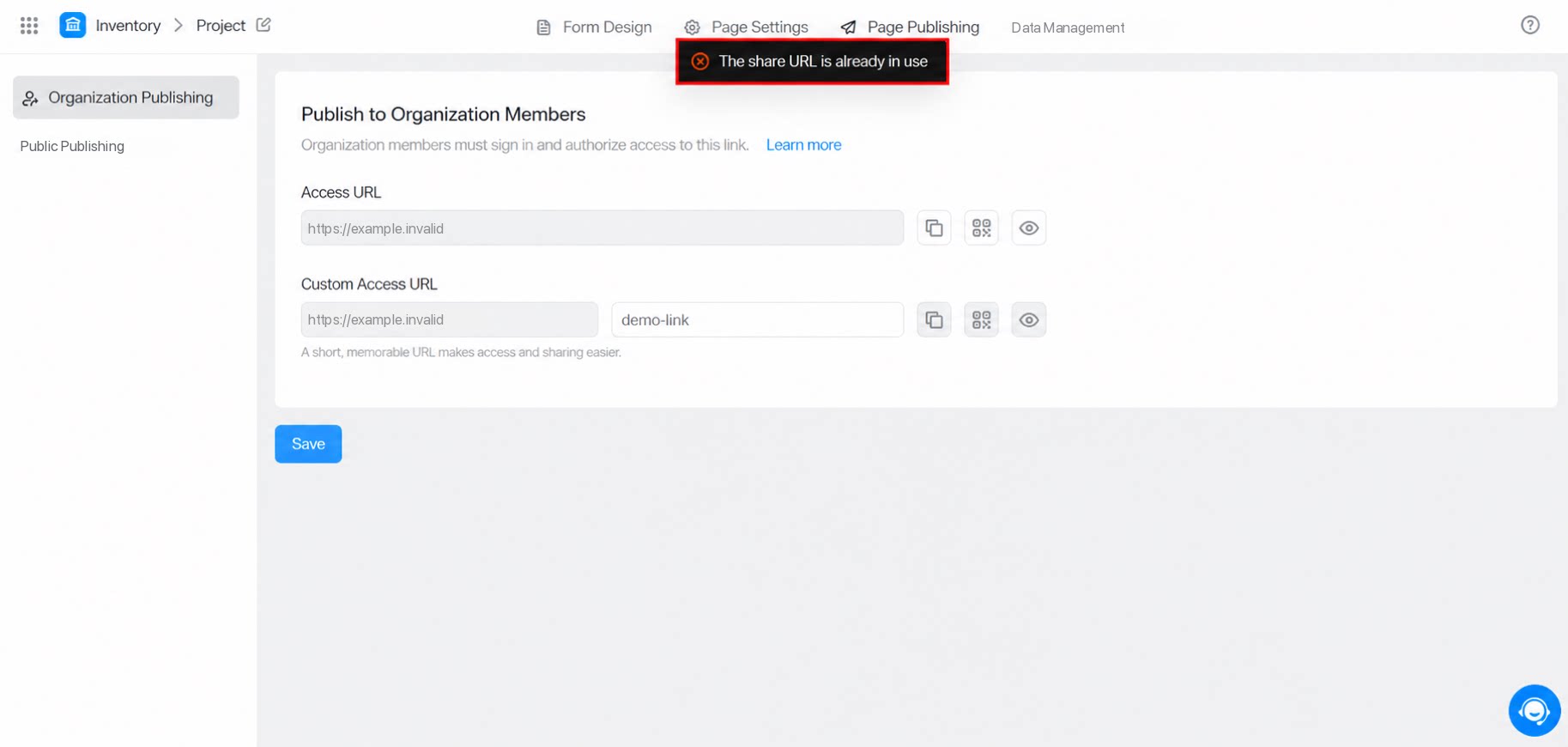
- (Optional) Copy the page URL directly for use within your organization, or customize the page URL.
- Users within the organization must sign in and grant authorization to visit the page.
- After customizing the URL, click Save. Otherwise, the change does not take effect.
Publish Publicly
- The YiDA Free plan does not support public publishing by default. To use this feature, upgrade YiDA or complete DingTalk organization authentication first.
- The YiDA Dedicated edition supports retrieving the basic identity information of signed-in users. For details, see Authorization to retrieve users’ basic identity information.
Page QR Code
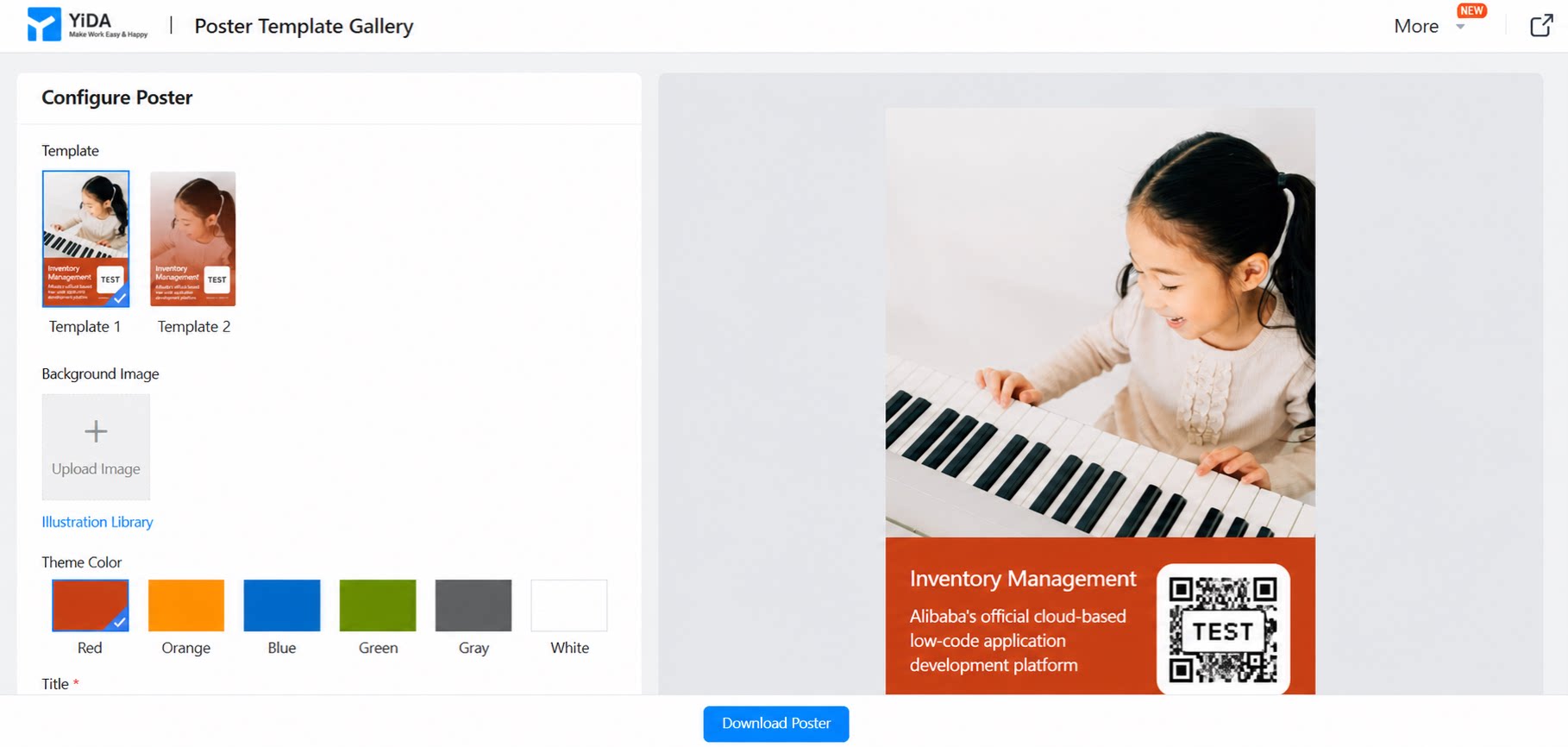
YiDA page publishing supports downloading an access QR code, making it easy for mobile users to visit the page. To improve the visual quality of the QR code, YiDA also provides dedicated poster templates for page QR codes. Click Poster template library to design a dedicated template for your page.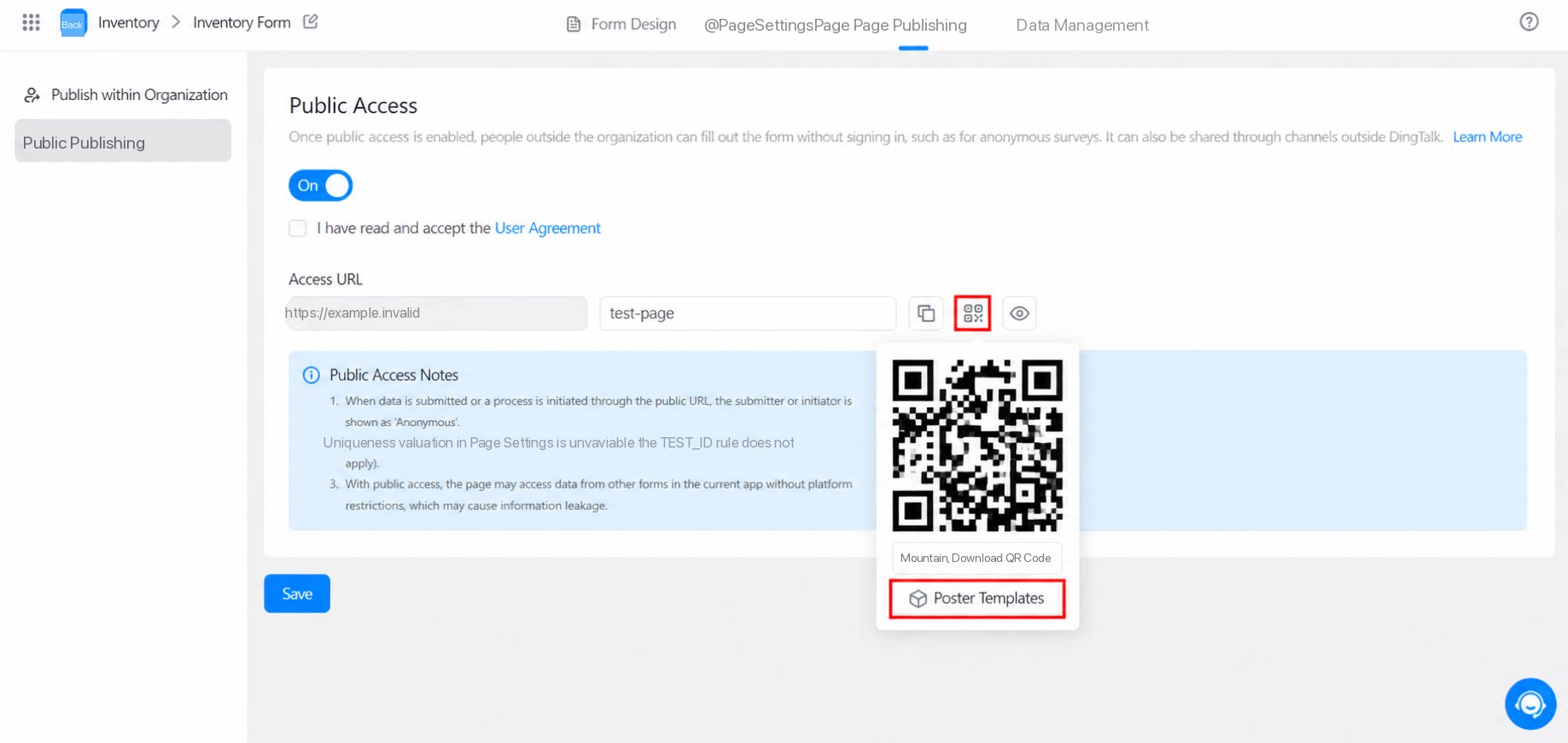
Important Considerations
Note the following when setting up public access for a page.- When data is submitted or a workflow is initiated through a public URL, the submitter or workflow initiator is recorded as Anonymous.
- The uniqueness check configured on the page does not apply (that is, the restriction that each account can submit only once is not enforced).
- When public access is enabled, the platform does not restrict the page from accessing data in other forms within the current app. The app admin is solely responsible for any resulting information disclosure.
- After silent login access is enabled, sending Card messages to individuals or group chats is no longer supported.
- Images and attachments are not accessible from outside the organization by default. If external access is required, replace them with publicly accessible CDN URLs.
FAQ
- Q: Why does the system indicate that the share URL is already in use?
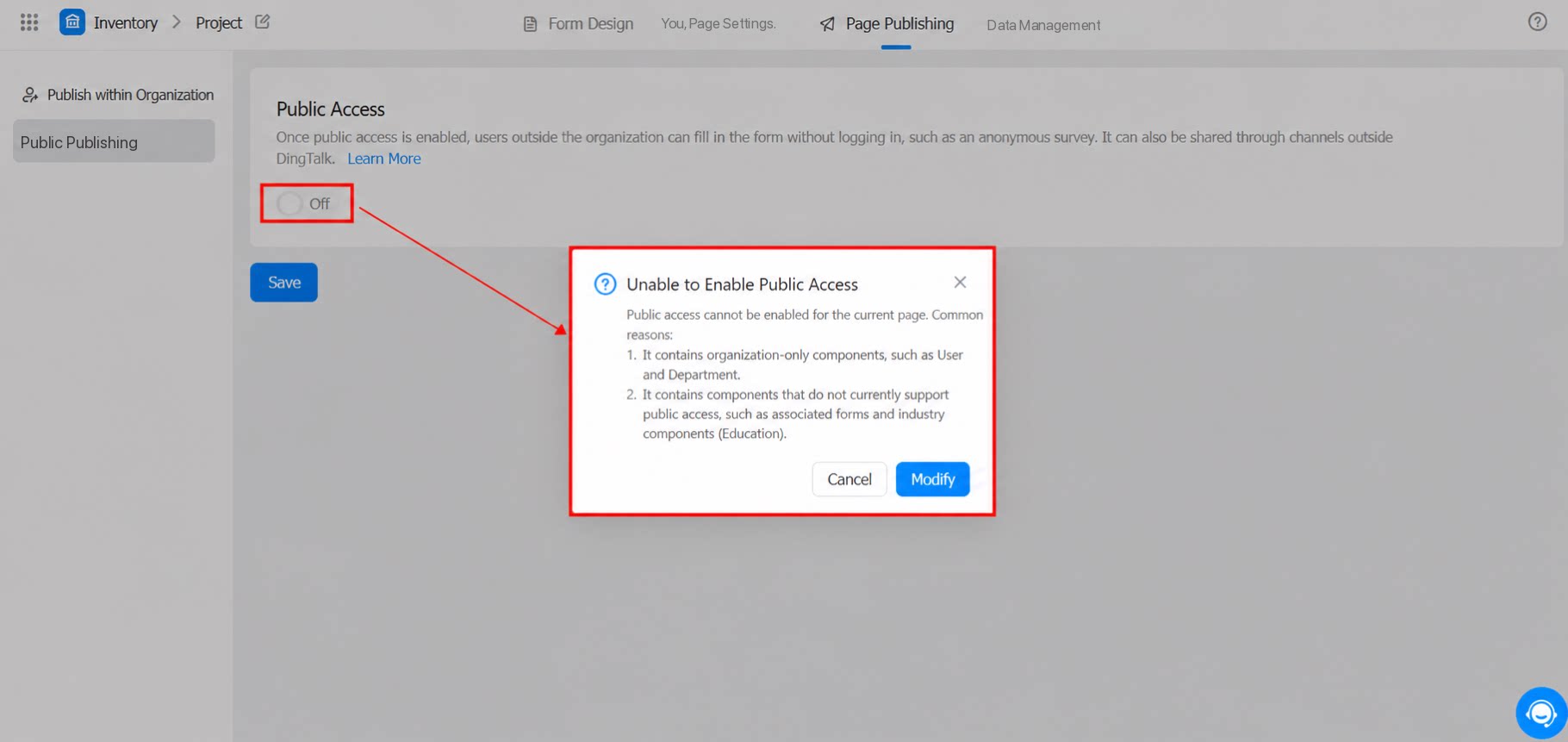
- Q: Why can’t I enable public access?