

 Chats
Chats Calendar
 Meetings
 Contacts
 Mail
Mail Docs
Docs Drive
Drive AI Table
 AI Minutes
 Attendance
 Approval
 YiDA
YiDA Admin Console
Public access cannot be turned on if the form contains any of the following:
- Components exclusive to the organization, such as user or department.
- Premium components that the platform does not yet support for public access, such as associated form, associated lookup, industry components (education industry), or custom components.
Steps
1
Step 1
Sign in to the YiDA workbench.
2
Step 2
Click My Apps, select the target app, and click to open the app details page.
3
Step 3
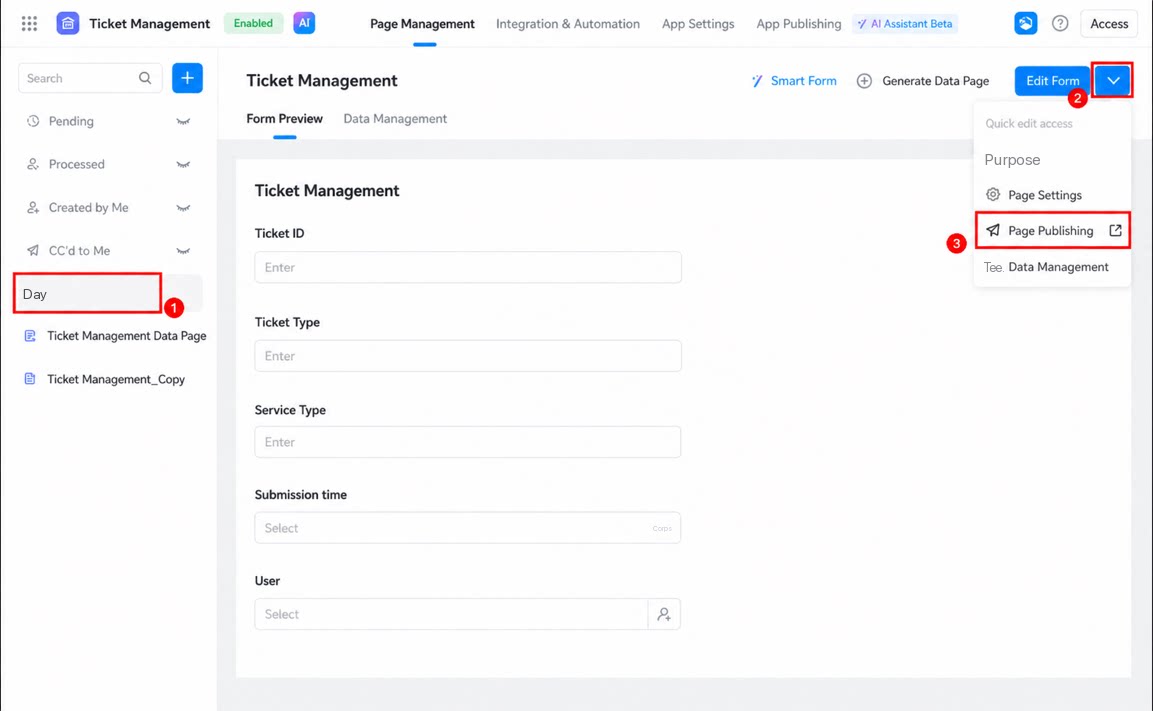
Select the page you want to publish separately, then click > Publish Page. 
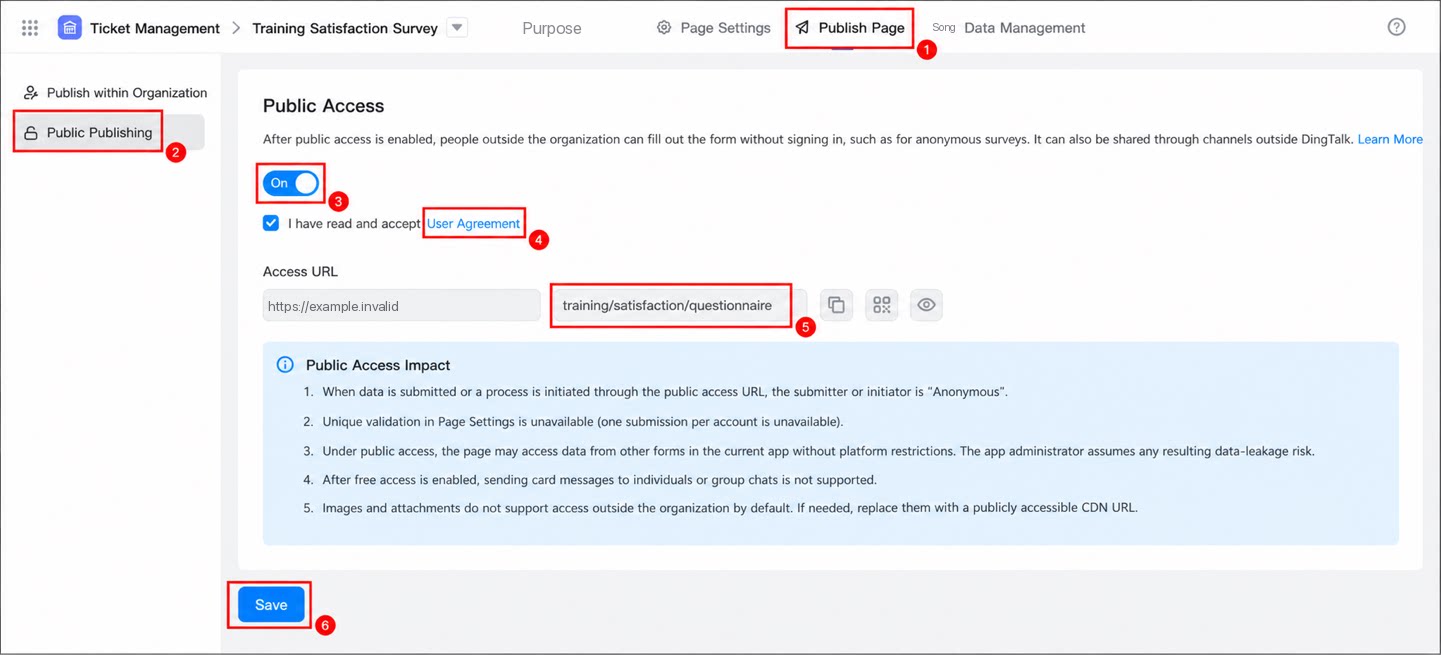
- Select Publish publicly, then turn On the public access switch.
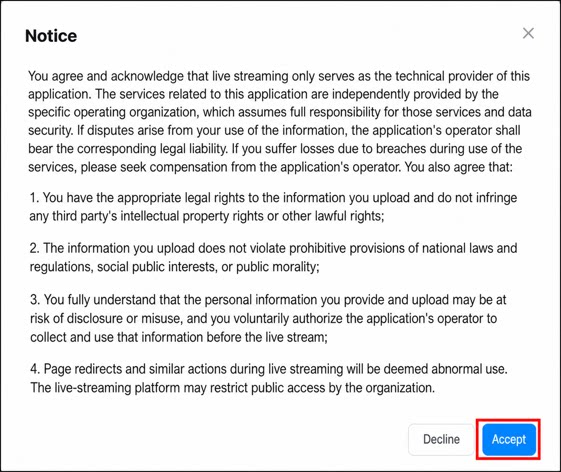
- Read the User Agreement. If you agree, click Accept.
- Set the access link. When finished, click Save to complete public publishing.
The public access link only supports lowercase letters (a-z), uppercase letters (A-Z), numbers (0-9), underscores (_), hyphens (-), and slashes (/).
Things to Note
When configuring public page access, also keep the following in mind:- When data is submitted or a workflow is initiated through the public access address, the data submitter or workflow initiator is anonymous.
- Uniqueness validation configured on the page does not apply. That is, restricting one account to a single submit does not work.
- Under public access, the platform does not restrict the page from accessing data of other forms under the current app. Any resulting information leakage risk is borne by the app admin.
- After silent login access is turned on, sending Card messages to individuals or group chats is no longer supported.
- Images and attachments do not support access from outside the organization by default. If needed, replace them with a CDN address accessible on the public network.