

 Chats
Chats Calendar
 Meetings
 Contacts
 Mail
Mail Docs
Docs Drive
Drive AI Table
 AI Minutes
 Attendance
 Approval
 YiDA
YiDA Admin Console
Overview
After an app or form is installed to a DingTalk group, group members can view and use it from the group chat’s Cool App bar, and the app can send messages directly to the group. The final effect looks similar to the following: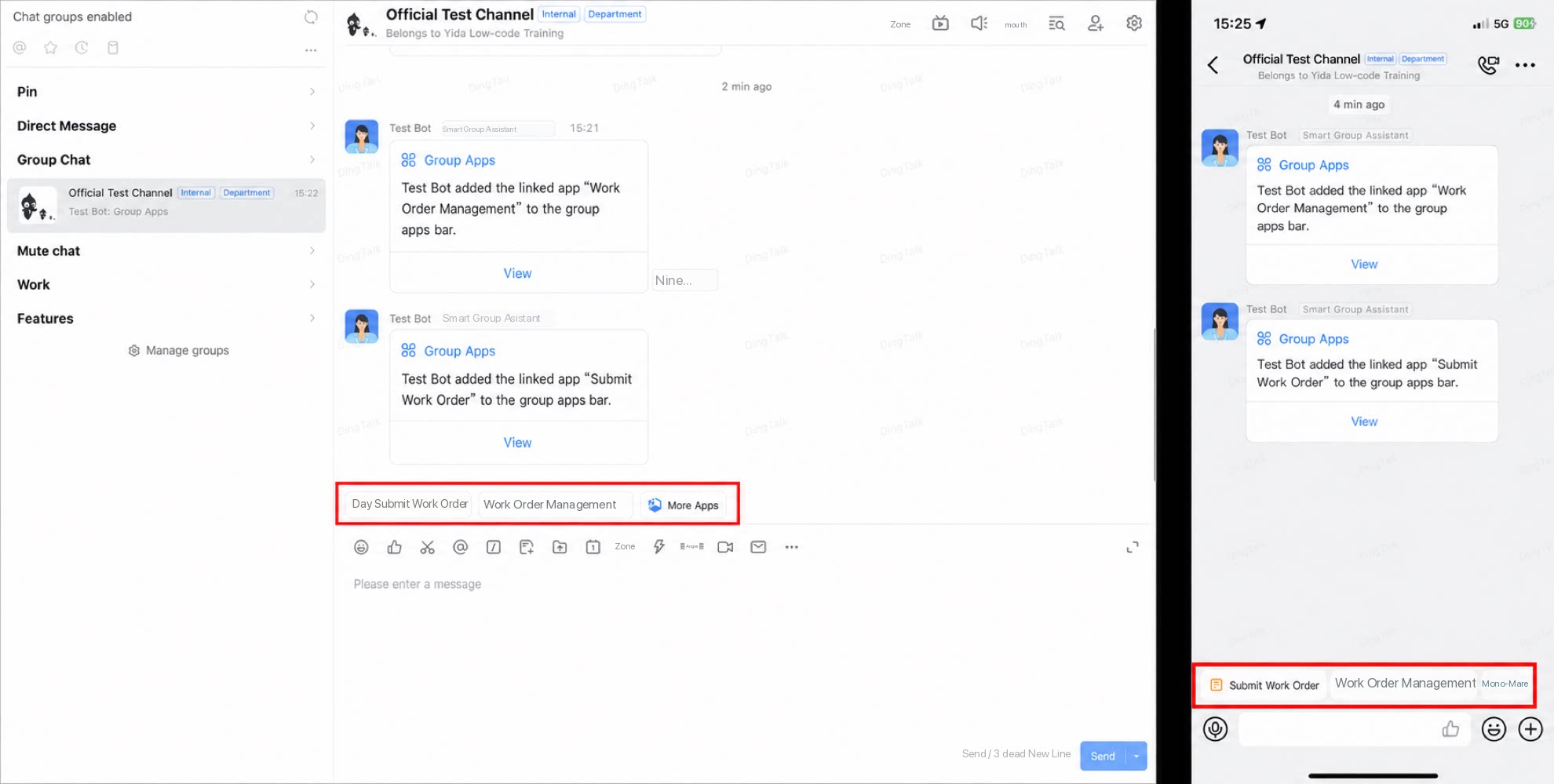
Add an App to a Group
Adding an app to a group means adding the entire current YiDA app to the group’s Cool App bar. Users can click the app name on the Cool App bar to access the app.- Sign in to the YiDA workbench and open the My Apps page.
- Select the app you want to add to the group’s Cool App bar and click it to enter the app details page.
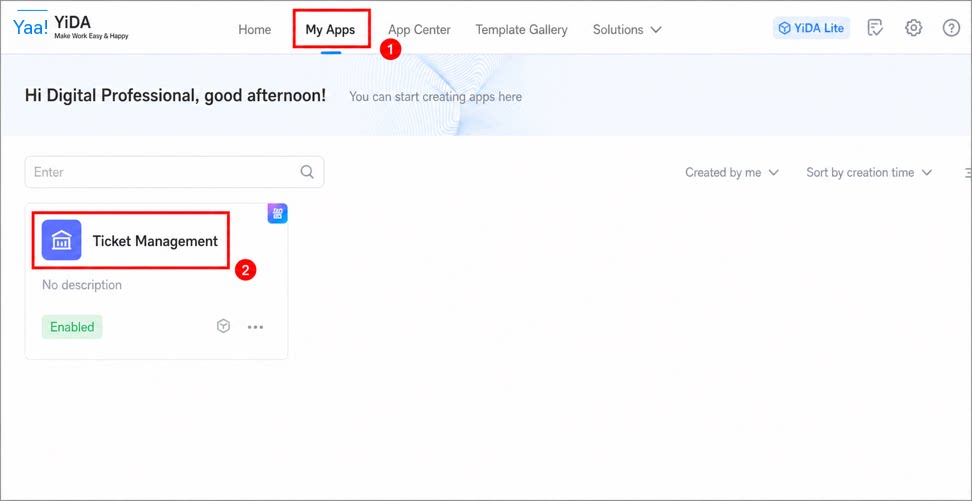
- Click Access in the upper-right corner to enter the app access page.
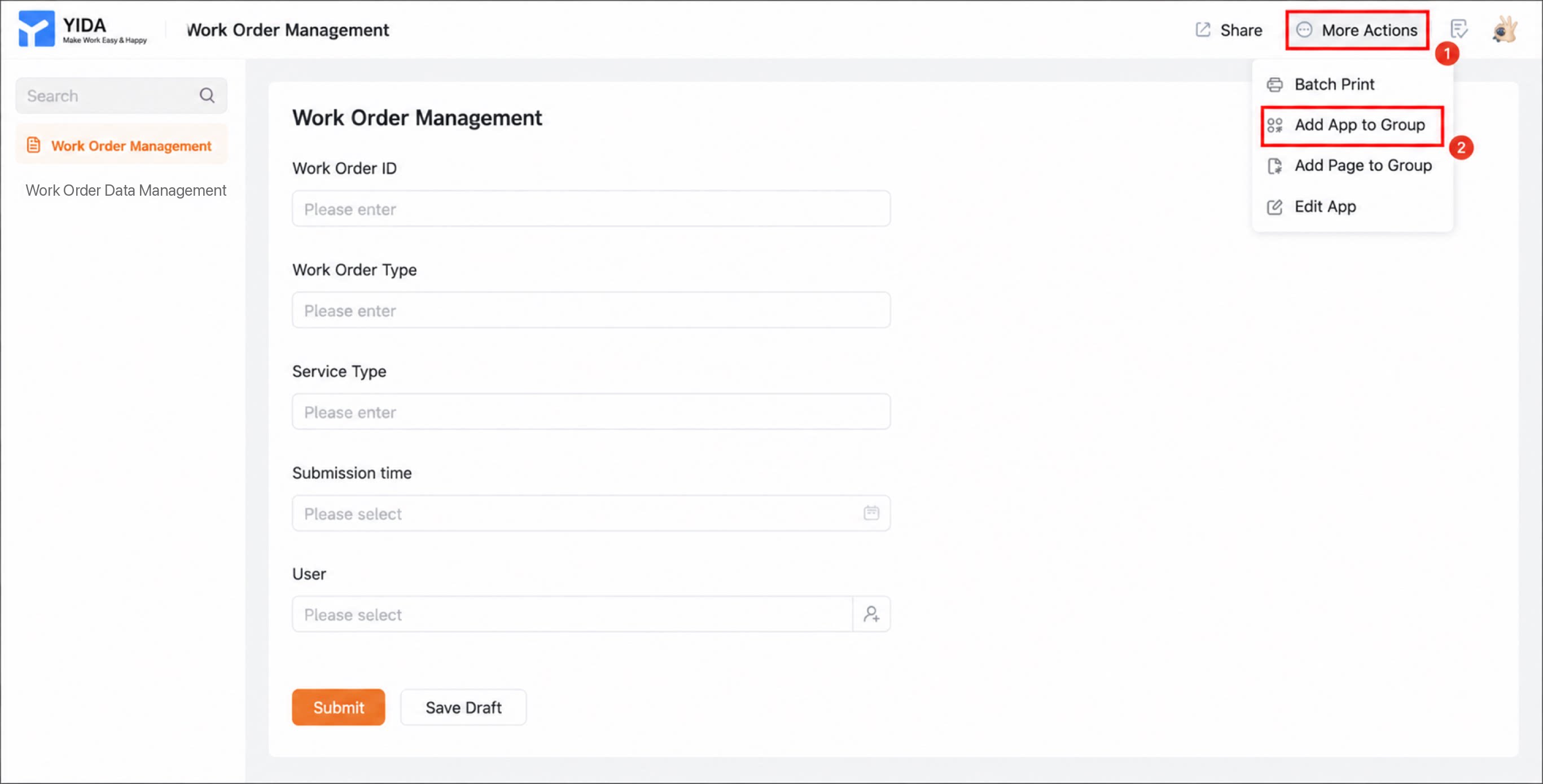
- Click More Actions > Add app to group, then in the pop-up dialog, click Add > Open DingTalk in sequence.
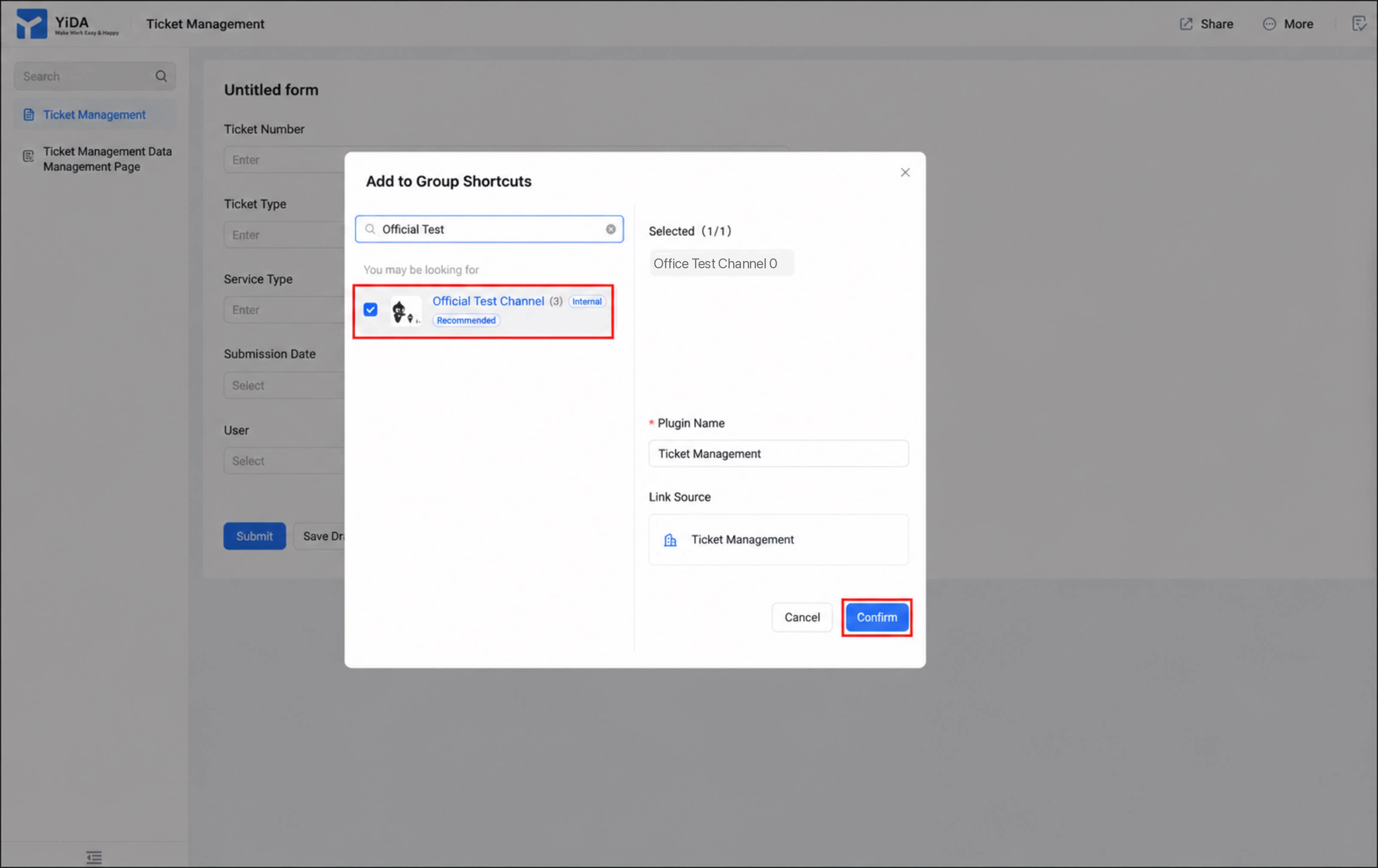
- In the pop-up dialog, select the group you want to add the app to, then click Confirm to complete the process.
Add a Form to a Group
Adding a form page to a group is similar to adding an app. The steps are as follows.- Sign in to the YiDA workbench and open the My Apps page.
- Select the app you want to add to the group’s Cool App bar and click it to enter the app details page.
- Click Access in the upper-right corner to enter the app access page.
- Click More Actions > Add this form to group, then in the pop-up dialog, click Add > Open DingTalk in sequence.
- In the pop-up dialog, select the group you want to add the form to, then click Confirm to complete the process.
Once an app is published to the group’s Cool App bar, it can push messages directly to the group. For details, see Form message notifications.
Uninstall a Group App
If a group app is no longer needed, you can uninstall it.- Open the DingTalk client and find the group chat where you want to uninstall the app.
- On the group’s Cool App bar, click More Cool Apps.
- Click Manage Cool Apps, then click Manage.
- Locate the app you want to uninstall, click the app name, and in the pop-up dialog, click Uninstall App.
In addition to the method above, you can also disable the app from the YiDA workbench. For details, see Enable and disable apps.