

 Chats
Chats Calendar
 Meetings
 Contacts
 Mail
Mail Docs
Docs Drive
Drive AI Table
 AI Minutes
 Attendance
 Approval
 YiDA
YiDA Admin Console
Use Cases
- Assistants managing executives’ schedules: Executive assistants can subscribe to executives’ calendars to arrange schedules efficiently.
- Approval before creating important meetings: For meetings that include executives as attendees, an assistant approval is triggered. The meeting or event is created only after the approval is passed.
- Custom meetings or events.
Feature Overview
The DingTalk Calendar Plugin is a new DingTalk app format built on the principles of immersive experience, scenario orientation, collaboration, and data accessibility. It transforms the complex features and workflows of traditional enterprise apps into atomic, component-based interaction cards and quick entries. These are reorganized around time management scenarios, seamlessly integrating meeting management, task management, and other time-related workflows into the Calendar to deliver an immersive work experience.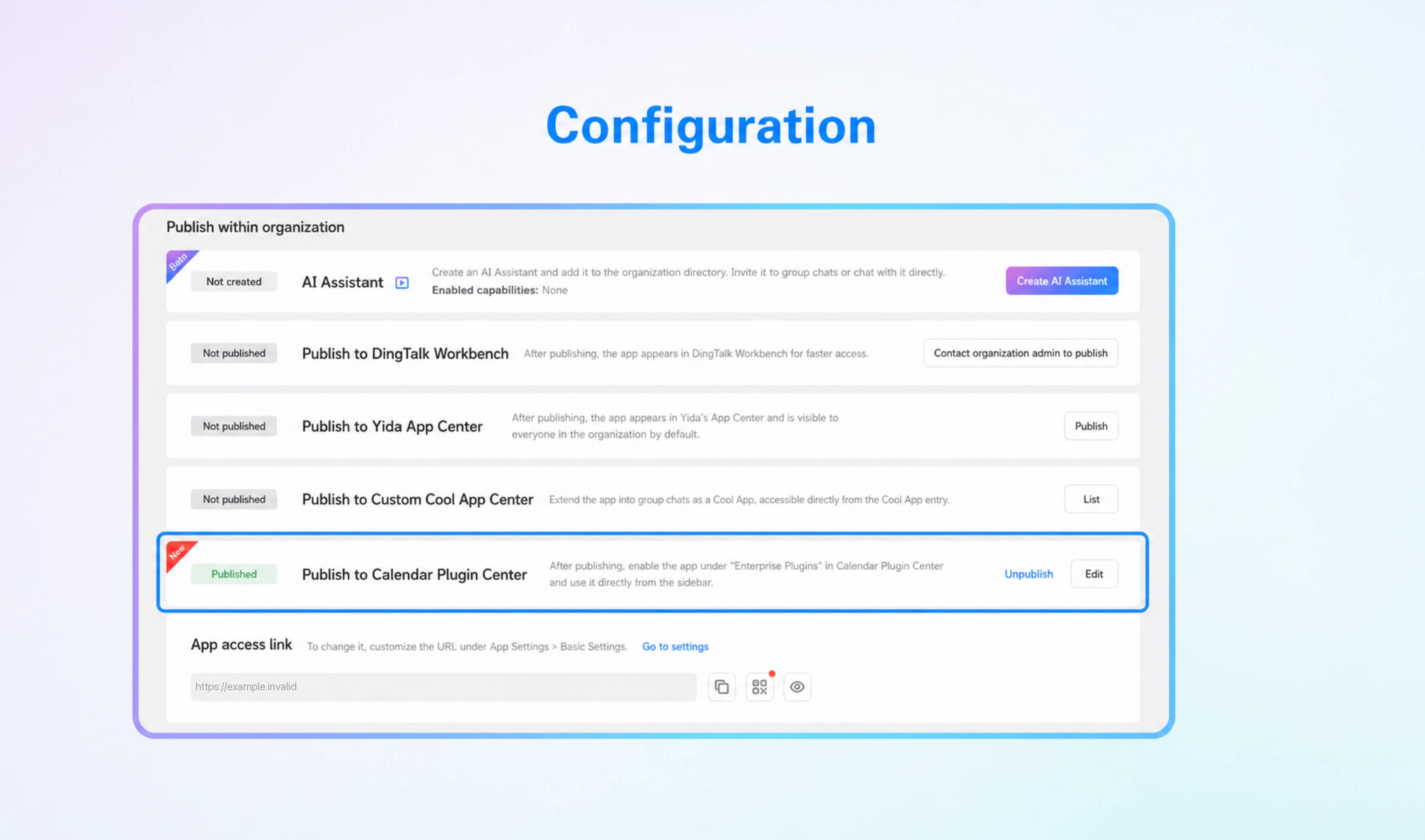
Procedure
1
Create an app or open an existing app
If you do not have a YiDA app yet, create one first. For details, see Create an app.
2
Create a form page and configure the event fields on it
For the form fields required to create an event, see Event Connector.
3
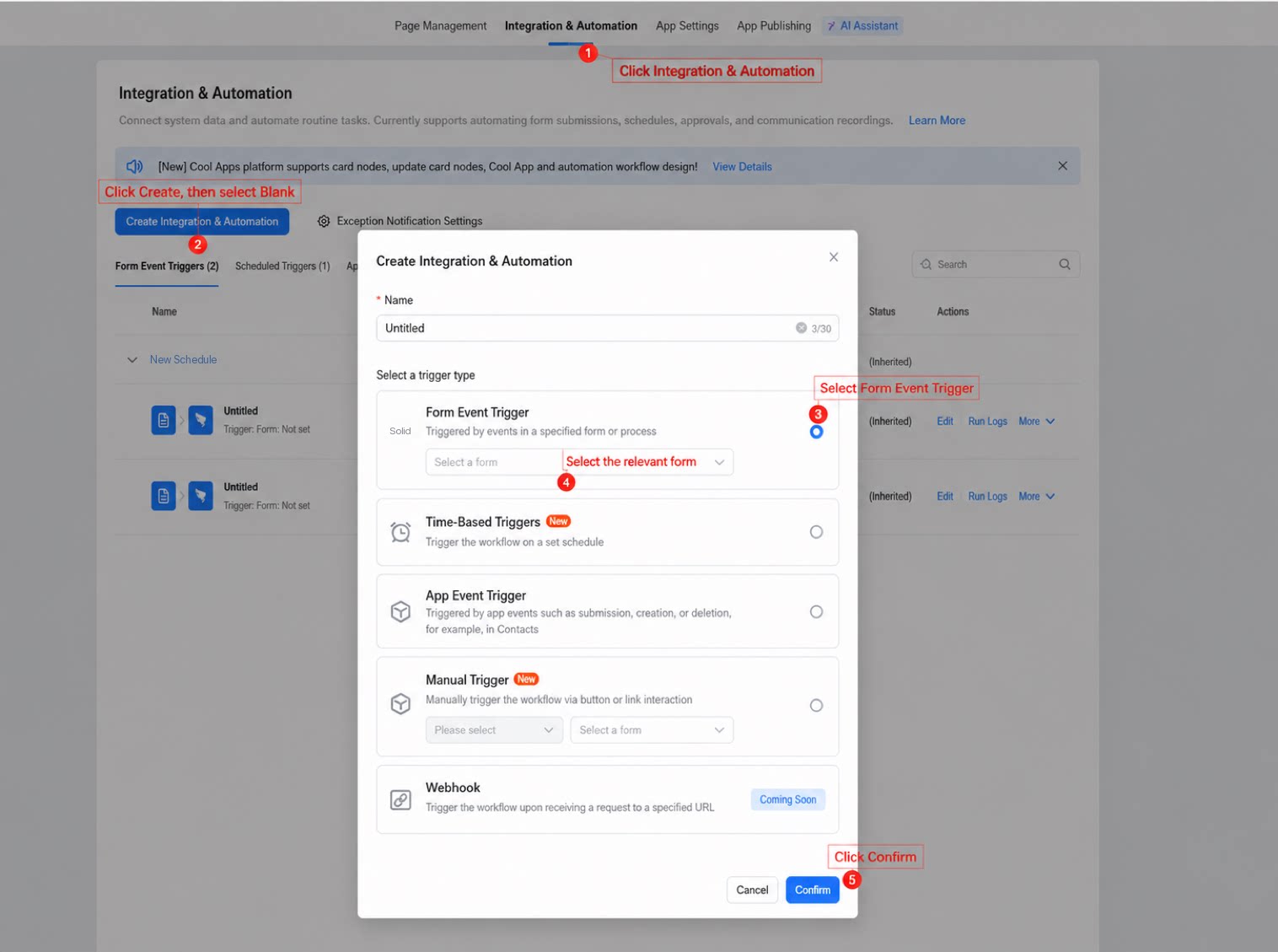
Go to the Integration & Automation page, click Create Integration & Automation, select Form event trigger, choose the form for creating events, and click Confirm
4
Use the Event Connector to trigger event creation upon form submission
For details on how to use the Event Connector, see Event Connector.
5
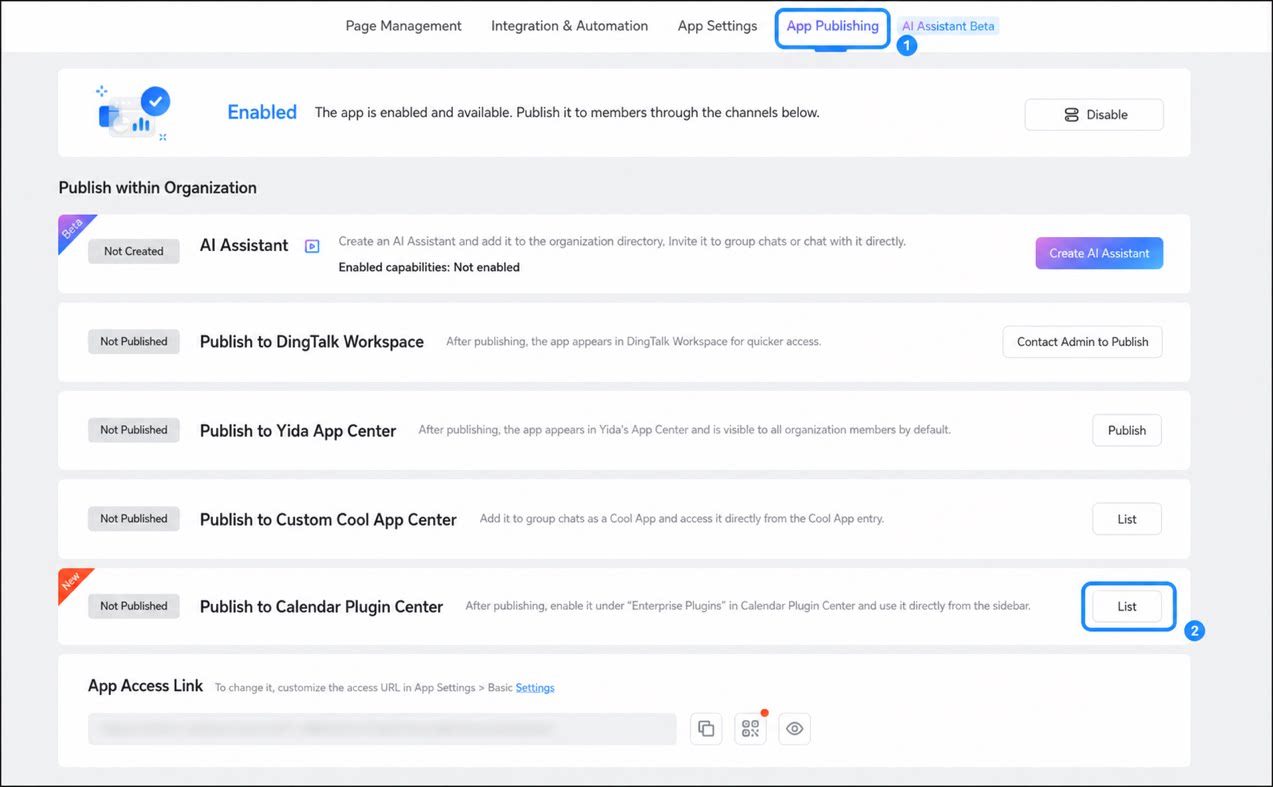
Go to the app Settings page, select Publish to Calendar Plugin Center, and click Publish
6
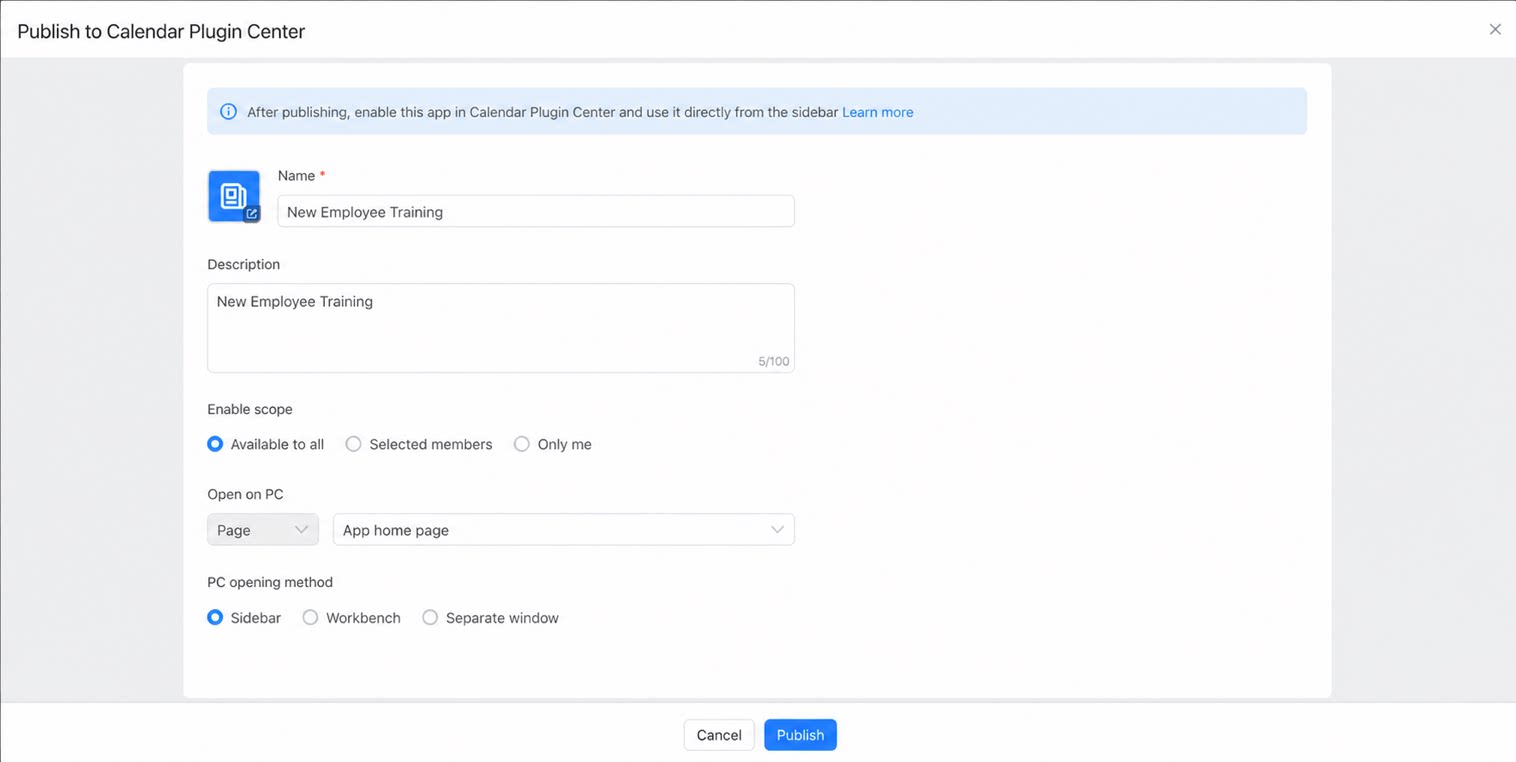
Configure the plugin Icon, Name, Description, Usage scope, plugin pages, and page opening method, then click Publish to complete the release
The enablement scope must include yourself so that you can use the plugin normally.
Use the Calendar Plugin
- Open the DingTalk client and click Calendar on the left to enter the Calendar Center.
- On the right side of the page, select the Calendar plugin you want to use, and click the app icon to start using it.