Chats
Chats Calendar
 Meetings
 Contacts
 Mail
Mail Docs
Docs Drive
Drive AI Table
 AI Minutes
 Attendance
 Approval
 YiDA
YiDA Admin Console
Steps
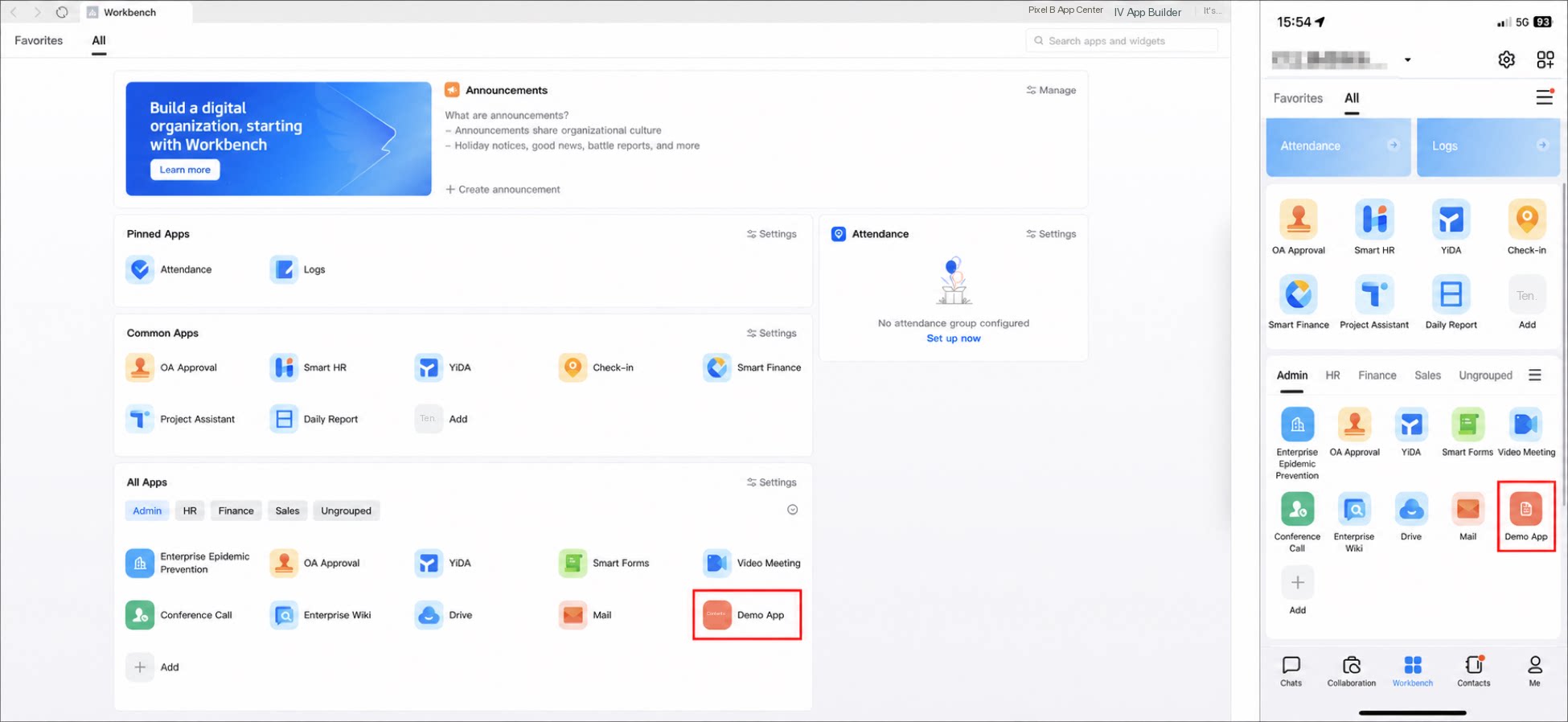
Follow the steps below to publish a YiDA app to your organization’s workbench.Only organization admins can publish YiDA apps to the DingTalk workbench. If you are not an organization admin, contact your organization admin to publish the app.
PC
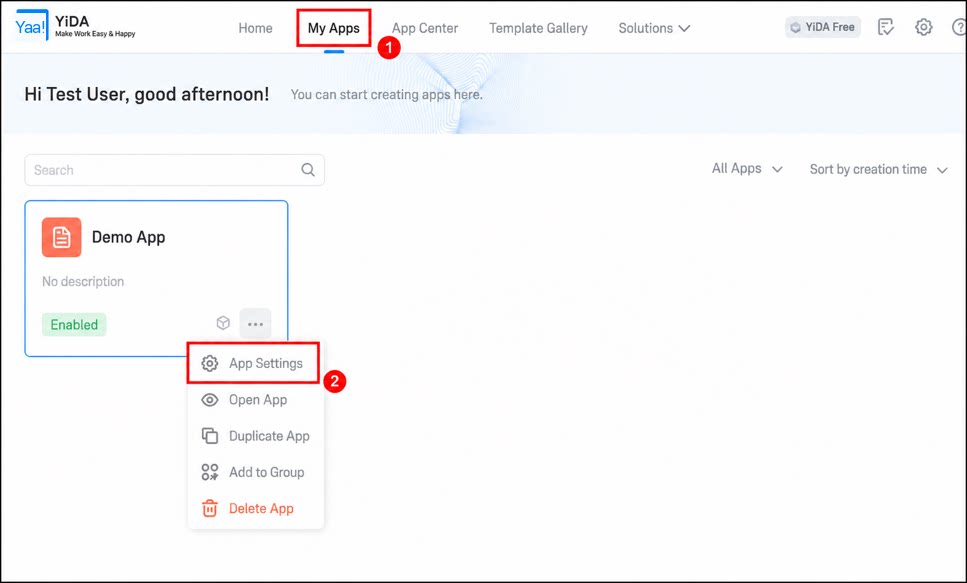
- Sign in to the YiDA workbench and click My Apps.
- Find the app you want to publish, then click ··· > App Settings.
1
Click App Publishing, select Publish to DingTalk workbench, then click Publish.
2
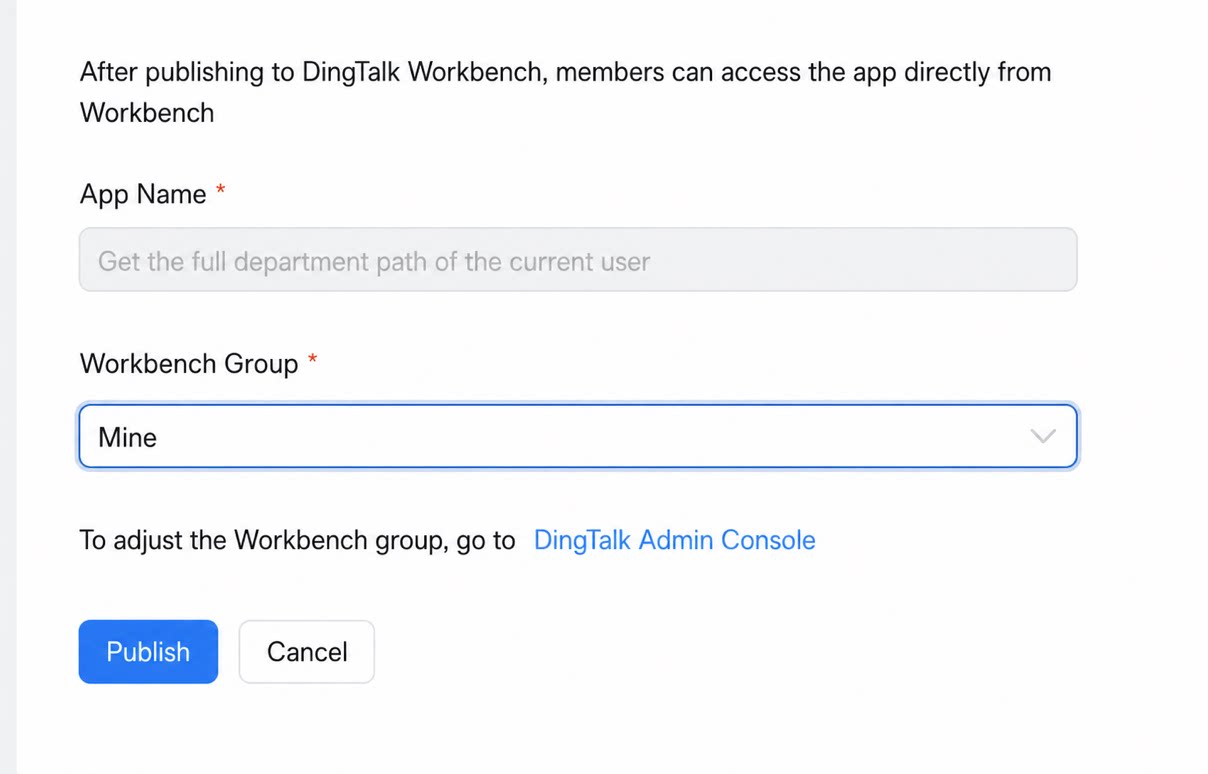
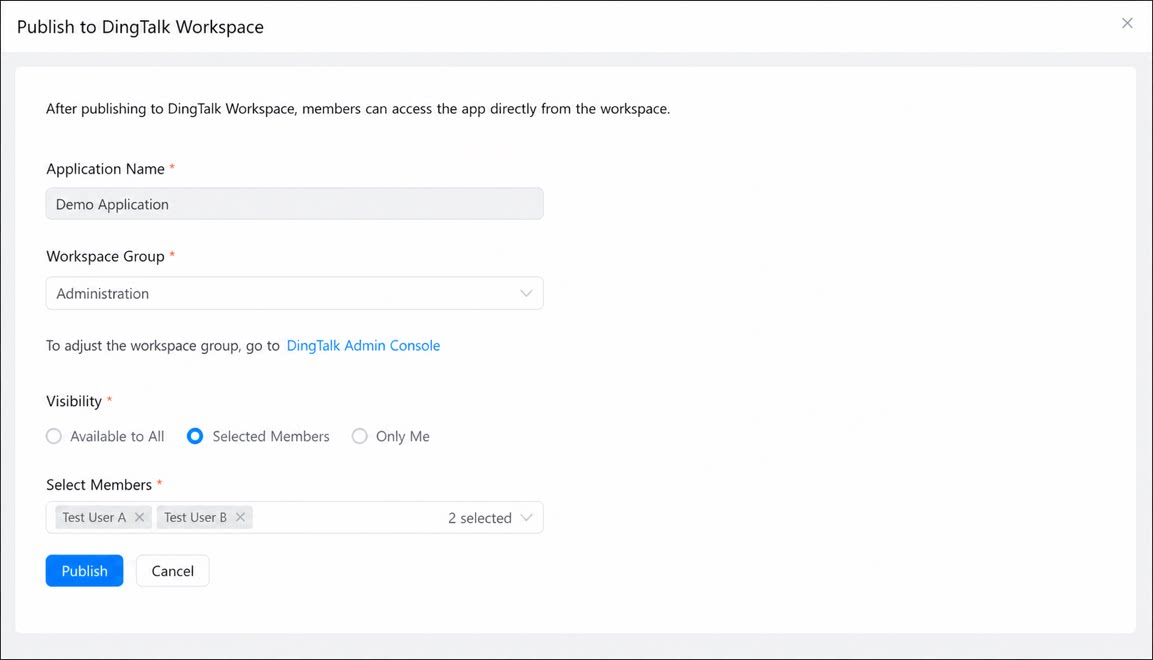
On the Publish to DingTalk workbench page, set the workbench group and visibility scope for the app, then click Publish.
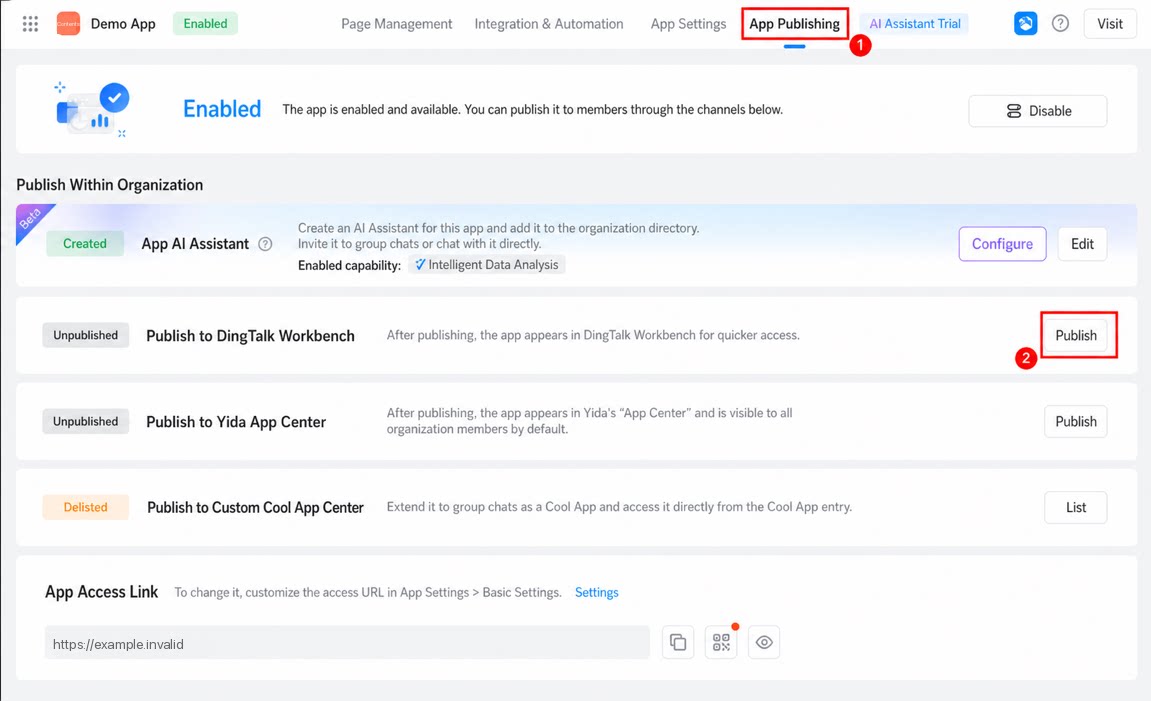
Only enabled apps can be accessed and used to submit data. For details, see Enable or disable an app.
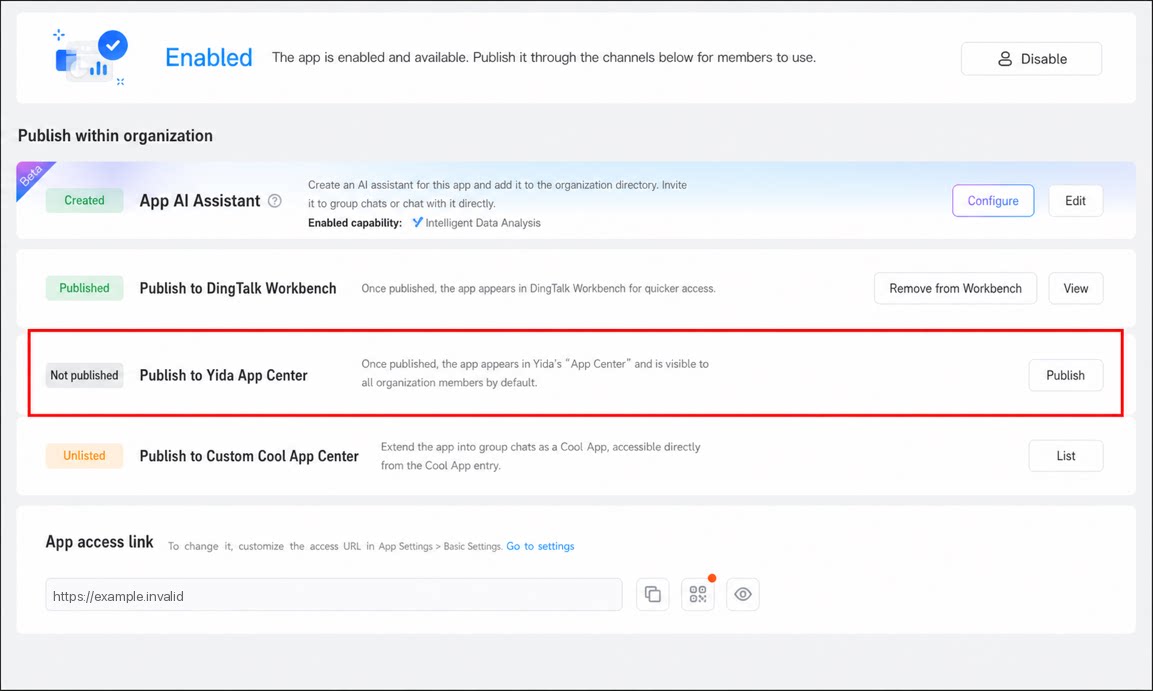
- After the app is published, you can also select Publish to YiDA App Center.
Once published, the app appears in the App Center on the YiDA platform and is visible to all members of your organization by default.
Mobile
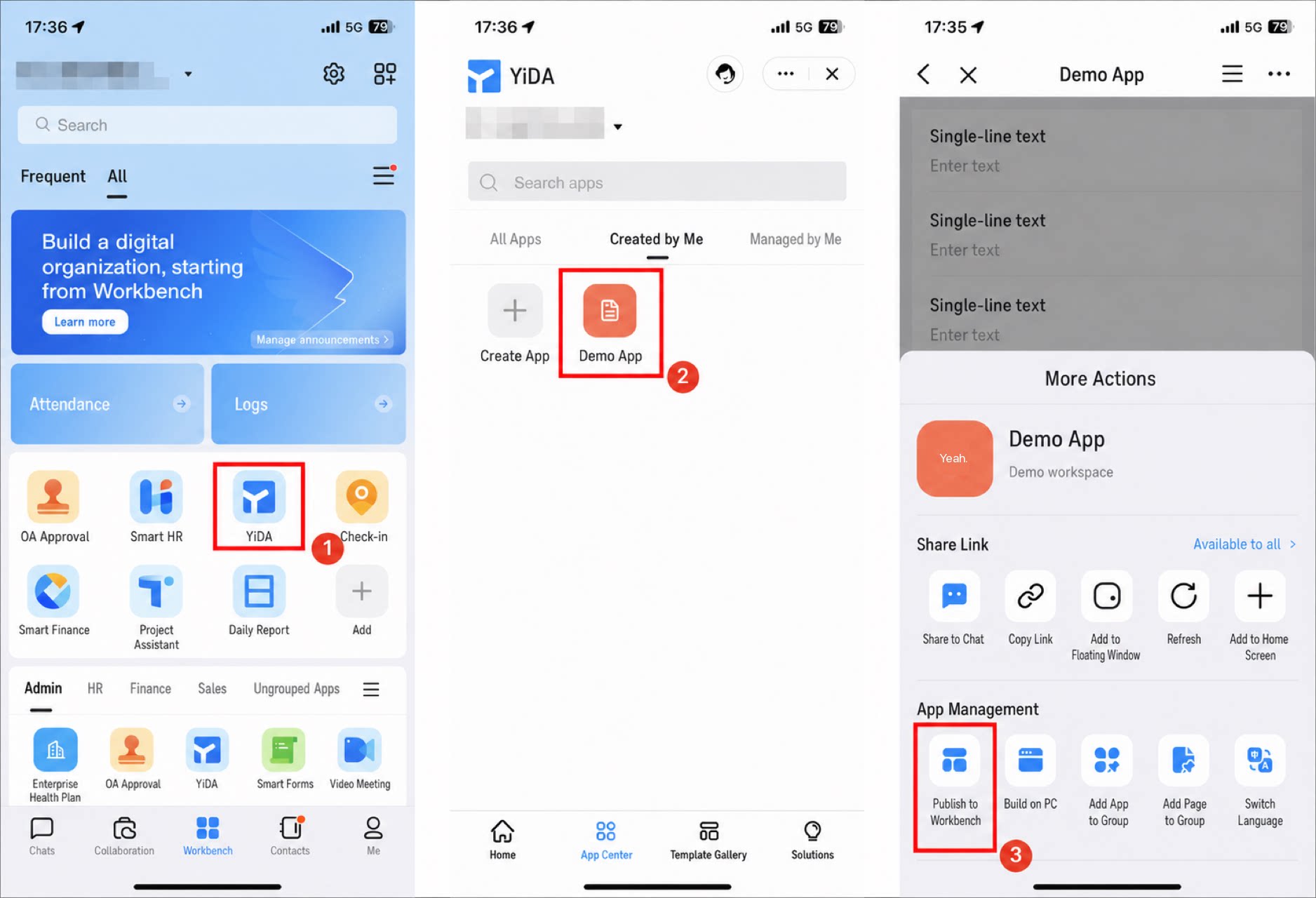
- Open DingTalk on your mobile device, go to your organization’s workbench, and tap YiDA to open the YiDA workbench.
- Tap App Center > Created by Me, then tap the app you want to publish to open its details page.
- Tap ··· in the upper-right corner, then tap Publish to Workbench under App Management to complete publishing.
More
To extend your app to group chats as a Cool App so users can access it directly from the Cool App entry, see Cool App design guide.FAQ
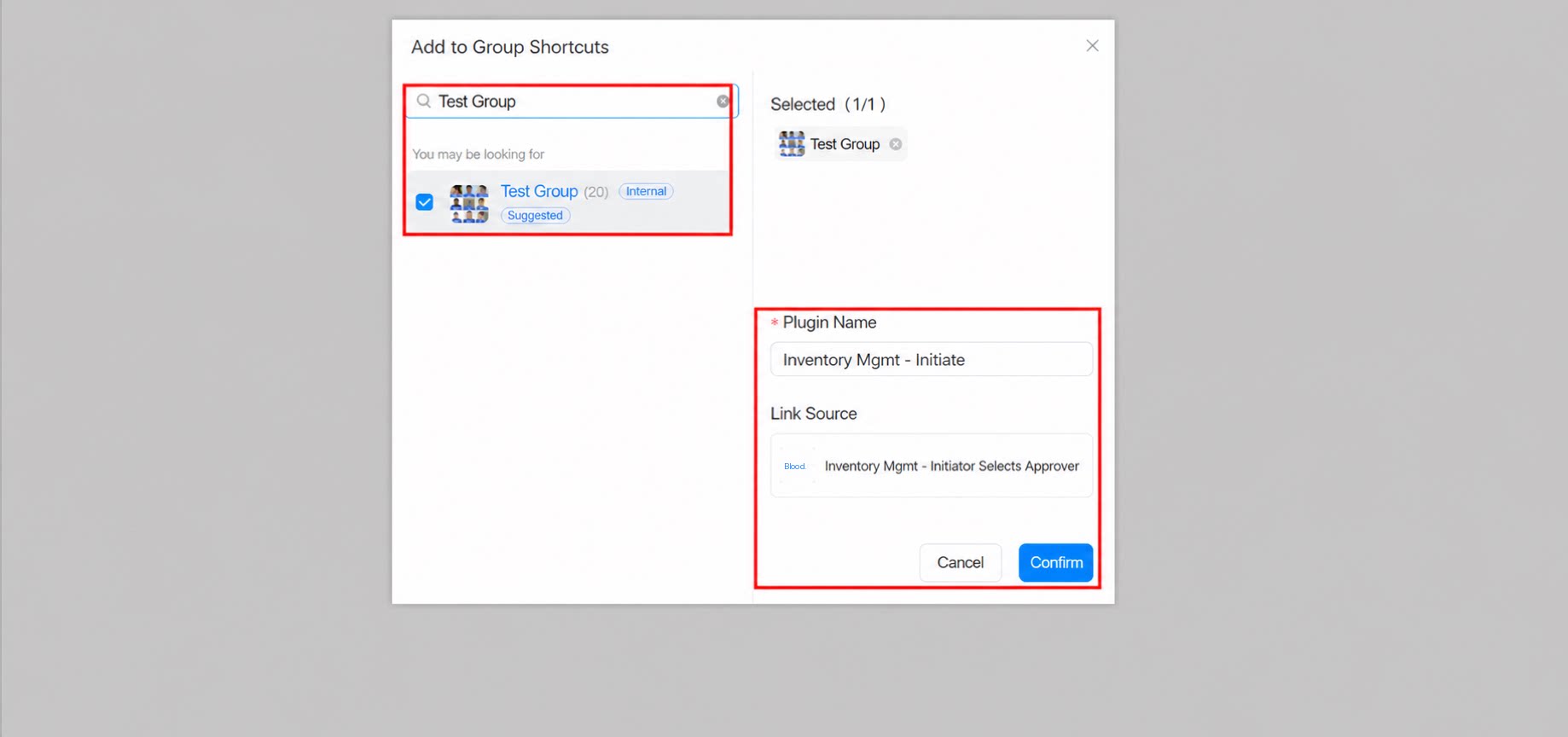
Q: How do I share a single form to a group chat? YiDA provides a built-in option to add a page to a group. In the upper-right corner of the form, click More > Add this page to group.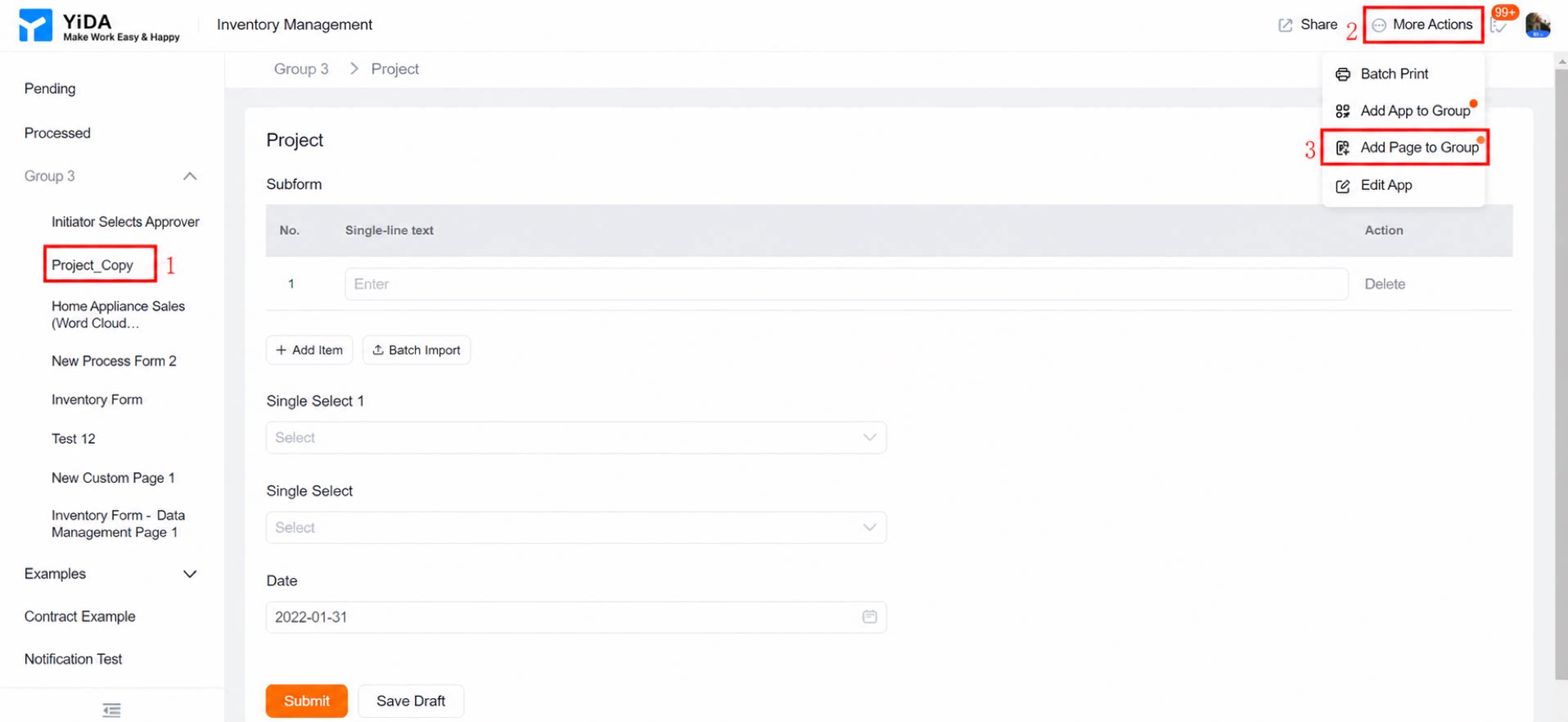
Adding to a group is not supported from a browser. Access the app from the DingTalk client to add it.
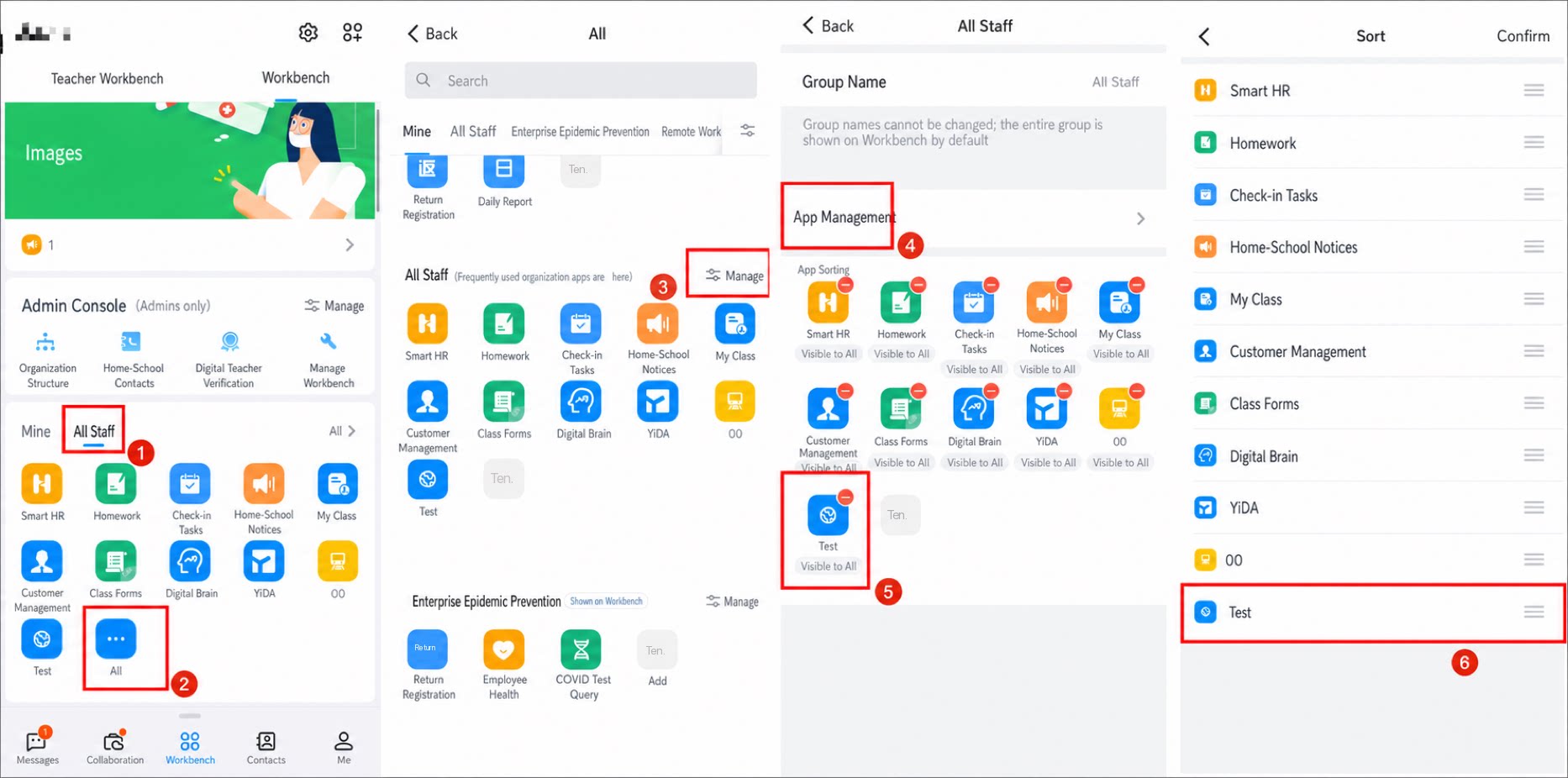
If the Manage button is not visible, you are not an admin of the current DingTalk organization. Ask an admin to perform this action.
This only removes the app from the workbench; it does not delete the YiDA app itself.
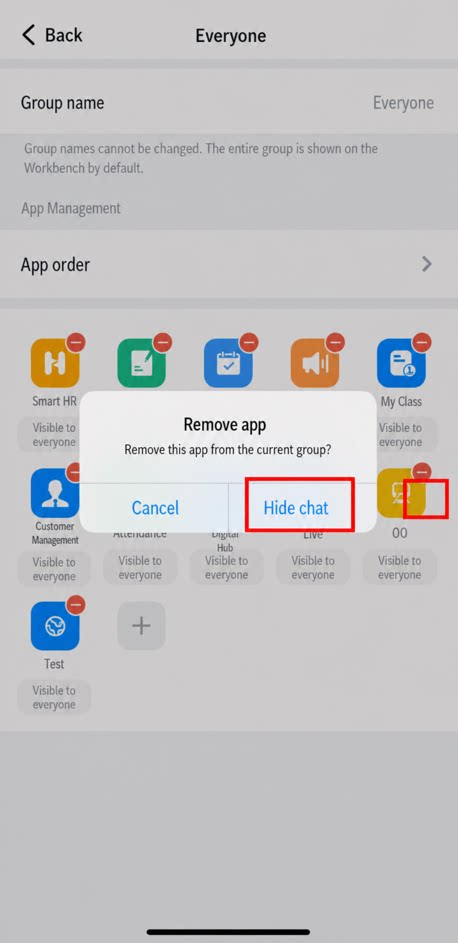
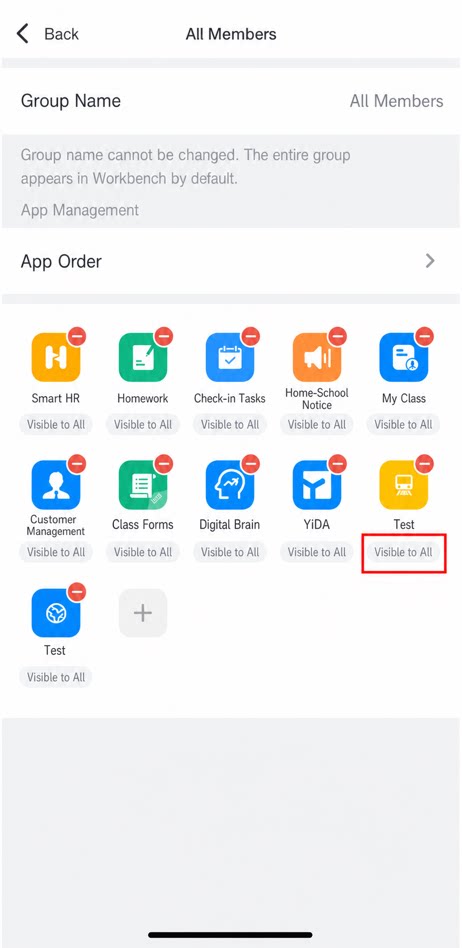
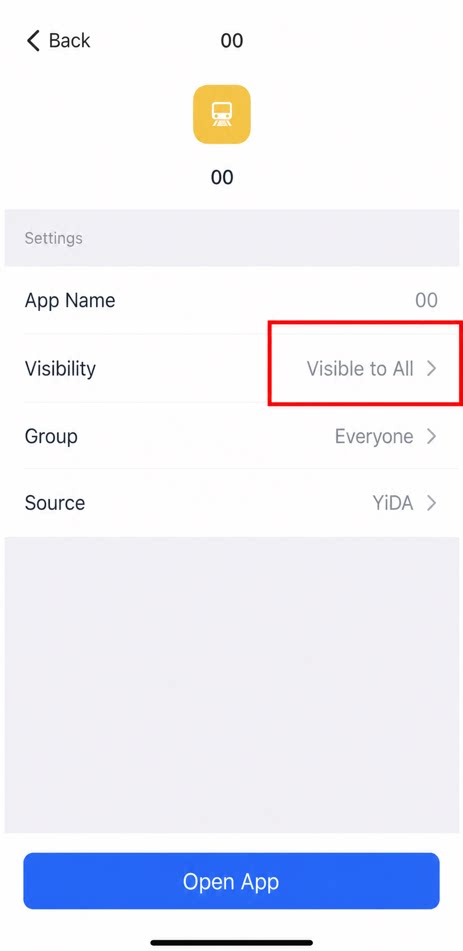
-
- On the workbench, the apps section supports two modes: “Manual management” and “Recently Used”. The default is “Recently Used”. To see published apps, switch to “Manual management” as shown in the video. 2. Apps published under the “My Apps” category on the workbench are not considered “published”, so the publishing status does not change.