Chats
Chats Calendar
 Meetings
 Contacts
 Mail
Mail Docs
Docs Drive
Drive AI Table
 AI Minutes
 Attendance
 Approval
 YiDA
YiDA Admin Console
YiDA Cool App Developer Guide
For the overall DingTalk Cool App design specification, see 👉 DingTalk Cool App design guide and general design specification.
YiDA Cool App Template Zone
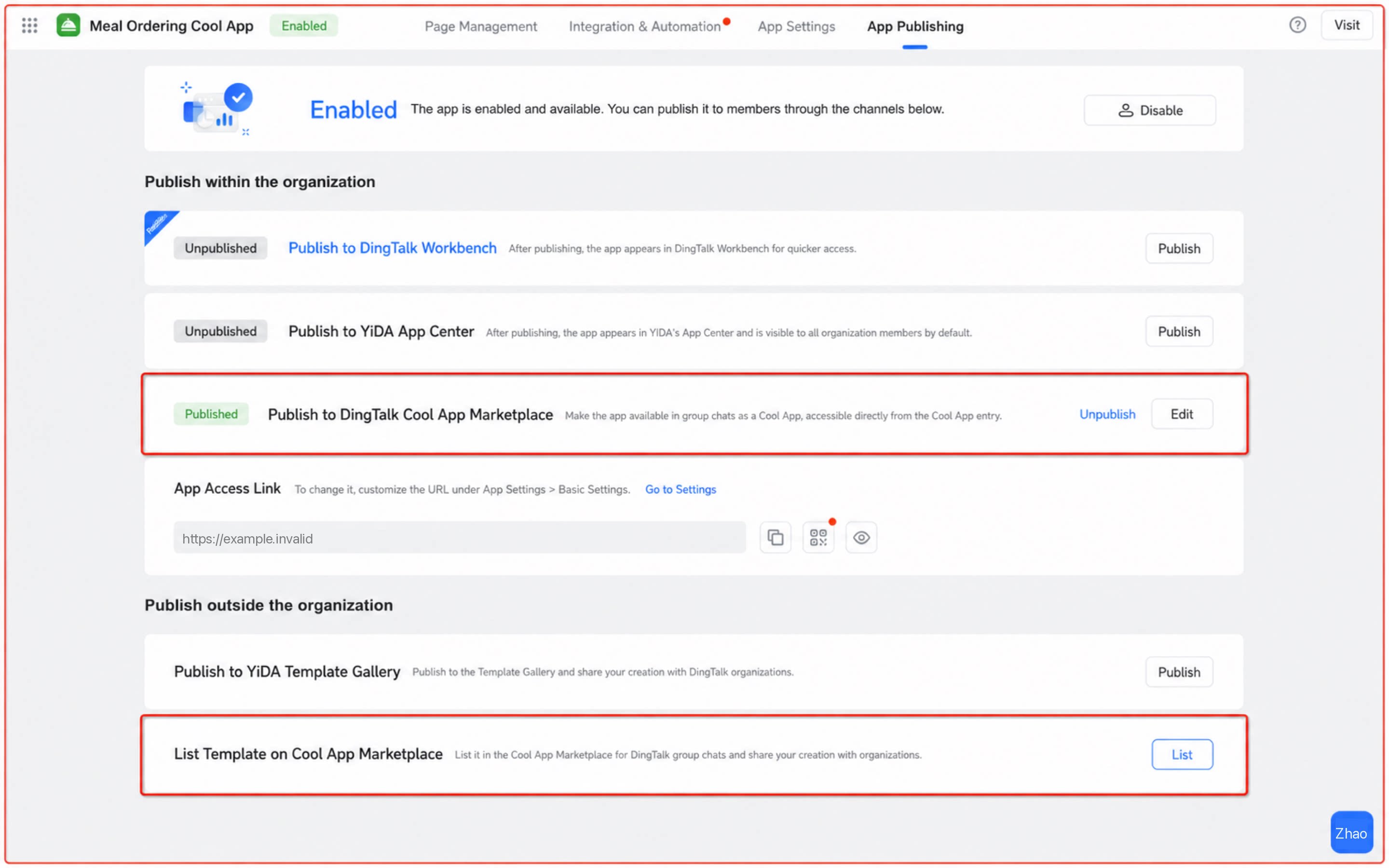
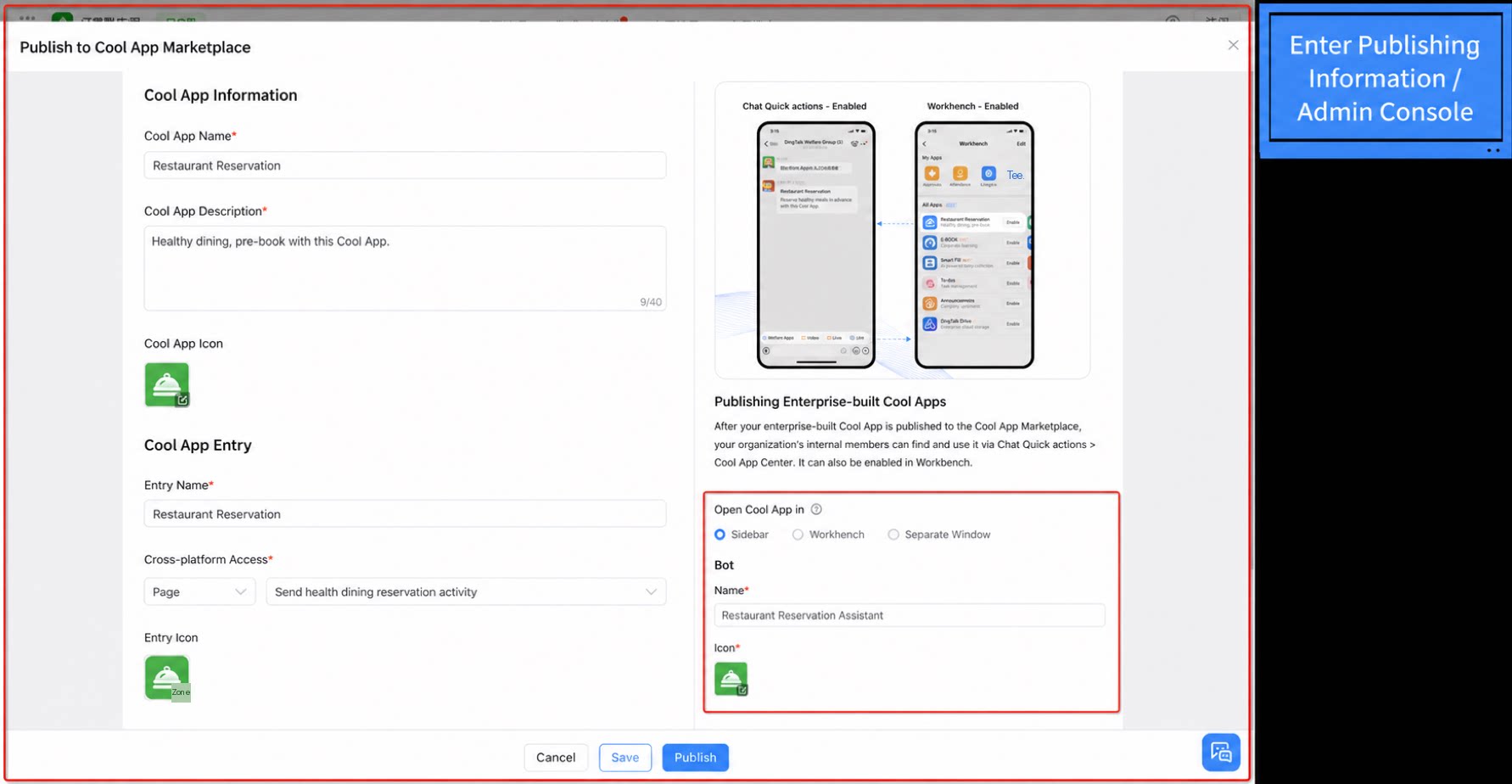
YiDA Cool Apps now have a dedicated category zone. To review the configuration of an existing Cool App template, enable it and inspect the app’s configuration flow. To test it inside a group, publish the app to the group’s self-built Cool App center. See steps 5 and 6 for details.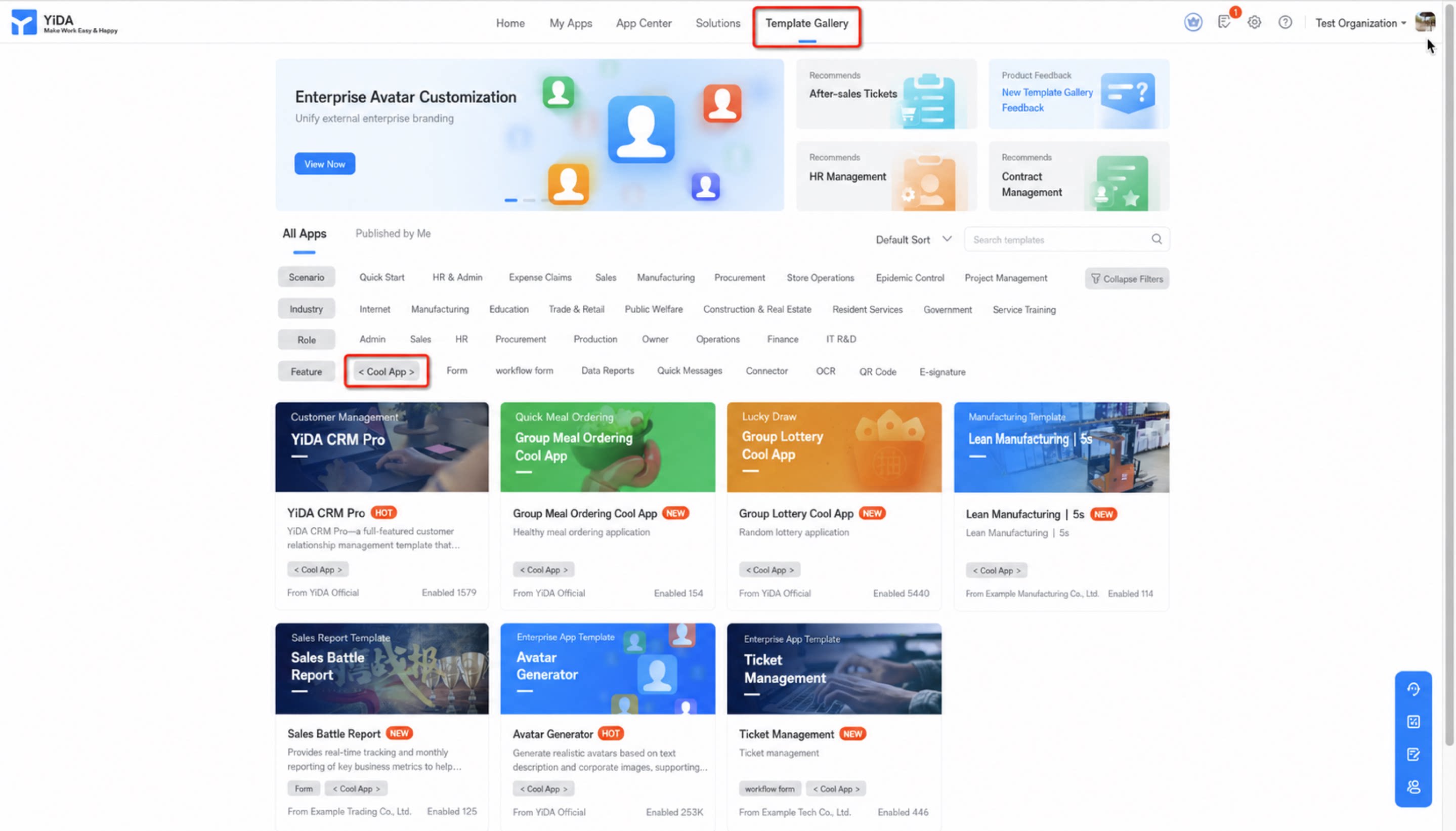
Worked Example: In-Group Meal Ordering
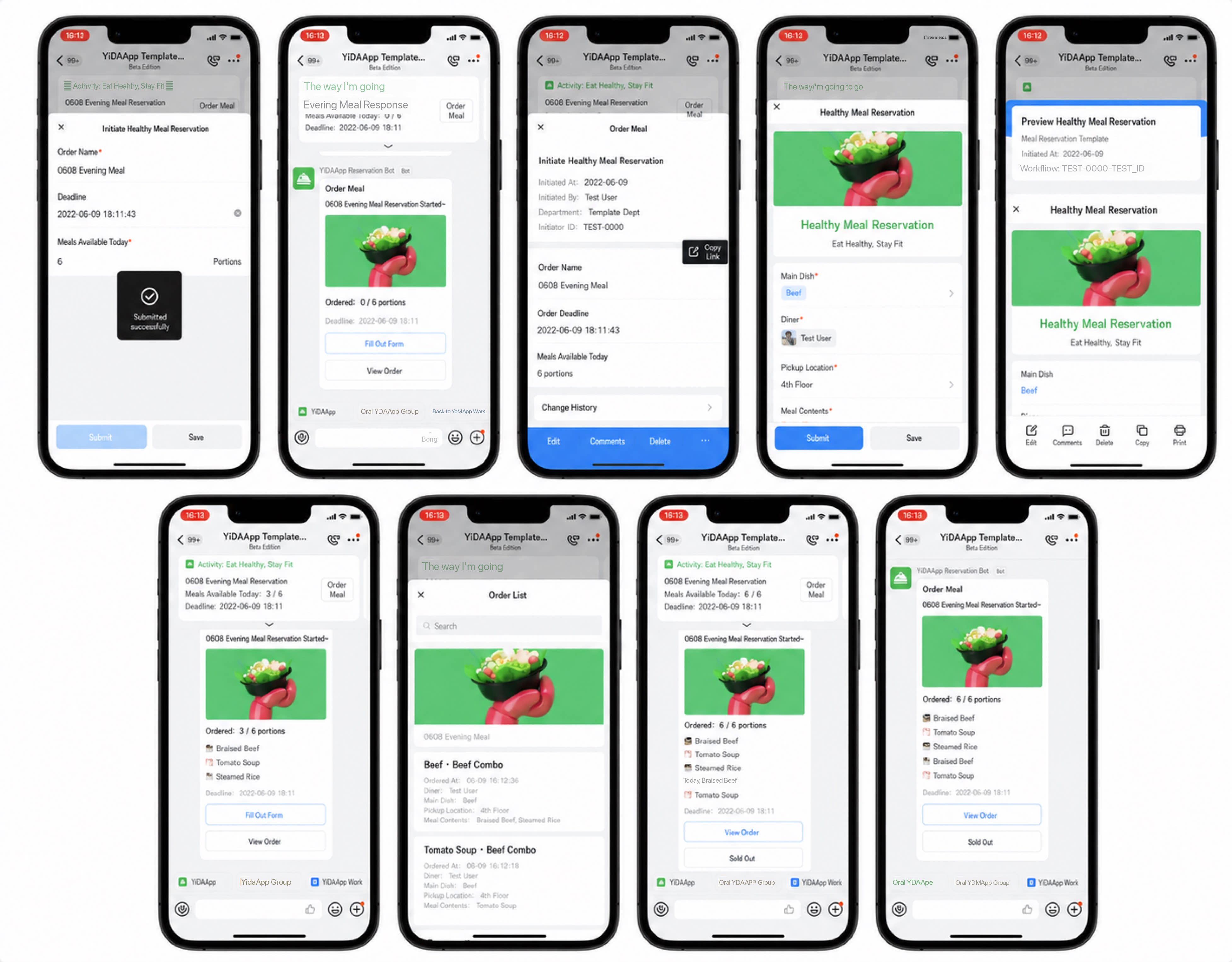
- Scenario 1: Rapid meal publishing. After a simple activity setup, the cafeteria admin publishes the day’s new dishes to multiple groups as an Interaction Card or a pinned card. Employees in each group can then place their meal orders directly inside the group.
- Scenario 2: One-click meal ordering. Organizations can add a “One-click order” button to the Interaction Card. When a new dish is published and synced to the group, employees click “One-click order,” fill in the order details, and place the order in seconds. Order details and inventory update on the card in real time.
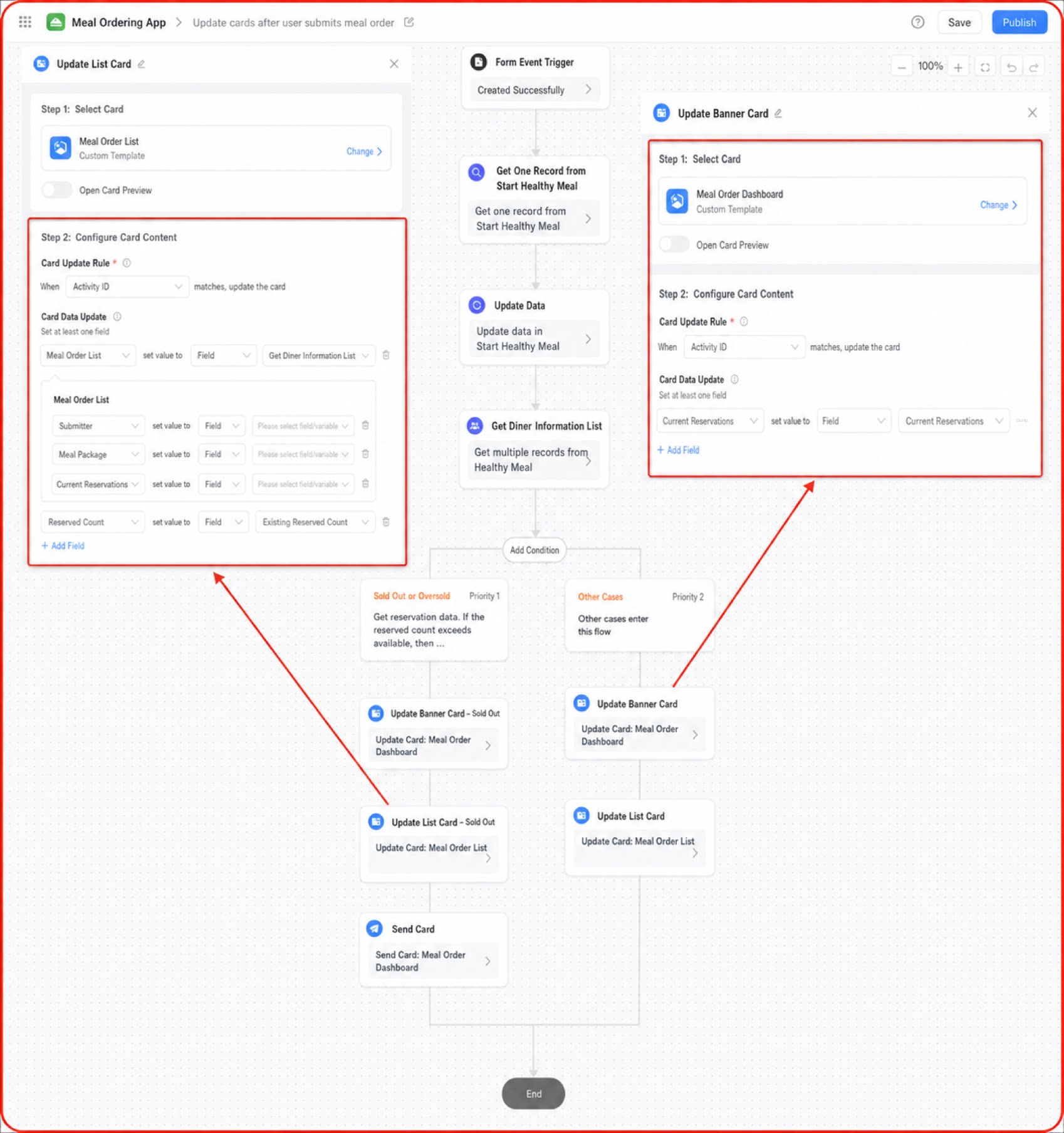
- Scenario 3: Order data broadcast. When dishes sell out or the order cut-off time is reached, the system automatically aggregates the ordering data based on the configured rules and syncs it to the group, keeping every member informed.
- Sold-out meal-ordering card sent to the current group.
- Scenario 4: Export order data. Once ordering closes, the cafeteria admin can quickly export the order data from the app’s back-end data management page and notify the cafeteria which meals to prepare for which employees.
Step 1: Build the Core Pages of the Business App
- Build the activity-launch form in the form designer.
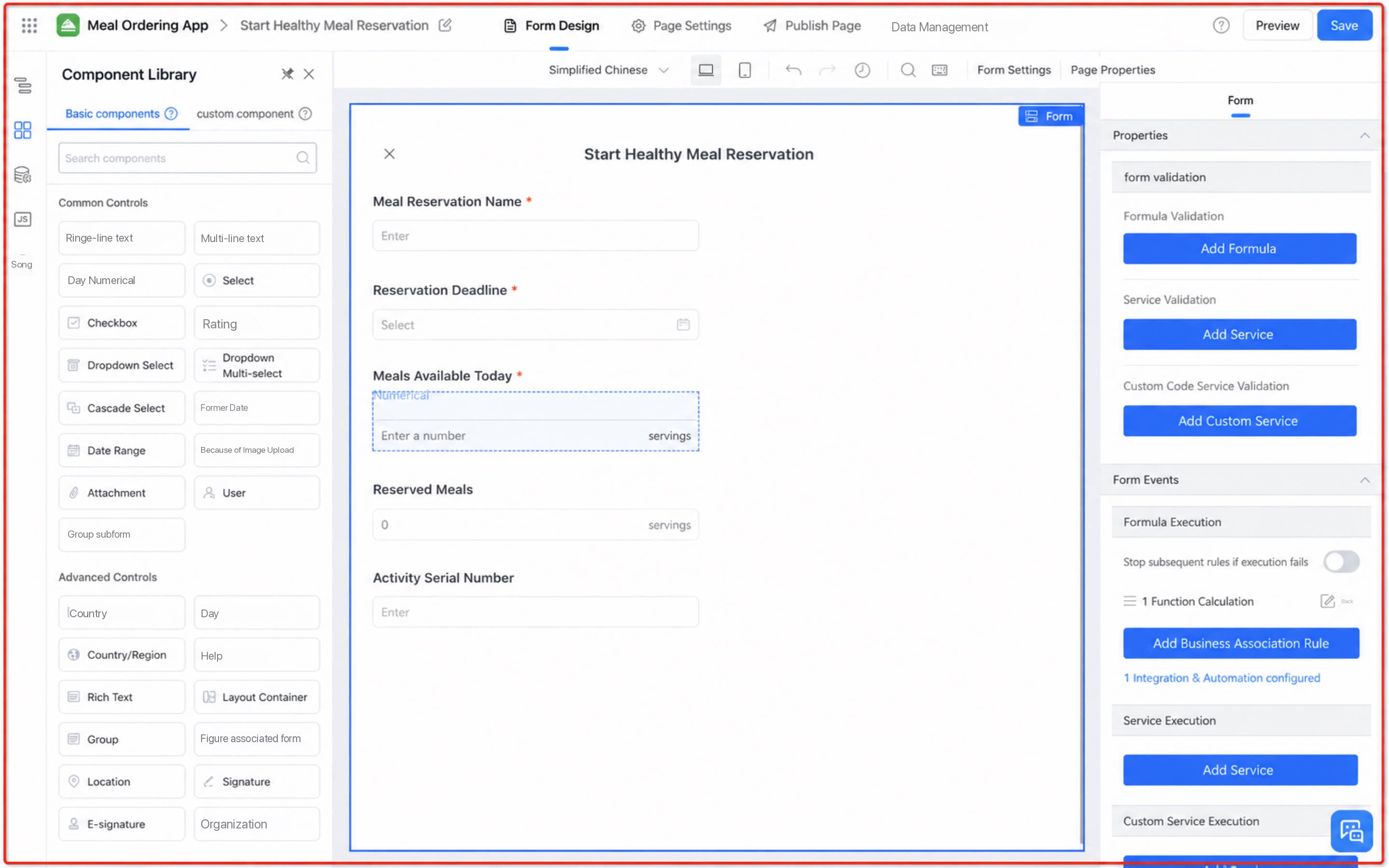
- Build the meal-order submission form in the form designer.
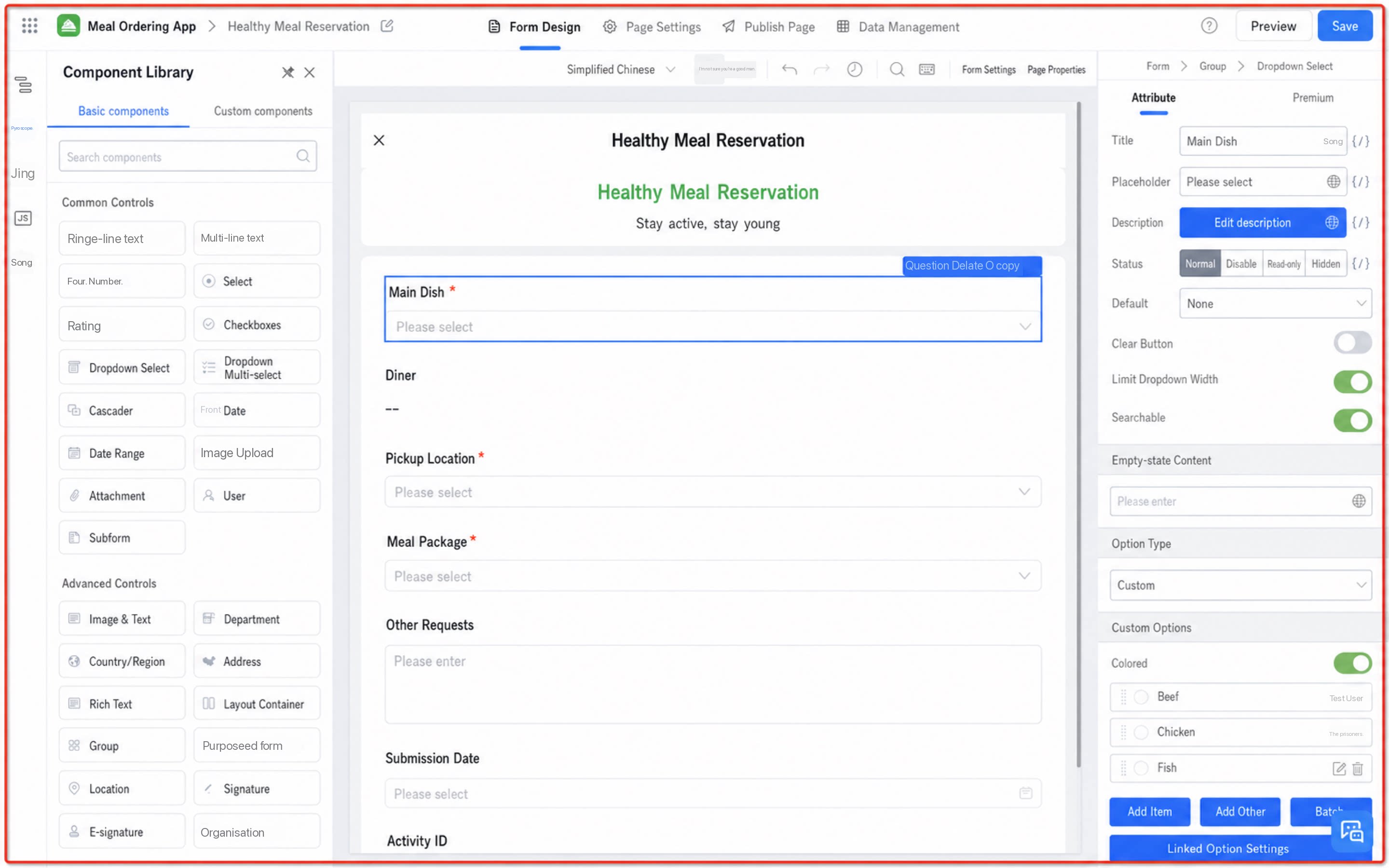
- Build the meal-order list page in the custom page designer.
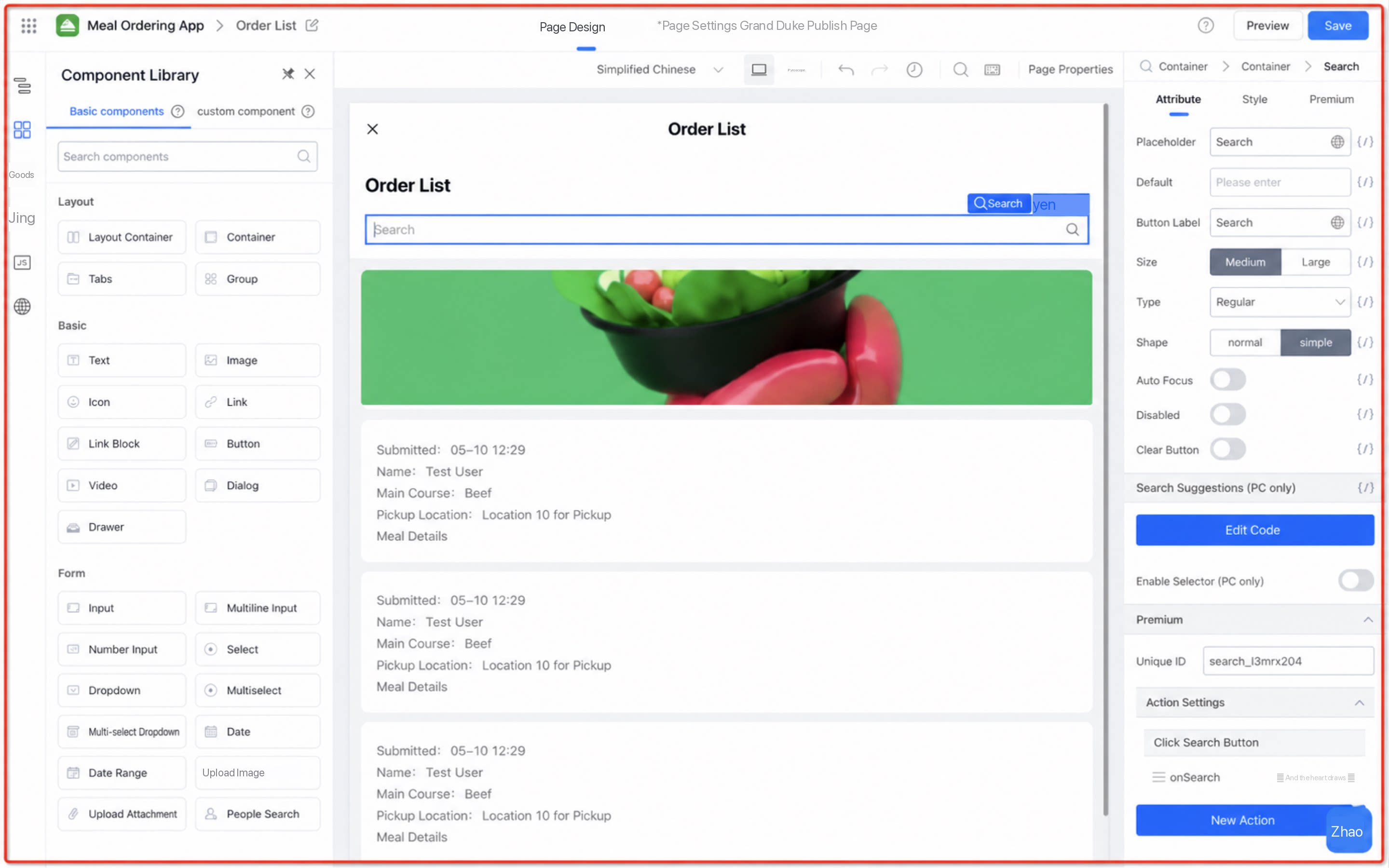
- Build the in-depth meal-order analytics report in the report designer.
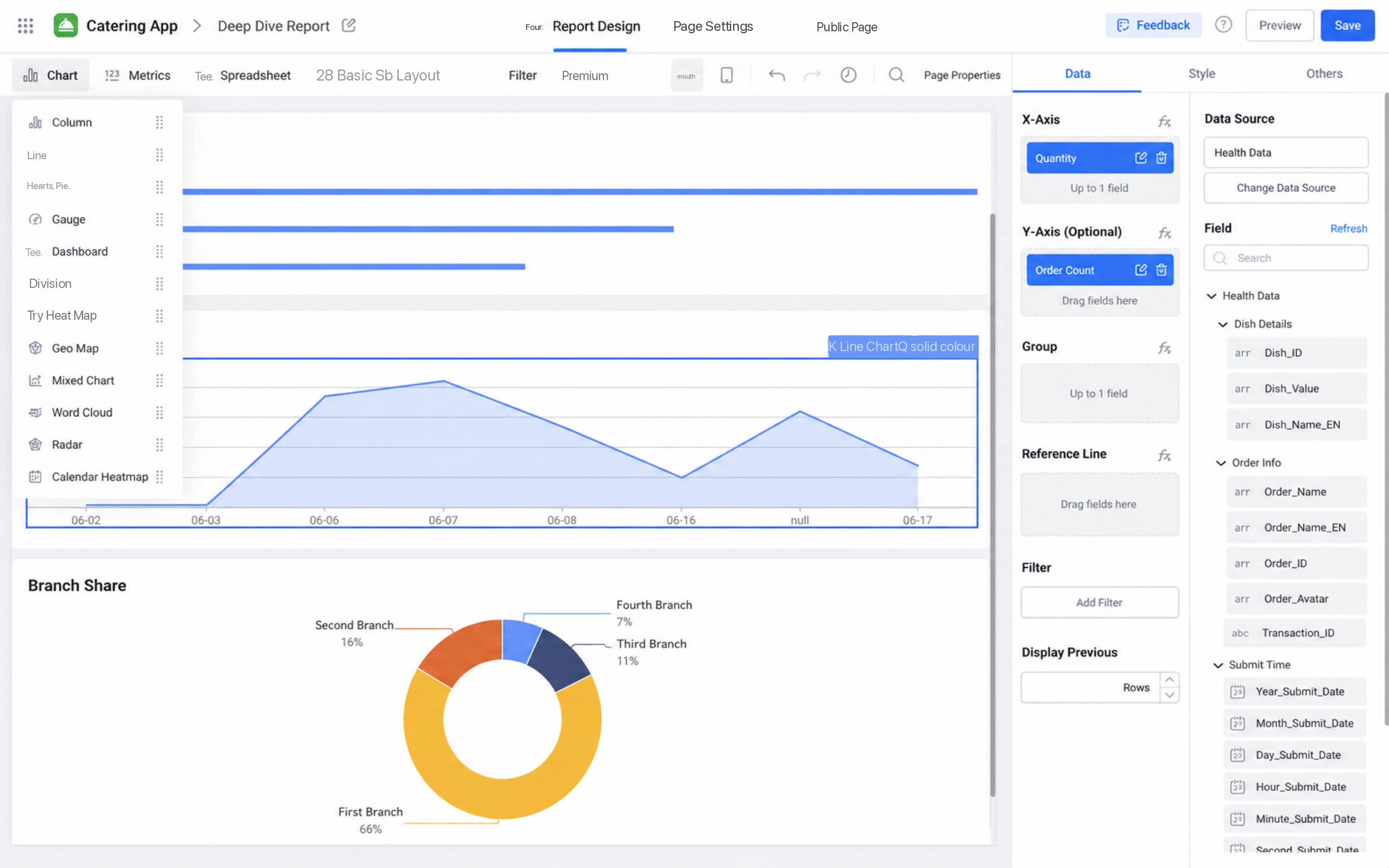
Step 2: Integration & Automation — Configure the Send-Card Node
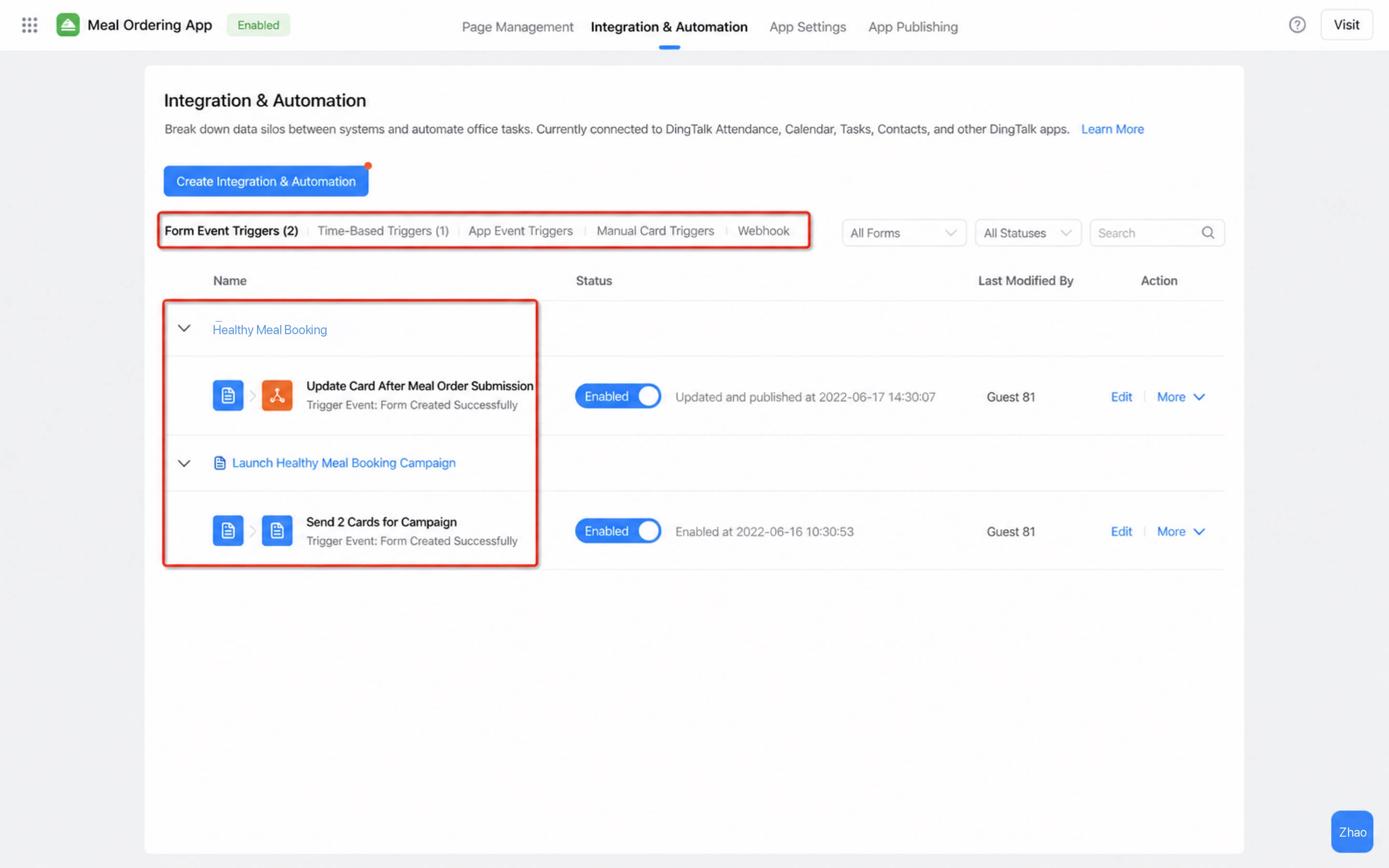
- In integration & automation, configure a form event for the scenario: when a meal-order activity form is created successfully, push the meal-order activity card.
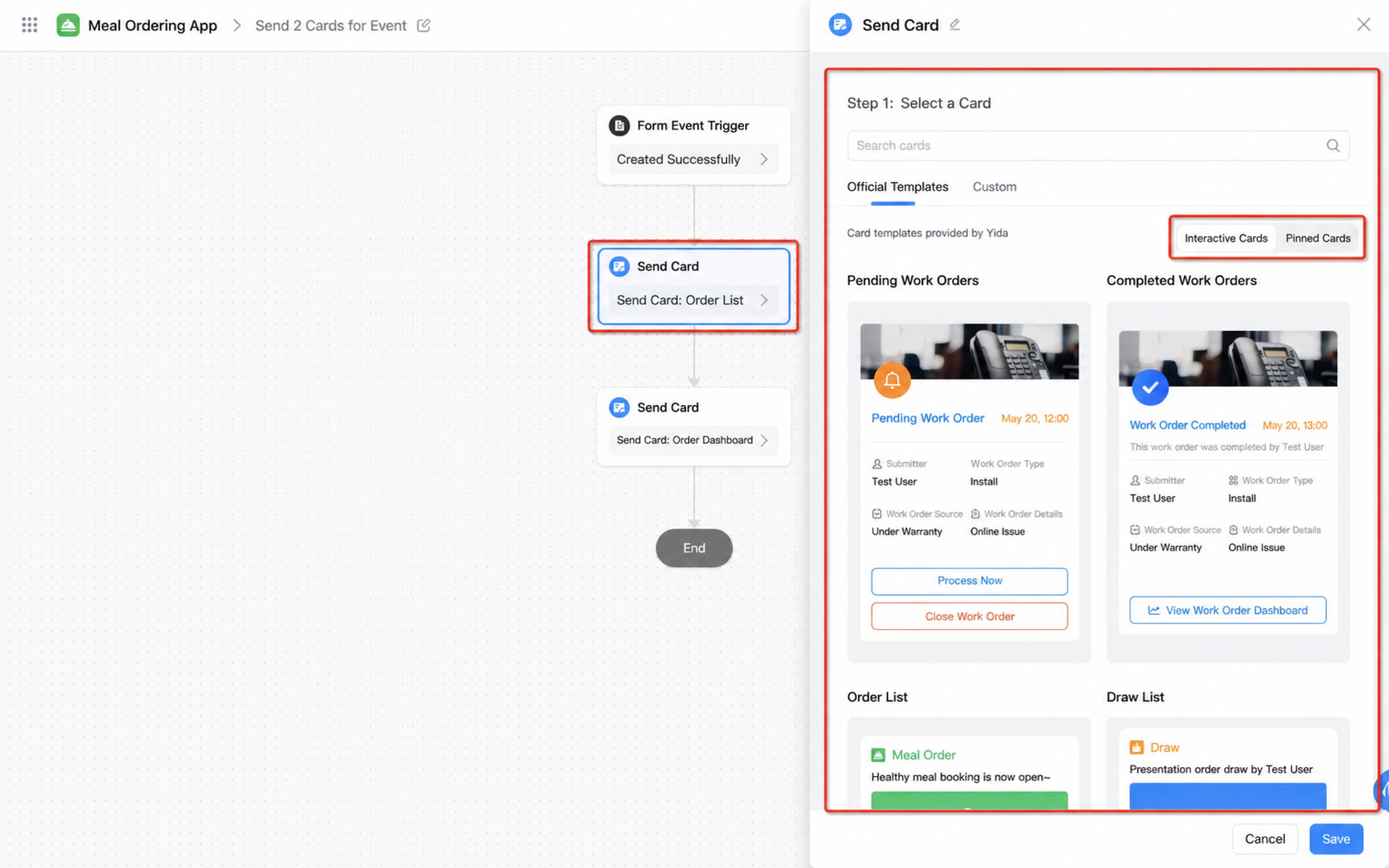
- Select the card template inside the integration & automation flow.
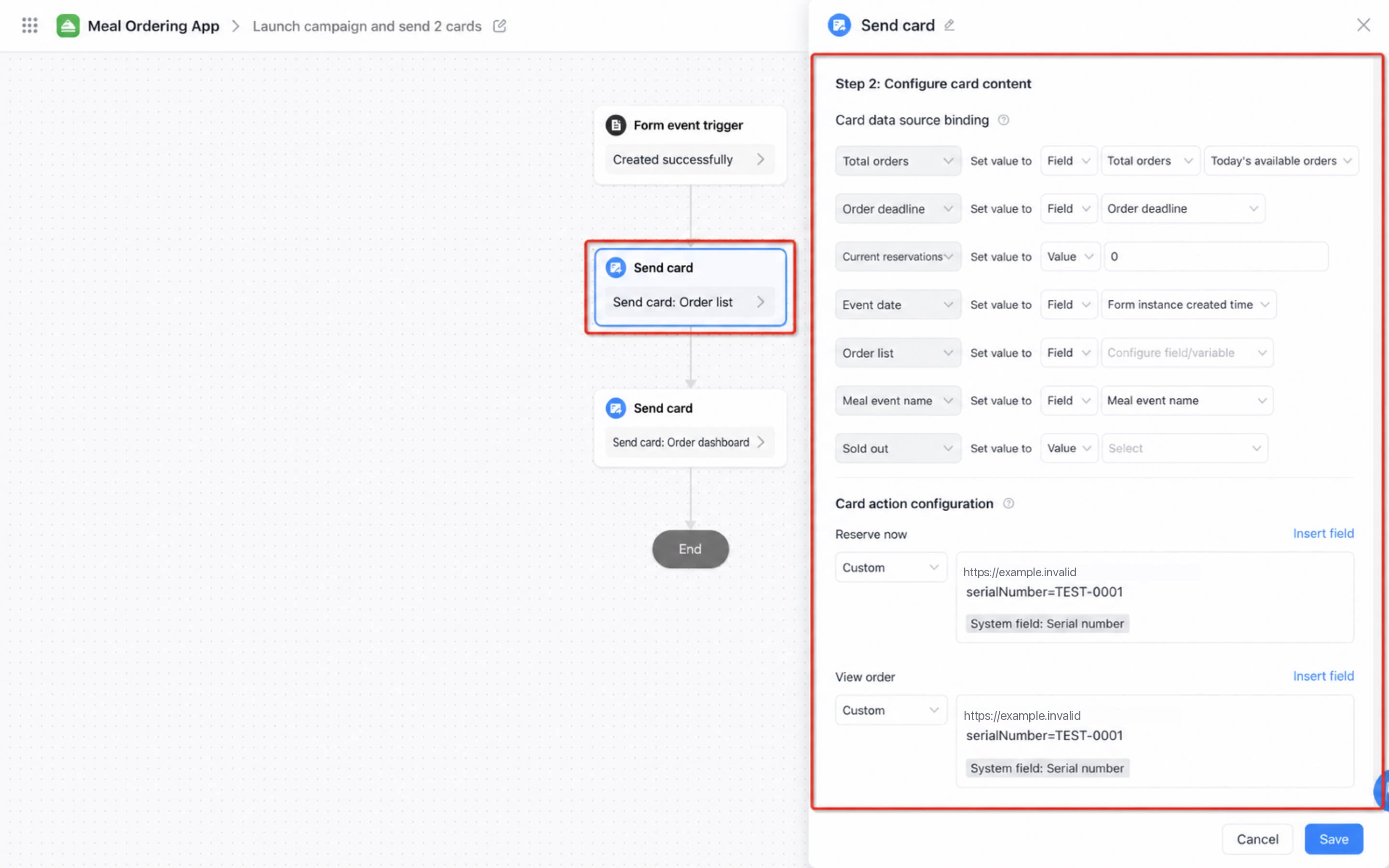
- Bind the card in integration & automation.
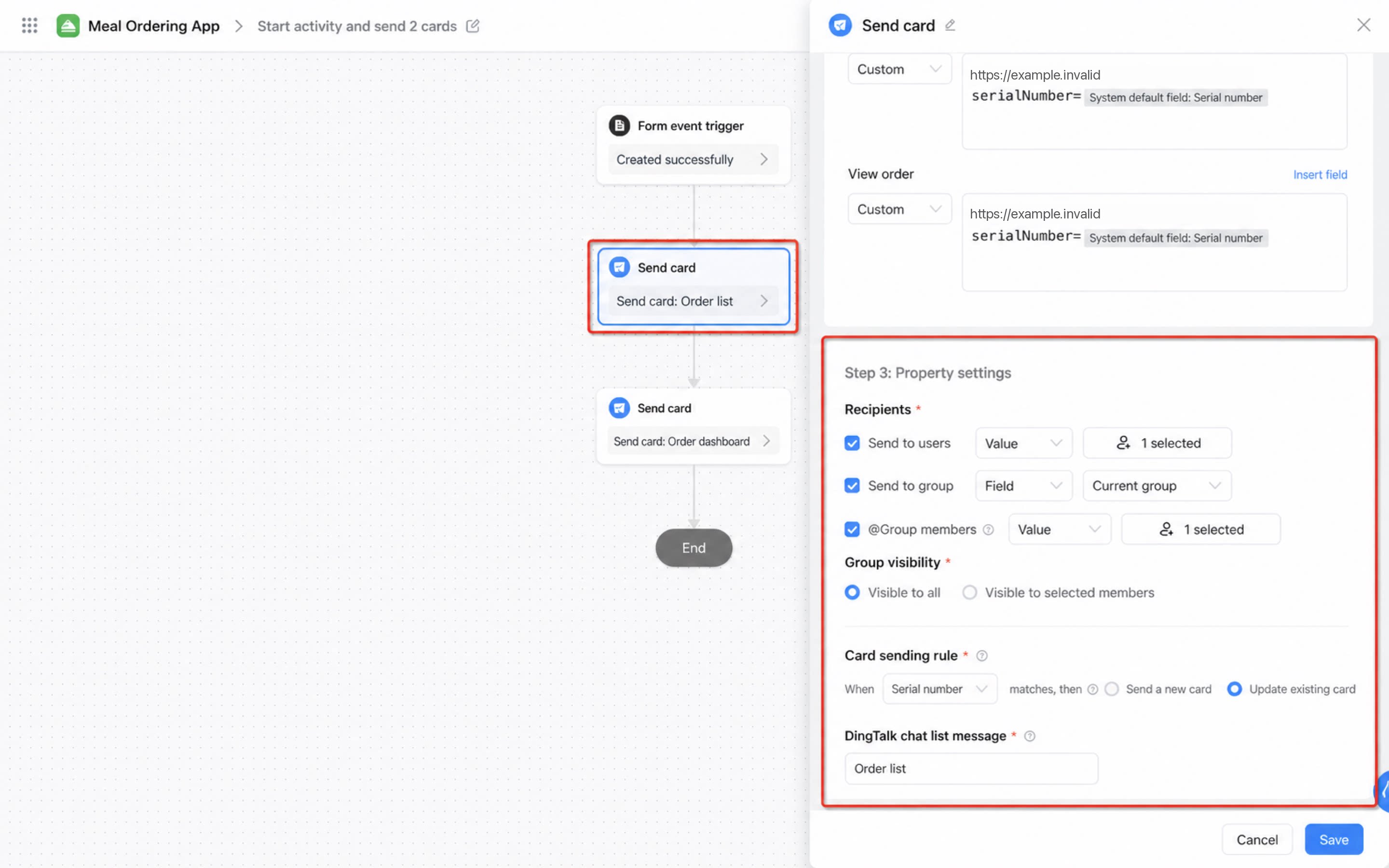
- Configure the card send scope in integration & automation.
Step 3: Build the Cards
- Meal-order list card designer.
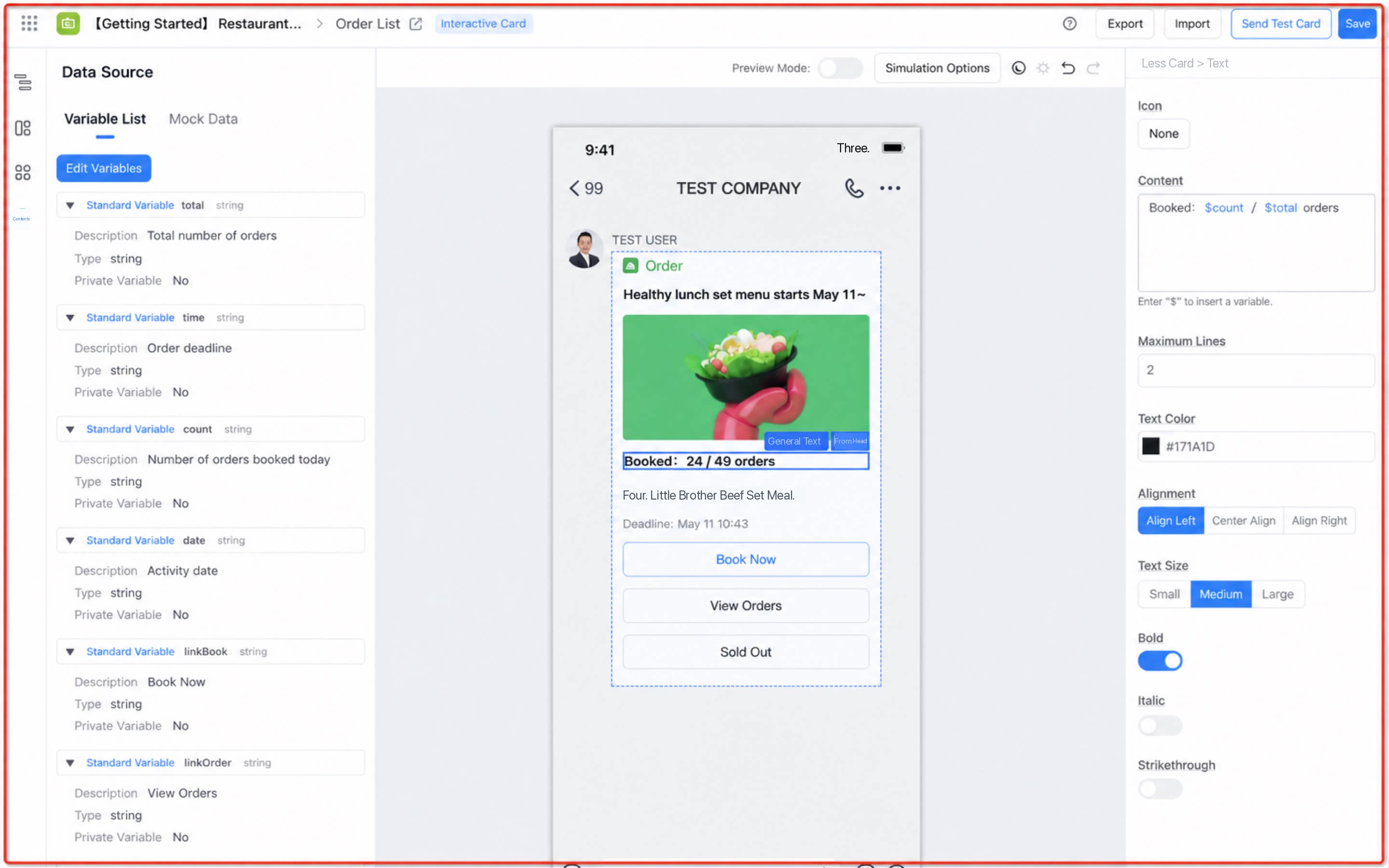
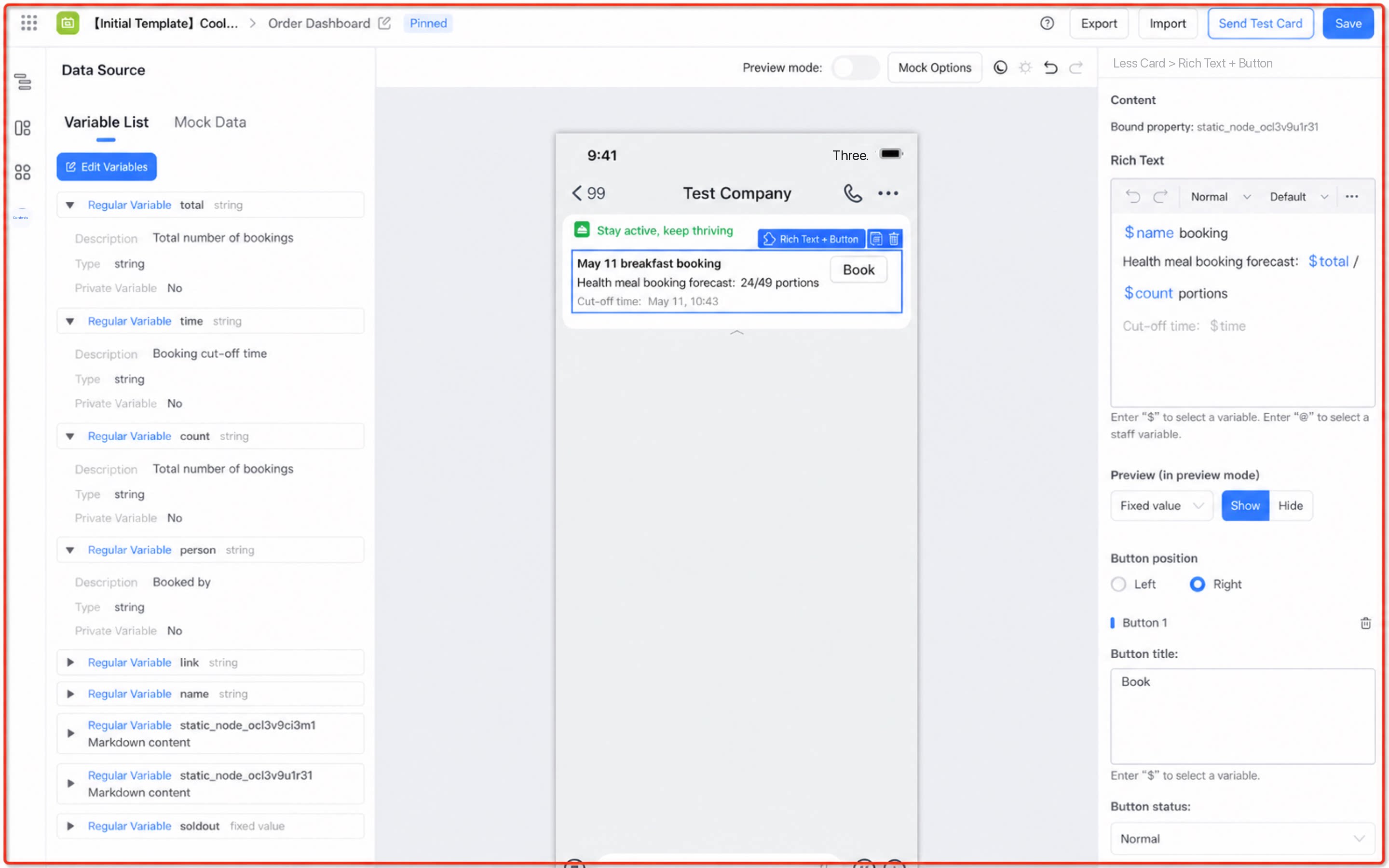
- Meal-order Kanban card designer.
Step 6: Use the App
Building a YiDA Cool App (in-group meal ordering) — 0624.mov
In-group meal ordering screen recording.mp4