Chats
Chats Calendar
 Meetings
 Contacts
 Mail
Mail Docs
Docs Drive
Drive AI Table
 AI Minutes
 Attendance
 Approval
 YiDA
YiDA Admin Console
- In DingTalk Department Chats and All-staff Chats, only Admins can install and enable Cool Apps (custom Cool Apps and template Cool Apps) by default.
- In your organization’s Internal Groups, all chat members have permission to install and enable Cool Apps (custom Cool Apps and template Cool Apps).
Enable and Use a Custom Cool App
1
Step 1
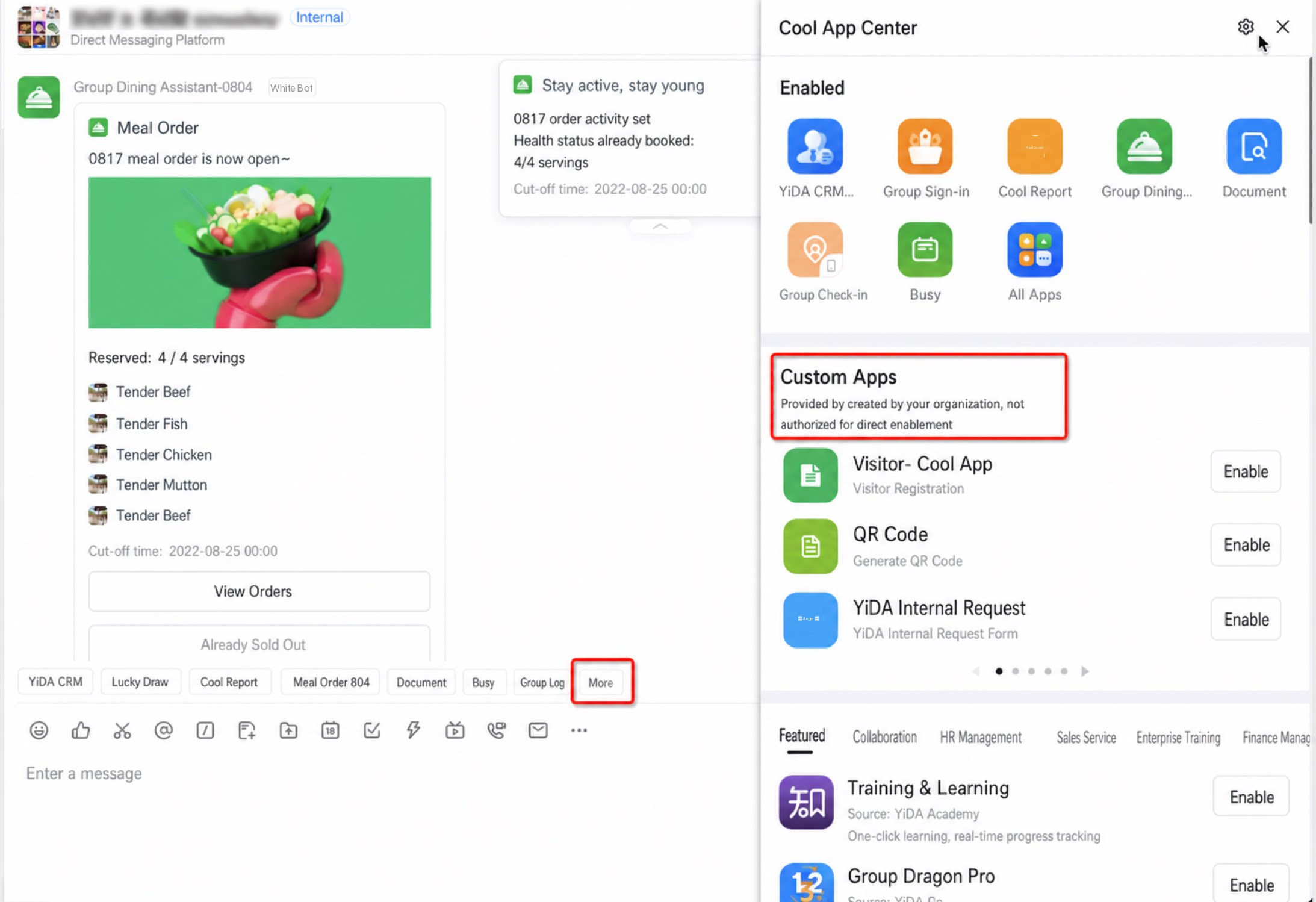
Once a Cool App has been developed, the “Custom Cool App” section in the chat remains hidden if no Cool App from your organization has been submitted to the Custom Cool App Center. The section appears as soon as at least one Cool App from the organization is submitted to the DingTalk Chat Custom Cool App Center.
2
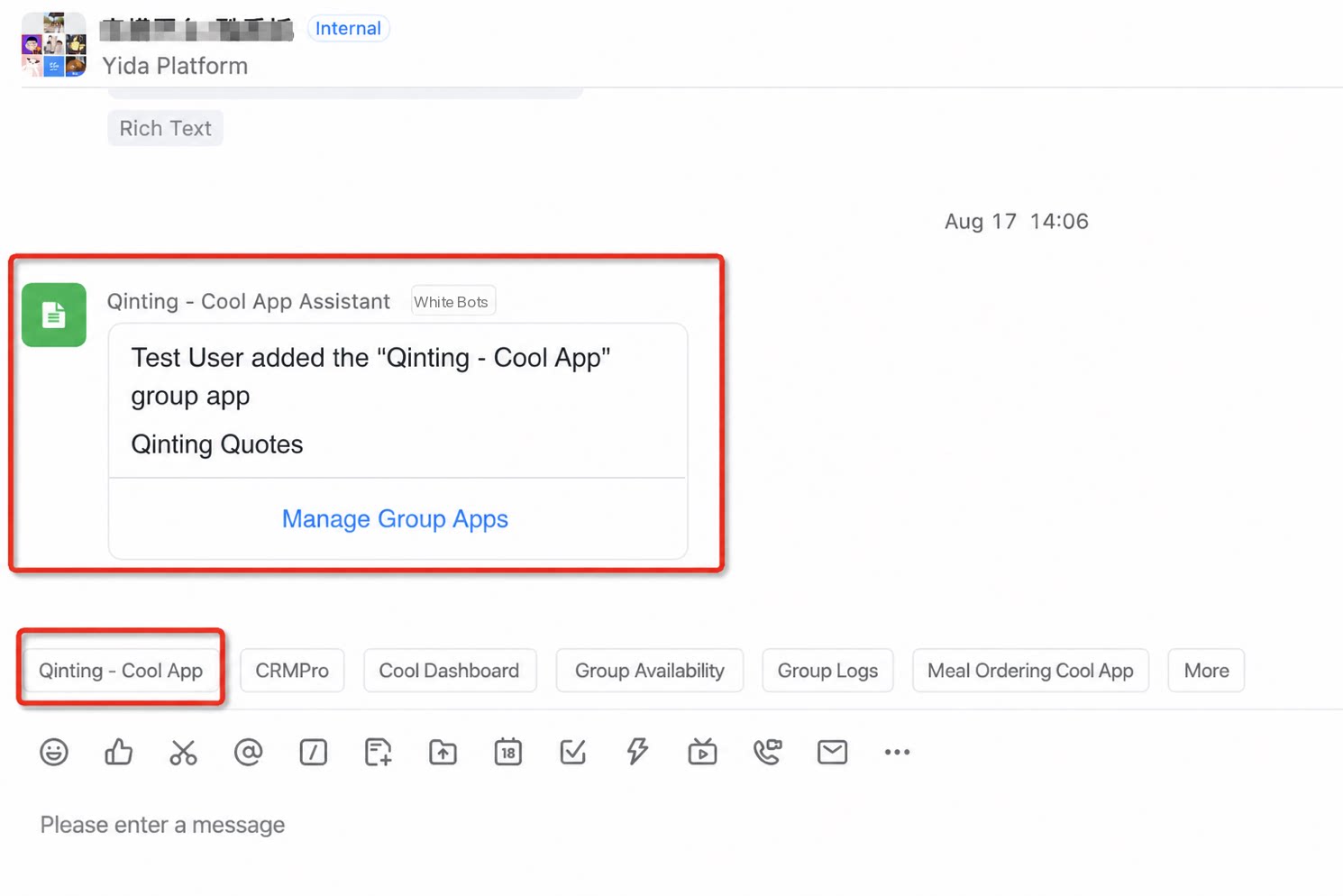
After a user enables the Cool App, an entry appears in the Chat Quick actions and is ready to use
Enable and Use a Cool App Template
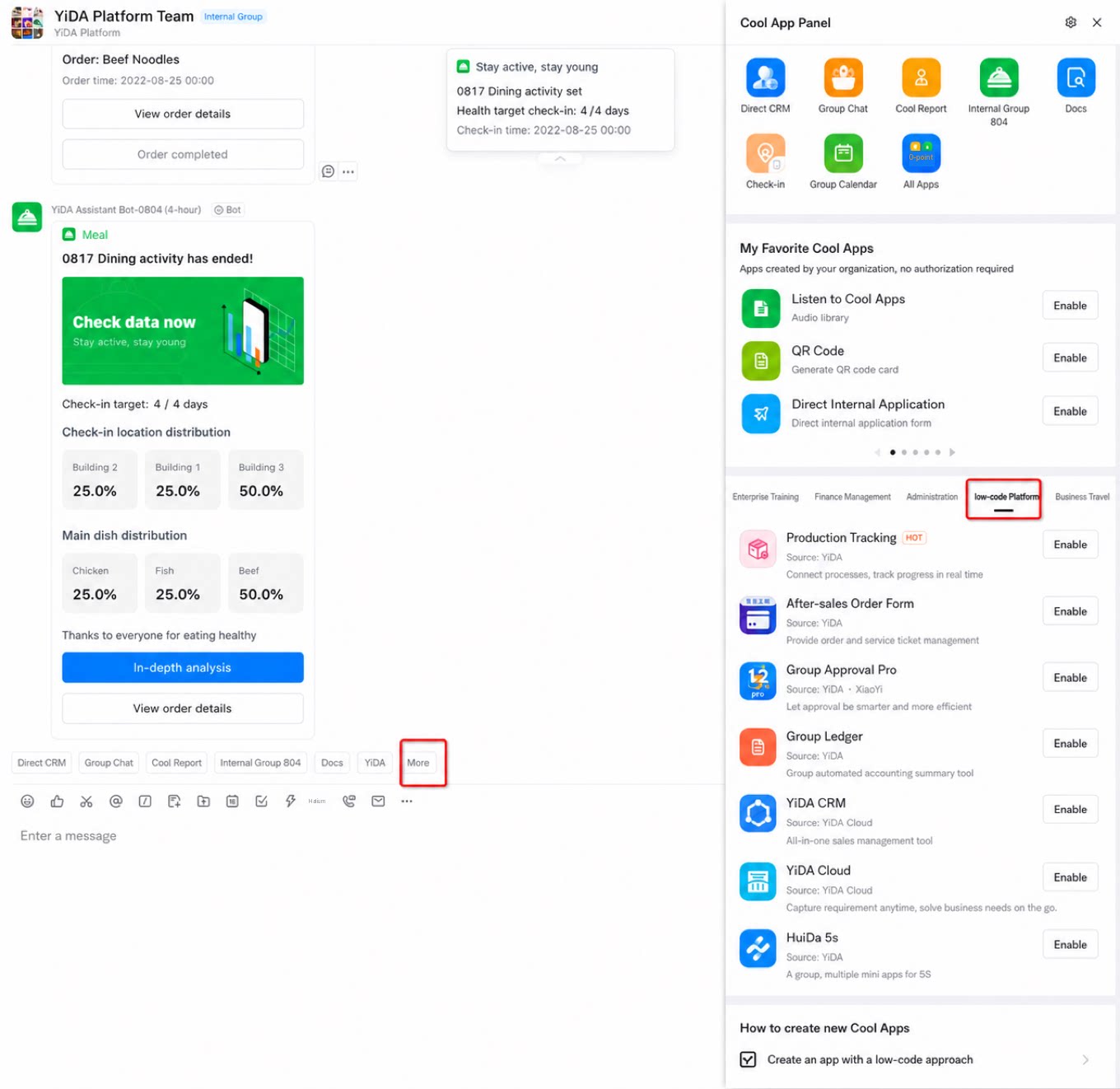
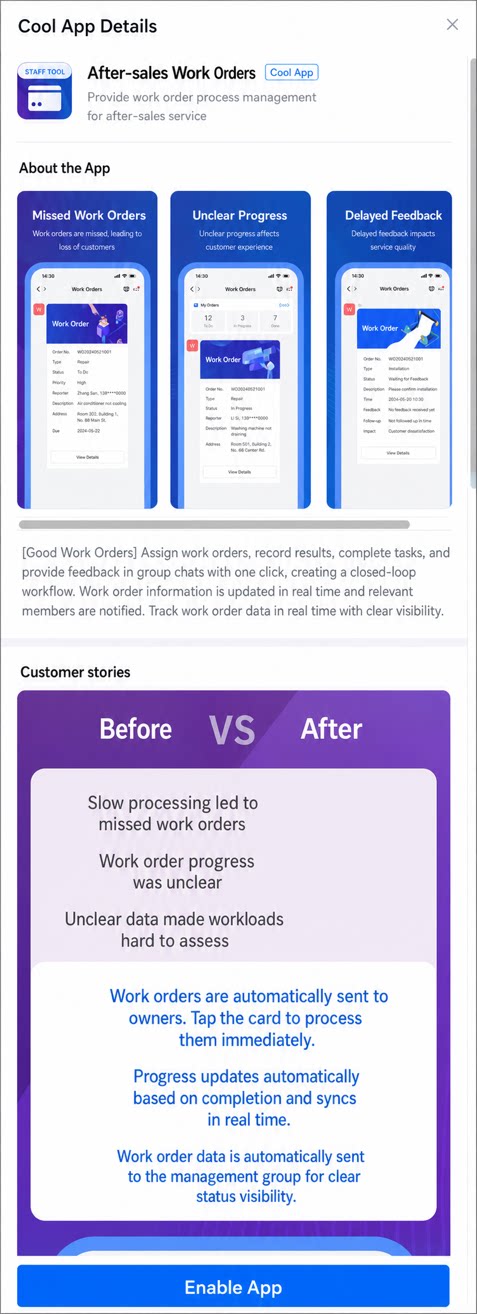
- After submitting a Cool App template to the DingTalk Chat Cool App Marketplace according to the document SOP for Quickly Converting YiDA Template Apps into Cool Apps and Publishing to the DingTalk Cool App Marketplace, you can browse Cool Apps by category. Click Enable to use it out of the box, or click a Cool App icon to view its details.
Uninstall a Cool App
1
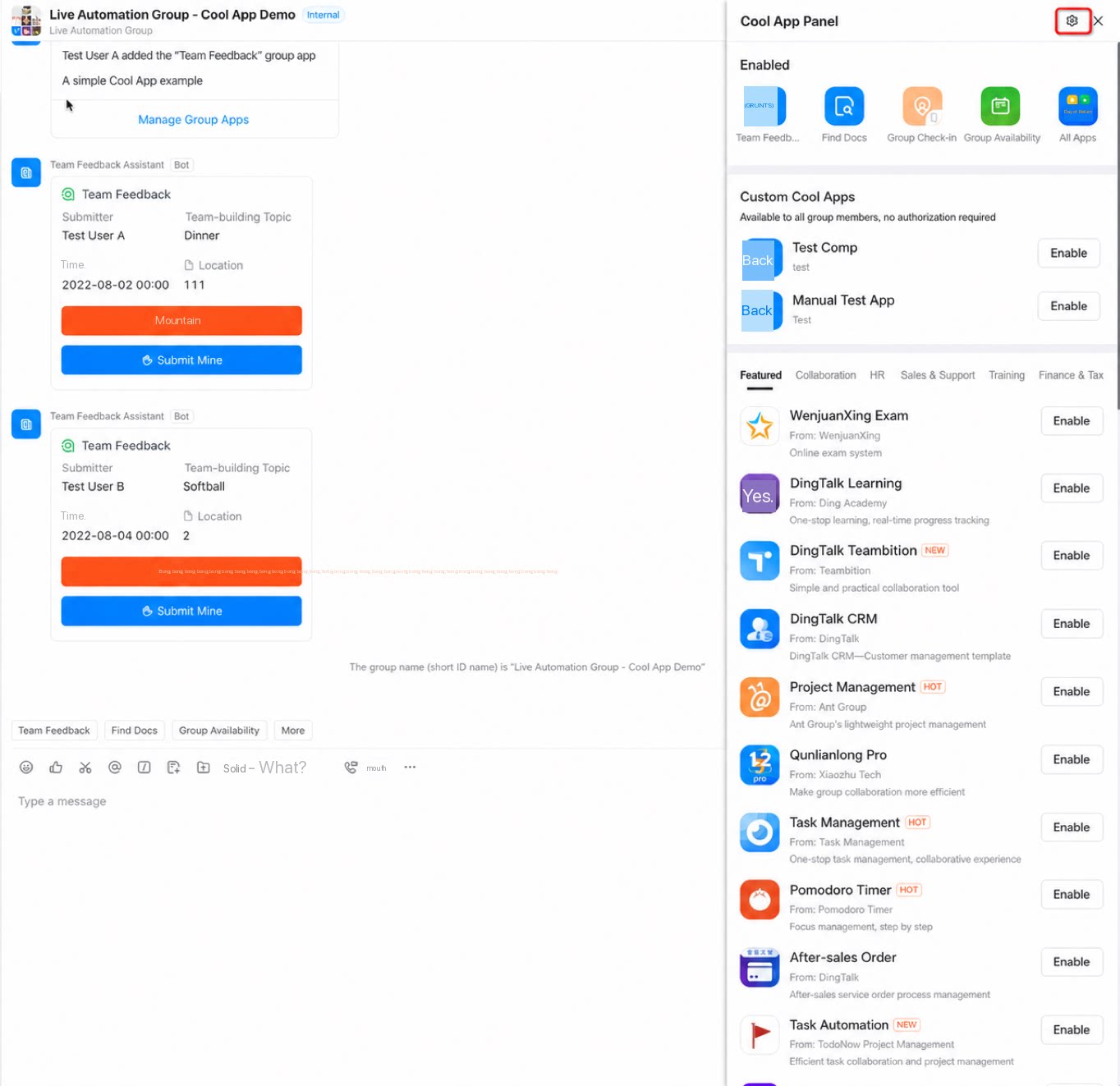
Click "More" in the chat toolbar, open the Cool App panel, click the settings button, and select Settings to open the enabled apps management page
2
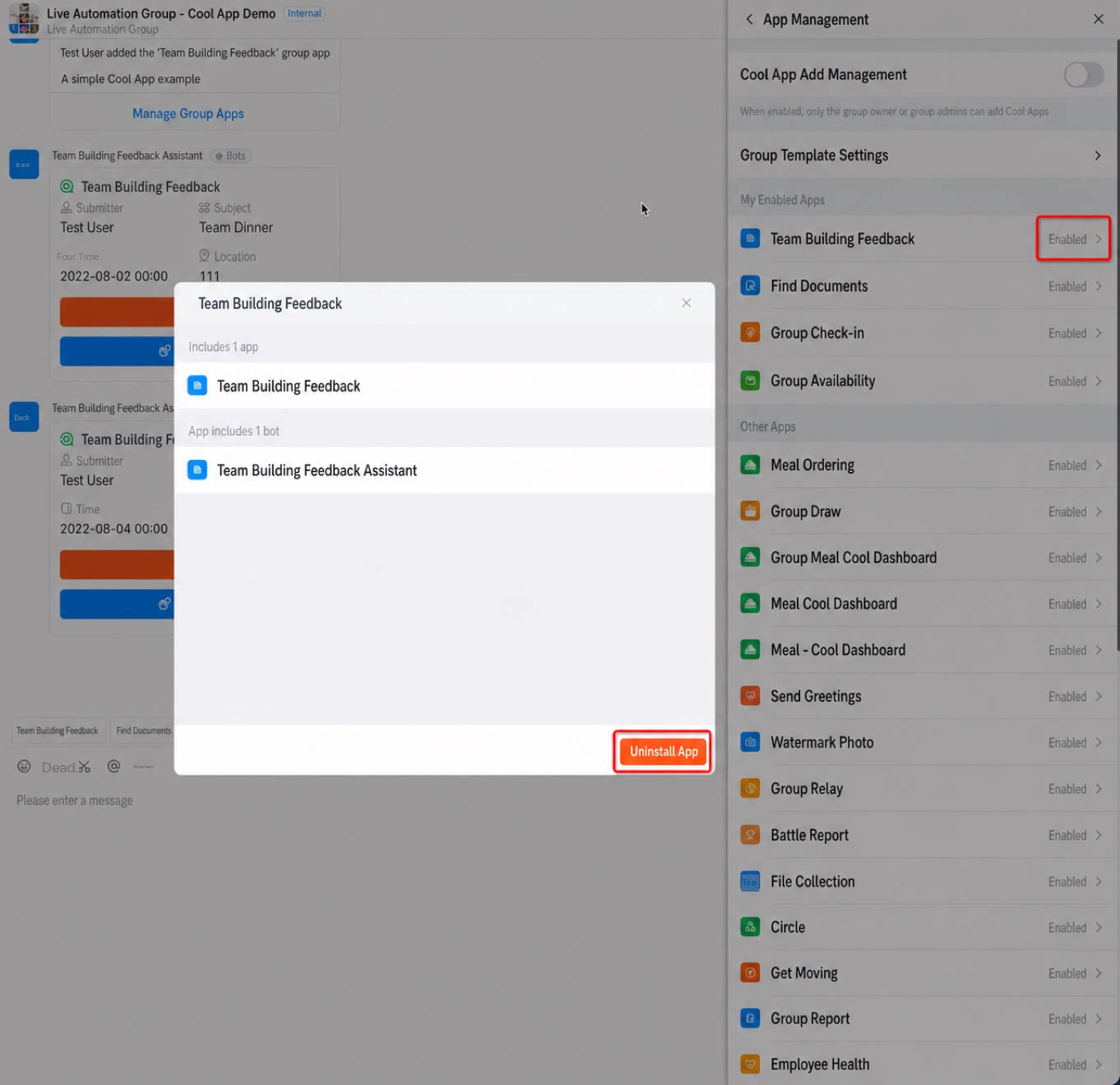
Select an enabled app to open the dialog, then click "Uninstall app". Both the chat quick entry and the Bot are removed after uninstallation
FAQ
Q1: How do I launch a Cool App across DingTalk?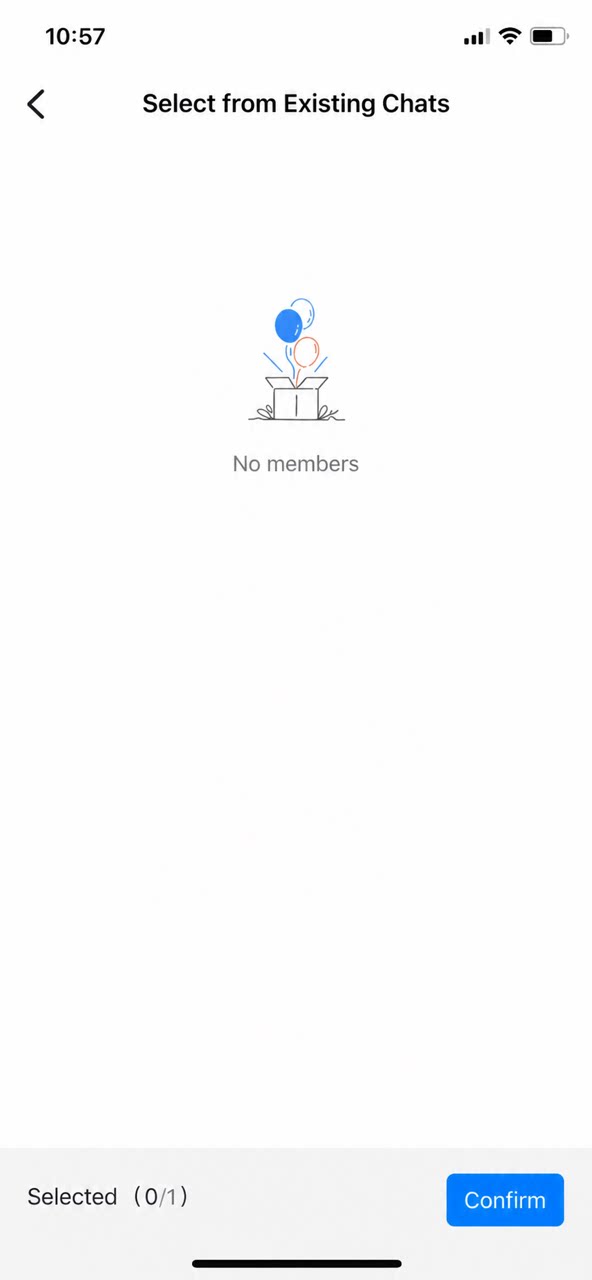
- Each Cool App now has its own dedicated Cool App link (replace the coolappcode with that of the target Cool App). You can launch it anywhere within DingTalk with one click. Cool Apps are no longer limited to the Cool App Center Marketplace or the main app details page—they can now be distributed throughout DingTalk.
- ISVs can replace the coolapp code with their own Cool App code and distribute their Cool Apps to customers across different channels to boost reach. See the result below. (Currently, the link can only be opened on mobile.)
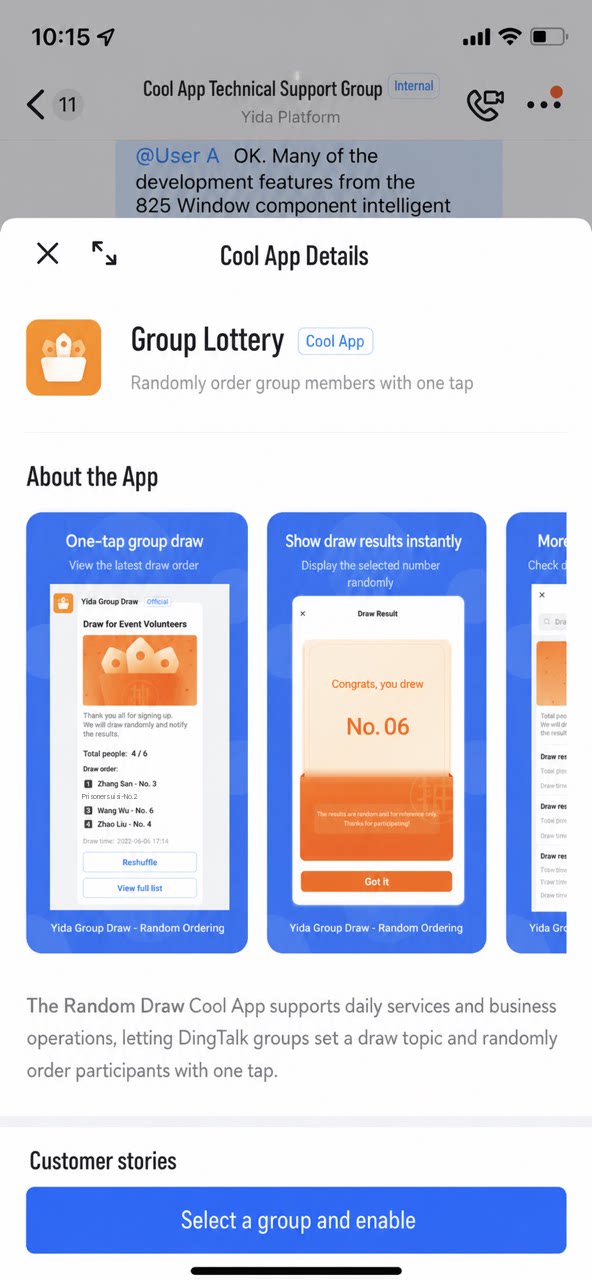
- Note: If the chat list is empty when you select a chat, confirm whether the organization currently signed in on your mobile has any Internal Groups. If not, create one first before using the Cool App in the chat.