

 Chats
Chats Calendar
 Meetings
 Contacts
 Mail
Mail Docs
Docs Drive
Drive AI Table
 AI Minutes
 Attendance
 Approval
 YiDA
YiDA Admin Console
Overview
Previously, implementing one-item-one-code in YiDA required low-code development. Configuration was cumbersome and error-prone, often producing no real effect. To solve this, YiDA now offers custom QR Code tag design, batch download, and preview.Use Cases
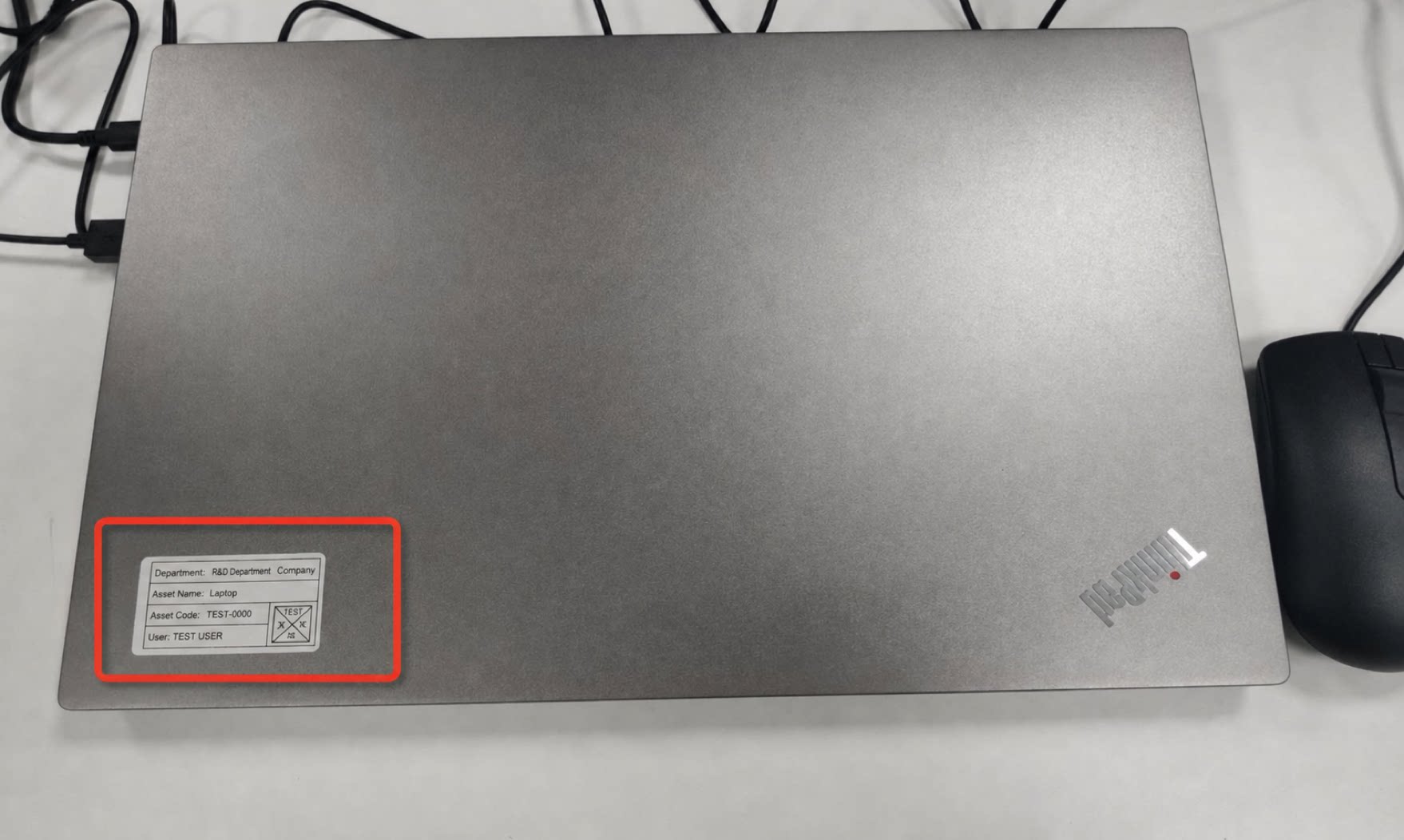
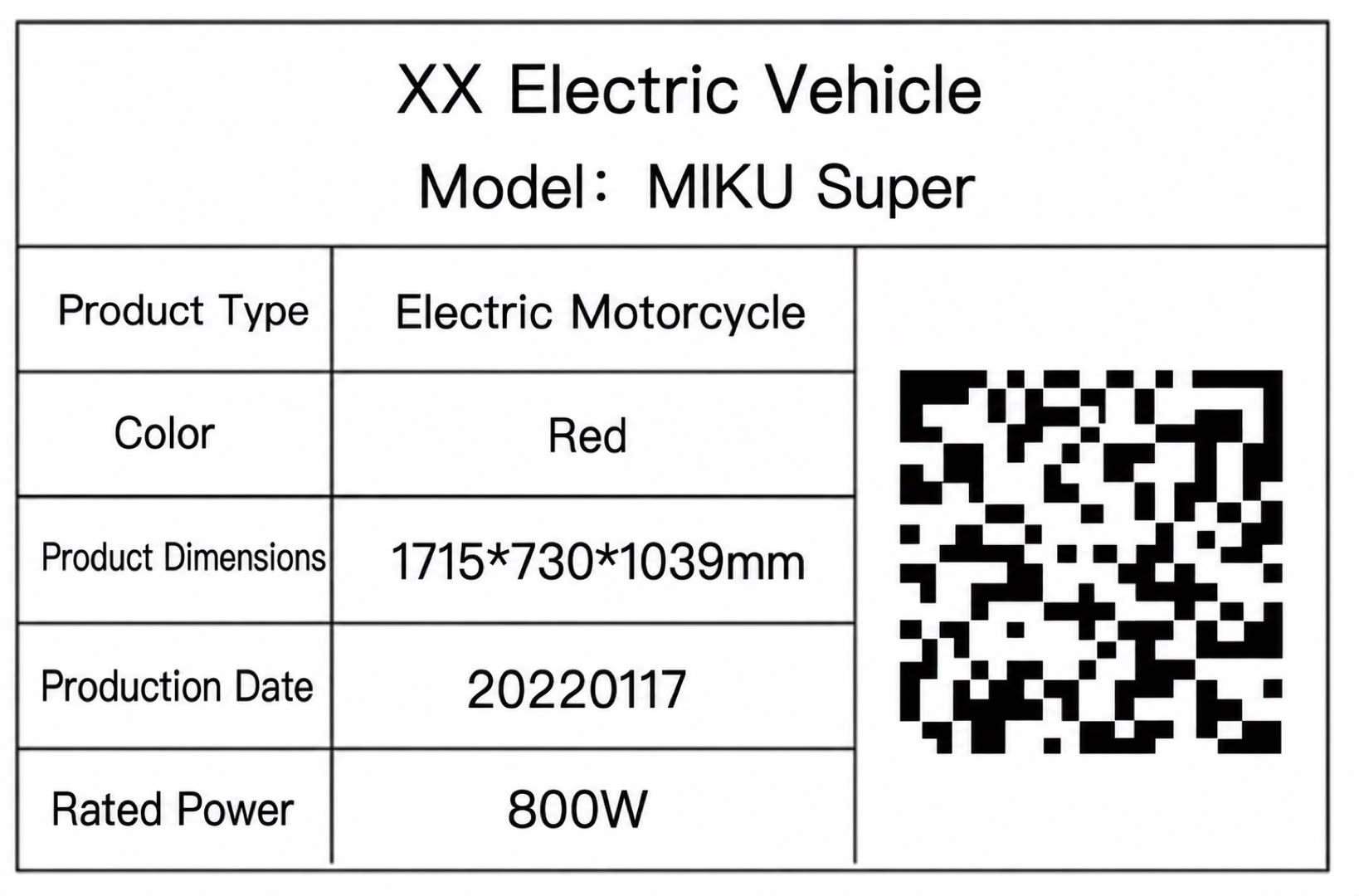
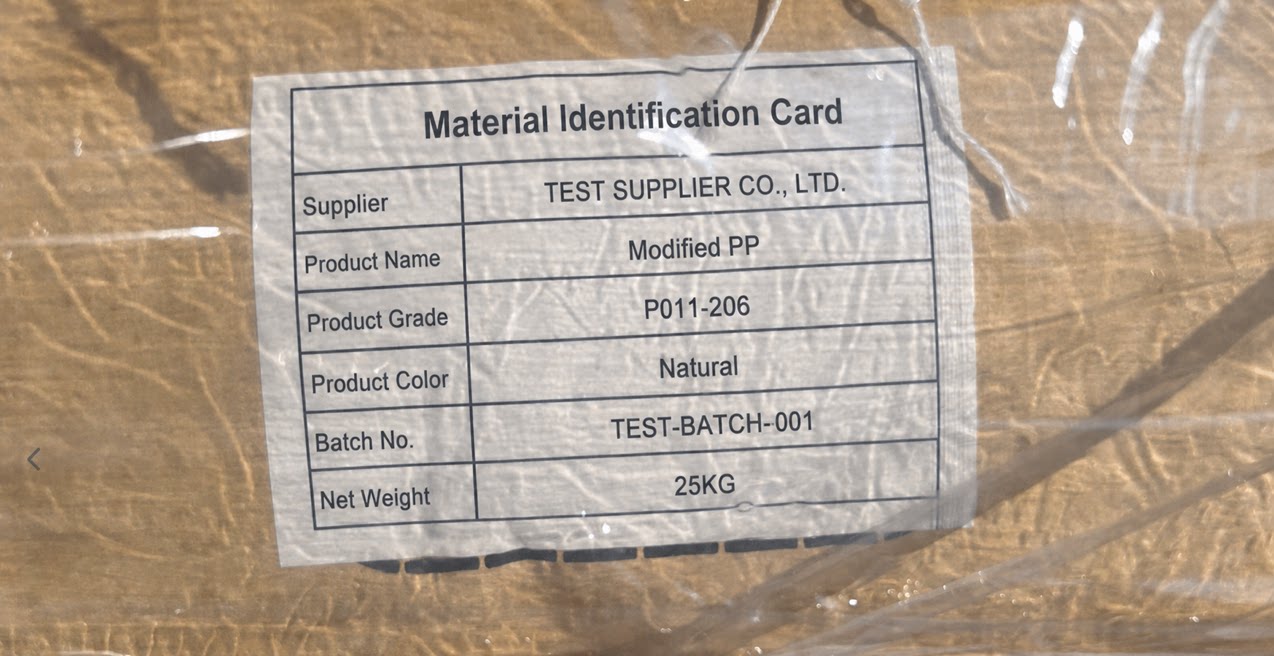
Business scenarios such as equipment management and maintenance, fixed assets, and one-item-one-code in manufacturing all require attaching a QR Code to each item. For detailed scenarios, see the release notes.Equipment Management and Maintenance
Scenario: The equipment management department creates online records for equipment and prints QR Code tags to attach to physical assets, supporting repair and maintenance plans. Inspection and maintenance staff scan the code to open the equipment maintenance record, then fill in and submit inspection and repair details from their mobile device. Value: Quickly retrieve equipment information and submit reports.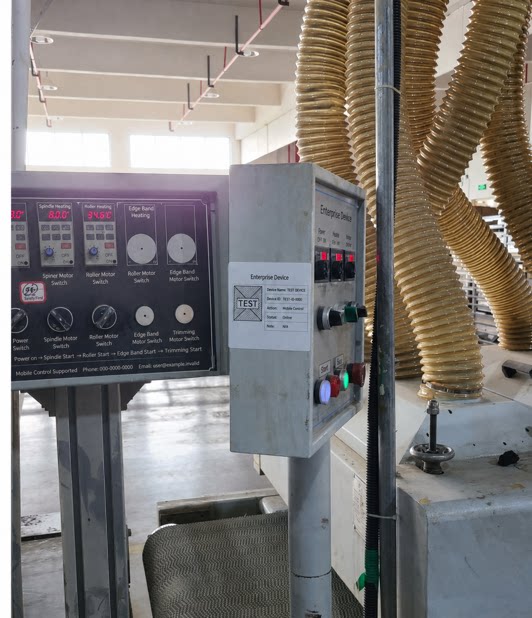
Fixed Assets
Scenario: Organizations conduct semi-annual or yearly inventory checks of all internal assets, including office supplies and stock items. Enable QR Code capabilities and attach a QR Code tag to each fixed asset to inventory organizational assets quickly via terminal devices.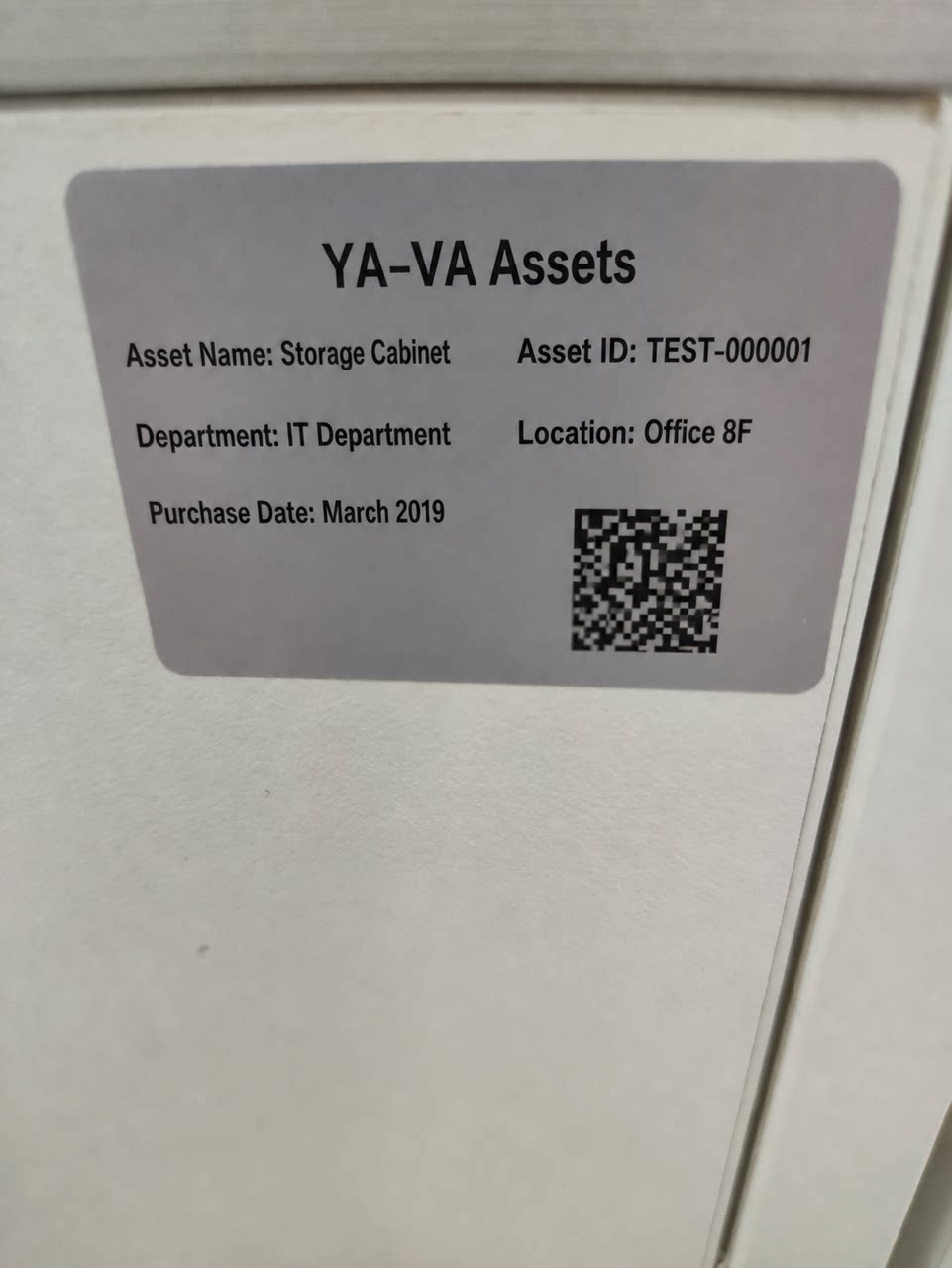
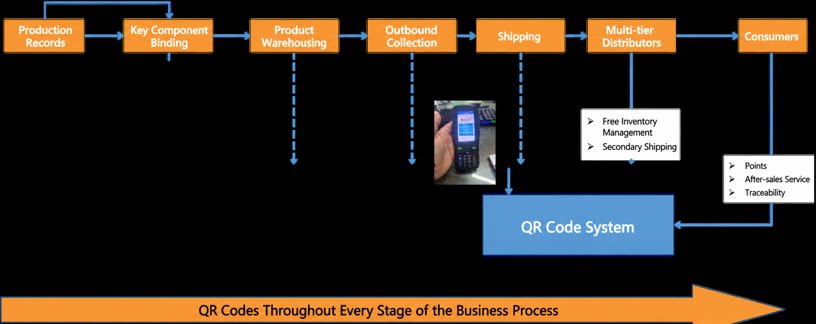
One-Item-One-Code in Manufacturing: Use QR Code Tags to Link the Full Lifecycle of Produced Items
Procedure
Follow these steps to use QR Code tags. Go to your YiDA app > click the triangle next to Edit Form > Page Settings > QR Code Tag. Each record in YiDA can generate a QR Code tag, such as a material tag or fixed asset tag.Changes to the tag style and field rules apply to the QR Codes of all records in the current form.
Tag Style
YiDA provides 10 built-in tag styles. Custom styles are not supported.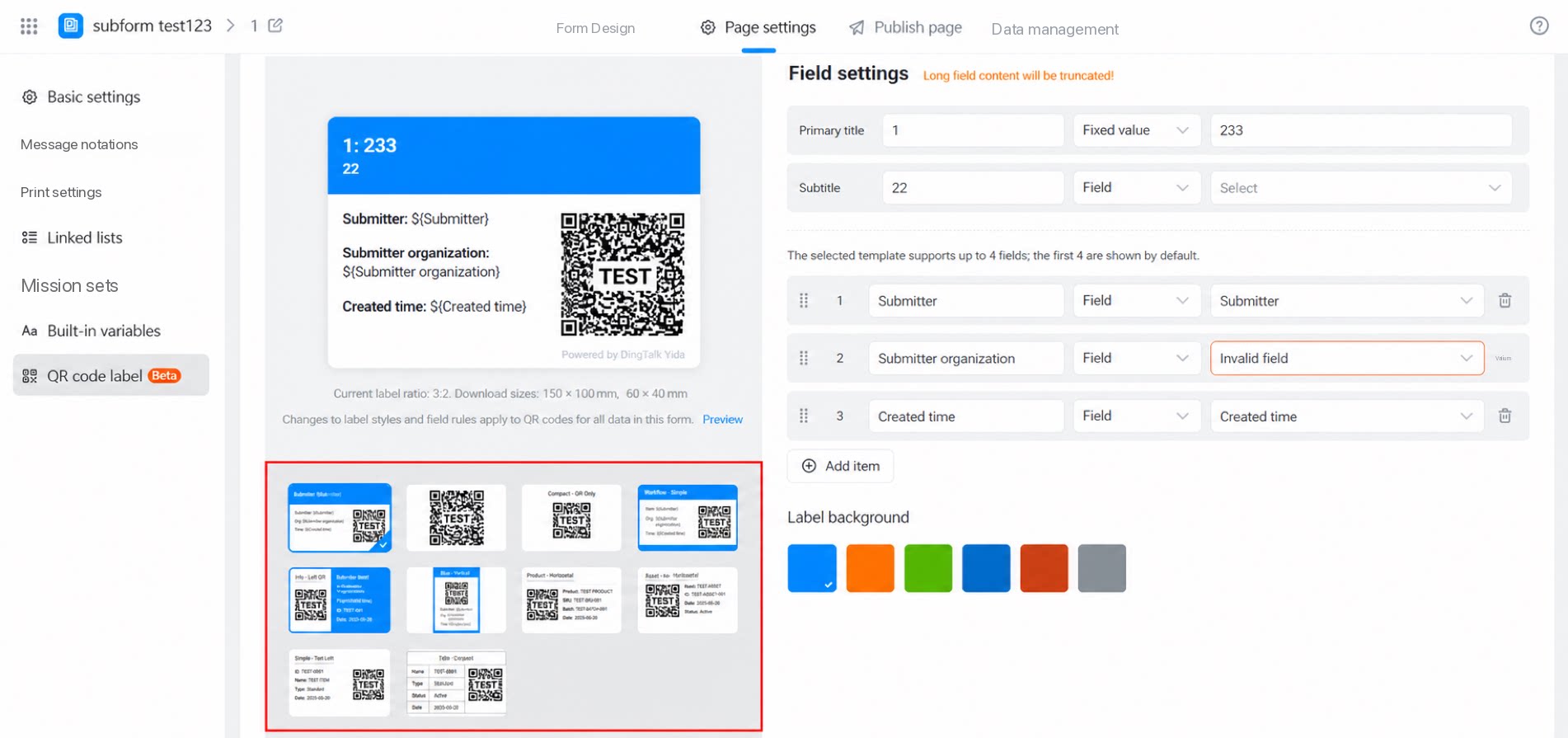
Field Settings
Note: Field content is automatically truncated when it exceeds the maximum length. Main title: Optional. To remove the title, clear the input box. Defaults to the form name. Subtitle: Optional. To remove the subtitle, clear the input box. For other fields, the system displays the first 3 fields of the form by default. You can customize which fields to display.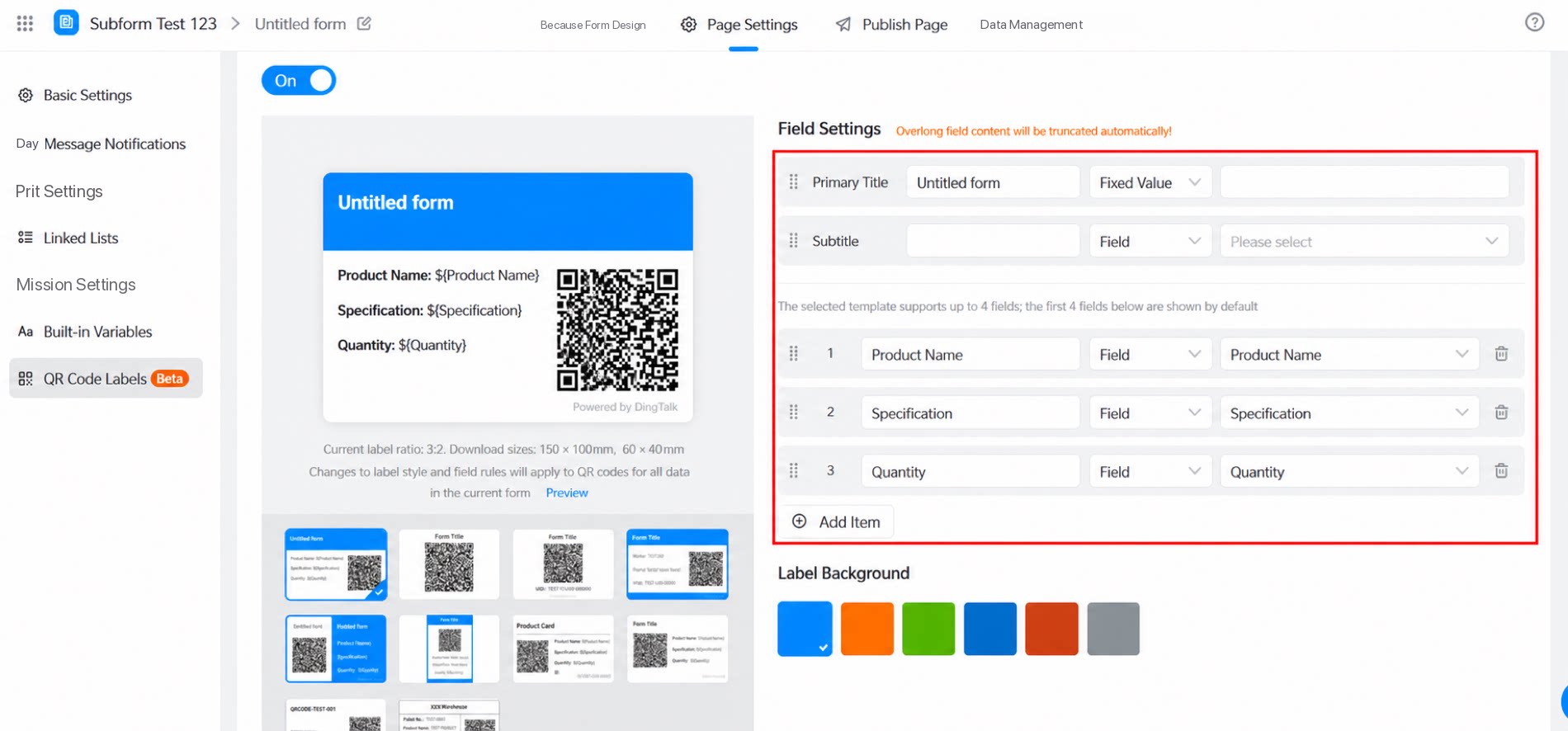
Tag Background
Six background colors are available. Custom tag background colors are not supported.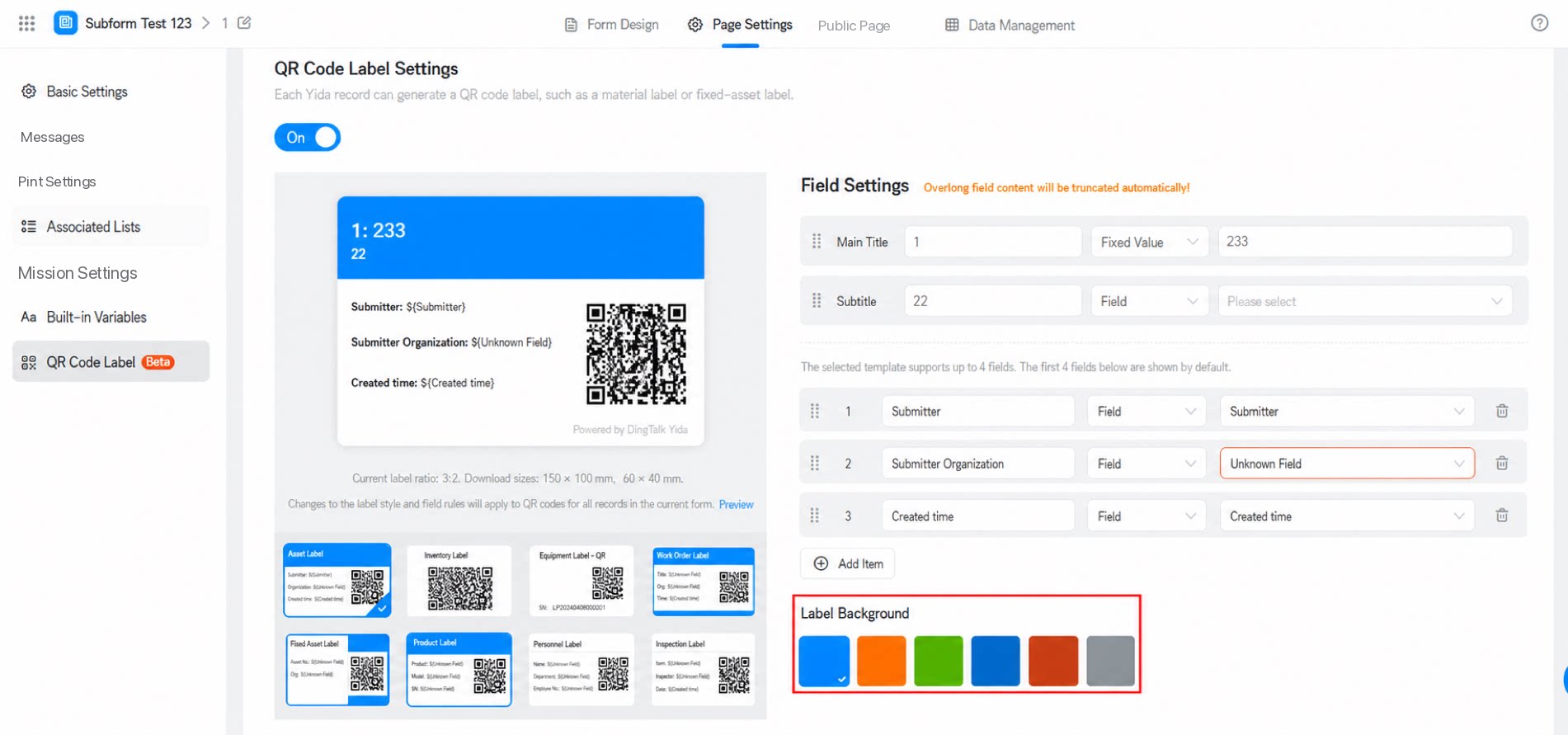
Watermark Content
YiDA Dedicated also supports customizing the watermark in the lower-right corner of the QR Code tag.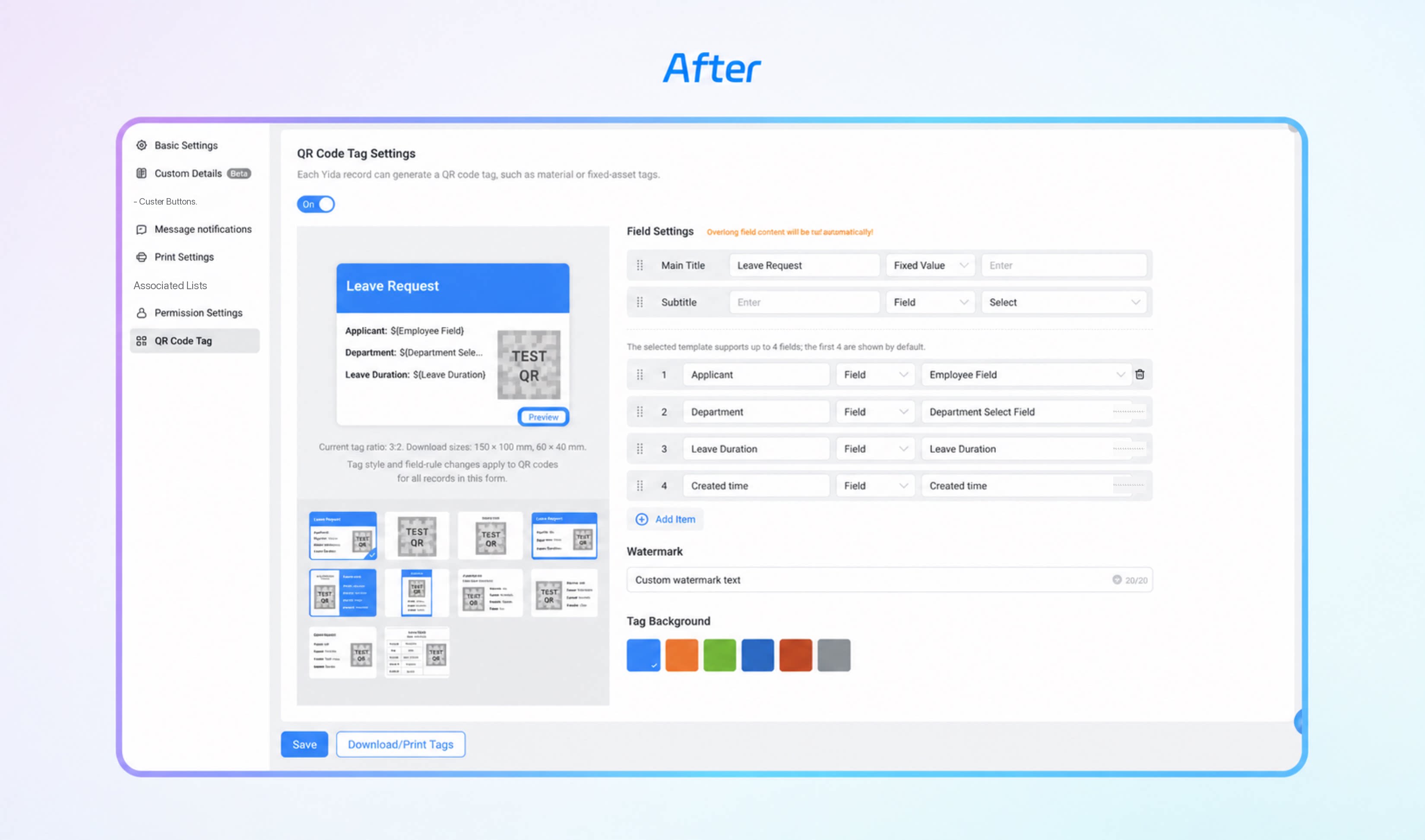
Download QR Codes
Admins can download in both edit mode and access mode. Non-admins can download only in access mode.Download in Edit Mode
Path: Go to your YiDA app >> any form/workflow form >> Data Management >> Batch download QR Code tags, or open a record’s Source records >> expand the QR Code tag.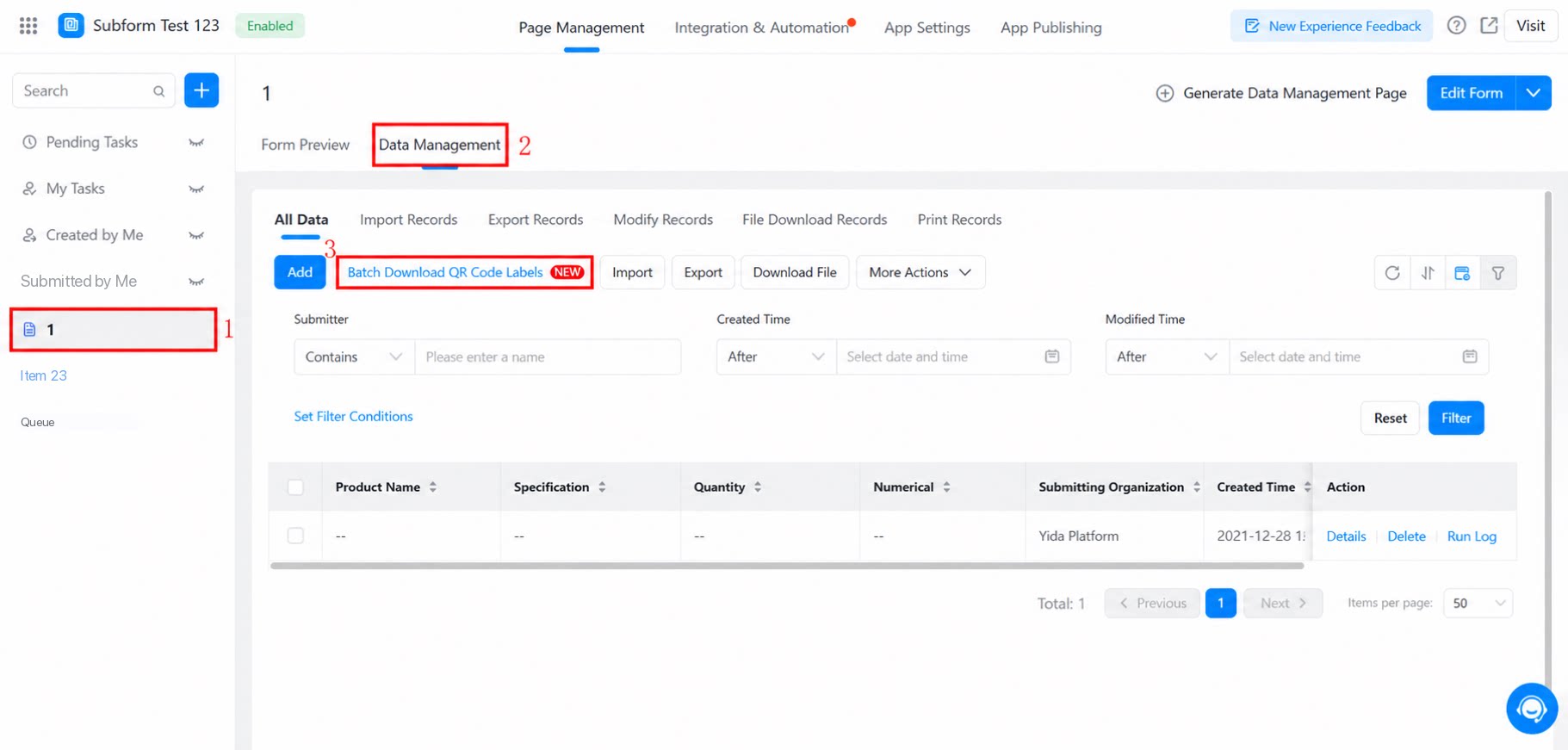
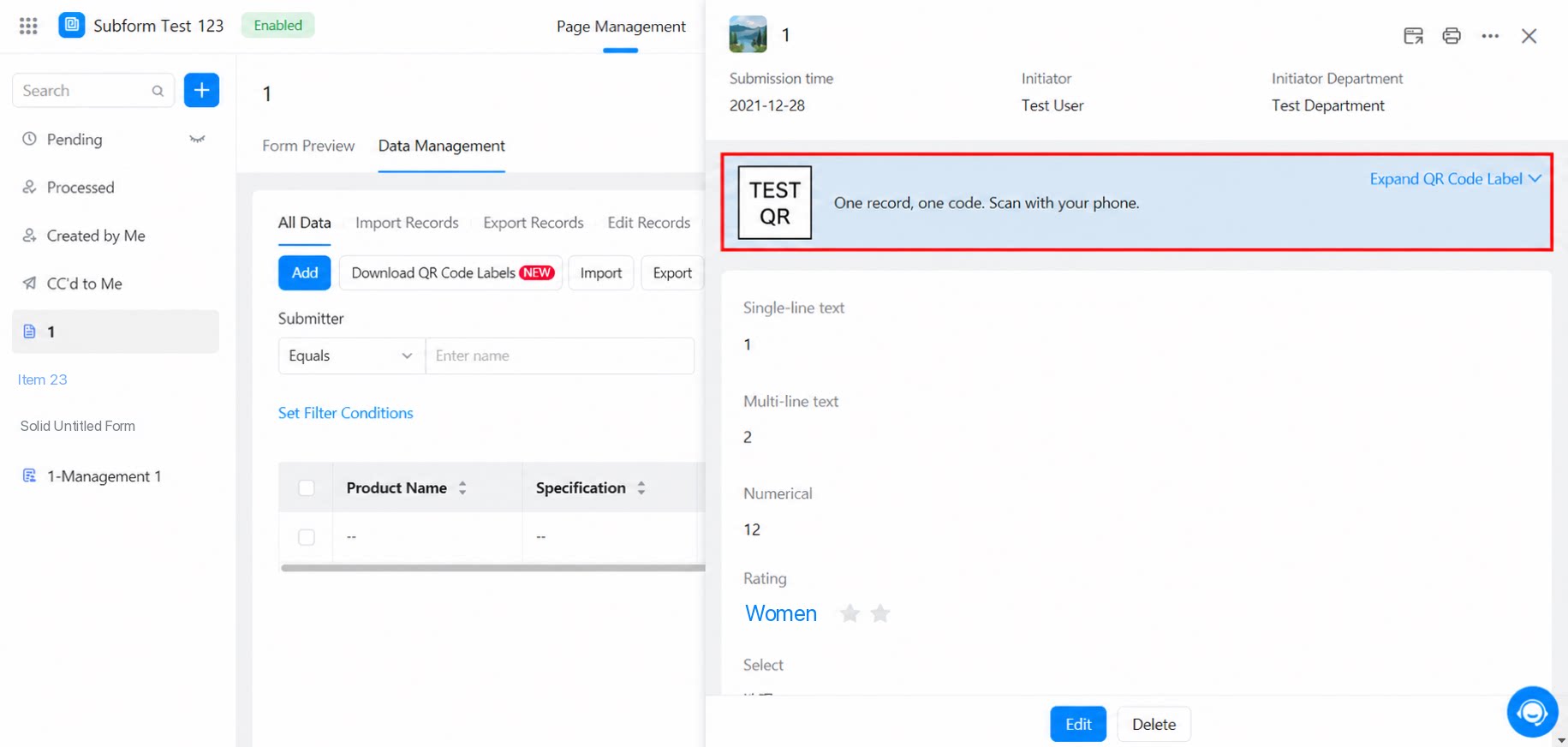
Download in Access Mode
Path: Go to YiDA >> App Center >> find the target app >> access the data management page of the target form >> Batch download QR Code tags, or open a record’s Source records >> expand the QR Code tag.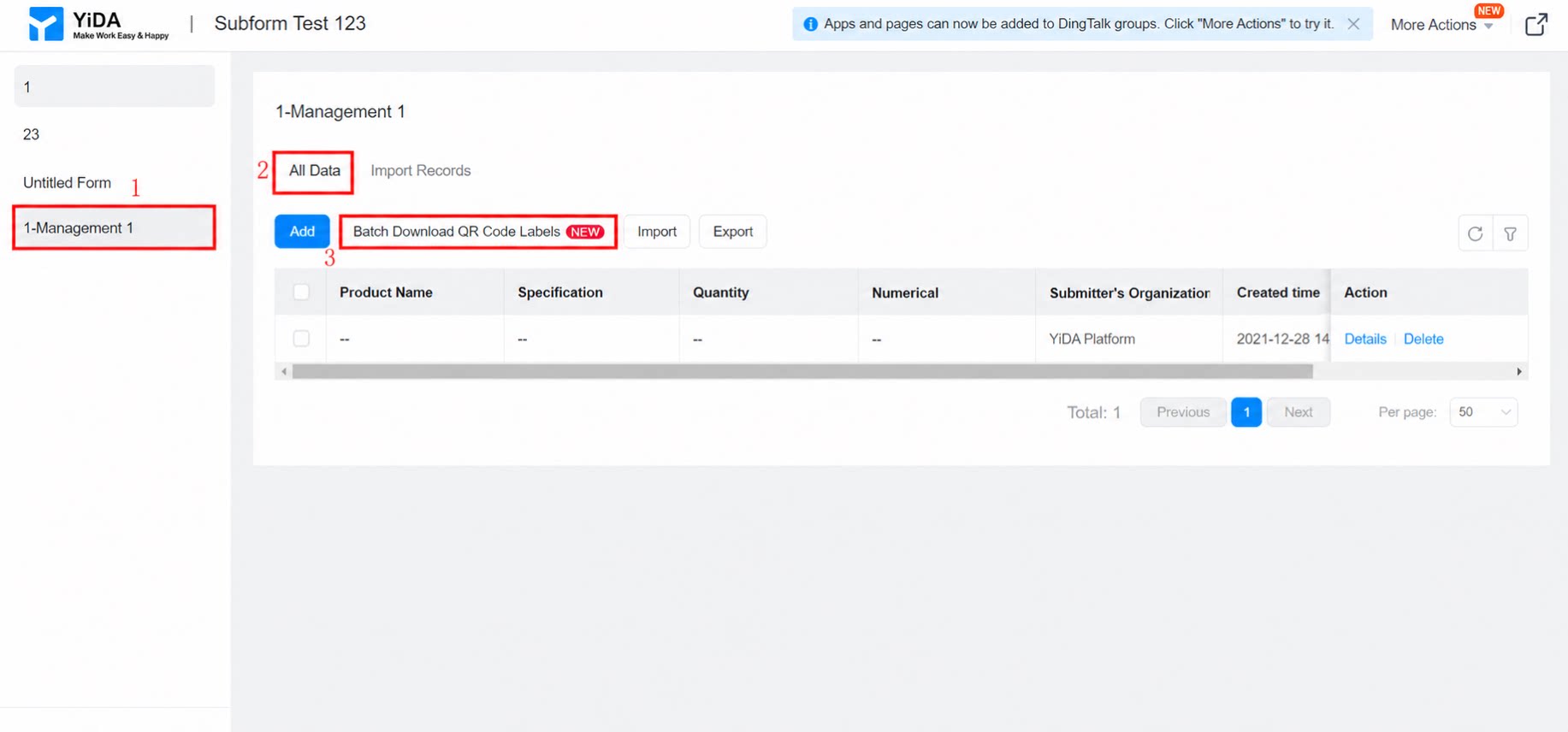
FAQ
Q: Can YiDA QR Codes be scanned with silent login?
Q: Can YiDA QR Codes be scanned with silent login?
Silent login for scanning is not currently supported. Public form query capabilities are planned for future releases.
Q: Will the YiDA QR Code change when historical data is modified?
Q: Will the YiDA QR Code change when historical data is modified?
No. Under the one-record-one-code model, YiDA form records inherently carry QR Code attributes. Through QR Code distribution, you can connect and integrate YiDA data entry, viewing, and actions across online and offline channels.Even after the data is modified, scanning the printed QR Code displays the latest data.
Q: Can users without View Permission scan the code to see the data?
Q: Can users without View Permission scan the code to see the data?
No. Scanning inherits the form’s data view permissions. The Super Admin, data admin, and YiDA platform admin can view all data.
Q: Do YiDA QR Codes support printing?
Q: Do YiDA QR Codes support printing?
Printing is not currently supported.