Chats
Chats Calendar
 Meetings
 Contacts
 Mail
Mail Docs
Docs Drive
Drive AI Table
 AI Minutes
 Attendance
 Approval
 YiDA
YiDA Admin Console
3.1 Upgrade the Form and Workflow Pages of Legacy 3.0 Apps to the New Features
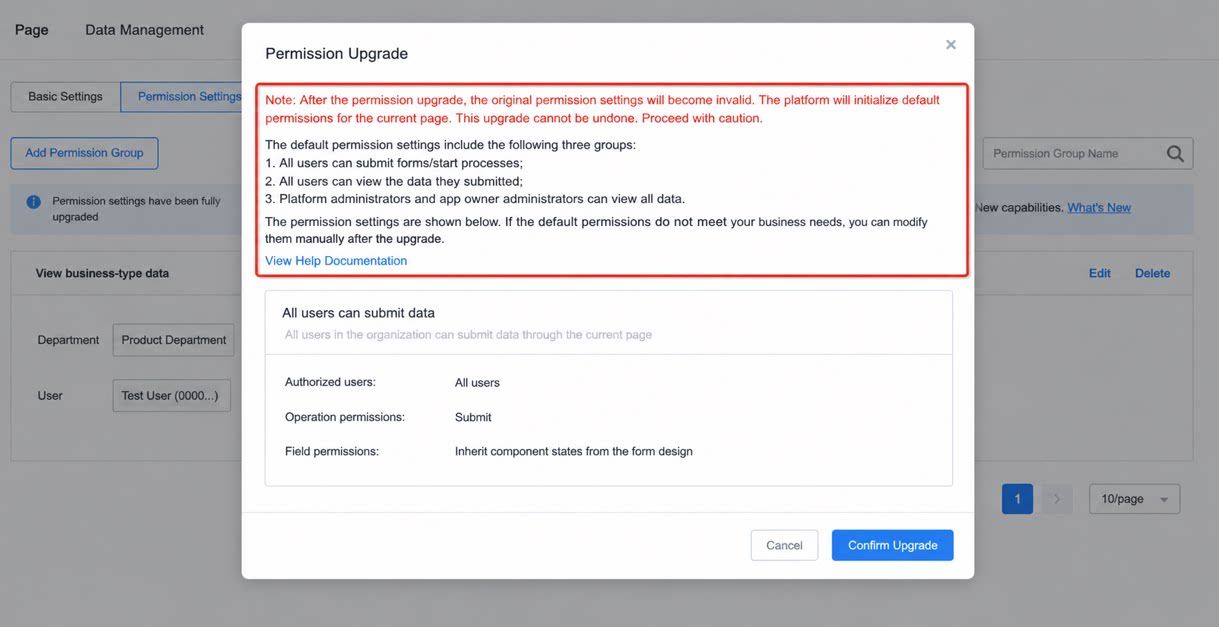
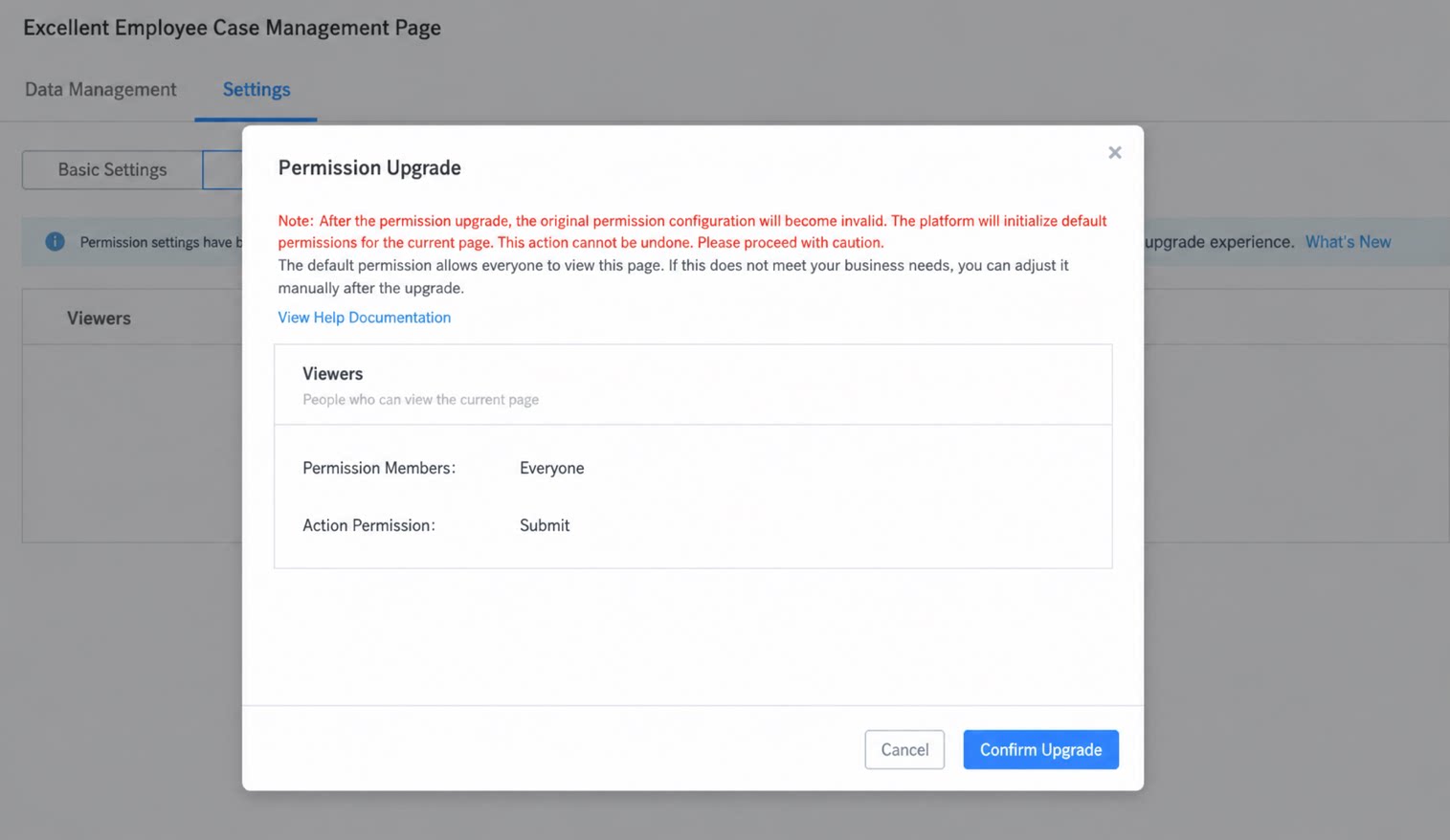
For legacy YiDA 3.0 apps, use One-Click Upgrade to migrate to the new Data Permissions feature. You can upgrade one page at a time. If you choose not to upgrade, the legacy features remain available, but you will not receive further upgrades. This upgrade does not migrate legacy permission configuration data and cannot be rolled back once completed. After a successful upgrade, the platform pre-configures three permission groups. Customize them as needed.4. Procedure
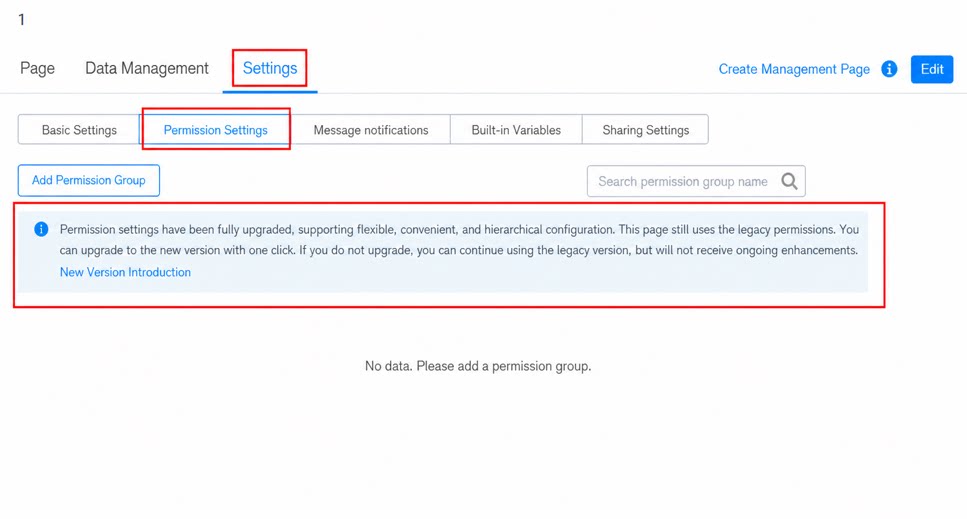
4.1 Create a Data Management Page for the Form
Because the data needs to be displayed, first create a data management page for the form.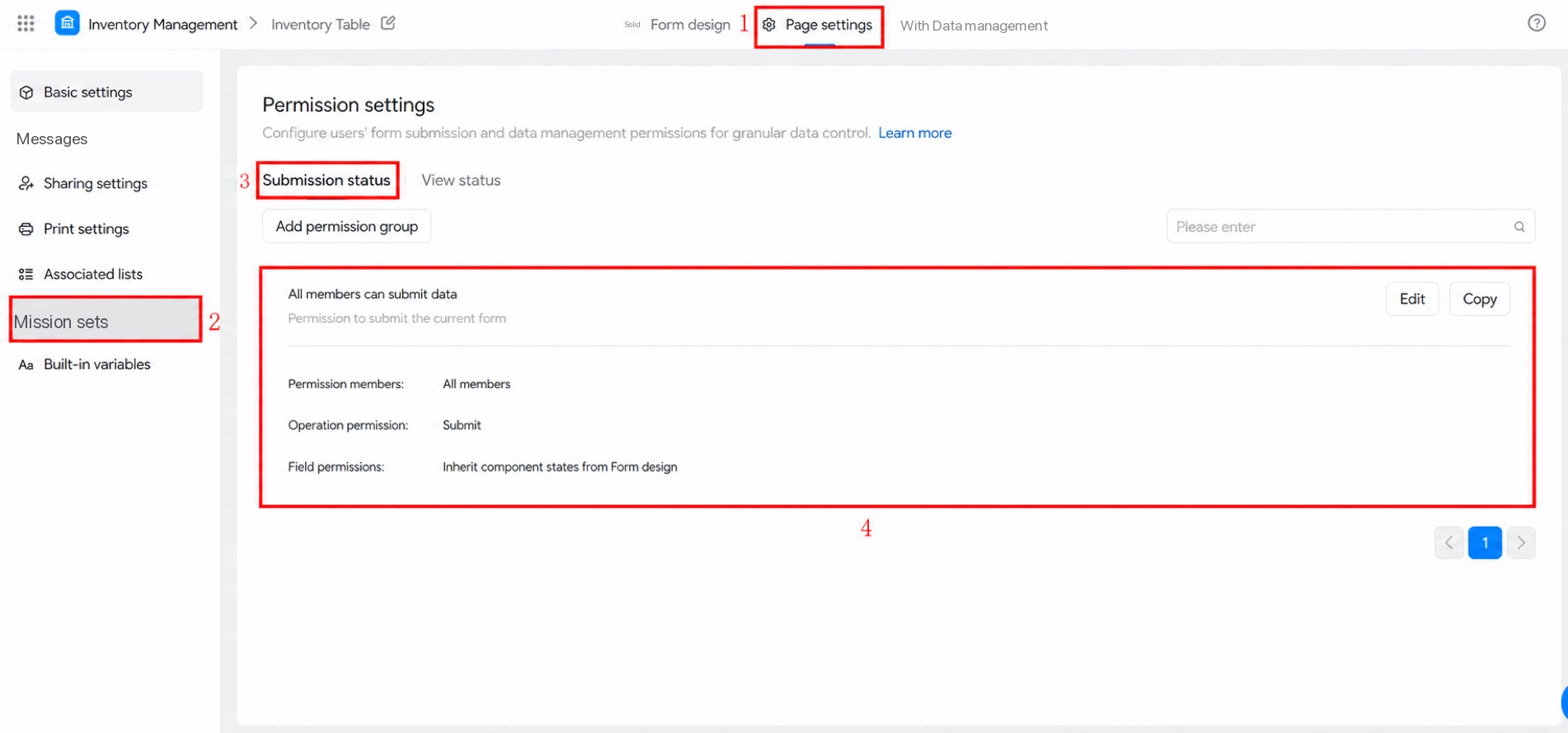
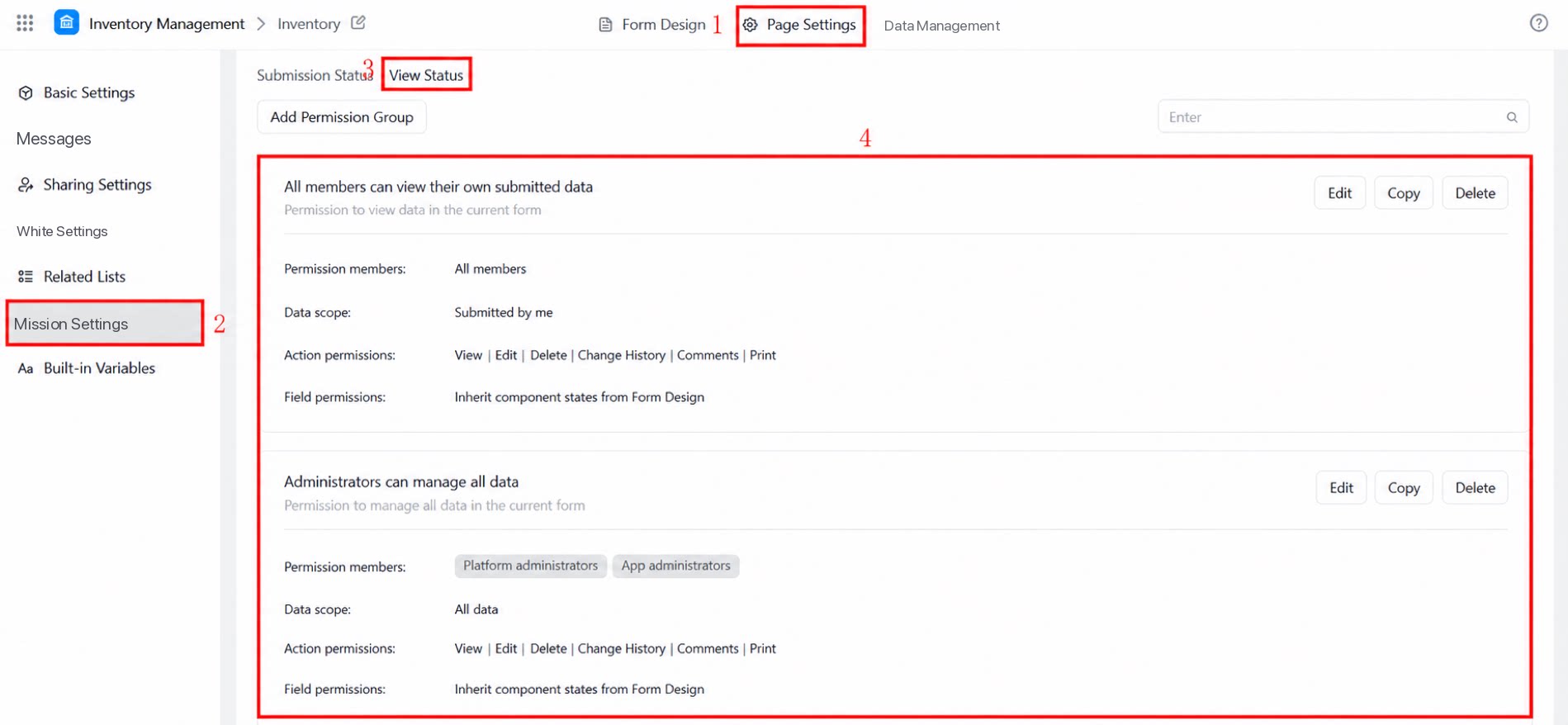
4.3 Add a Permission Group and Configure Permissions for Different Scenarios
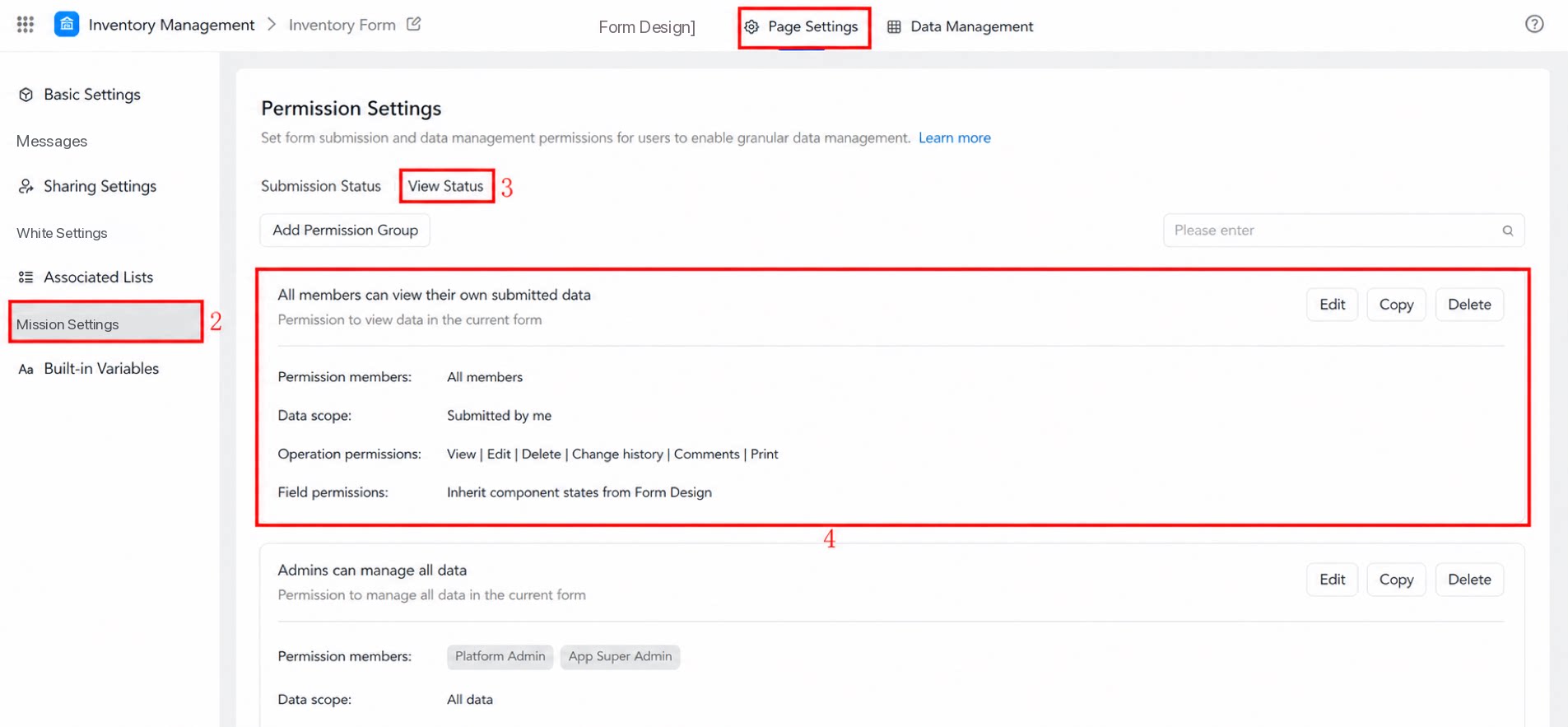
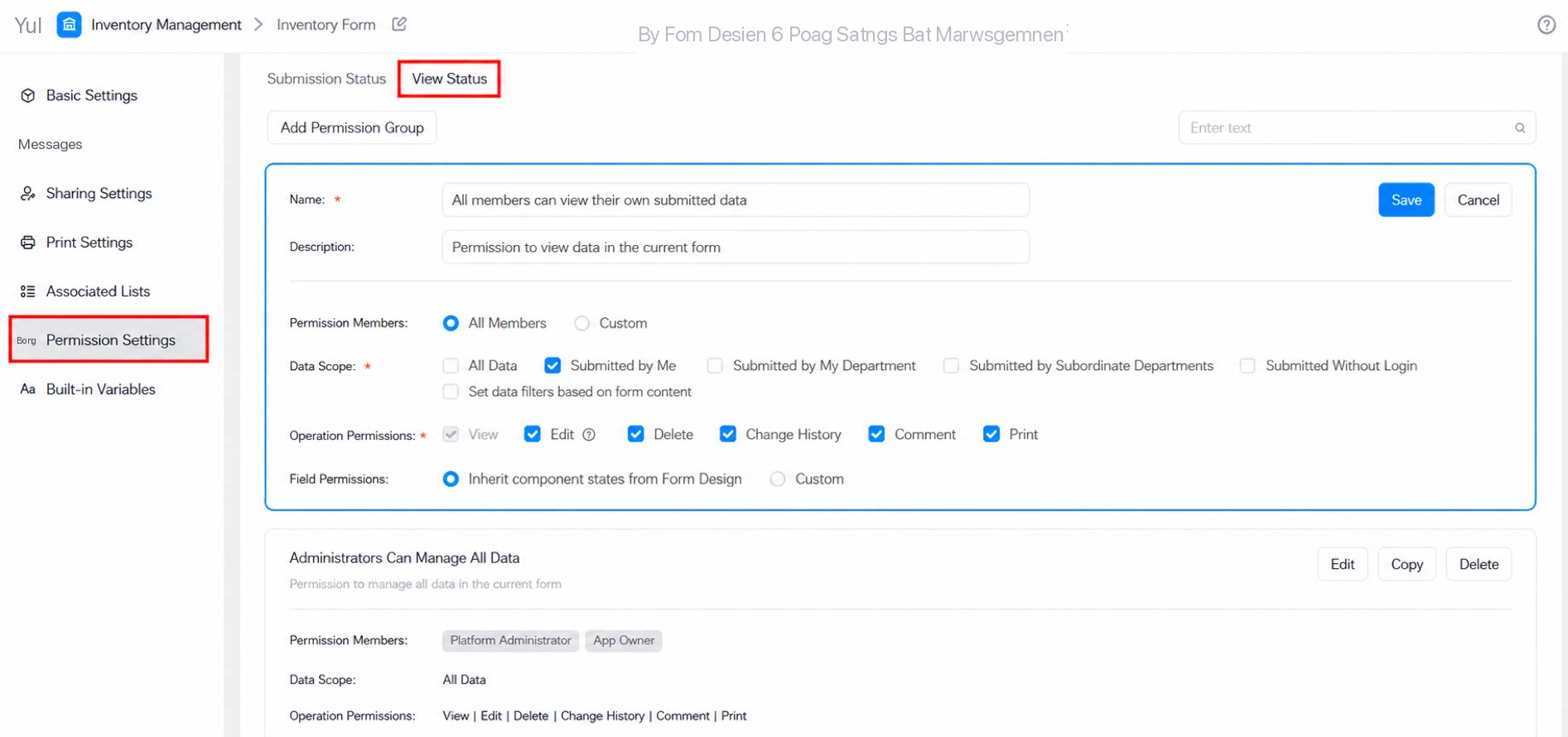
1. 4.3.1 Allow Users to View Only the Data They Submit
Configuration screenshot: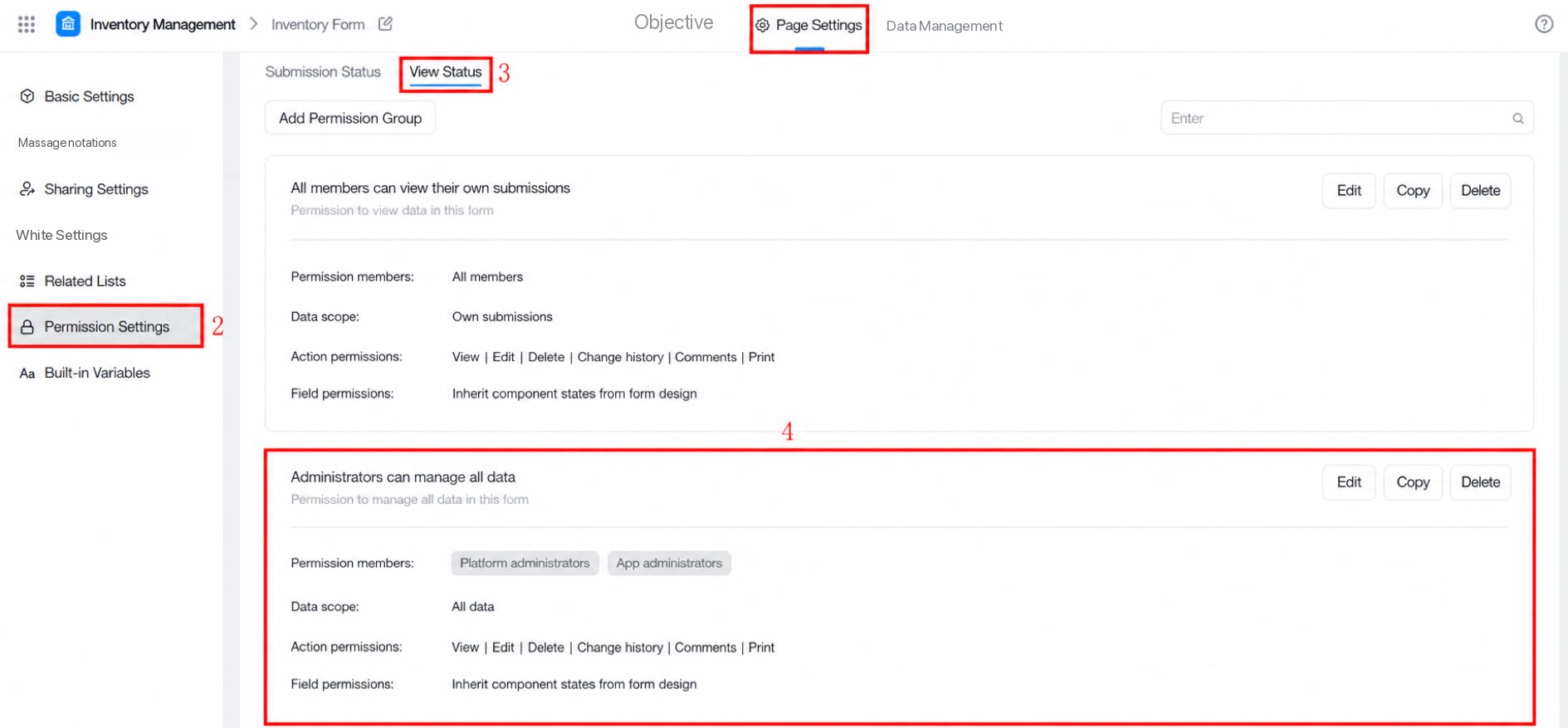
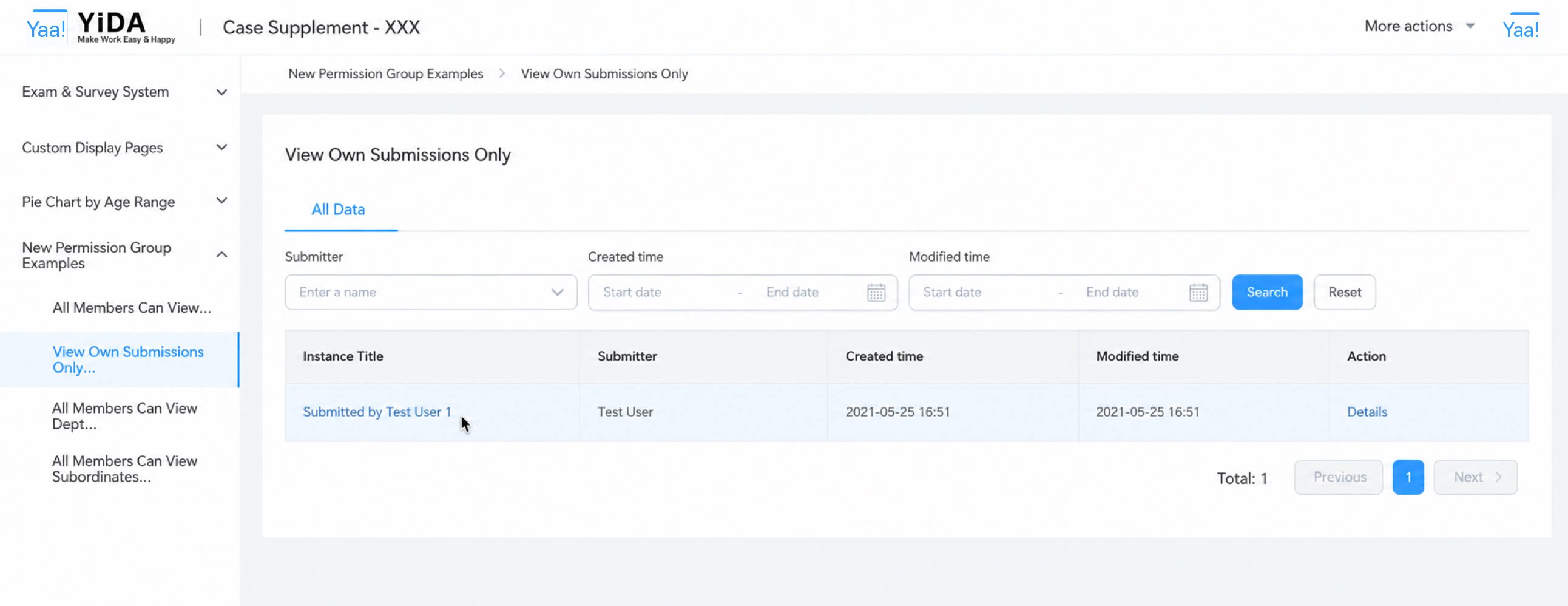
4.3.2 All Users Can View Data Submitted by Their Own Department
Configuration screenshot: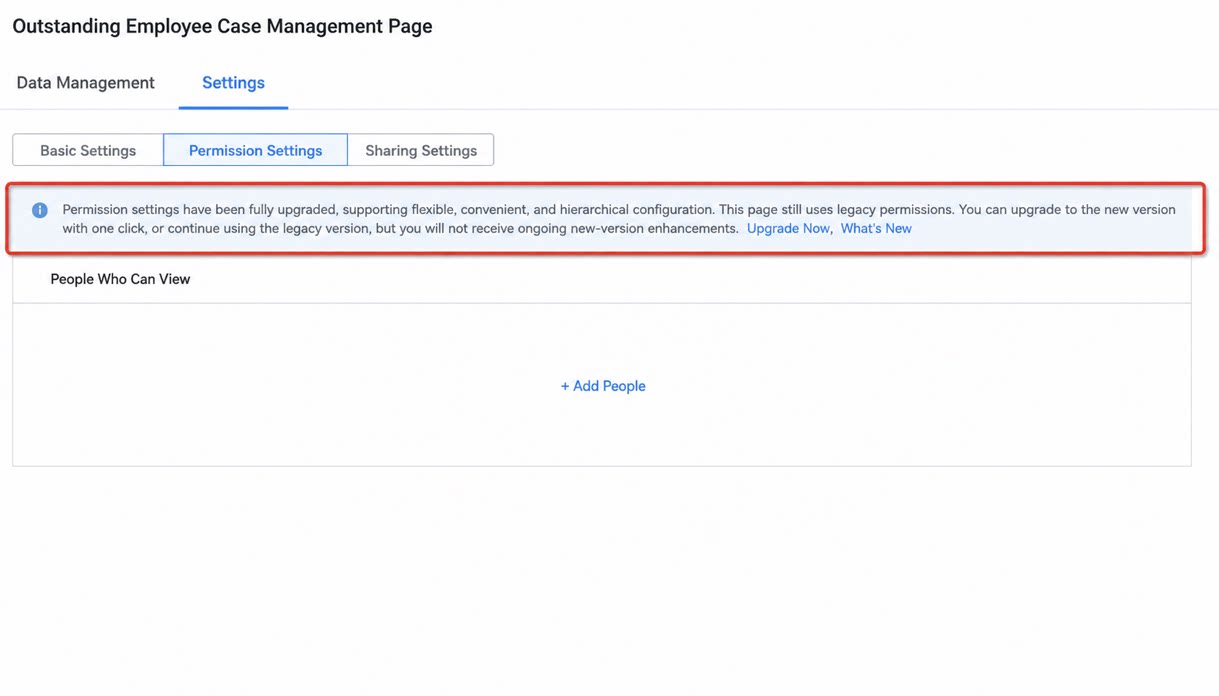
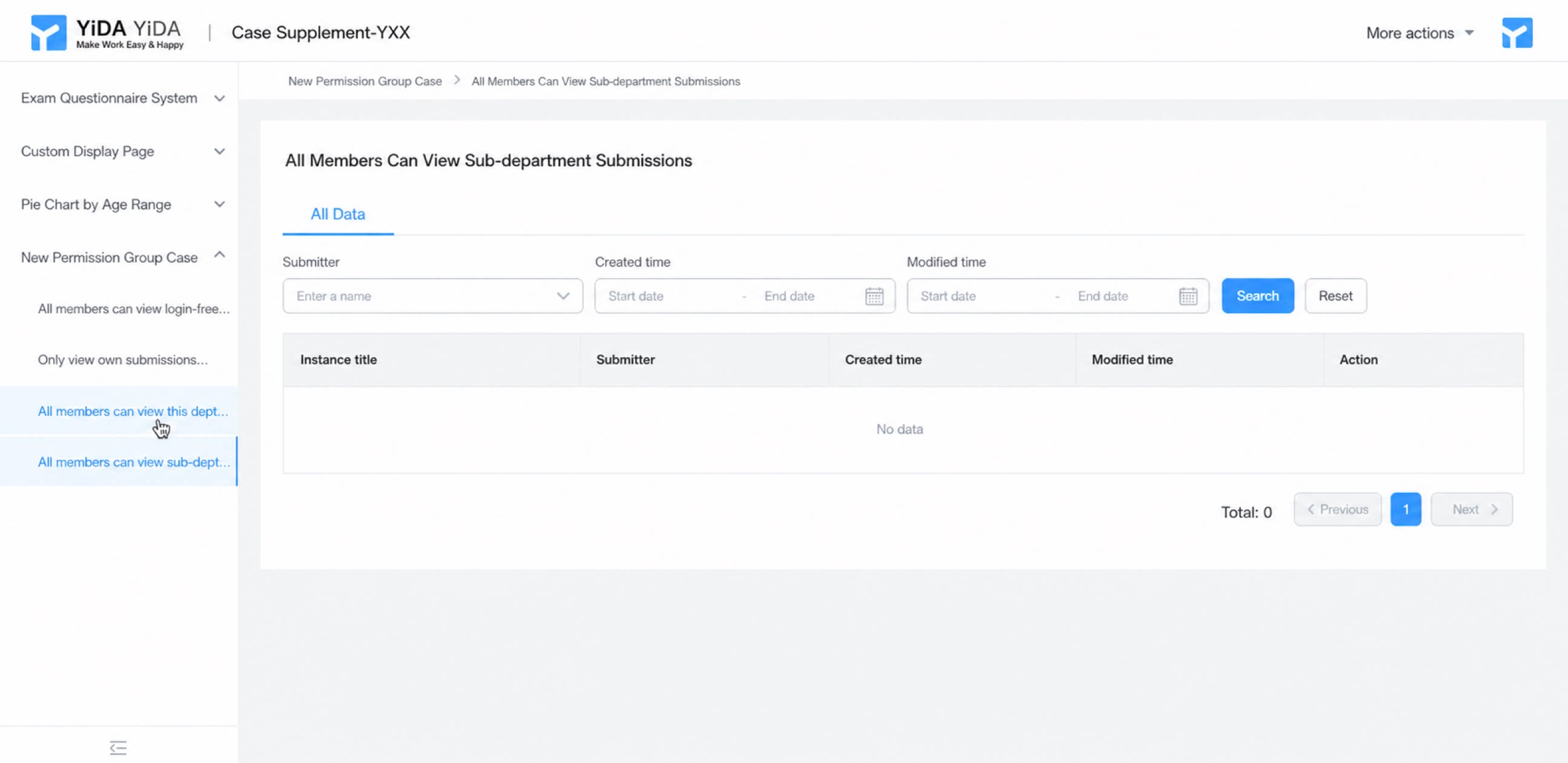
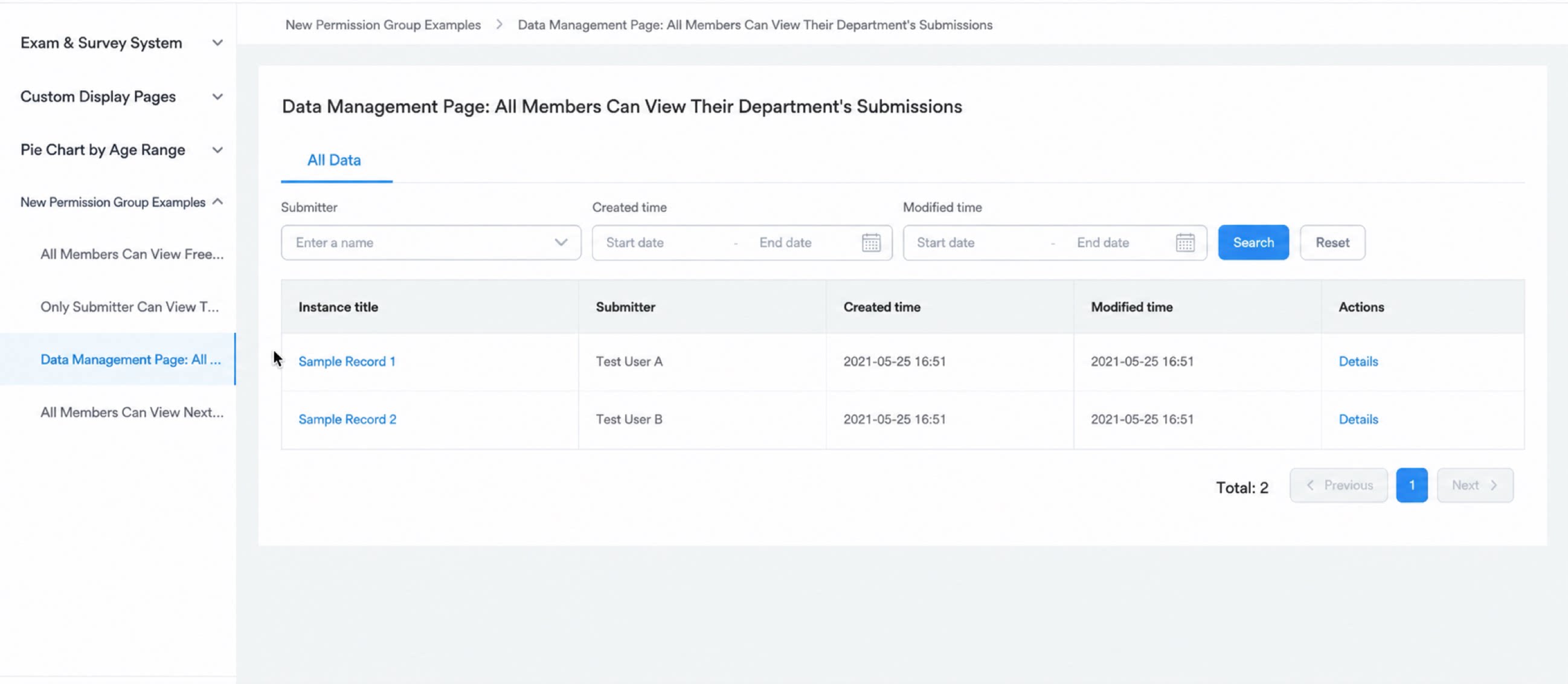
4.3.3 All Users Can View Data Submitted by Sub-Departments
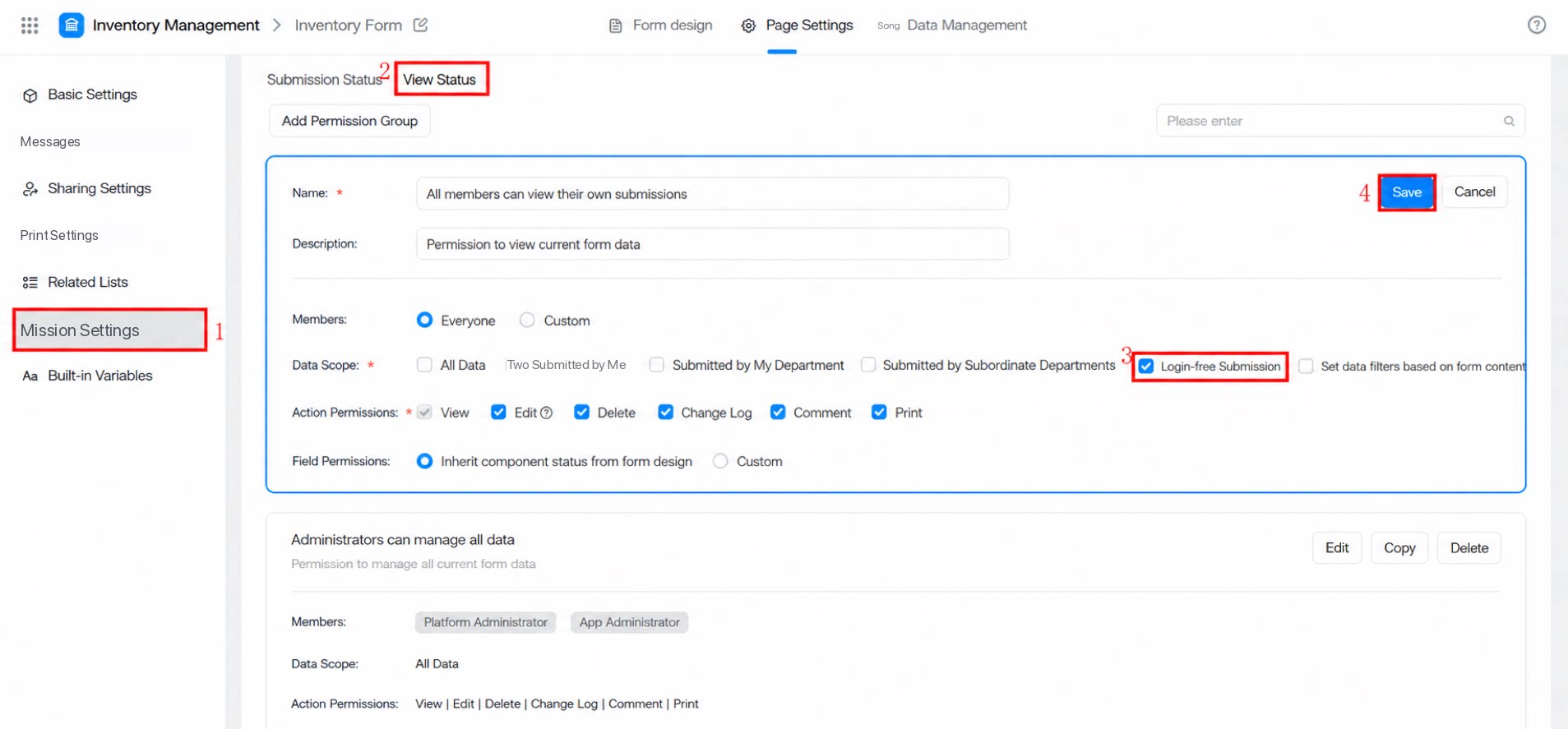
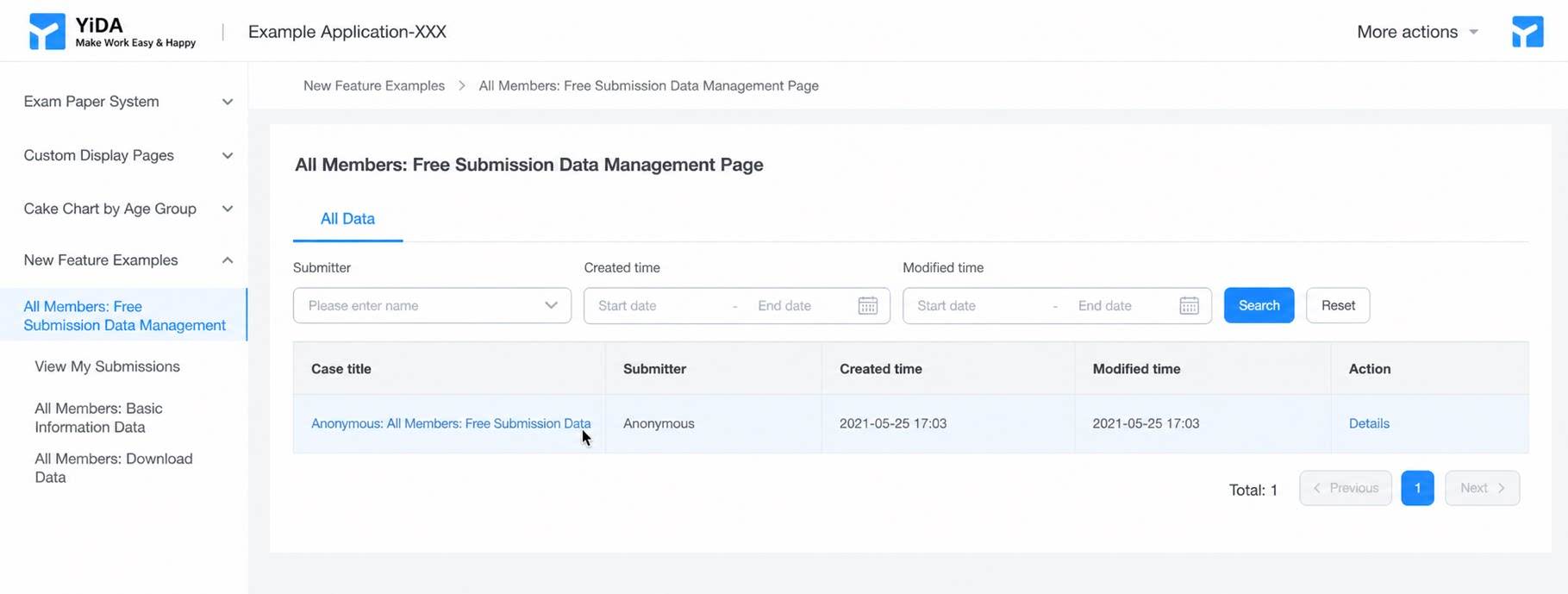
Configuration screenshot: Result screenshot:4.3.4 All Users Can View the Data Management Page for Silent-Login Submissions
Configuration screenshot: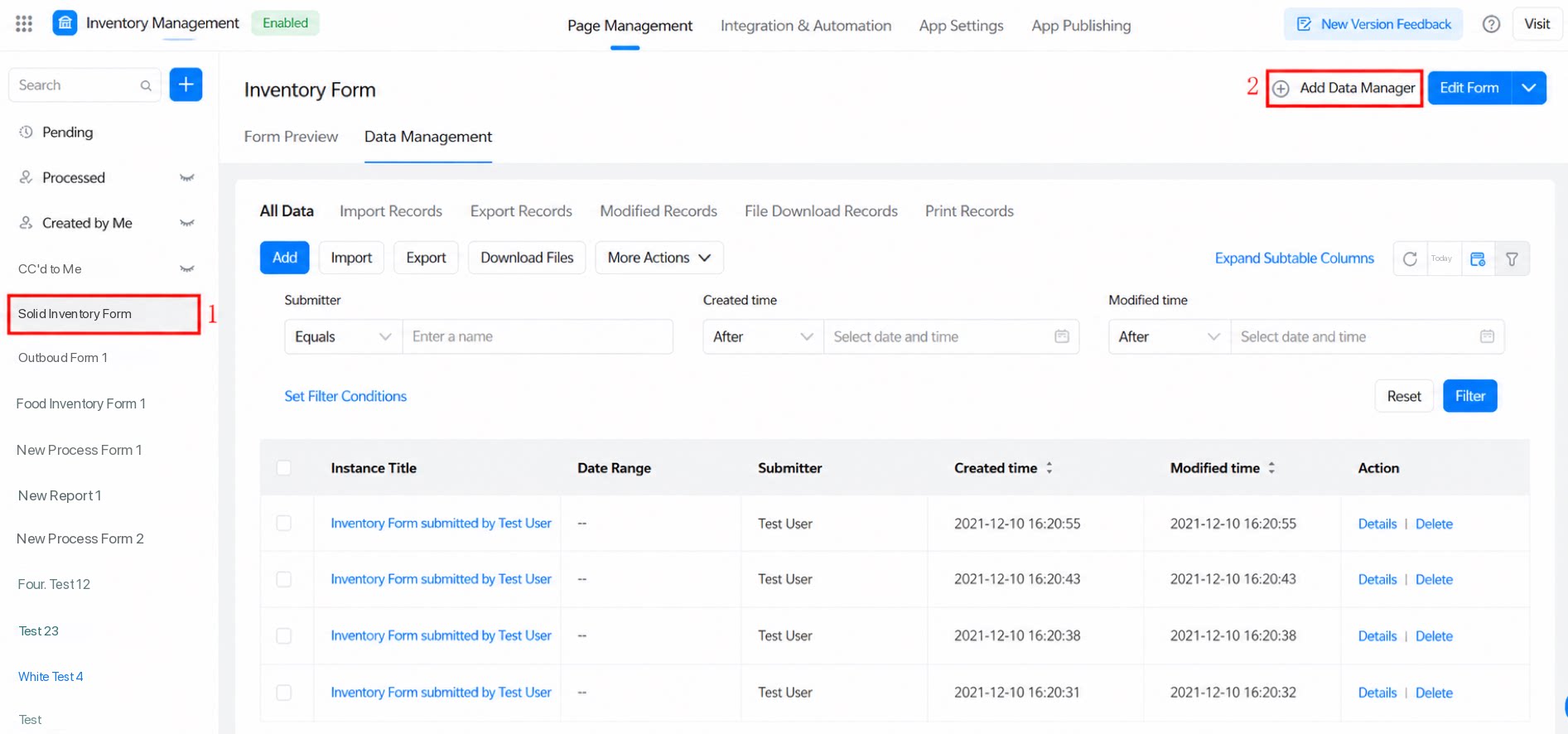
4.4 Filter by Department Equal to or Containing the Current Signed-In User’s Department
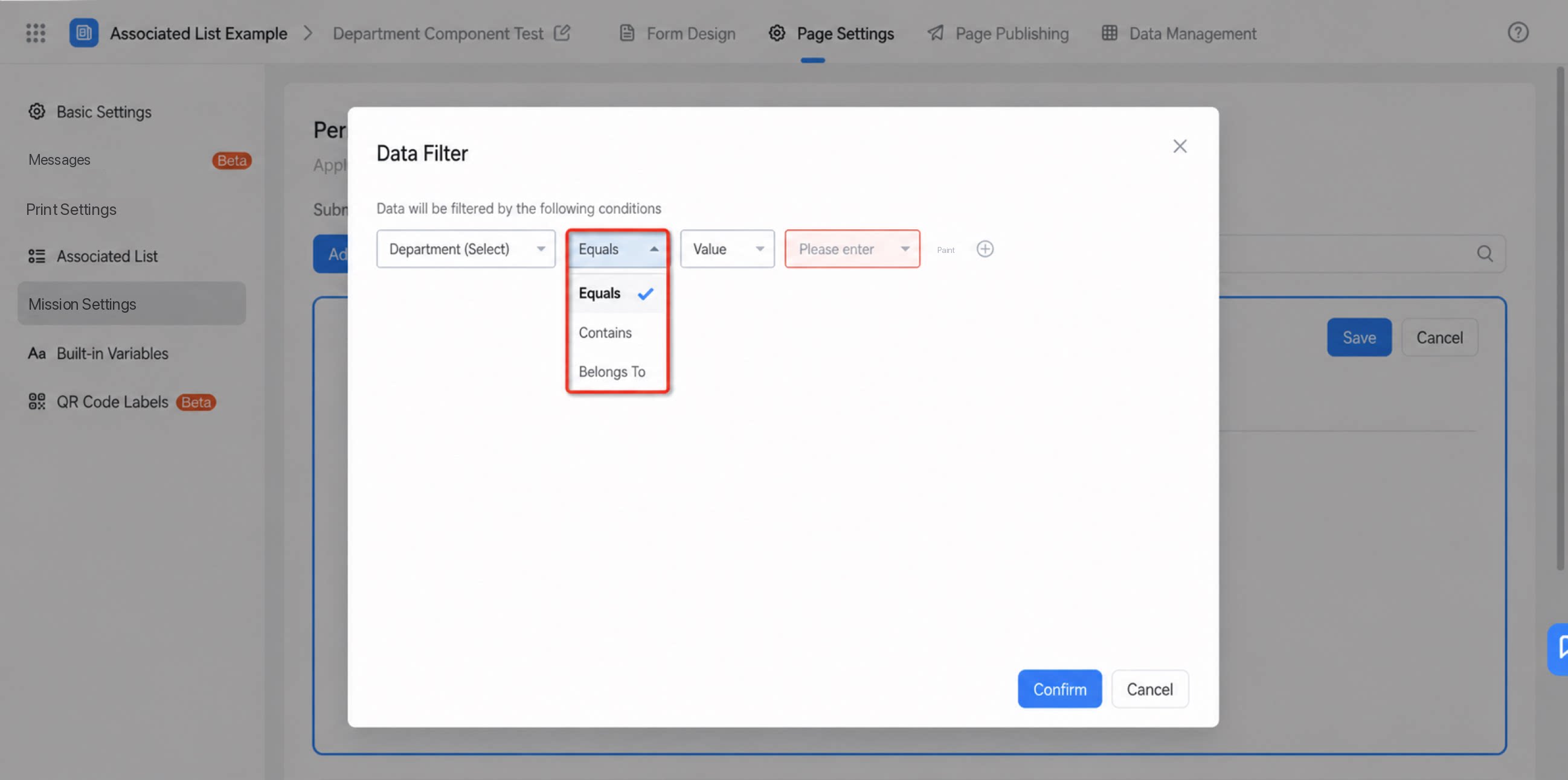
- Before: When configuring data view permissions, the Set data filter conditions based on form content option in the data scope did not support the equals or contains logic for the Department and User components, which caused confusion.
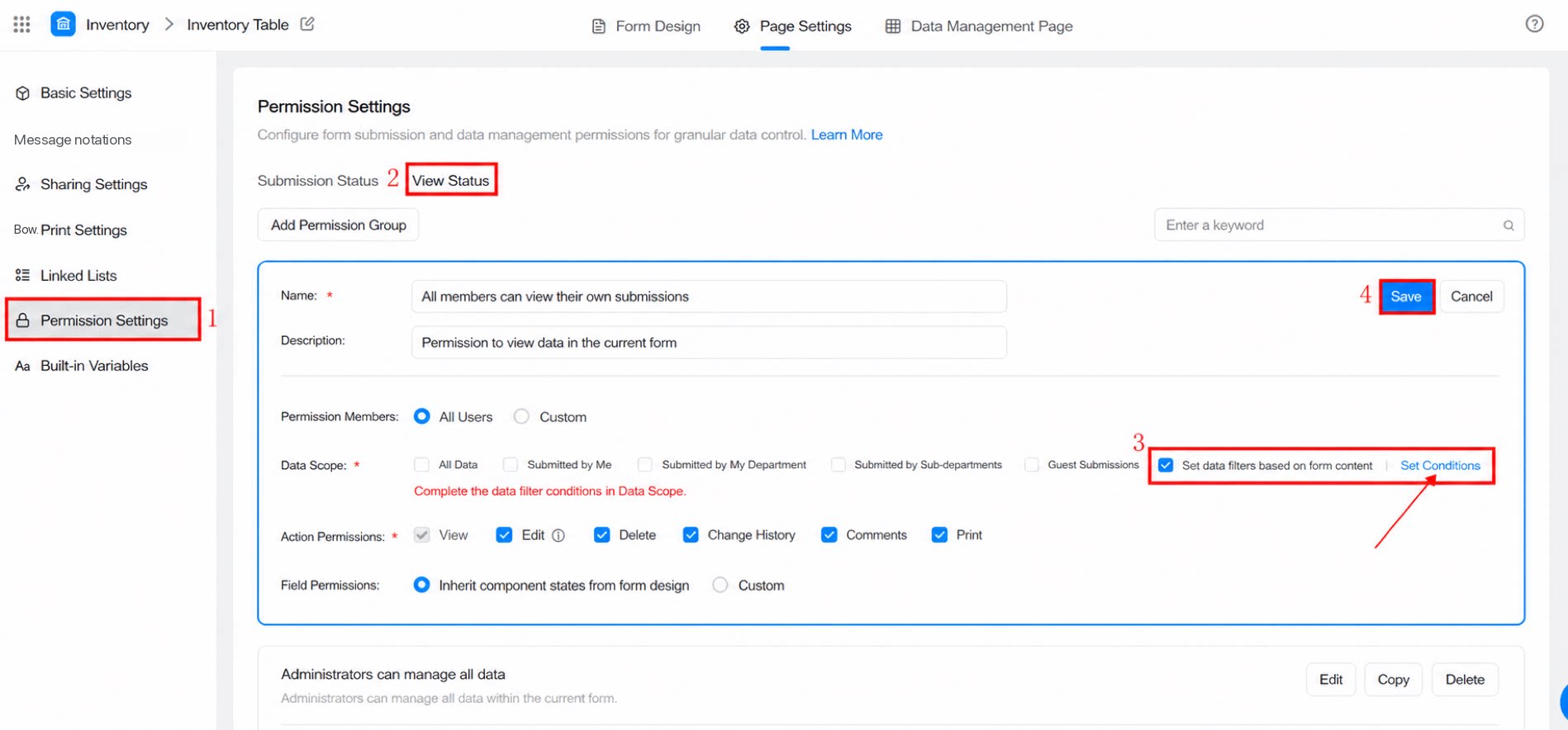
- Now: For the Department and User components, the Set data filter conditions based on form content option in the data scope supports three logic types: equals, contains, and belongs to.
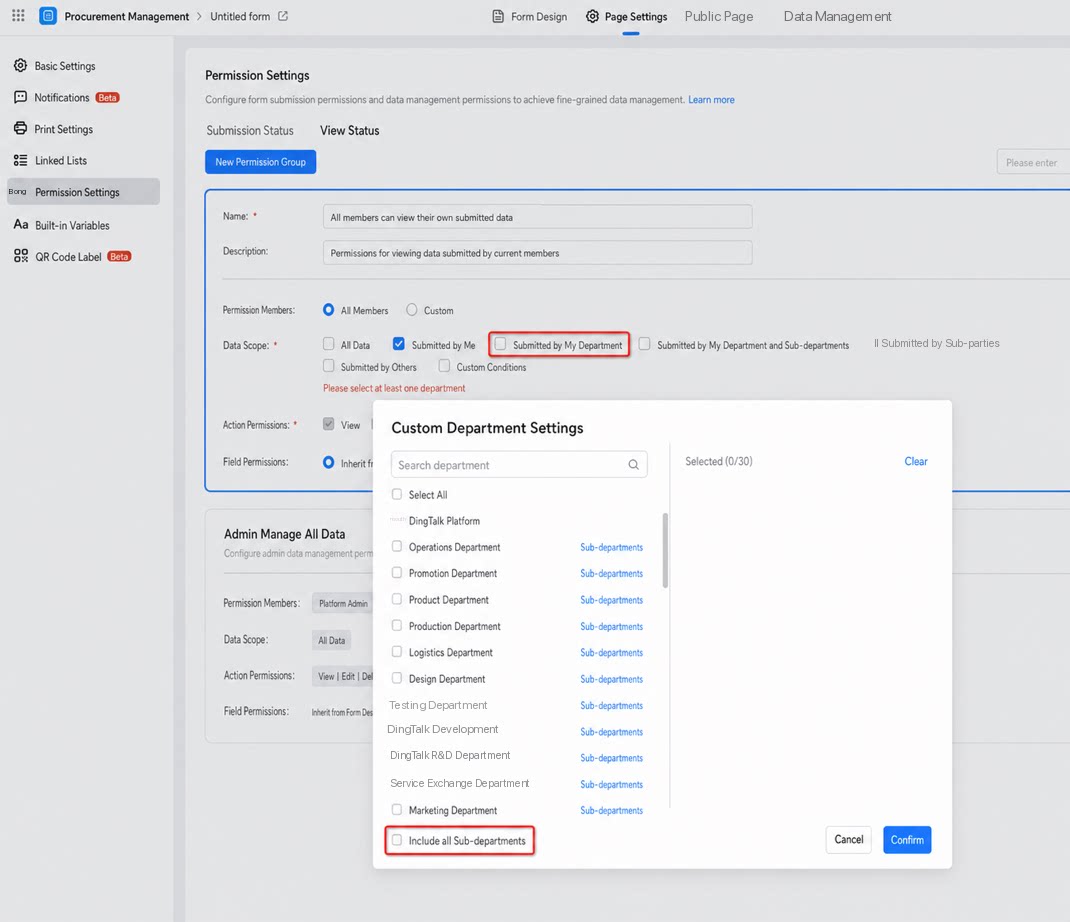
4.4.1 Custom Department Permissions Support Drill-Down
When the department selector opens in a Custom department configuration, select Include all sub-departments to automatically drill down into every sub-department of the current department.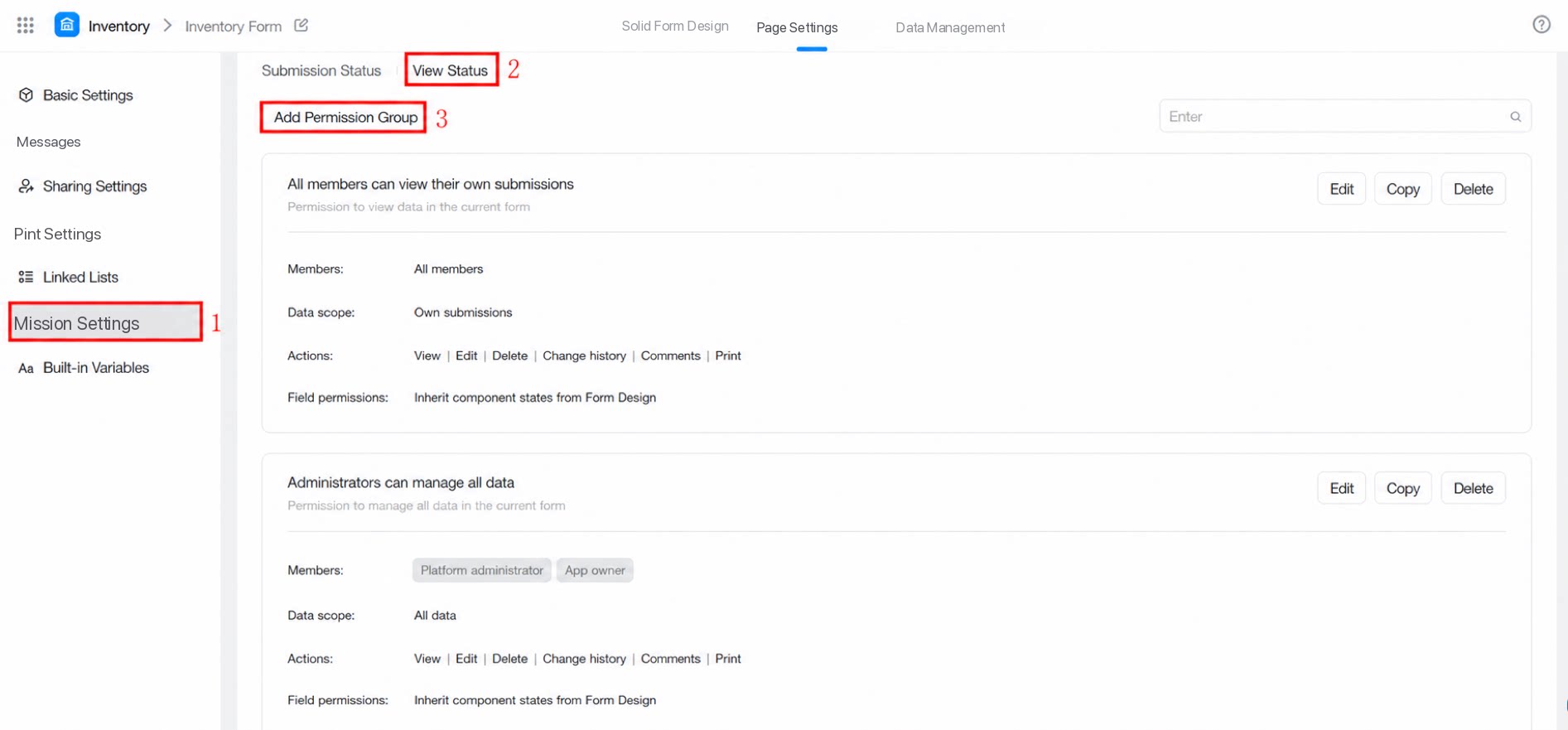
4.4.2 Set Data Filter Conditions Based on Form Content
4.5 Scope of Form Permissions
Form permissions are currently inherited by cross-app forms and by reports that reference the form directly.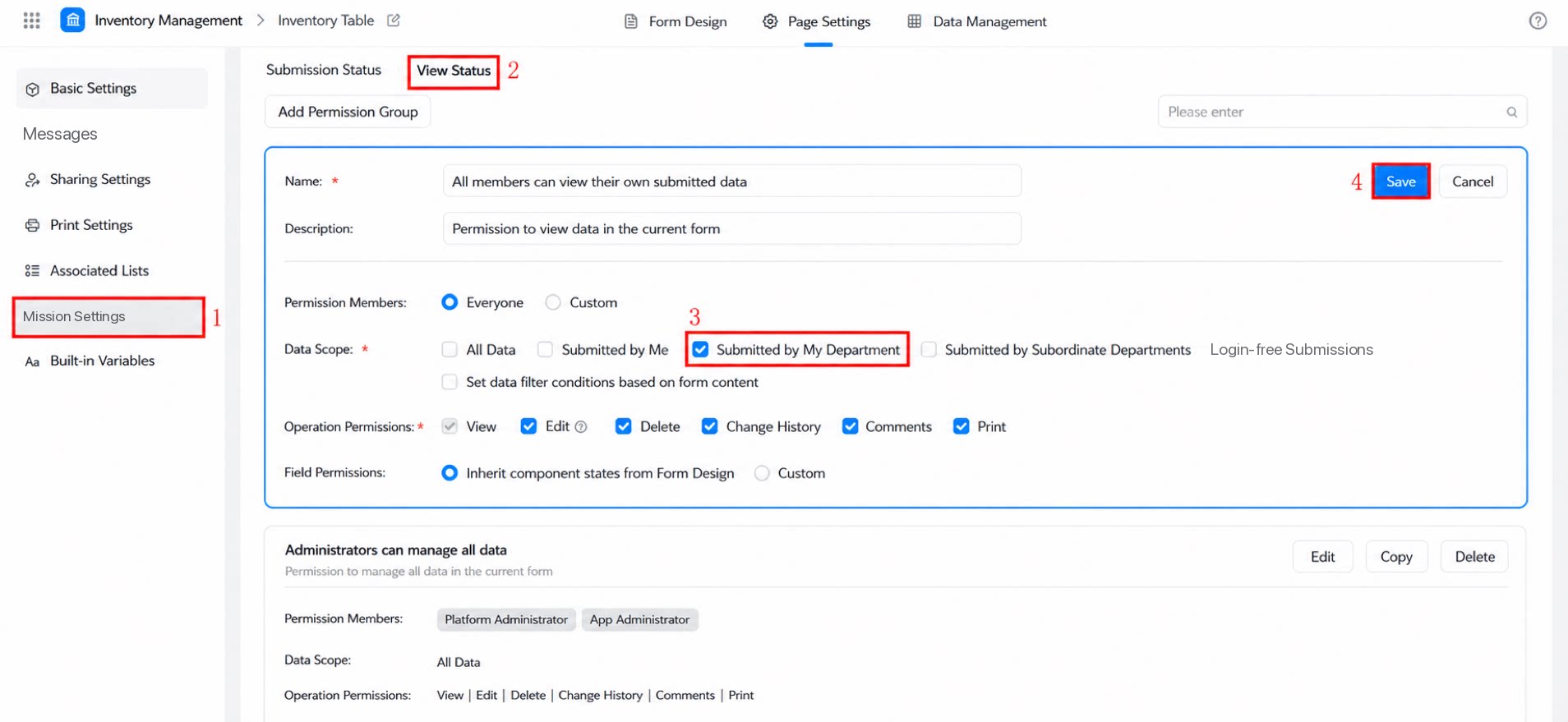
- View table (inheritance is not supported yet; user-selectable inheritance is in development)
- Data preparation (not supported yet)
- DataV dashboard (not supported yet)
5. FAQ
Q: Is there a limit on the number of form permission groups within an app? How many permission groups can I configure at most?
Q: Is there a limit on the number of form permission groups within an app? How many permission groups can I configure at most?
Except for workflow forms and regular forms, each page supports up to 100 permission groups. Workflow forms and regular forms each support up to 100 submission permission groups and 100 view permission groups.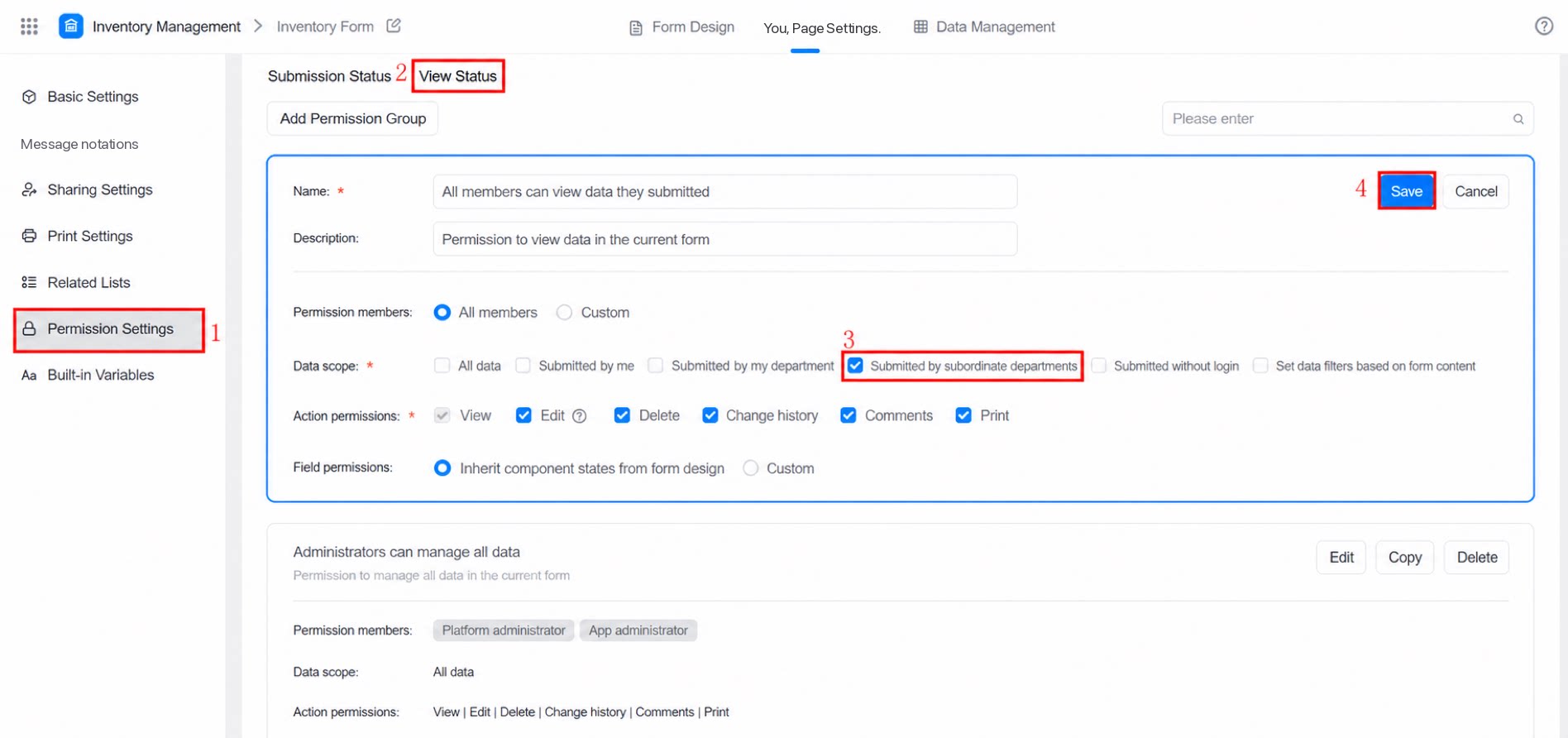 The limits above also apply to premium apps.
Q: An employee has no permission to access the page. What should the admin do?
Q: An employee has no permission to access the page. What should the admin do?