Chats
Chats Calendar
 Meetings
 Contacts
 Mail
Mail Docs
Docs Drive
Drive AI Table
 AI Minutes
 Attendance
 Approval
 YiDA
YiDA Admin Console
What Is a DingTalk Upstream-Downstream Organization
Use Cases
| Scenario | Customer pain points |
|---|---|
Inter-organization business coordination and internal-external collaboration | Before working with an external organization, you must first find the right contact, run through a series of inquiries, exchange contact information, add them as contacts, and create a group chat before any real work can begin. • After two weeks of unanswered messages and calls, you finally reach the contact only to hear “I’ve left the company…” • Who takes over the departing contact’s work? Another round of inquiries begins. • Is the contact still an employee of Company A? Unexpected “order poaching” incidents occur. • What is the contact’s seniority? Are they the decision maker for the project? Can they resolve the issue? • What type and level is the partner? Which cooperation policies and terms apply? Partner information must be looked up every time. • Every time a new supplier is onboarded, the “supplier management system” link must be resent and permissions reconfigured. • Where does the internal-external collaboration process stand right now? You must sign in to the system to check. Many processes lack system support, leaving the process opaque and requiring constant follow-up. • Untimely communication and broken collaboration lead to slow payments, prolonged issue investigations, and delayed business launches. |
- Target audience: organizations with stable business relationships, especially in enterprise-centric upstream-downstream supply chain scenarios that need an authentic, trustworthy platform for communication and collaboration.
- Solution: the enterprise creates an upstream-downstream organization and invites partners to join, enabling authentic and trusted communication and collaboration inside it.
- Typical use cases: upstream-downstream partnerships such as suppliers, distributors, service providers, and external ecosystem employees.
- A communication and collaboration framework of “enterprise — upstream-downstream supply chain partners” built on the primary organization.
- Ensures long-term cooperation and business continuity.
Core Capabilities
● Upstream-downstream Contacts ● Upstream-downstream workbenchUpstream-Downstream Scenario Support
| Core supported scenarios | Preview | Release version | Release date |
|---|---|---|---|
| Forms, workflows, and To-Do items | Downstream users can submit workflows and forms, using business collaboration from the upstream primary app.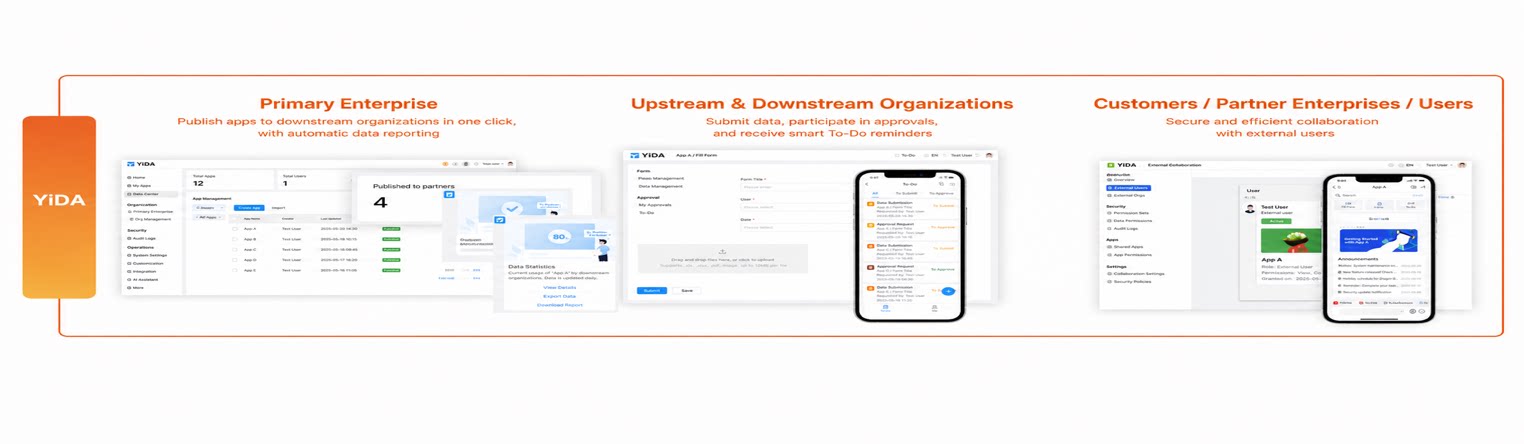 | V1-2022.12.28 | https://docs.aliwork.com/docs/yida_updates/wvh80a0nh19lkl4l#jrVSw |
| Reports | Downstream users can view analytics reports of the primary app.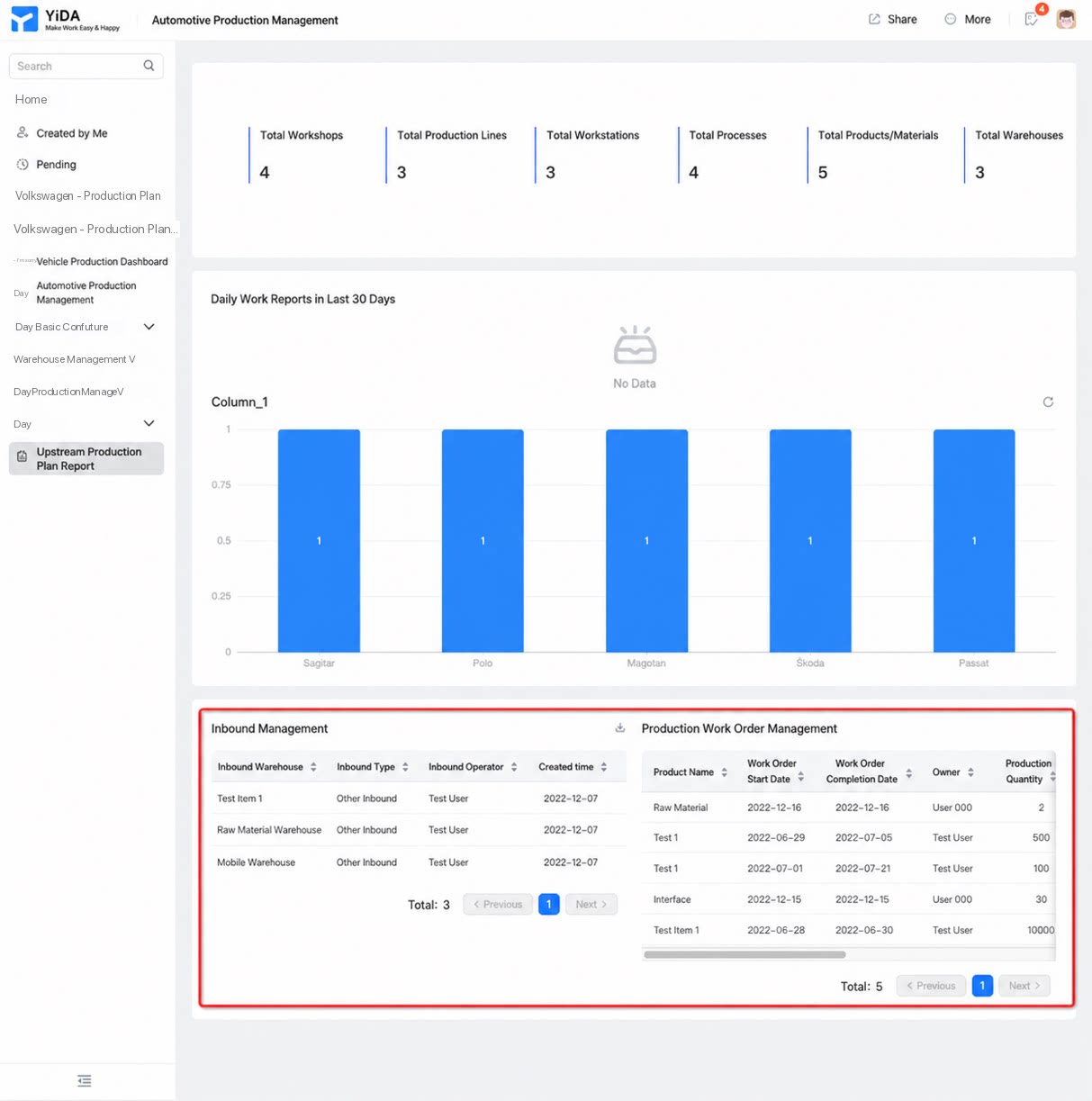 | V2-2023.05.30 | https://docs.aliwork.com/docs/yida_updates/hz3mfltpdu5z0mgn#IKYCl |
| Minor optimization: downstream Attachment and Image Upload | Downstream organizations using apps distributed from upstream can normally submit images, files, and other attachments within forms. | v2.1-2023.10.12 | https://docs.aliwork.com/docs/yida_updates/zz0gly218tifghop#G6HJm |
| Integration & automation and Cool Apps | YiDA Cool Apps from the primary organization can be distributed to downstream internal groups.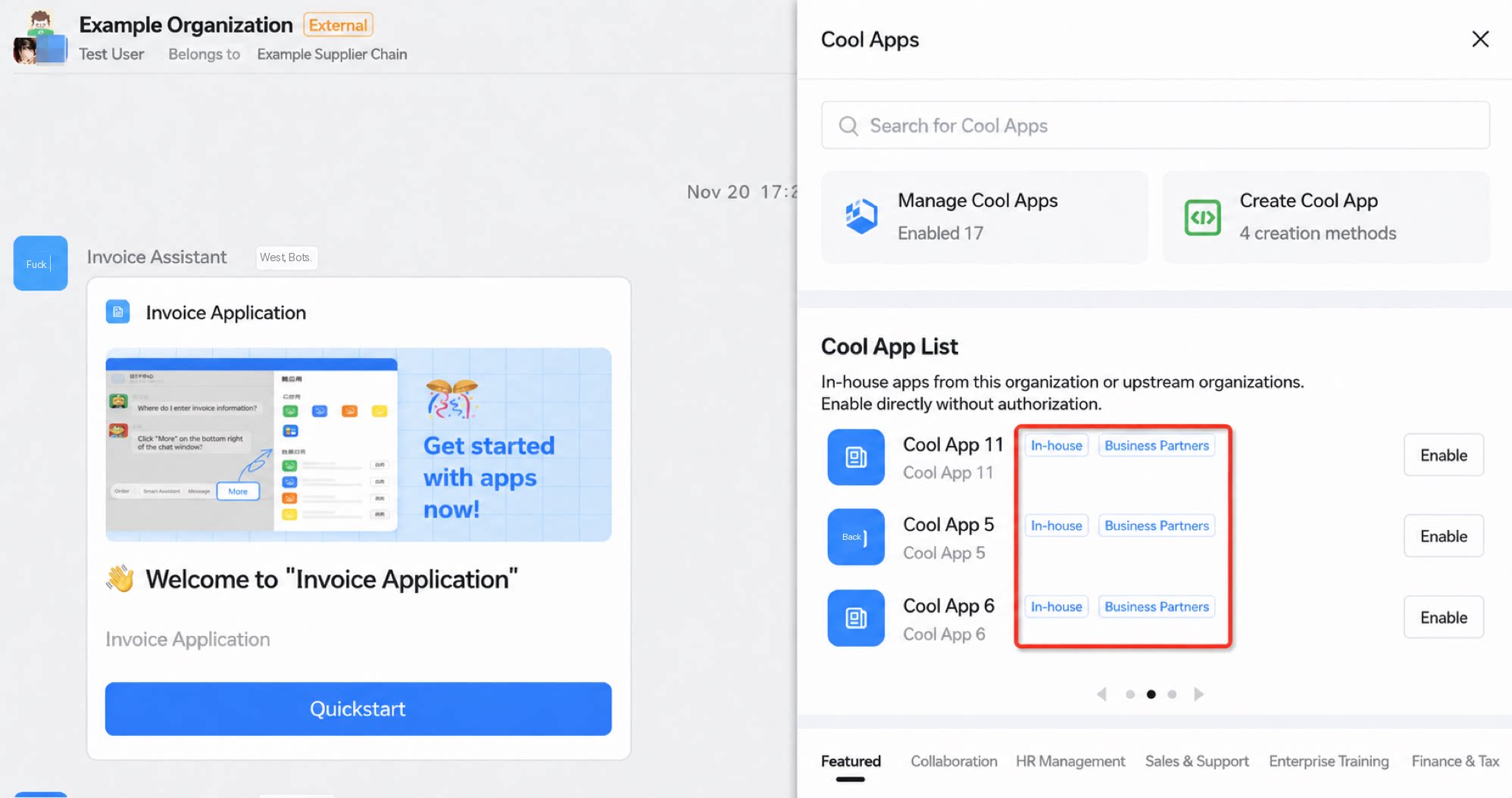 | V3-2023.12.12 | December 12, 2023 release notes — YiDA Dedicated upgrade |
Core Benefits
- Verified identity — prevents dealings with external contacts who have already left their company.
- Uninterrupted collaboration — you are notified immediately when a contact departs, and handover happens right away.
- Isolated permissions — suppliers see supplier-related systems, and distributors see distributor-related systems.
Access the App (Available Only for Verified Organizations)
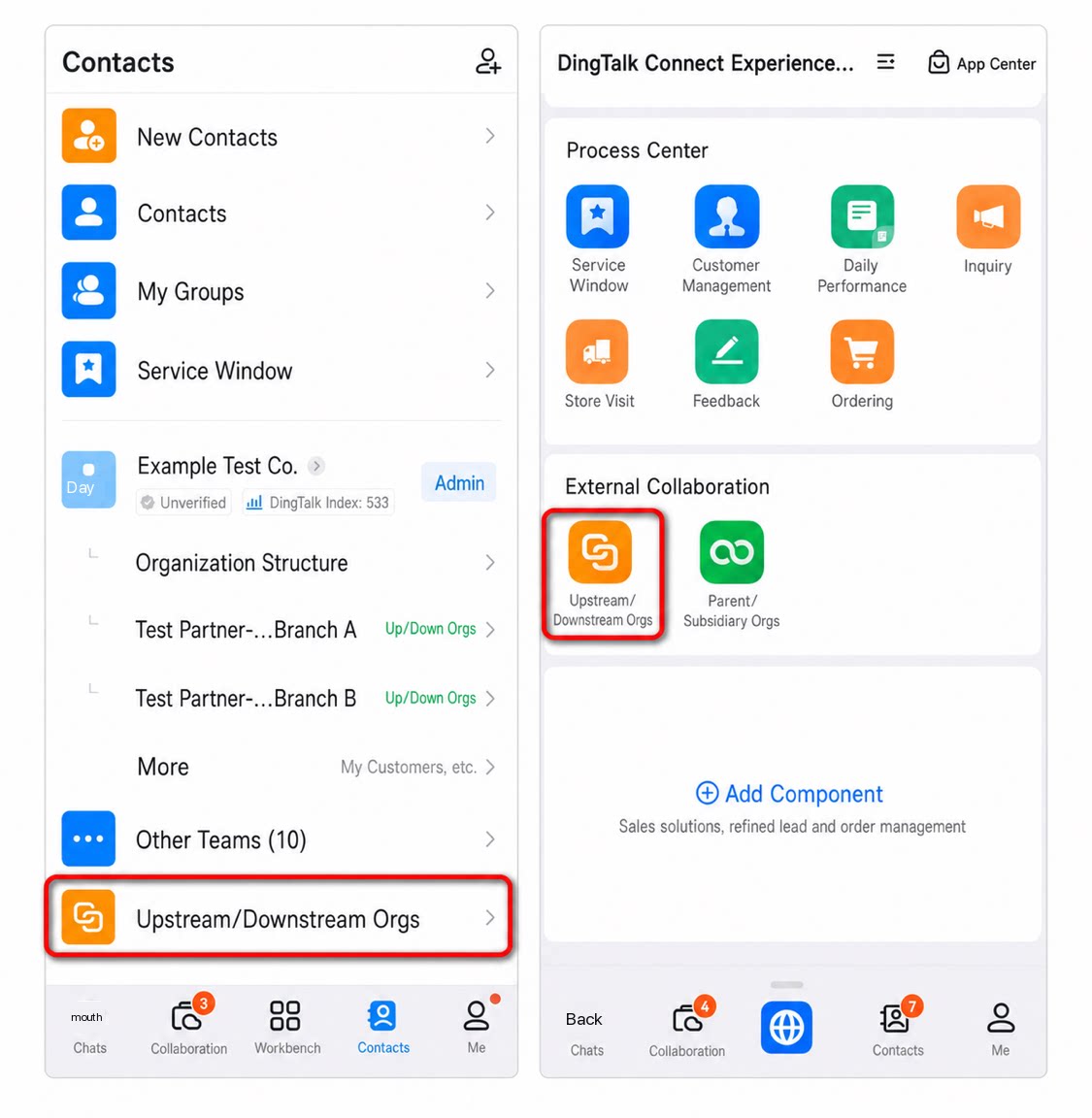
Admins can go to DingTalk mobile app → Contacts → find the target organization → tap Manage → Connectivity Platform → Upstream-downstream organizations, or open the upstream-downstream organization app directly from the workbench. (How to grant Admin permissions)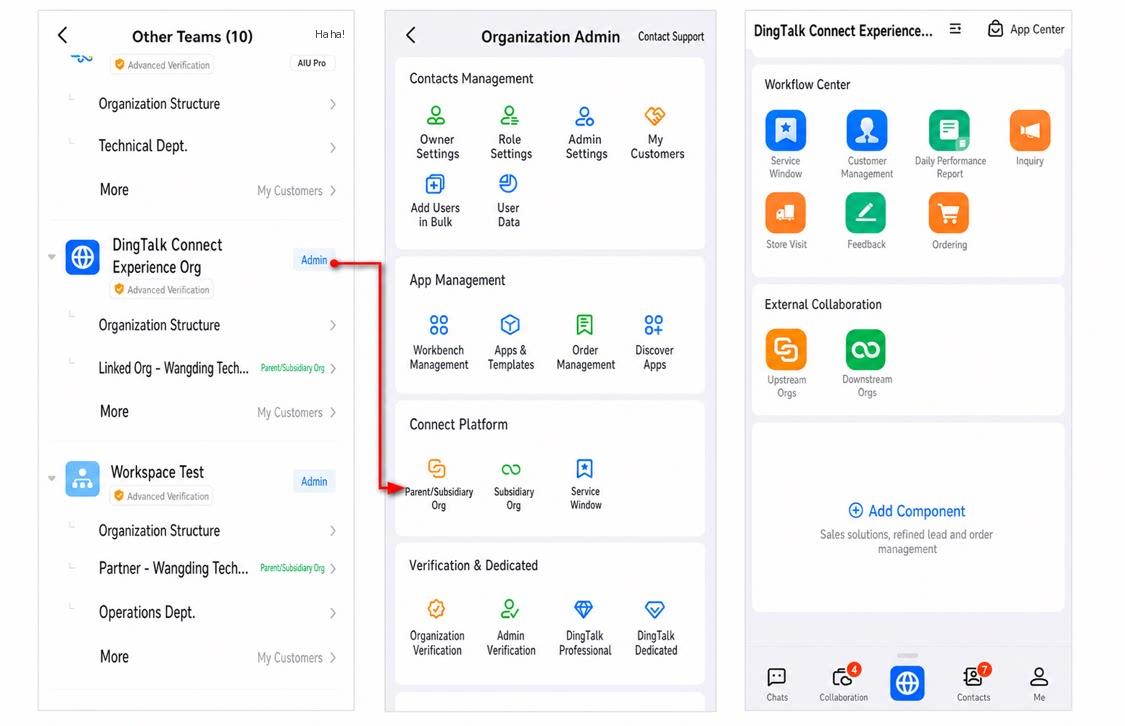
Cross-Organization Connectivity Powered by YiDA Upstream-Downstream
Publish YiDA apps to DingTalk upstream-downstream organizations.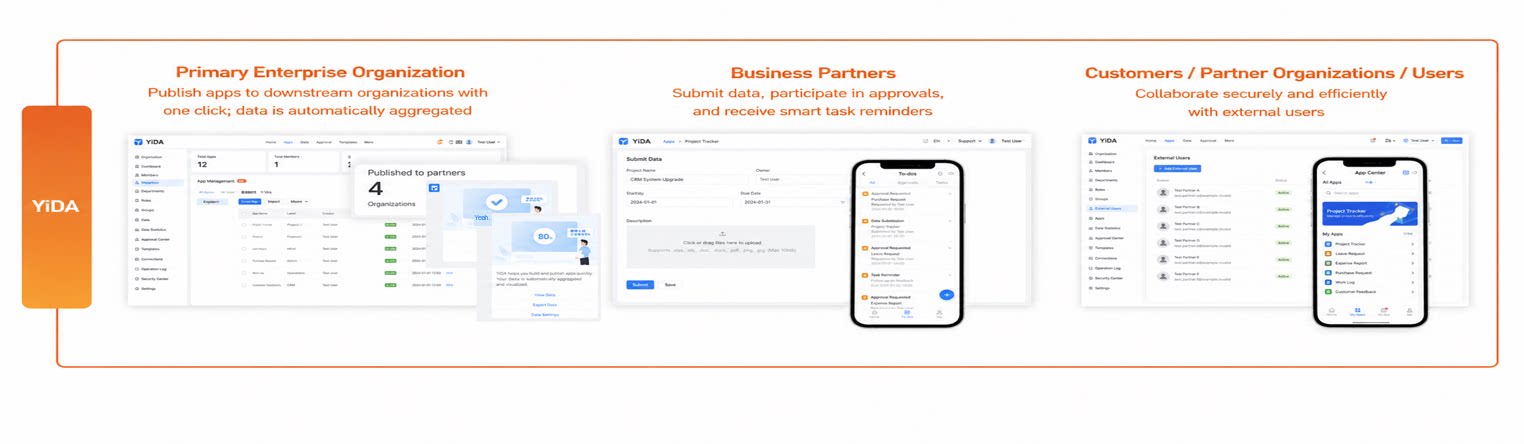
1. Publish Apps to the Downstream Workbench with One Click
Apps built by the upstream organization can be published to the downstream workbench with a single click.2. Centralized Upstream Management for Reliable and Secure Operations
Business permissions, approval rules, and authorization lists are managed centrally by the upstream organization, resolving management difficulties and information leakage risks for the primary enterprise.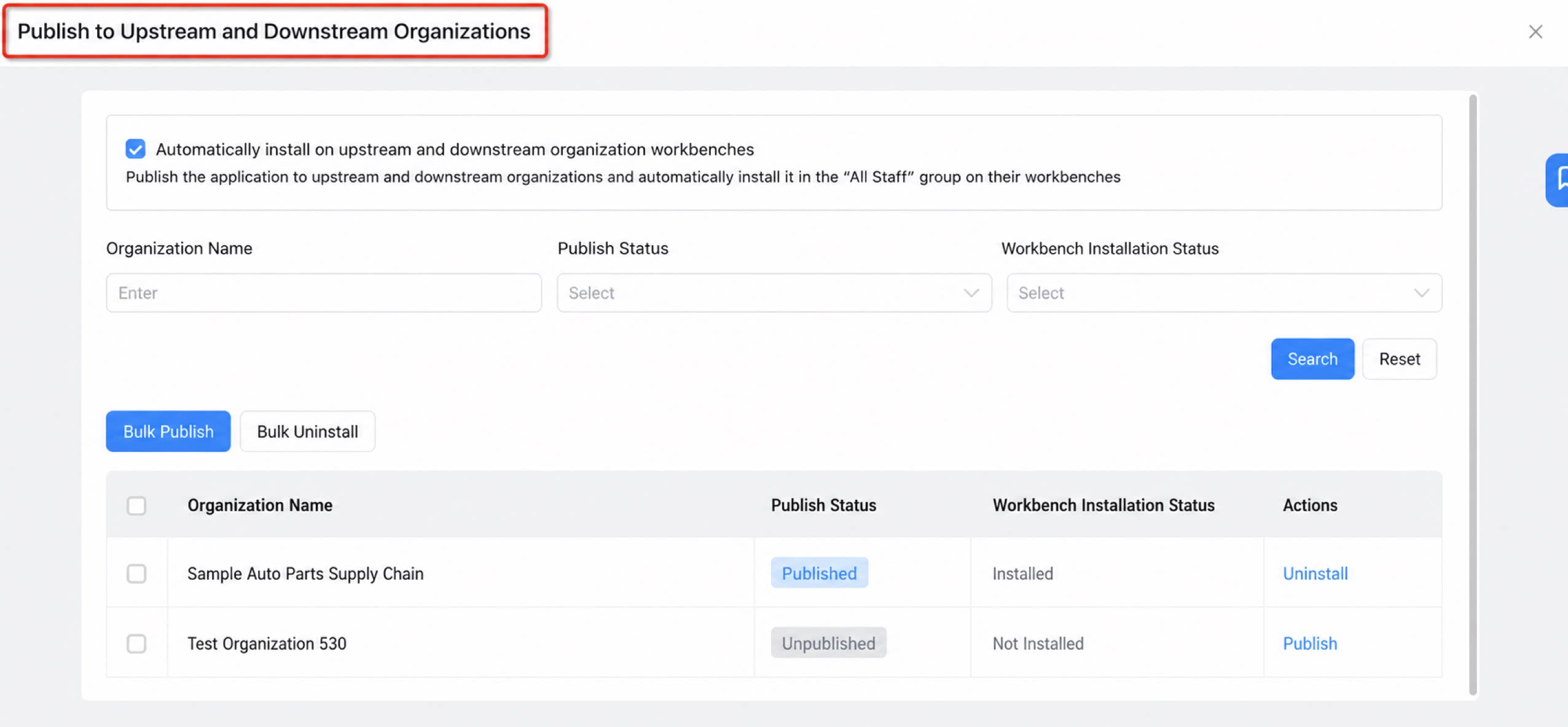
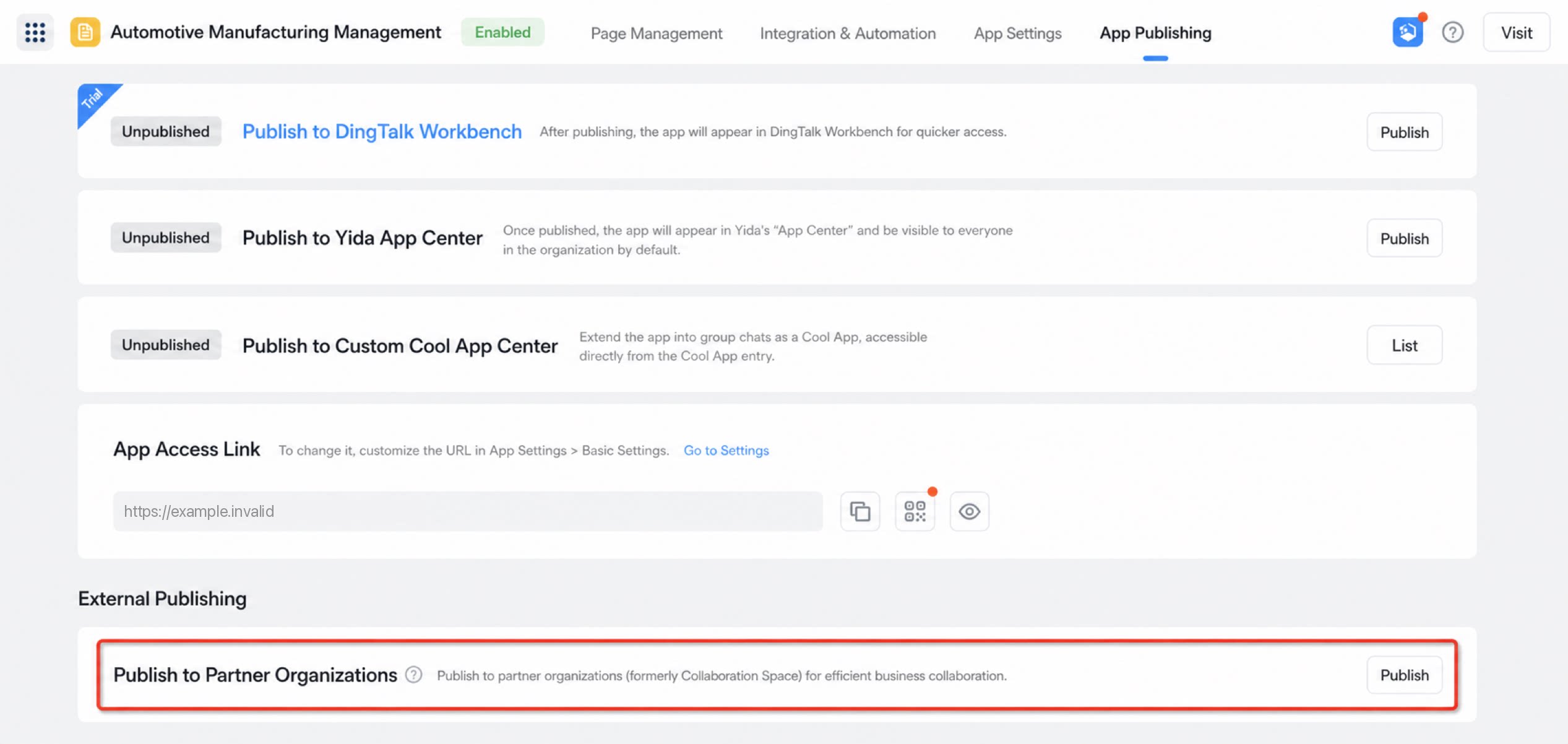
1. Centralized License Management
Licenses are purchased and allocated centrally by the primary organization.| Automatic account tallying Licenses granted to users in the primary organization and downstream organizations (up to 3) are shown at a glance. 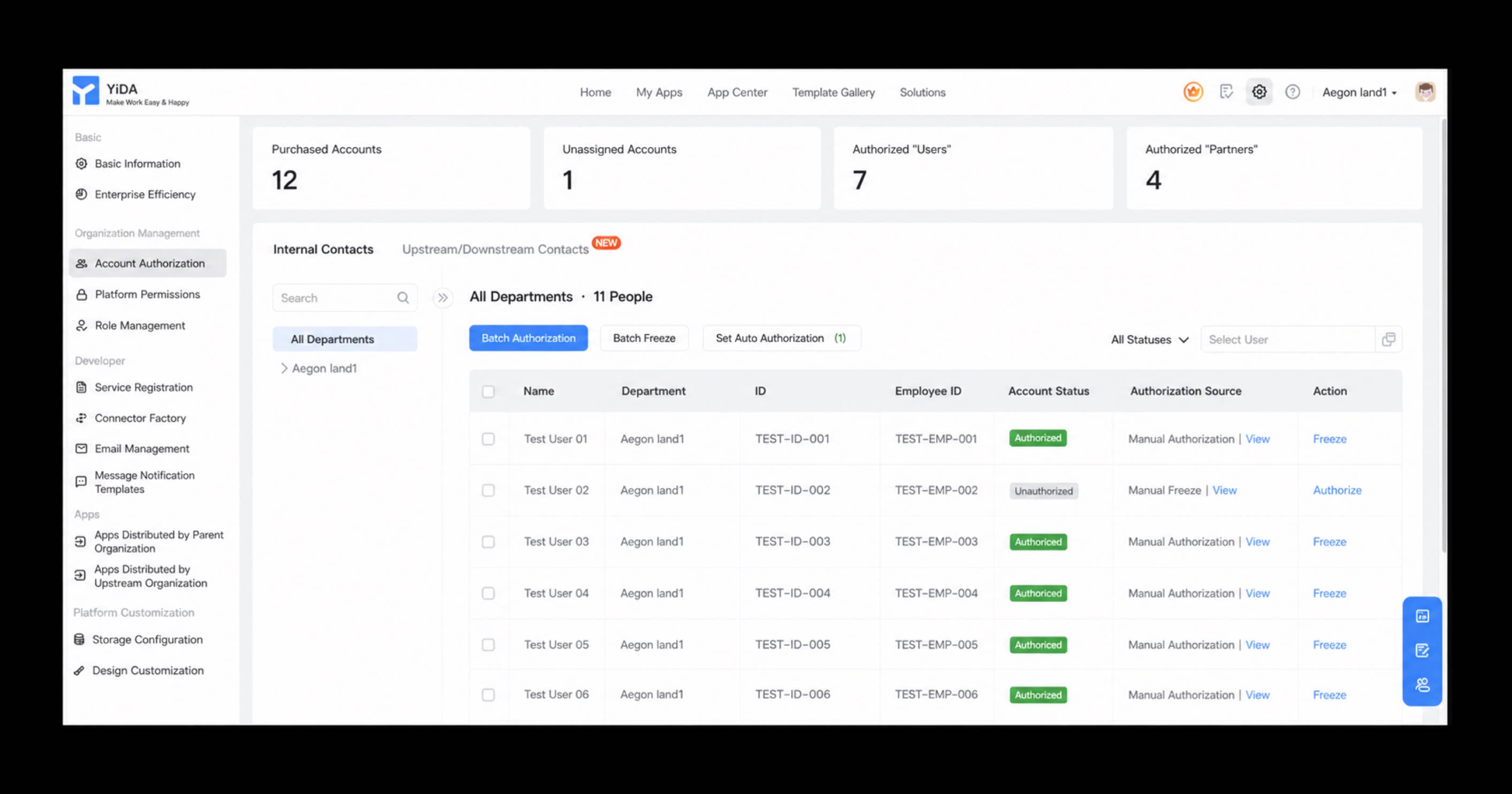 | • Automatic partner onboarding: designate specific departments in downstream organizations to receive automatic license assignment upon onboarding, freeing Admins from manual maintenance. • Automatic partner offboarding: when a downstream user leaves, the license is automatically revoked. 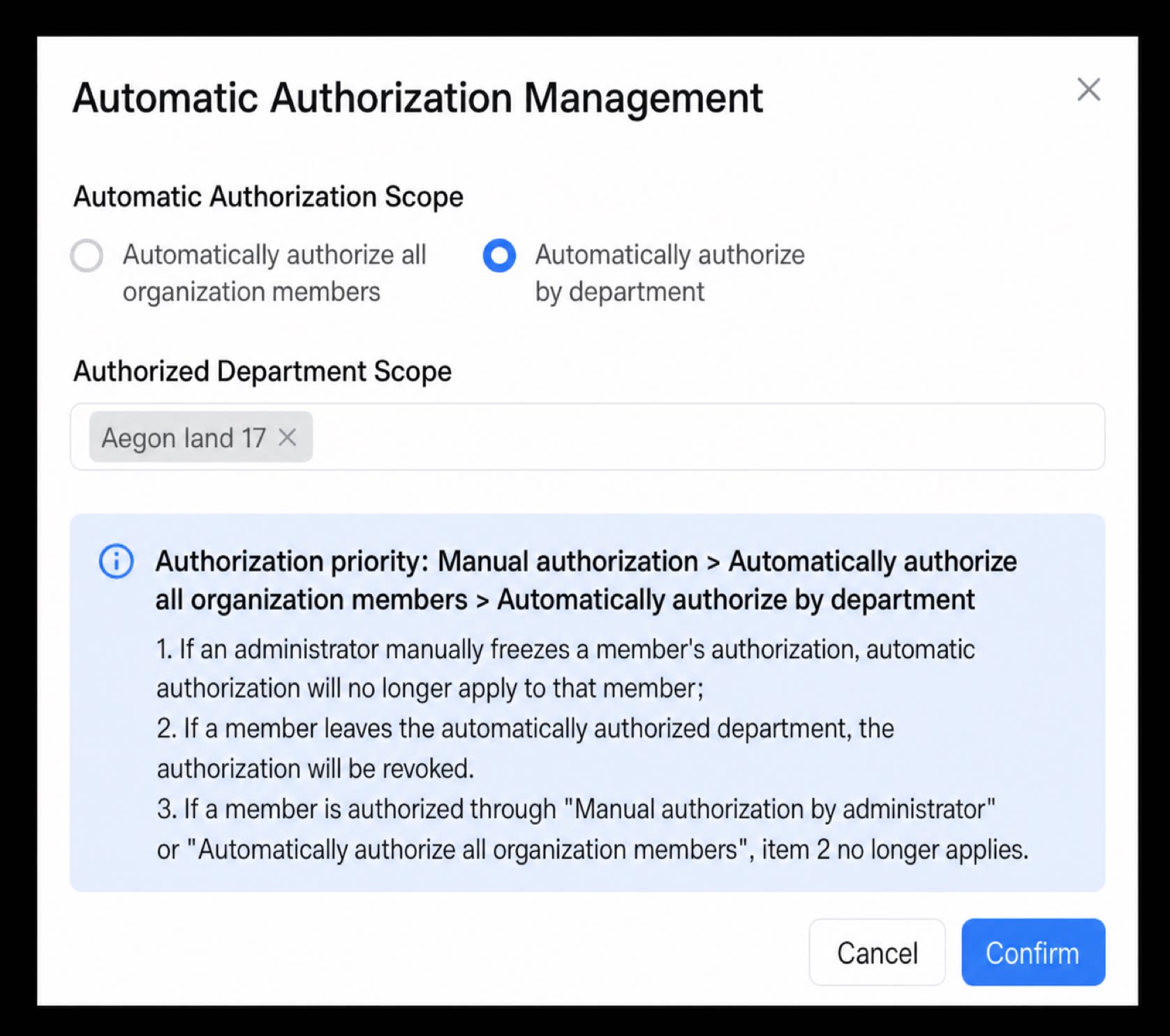 |
|---|
2. Share Business Apps and Stay on Top of Business Trends
Data changes are reflected in real time on the primary organization’s reports and dashboards.| Upstream organization: • Use apps just like regular ones, with support for selecting users across upstream and downstream organizations. • When filtering by Submitter, the user’s organization is automatically displayed. • View data holistically, including data management, ETL, reports, and dashboards. 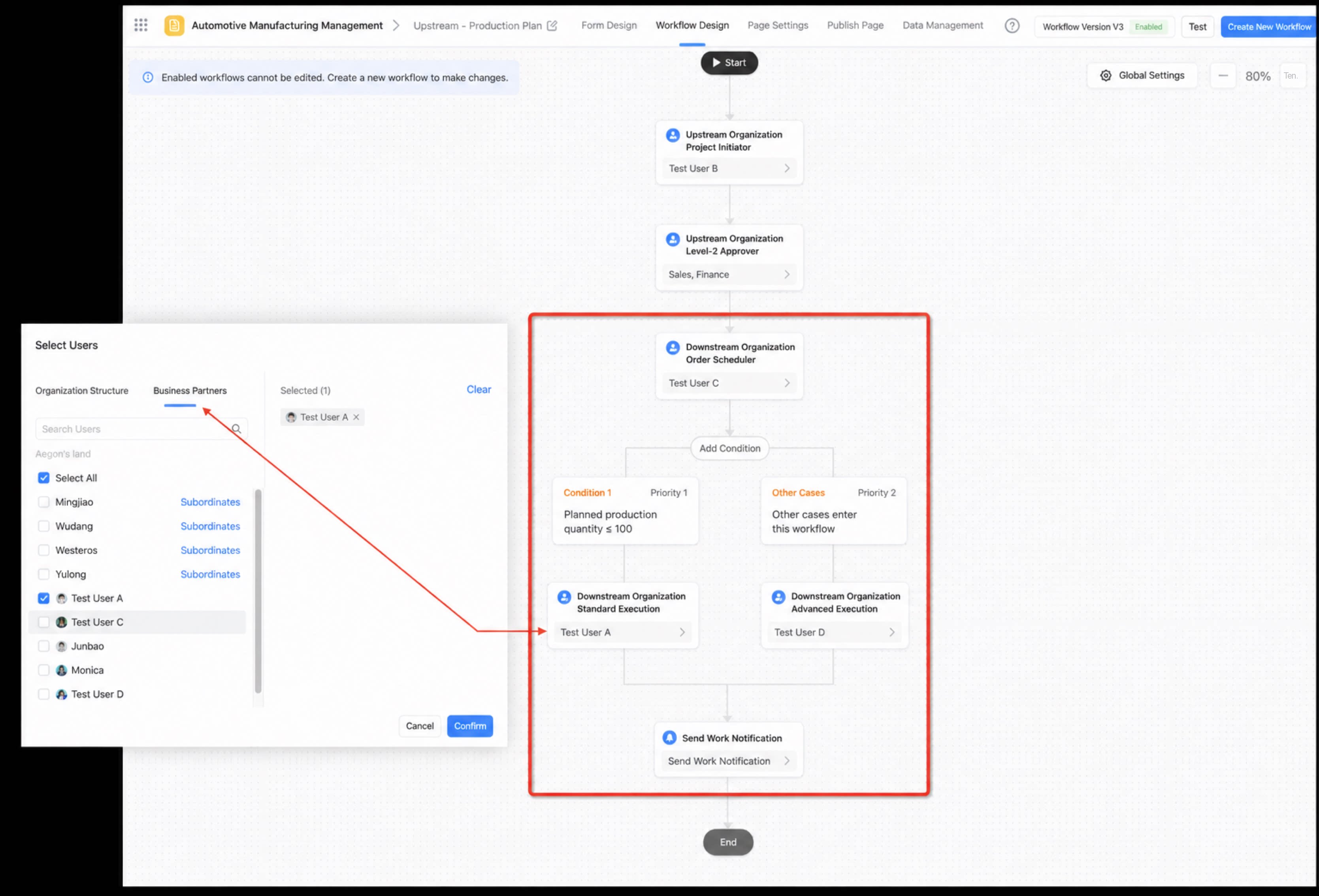 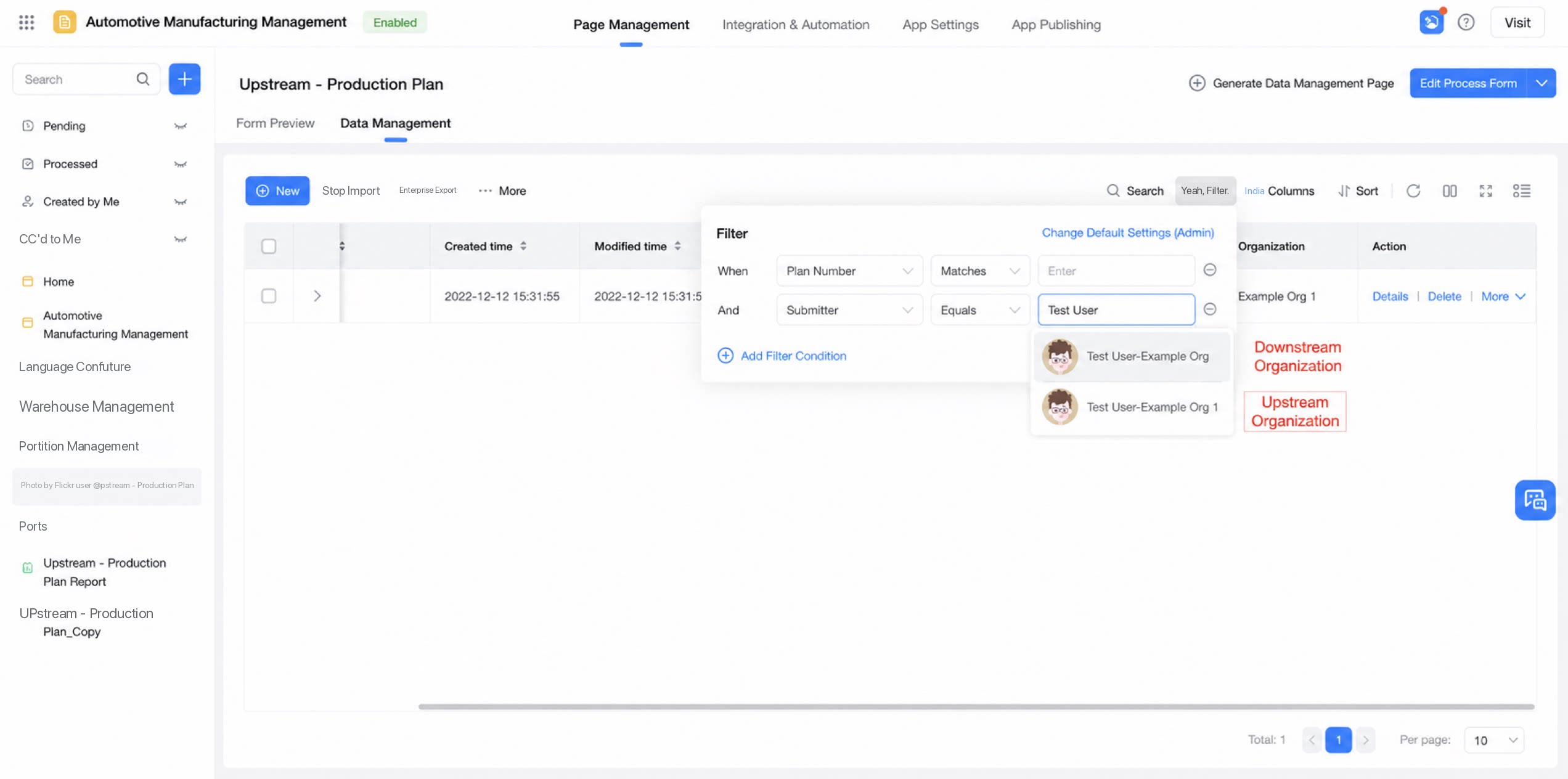 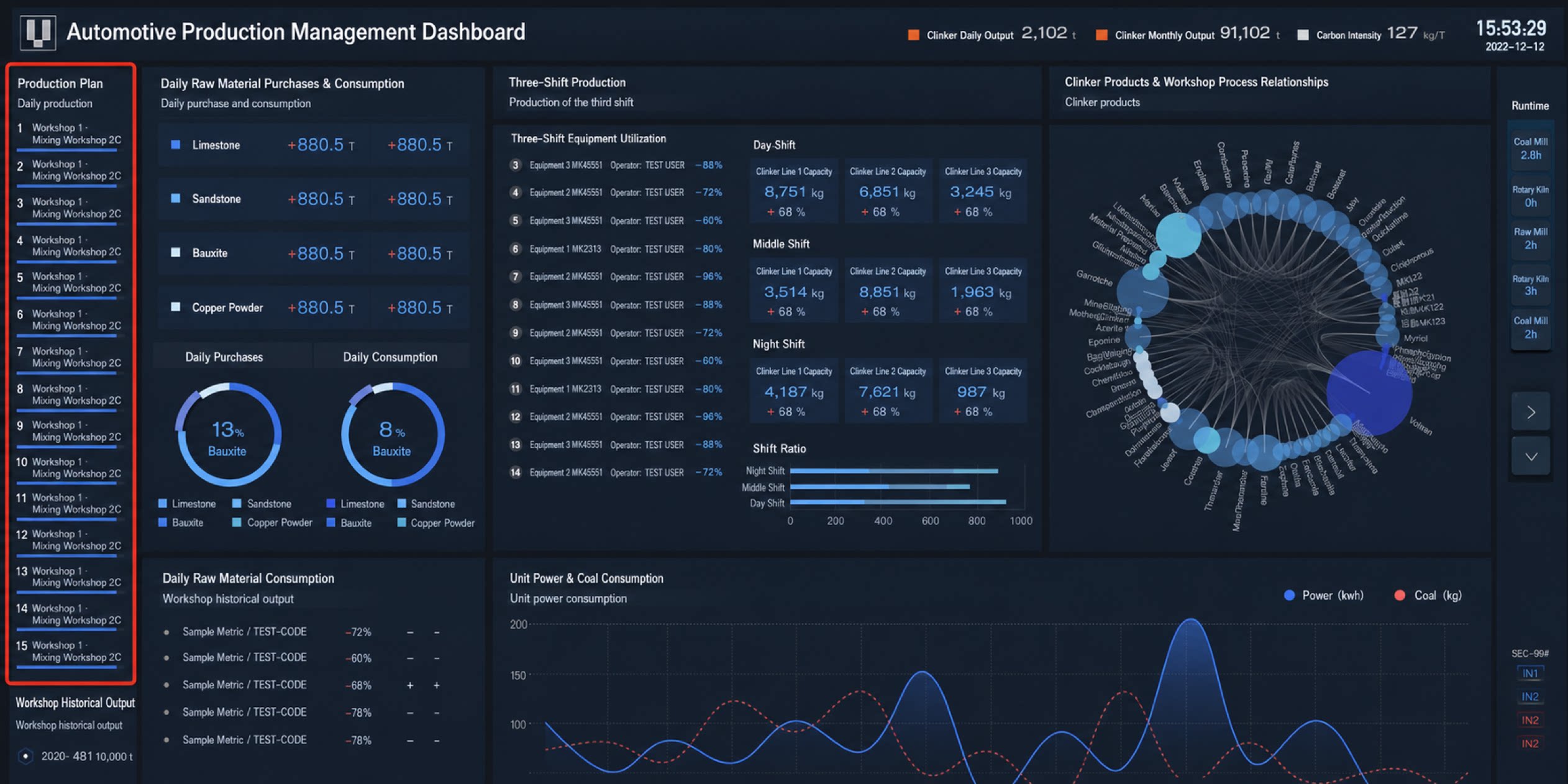 | Downstream organization: Supports the data management page (runtime). Within the granted permission scope, users can view basic details (viewing report analytics is not supported in this release). Primary organization Contacts: joining collaboration organizations If User A in the primary organization needs to collaborate with users in an upstream-downstream organization, A must be added to that organization. In the downstream organization, all users in the current upstream-downstream organization can be selected during business user selection. 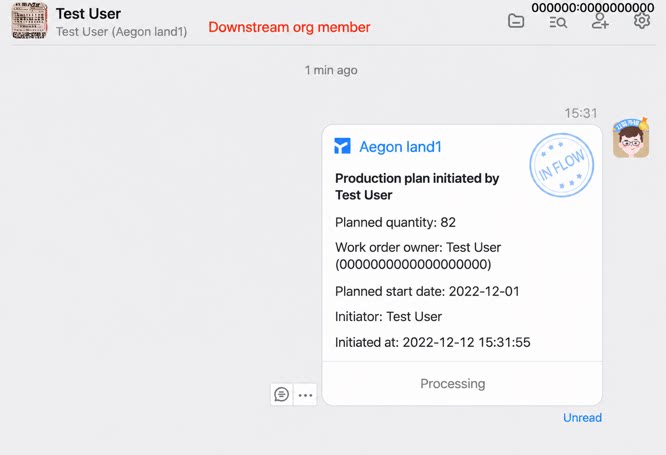 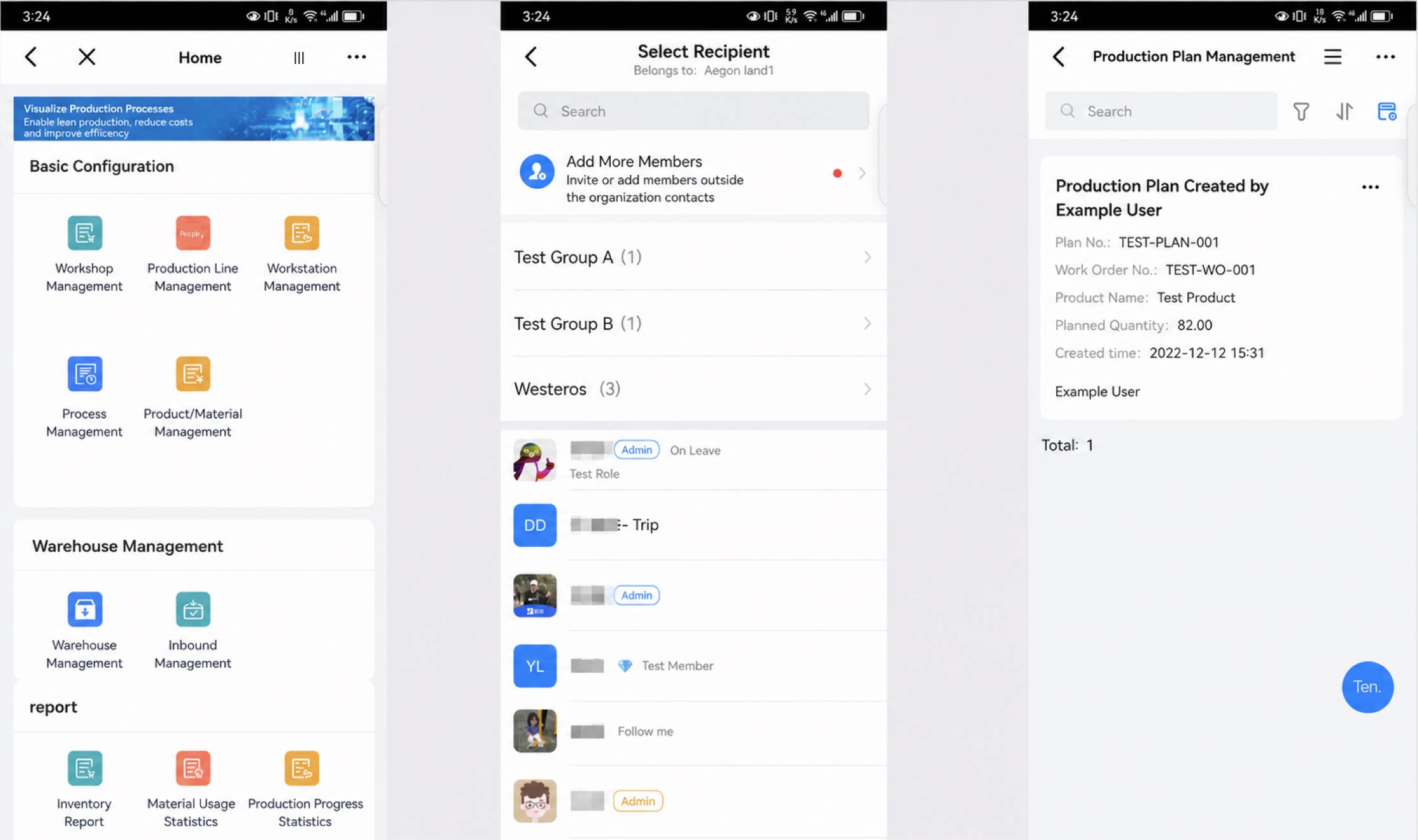 |
|---|
3. Timely Notifications for Key Events
| App publishing: When an app is published to the downstream, the Admin is notified. 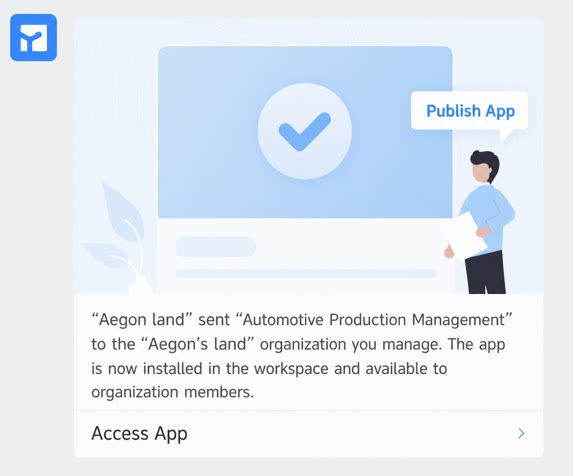 | Account count alerts: • Downstream organizations consume YiDA licenses purchased by the upstream organization. • When usage reaches 80%, the Super Admin is automatically alerted to prevent impact on the primary organization. 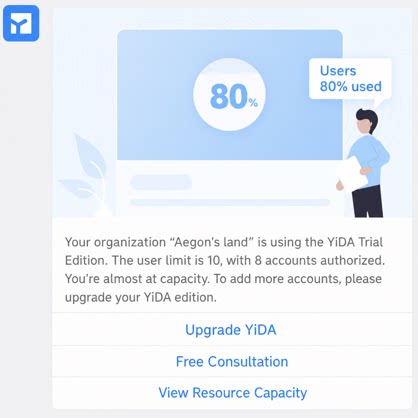 |
|---|
3. Downstream Users Use the App to Submit Data and Participate in Approvals
Downstream organization workbench and YiDA App workbench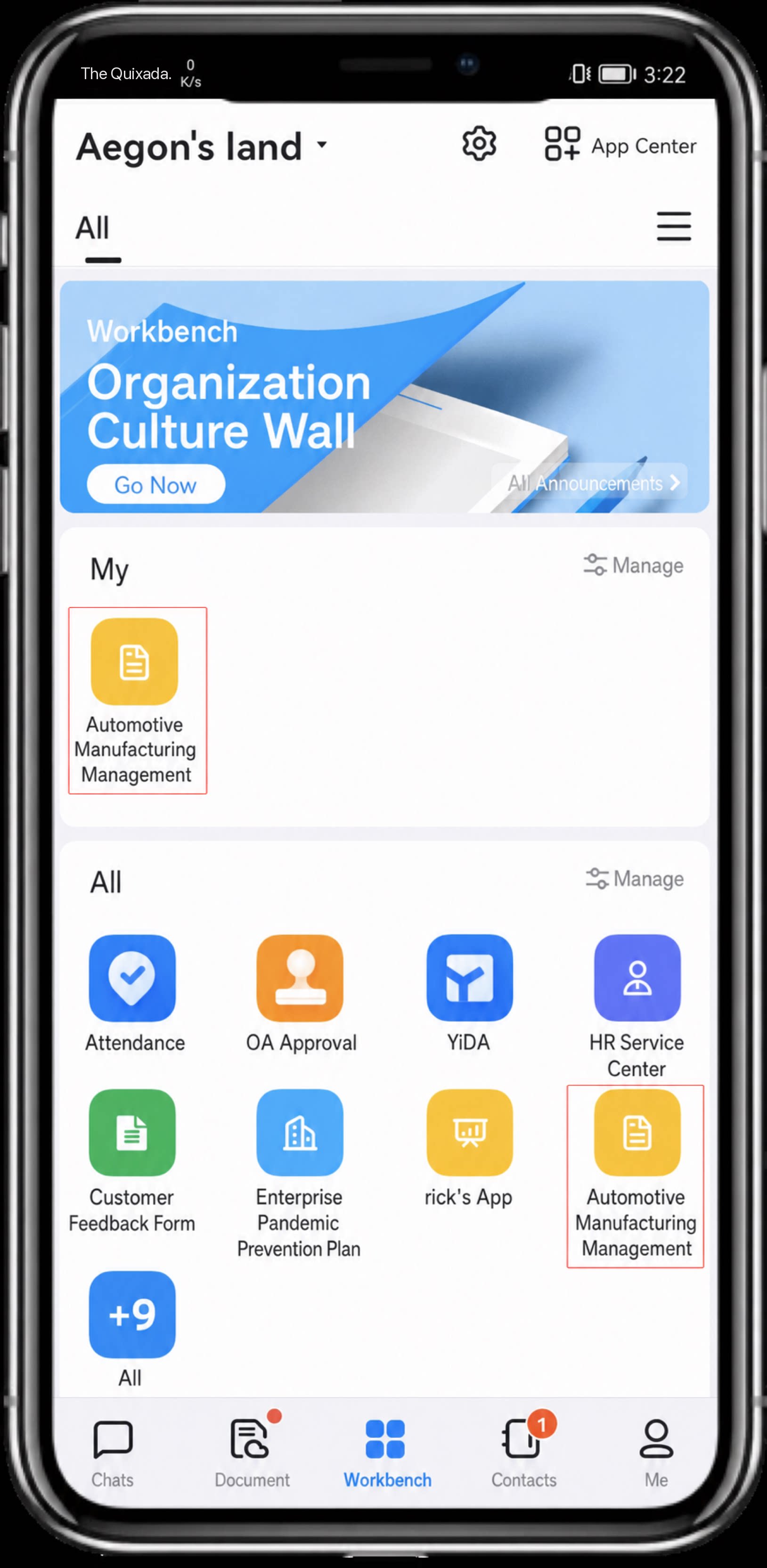 | • Apps published by the upstream organization appear in the downstream organization’s App Center. • Downstream users can quickly submit data and take part in approval collaboration. 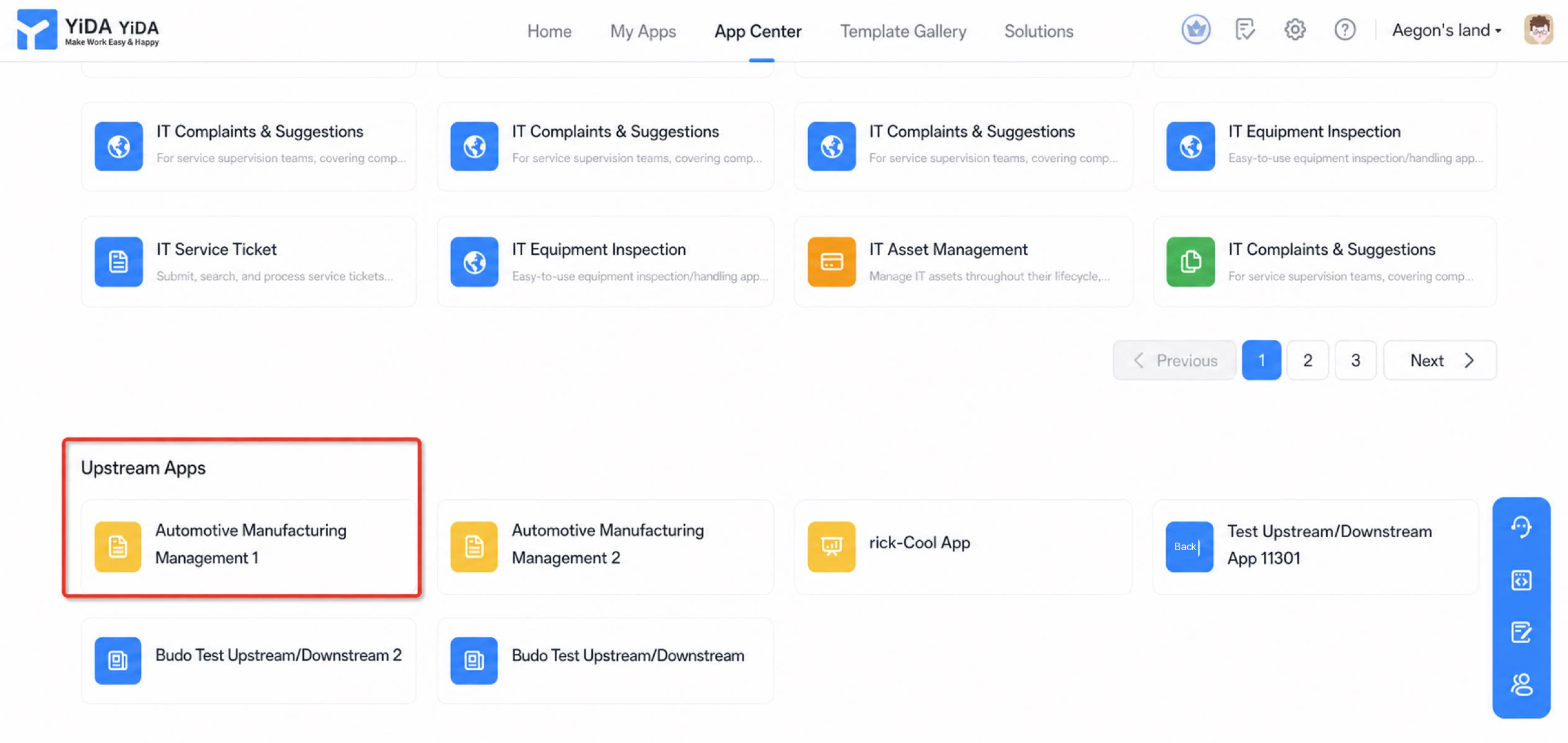 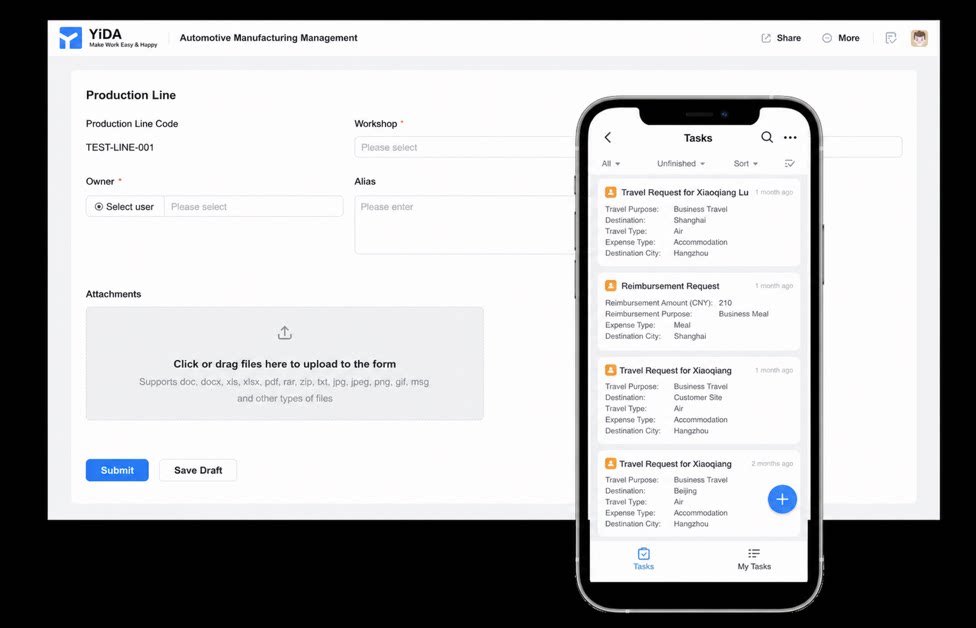 |
|---|
FAQs
Q: How are license counts calculated between the primary organization and downstream organizations? Can you give an example?
Q: How are license counts calculated between the primary organization and downstream organizations? Can you give an example?
Q: Which YiDA features are supported for downstream Users?
Q: Which YiDA features are supported for downstream Users?
- Scenario 1: User a belongs to downstream organization B. They can only initiate workflows within organization B, and during workflow routing, only users in organization B’s Contacts can be selected.
- Scenario 2: User b belongs to both the upstream and downstream organizations.
Q: What is an upstream-downstream organization? What problem does it solve?
Q: What is an upstream-downstream organization? What problem does it solve?
Q: Which scenarios are upstream-downstream organizations suited for?
Q: Which scenarios are upstream-downstream organizations suited for?
Q: What happens after joining an upstream-downstream organization?
Q: What happens after joining an upstream-downstream organization?
Q: Does using an upstream-downstream organization require all participants to be verified organizations?
Q: Does using an upstream-downstream organization require all participants to be verified organizations?
Q: How many upstream-downstream organizations can one organization create? Are they Free?
Q: How many upstream-downstream organizations can one organization create? Are they Free?
Q: How many upstream-downstream organizations can one organization join?
Q: How many upstream-downstream organizations can one organization join?
Q: How many organizations can be invited to a single upstream-downstream organization?
Q: How many organizations can be invited to a single upstream-downstream organization?
Q: How do I Create an upstream-downstream organization?
Q: How do I Create an upstream-downstream organization?
| Upstream-downstream organization | Apply / Create / Initiate / Manage | Action path |
| 1. Any Super Admin 2. Sub Admins with the upstream-downstream organization permission scope | Path for organizations initiating an upstream-downstream organization: DingTalk app - Contacts - Upstream-downstream organizations - specific upstream-downstream organization - Settings in the upper-right corner Path for member organizations: DingTalk app - Contacts - Organization Management - Upstream-downstream organizations - specific upstream-downstream organization - Settings in the upper-right corner |
Q: Why can't regular Users of an Organization Create and manage upstream-downstream organizations?
Q: Why can't regular Users of an Organization Create and manage upstream-downstream organizations?
Q: How do I join an upstream-downstream organization?
Q: How do I join an upstream-downstream organization?
Q: How are Users synced in an upstream-downstream organization?
Q: How are Users synced in an upstream-downstream organization?
Q: How long does it take for User or Field sync in an upstream-downstream organization to take effect?
Q: How long does it take for User or Field sync in an upstream-downstream organization to take effect?
Q: How do I configure User visibility in an upstream-downstream organization?
Q: How do I configure User visibility in an upstream-downstream organization?
Q: Can organizations be invited to join an upstream-downstream organization in bulk?
Q: Can organizations be invited to join an upstream-downstream organization in bulk?
Q: Do upstream-downstream organizations support custom Apps?
Q: Do upstream-downstream organizations support custom Apps?
Q: How do I add custom Apps to an upstream-downstream organization?
Q: How do I add custom Apps to an upstream-downstream organization?
Q: Where is the entry point for the upstream-downstream organization?
Q: Where is the entry point for the upstream-downstream organization?
Q: Can the upstream-downstream organization Admin manage the departments and Users of member organizations that have joined?
Q: Can the upstream-downstream organization Admin manage the departments and Users of member organizations that have joined?
Q: How do I leave an upstream-downstream organization?
Q: How do I leave an upstream-downstream organization?
Q: How do I initiate a Collaboration Chat?
Q: How do I initiate a Collaboration Chat?
Q: What are the characteristics of a Collaboration Chat?
Q: What are the characteristics of a Collaboration Chat?
Q: Is upstream-downstream connectivity supported under single sign-on?
Q: Is upstream-downstream connectivity supported under single sign-on?
Learn More About DingTalk Upstream-Downstream: