

 Chats
Chats Calendar
 Meetings
 Contacts
 Mail
Mail Docs
Docs Drive
Drive AI Table
 AI Minutes
 Attendance
 Approval
 YiDA
YiDA Admin Console
1. Overview
This section explains how to use integration & automation execution logs to locate errors and how node retry and flow retry can help you resolve them.
2. Workflow
2.1 Access Execution Logs
On the integration & automation List page, select the target flow to open its execution logs.2.2 View the Instance List
In the pop-up window, you can see the execution records of the flow. Filter errors by time and status.2.3 Details
View the execution details of each node in an instance, and perform quick actions such as editing a node (which opens the corresponding flow editor) or retrying a node.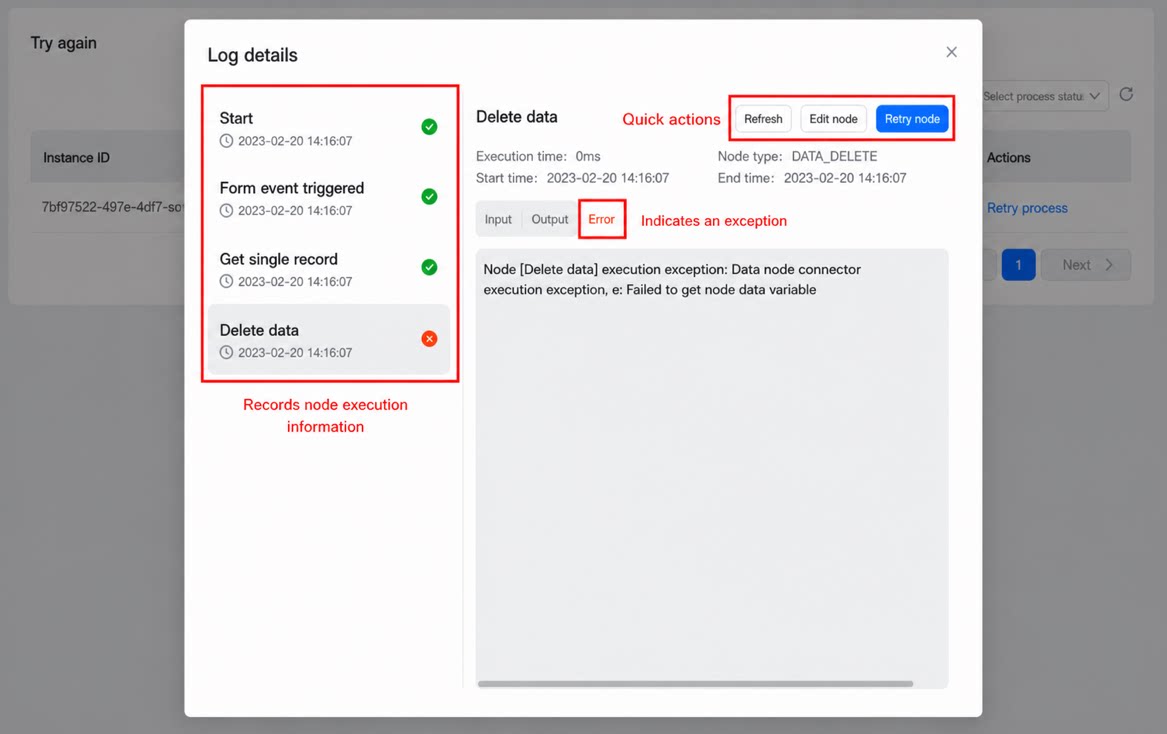
2.4 Retry
This update supports two types of retry: node retry and flow retry. Warning: If data updates are involved, retrying may generate invalid data, which could interfere with business operations. Proceed at your own risk.2.4.1 Node Retry
Effect: The retry starts from the current node and continues through the subsequent flow. The execution result is recorded in the original instance. Use case: When execution is interrupted by a node connection issue (for example, a Connector connection timeout), retry the node. Retry limits:- Only execution instances from the past month are supported.
- Wait at least 1 minute between retries. Otherwise, a message indicates that the flow is being repaired.
2.4.2 Flow Retry
Effect: The flow reruns from the start node and generates a brand-new instance. Use case: When an upstream node encounters an error (for example, failing to retrieve data), retry the flow after adjusting the node configuration or confirming that the form data issue has been resolved. Retry limits:- Only execution instances from the past month are supported.
- Wait at least 1 minute between retries. Otherwise, a message indicates that the flow is being repaired.