

 Chats
Chats Calendar
 Meetings
 Contacts
 Mail
Mail Docs
Docs Drive
Drive AI Table
 AI Minutes
 Attendance
 Approval
 YiDA
YiDA Admin Console
Use Cases
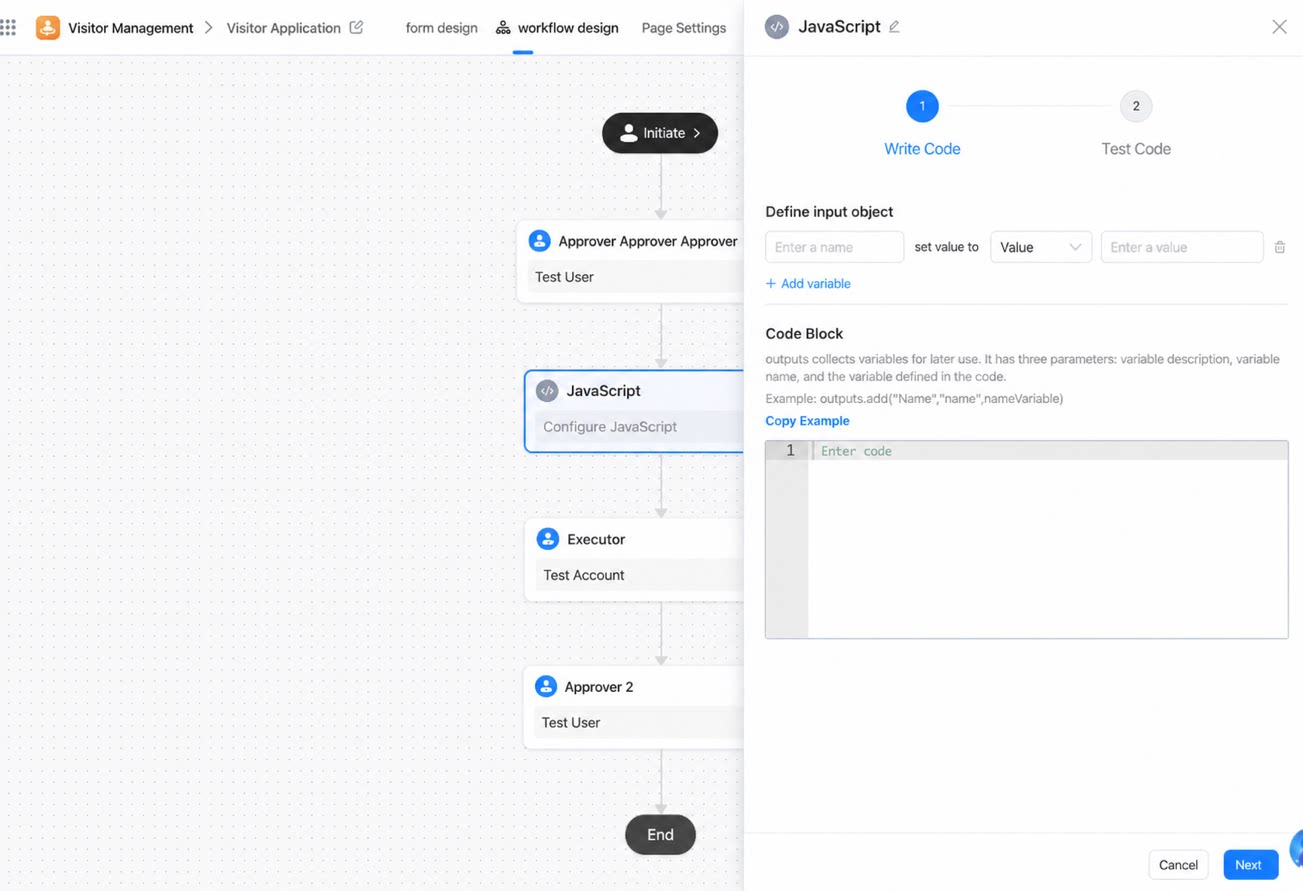
During the design phase, add a script node and write JavaScript to read values from input data, process intermediate data, and inject the result through the built-in output object. This delivers scripted data processing within business flow orchestration.Access the Script Node
- Method 1: Edit the workflow form > Open the workflow design page > Select Developer node > Script node.
- Method 2: Edit the app > Integration & automation > Select the target automation flow and open its design configuration, then add a script node.
Use the Script Node
1
Add a script node
2
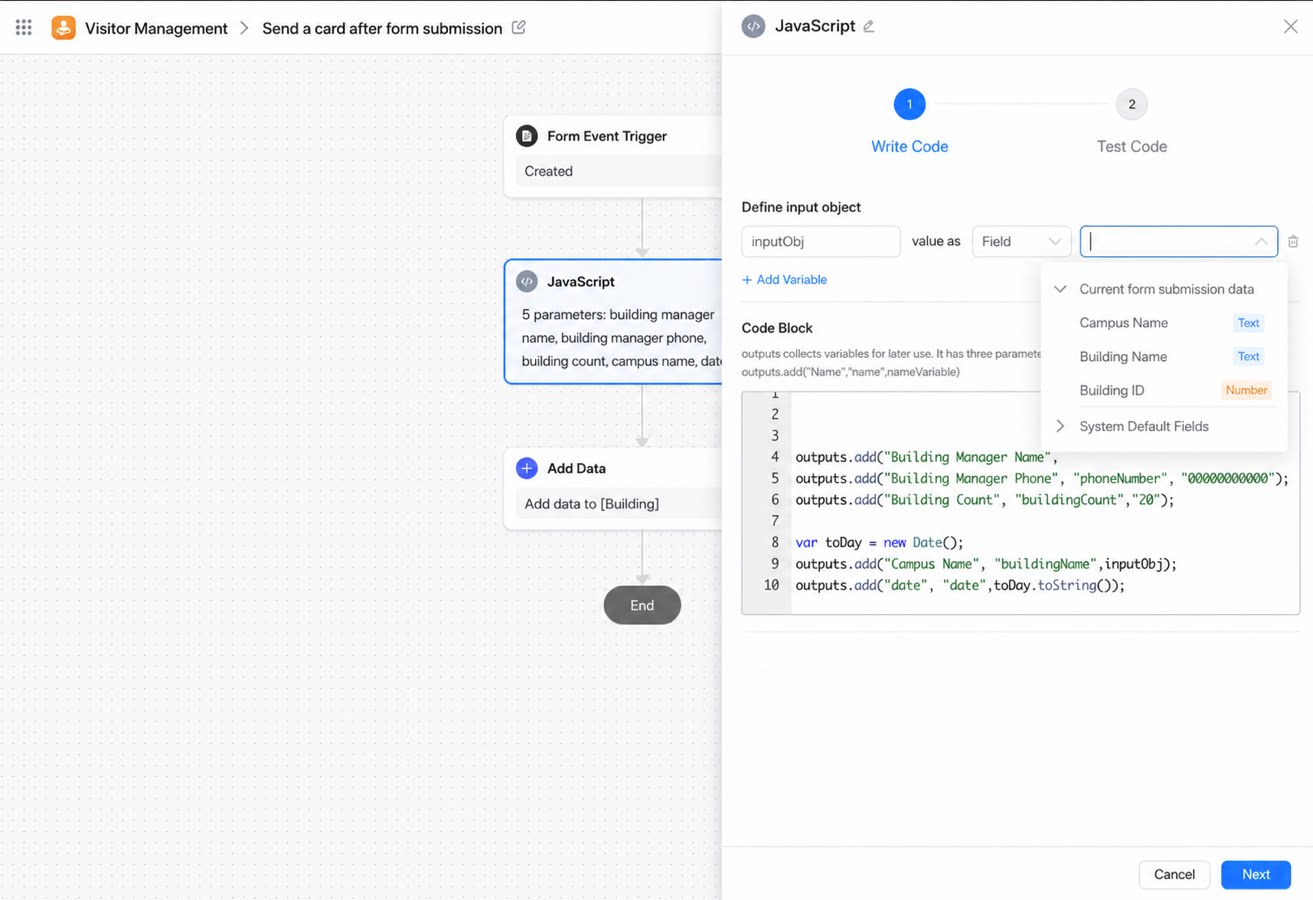
Write the JavaScript
3
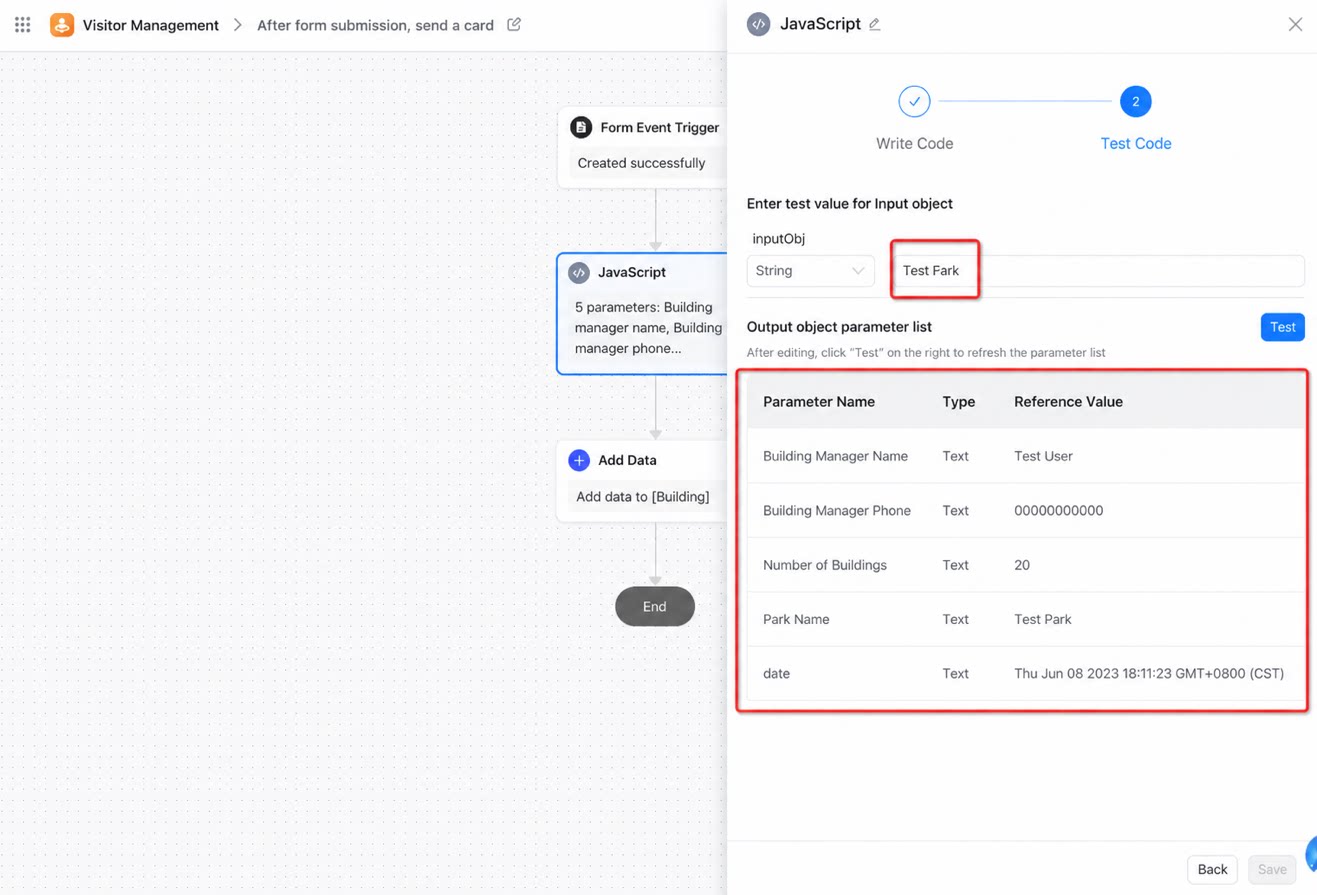
To test the code, enter test data in inputObj and click Test to view the output
Consume Script Data
In any node downstream of the script node, when you select a field type, the fields exposed by the preceding script node’s output appear in the list.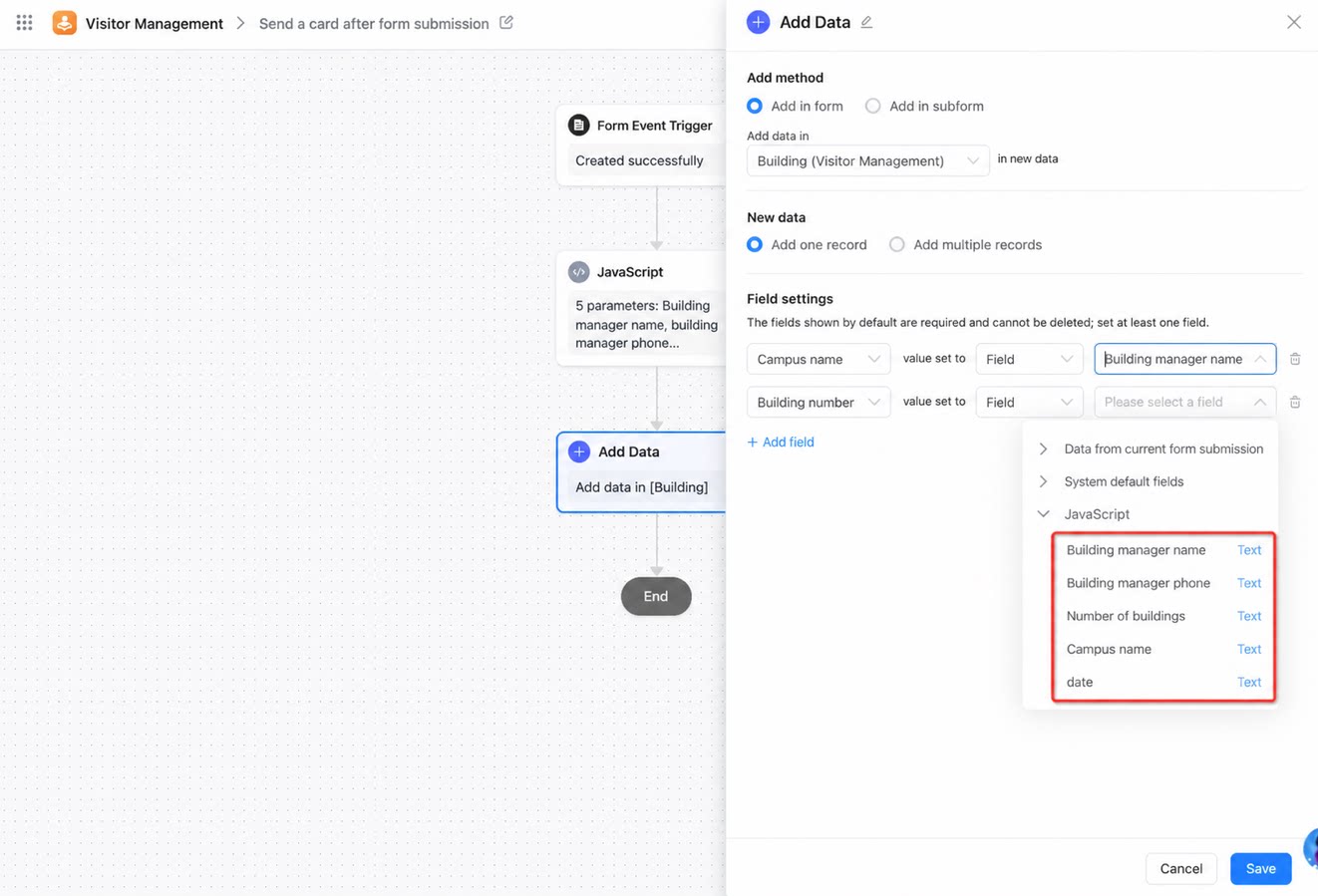
Considerations
- The new script node replaces the previous Groovy node and appeals to a broader developer audience.
- The script node supports ES5 syntax only; ES6 and later syntax is not supported.
- Batch update node processing is not yet supported.
- Do not process data in high-memory scenarios. Exceeding 10 MB (currently set to 10 MB on a tentative basis; YiDA will adjust this based on real-world conditions) triggers a memory limit error. If CPU usage exceeds 5 seconds (for example, when an infinite loop is written), the automatic protection mechanism raises an error.
- Network requests via xhr and fetch are not supported, and top-level objects and functions such as window, console, and print are also unavailable.
- Defining functions inside code blocks is supported.
- Do not add return statements outside of functions.