Chats
Chats Calendar
 Meetings
 Contacts
 Mail
Mail Docs
Docs Drive
Drive AI Table
 AI Minutes
 Attendance
 Approval
 YiDA
YiDA Admin Console
1. Use Case
As one of DingTalk’s collaborative office products, DingTalk Drive is the foundation for organization file management and helps teams handle files more efficiently. Use this connector to create an organization shared space in DingTalk Drive.2. Procedure
2.1 Step 1: Design the Form
Create a regular form to capture the data required by the DingTalk Drive connector. Procedure:- Create a regular form and name it “Create space”.
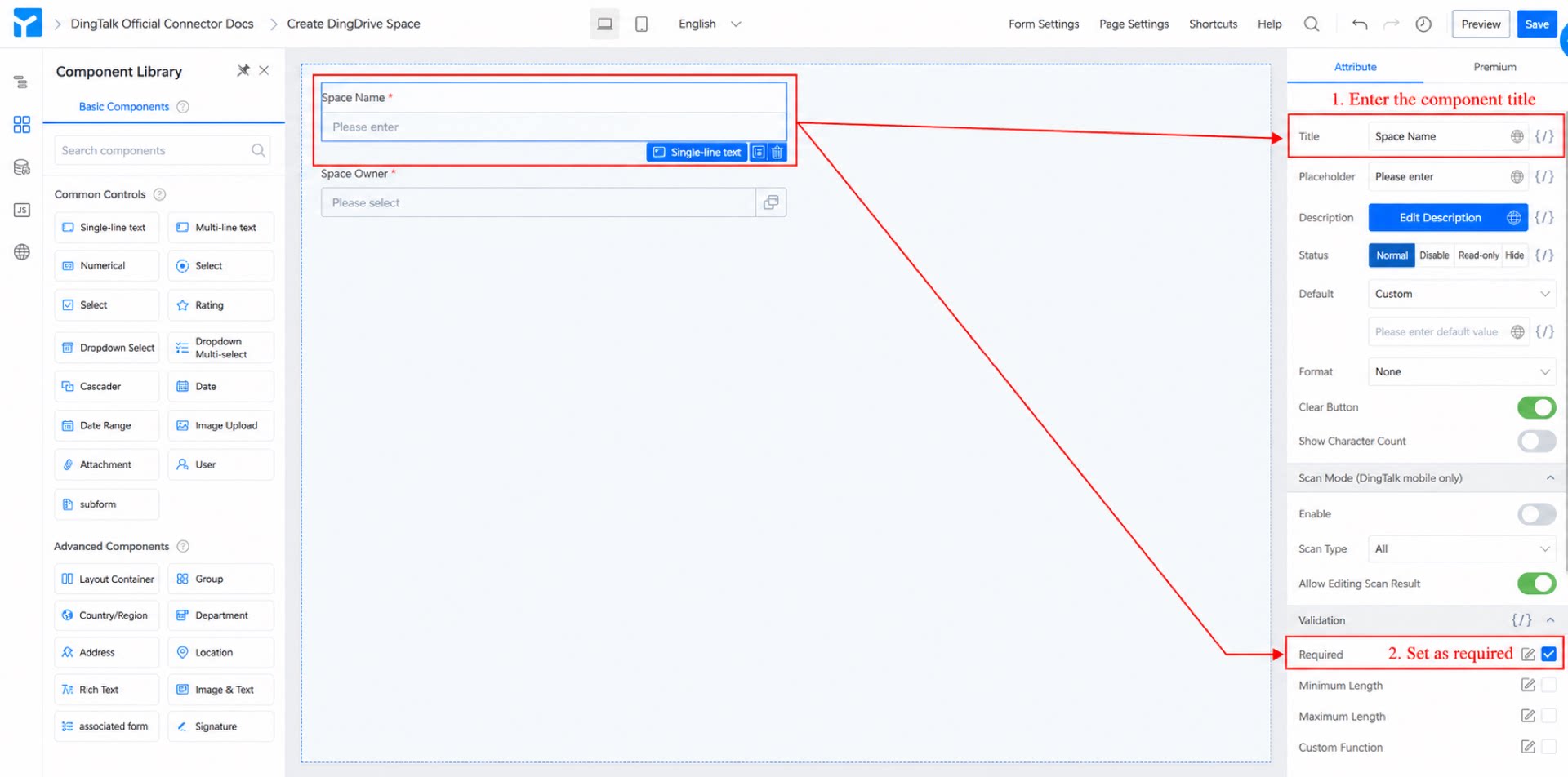
- Add a Single-line text component, name it “Space name”, and set it as Required.
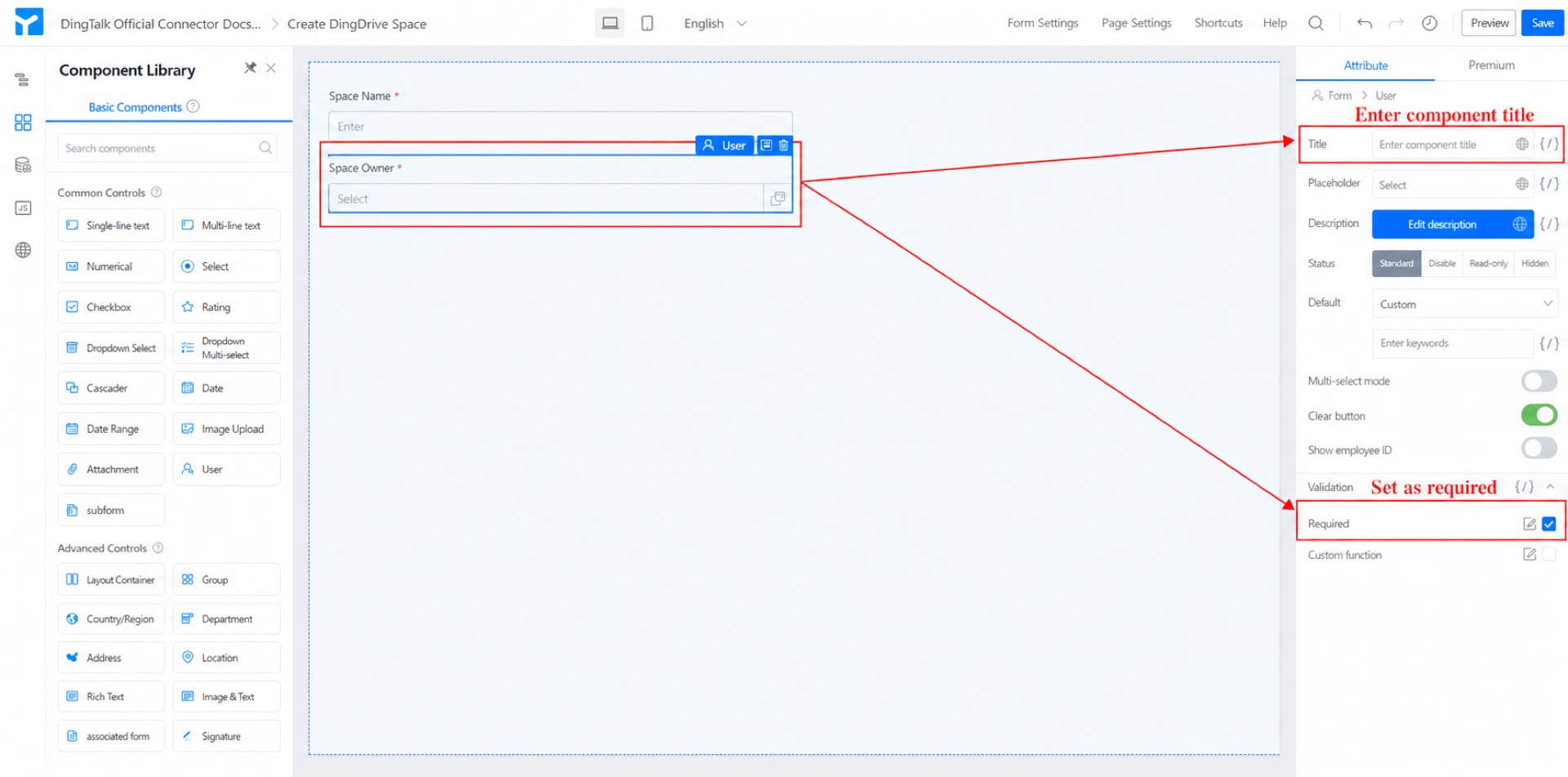
- Add a member component, name it “Space owner”, and set it as Required.
- Click Save in the top-right corner of the page.
2.2 Step 2: Configure the Connector
For a detailed introduction to YiDA connectors, see Introduction to Integration & Automation. Create and configure a connector to integrate data between the YiDA app and DingTalk Drive. Procedure: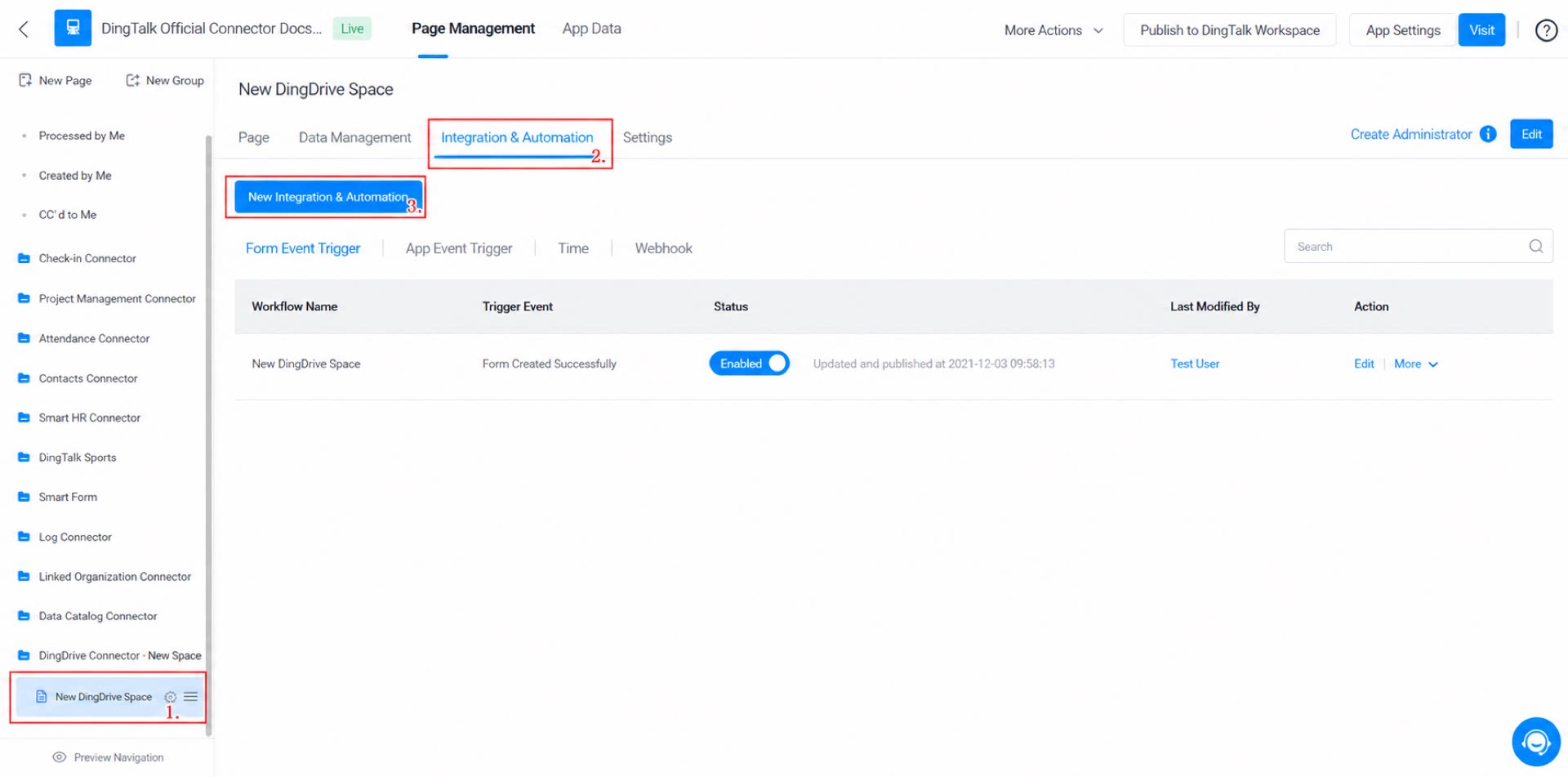
- On the admin page, go to the “Create space” form > Integration & Automation > Create Integration & Automation.
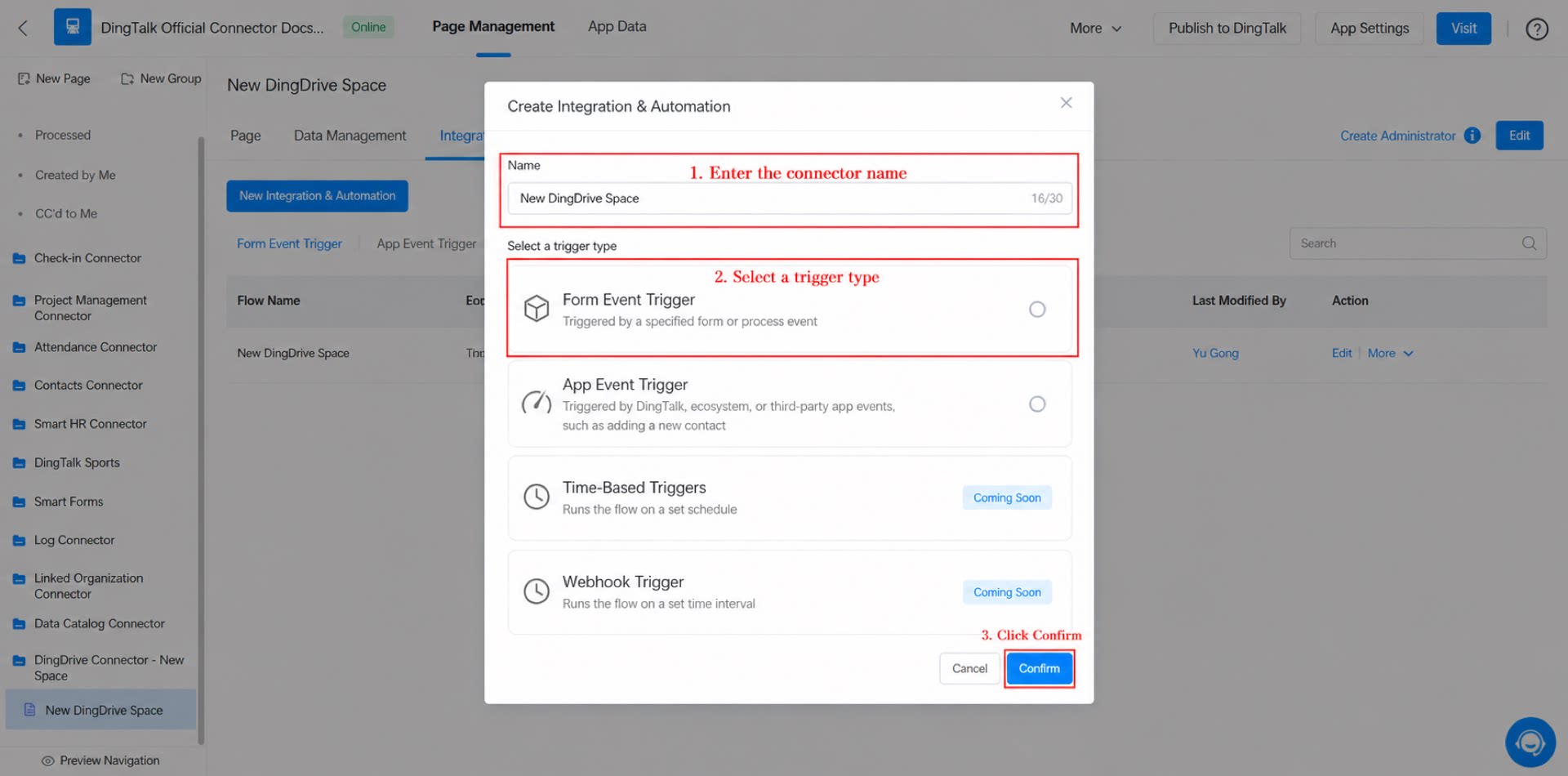
- Name the connector “Create space”, set Trigger type to Form event trigger, and click Save.
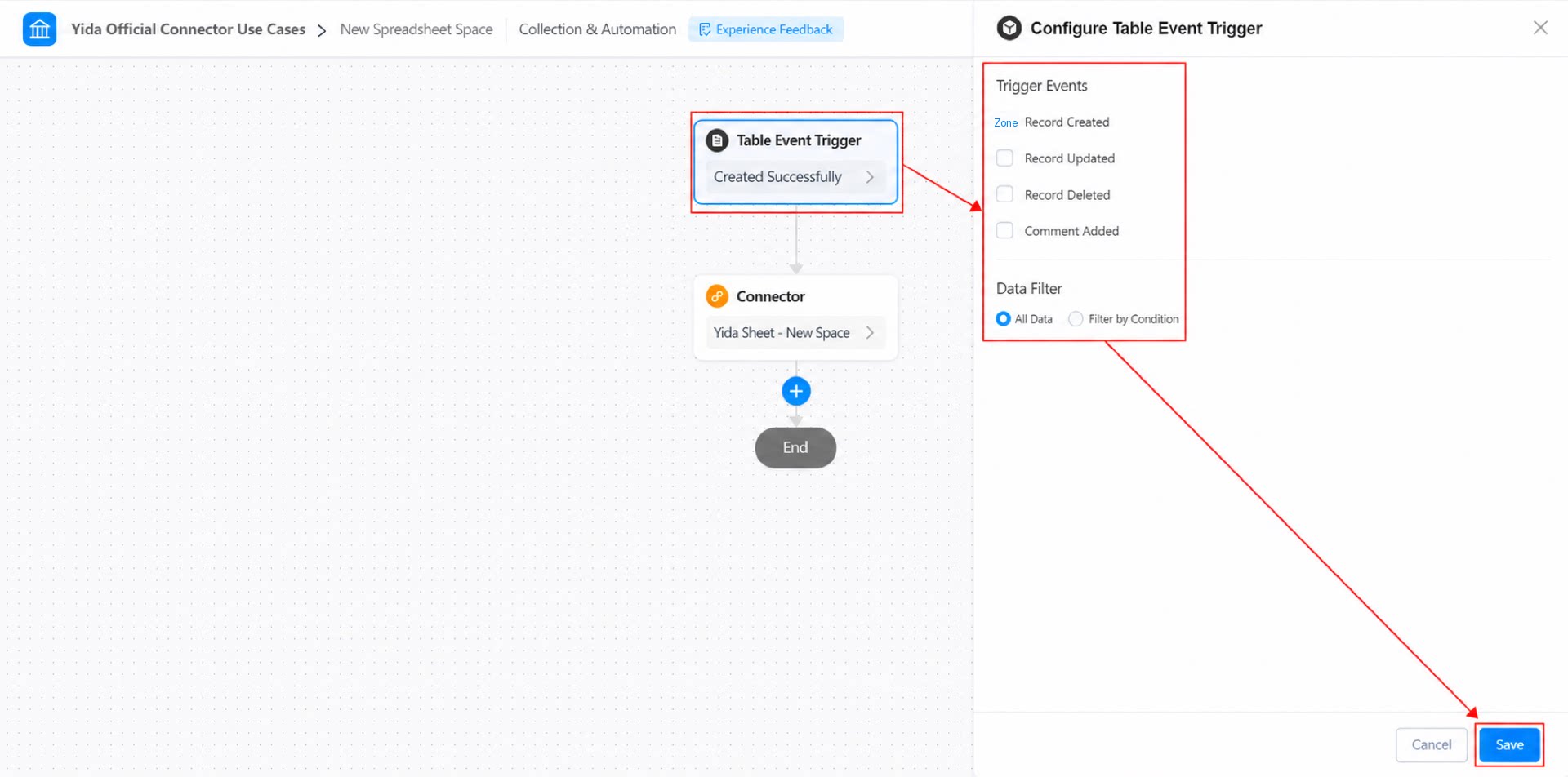
- Configure the form event trigger: set the trigger event to Create success, set data filtering to All data, and click Save.
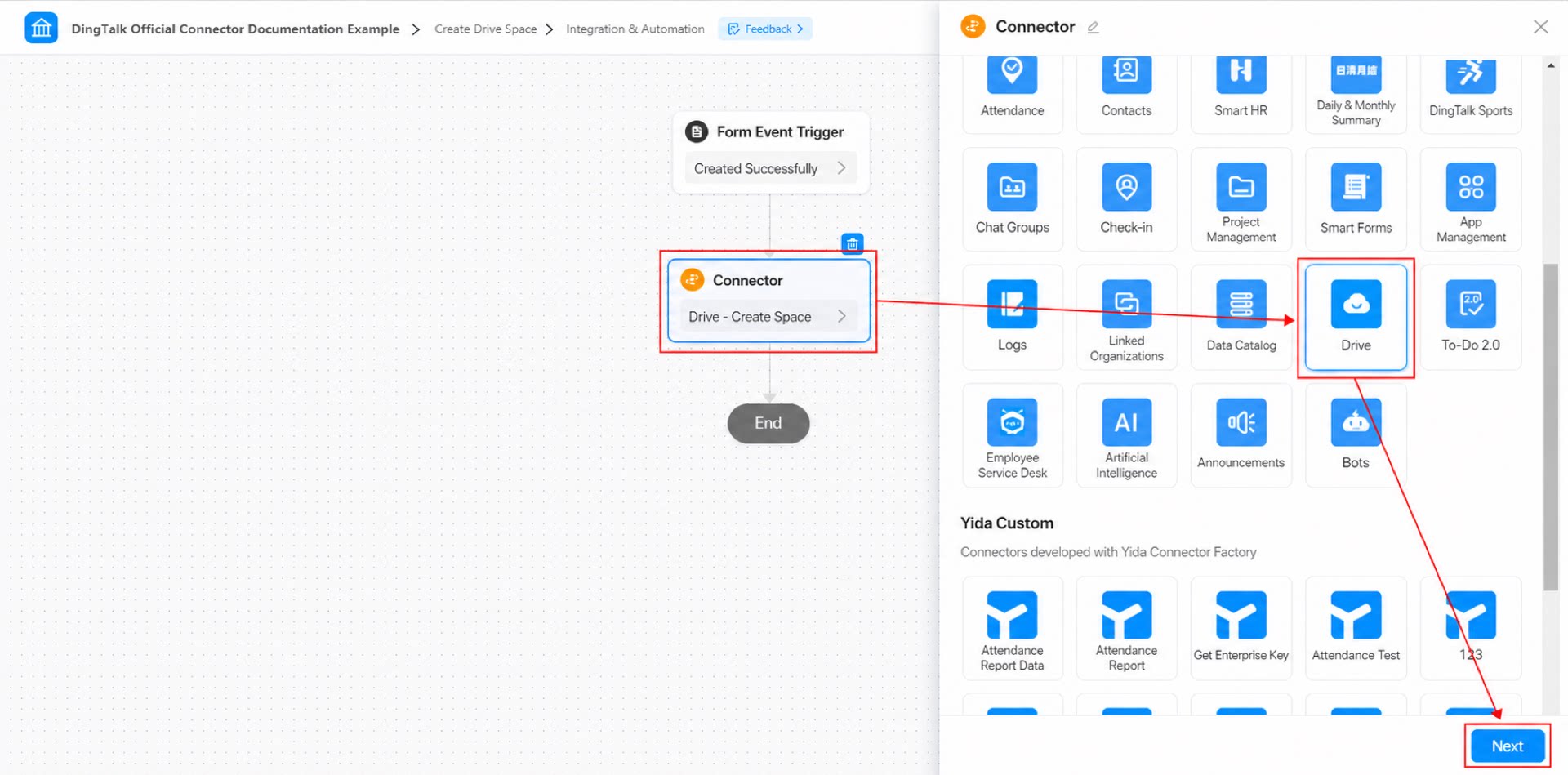
- Select the connector app: choose the DingTalk Drive app and click Next.
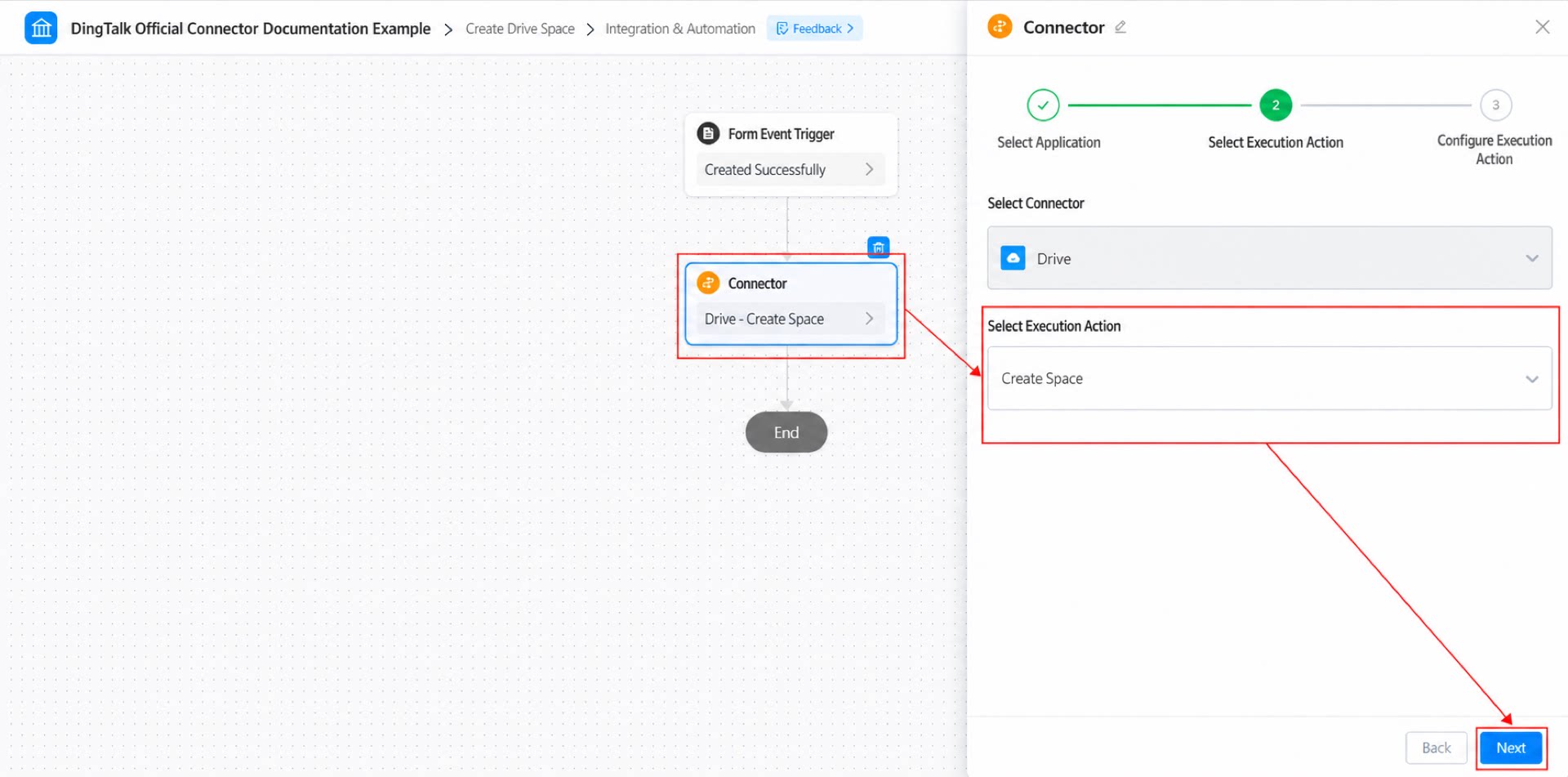
- Select the connector action: choose the Create space action and click Next.
- Configure the connector action and click Save.
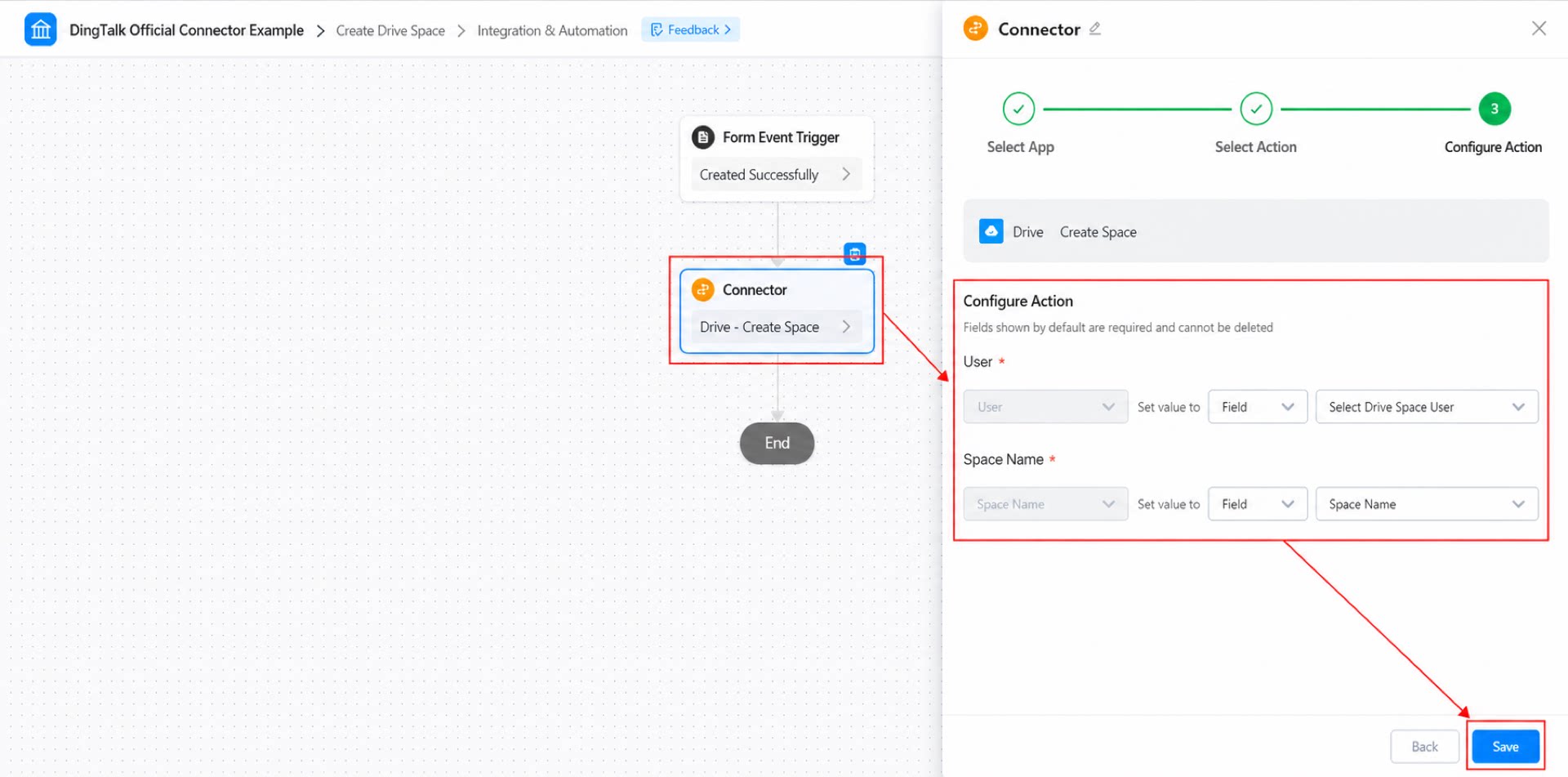
- Click Save in the top-right corner of the page, then click Publish.
2.3 Step 3: Submit the Form
Fill in and submit the “Create space” form to trigger the connector and create the space in DingTalk Drive.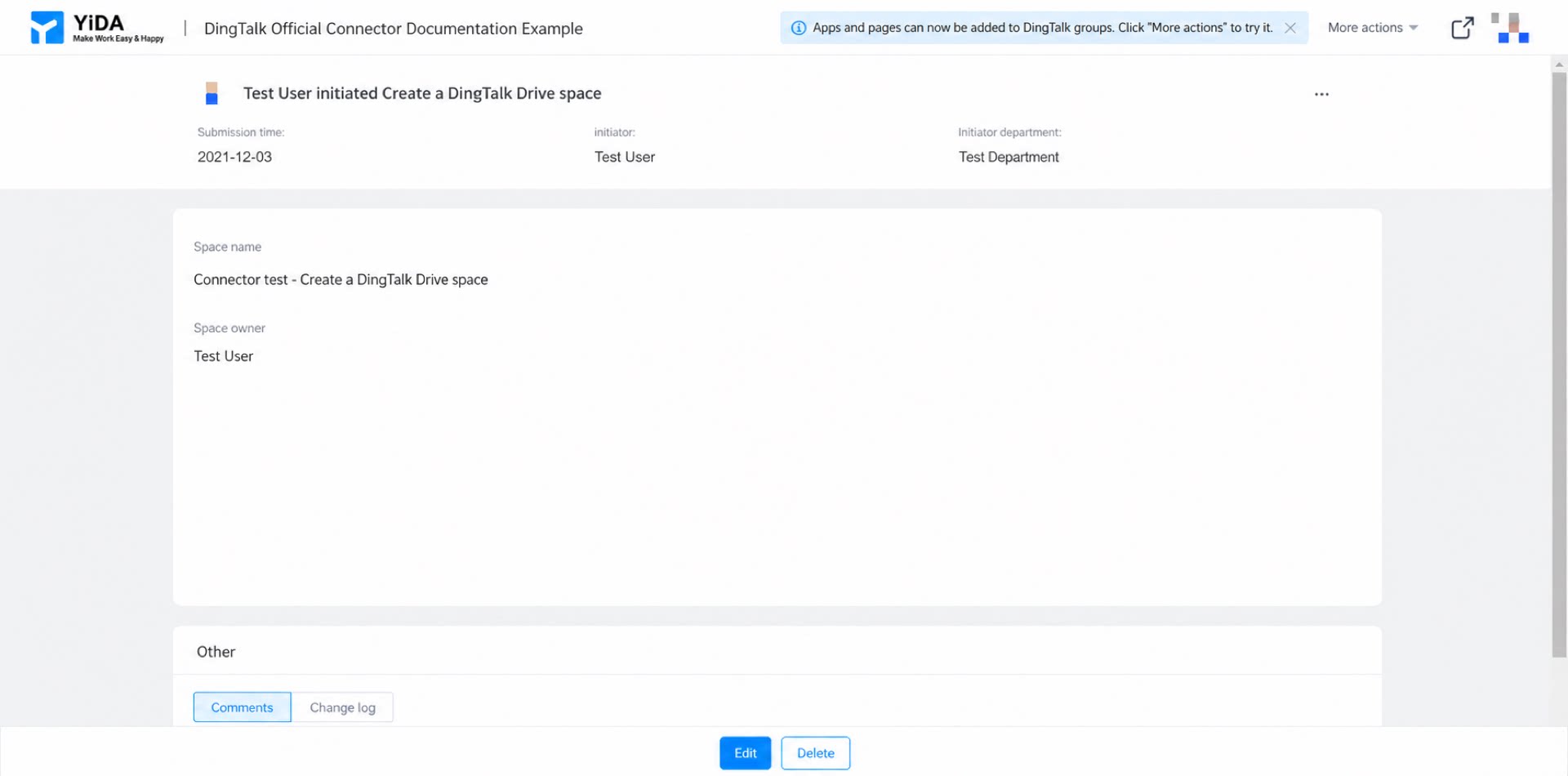
3. Result
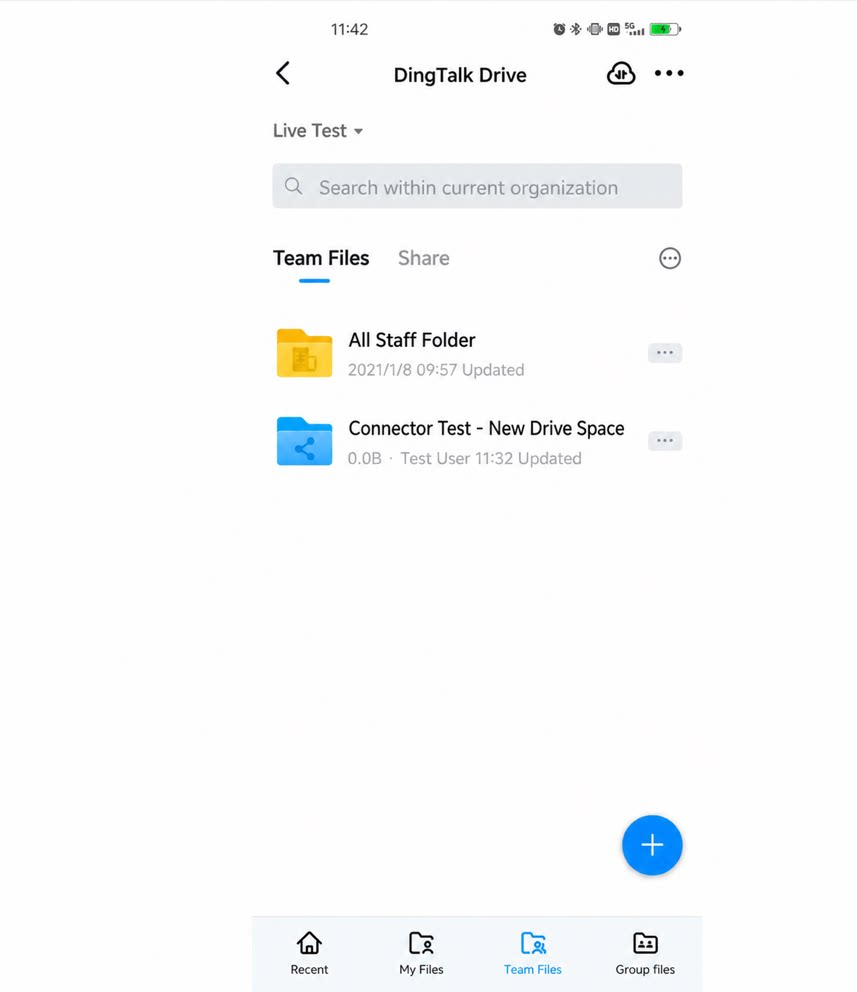
View path:- Desktop: DingTalk Drive > Team Files
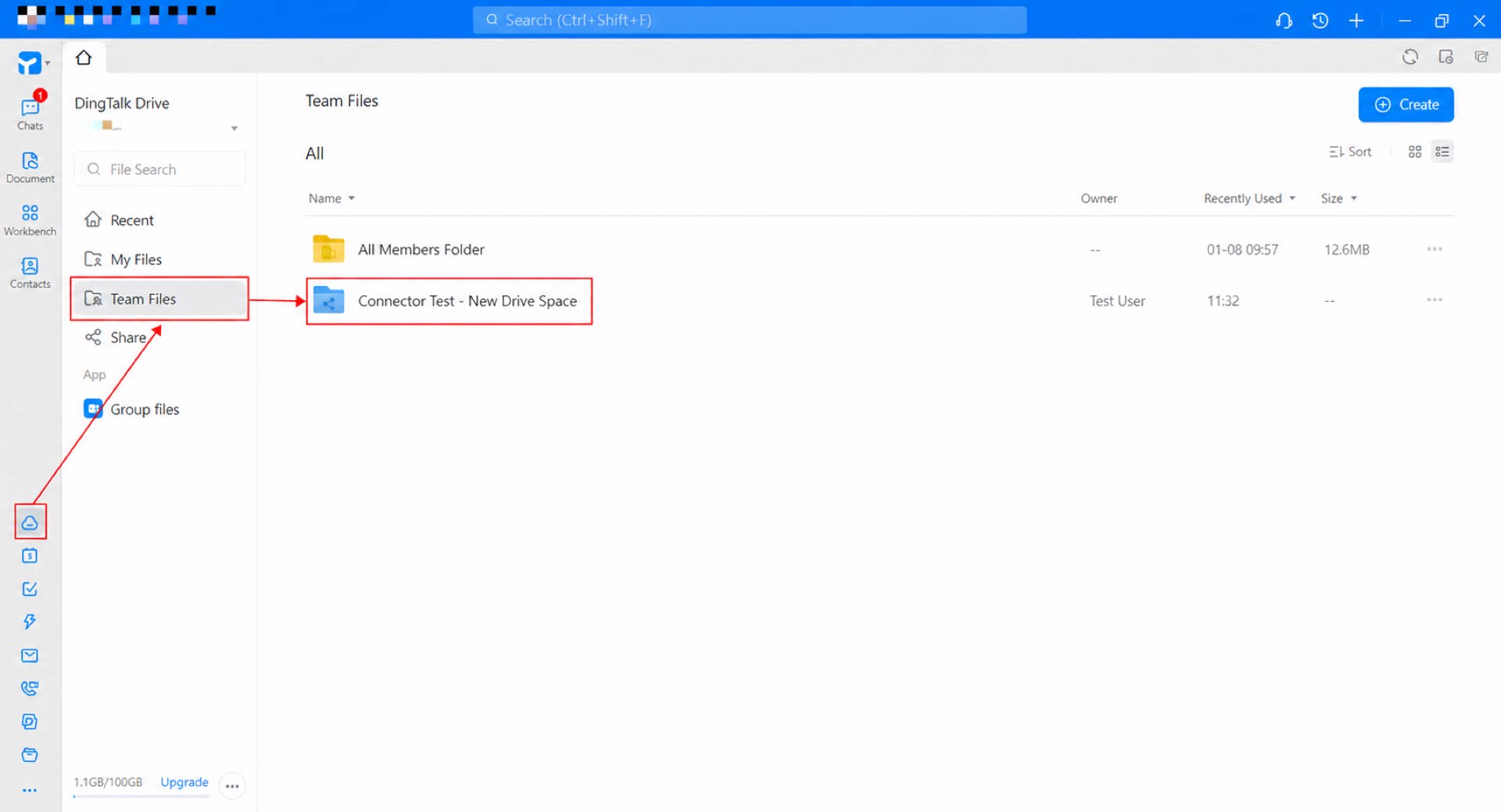
- Mobile: Workbench > Drive > Team Files