

 Chats
Chats Calendar
 Meetings
 Contacts
 Mail
Mail Docs
Docs Drive
Drive AI Table
 AI Minutes
 Attendance
 Approval
 YiDA
YiDA Admin Console
Steps
Follow the steps below to use an official connector in Integration & Automation or a workflow form.- Sign in to the YiDA workbench.
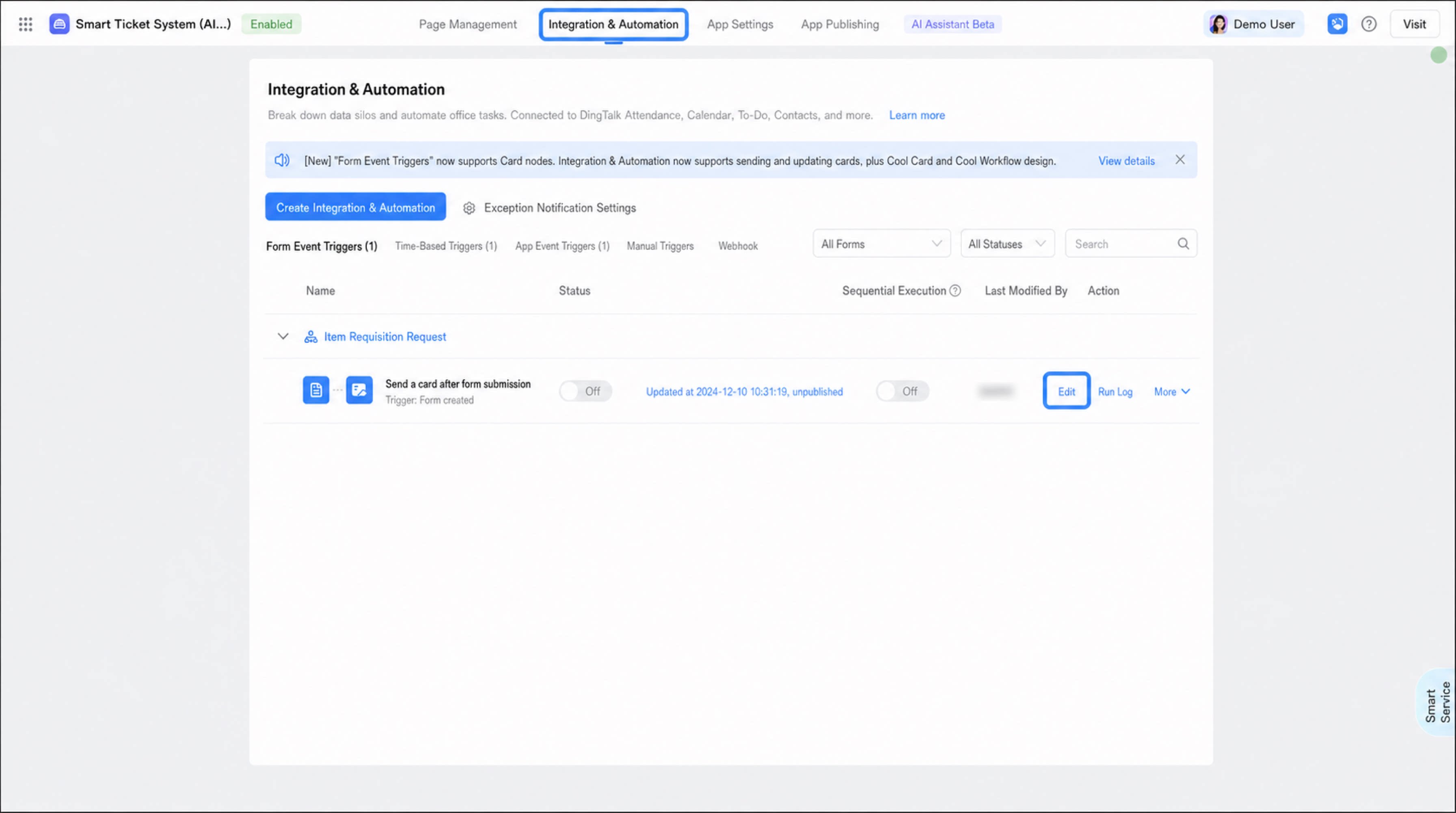
- Select the target app and go to the Integration & Automation page.
-
Select an existing integration & automation flow and click Edit.
1
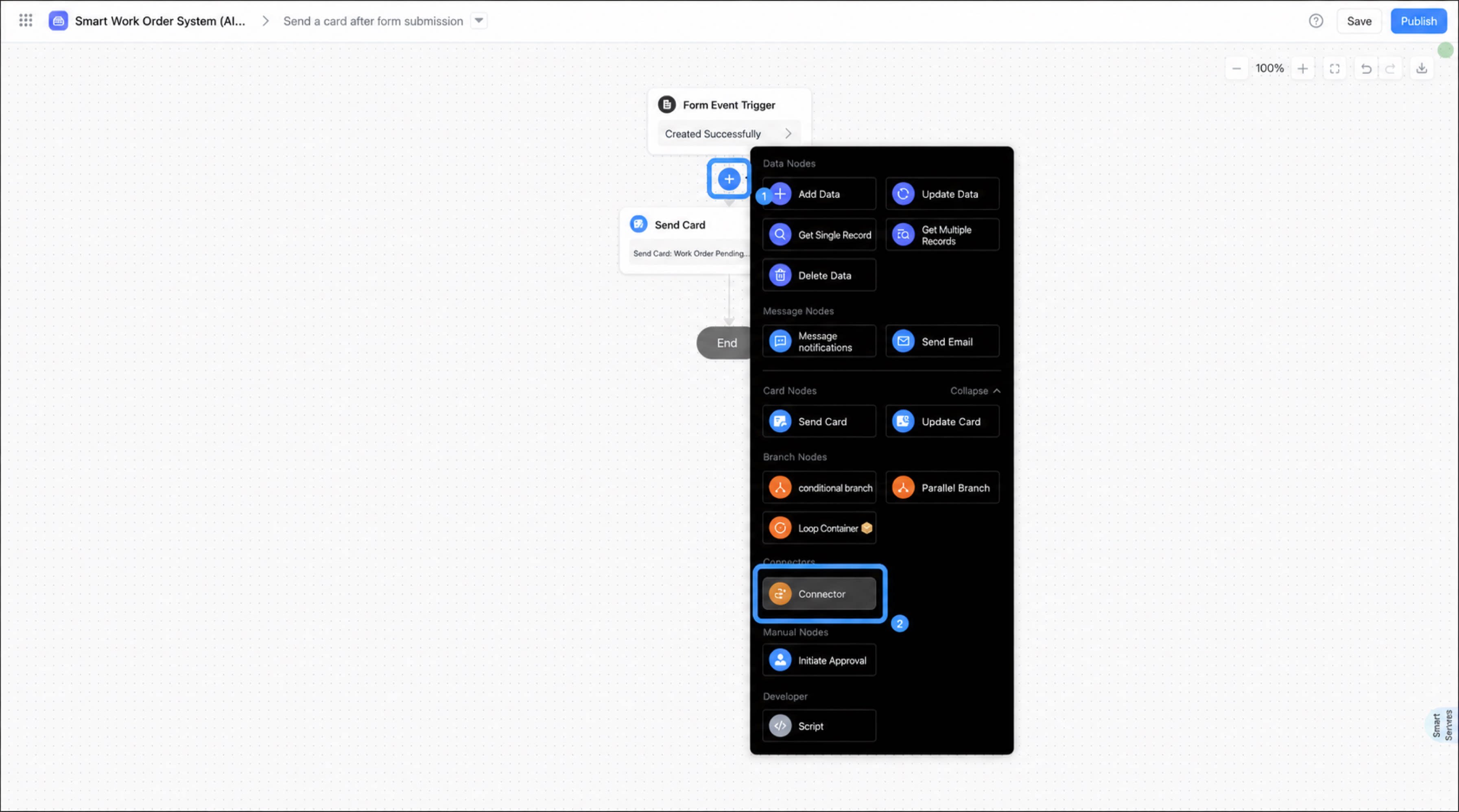
Hover over the connecting line of a Step. When the + button appears, click it and select Connector.
2
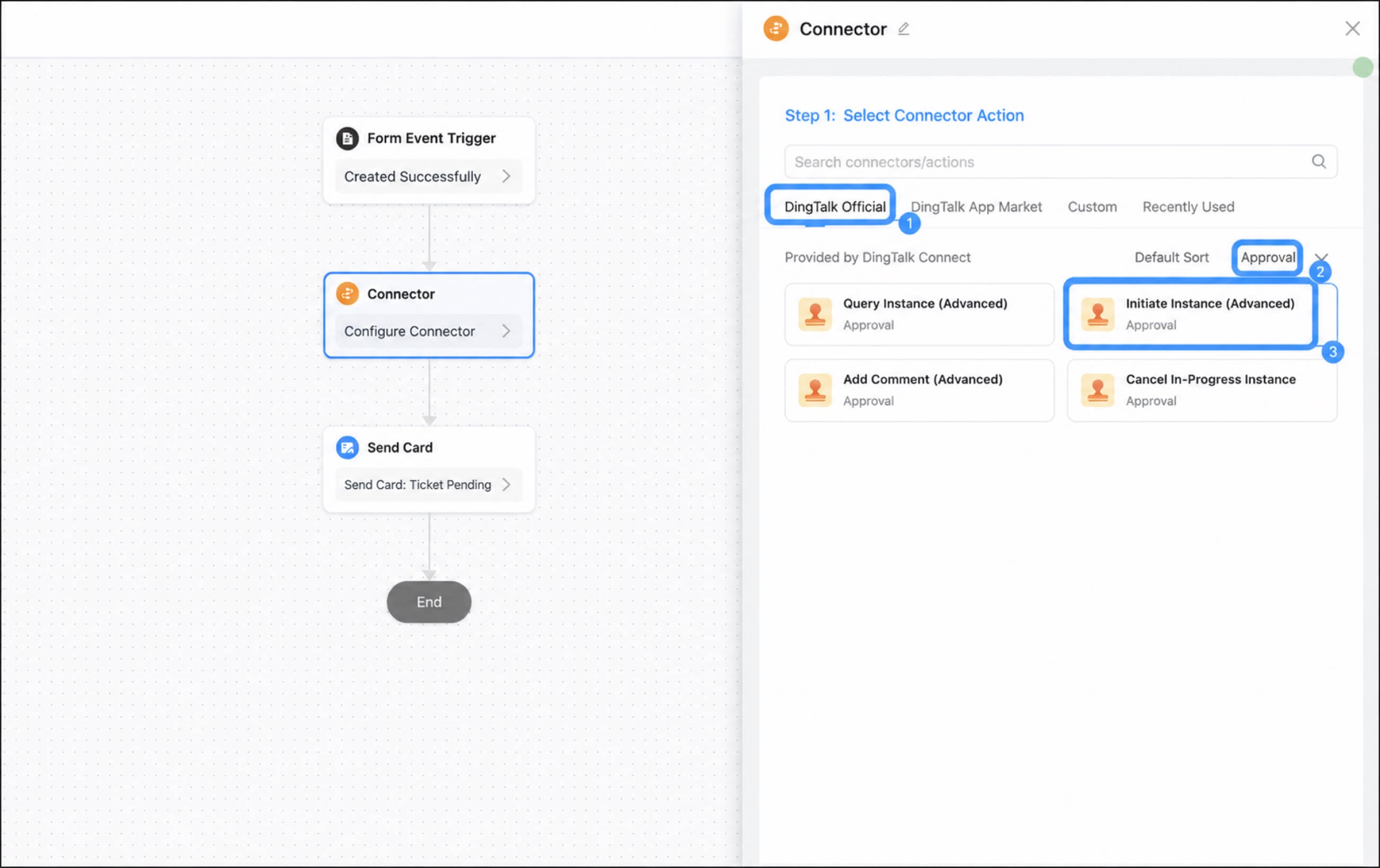
In the connector configuration panel on the right, select DingTalk Official, and then choose the connector you want to use.
- Configure the execution action for the connector.
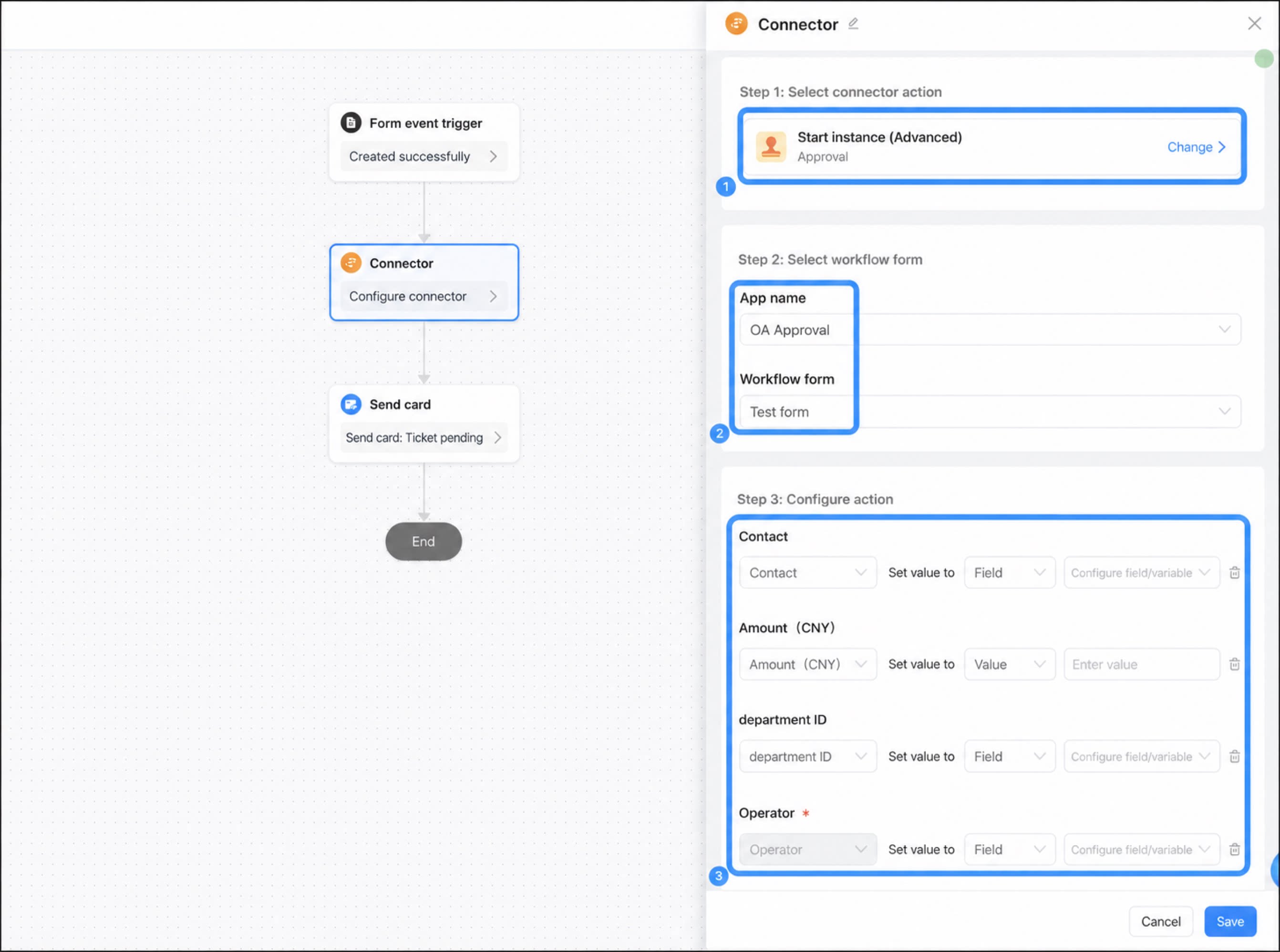
- When finished, click Save.