Chats
Chats Calendar
 Meetings
 Contacts
 Mail
Mail Docs
Docs Drive
Drive AI Table
 AI Minutes
 Attendance
 Approval
 YiDA
YiDA Admin Console
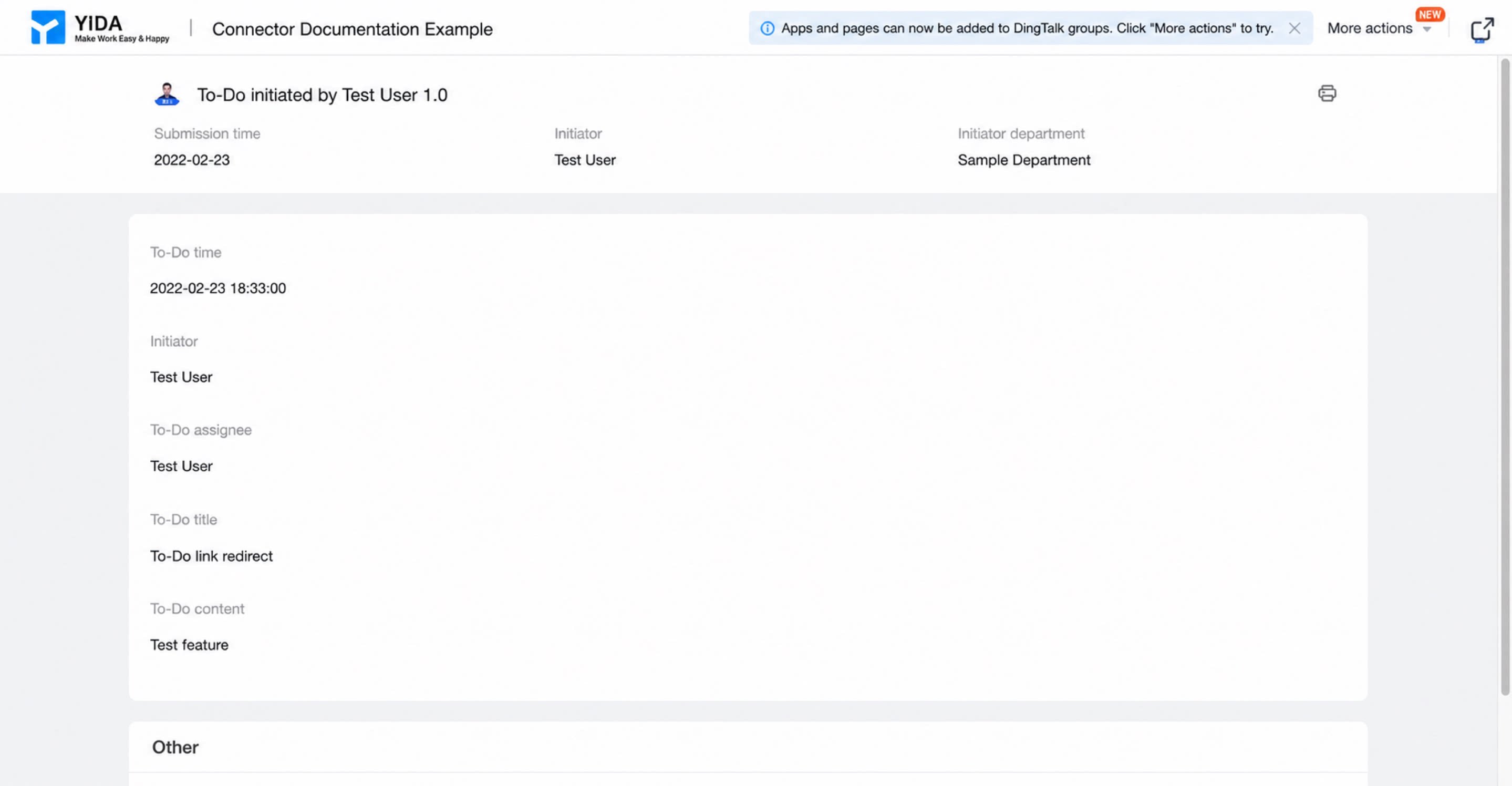
Result
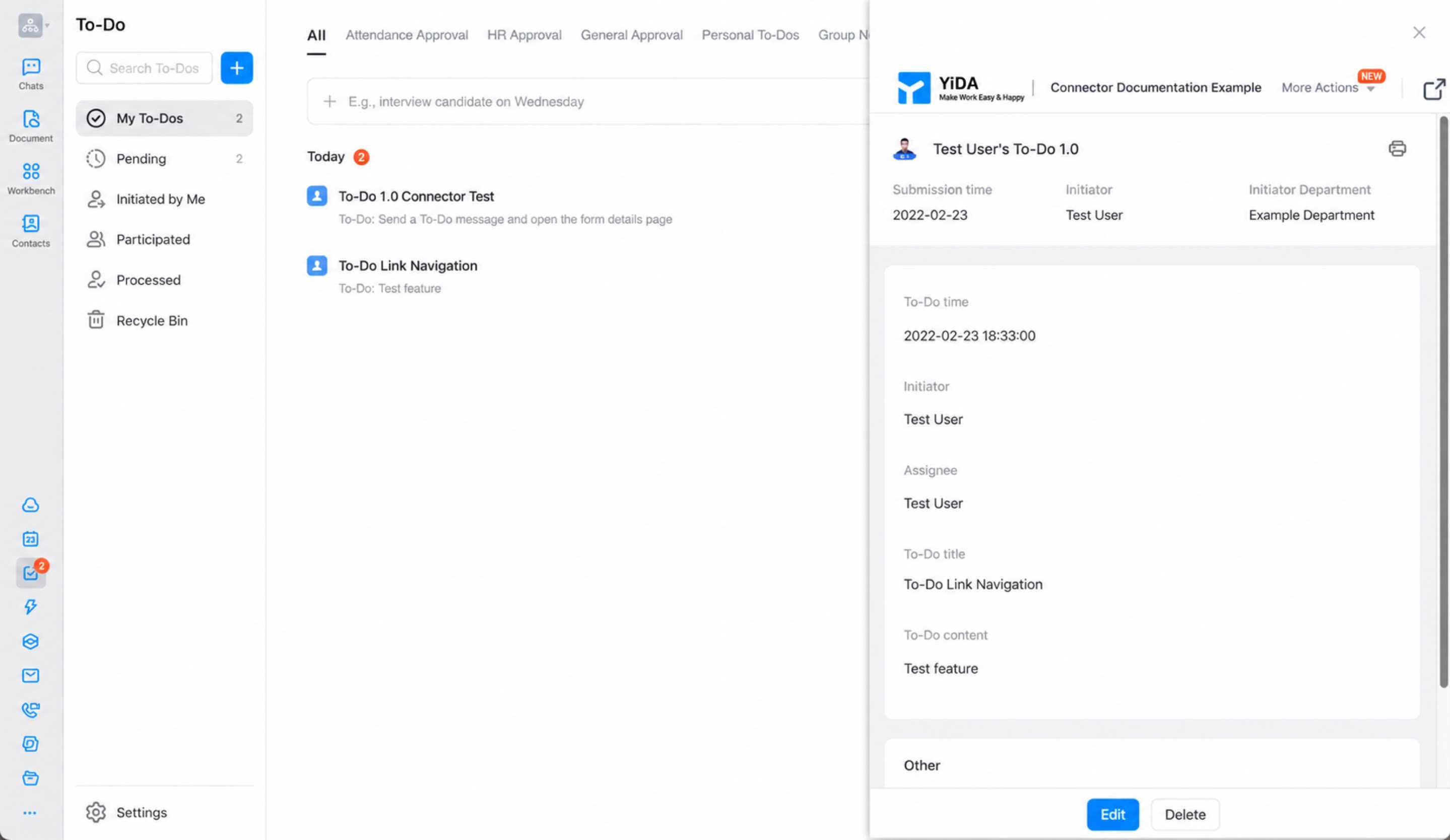
Step 1: Create and Configure the Form
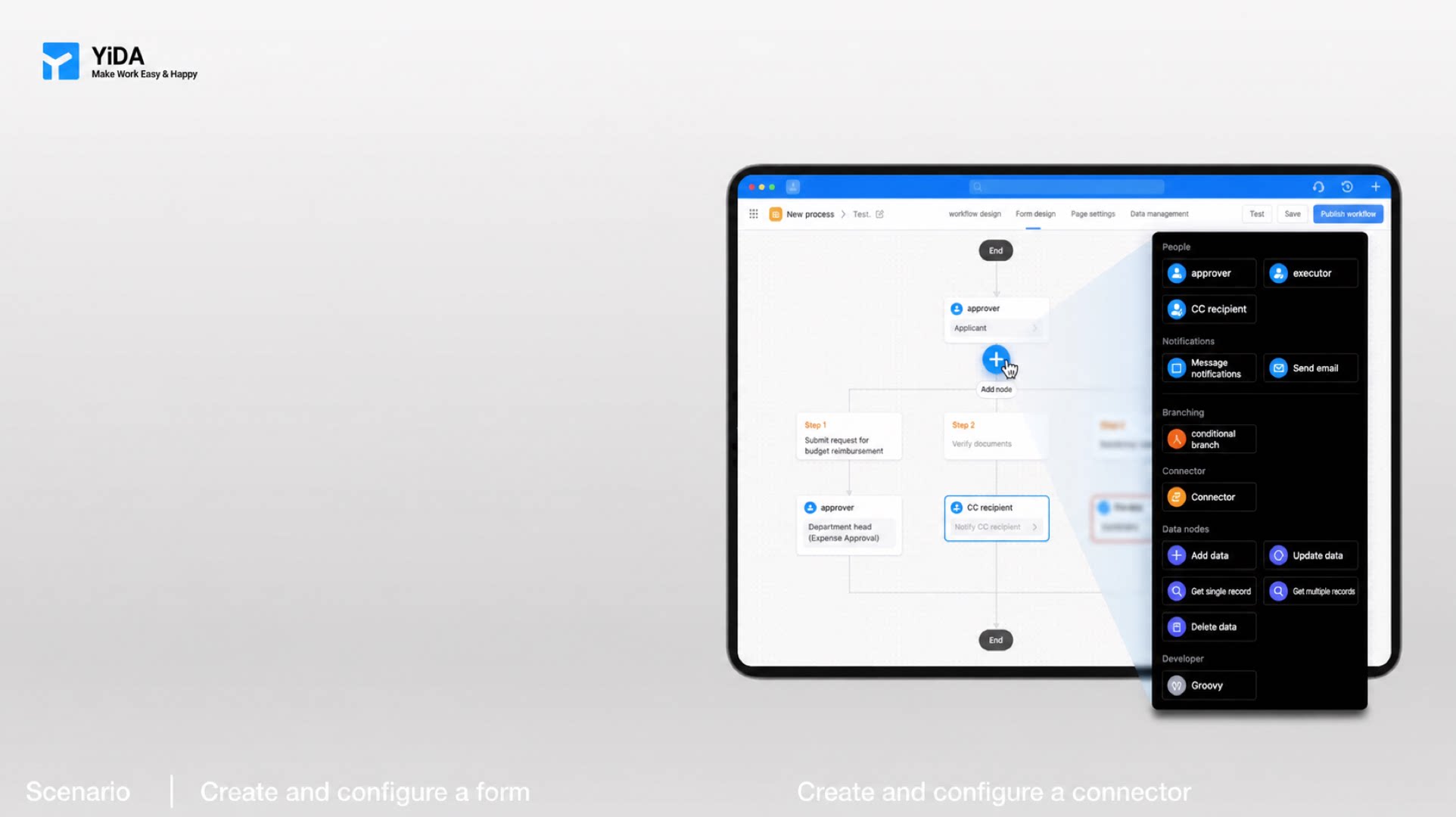 Create a form to capture To-Do message information and trigger the connector.
Steps:
Create a form to capture To-Do message information and trigger the connector.
Steps:
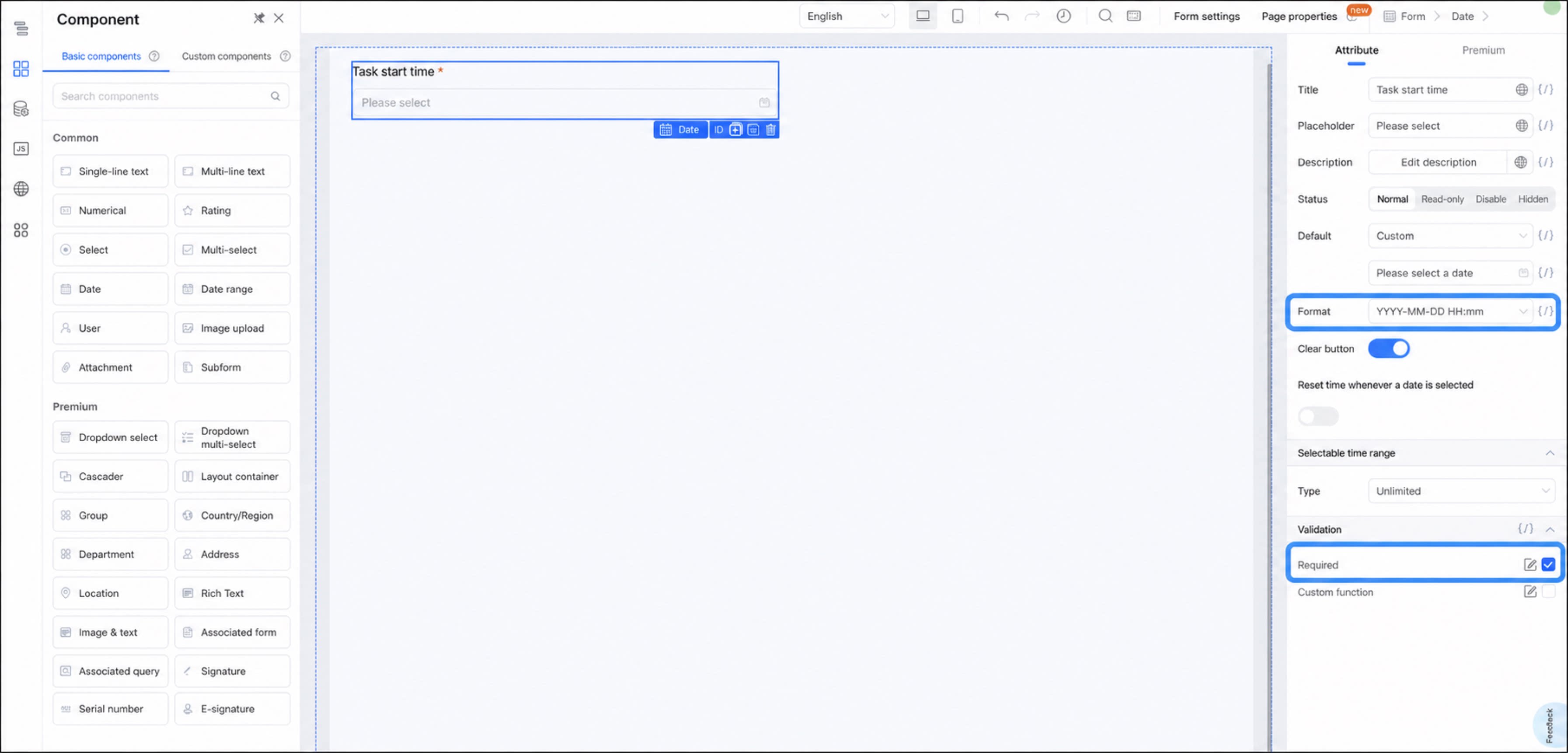
- Create a form and name it To-Do 2.0.
- Add a Date component, name it To-Do task start time, set its format to YYYY-MM-DD HH:mm, and mark it as required.
1
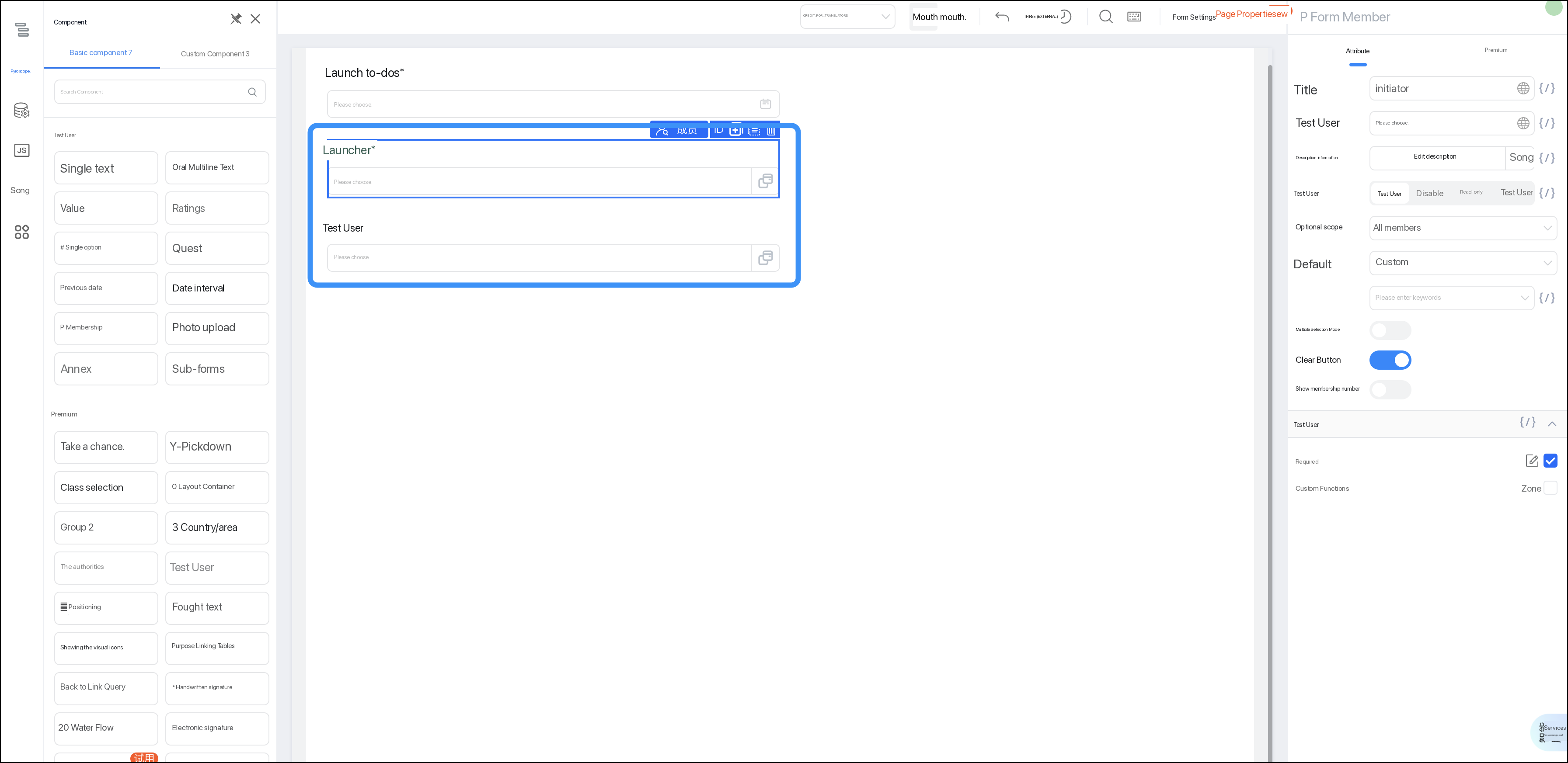
Add two member components named Initiator and Assignee, and mark them as required.
2
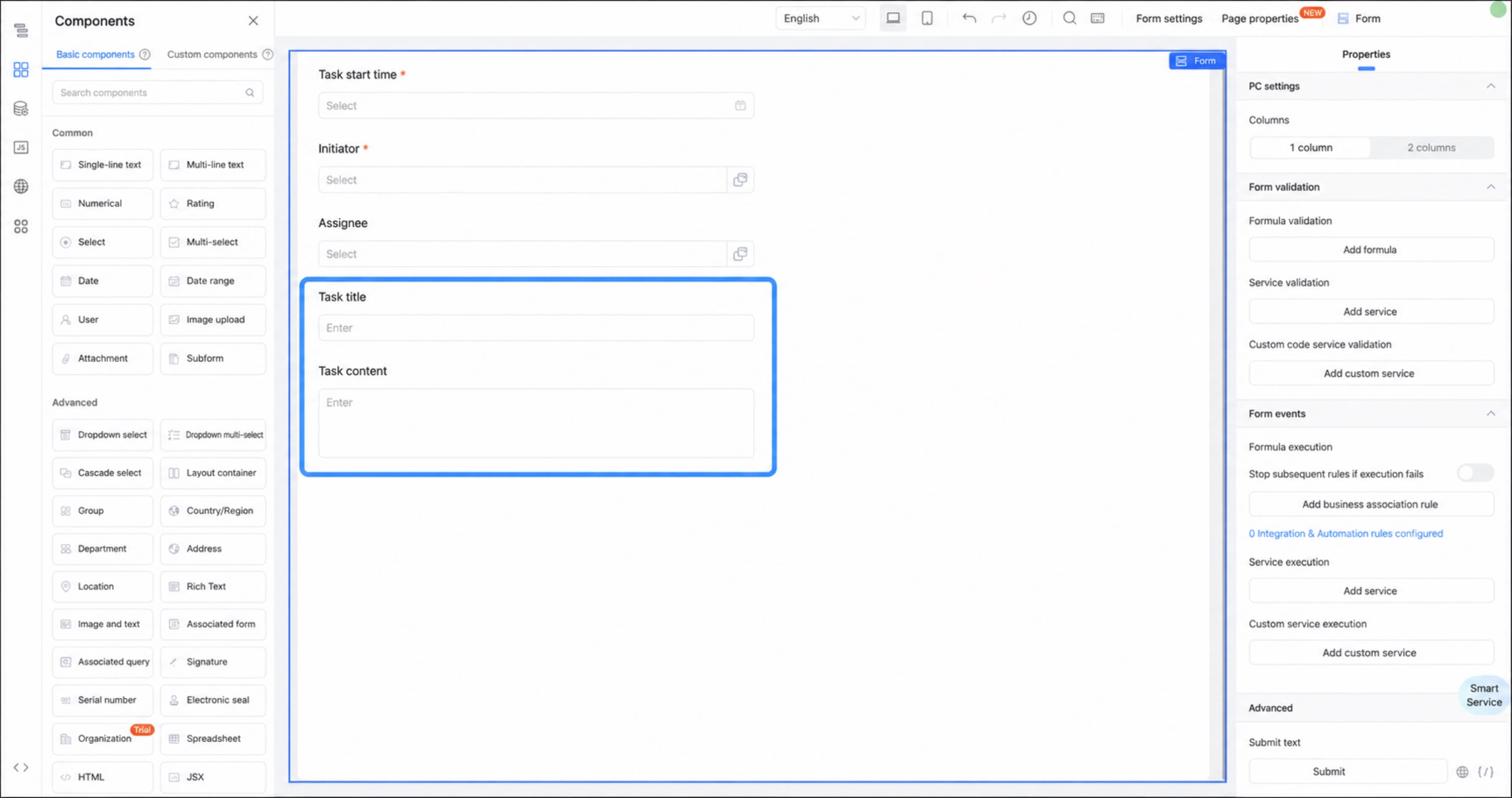
Add a Single-line text component and name it To-Do title.
3
Add a Multi-line text component, name it To-Do content, and mark it as required.
Step 2: Create an Integration & Automation Flow
1
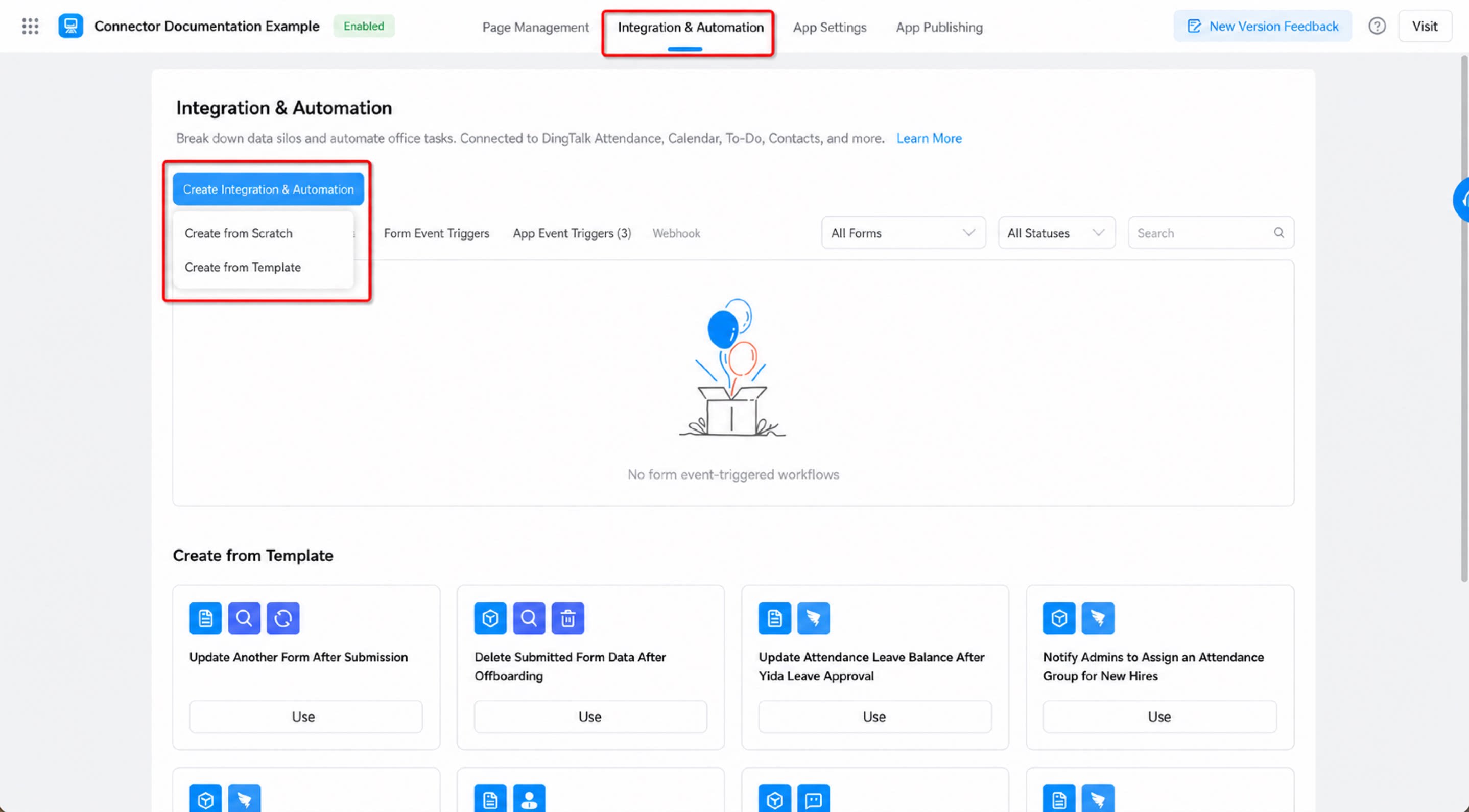
Go to App Management backend > Integration & Automation > Create Integration & Automation > Create from blank.
2
Step 2
In the Create Integration & Automation dialog, name the connector To-Do task, select the To-Do 2.0 form under the form event trigger type, and click Confirm.
Step 3: Configure the Integration & Automation Flow
- Configure the form trigger event.
1
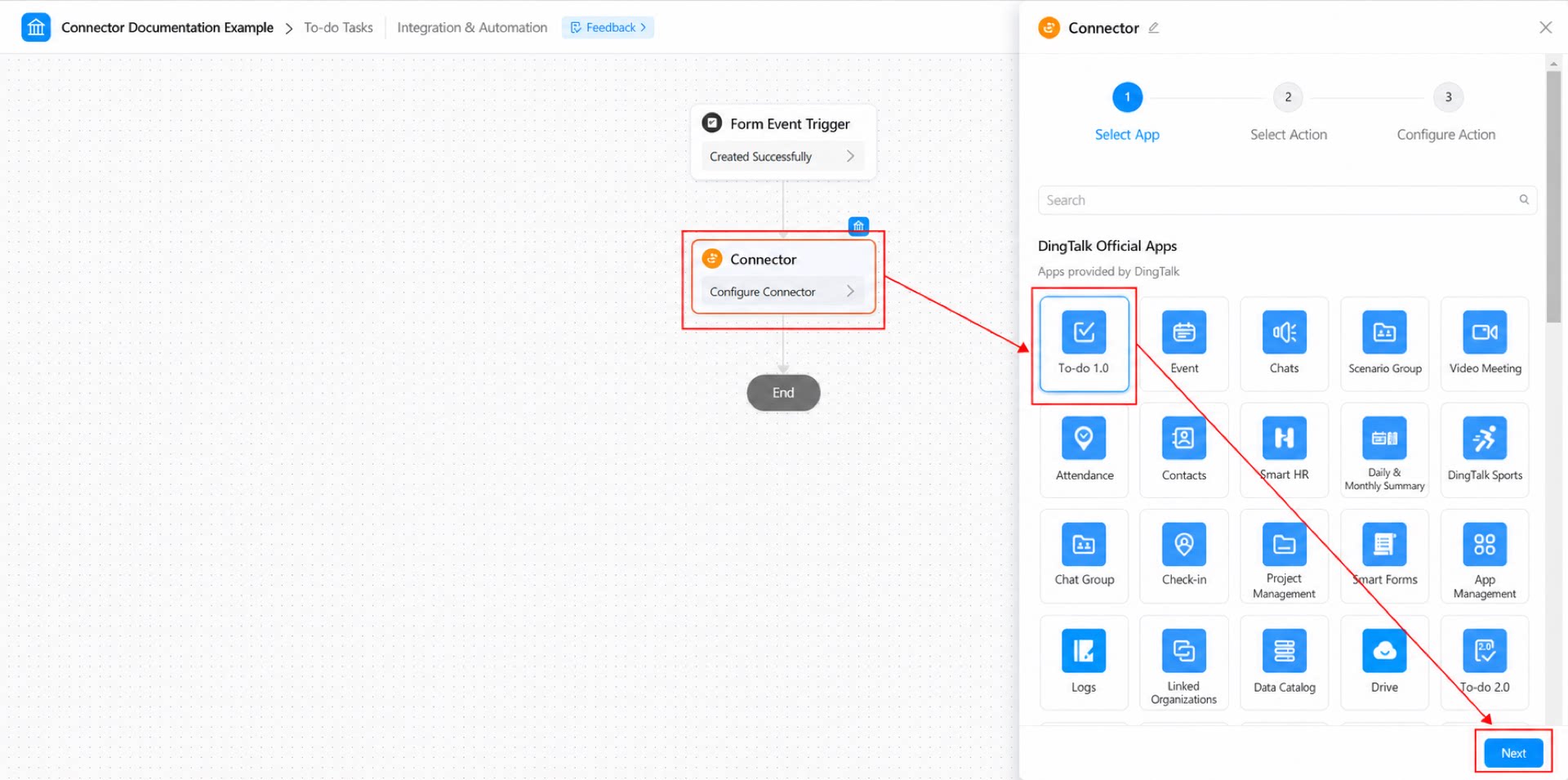
Configure the connector node. Under Select app, select DingTalk To-Do 1.0, then click Next.
2
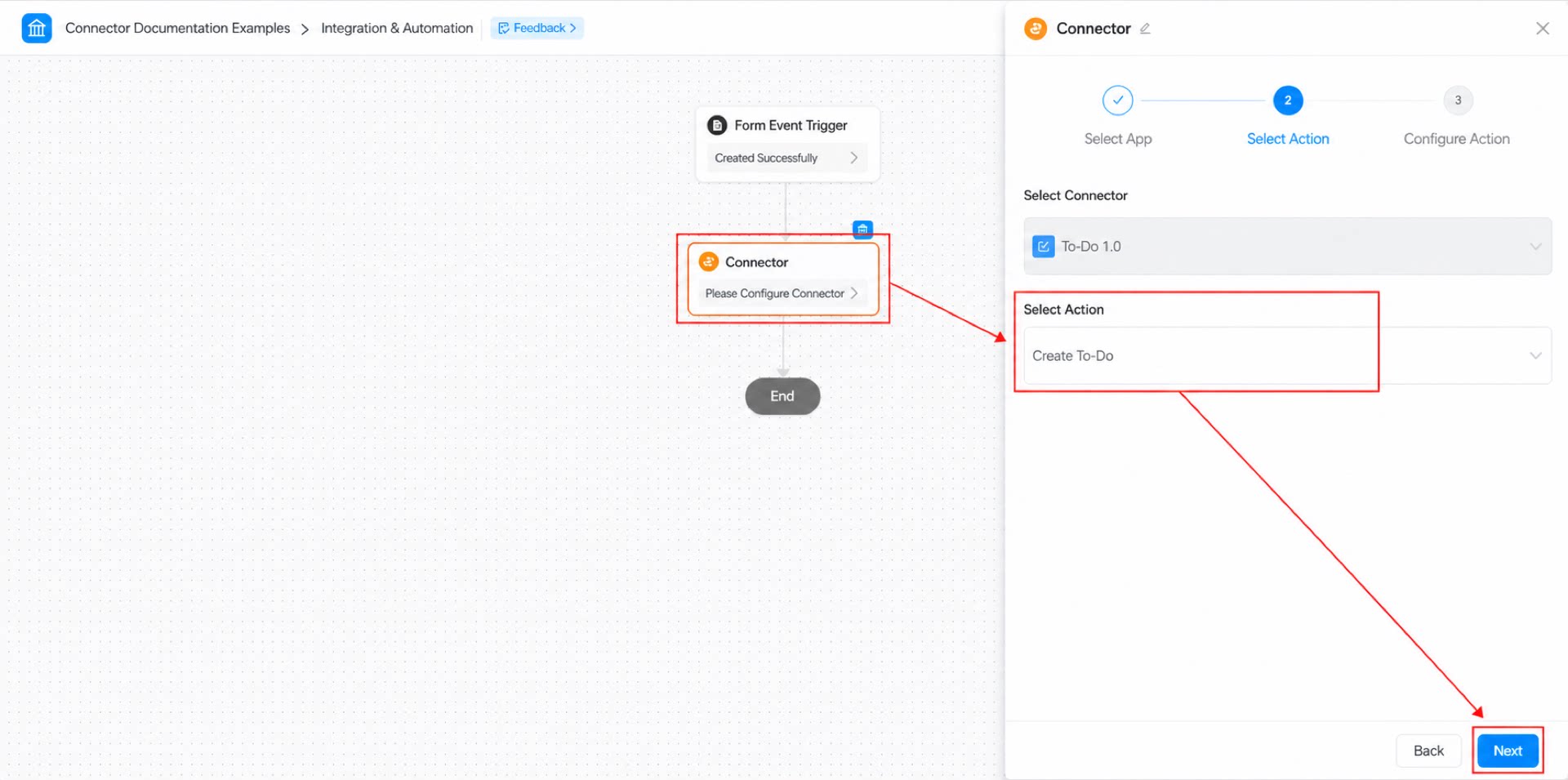
Under Select action, select the Create To-Do task action, then click Next.
3
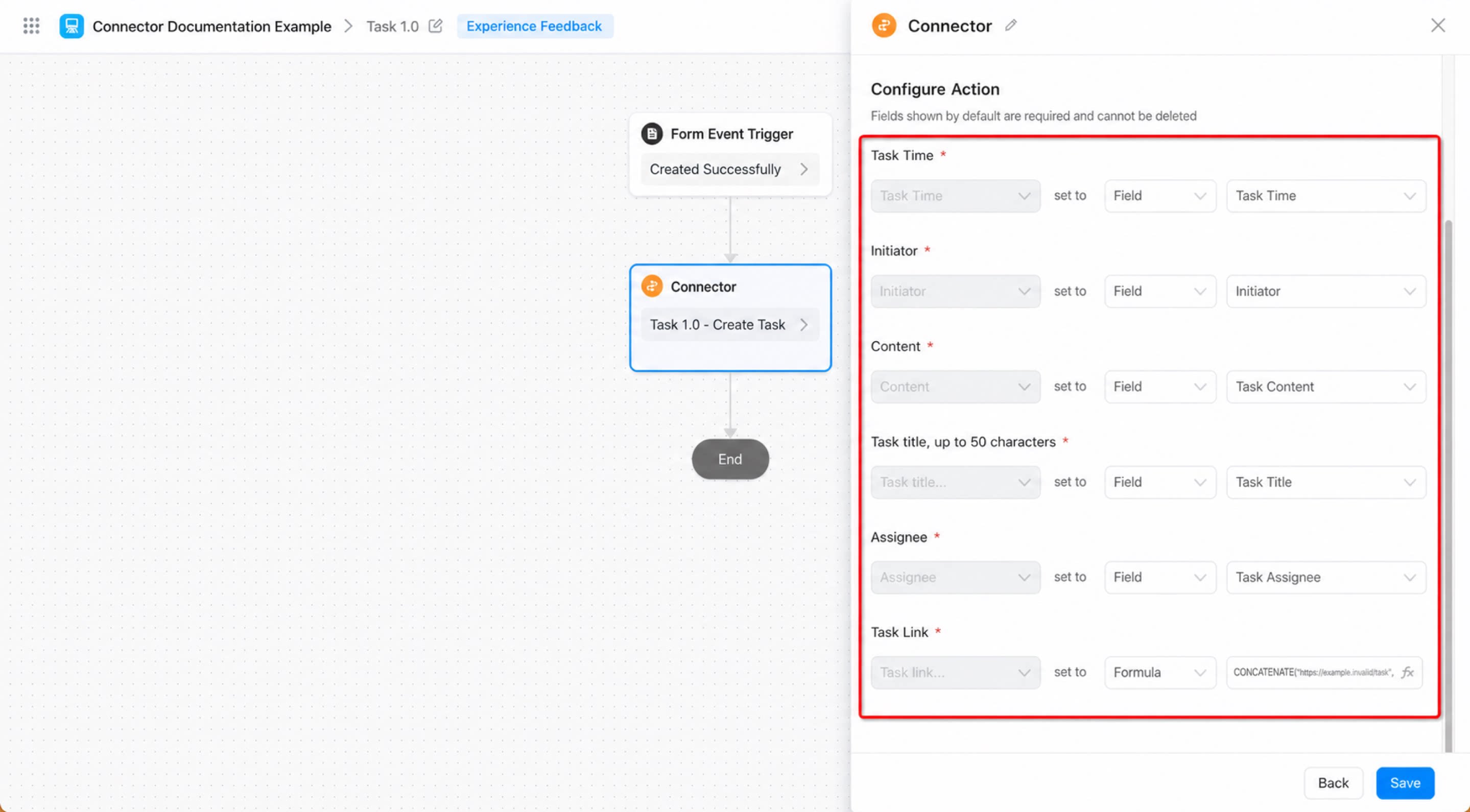
Configure each setting under Configure action, then click Save.
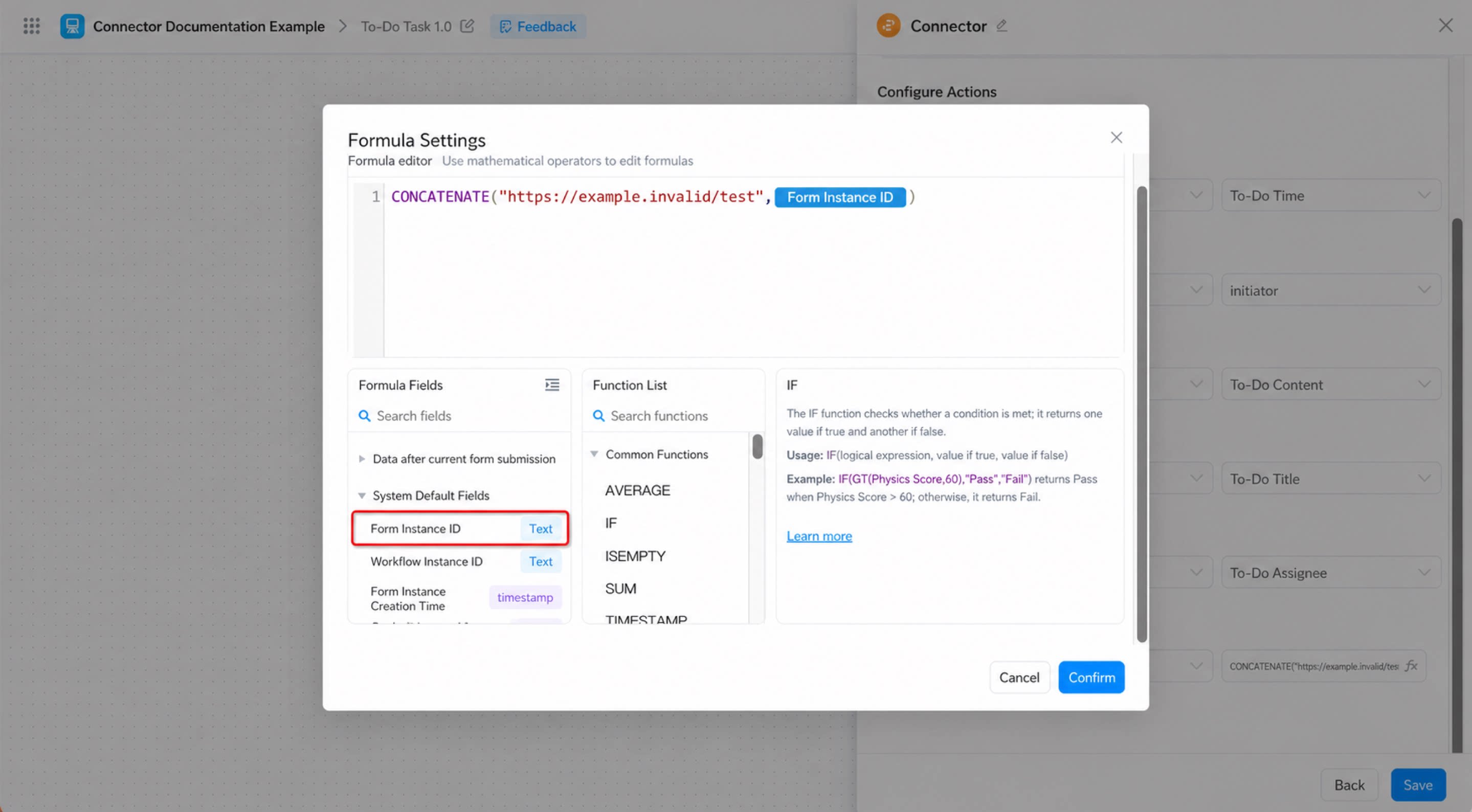
For the To-Do redirect link field in the connector action, select Formula. Configure the formula as shown below.Where: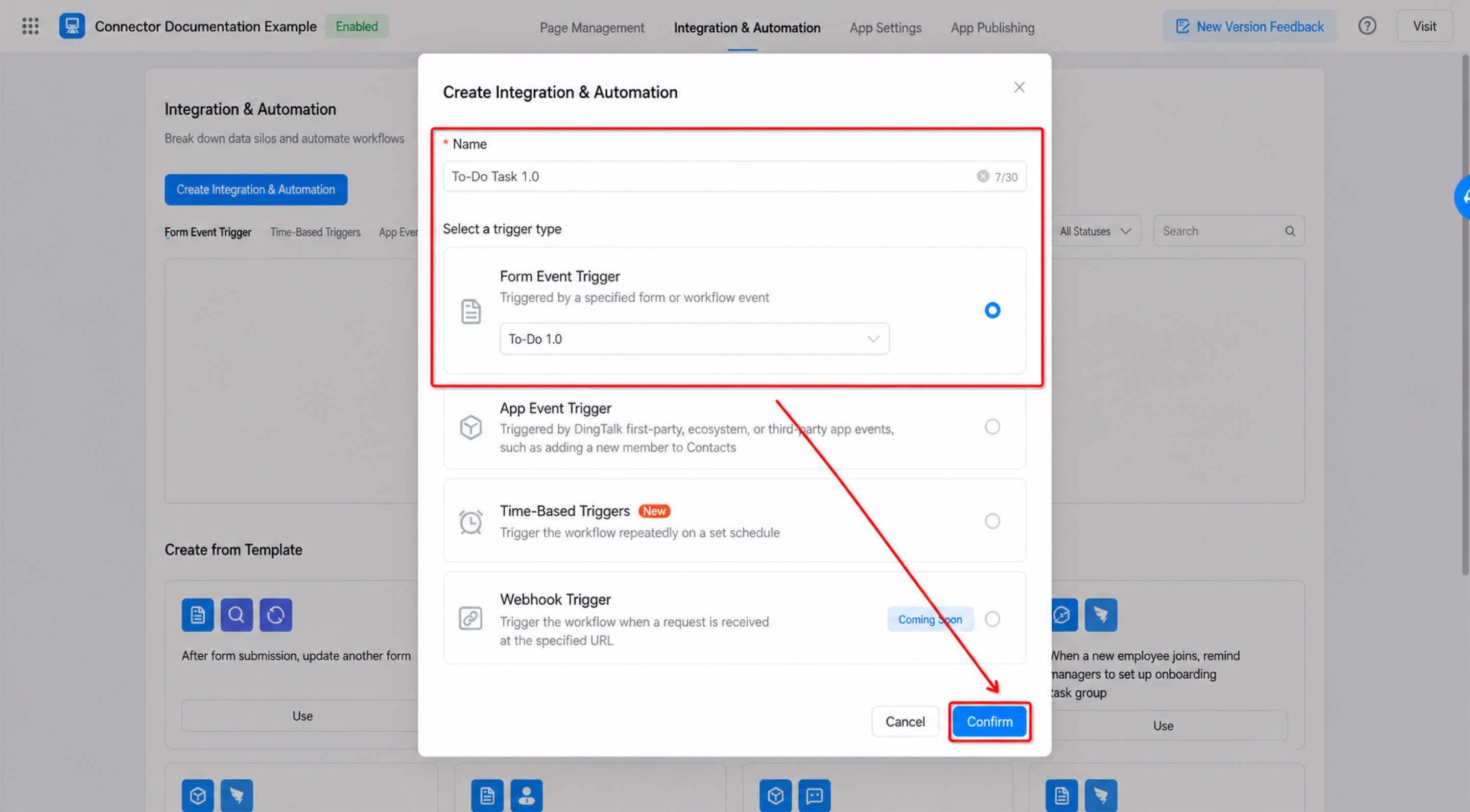
https://www.yidaapps.com/APP_YYJLRRMCI0XP4J1Y2O4W/formDetail/FORM-S2A66LA1041YXTNSW16AKYR75COY1RKAZAZZKA2?formInstId= can be copied from the details page of the current app’s form.4
Click Save at the top right of the page, then click Publish.
Step 3: Configure To-Do Task Content
Once the two steps above are complete, the feature is fully configured. Simply submit the form to trigger the connector and automatically create a To-Do task.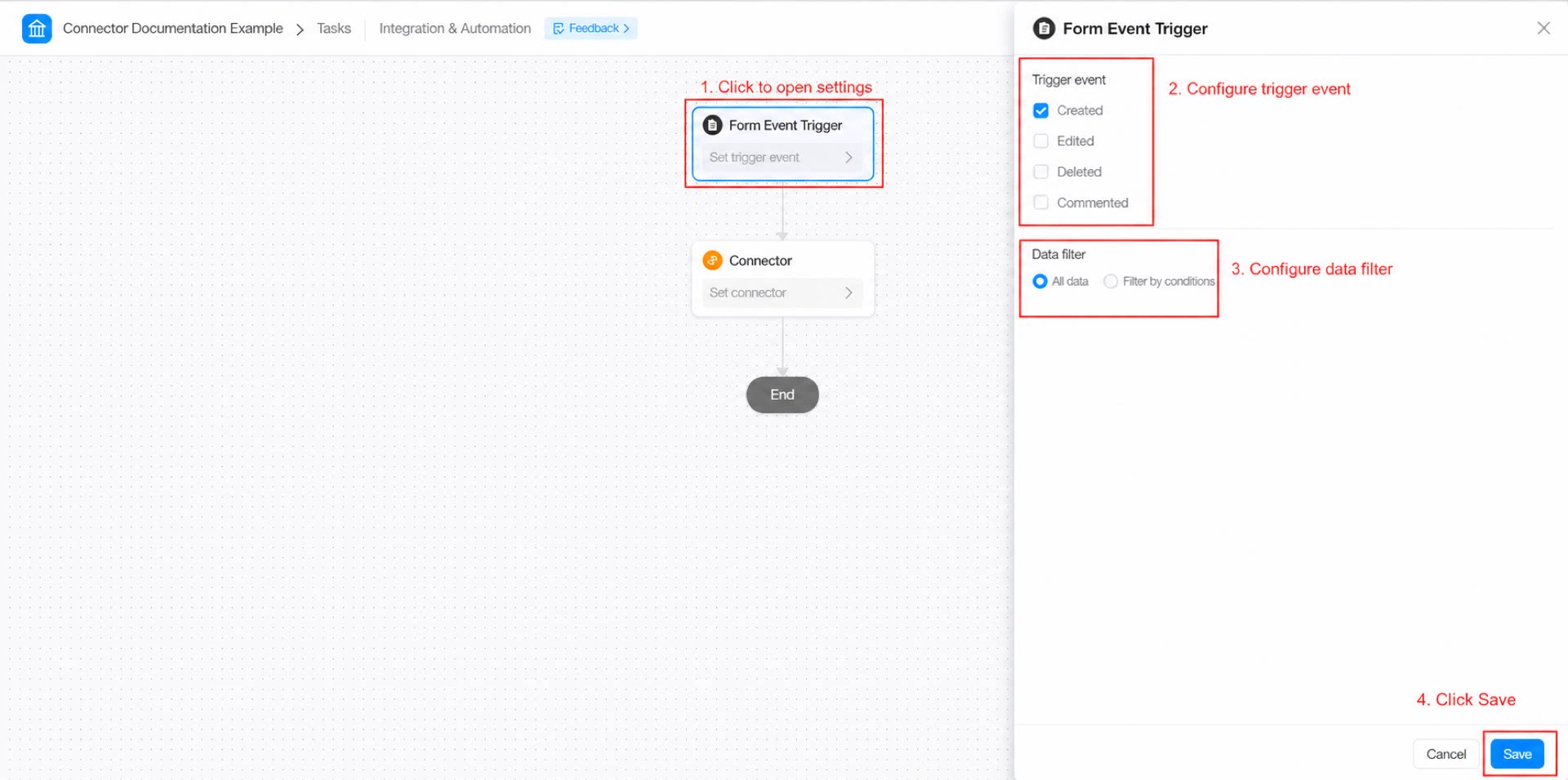
Appendix
Connector action parameter descriptions