Chats
Chats Calendar
 Meetings
 Contacts
 Mail
Mail Docs
Docs Drive
Drive AI Table
 AI Minutes
 Attendance
 Approval
 YiDA
YiDA Admin Console
1. Use Case
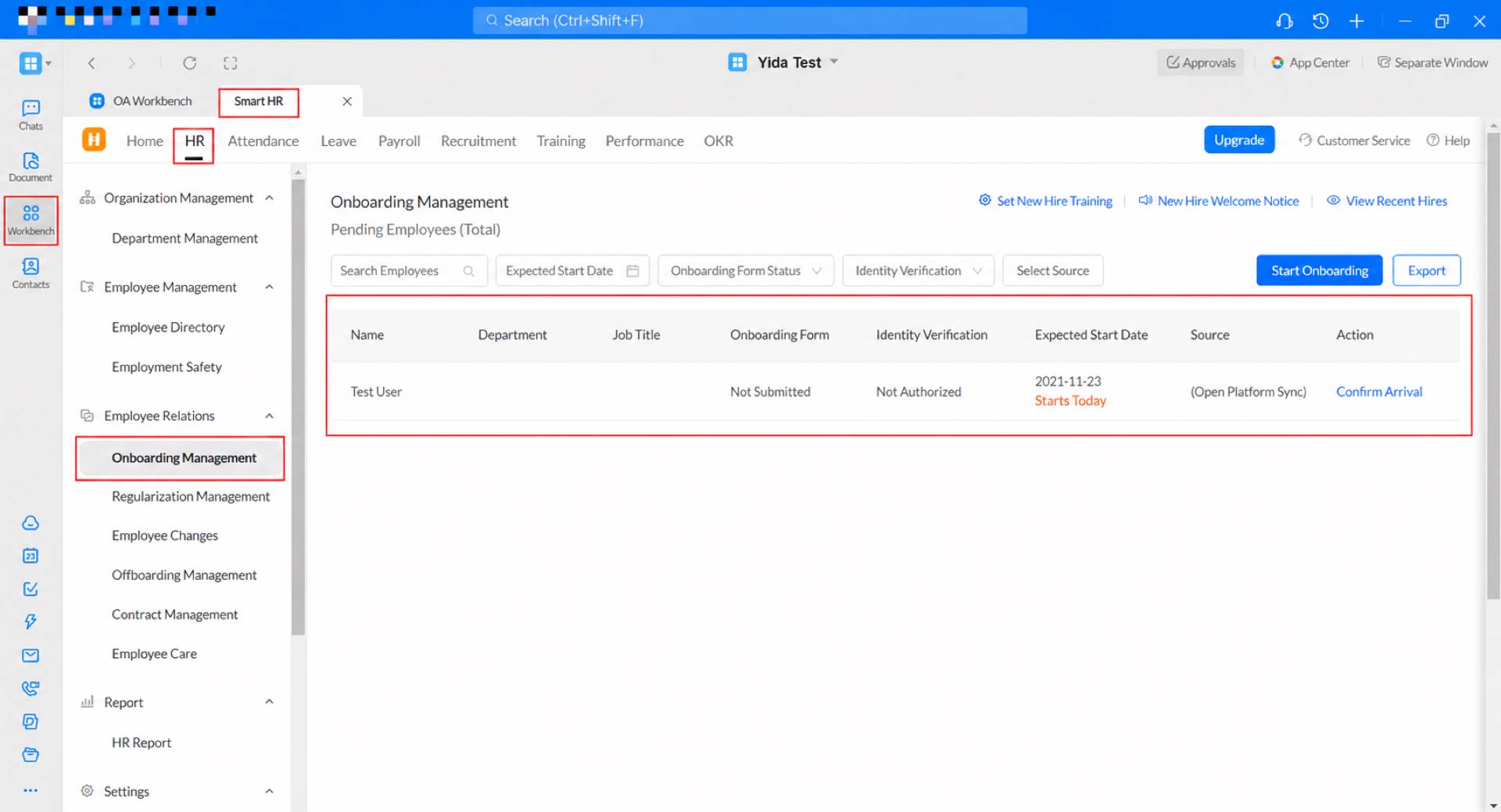
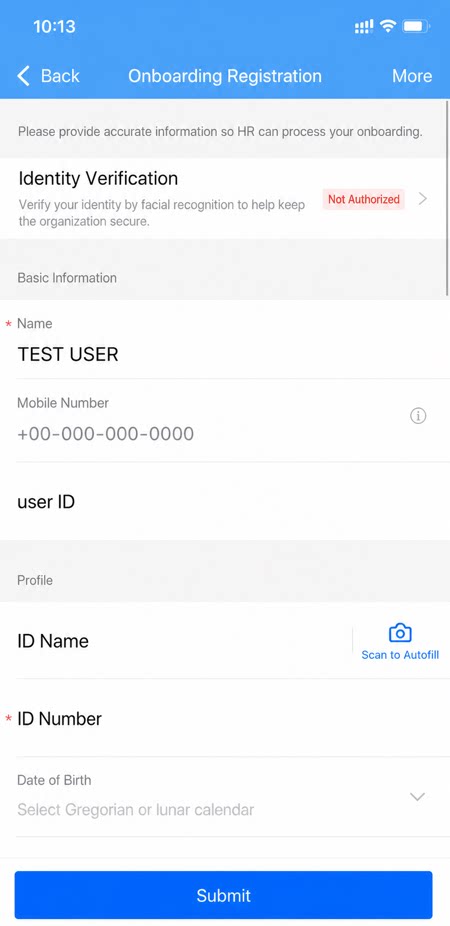
Fill in the details of an incoming employee on a YiDA form, including name, mobile number, and expected onboarding date. Once the form is submitted, the connector integrates with the Smart HR system and syncs the submitted information to Smart HR.2. Procedure
2.1 Step 1: Create and Configure the Form
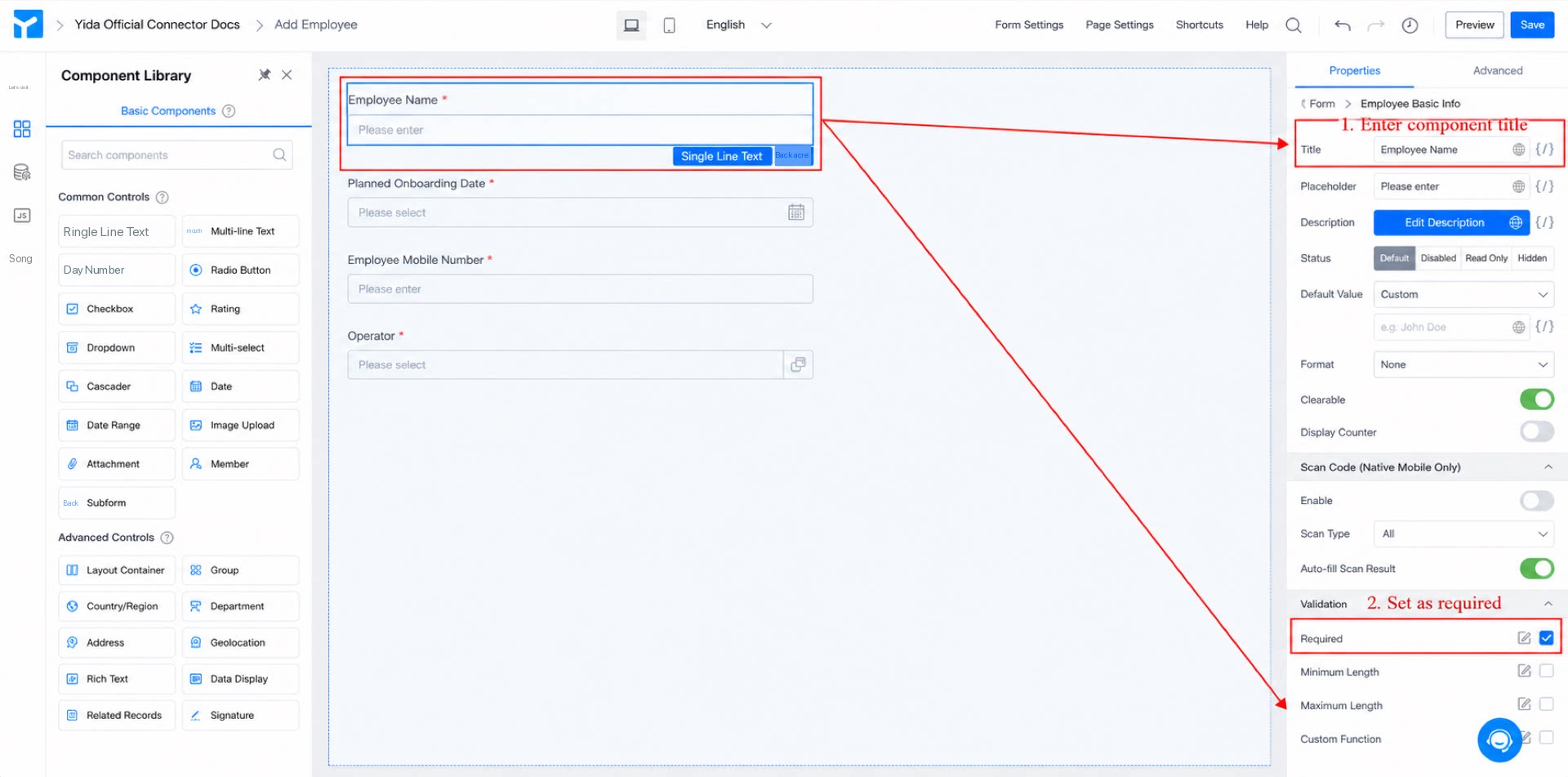
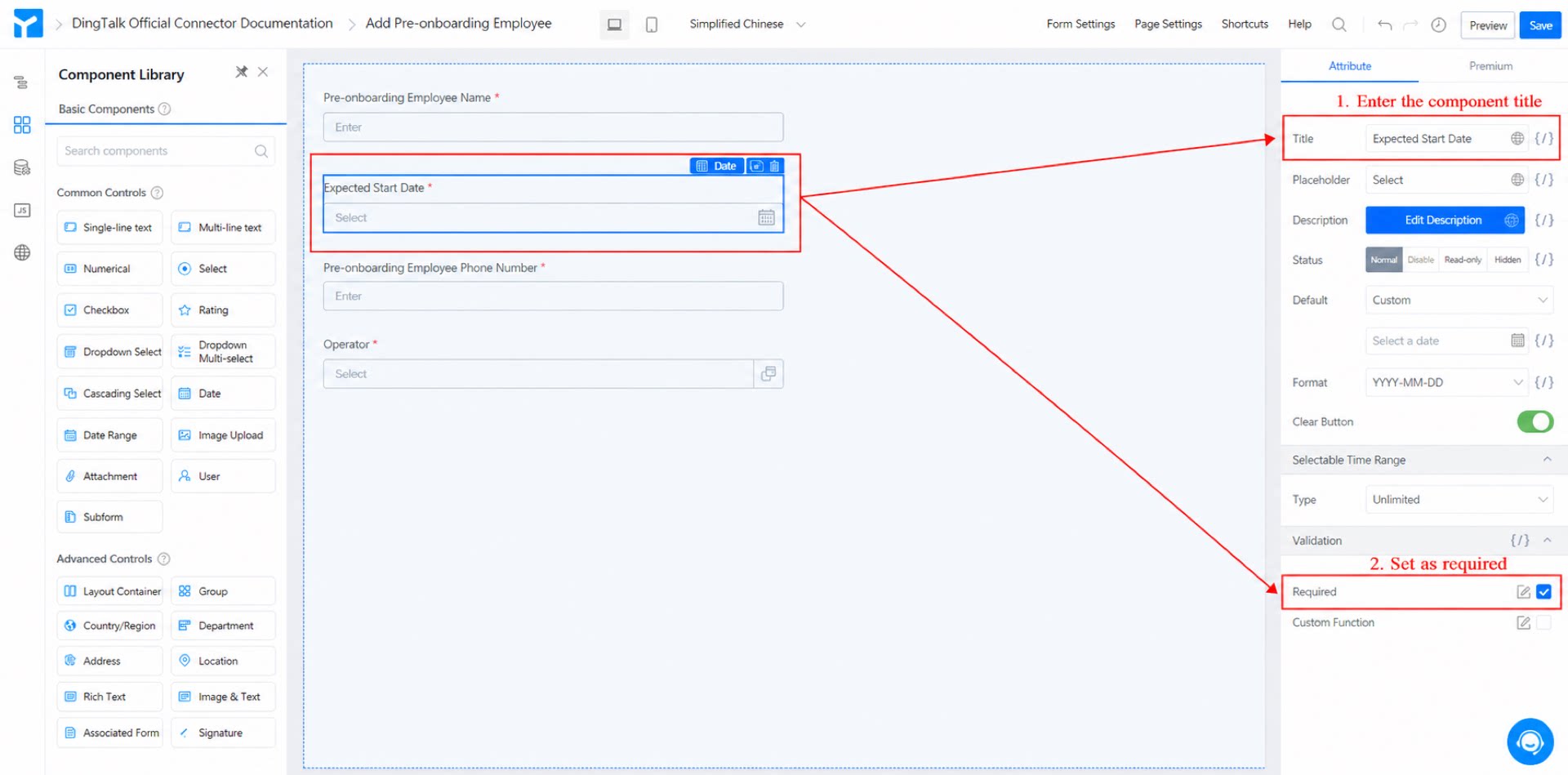
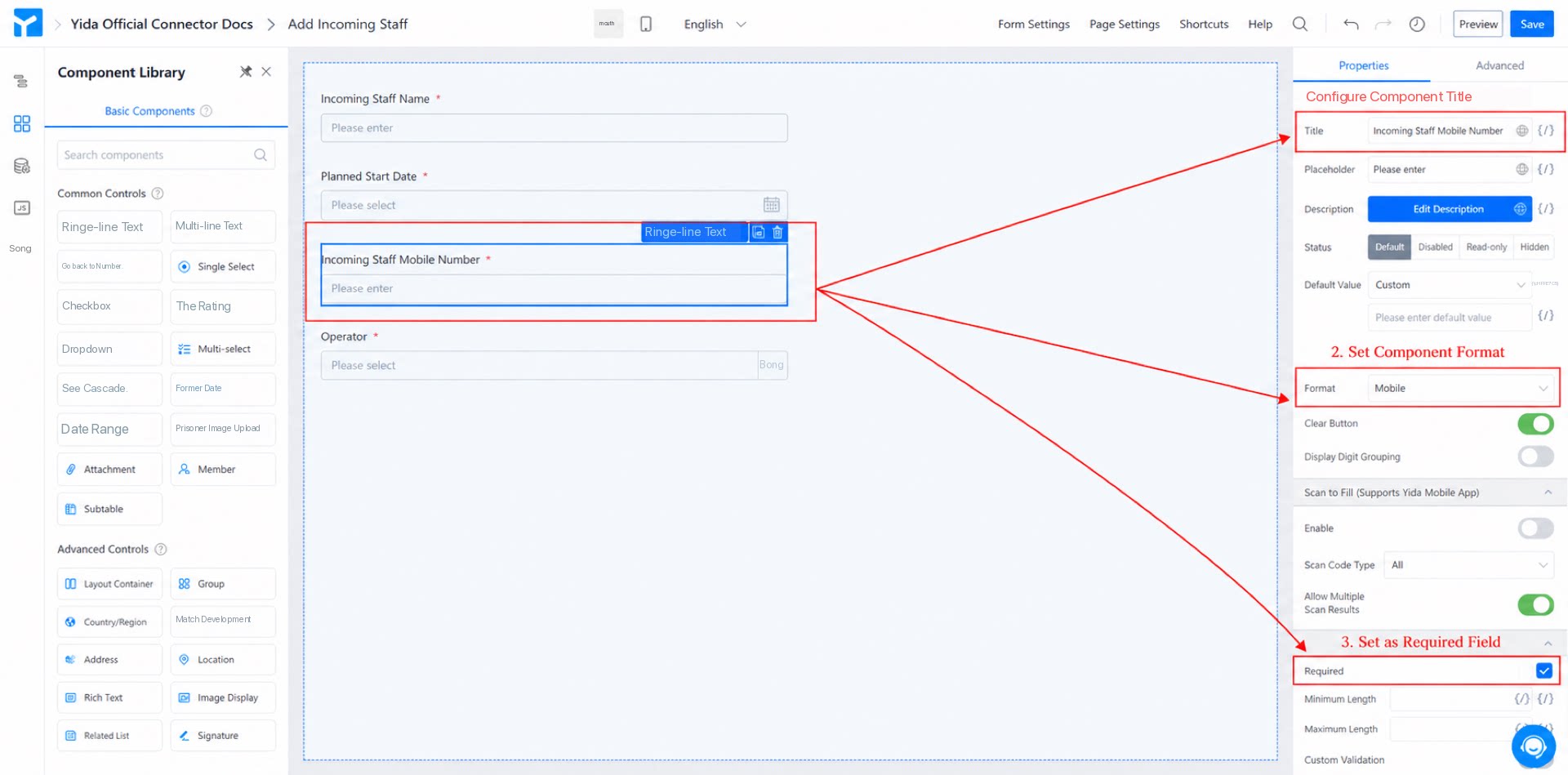
- Create a regular form and name it “Incoming Employee Registration Form”.
- Add a Single-line text component, name it “Incoming employee name”, and mark it as required.
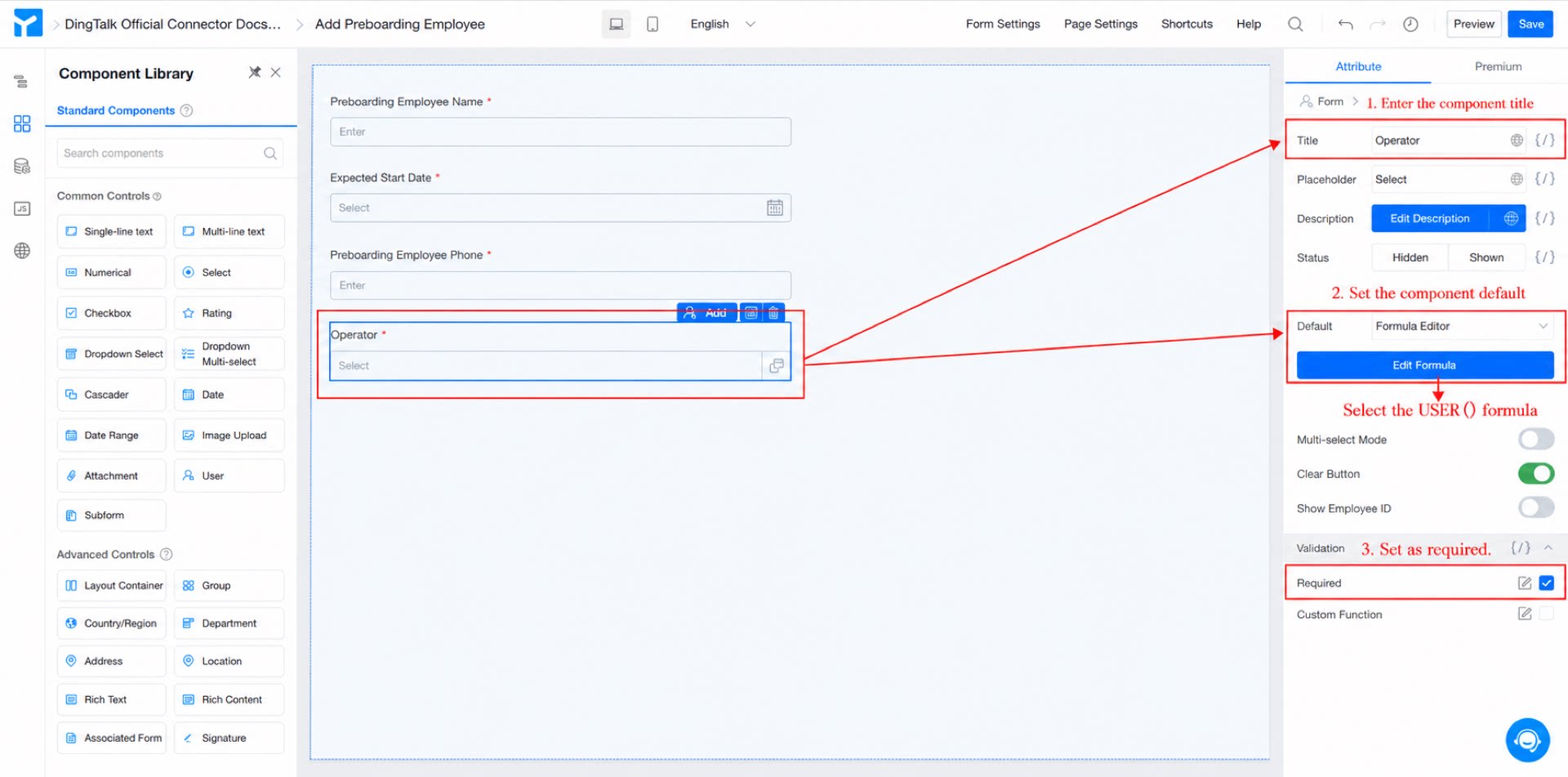
2.2 Step 2: Add and Configure the Connector
For an overview of connectors, see Integration & Automation - Connector.
- Add a Date component, name it “Expected onboarding date”, and mark it as required.
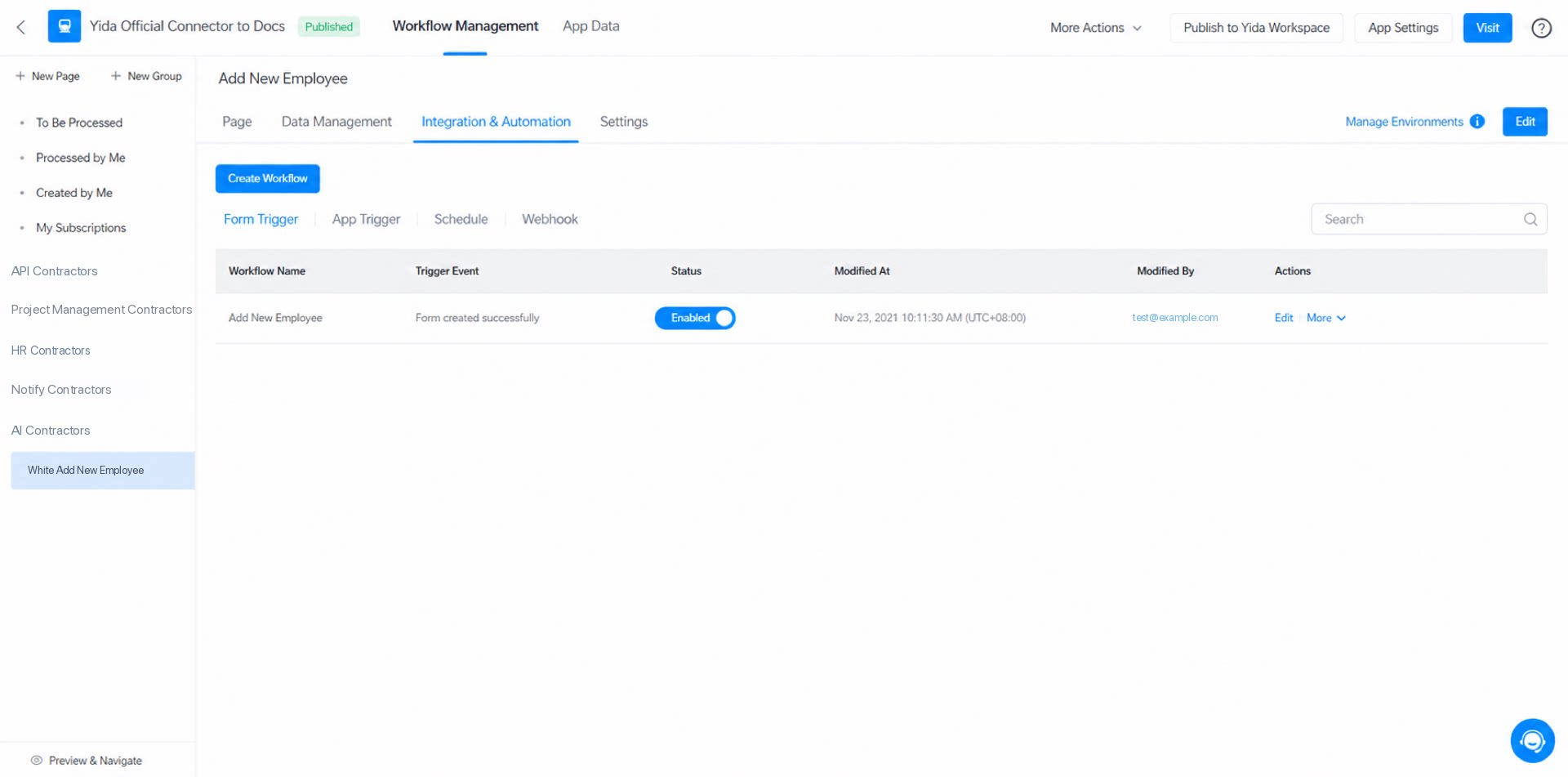
- Add a Single-line text component, name it “Incoming employee mobile number”, mark it as required, and set the component format to Mobile.
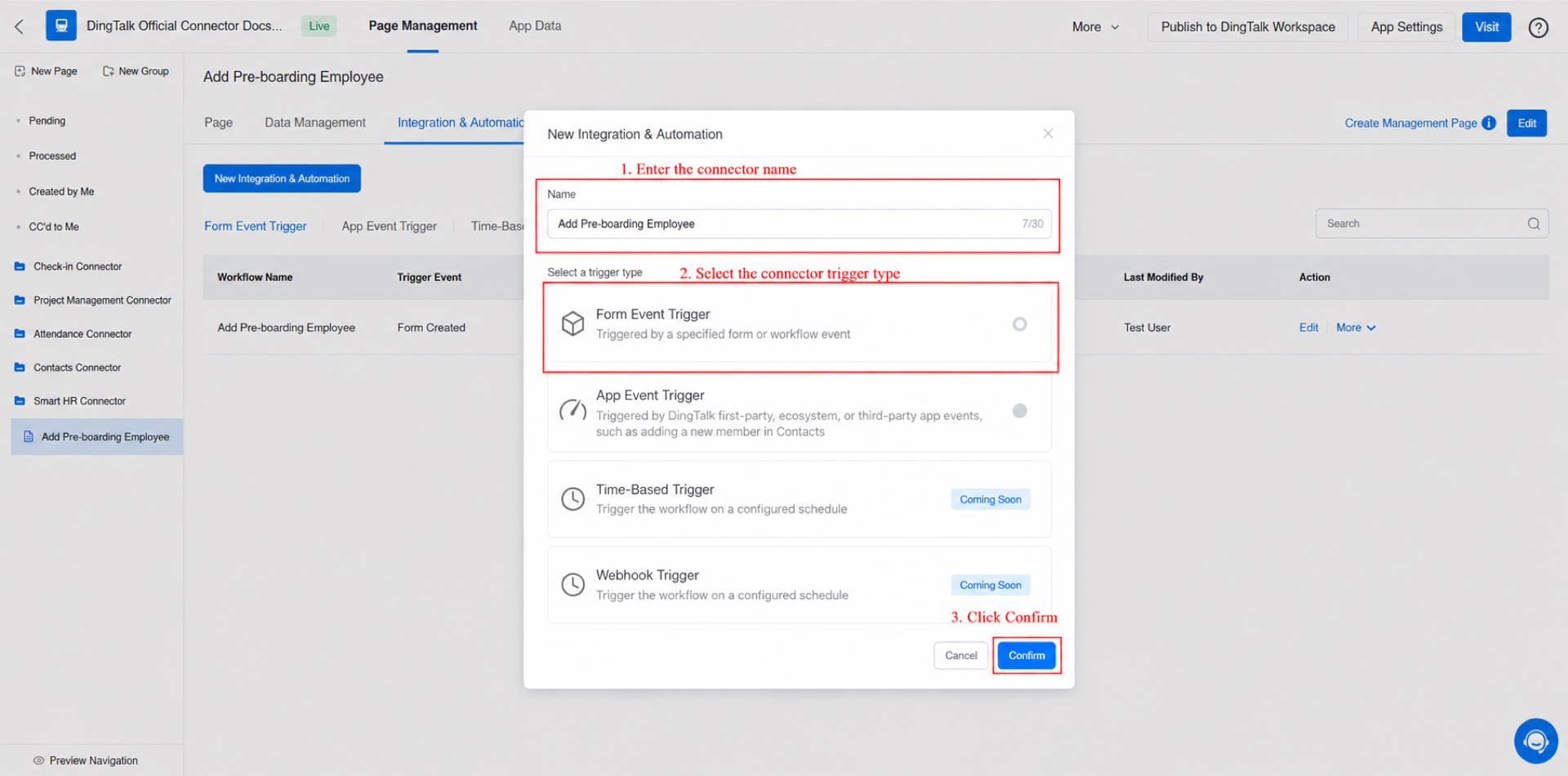
- Add a member component, name it “Operator”, and set the default value to Formula editing with the USER() formula.
- Click the Save button in the upper-right corner of the page.
- On the admin backend, select the “Incoming Employee Registration Form”, click Integration & Automation in the top navigation bar, and then click Create Integration & Automation.
- Name the connector “Add incoming employee”, set Trigger type to “Form event trigger”, and click Confirm.
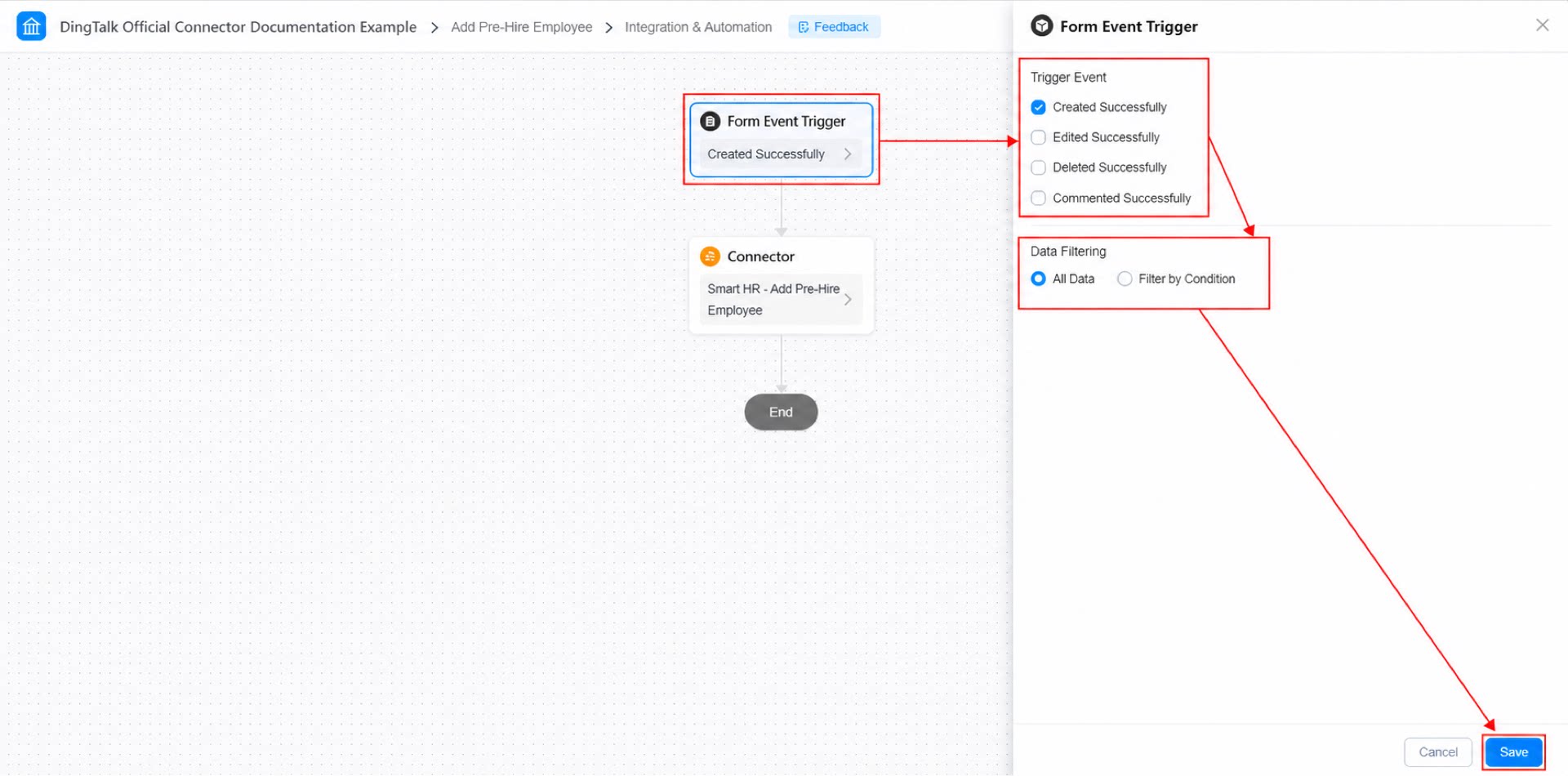
- Configure the form event trigger: set the trigger event to “Create success”, set data filtering to “All data”, and click Save.
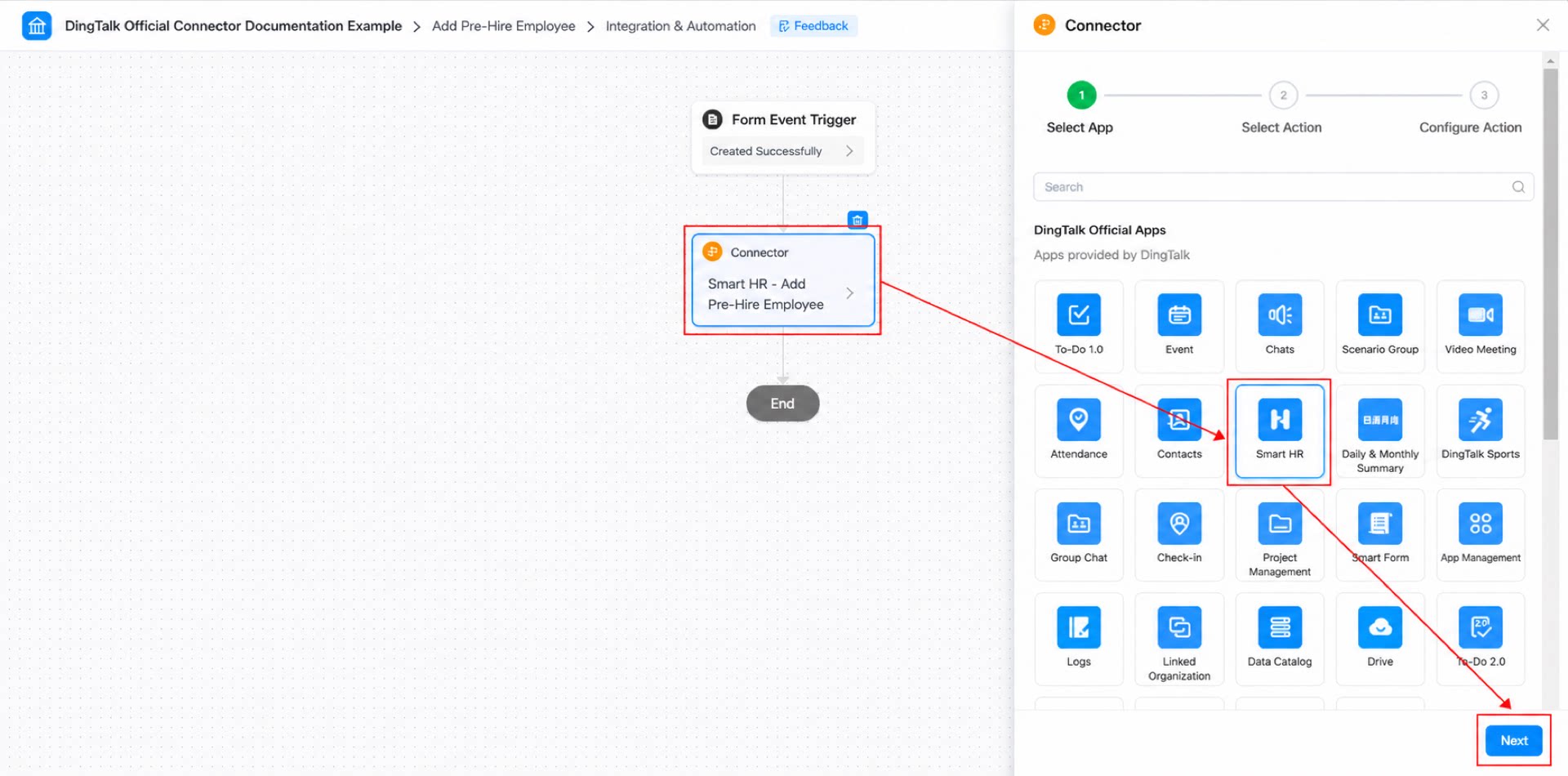
- Select a connector app: under DingTalk official apps, select “Smart HR” and click Next.
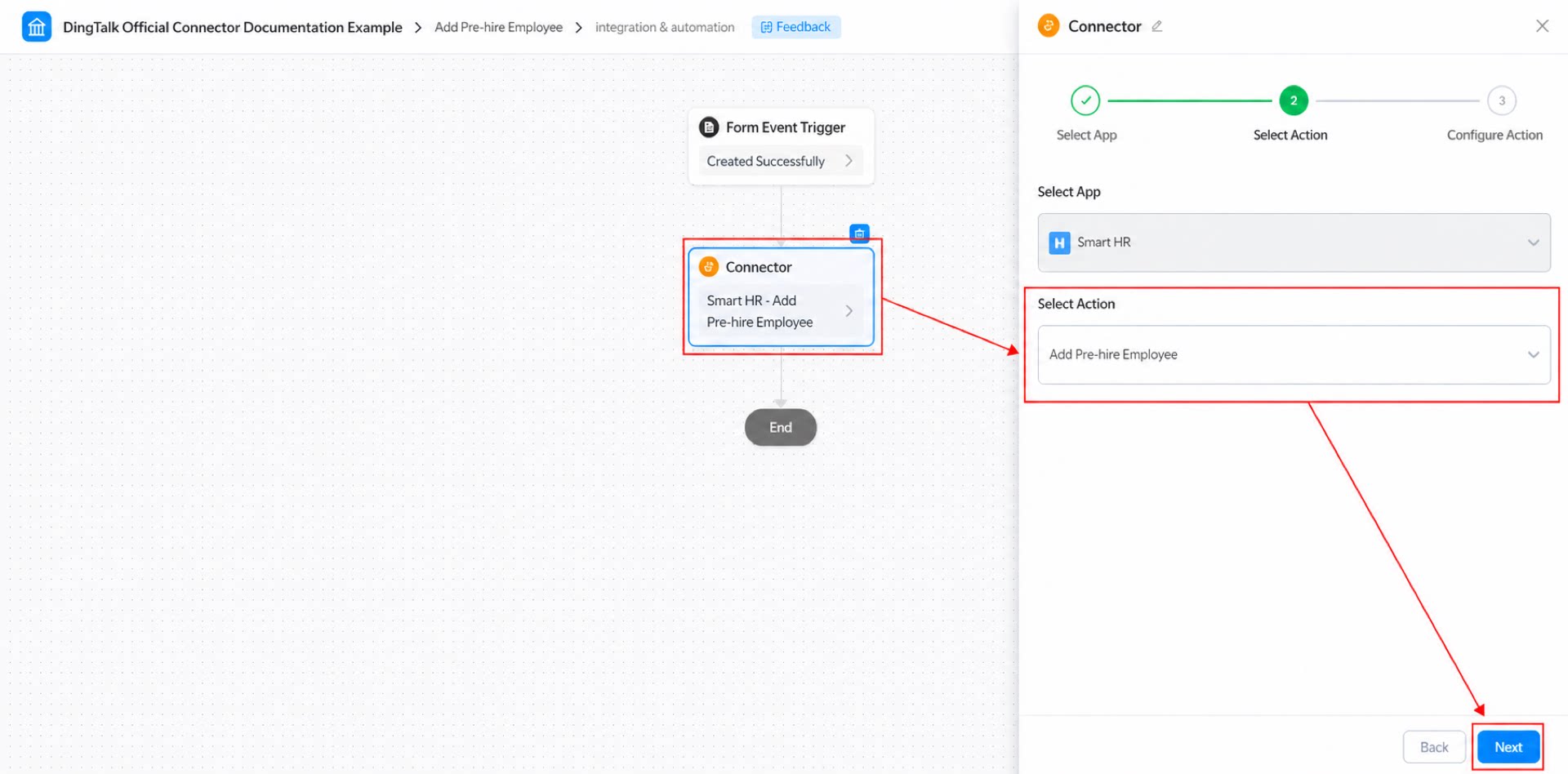
- Select the action: choose the “Add incoming employee” action and click Next.
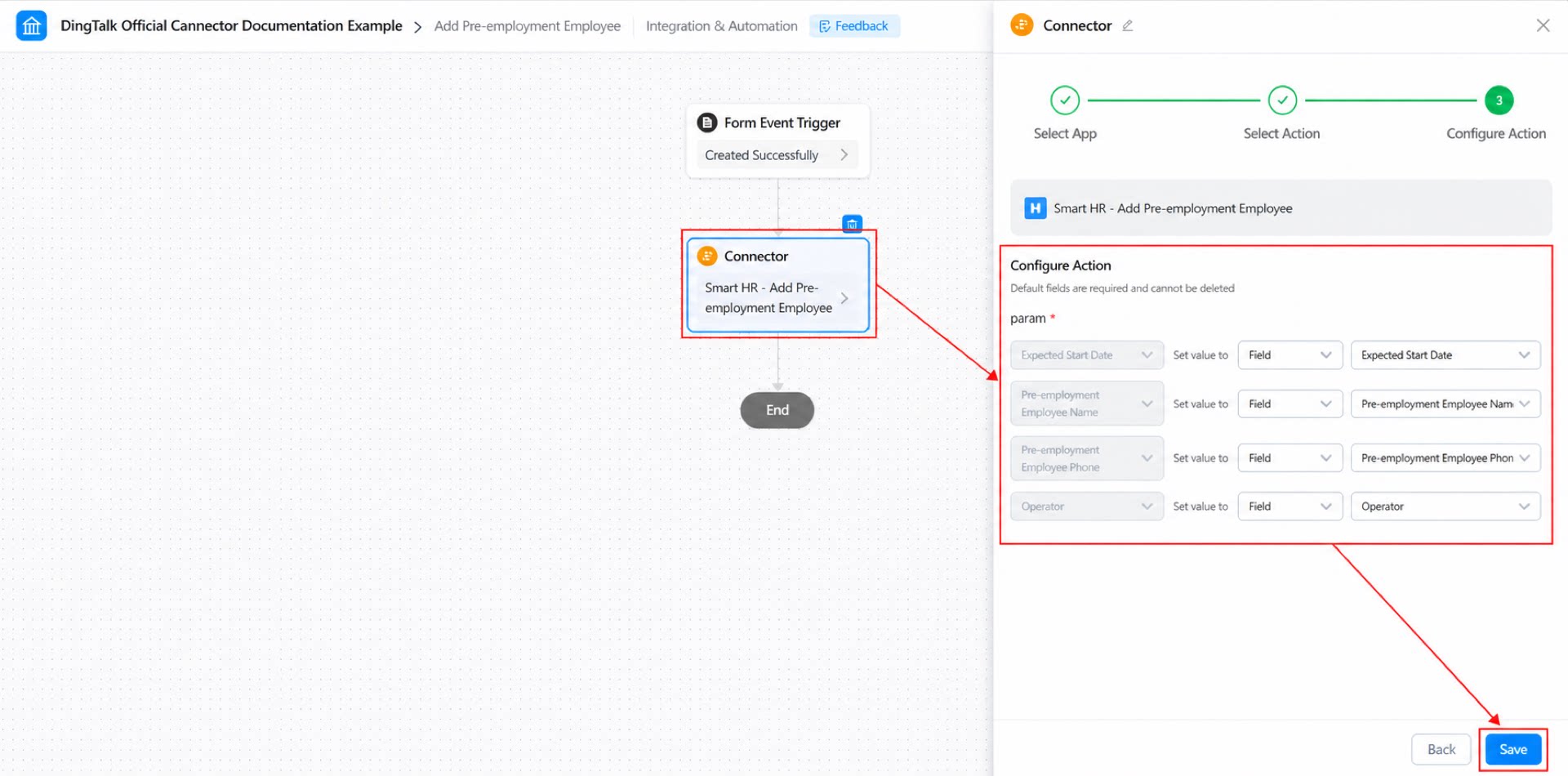
- Configure the action: set each value in param to “Field” and select the corresponding component in the “Incoming Employee Registration Form”, then click Save.
- Click the Save button in the upper-right corner of the page, then click Publish.
2.3 Step 3: Submit the “Incoming Employee Registration Form”
After completing the previous two steps, you have designed the “Incoming Employee Registration Form” and configured the connector. Now, simply submit the form to trigger the connector and add the incoming employee to Smart HR.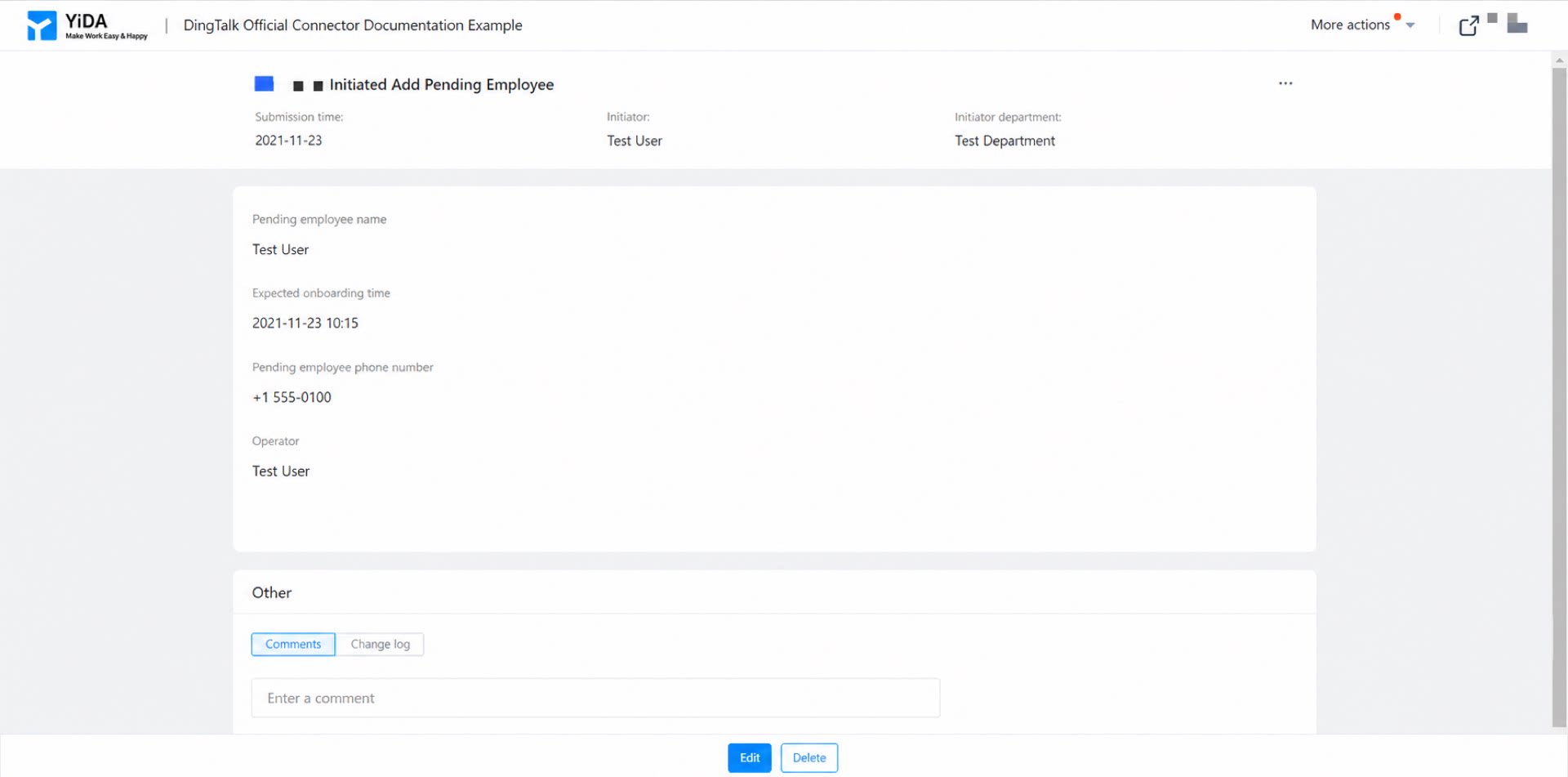
3. Results
Desktop: