Chats
Chats Calendar
 Meetings
 Contacts
 Mail
Mail Docs
Docs Drive
Drive AI Table
 AI Minutes
 Attendance
 Approval
 YiDA
YiDA Admin Console
1. Use Case
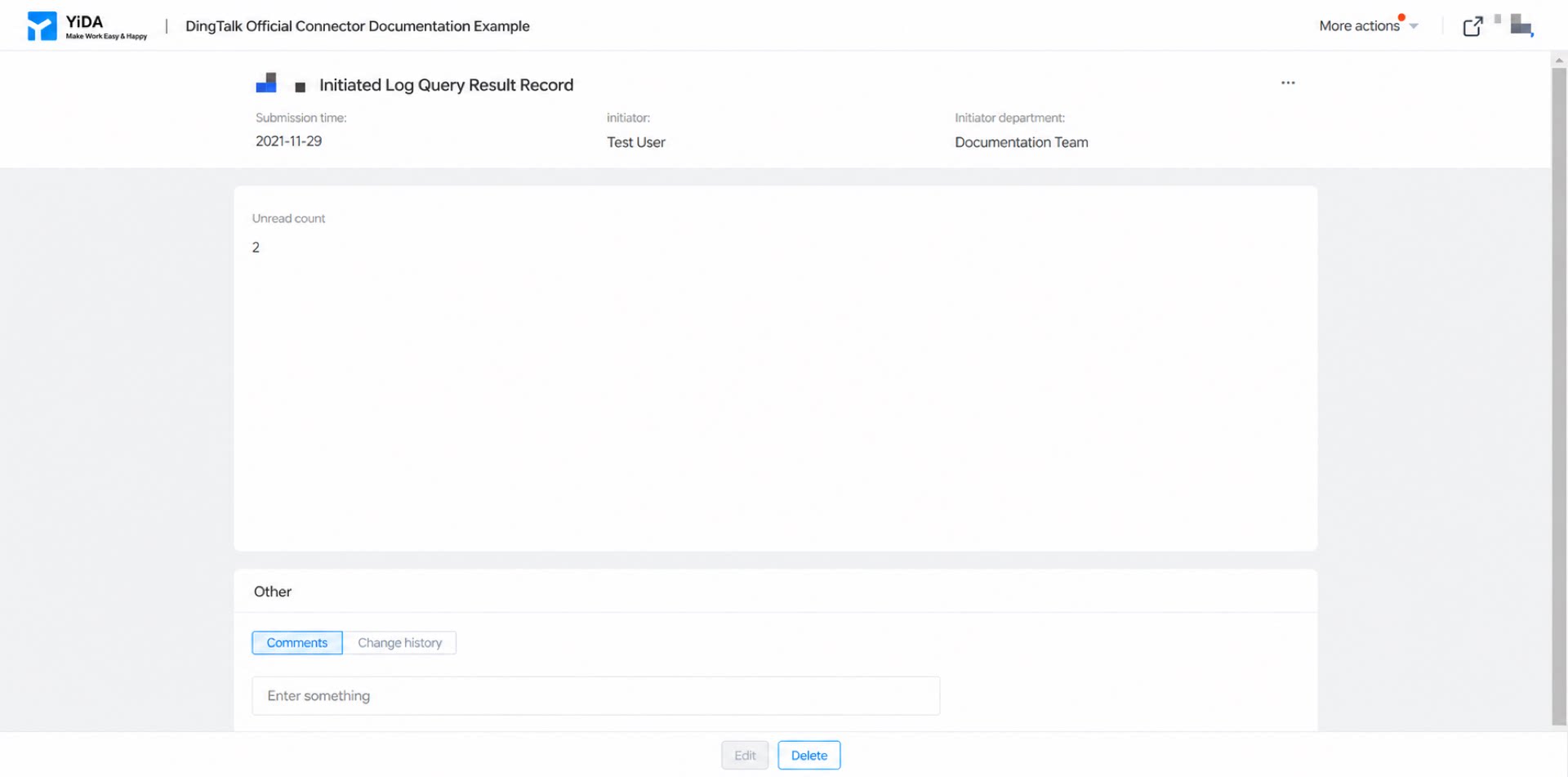
An HR administrator wants to look up how many unread log entries a specific employee currently has, directly from a YiDA form, without switching to another app.2. Procedure
2.1 Step 1: Design the Forms
2.1.1 Create and Configure the “Unread Logs Query” Form
Use this form to trigger the connector action and start the query when data is submitted. Steps:- Create a new form and name it “Unread logs query”.
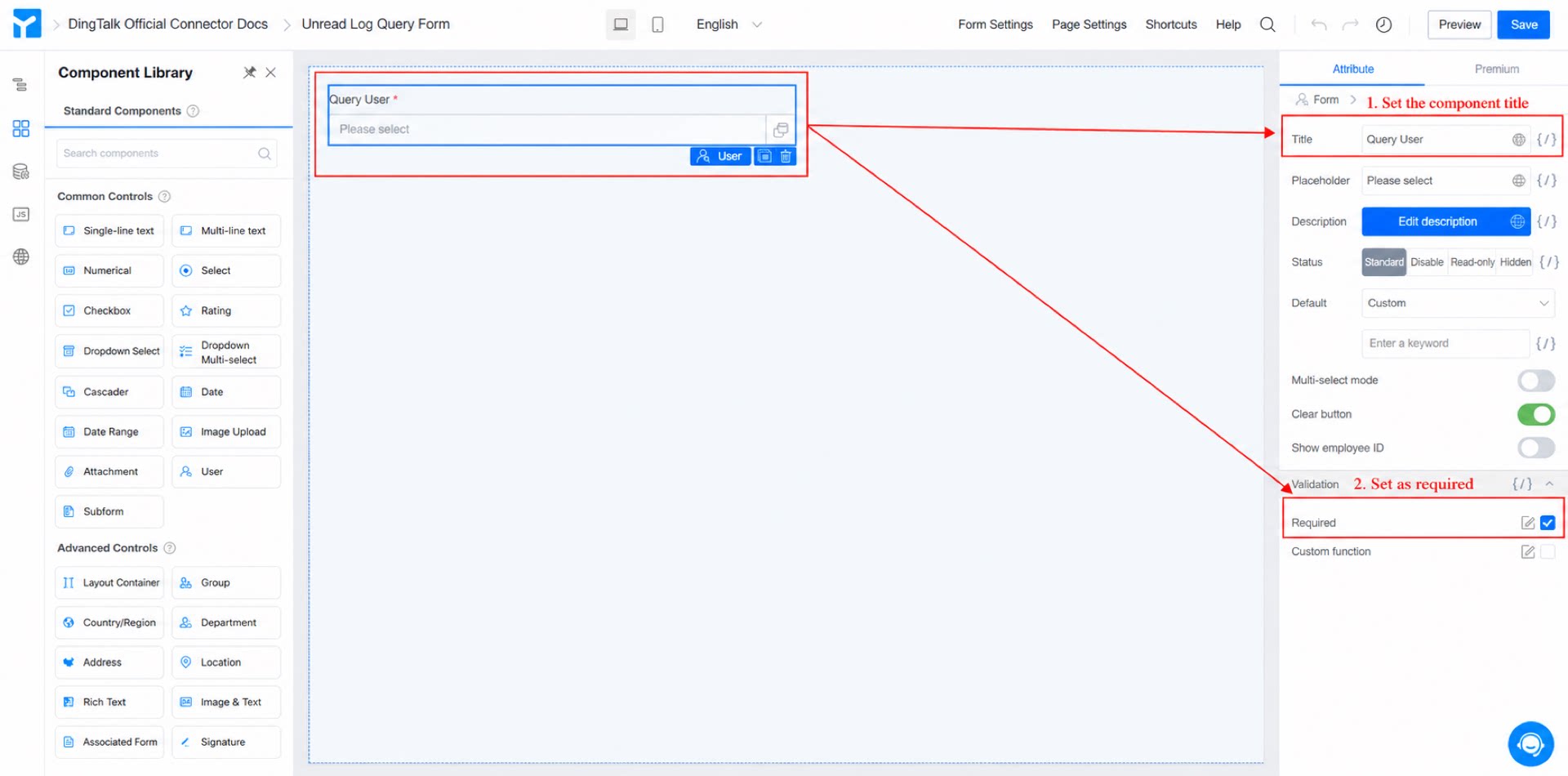
- Add a member component, name it “Select employee”, and mark it as Required. (See Figure 2.1-1.)
- Click Save in the upper-right corner of the page.
2.1.2 Create and Configure the “Log Query Records” Form
Use this form to receive and display the data returned by the connector. Steps:- Create a new form and name it “Log query records”.
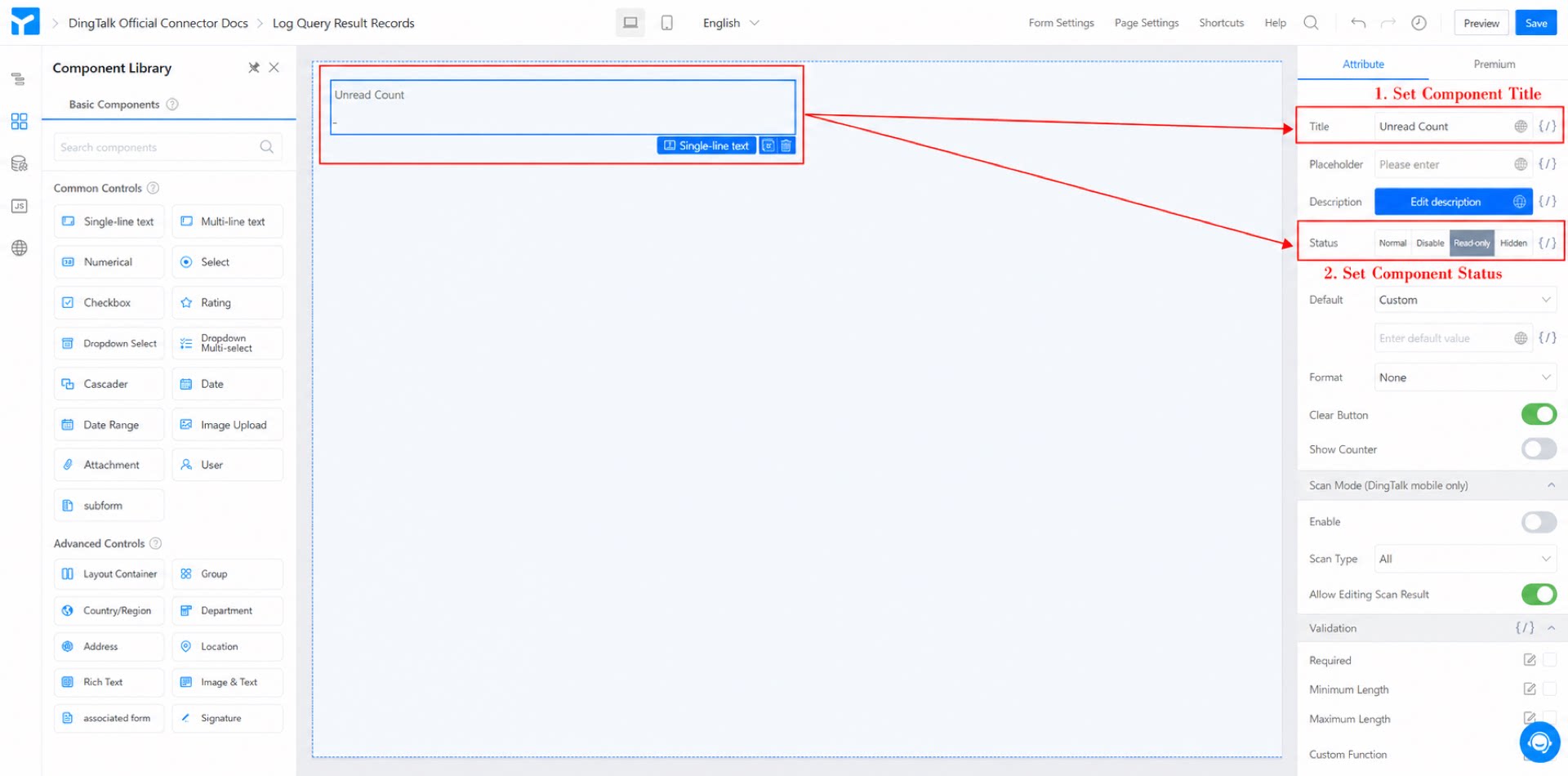
- Add a Single-line text component, name it “Unread count”, and set its status to Read-only. (See Figure 2.1-2.)
- Click Save in the upper-right corner of the page.
2.2 Step 2: Configure the Connector
For a detailed introduction to YiDA Connectors, see Integration & Automation - Connector.
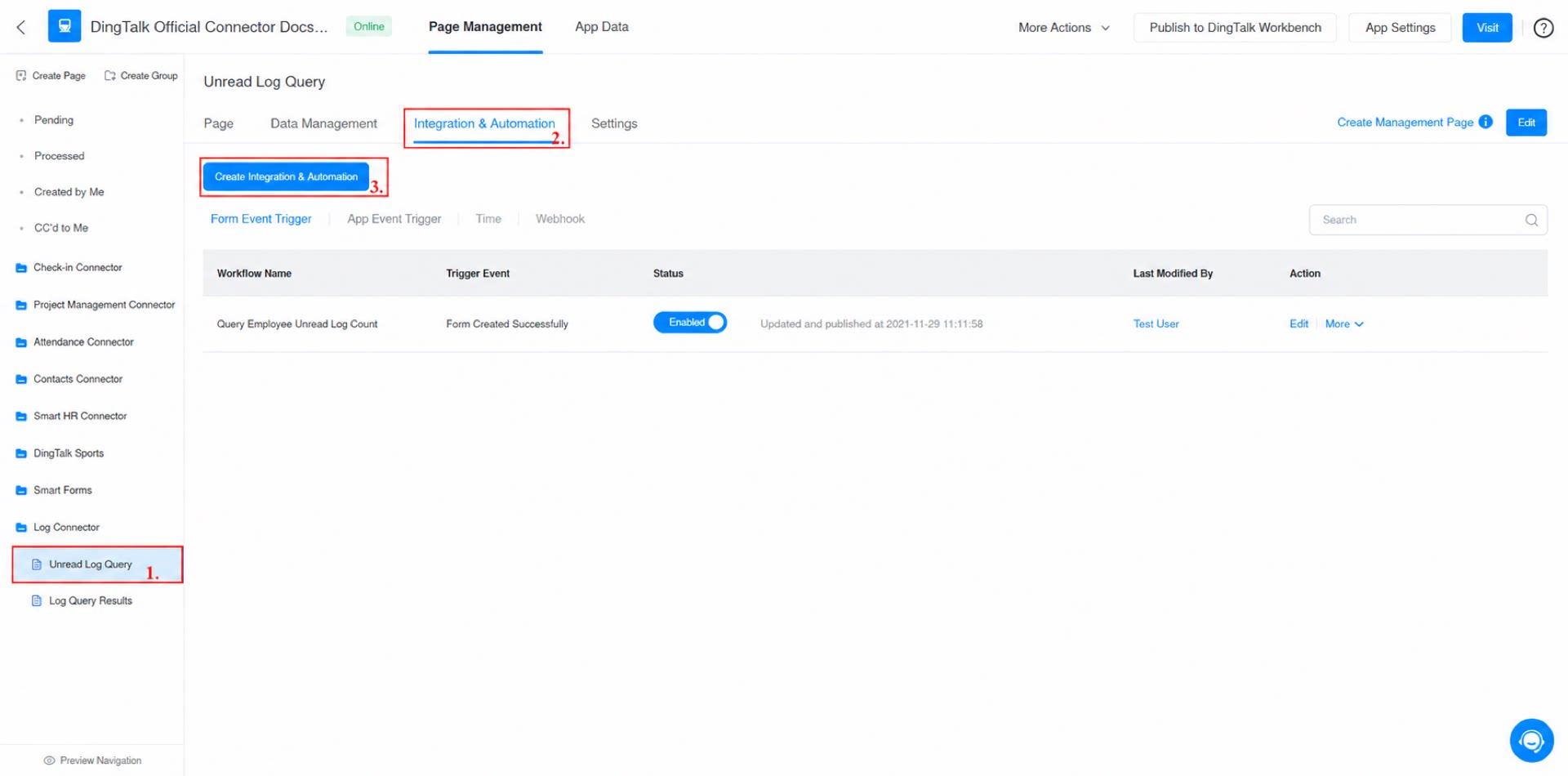
- In the admin console, go to “Unread logs query” >> Integration & Automation >> Create Integration & Automation. (See Figure 2.2-1.)
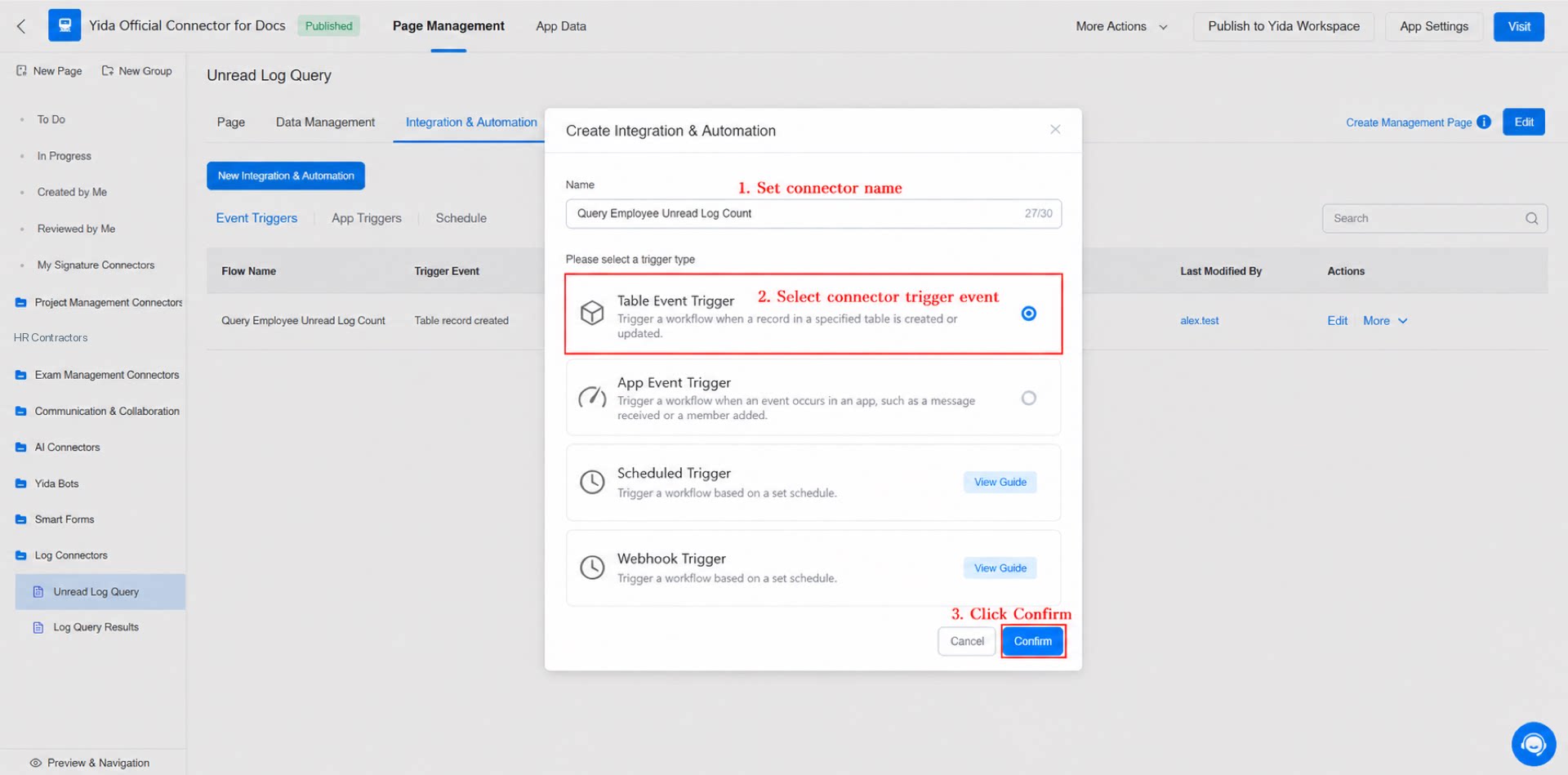
- Name the connector “Query employee unread log count”, select the “Form event trigger” type, and click Confirm. (See Figure 2.2-2.)
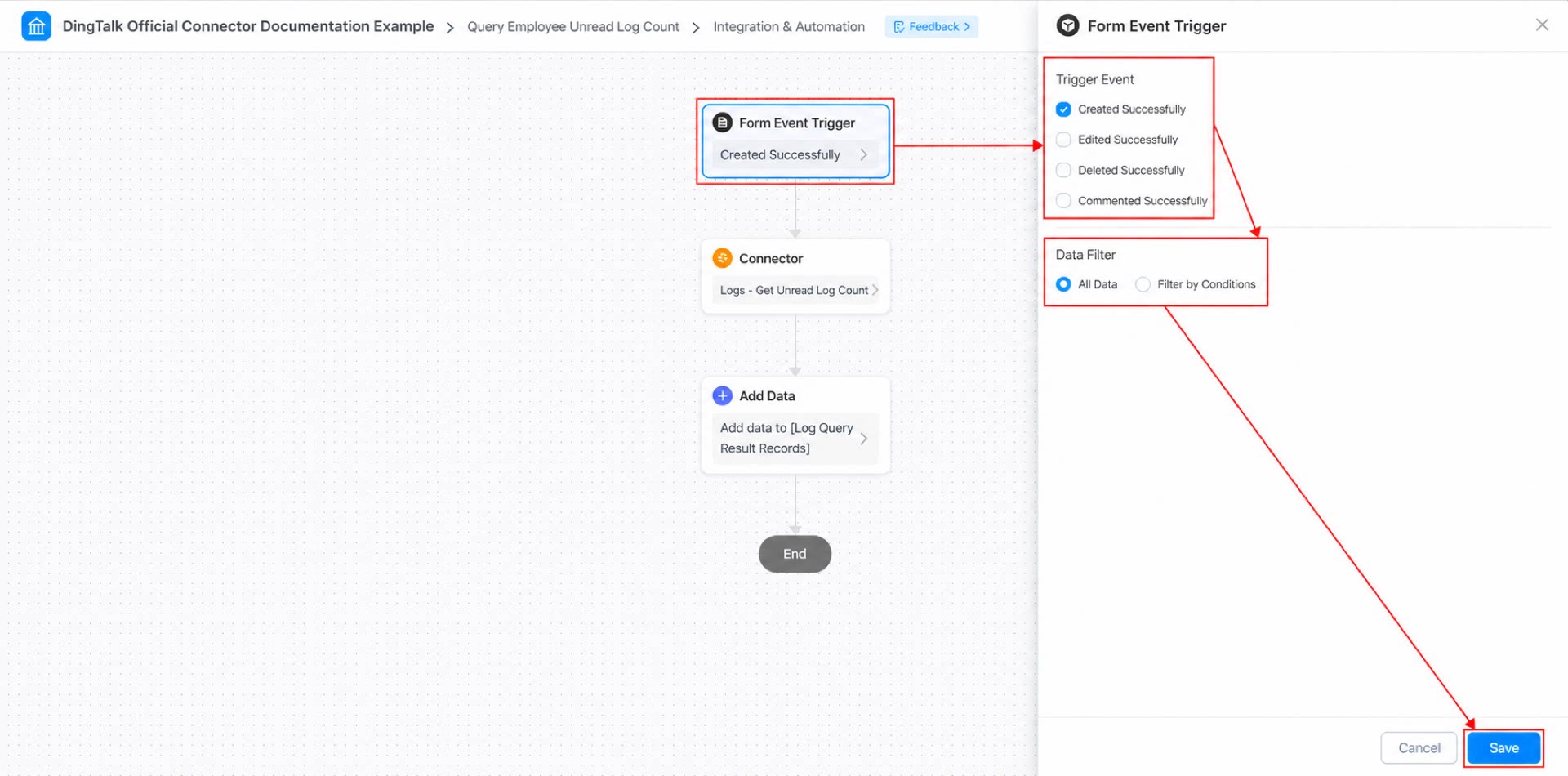
- Configure the form event trigger: set the trigger condition to “Create success” and the data filter to “All data”. (See Figure 2.2-3.)
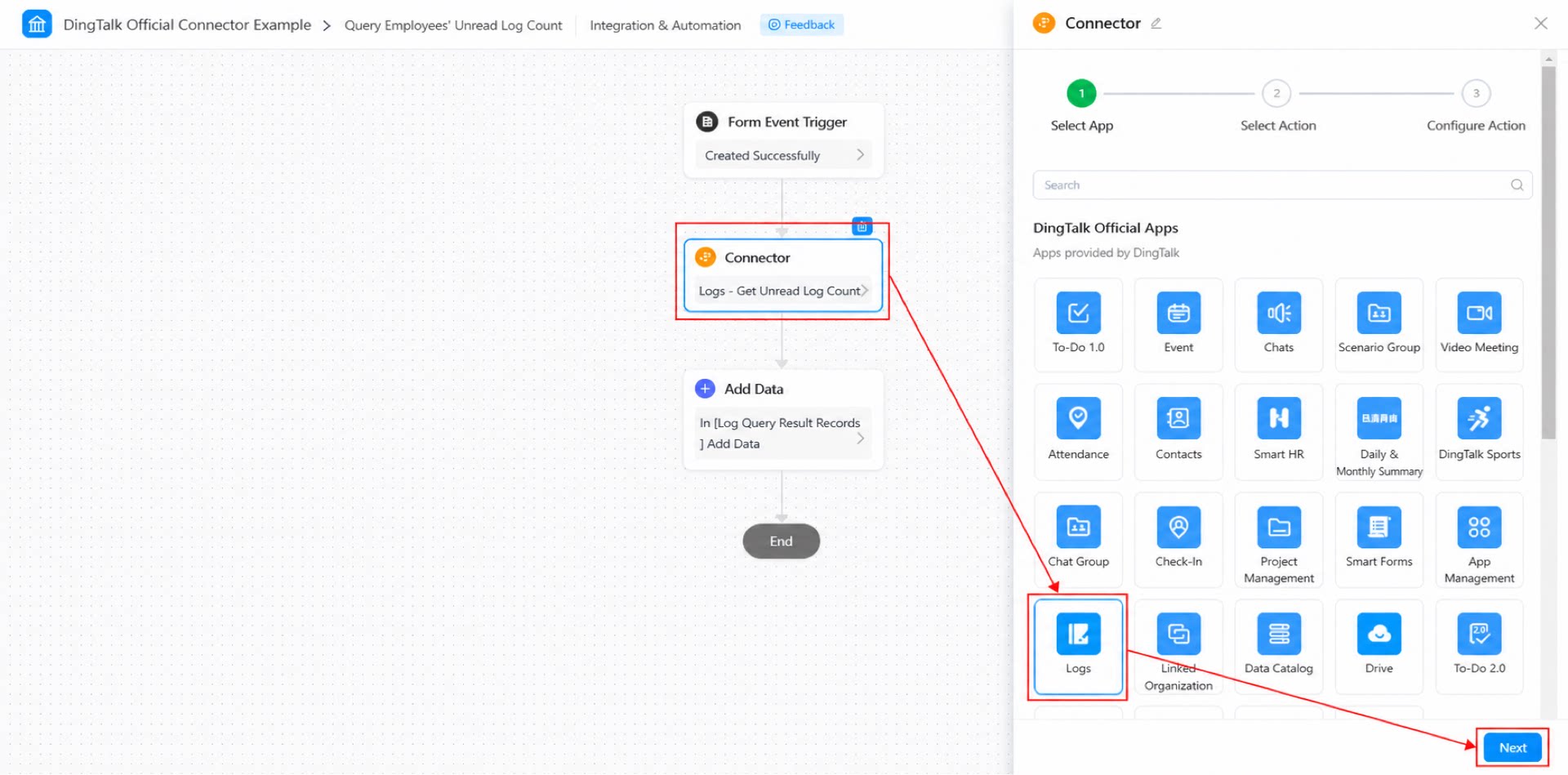
- Select the connector app: choose “Logs”, then click Next. (See Figure 2.2-4.)
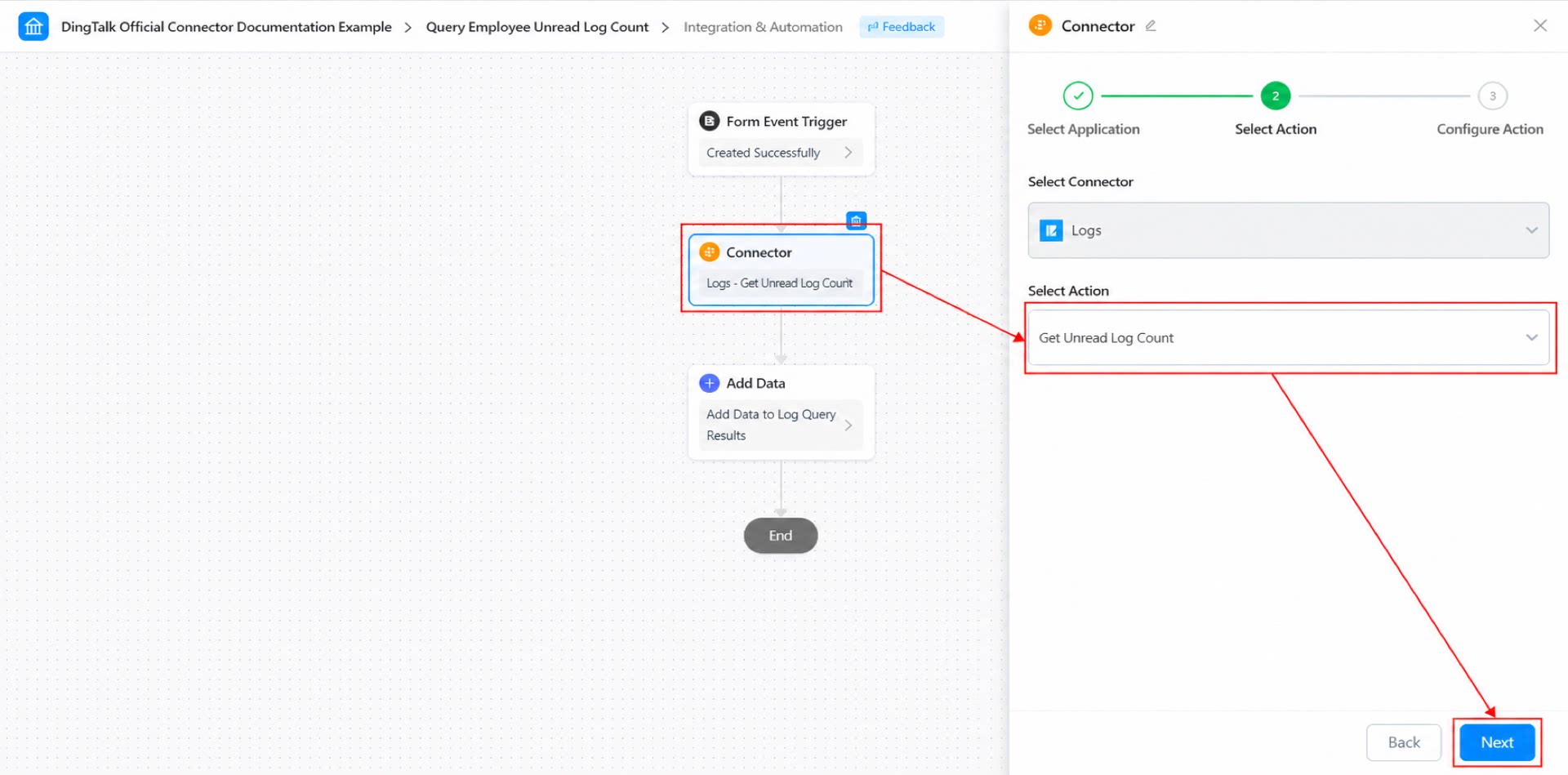
- Select the connector action: choose “Get unread log count”, then click Next. (See Figure 2.2-5.)
- Configure the connector action and click Save. (See Figure 2.2-6.)
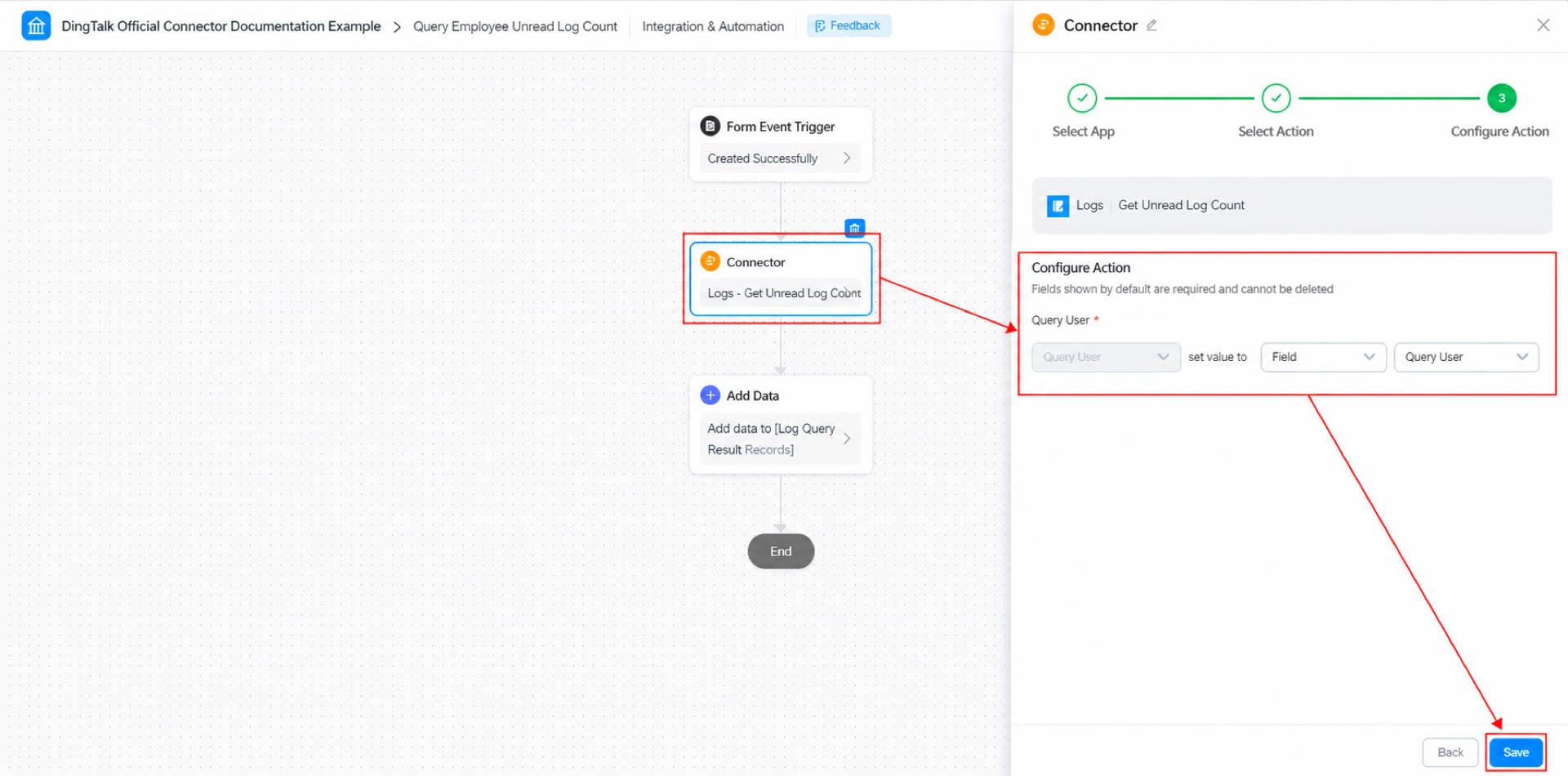
- Add a “Create record” data node. (See Figure 2.2-7.)
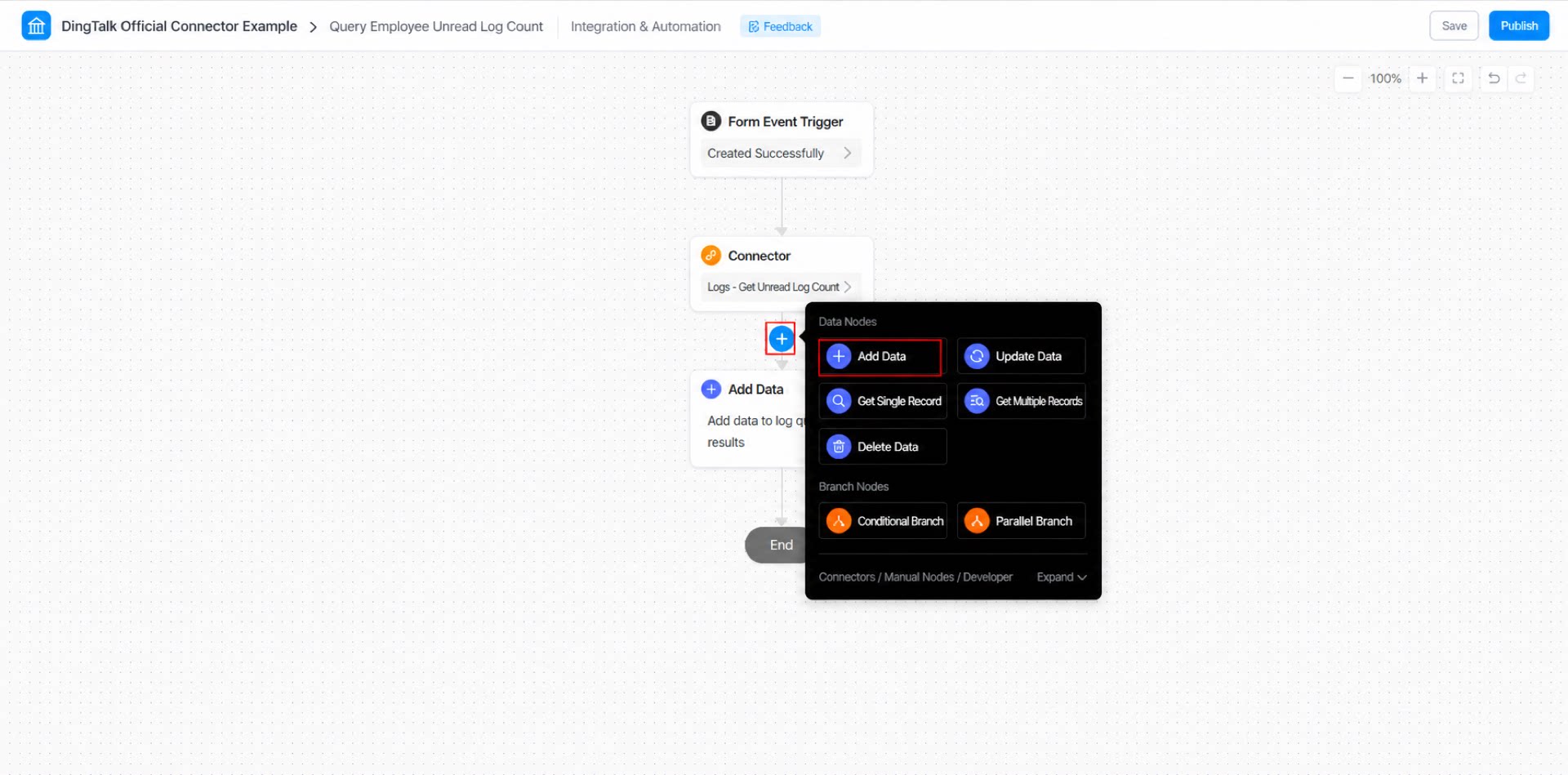
- Configure the “Create record” data node. (See Figure 2.2-8.)
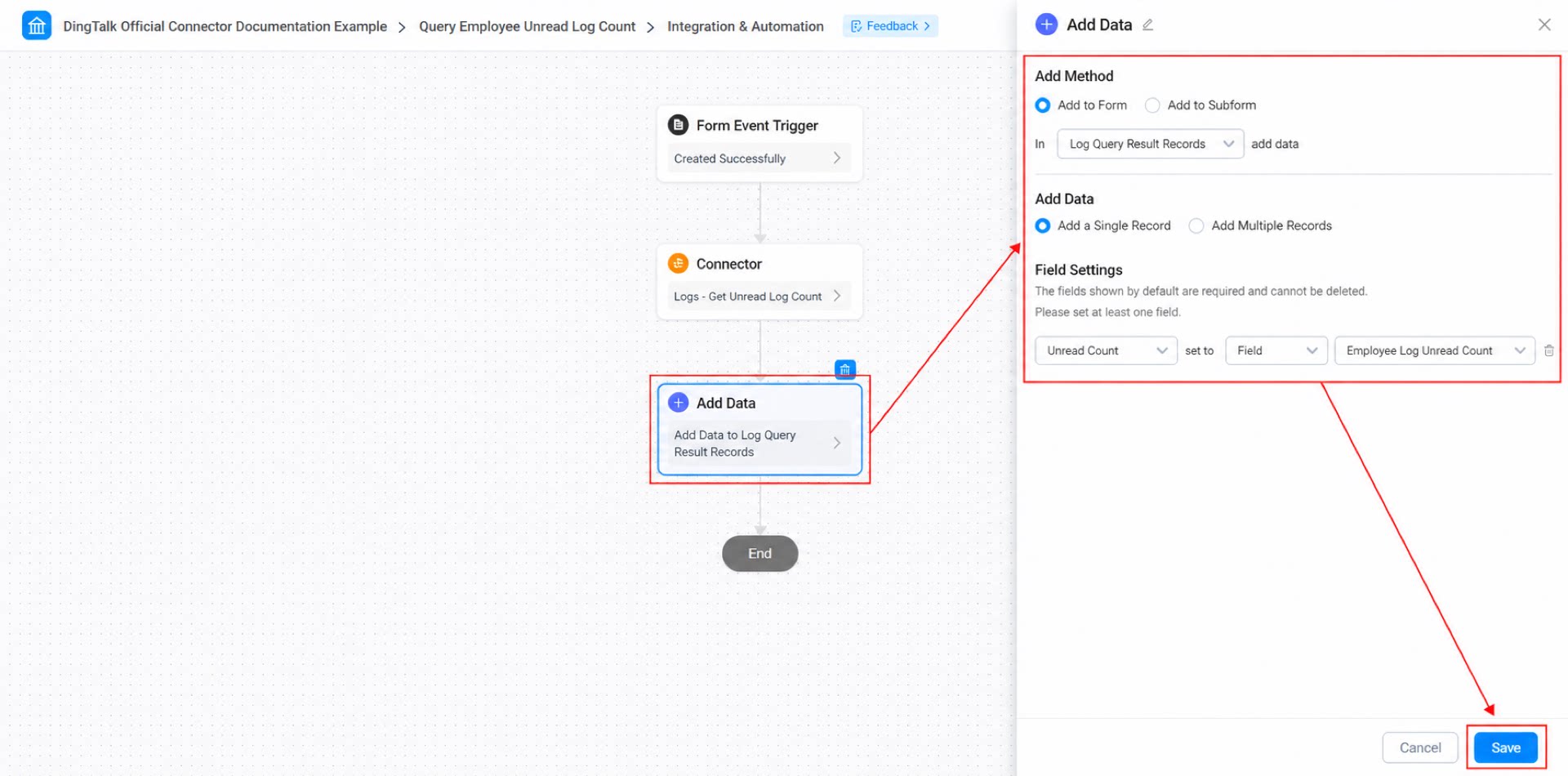
- Click Save in the upper-right corner of the page, then click Publish.
2.3 Step 3: Submit the Form Data
Submit data to trigger the connector and receive the returned result. Steps: Fill in the “Unread logs query” form and submit it. (See Figure 2.3-1.)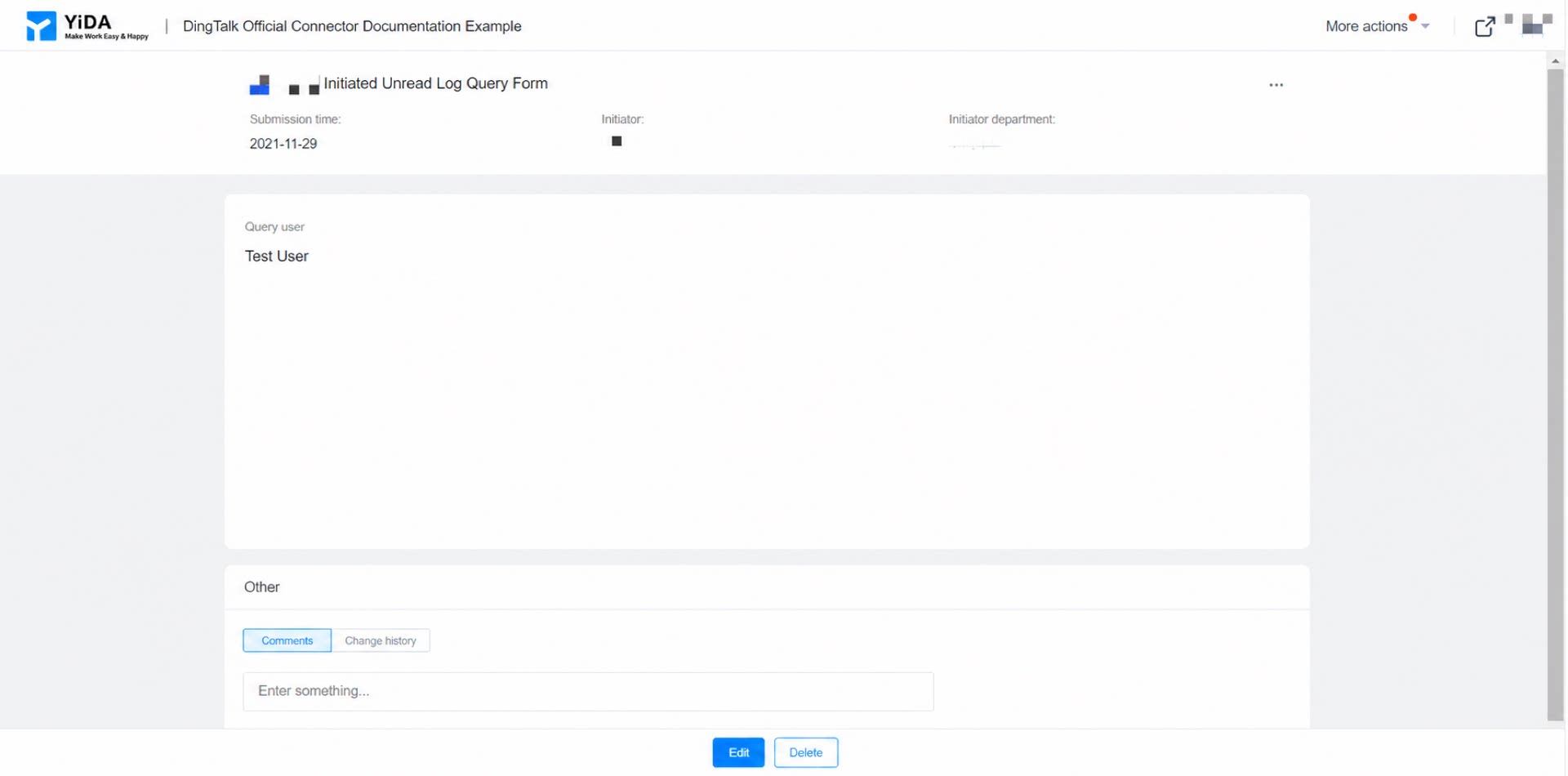
3. Result