Learn how to trigger a Connector via YiDA Form submission to schedule a Video Meeting, and resolve issues such as forgetting to start meetings or mis-selecting and missing Members when inviting them. Follow the steps to create a New Meeting, including creating and configuring a Form and a Connector, to achieve an efficient workflow.
This document builds on the previous one and introduces the second action of the Video Meeting connector — New Meeting — which automatically starts the meeting and invites the right participants for you.
When starting a Video Meeting, the meeting initiator is invited to join the conference first. Once they accept, the members are invited to join the conference. If the initiator declines, the members are not invited.
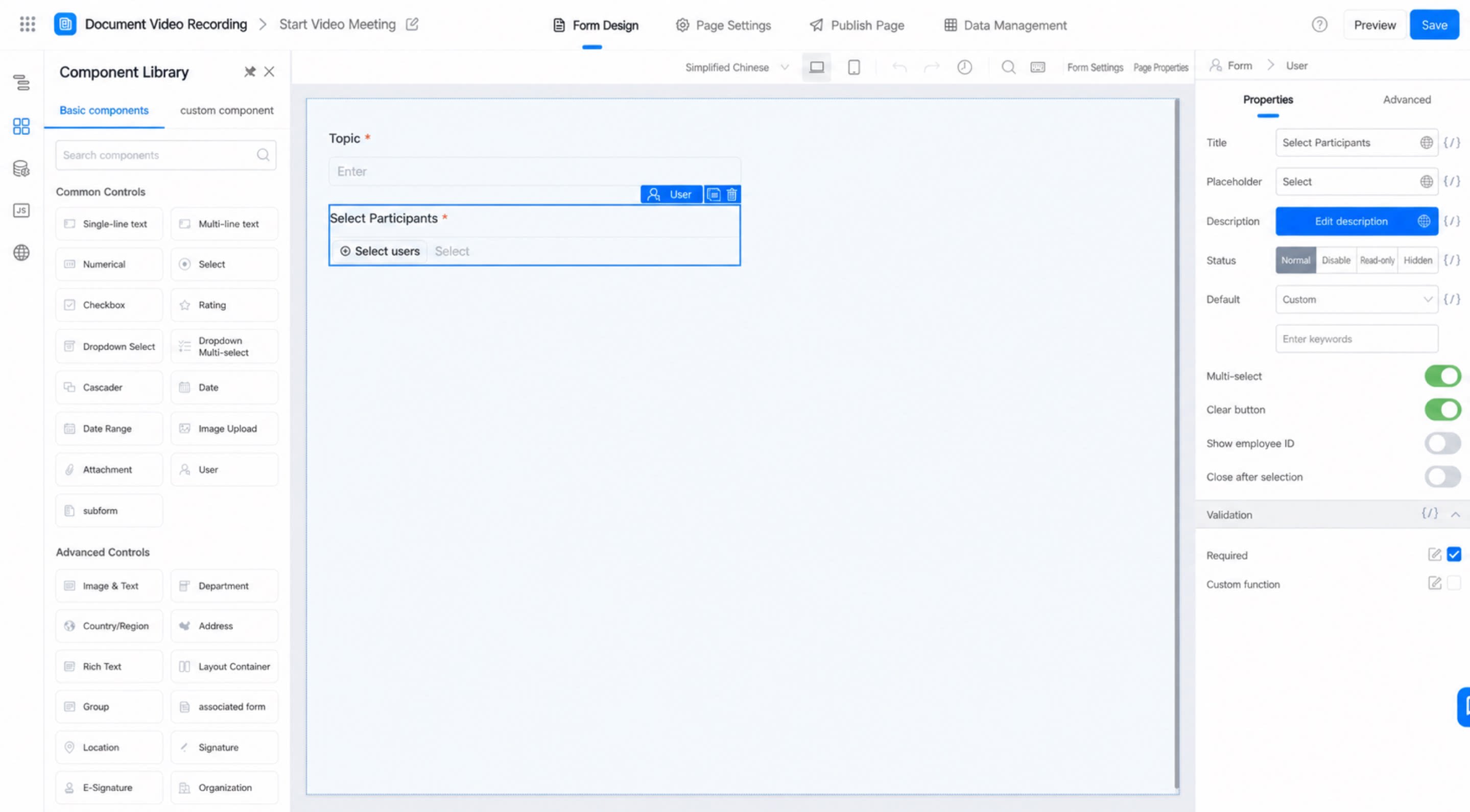
Build the “New Video Meeting” table. Set the Members (member component, with Multiselect enabled) and the Topic (Single-line text component).Configure the New Video Meeting form
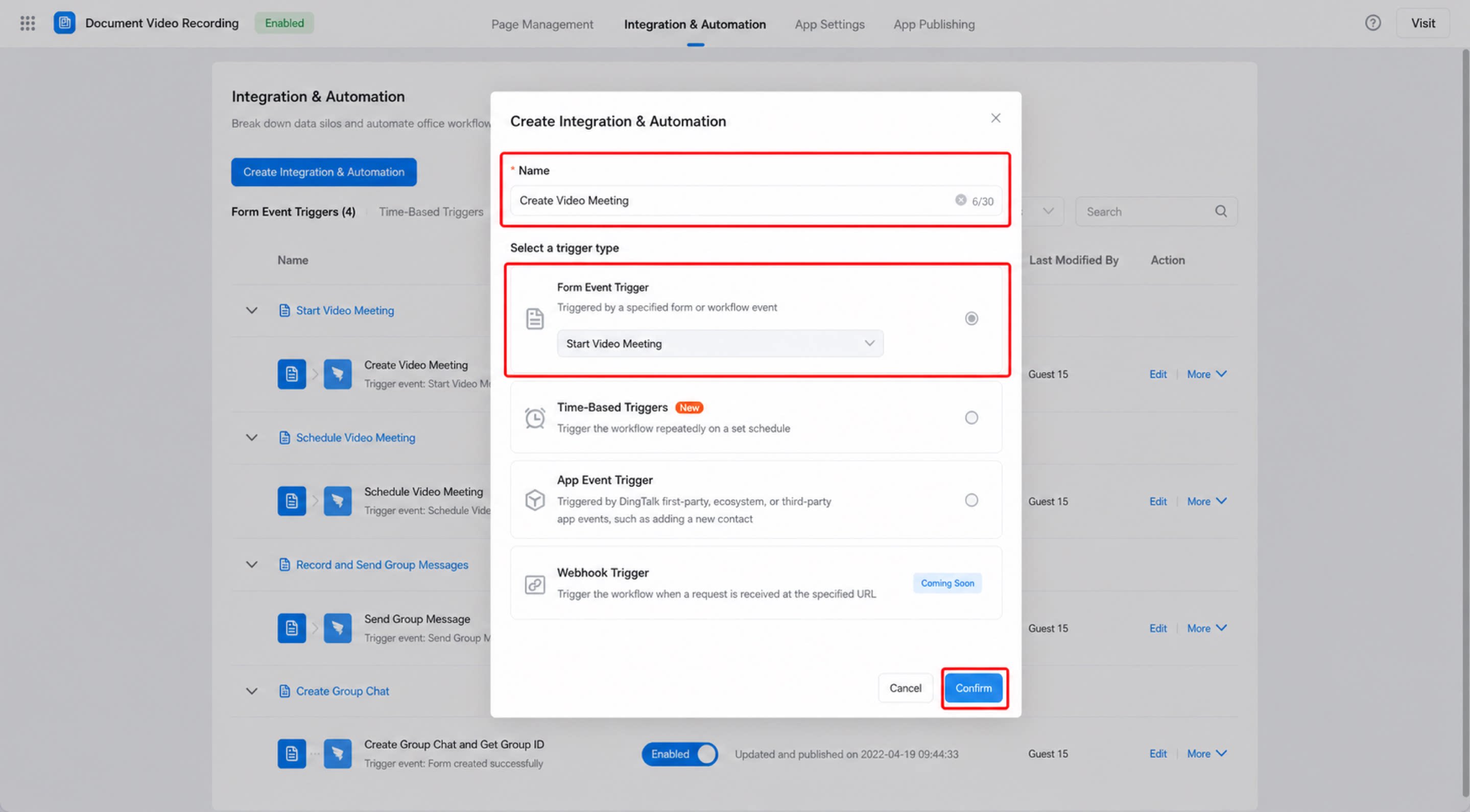
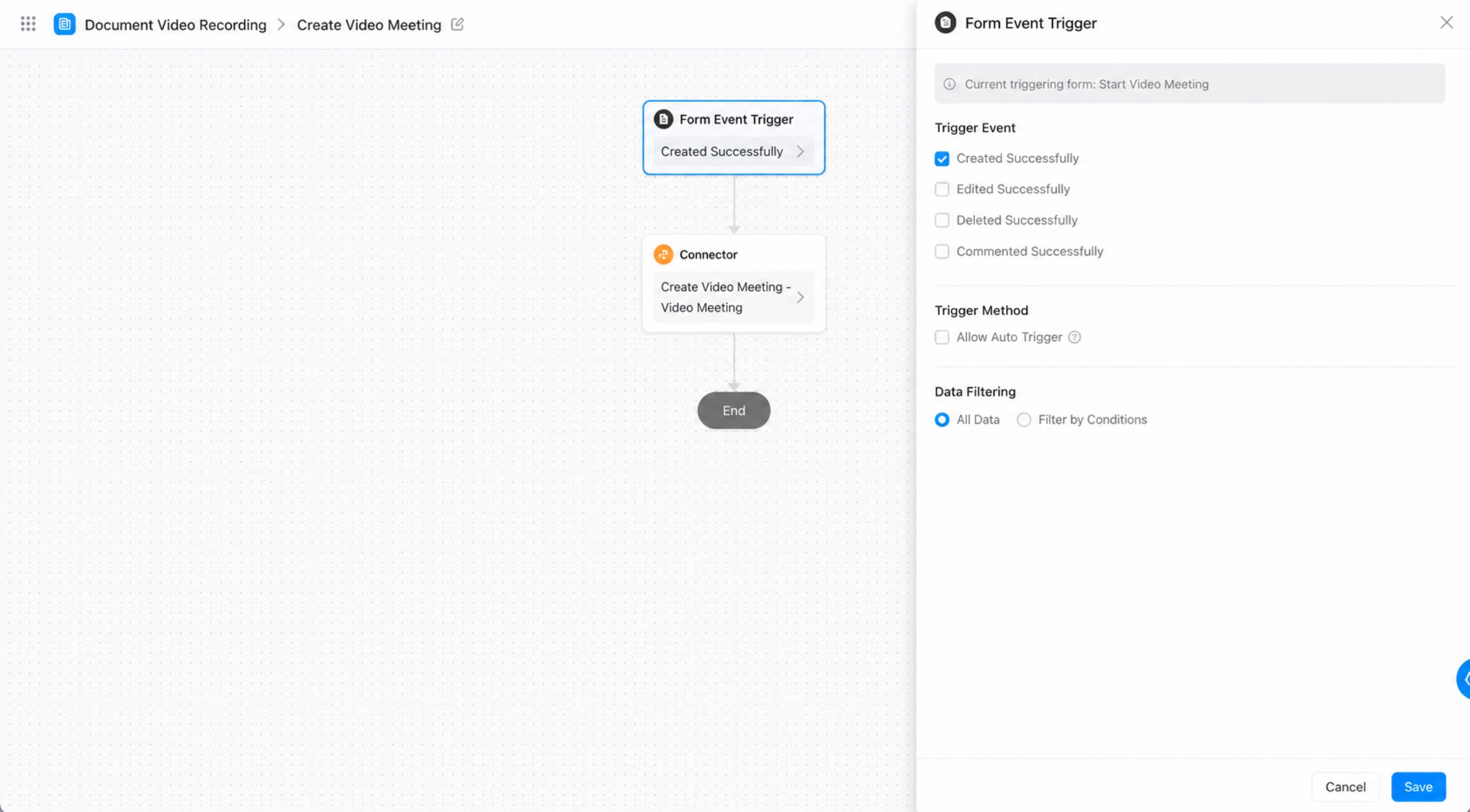
Create the connector: Click the “Integration & Automation” navigation at the top of the admin console to enter the feature section. Click the “Create Integration & Automation” button and select “Create from Blank”. In the dialog that appears, name the connector “Create Video Meeting”, and in the form event trigger, select the “New Video Meeting” form. Click Confirm.Create Integration & AutomationConfigure the form trigger event: Set the trigger event to “Create Success”, set the data filter to “All Data”, and click Save.
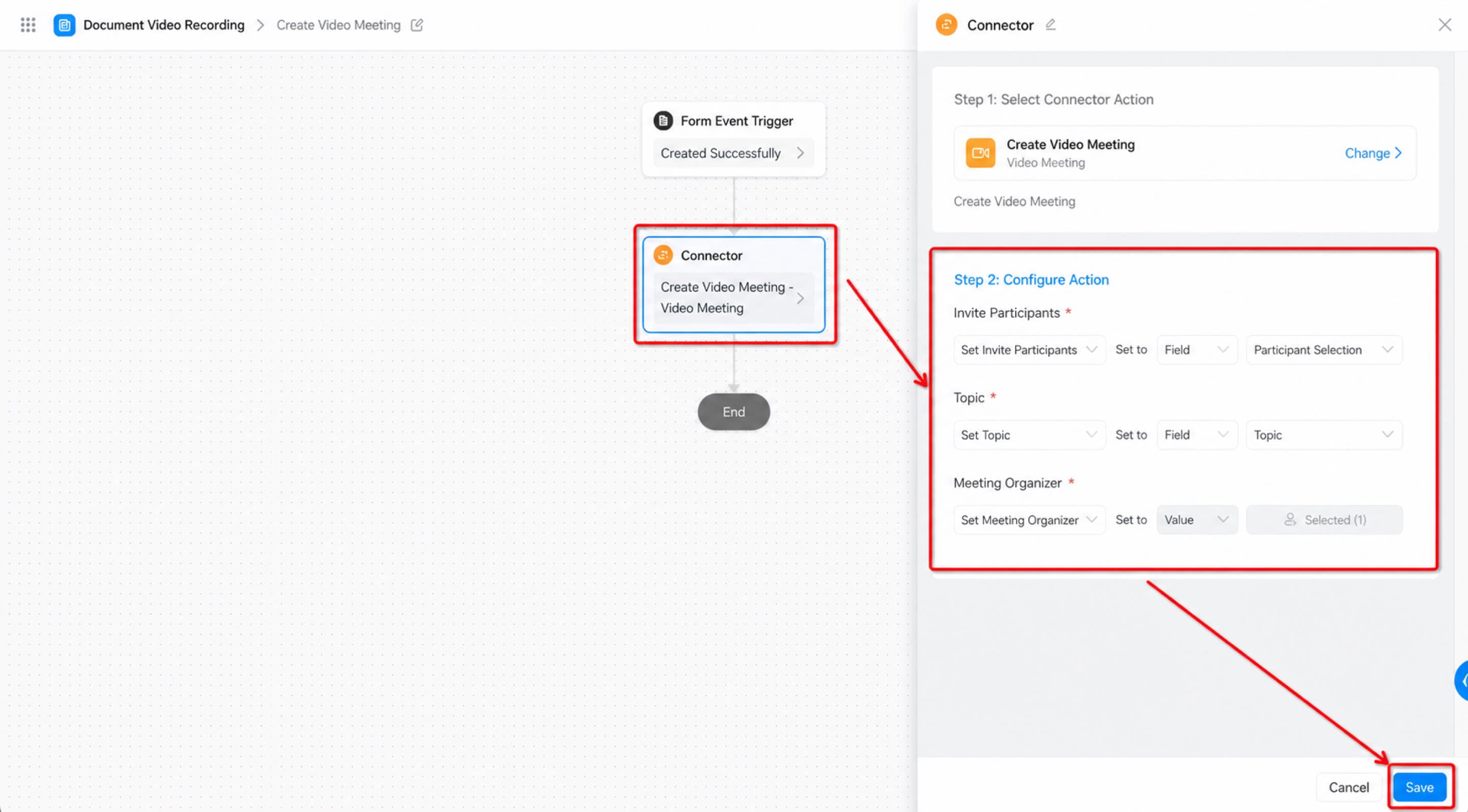
Configure the form event triggerConfigure the connector: Add a connector node, use Search to locate the connector with the action “Create Video Meeting”, and click it to configure the connector action. Map the connector’s required fields to the form fields one by one, then click Save. Finally, click “Save” and “Publish” in the upper-right corner of the page.Configure the connector action
Was this page helpful?
{"docsConfig":{"theme":"mint","$schema":"https://mintlify.com/docs.json","name":"DingTalk Help Center","description":"Official help center for DingTalk International — guides, API references, and tutorials.","colors":{"primary":"#0066ff","light":"#3385ff","dark":"#0052cc"},"logo":{"light":"https://help.dingtalk.io/logo/light.svg","dark":"https://help.dingtalk.io/logo/dark.svg","href":"/"},"favicon":"https://mintcdn.com/dingtalk-8c0f98e2/-gG_zvv6IXkTItYa/favicon.ico?fit=max\u0026auto=format\u0026n=-gG_zvv6IXkTItYa\u0026q=85\u0026s=0379048afba937f1ccd8e3a3d7ff252e","appearance":{"default":"system"},"background":{"decoration":"gradient"},"search":{"prompt":""},"seo":{"metatags":{"canonical":"https://help.dingtalk.io","og:type":"website","og:locale":"en_US","og:site_name":"DingTalk Help Center","twitter:card":"summary_large_image","dingtalk:title":"DingTalk 帮助中心","dingtalk:description":"DingTalk 帮助中心 — 指南、API 文档与教程","dingtalk:img":"https://img.alicdn.com/imgextra/i2/O1CN01YT67eU1F0F4n6LlTN_!!6000000000424-2-tps-1024-1024.png","google-site-verification":"4EgfuXkL4_HIpxdhr5IMYiZJoq7XTFARPiv2wALnH0c"},"indexing":"navigable"},"styling":{"codeblocks":{"theme":{"light":"github-light","dark":"github-dark"}},"latex":true},"integrations":{"ga4":{"measurementId":"G-5H09N9EW47"}},"errors":{"404":{"redirect":false}},"contextual":{"options":["copy"],"display":"header"},"navigation":{"languages":[{"language":"en","banner":{"content":"**Announcement:** DingTalk plans for international customers are changing beginning October 21, 2026. [Learn more](/announcements/international-plan-changes-2026)","dismissible":true,"type":"info"},"footer":{"socials":{"x":"https://x.com/DingTalkJapan","instagram":"https://www.instagram.com/dingtalkjapan","linkedin":"https://www.linkedin.com/company/dingtalk"}},"navbar":{"primary":{"type":"button","label":"Download","href":"https://www.dingtalk.io/download/"}},"href":"im/chats-overview"},{"language":"zh","banner":{"content":"**公告**:DingTalk 国际组织商业版本将于 2026 年 10 月 21 日起调整。[查看详情](/zh/announcements/international-plan-changes-2026)","dismissible":true,"type":"info"},"footer":{"socials":{"x":"https://x.com/DingTalkJapan","instagram":"https://www.instagram.com/dingtalkjapan","linkedin":"https://www.linkedin.com/company/dingtalk"}},"navbar":{"primary":{"type":"button","label":"下载","href":"https://www.dingtalk.io/zh/download/"}},"href":"zh/im/chats-overview"},{"language":"ja","banner":{"content":"**お知らせ**:2026年10月21日より、DingTalkグローバル版のプランを改定します。[詳細を見る](/ja/announcements/international-plan-changes-2026)","dismissible":true,"type":"info"},"footer":{"socials":{"x":"https://x.com/DingTalkJapan","instagram":"https://www.instagram.com/dingtalkjapan","linkedin":"https://www.linkedin.com/company/dingtalk"}},"navbar":{"primary":{"type":"button","label":"ダウンロード","href":"https://www.dingtalk.co.jp/download/"}},"href":"ja/im/chats-overview"},{"language":"id","banner":{"content":"**Pengumuman:** Paket DingTalk untuk pelanggan internasional akan berubah mulai 21 Oktober 2026. [Selengkapnya (bahasa Inggris)](/announcements/international-plan-changes-2026)","dismissible":true,"type":"info"},"footer":{"socials":{"x":"https://x.com/DingTalkJapan","instagram":"https://www.instagram.com/dingtalkjapan","linkedin":"https://www.linkedin.com/company/dingtalk"}},"navbar":{"primary":{"type":"button","label":"Unduh","href":"https://www.dingtalk.io/download/"}},"href":"id/im/chats-overview"},{"language":"uz","banner":{"content":"**Pengumuman:** Pelan DingTalk untuk pelanggan antarabangsa akan berubah mulai 21 Oktober 2026. [Ketahui lanjut (bahasa Inggeris)](/announcements/international-plan-changes-2026)","dismissible":true,"type":"info"},"footer":{"socials":{"x":"https://x.com/DingTalkJapan","instagram":"https://www.instagram.com/dingtalkjapan","linkedin":"https://www.linkedin.com/company/dingtalk"}},"navbar":{"primary":{"type":"button","label":"Muat turun","href":"https://www.dingtalk.io/download/"}},"href":"ms/im/chats-overview"}]}},"deployment":{"deploymentMetadataValue":{"subdomain":"dingtalk-8c0f98e2","hasAudioNarration":false,"actualSubdomain":"dingtalk-8c0f98e2","customDomains":["help.dingtalk.io"],"gitSource":{"type":"github","owner":"fuxun2008","repo":"dingtalk-docs","deployBranch":"main","contentDirectory":"","isPrivate":true,"mountPath":"","label":""},"chroma":{"liveDeploymentHistoryId":"6ae0635ddc8e261a8bb5a83f","collectionId":"7732ee56-7e24-4173-b91a-eaa9c9b7dfcd","schemaVersion":"v3","latestBuiltDeploymentHistoryId":"6ae0635ddc8e261a8bb5a83f"},"feedback":{"thumbs":true},"entitlements":{"AI_CHAT":{"status":"DISABLED"}},"buildId":"6aed6ab16ef5b3d55c3e841a","clientVersion":"0.0.4076","searchFilterCounts":[{"language":"en","tag":"Help Docs","count":1175},{"language":"id","tag":"Pusat Bantuan","count":1175},{"language":"ja","tag":"ヘルプドキュメント","count":1175},{"language":"uz","tag":"Pusat Bantuan","count":1175},{"language":"zh","tag":"帮助文档","count":1175},{"language":"en","tag":"Developer Docs","count":577},{"language":"id","tag":"Platform Terbuka","count":577},{"language":"ja","tag":"開発ドキュメント","count":577},{"language":"uz","tag":"Platform Terbuka","count":577},{"language":"zh","tag":"开发文档","count":577},{"language":"en","tag":"YiDA","count":568},{"language":"id","tag":"YiDA","count":568},{"language":"ja","tag":"YiDA","count":568},{"language":"uz","tag":"YiDA","count":568},{"language":"zh","tag":"宜搭","count":568},{"language":"en","tag":"Server API","count":476},{"language":"id","tag":"Server API","count":476},{"language":"ja","tag":"サーバー API","count":476},{"language":"uz","tag":"Server API","count":476},{"language":"zh","tag":"服务端 API","count":476},{"language":"en","tag":"Form Management","count":231},{"language":"id","tag":"Manajemen Formulir","count":231},{"language":"ja","tag":"フォーム管理","count":231},{"language":"uz","tag":"Pengurusan Borang","count":231},{"language":"zh","tag":"表单管理","count":231},{"language":"id","tag":"Dokumen","count":205},{"language":"ja","tag":"ドキュメント","count":205},{"language":"uz","tag":"Dokumen","count":205},{"language":"zh","tag":"文档","count":205},{"language":"en","tag":"Docs","count":180},{"language":"en","tag":"Form Design","count":166},{"language":"id","tag":"Desain Formulir","count":166},{"language":"ja","tag":"フォーム設計","count":166},{"language":"uz","tag":"Reka Bentuk Borang","count":166},{"language":"zh","tag":"表单设计","count":166},{"language":"en","tag":"AI Table","count":161},{"language":"id","tag":"AI Table","count":161},{"language":"uz","tag":"AI Table","count":161},{"language":"zh","tag":"AI 表格","count":161},{"language":"en","tag":"Docs \u0026 files","count":146},{"language":"id","tag":"Dokumen \u0026 file","count":146},{"language":"ja","tag":"Docs とファイル","count":146},{"language":"uz","tag":"Dokumen \u0026 Fail","count":146},{"language":"zh","tag":"文档/文件","count":146},{"language":"ja","tag":"AI テーブル","count":144},{"language":"en","tag":"Attendance","count":143},{"language":"id","tag":"Absensi","count":143},{"language":"ja","tag":"勤怠","count":143},{"language":"uz","tag":"Kehadiran","count":143},{"language":"zh","tag":"考勤","count":143}],"searchSettings":{"maxResults":15}},"assistantConfig":{"enableAskAiButton":false,"enableStarterQuestions":false,"enableContextualStarterQuestions":false,"enableAskAiSearchBar":true},"basePath":"","hasChatPermissions":false,"hasWebMcpPermissions":false,"toggles":[{"name":"kill-isr","enabled":true,"variant":{"name":"disabled","enabled":false,"feature_enabled":true},"impressionData":false},{"name":"agent-mintlify-slack","enabled":true,"variant":{"name":"disabled","enabled":false,"feature_enabled":true},"impressionData":false},{"name":"agent-integrations-settings","enabled":true,"variant":{"name":"disabled","enabled":false,"feature_enabled":true},"impressionData":false},{"name":"rbac-expansion","enabled":true,"variant":{"name":"disabled","enabled":false,"feature_enabled":true},"impressionData":false},{"name":"automations-pr-grouping","enabled":true,"variant":{"name":"disabled","enabled":false,"feature_enabled":true},"impressionData":false},{"name":"custom-prefix","enabled":true,"variant":{"name":"disabled","enabled":false,"feature_enabled":true},"impressionData":false},{"name":"analytics-v7","enabled":true,"variant":{"name":"disabled","enabled":false,"feature_enabled":true},"impressionData":false},{"name":"user-flows-analytics","enabled":true,"variant":{"name":"disabled","enabled":false,"feature_enabled":true},"impressionData":false},{"name":"no-publish-flow","enabled":true,"variant":{"name":"disabled","enabled":false,"feature_enabled":true},"impressionData":false},{"name":"workos-onboarding","enabled":true,"variant":{"name":"disabled","enabled":false,"feature_enabled":true},"impressionData":false},{"name":"llms-txt-v2","enabled":true,"variant":{"name":"disabled","enabled":false,"feature_enabled":true},"impressionData":false},{"name":"snapshot-serving-live","enabled":true,"variant":{"name":"disabled","enabled":false,"feature_enabled":true},"impressionData":false},{"name":"stripTemperatureMiddleware","enabled":true,"variant":{"name":"disabled","enabled":false,"feature_enabled":true},"impressionData":false},{"name":"support-platform-pylon-zendesk","enabled":true,"variant":{"name":"disabled","enabled":false,"feature_enabled":true},"impressionData":false},{"name":"snapshot-serving","enabled":true,"variant":{"name":"disabled","enabled":false,"feature_enabled":true},"impressionData":false},{"name":"instant-rollback","enabled":true,"variant":{"name":"disabled","enabled":false,"feature_enabled":true},"impressionData":false},{"name":"granular-notifications-server","enabled":true,"variant":{"name":"disabled","enabled":false,"feature_enabled":true},"impressionData":false},{"name":"granular-notifications","enabled":true,"variant":{"name":"disabled","enabled":false,"feature_enabled":true},"impressionData":false},{"name":"automations-fable","enabled":true,"variant":{"name":"disabled","enabled":false,"feature_enabled":true},"impressionData":false},{"name":"fixed-ai-action-pricing","enabled":true,"variant":{"name":"disabled","enabled":false,"feature_enabled":true},"impressionData":false},{"name":"automation-resolve-merge-conflict","enabled":true,"variant":{"name":"disabled","enabled":false,"feature_enabled":true},"impressionData":false},{"name":"scoped-publishing","enabled":true,"variant":{"name":"disabled","enabled":false,"feature_enabled":true},"impressionData":false},{"name":"mintql","enabled":true,"variant":{"name":"disabled","enabled":false,"feature_enabled":true},"impressionData":false},{"name":"page-level-analytics","enabled":true,"variant":{"name":"disabled","enabled":false,"feature_enabled":true},"impressionData":false},{"name":"editor-version-history-v2","enabled":true,"variant":{"name":"disabled","enabled":false,"feature_enabled":true},"impressionData":false},{"name":"billing-page-v2","enabled":true,"variant":{"name":"disabled","enabled":false,"feature_enabled":true},"impressionData":false},{"name":"full-page-search","enabled":true,"variant":{"name":"disabled","enabled":false,"feature_enabled":true},"impressionData":false},{"name":"workspace-projects","enabled":true,"variant":{"name":"disabled","enabled":false,"feature_enabled":true},"impressionData":false},{"name":"assistant-v5","enabled":true,"variant":{"name":"disabled","enabled":false,"feature_enabled":true},"impressionData":false},{"name":"fork-pr-previews","enabled":true,"variant":{"name":"disabled","enabled":false,"feature_enabled":true},"impressionData":false},{"name":"revalidation-jwt","enabled":true,"variant":{"name":"disabled","enabled":false,"feature_enabled":true},"impressionData":false},{"name":"workos-sso-scim","enabled":true,"variant":{"name":"disabled","enabled":false,"feature_enabled":true},"impressionData":false},{"name":"hobby-abuse-scan","enabled":true,"variant":{"name":"disabled","enabled":false,"feature_enabled":true},"impressionData":false},{"name":"dashboard-inbox","enabled":true,"variant":{"name":"disabled","enabled":false,"feature_enabled":true},"impressionData":false},{"name":"workos-signup","enabled":true,"variant":{"name":"disabled","enabled":false,"feature_enabled":true},"impressionData":false},{"name":"turbopuffer-dual-write","enabled":true,"variant":{"name":"disabled","enabled":false,"feature_enabled":true},"impressionData":false},{"name":"workos-enabled","enabled":true,"variant":{"name":"disabled","enabled":false,"feature_enabled":true},"impressionData":false},{"name":"approve-review-flow","enabled":true,"variant":{"name":"disabled","enabled":false,"feature_enabled":true},"impressionData":false},{"name":"sso-setup-deadline-banner","enabled":true,"variant":{"name":"disabled","enabled":false,"feature_enabled":true},"impressionData":false},{"name":"turbopuffer-serve","enabled":true,"variant":{"name":"disabled","enabled":false,"feature_enabled":true},"impressionData":false},{"name":"live-agents","enabled":true,"variant":{"name":"disabled","enabled":false,"feature_enabled":true},"impressionData":false},{"name":"comment-mode","enabled":true,"variant":{"name":"disabled","enabled":false,"feature_enabled":true},"impressionData":false}],"googleFontsInlined":false},"customCss":[{"filePath":"custom.css","content":".prose table,main table{border-collapse:separate!important;border-spacing:0;width:100%;margin:1.25rem 0;font-size:14px;line-height:1.6;border:1px solid rgb(229, 231, 235);border-radius:8px;overflow:hidden}.prose table th,main table th{min-width:5em}html.dark .prose table,html.dark main table{border-color:rgb(55, 65, 81)}.prose table thead,main table thead{background-color:rgb(249, 250, 251)}html.dark .prose table thead,html.dark main table thead{background-color:rgba(31, 41, 55, 0.6)}.prose table th,main table th{padding:12px 16px!important;font-weight:600!important;text-align:left!important;color:rgb(17, 24, 39)!important;border-bottom:1px solid rgb(229, 231, 235)!important}html.dark .prose table th,html.dark main table th{color:rgb(243, 244, 246)!important;border-bottom-color:rgb(55, 65, 81)!important}.prose table:not(:has(thead))>tr:first-child,main table:not(:has(thead))>tr:first-child{background-color:rgb(249, 250, 251)}html.dark .prose table:not(:has(thead))>tr:first-child,html.dark main table:not(:has(thead))>tr:first-child{background-color:rgba(31, 41, 55, 0.6)}.prose table td,main table td{padding:10px 16px!important;vertical-align:top;border-bottom:1px solid rgb(243, 244, 246)!important}html.dark .prose table td,html.dark main table td{border-bottom-color:rgba(55, 65, 81, 0.4)!important}.prose table td:first-child,main table td:first-child{padding-inline-start:16px!important;font-weight:500;color:rgb(31, 41, 55)}html.dark .prose table td:first-child,html.dark main table td:first-child{color:rgb(229, 231, 235)}.prose table tbody tr:last-child td,main table tbody tr:last-child td,.prose table>tr:last-child td,main table>tr:last-child td{border-bottom:0!important}.prose table tbody tr:nth-child(even),main table tbody tr:nth-child(even),.prose table:not(:has(thead))>tr:nth-child(even),main table:not(:has(thead))>tr:nth-child(even){background-color:rgba(249, 250, 251, 0.5)}html.dark .prose table tbody tr:nth-child(even),html.dark main table tbody tr:nth-child(even),html.dark .prose table:not(:has(thead))>tr:nth-child(even),html.dark main table:not(:has(thead))>tr:nth-child(even){background-color:rgba(31, 41, 55, 0.25)}.prose table tbody tr:hover,main table tbody tr:hover,.prose table>tr:hover,main table>tr:hover{background-color:rgba(0, 102, 255, 0.05)}html.dark .prose table tbody tr:hover,html.dark main table tbody tr:hover,html.dark .prose table>tr:hover,html.dark main table>tr:hover{background-color:rgba(0, 102, 255, 0.1)}.prose table code,main table code{font-size:0.875em;padding:1px 6px;border-radius:4px}.prose img,main article img{max-height:80vh;max-width:100%;width:auto;height:auto;object-fit:contain;display:block;margin-left:auto;margin-right:auto;border-radius:8px;box-shadow:0 1px 3px rgba(0, 0, 0, 0.08)}html.dark .prose img,html.dark main article img{box-shadow:0 1px 3px rgba(0, 0, 0, 0.4)}@media (max-width: 640px){.prose img,main article img{max-height:none;border-radius:6px}}.prose img.inline-icon,main article img.inline-icon{display:inline-block;width:auto;height:auto;max-height:1.5em;margin:0 3px;vertical-align:text-bottom;border-radius:3px;box-shadow:none}img[src*=\"/logo/icons/\"]{background-color:currentColor!important;-webkit-mask-repeat:no-repeat;mask-repeat:no-repeat;-webkit-mask-position:center;mask-position:center;-webkit-mask-size:contain;mask-size:contain}img[src*=\"/logo/icons/im.svg\"]{-webkit-mask-image:url(/logo/icons/im-glyph.svg);mask-image:url(/logo/icons/im-glyph.svg)}img[src*=\"/logo/icons/cal.svg\"]{-webkit-mask-image:url(/logo/icons/cal-glyph.svg);mask-image:url(/logo/icons/cal-glyph.svg)}img[src*=\"/logo/icons/av.svg\"]{-webkit-mask-image:url(/logo/icons/av-glyph.svg);mask-image:url(/logo/icons/av-glyph.svg)}img[src*=\"/logo/icons/contact.svg\"]{-webkit-mask-image:url(/logo/icons/contact-glyph.svg);mask-image:url(/logo/icons/contact-glyph.svg)}img[src*=\"/logo/icons/mail.svg\"]{-webkit-mask-image:url(/logo/icons/mail-glyph.svg);mask-image:url(/logo/icons/mail-glyph.svg)}img[src*=\"/logo/icons/doc.svg\"]{-webkit-mask-image:url(/logo/icons/doc-glyph.svg);mask-image:url(/logo/icons/doc-glyph.svg)}img[src*=\"/logo/icons/drive.svg\"]{-webkit-mask-image:url(/logo/icons/drive-glyph.svg);mask-image:url(/logo/icons/drive-glyph.svg)}img[src*=\"/logo/icons/table.svg\"]{-webkit-mask-image:url(/logo/icons/table-glyph.svg);mask-image:url(/logo/icons/table-glyph.svg)}img[src*=\"/logo/icons/notes.svg\"]{-webkit-mask-image:url(/logo/icons/notes-glyph.svg);mask-image:url(/logo/icons/notes-glyph.svg)}img[src*=\"/logo/icons/yida.svg\"]{-webkit-mask-image:url(/logo/icons/yida-glyph.svg);mask-image:url(/logo/icons/yida-glyph.svg)}img[src*=\"/logo/icons/att.svg\"]{-webkit-mask-image:url(/logo/icons/att-glyph.svg);mask-image:url(/logo/icons/att-glyph.svg)}img[src*=\"/logo/icons/appr.svg\"]{-webkit-mask-image:url(/logo/icons/appr-glyph.svg);mask-image:url(/logo/icons/appr-glyph.svg)}[data-component-part=\"products-selector-trigger\"]>span{max-width:none!important;overflow:visible!important;text-overflow:clip!important;-webkit-line-clamp:unset!important;display:block!important;white-space:nowrap!important}[data-component-part=\"products-selector-trigger\"]{overflow:visible!important}.nav-tabs-item{white-space:nowrap!important;flex-shrink:0!important}.nav-tabs{flex-wrap:nowrap;overflow:hidden}html.dt-nav-ready .nav-tabs{overflow:visible}#navbar div.flex-1.justify-end{flex-grow:0!important}.dt-more-tab{position:relative;display:inline-flex;align-items:center;gap:6px;height:100%;cursor:pointer;background:none;border:0;padding:0;white-space:nowrap;flex-shrink:0}.dt-more-tab .dt-more-caret{width:12px;height:12px;transition:transform 0.2s ease}.dt-more-tab:hover .dt-more-caret,.dt-more-tab:focus-within .dt-more-caret,.dt-more-tab[aria-expanded=\"true\"] .dt-more-caret{transform:rotate(180deg)}.dt-more-tab.dt-more-active{color:var(--primary, #0066ff)!important}html.dark .dt-more-tab.dt-more-active{color:var(--primary-light, #4d94ff)!important}.dt-more-panel{position:absolute;top:calc(100% + 6px);right:0;z-index:60;min-width:208px;padding:6px;display:none;flex-direction:column;gap:2px;background:#ffffff;border:1px solid rgba(23, 26, 29, 0.1);border-radius:12px;box-shadow:0 12px 32px rgba(23, 26, 29, 0.16), 0 2px 8px rgba(23, 26, 29, 0.08)}html.dark .dt-more-panel{background:#1b1e24;border-color:rgba(255, 255, 255, 0.12);box-shadow:0 12px 32px rgba(0, 0, 0, 0.6), 0 2px 8px rgba(0, 0, 0, 0.4)}.dt-more-panel::before{content:\"\";position:absolute;left:0;right:0;top:-10px;height:10px}.dt-more-tab:hover .dt-more-panel,.dt-more-tab:focus-within .dt-more-panel,.dt-more-panel:hover,.dt-more-tab[aria-expanded=\"true\"] .dt-more-panel{display:flex}.dt-more-panel .dt-more-item{display:flex;align-items:center;gap:10px;padding:8px 10px;border-radius:8px;font-size:14px;font-weight:500;color:var(--gray-700, #374151);white-space:nowrap;text-decoration:none}html.dark .dt-more-panel .dt-more-item{color:rgba(255, 255, 255, 0.75)}.dt-more-panel .dt-more-item:hover{background:rgba(0, 102, 255, 0.08)}.dt-more-panel .dt-more-item.dt-more-item-active{color:var(--primary, #0066ff);background:rgba(0, 102, 255, 0.1)}.dt-more-panel .dt-more-item img{width:18px;height:18px;flex:none}img[src*=\"/logo/icons/dev.svg\"]{-webkit-mask-image:url(/logo/icons/dev-glyph.svg);mask-image:url(/logo/icons/dev-glyph.svg)}img[src*=\"/logo/icons/oa.svg\"]{-webkit-mask-image:url(/logo/icons/oa-glyph.svg);mask-image:url(/logo/icons/oa-glyph.svg)}html.dt-embed #navbar,html.dt-embed #sidebar,html.dt-embed #table-of-contents,html.dt-embed footer{display:none!important}html.dt-embed :where(div):has(>#content-area){padding-top:2.5rem!important}@font-face{font-family:\"DT Yu Gothic\";src:local(\"Yu Gothic Medium\"), local(\"YuGothic Medium\");font-weight:100 500}@font-face{font-family:\"DT Yu Gothic\";src:local(\"Yu Gothic Bold\"), local(\"YuGothic Bold\");font-weight:600 900}html[lang=\"ja\"]{--dt-font-ja: Inter, \"Hiragino Sans\", \"Hiragino Kaku Gothic ProN\", \"DT Yu Gothic\", \"Yu Gothic\", YuGothic, sans-serif}html[lang=\"ja\"] body,html[lang=\"ja\"] :is(h1,h2,h3,h4,h5,h6){font-family:var(--dt-font-ja)}html[lang=\"ja\"] .dt-home{--cjk: var(--dt-font-ja)}#content-area:has(.dt-hide-page-desc) #header>div.prose{display:none}"},{"filePath":"style.css","content":".dt-home{--blue: #0066ff;--blue-deep: #0052cc;--blue-soft: #eaf2ff;--blue-tint: #f4f8ff;--ink: #0d1421;--ink-2: #3d4757;--ink-3: #7a8595;--line: #e9edf3;--line-2: #f0f3f8;--bg: #ffffff;--bg-soft: #f7f9fc;--surface: #ffffff;--surface-glass: rgba(255, 255, 255, 0.82);--eyebrow-bg: #ffffff;--logo-url: url(/logo/dark.svg);--dot-pattern: rgba(13, 20, 33, 0.045);--hero-scrim: radial-gradient(660px 420px at 50% 42%, rgba(247, 249, 252, 0.62), rgba(247, 249, 252, 0.18) 54%, rgba(247, 249, 252, 0) 78%);--hero-tint-1: rgba(0, 102, 255, 0.10);--hero-tint-2: rgba(58, 147, 255, 0.08);--hero-tint-3: rgba(150, 120, 255, 0.06);--radius: 18px;--shadow-sm: 0 1px 2px rgba(13, 20, 33, 0.04), 0 4px 16px rgba(13, 20, 33, 0.04);--shadow-md: 0 8px 30px rgba(13, 20, 33, 0.08);--shadow-blue: 0 12px 40px rgba(0, 102, 255, 0.18);--cjk: \"PingFang SC\", \"Hiragino Sans GB\", \"Microsoft YaHei\", sans-serif;color:var(--ink);background:var(--bg);line-height:1.6;font-family:var(--cjk)}.dt-home *,.dt-home *::before,.dt-home *::after{box-sizing:border-box}.dt-home a{color:inherit;text-decoration:none}.dt-home img,.dt-home svg{display:block}html[data-page-mode=\"custom\"] #navbar{display:none!important}html[data-page-mode=\"custom\"] :where(div):has(>#content-area){padding-top:0!important}html:has(.dt-home),html:has(.dt-home) body{scrollbar-width:none;-ms-overflow-style:none}html:has(.dt-home)::-webkit-scrollbar,html:has(.dt-home) body::-webkit-scrollbar{width:0;height:0;display:none}.dt-home-header{position:sticky;top:0;z-index:50;background:var(--surface-glass);backdrop-filter:saturate(180%) blur(18px);-webkit-backdrop-filter:saturate(180%) blur(18px);border-bottom:1px solid var(--line-2)}.dt-home-nav{max-width:1180px;margin:0 auto;padding:0 28px;height:66px;display:flex;align-items:center;gap:32px}.dt-home .dt-home-brand{display:flex;align-items:center;gap:10px;font-weight:700;letter-spacing:-0.01em;text-decoration:none}.dt-home-brand-logo{display:block;width:95px;height:32px;background:var(--logo-url) no-repeat left center;background-size:contain}.dt-home-brand-sub{color:var(--ink-3);font-weight:500;font-size:13px;border-left:1px solid var(--line);padding-left:11px;margin-left:2px}.dt-home-nav-links{display:flex;gap:28px;margin-left:8px}.dt-home .dt-home-nav-links a{font-size:14.5px;color:var(--ink-2);font-weight:500;transition:color 0.2s;text-decoration:none}.dt-home .dt-home-nav-links a:hover{color:var(--blue)}.dt-home-nav-right{margin-left:auto;display:flex;align-items:center;gap:14px}.dt-home-lang{position:relative}.dt-home-lang-btn{display:flex;align-items:center;gap:6px;font-size:13.5px;color:var(--ink-2);font-weight:600;border:1px solid var(--line);border-radius:99px;padding:7px 11px 7px 13px;cursor:pointer;transition:0.2s;background:var(--surface);font-family:inherit}.dt-home-lang-btn:hover{border-color:var(--blue);color:var(--blue)}.dt-home-lang-label{white-space:nowrap}.dt-home-lang-btn svg{width:15px;height:15px}.dt-home-lang-chev{width:13px!important;height:13px!important;transition:transform 0.2s;opacity:0.7}.dt-home-lang-open .dt-home-lang-btn{border-color:var(--blue);color:var(--blue)}.dt-home-lang-open .dt-home-lang-chev{transform:rotate(180deg)}.dt-home-lang-list{position:absolute;top:calc(100% + 8px);right:0;min-width:176px;background:var(--surface);border:1px solid var(--line);border-radius:13px;box-shadow:var(--shadow-md);padding:6px;list-style:none;margin:0;opacity:0;visibility:hidden;transform:translateY(-6px);transition:0.18s;z-index:60}.dt-home-lang-open .dt-home-lang-list{opacity:1;visibility:visible;transform:none}.dt-home-lang-list li{display:flex;align-items:center;justify-content:space-between;gap:10px;font-size:14px;color:var(--ink-2);font-weight:500;padding:9px 12px;border-radius:9px;cursor:pointer;transition:0.15s;white-space:nowrap}.dt-home-lang-list li:hover{background:var(--blue-tint);color:var(--blue)}.dt-home-lang-list li[aria-selected=\"true\"]{color:var(--blue);font-weight:600;background:var(--blue-soft)}.dt-home-lang-list li[aria-selected=\"true\"]::after{content:\"\\2713\";font-size:12px}.dt-home-navmenu{position:relative;display:none}.dt-home-nav-burger{display:flex;align-items:center;justify-content:center;width:38px;height:38px;border:1px solid var(--line);border-radius:11px;background:var(--surface);color:var(--ink-2);cursor:pointer;transition:0.2s;padding:0}.dt-home-nav-burger:hover{border-color:var(--blue);color:var(--blue)}.dt-home-nav-burger svg{width:22px;height:22px}.dt-home-navmenu-open .dt-home-nav-burger{border-color:var(--blue);color:var(--blue)}.dt-home-nav-panel{position:absolute;top:calc(100% + 8px);right:0;min-width:196px;background:var(--surface);border:1px solid var(--line);border-radius:13px;box-shadow:var(--shadow-md);padding:8px;display:flex;flex-direction:column;gap:2px;opacity:0;visibility:hidden;transform:translateY(-6px);transition:0.18s;z-index:60}.dt-home-navmenu-open .dt-home-nav-panel{opacity:1;visibility:visible;transform:none}.dt-home .dt-home-nav-panel a{font-size:14.5px;color:var(--ink-2);font-weight:500;padding:11px 12px;border-radius:9px;transition:0.15s;text-decoration:none}.dt-home .dt-home-nav-panel a:hover{background:var(--blue-tint);color:var(--blue)}.dt-home .dt-home-nav-panel-cta{margin-top:6px;text-align:center;background:var(--blue);color:#fff!important;font-weight:600;box-shadow:0 4px 14px rgba(0, 102, 255, 0.28)}.dt-home .dt-home-nav-panel-cta:hover{background:var(--blue-deep)}.dt-home .dt-home-btn-primary{background:var(--blue);color:#fff;font-weight:600;font-size:14px;padding:9px 18px;border-radius:99px;transition:0.2s;box-shadow:0 4px 14px rgba(0, 102, 255, 0.28);text-decoration:none}.dt-home .dt-home-btn-primary:hover{background:var(--blue-deep);transform:translateY(-1px)}.dt-home-hero{position:relative;padding:92px 28px 76px;text-align:center;background:radial-gradient(900px 380px at 50% -8%, var(--hero-tint-1), transparent 60%),\n radial-gradient(560px 300px at 12% 18%, var(--hero-tint-2), transparent 60%),\n radial-gradient(560px 300px at 88% 12%, var(--hero-tint-3), transparent 60%);overflow:hidden}.dt-home-hero::before{content:\"\";position:absolute;inset:0;pointer-events:none;z-index:1;background-image:radial-gradient(var(--dot-pattern) 1px, transparent 1px);background-size:26px 26px;-webkit-mask-image:radial-gradient(620px 360px at 50% 30%, #000 0%, transparent 75%);mask-image:radial-gradient(620px 360px at 50% 30%, #000 0%, transparent 75%)}.dt-home-hero-bg{position:absolute;inset:0;z-index:0;overflow:hidden}.dt-home-particle-canvas{position:absolute;inset:0;width:100%;height:100%;display:block}.dt-home-hero-scrim{position:absolute;inset:0;z-index:2;pointer-events:none;background:var(--hero-scrim)}.dt-home-hero-inner{position:relative;z-index:3;max-width:760px;margin:0 auto}.dt-home-eyebrow{display:inline-flex;align-items:center;gap:7px;font-size:13px;font-weight:600;color:var(--blue);background:var(--eyebrow-bg);border:1px solid var(--blue-soft);box-shadow:var(--shadow-sm);padding:6px 14px;border-radius:99px;margin-bottom:24px}.dt-home-eyebrow-dot{width:6px;height:6px;border-radius:50%;background:#22c55e;box-shadow:0 0 0 4px rgba(34, 197, 94, 0.15)}.dt-home-notice{max-width:100%;padding:4px 14px 4px 4px;color:var(--ink-2);font-weight:500;text-decoration:none;transition:border-color 0.2s, box-shadow 0.2s, transform 0.2s}.dt-home-notice:hover{border-color:var(--blue);box-shadow:var(--shadow-blue);transform:translateY(-1px)}.dt-home-notice:focus-visible{outline:2px solid var(--blue);outline-offset:3px}.dt-home-notice-label{flex:none;padding:2px 10px;border-radius:99px;background:var(--blue);color:#fff;font-weight:600}.dt-home-notice-text{min-width:0;overflow:hidden;text-overflow:ellipsis;white-space:nowrap}.dt-home-notice-arrow{flex:none;color:var(--blue);transition:transform 0.2s}.dt-home-notice:hover .dt-home-notice-arrow{transform:translateX(3px)}.dt-home-hero-title{font-weight:700;letter-spacing:-0.02em;font-size:clamp(30px, 5vw, 46px);line-height:1.14;color:var(--ink);margin:0}.dt-home-hero-sub{margin:16px auto 0;font-size:17px;color:var(--ink-2);max-width:100%}.dt-home-search{margin:36px auto 0;max-width:620px;position:relative;z-index:30}.dt-home-search-box{display:flex;align-items:center;gap:12px;background:var(--surface);border:1.5px solid var(--line);border-radius:99px;padding:8px 8px 8px 22px;box-shadow:var(--shadow-md);transition:0.25s;cursor:text}.dt-home-search-box:focus-within{border-color:var(--blue);box-shadow:var(--shadow-blue)}.dt-home-search-ic{width:20px;height:20px;color:var(--ink-3);flex:none}.dt-home-search-box input{flex:1;min-width:0;border:none;outline:none;font-family:var(--cjk);font-size:16px;color:var(--ink);background:transparent}.dt-home-search-box input::placeholder{color:var(--ink-3)}.dt-home-search-go{background:var(--blue);color:#fff;border:none;cursor:pointer;font-family:var(--cjk);font-weight:600;font-size:15px;padding:11px 24px;border-radius:99px;transition:0.2s;flex:none;display:inline-flex;align-items:center;justify-content:center;gap:6px}.dt-home-search-go kbd{font-family:ui-monospace, SFMono-Regular, Menlo, monospace;font-size:11.5px;font-weight:600;color:rgba(255, 255, 255, 0.82);background:rgba(255, 255, 255, 0.16);border:1px solid rgba(255, 255, 255, 0.28);border-radius:5px;padding:2px 6px;letter-spacing:0.02em;user-select:none;line-height:1}.dt-home-search-go:hover{background:var(--blue-deep)}.dt-home-hot{margin-top:18px;display:flex;flex-wrap:nowrap;gap:8px;position:relative;left:50%;transform:translateX(-50%);z-index:1;justify-content:center;align-items:center;width:max-content;max-width:calc(100vw - 56px)}.dt-home-hot-label{font-size:13.5px;color:var(--ink-3);font-weight:500;margin-right:2px;flex:none}.dt-home .dt-home-hot a{font-size:13.5px;color:var(--ink-2);background:var(--surface);border:1px solid var(--line);padding:6px 13px;border-radius:99px;transition:0.2s;font-weight:500;white-space:nowrap;flex:none;text-decoration:none}.dt-home .dt-home-hot a:hover{color:var(--blue);border-color:var(--blue);background:var(--blue-tint)}.dt-home-wrap{max-width:1180px;margin:0 auto;padding:0 28px}.dt-home-block{padding-top:64px;padding-bottom:64px}.dt-home-popular .dt-home-block{padding-top:88px;padding-bottom:88px}.dt-home-sec-head{display:flex;align-items:flex-end;justify-content:space-between;margin-bottom:30px;gap:20px;flex-wrap:wrap}.dt-home-sec-head h2{font-weight:700;font-size:25px;letter-spacing:-0.01em;margin:0}.dt-home-sec-head p{font-size:14.5px;color:var(--ink-3);margin:6px 0 0}.dt-home .dt-home-more{font-size:14px;font-weight:600;color:var(--blue);display:inline-flex;align-items:center}.dt-home .dt-home-more:hover{color:var(--blue-deep)}.dt-home-grid{display:grid;grid-template-columns:repeat(3, 1fr);gap:18px}.dt-home-card{display:block;background:var(--surface);border:1px solid var(--line);border-radius:var(--radius);padding:26px 24px;transition:0.28s cubic-bezier(0.2, 0.7, 0.2, 1);position:relative;overflow:hidden}.dt-home-card::after{content:\"\";position:absolute;inset:0;border-radius:var(--radius);background:linear-gradient(135deg, rgba(0, 102, 255, 0.05), transparent 55%);opacity:0;transition:0.28s}.dt-home-card:hover{border-color:transparent;box-shadow:var(--shadow-md);transform:translateY(-4px)}.dt-home-card:hover::after{opacity:1}.dt-home-card-ico{width:46px;height:46px;border-radius:13px;background:var(--blue-soft);color:var(--blue);display:grid;place-items:center;margin-bottom:16px;transition:0.28s}.dt-home-card-ico svg{width:23px;height:23px}.dt-home-card:hover .dt-home-card-ico{background:var(--blue);color:#fff;transform:scale(1.06) rotate(-3deg)}.dt-home-card h3{font-size:17.5px;font-weight:600;letter-spacing:-0.01em;margin:0}.dt-home-card-desc{font-size:13.5px;color:var(--ink-3);margin:7px 0 0;min-height:38px}.dt-home-card-topics{margin-top:14px;display:flex;flex-direction:column;gap:8px}.dt-home-card-topics span{font-size:13.5px;color:var(--ink-2);display:flex;align-items:center;gap:7px;font-weight:500}.dt-home-card-topics span::before{content:\"\";width:4px;height:4px;border-radius:50%;background:var(--blue);opacity:0.5;flex:none}.dt-home-card-count{position:absolute;top:24px;right:24px;font-size:12.5px;color:var(--ink-3);font-weight:600}.dt-home-popular{background:var(--bg-soft);border-top:1px solid var(--line-2);border-bottom:1px solid var(--line-2)}.dt-home-art-grid{display:grid;grid-template-columns:repeat(3, minmax(0, 1fr));gap:14px}.dt-home-art{display:flex;align-items:center;gap:16px;background:var(--surface);border:1px solid var(--line);border-radius:14px;padding:18px 20px;transition:0.22s;min-width:0}.dt-home-art:hover{border-color:var(--blue);box-shadow:var(--shadow-sm);transform:translateX(4px)}.dt-home-art-num{font-weight:700;font-size:18px;color:var(--blue);width:26px;flex:none;text-align:center}.dt-home-art-info{flex:1;min-width:0}.dt-home-art-info h4{font-size:15px;font-weight:600;letter-spacing:-0.01em;white-space:nowrap;overflow:hidden;text-overflow:ellipsis;margin:0}.dt-home-art-tag{font-size:12.5px;color:var(--ink-3);margin-top:3px;display:block}.dt-home-art-arr{width:18px;height:18px;color:var(--ink-3);flex:none;transition:0.22s}.dt-home-art:hover .dt-home-art-arr{color:var(--blue);transform:translateX(3px)}.dt-home-support{background:linear-gradient(120deg, #0c2a66, #0066ff 70%);color:#fff;border-radius:26px;padding:48px 52px;display:flex;align-items:center;gap:30px;justify-content:space-between;position:relative;overflow:hidden;box-shadow:var(--shadow-blue)}.dt-home-support-txt{flex:1;min-width:0}.dt-home-support-acts{flex:none}.dt-home-support::before{content:\"\";position:absolute;right:-60px;top:-60px;width:300px;height:300px;border-radius:50%;background:radial-gradient(circle, rgba(255, 255, 255, 0.18), transparent 70%)}.dt-home-support-txt h2{font-size:26px;font-weight:700;letter-spacing:-0.01em;margin:0}.dt-home-support-txt p{font-size:15px;color:rgba(255, 255, 255, 0.82);margin:8px 0 0;max-width:440px}.dt-home-support-acts{display:flex;gap:12px;flex-wrap:wrap;position:relative}.dt-home-support-acts a{padding:12px 22px;border-radius:99px;font-weight:600;font-size:14.5px;transition:0.2s}.dt-home-support-acts a.dt-home-support-s1{background:#fff;color:var(--blue-deep)}.dt-home-support-acts a.dt-home-support-s1:hover{transform:translateY(-2px);box-shadow:0 10px 24px rgba(0, 0, 0, 0.2)}.dt-home-support-acts a.dt-home-support-s2{background:rgba(255, 255, 255, 0.14);color:#fff;border:1px solid rgba(255, 255, 255, 0.28)}.dt-home-support-acts a.dt-home-support-s2:hover{background:rgba(255, 255, 255, 0.22)}.dt-home-footer{border-top:1px solid var(--line-2);padding:54px 0 40px;margin-top:8px}.dt-home-foot{display:grid;grid-template-columns:1.4fr repeat(3, 1fr);gap:40px}.dt-home-foot-brand{display:block;width:130px;height:42px;background:var(--logo-url) no-repeat left center;background-size:contain;margin-bottom:14px}.dt-home-foot-tagline{display:block;font-size:13.5px;color:var(--ink-3);max-width:260px;margin:0}.dt-home-foot h5{font-size:13px;font-weight:700;color:var(--ink);margin:0 0 14px;letter-spacing:0.02em}.dt-home-foot ul{list-style:none;display:flex;flex-direction:column;gap:10px;padding:0;margin:0}.dt-home-foot ul a{font-size:13.5px;color:var(--ink-2);transition:0.2s}.dt-home-foot ul a:hover{color:var(--blue)}.dt-home-foot-bottom{max-width:1180px;margin:36px auto 0;padding:22px 28px 0;border-top:1px solid var(--line-2);display:flex;justify-content:space-between;flex-wrap:wrap;gap:12px;font-size:13px;color:var(--ink-3)}.dt-home-foot-bottom a{color:var(--ink-3)}@media (max-width: 900px){.dt-home-grid{grid-template-columns:repeat(2, 1fr)}.dt-home-art-grid{grid-template-columns:repeat(2, minmax(0, 1fr))}.dt-home-foot{grid-template-columns:1fr 1fr}.dt-home-nav-links{display:none}.dt-home-navmenu{display:block}.dt-home .dt-home-btn-primary{display:none}}@media (max-width: 640px){.dt-home-art-grid{grid-template-columns:minmax(0, 1fr)}.dt-home-hot{left:auto;transform:none;width:auto;max-width:100%;justify-content:flex-start;overflow-x:auto;-webkit-overflow-scrolling:touch;scrollbar-width:none;padding-bottom:2px}.dt-home-hot::-webkit-scrollbar{display:none}}@media (max-width: 560px){.dt-home-nav{gap:10px;padding:0 24px;height:60px}.dt-home-brand{font-size:17px;gap:8px}.dt-home-brand-logo{width:76px;height:26px}.dt-home-brand-sub{display:none}.dt-home-nav-right{gap:8px}.dt-home-lang-btn{padding:7px 10px;font-size:13px}.dt-home-btn-primary{padding:8px 15px;font-size:13px}}@media (max-width: 560px){.dt-home-grid{grid-template-columns:1fr}.dt-home-wrap{padding:0 24px}.dt-home-hero{padding:52px 24px 46px}.dt-home-eyebrow{font-size:12px;margin-bottom:18px}.dt-home-hero-title{font-size:28px}.dt-home-hero-sub{font-size:15px}.dt-home-search{margin-top:28px}.dt-home-search-box{padding:7px 7px 7px 18px}.dt-home-search-box input{font-size:15px}.dt-home-search-go{display:none}.dt-home-block{padding-top:46px;padding-bottom:46px}.dt-home-popular .dt-home-block{padding-top:52px;padding-bottom:52px}.dt-home-sec-head{margin-bottom:24px}.dt-home-sec-head h2{font-size:21px}.dt-home-card{padding:22px 20px}.dt-home-art{padding:16px}.dt-home-support{padding:30px 22px;flex-direction:column;align-items:flex-start;gap:20px}.dt-home-support-txt h2{font-size:21px}.dt-home-support-acts{width:100%;flex-direction:column;gap:10px}.dt-home-support-acts a{width:100%;text-align:center}.dt-home-foot{grid-template-columns:1fr 1fr;gap:26px 24px}.dt-home-foot-bottom{flex-direction:column;gap:10px;align-items:flex-start;padding:22px 24px 0}}@media (max-width: 380px){.dt-home-hero-title{font-size:25px}.dt-home-foot{grid-template-columns:1fr}}html.dark .dt-home{--ink: #e8edf5;--ink-2: #b4becf;--ink-3: #7e8a9c;--line: #25303f;--line-2: #1b232f;--bg: #0c1219;--bg-soft: #11171f;--blue-soft: rgba(0, 102, 255, 0.18);--blue-tint: rgba(0, 102, 255, 0.10);--surface: #161d27;--surface-glass: rgba(12, 18, 25, 0.78);--eyebrow-bg: #161d27;--logo-url: url(/logo/dark.svg);--dot-pattern: rgba(255, 255, 255, 0.05);--hero-scrim: radial-gradient(660px 420px at 50% 42%, rgba(12, 18, 25, 0.55), rgba(12, 18, 25, 0.20) 54%, rgba(12, 18, 25, 0) 78%);--hero-tint-1: rgba(0, 102, 255, 0.18);--hero-tint-2: rgba(58, 147, 255, 0.10);--hero-tint-3: rgba(150, 120, 255, 0.08);--shadow-sm: 0 1px 2px rgba(0, 0, 0, 0.4), 0 4px 16px rgba(0, 0, 0, 0.35);--shadow-md: 0 8px 30px rgba(0, 0, 0, 0.45);--shadow-blue: 0 12px 40px rgba(0, 102, 255, 0.32)}html.dark .dt-home .dt-home-card:hover{border-color:var(--line)}.nav-logo{height:2rem;width:6rem;object-fit:contain;object-position:left center}html.dt-404[data-page-mode=\"custom\"] #navbar{display:block!important}@media (max-width: 1023px){html.dt-404[data-page-mode=\"custom\"] :where(div):has(>#content-area){padding-top:4rem!important}}html.dt-404 #content-container>span.absolute.inset-0{height:100%!important}@media (min-height: 560px){html.dt-404 .relative.antialiased.text-gray-500{max-height:100vh;overflow:hidden}}html.dt-404 #error-description{gap:0.5rem!important}html.dt-404 #content-area div:has(>#error-title){gap:1rem!important}"}],"page":{"pagePath":"yida/integration/zx7hyx0awsq2zfb9","slug":"/yida/integration/zx7hyx0awsq2zfb9","pageMetadata":{"title":"Video Meeting (New)","description":"Learn how to trigger a Connector via YiDA Form submission to schedule a Video Meeting, and resolve issues such as forgetting to start meetings or mis-selecting and missing Members when inviting them. Follow the steps to create a New Meeting, including creating and configuring a Form and a Connector, to achieve an efficient workflow.","polished":true,"href":"/yida/integration/zx7hyx0awsq2zfb9"},"description":{"compiledSource":"\"use strict\";\nconst {jsx: _jsx} = arguments[0];\nconst {useMDXComponents: _provideComponents} = arguments[0];\nfunction _createMdxContent(props) {\n const _components = {\n p: \"p\",\n ..._provideComponents(),\n ...props.components\n };\n return _jsx(_components.p, {\n children: \"Learn how to trigger a Connector via YiDA Form submission to schedule a Video Meeting, and resolve issues such as forgetting to start meetings or mis-selecting and missing Members when inviting them. Follow the steps to create a New Meeting, including creating and configuring a Form and a Connector, to achieve an efficient workflow.\"\n });\n}\nfunction MDXContent(props = {}) {\n const {wrapper: MDXLayout} = {\n ..._provideComponents(),\n ...props.components\n };\n return MDXLayout ? _jsx(MDXLayout, {\n ...props,\n children: _jsx(_createMdxContent, {\n ...props\n })\n }) : _createMdxContent(props);\n}\nreturn {\n default: MDXContent\n};\n","frontmatter":{},"scope":{}},"pageType":"default","mdx":{"mdxSource":{"compiledSource":"\"use strict\";const{Fragment:_Fragment,jsx:_jsx,jsxs:_jsxs}=arguments[0];const{useMDXComponents:_provideComponents}=arguments[0];function _createMdxContent(props){const _components={a:`a`,img:`img`,p:`p`,strong:`strong`,..._provideComponents(),...props.components},{Frame,Heading,Note}=_components;if(!Frame)_missingMdxReference(`Frame`,true);if(!Heading)_missingMdxReference(`Heading`,true);if(!Note)_missingMdxReference(`Note`,true);return _jsxs(_Fragment,{children:[_jsx(_components.p,{children:`This document builds on the previous one and introduces the second action of the Video Meeting connector — New Meeting — which automatically starts the meeting and invites the right participants for you.`}),`\n`,_jsx(Heading,{level:`2`,id:`effect`,children:`Effect`}),`\n`,_jsx(Note,{children:_jsx(_components.p,{children:`When starting a Video Meeting, the meeting initiator is invited to join the conference first. Once they accept, the members are invited to join the conference. If the initiator declines, the members are not invited.`})}),`\n`,_jsx(Heading,{level:`2`,id:`step-1-create-and-configure-the-form`,children:`Step 1: Create and Configure the Form`}),`\n`,_jsx(_components.p,{children:_jsx(_components.img,{src:`https://gw.alicdn.com/imgextra/i2/O1CN01mt1Zyk2FixC3zEZg_!!6000000003874-2-tps-1964-1080.png`,alt:``})}),`\n`,_jsx(_components.p,{children:`Build the “New Video Meeting” table. Set the Members (member component, with Multiselect enabled) and the Topic (Single-line text component).`}),`\n`,_jsx(_components.p,{children:`Configure the New Video Meeting form`}),`\n`,_jsx(Heading,{level:`2`,id:`step-2-create-and-configure-the-connector`,children:`Step 2: Create and Configure the Connector`}),`\n`,_jsx(Note,{children:_jsxs(_components.p,{children:[_jsx(_components.strong,{children:`Further reading`}),`: For an introduction to connector features, see `,_jsx(_components.a,{href:`/yida/integration/gqmveiswrxkgxu9s`,children:`Integration \u0026 Automation - Connector`}),`.`]})}),`\n`,_jsxs(_components.p,{children:[_jsx(_components.strong,{children:`Create the connector`}),`: Click the “Integration \u0026 Automation” navigation at the top of the admin console to enter the feature section. Click the “Create Integration \u0026 Automation” button and select “Create from Blank”. In the dialog that appears, name the connector “Create Video Meeting”, and in the form event trigger, select the “New Video Meeting” form. Click Confirm.`]}),`\n`,_jsx(_components.p,{children:`Create Integration \u0026 Automation`}),`\n`,_jsxs(_components.p,{children:[_jsx(_components.strong,{children:`Configure the form trigger event`}),`: Set the trigger event to “Create Success”, set the data filter to “All Data”, and click Save.`]}),`\n`,_jsx(Frame,{children:_jsx(_components.p,{children:_jsx(_components.img,{src:`https://gw.alicdn.com/imgextra/i1/O1CN01B9lNysNXhrC5qI8i_!!6000000000746-2-tps-2878-1590.png`,alt:``})})}),`\n`,_jsx(_components.p,{children:`Configure the form event trigger`}),`\n`,_jsxs(_components.p,{children:[_jsx(_components.strong,{children:`Configure the connector`}),`: Add a connector node, use Search to locate the connector with the action “Create Video Meeting”, and click it to configure the connector action. Map the connector’s required fields to the form fields one by one, then click Save. Finally, click “Save” and “Publish” in the upper-right corner of the page.`]}),`\n`,_jsx(_components.p,{children:`Configure the connector action`}),`\n`,_jsx(Frame,{children:_jsx(_components.p,{children:_jsx(_components.img,{src:`https://gw.alicdn.com/imgextra/i4/O1CN01GicVmMyYQiF5qI8i_!!6000000003310-2-tps-2878-1590.png`,alt:``})})}),`\n`,_jsx(Frame,{children:_jsx(_components.p,{children:_jsx(_components.img,{src:`https://gw.alicdn.com/imgextra/i1/O1CN01pLloTXXARnH5qI8i_!!6000000004261-2-tps-2878-1590.png`,alt:``})})}),`\n`,_jsx(Frame,{children:_jsx(_components.p,{children:_jsx(_components.img,{src:`https://gw.alicdn.com/imgextra/i2/O1CN017B2VsSweY5L5qI8k_!!6000000005517-2-tps-2878-1592.png`,alt:``})})})]})}function MDXContent(props={}){const{wrapper:MDXLayout}={..._provideComponents(),...props.components};return MDXLayout?_jsx(MDXLayout,{...props,children:_jsx(_createMdxContent,{...props})}):_createMdxContent(props)}return{default:MDXContent};function _missingMdxReference(id,component){throw new Error(`Expected `+(component?`component`:`object`)+\" `\"+id+\"` to be defined: you likely forgot to import, pass, or provide it.\")}","frontmatter":{},"scope":{"codeStyling":{"theme":{"light":"github-light","dark":"github-dark"}},"config":{},"pageMetadata":{"title":"Video Meeting (New)","description":"Learn how to trigger a Connector via YiDA Form submission to schedule a Video Meeting, and resolve issues such as forgetting to start meetings or mis-selecting and missing Members when inviting them. Follow the steps to create a New Meeting, including creating and configuring a Form and a Connector, to achieve an efficient workflow.","polished":true,"href":"/yida/integration/zx7hyx0awsq2zfb9"}}},"mdxSourceWithNoJs":null},"mdxExtracts":{"tableOfContents":[{"title":"Effect","slug":"effect","depth":2,"children":[]},{"title":"Step 1: Create and Configure the Form","slug":"step-1-create-and-configure-the-form","depth":2,"children":[]},{"title":"Step 2: Create and Configure the Connector","slug":"step-2-create-and-configure-the-connector","depth":2,"children":[]}],"codeExamples":{}},"jsLinks":["/_mintlify/custom/dingtalk-8c0f98e2/f5c3f6ab2f350c0d/custom-404.js","/_mintlify/custom/dingtalk-8c0f98e2/2315588e4406daf7/embed-mode.js","/_mintlify/custom/dingtalk-8c0f98e2/c231eb7efede7372/nav-overflow.js","/_mintlify/custom/dingtalk-8c0f98e2/83ccd86c0fac2e72/locale-label.js"],"subdomain":"dingtalk-8c0f98e2","siteName":"DingTalk Help Center","title":"Video Meeting (New) - DingTalk Help Center","navMaps":{"firstHrefInVersion":{},"firstHrefInLanguage":{"en":{"href":"/yida/integration/zx7hyx0awsq2zfb9","matchLevel":0},"zh":{"href":"/zh/yida/integration/zx7hyx0awsq2zfb9","matchLevel":1},"ja":{"href":"/ja/yida/integration/zx7hyx0awsq2zfb9","matchLevel":1},"id":{"href":"/id/yida/integration/zx7hyx0awsq2zfb9","matchLevel":1},"uz":{"href":"/ms/im/chats-overview","matchLevel":4}}},"lastModified":"2026-08-21T10:11:05.327Z","originalFileLocation":"yida/integration/zx7hyx0awsq2zfb9.mdx","locale":"en"},"headHtml":"\u003cscript data-mint-head>(function(){var d=document.documentElement,p=null;if(!p){try{p=localStorage.getItem(\"isDarkMode\")}catch(e){}if(p==='true')p='dark';else if(p==='false')p='light';if(p!=='light'\u0026\u0026p!=='dark'\u0026\u0026p!=='system')p=\"system\"}var r=p==='system'?(matchMedia(\"(prefers-color-scheme: dark)\").matches?'dark':'light'):p;d.classList.remove(r==='dark'?'light':'dark');d.classList.add(r);d.setAttribute(\"data-theme-preference\",p)})();\u003c/script>\u003cmeta data-mint-head name=\"description\" content=\"Learn how to trigger a Connector via YiDA Form submission to schedule a Video Meeting, and resolve issues such as forgetting to start meetings or mis-selecting and missing Members when inviting them. Follow the steps to create a New Meeting, including creating and configuring a Form and a Connector, to achieve an efficient workflow.\">\u003cmeta data-mint-head name=\"application-name\" content=\"DingTalk Help Center\">\u003cmeta data-mint-head name=\"generator\" content=\"Mintlify\">\u003clink data-mint-head rel=\"icon\" type=\"image/png\" sizes=\"192x192\" href=\"/mintlify-assets/_mintlify/favicons/dingtalk-8c0f98e2/Pyy5MOYmlD5qyOij/_generated/favicon/android-chrome-192x192.png\" media=\"(prefers-color-scheme: light)\">\u003clink data-mint-head rel=\"apple-touch-icon\" type=\"image/png\" sizes=\"180x180\" href=\"/mintlify-assets/_mintlify/favicons/dingtalk-8c0f98e2/Pyy5MOYmlD5qyOij/_generated/favicon/apple-touch-icon.png\">\u003clink data-mint-head rel=\"icon\" type=\"image/png\" sizes=\"16x16\" href=\"/mintlify-assets/_mintlify/favicons/dingtalk-8c0f98e2/Pyy5MOYmlD5qyOij/_generated/favicon/favicon-16x16.png\" media=\"(prefers-color-scheme: light)\">\u003clink data-mint-head rel=\"icon\" type=\"image/png\" sizes=\"32x32\" href=\"/mintlify-assets/_mintlify/favicons/dingtalk-8c0f98e2/Pyy5MOYmlD5qyOij/_generated/favicon/favicon-32x32.png\" media=\"(prefers-color-scheme: light)\">\u003clink data-mint-head rel=\"shortcut icon\" type=\"image/x-icon\" href=\"/mintlify-assets/_mintlify/favicons/dingtalk-8c0f98e2/Pyy5MOYmlD5qyOij/_generated/favicon/favicon.ico\" media=\"(prefers-color-scheme: light)\">\u003clink data-mint-head rel=\"icon\" type=\"image/png\" sizes=\"192x192\" href=\"/mintlify-assets/_mintlify/favicons/dingtalk-8c0f98e2/Pyy5MOYmlD5qyOij/_generated/favicon-dark/android-chrome-192x192.png\" media=\"(prefers-color-scheme: dark)\">\u003clink data-mint-head rel=\"icon\" type=\"image/png\" sizes=\"16x16\" href=\"/mintlify-assets/_mintlify/favicons/dingtalk-8c0f98e2/Pyy5MOYmlD5qyOij/_generated/favicon-dark/favicon-16x16.png\" media=\"(prefers-color-scheme: dark)\">\u003clink data-mint-head rel=\"icon\" type=\"image/png\" sizes=\"32x32\" href=\"/mintlify-assets/_mintlify/favicons/dingtalk-8c0f98e2/Pyy5MOYmlD5qyOij/_generated/favicon-dark/favicon-32x32.png\" media=\"(prefers-color-scheme: dark)\">\u003clink data-mint-head rel=\"shortcut icon\" type=\"image/x-icon\" href=\"/mintlify-assets/_mintlify/favicons/dingtalk-8c0f98e2/Pyy5MOYmlD5qyOij/_generated/favicon-dark/favicon.ico\" media=\"(prefers-color-scheme: dark)\">\u003cmeta data-mint-head property=\"og:title\" content=\"Video Meeting (New) - DingTalk Help Center\">\u003cmeta data-mint-head property=\"og:description\" content=\"Learn how to trigger a Connector via YiDA Form submission to schedule a Video Meeting, and resolve issues such as forgetting to start meetings or mis-selecting and missing Members when inviting them. Follow the steps to create a New Meeting, including creating and configuring a Form and a Connector, to achieve an efficient workflow.\">\u003cmeta data-mint-head property=\"og:site_name\" content=\"DingTalk Help Center\">\u003cmeta data-mint-head property=\"og:url\" content=\"https://help.dingtalk.io/yida/integration/zx7hyx0awsq2zfb9\">\u003cmeta data-mint-head property=\"og:type\" content=\"website\">\u003cmeta data-mint-head property=\"og:image\" content=\"https://dingtalk-8c0f98e2.mintlify.site/_mintlify/api/og/v2?division=Node+Overview\u0026amp;title=Video+Meeting+%28New%29\u0026amp;description=Learn+how+to+trigger+a+Connector+via+YiDA+Form+submission+to+schedule+a+Video+Meeting%2C+and+resolve+issues+such+as+forgetting+to+start+meetings+or+mis-selecting+\u0026amp;theme=549c54e3bdcad2461cc57535\u0026amp;signature=5976a507db15e6a76beb32c21d787c1df430fa3f29a84cfe7f6c520c5014fc55\">\u003cmeta data-mint-head property=\"og:image:width\" content=\"1200\">\u003cmeta data-mint-head property=\"og:image:height\" content=\"630\">\u003cmeta data-mint-head name=\"twitter:card\" content=\"summary_large_image\">\u003cmeta data-mint-head name=\"twitter:title\" content=\"Video Meeting (New) - DingTalk Help Center\">\u003cmeta data-mint-head name=\"twitter:description\" content=\"Learn how to trigger a Connector via YiDA Form submission to schedule a Video Meeting, and resolve issues such as forgetting to start meetings or mis-selecting and missing Members when inviting them. Follow the steps to create a New Meeting, including creating and configuring a Form and a Connector, to achieve an efficient workflow.\">\u003cmeta data-mint-head name=\"twitter:image\" content=\"https://dingtalk-8c0f98e2.mintlify.site/_mintlify/api/og/v2?division=Node+Overview\u0026amp;title=Video+Meeting+%28New%29\u0026amp;description=Learn+how+to+trigger+a+Connector+via+YiDA+Form+submission+to+schedule+a+Video+Meeting%2C+and+resolve+issues+such+as+forgetting+to+start+meetings+or+mis-selecting+\u0026amp;theme=549c54e3bdcad2461cc57535\u0026amp;signature=5976a507db15e6a76beb32c21d787c1df430fa3f29a84cfe7f6c520c5014fc55\">\u003cmeta data-mint-head name=\"twitter:image:width\" content=\"1200\">\u003cmeta data-mint-head name=\"twitter:image:height\" content=\"630\">\u003cmeta data-mint-head name=\"msapplication-config\" content=\"/mintlify-assets/_mintlify/favicons/dingtalk-8c0f98e2/Pyy5MOYmlD5qyOij/_generated/favicon/browserconfig.xml\">\u003cmeta data-mint-head name=\"apple-mobile-web-app-title\" content=\"DingTalk Help Center\">\u003cmeta data-mint-head name=\"msapplication-TileColor\" content=\"#0066ff\">\u003cmeta data-mint-head name=\"og:locale\" content=\"en_US\">\u003cmeta data-mint-head name=\"dingtalk:title\" content=\"DingTalk 帮助中心\">\u003cmeta data-mint-head name=\"dingtalk:description\" content=\"DingTalk 帮助中心 — 指南、API 文档与教程\">\u003cmeta data-mint-head name=\"dingtalk:img\" content=\"https://img.alicdn.com/imgextra/i2/O1CN01YT67eU1F0F4n6LlTN_!!6000000000424-2-tps-1024-1024.png\">\u003cmeta data-mint-head name=\"google-site-verification\" content=\"4EgfuXkL4_HIpxdhr5IMYiZJoq7XTFARPiv2wALnH0c\">\u003clink data-mint-head rel=\"canonical\" href=\"https://help.dingtalk.io/yida/integration/zx7hyx0awsq2zfb9\">\u003clink data-mint-head rel=\"alternate\" type=\"application/xml\" href=\"/sitemap.xml\">\u003clink data-mint-head rel=\"alternate\" type=\"text/markdown\" href=\"/yida/integration/zx7hyx0awsq2zfb9.md\">\u003clink data-mint-head rel=\"alternate\" hreflang=\"en\" href=\"https://help.dingtalk.io/yida/integration/zx7hyx0awsq2zfb9\">\u003clink data-mint-head rel=\"alternate\" hreflang=\"zh\" href=\"https://help.dingtalk.io/zh/yida/integration/zx7hyx0awsq2zfb9\">\u003clink data-mint-head rel=\"alternate\" hreflang=\"ja\" href=\"https://help.dingtalk.io/ja/yida/integration/zx7hyx0awsq2zfb9\">\u003clink data-mint-head rel=\"alternate\" hreflang=\"id\" href=\"https://help.dingtalk.io/id/yida/integration/zx7hyx0awsq2zfb9\">\u003clink data-mint-head rel=\"alternate\" hreflang=\"x-default\" href=\"https://help.dingtalk.io/yida/integration/zx7hyx0awsq2zfb9\">\u003cscript data-mint-head type=\"application/ld+json\">{\"@context\":\"https://schema.org\",\"@graph\":[{\"@type\":\"Organization\",\"@id\":\"https://help.dingtalk.io/#organization\",\"name\":\"DingTalk Help Center\",\"url\":\"https://help.dingtalk.io\",\"logo\":{\"@type\":\"ImageObject\",\"url\":\"https://help.dingtalk.io/logo/light.svg\"}},{\"@type\":\"WebSite\",\"@id\":\"https://help.dingtalk.io#website\",\"name\":\"DingTalk Help Center\",\"url\":\"https://help.dingtalk.io\",\"publisher\":{\"@id\":\"https://help.dingtalk.io/#organization\"}},{\"@type\":\"WebPage\",\"@id\":\"https://help.dingtalk.io/yida/integration/zx7hyx0awsq2zfb9#webpage\",\"url\":\"https://help.dingtalk.io/yida/integration/zx7hyx0awsq2zfb9\",\"name\":\"Video Meeting (New)\",\"description\":\"Learn how to trigger a Connector via YiDA Form submission to schedule a Video Meeting, and resolve issues such as forgetting to start meetings or mis-selecting and missing Members when inviting them. Follow the steps to create a New Meeting, including creating and configuring a Form and a Connector, to achieve an efficient workflow.\",\"dateModified\":\"2026-08-21T10:11:05.327Z\",\"isPartOf\":{\"@id\":\"https://help.dingtalk.io#website\"},\"breadcrumb\":{\"@id\":\"https://help.dingtalk.io/yida/integration/zx7hyx0awsq2zfb9#breadcrumb\"}},{\"@type\":\"BreadcrumbList\",\"@id\":\"https://help.dingtalk.io/yida/integration/zx7hyx0awsq2zfb9#breadcrumb\",\"itemListElement\":[{\"@type\":\"ListItem\",\"position\":1,\"name\":\"Integration \u0026 Automation\",\"item\":\"https://help.dingtalk.io/yida/integration/gqmveiswrxkgxu9s\"},{\"@type\":\"ListItem\",\"position\":2,\"name\":\"Configure Integration \u0026 Automation\",\"item\":\"https://help.dingtalk.io/yida/integration/nl4abrm791inlvm2\"},{\"@type\":\"ListItem\",\"position\":3,\"name\":\"Node Overview\",\"item\":\"https://help.dingtalk.io/yida/integration/nl4abrm791inlvm2\"},{\"@type\":\"ListItem\",\"position\":4,\"name\":\"Video Meeting (New)\",\"item\":\"https://help.dingtalk.io/yida/integration/zx7hyx0awsq2zfb9\"}]},{\"@type\":[\"Article\",\"TechArticle\"],\"@id\":\"https://help.dingtalk.io/yida/integration/zx7hyx0awsq2zfb9#article\",\"headline\":\"Video Meeting (New)\",\"name\":\"Video Meeting (New)\",\"description\":\"Learn how to trigger a Connector via YiDA Form submission to schedule a Video Meeting, and resolve issues such as forgetting to start meetings or mis-selecting and missing Members when inviting them. Follow the steps to create a New Meeting, including creating and configuring a Form and a Connector, to achieve an efficient workflow.\",\"url\":\"https://help.dingtalk.io/yida/integration/zx7hyx0awsq2zfb9\",\"mainEntityOfPage\":{\"@id\":\"https://help.dingtalk.io/yida/integration/zx7hyx0awsq2zfb9#webpage\"},\"dateModified\":\"2026-08-21T10:11:05.327Z\",\"publisher\":{\"@id\":\"https://help.dingtalk.io/#organization\"},\"isPartOf\":{\"@id\":\"https://help.dingtalk.io#website\"}}]}\u003c/script>\u003cscript data-mint-head type=\"application/ld+json\">{\"@context\":\"https://schema.org\",\"@type\":\"WebSite\",\"name\":\"DingTalk Help Center\",\"creator\":{\"@type\":\"Organization\",\"name\":\"Mintlify\",\"url\":\"https://mintlify.com\"}}\u003c/script>","siteName":"DingTalk Help Center","nav":{"global":null,"languages":[{"language":"en","banner":{"content":"**Announcement:** DingTalk plans for international customers are changing beginning October 21, 2026. [Learn more](/announcements/international-plan-changes-2026)","dismissible":true,"type":"info"},"footer":{"socials":{"x":"https://x.com/DingTalkJapan","instagram":"https://www.instagram.com/dingtalkjapan","linkedin":"https://www.linkedin.com/company/dingtalk"}},"navbar":{"primary":{"type":"button","label":"Download","href":"https://www.dingtalk.io/download/"}},"products":[{"product":"Help Docs","icon":"book-open","tabs":[{"tab":"Chats","icon":"https://mintlify.s3.us-west-1.amazonaws.com/dingtalk-8c0f98e2/logo/icons/im.svg","pages":[{"title":"Chats","href":"/im/chats-overview"}]},{"tab":"Calendar","icon":"https://mintlify.s3.us-west-1.amazonaws.com/dingtalk-8c0f98e2/logo/icons/cal.svg","pages":[{"title":"Calendar","href":"/calendar/what-is-calendar"}]},{"tab":"Meetings","icon":"https://mintlify.s3.us-west-1.amazonaws.com/dingtalk-8c0f98e2/logo/icons/av.svg","pages":[{"title":"Meetings","href":"/meetings/voice-calls"}]},{"tab":"Contacts","icon":"https://mintlify.s3.us-west-1.amazonaws.com/dingtalk-8c0f98e2/logo/icons/contact.svg","pages":[{"title":"Contacts","href":"/contacts/quickly-enable-organization"}]},{"tab":"Mail","icon":"https://mintlify.s3.us-west-1.amazonaws.com/dingtalk-8c0f98e2/logo/icons/mail.svg","pages":[{"title":"Mail","href":"/mail/dingtalk-enterprise-mail"}]},{"tab":"Docs","icon":"https://mintlify.s3.us-west-1.amazonaws.com/dingtalk-8c0f98e2/logo/icons/doc.svg","pages":[{"title":"Docs","href":"/docs/getting-started"}]},{"tab":"Drive","icon":"https://mintlify.s3.us-west-1.amazonaws.com/dingtalk-8c0f98e2/logo/icons/drive.svg","pages":[{"title":"Drive","href":"/drive/what-is-dingtalk-drive"}]},{"tab":"AI Table","icon":"https://mintlify.s3.us-west-1.amazonaws.com/dingtalk-8c0f98e2/logo/icons/table.svg","pages":[{"title":"AI Table","href":"/aitable/getting-started/quick-start"}]},{"tab":"AI Minutes","icon":"https://mintlify.s3.us-west-1.amazonaws.com/dingtalk-8c0f98e2/logo/icons/notes.svg","pages":[{"title":"AI Minutes","href":"/ai-minutes/ai-minutes"}]},{"tab":"Attendance","icon":"https://mintlify.s3.us-west-1.amazonaws.com/dingtalk-8c0f98e2/logo/icons/att.svg","pages":[{"title":"Attendance","href":"/attendance/admin-quick-start"}]},{"tab":"Approval","icon":"https://mintlify.s3.us-west-1.amazonaws.com/dingtalk-8c0f98e2/logo/icons/appr.svg","pages":[{"title":"Approval","href":"/approval/quick-start"}]},{"tab":"YiDA","icon":"https://mintlify.s3.us-west-1.amazonaws.com/dingtalk-8c0f98e2/logo/icons/yida.svg","groups":[{"group":"Getting Started","icon":"rocket","pages":[{"title":"What Is YiDA?","href":"/yida/intro/sbg6g2nsoxacis5y"},{"title":"Product Features","href":"/yida/intro/kab9piibinwhk1zn"},{"title":"YiDA Page Types","href":"/yida/intro/poq66i"},{"title":"YiDA Interface Overview","href":"/yida/intro/le1tkr"},{"title":"YiDA Data Security","href":"/yida/intro/br66fh"},{"title":"YiDA Glossary","href":"/yida/intro/uz3a1r"}]},{"group":"Quick Start","icon":"bolt","pages":[{"title":"Quickstart Video Tutorials","href":"/yida/quickstart/ovtyb09k8wzrzg8h"},{"title":"Sign in to YiDA with Your DingTalk ID","href":"/yida/quickstart/hslykro1ffaaos1s"},{"group":"Create Your First App","pages":[{"title":"Create an App from a Template","href":"/yida/quickstart/irh82hschlvhua7n"},{"title":"Create a Blank App","href":"/yida/quickstart/xmh0ian8a2cqs2w6"}]},{"title":"Create Your First Regular Form","href":"/yida/quickstart/suul7v8y4yauy0xw"},{"title":"Create Your First Workflow Form","href":"/yida/quickstart/mrkic974v54s4zkh"}]},{"group":"Form Management","icon":"clipboard-list","pages":[{"title":"Form Management","href":"/yida/form/wtwabe"},{"group":"Form Basics","pages":[{"title":"Form Introduction","href":"/yida/form/uezmum"},{"title":"Data Source Panel","href":"/yida/form/og76m2"}]},{"group":"Form Design","pages":[{"title":"Form Basics","href":"/yida/form/snftao"},{"title":"Create a Form","href":"/yida/form/ybuoxl"},{"group":"Field Properties","pages":[{"title":"Field Attributes","href":"/yida/form/acu61g"},{"title":"Data Linkage","href":"/yida/form/arpur0"},{"title":"Linked Option Settings","href":"/yida/form/pw4kp6"},{"title":"Associate Data from Other Forms","href":"/yida/form/tg64d5"},{"title":"Retrieve Form Data Across Apps","href":"/yida/form/gv4bgx"},{"title":"Introduction to Custom Styles","href":"/yida/form/gdnsgw"}]},{"group":"Common Fields","pages":[{"title":"Common Fields","href":"/yida/form/up3ftx"},{"title":"Single-Line Text","href":"/yida/form/fsuzg9"},{"title":"Multi-Line Text","href":"/yida/form/nte33i"},{"title":"Numerical","href":"/yida/form/ut2tfu"},{"title":"Select","href":"/yida/form/ti6e4g"},{"title":"Checkbox","href":"/yida/form/ocs92m"},{"title":"Rating","href":"/yida/form/gg9qu3"},{"title":"Dropdown Select","href":"/yida/form/ibz2nm"},{"title":"Dropdown Multiselect","href":"/yida/form/fyntli"},{"title":"Cascade Select","href":"/yida/form/pfrufo"},{"title":"Date","href":"/yida/form/alex84"},{"title":"Date Range","href":"/yida/form/ypar6x"},{"title":"Image Upload","href":"/yida/form/id1g3k"},{"title":"Attachment","href":"/yida/form/aherha"},{"title":"Online Attachment Editing","href":"/yida/form/hgdfkl"},{"title":"User","href":"/yida/form/rg6s87"},{"title":"Subform","href":"/yida/form/in0w72"},{"title":"ID Number","href":"/yida/form/kary4ciwux4pwisq"},{"title":"Phone Number","href":"/yida/form/un0gpwnpqeq3l6d8"}]},{"group":"Advanced Fields","pages":[{"title":"Premium Fields","href":"/yida/form/zk6dhy"},{"title":"Rich Media Display","href":"/yida/form/wadxar"},{"title":"Department","href":"/yida/form/artenl"},{"title":"Country/Region","href":"/yida/form/ylaw05"},{"title":"Location","href":"/yida/form/bcxgpv"},{"title":"Rich Text","href":"/yida/form/hdi3ya"},{"title":"Layout Container","href":"/yida/form/wql6d2"},{"title":"Group","href":"/yida/form/fkfb8k"},{"title":"Associated Form","href":"/yida/form/agd540"},{"title":"Location","href":"/yida/form/zklhks"},{"title":"Signature","href":"/yida/form/riggve"},{"title":"Association Query","href":"/yida/form/viyxyhvl75opzzrh"},{"title":"Serial Number","href":"/yida/form/vanx1ycppgpz5rsk"},{"title":"Word Template","href":"/yida/form/hp0v761qmyg33r82"},{"title":"Smart Invoice","href":"/yida/form/yah7gsdznnfnsldm"},{"title":"Budget Control","href":"/yida/form/atg6m4uelvovvneu"},{"title":"AI Image Upload","href":"/yida/form/cpbxkkws1e1wrf7u"},{"title":"OCR Component (AI Component)","href":"/yida/form/vezn7h"}]},{"group":"Industry Fields (Education)","pages":[{"title":"Industry Fields (Education)","href":"/yida/form/eb291o"},{"title":"Student","href":"/yida/form/cw4f0m"},{"title":"Class","href":"/yida/form/utuigf"},{"title":"Grade","href":"/yida/form/pkxl4h"},{"title":"Campus","href":"/yida/form/dugnfn"},{"title":"Subject","href":"/yida/form/dtwzn4"},{"title":"School Stage","href":"/yida/form/afpr5s"},{"title":"Semester","href":"/yida/form/utk3k2"},{"title":"Academic Year","href":"/yida/form/exn2df"},{"title":"School","href":"/yida/form/mf4el6"},{"title":"Math Olympiad Registration Case","href":"/yida/form/tpgibh"}]},{"group":"Formula Functions","pages":[{"title":"Formula Functions","href":"/yida/form/cnzrgo"},{"title":"Formula Overview","href":"/yida/form/him6xohu4w0gfy7w"},{"title":"Report Formulas","href":"/yida/form/yrofmw"},{"title":"Form Formulas","href":"/yida/form/gvtpe4"},{"title":"Text Functions","href":"/yida/form/wcguece1v2ok8b00"},{"title":"ARRAYGET","href":"/yida/form/mggsmf"},{"title":"CONCATENATE","href":"/yida/form/mbe6045dlu6ebg33"},{"title":"LEFT","href":"/yida/form/xylna43s4gpoyz9k"},{"title":"RIGHT","href":"/yida/form/ch2gvwhzh2bn9u82"},{"title":"LEN","href":"/yida/form/ytnegt00zgbwos60"},{"title":"LOWER","href":"/yida/form/aire3ioygvfi7vul"},{"title":"UPPER","href":"/yida/form/fm0og6ccdh0n0q2k"},{"title":"MID","href":"/yida/form/pghawu8hdwng91in"},{"title":"PINYINHEADCHAR","href":"/yida/form/dvfmdhg8i3ohg0c4"},{"title":"REPLACE","href":"/yida/form/gtz0638tp96gbnhf"},{"title":"REPT","href":"/yida/form/scd5m0bi74omfpyg"},{"title":"RMBFORMAT","href":"/yida/form/ff4mghegi9kbsc7m"},{"title":"SEARCH","href":"/yida/form/mhwnrwy04c03o2z4"},{"title":"SPLIT","href":"/yida/form/yf6hkwf5lzcyin93"},{"title":"TEXT","href":"/yida/form/bt0wov266h45hpi4"},{"title":"TRIM","href":"/yida/form/tzmpoqk3e4szn7ar"},{"title":"UUID","href":"/yida/form/xb7gg8vrhik5yg5s"},{"title":"VALUE","href":"/yida/form/awk6sfyg9vcqe1g1"},{"title":"Date and Time Functions","href":"/yida/form/dh7m8n"},{"title":"DATE","href":"/yida/form/pxp74275bikx0xvt"},{"title":"TIMESTAMP","href":"/yida/form/bmgm5sirz825ncal"},{"title":"TIME","href":"/yida/form/zl268y77wk9nhwkg"},{"title":"TODAY","href":"/yida/form/vzgyog2mozwazdrk"},{"title":"NOW","href":"/yida/form/qn4qo0ydlb2i1iz1"},{"title":"SYSTIME","href":"/yida/form/enkgisafnaalmkl0"},{"title":"YEAR","href":"/yida/form/ghx7avaatnrt3gow"},{"title":"MONTH","href":"/yida/form/obwipf12ew36n32a"},{"title":"DAY","href":"/yida/form/zblyusnwcvrbregn"},{"title":"HOUR","href":"/yida/form/ly60vx00lfm5mp2r"},{"title":"MINUTE","href":"/yida/form/vgvc4f7myfwpbqa5"},{"title":"SECOND","href":"/yida/form/qpvcqng3gb14aww7"},{"title":"DAYS","href":"/yida/form/acp1c60wvm7v5g5m"},{"title":"DAYS360","href":"/yida/form/wa3hg2rs7i40eb90"},{"title":"DATEDELTA","href":"/yida/form/tz0uzryeft12rpgw"},{"title":"WEEKNUM","href":"/yida/form/kn045dietny22f9k"},{"title":"ISOWEEKNUM","href":"/yida/form/bn3zv56eunro0tzd"},{"title":"DAYBEGIN","href":"/yida/form/kuda7hpn6ru4mv2g"},{"title":"DAYEND","href":"/yida/form/me7p9i2f32erci85"},{"title":"YEARBEGIN","href":"/yida/form/whagovdhgkyy0n4k"},{"title":"YEAREND","href":"/yida/form/vyck0fpn0a1kp2ty"},{"title":"CASCADEDATEINTERVAL","href":"/yida/form/py2n7nkaimvsypoe"},{"title":"CASCADEDATEINTERVALV2","href":"/yida/form/blbqwhbcsa44h4tb"},{"title":"WORKDAY","href":"/yida/form/cwczglfr7liddmmw"},{"title":"NETWORKDAYS","href":"/yida/form/qfwh5ivncnfg57wt"},{"title":"Logical Functions","href":"/yida/form/mnx96u"},{"title":"EQ","href":"/yida/form/xdtv56ngunnhppyw"},{"title":"NE","href":"/yida/form/escqg551suxgr6gq"},{"title":"AND","href":"/yida/form/uobzicixvh02io31"},{"title":"OR","href":"/yida/form/ig680t7ur2cl0y4d"},{"title":"NOT","href":"/yida/form/rzixdcx24zsd1ldx"},{"title":"XOR","href":"/yida/form/evp4gkq8kcv4hgga"},{"title":"FALSE","href":"/yida/form/lks3ggo5cktvq213"},{"title":"TRUE","href":"/yida/form/wn65drd666xdl3b1"},{"title":"GE","href":"/yida/form/pkiwut48qyfax6h5"},{"title":"LE","href":"/yida/form/nvnp2kkbb94y8u9e"},{"title":"GT","href":"/yida/form/rcyqy4mriwgq5nc2"},{"title":"LT","href":"/yida/form/hkv6w6z366q9mg7i"},{"title":"IF","href":"/yida/form/dzzlham7l7xfr6wo"},{"title":"ISEMPTY","href":"/yida/form/gf7g82pavtbc4y5g"},{"title":"ISNULL","href":"/yida/form/zia9xssidpga5tqx"},{"title":"HASEMPTYTEXT","href":"/yida/form/klvwx6gxfw6g6fgs"},{"title":"TIMECOMPARE","href":"/yida/form/orqe469rrf2yn6gr"},{"title":"NUMBERCOMPARE","href":"/yida/form/mu292cs9i21m82yh"},{"title":"Math Functions","href":"/yida/form/nn2gzi"},{"title":"COUNT","href":"/yida/form/ygcgwobc4tewnmxr"},{"title":"ADD","href":"/yida/form/chzvqqza7lig19gk"},{"title":"AVERAGE","href":"/yida/form/cmntz03rxr7lvg8i"},{"title":"MAX","href":"/yida/form/hrmegrov95qkft01"},{"title":"MIN","href":"/yida/form/tzmz5prxfk1m6ooo"},{"title":"ABS","href":"/yida/form/nqxuge2x337g5r7u"},{"title":"ROUND","href":"/yida/form/gzx4fgcgya1g7dzv"},{"title":"CEILING","href":"/yida/form/pfdukipqlw5rko8s"},{"title":"FLOOR","href":"/yida/form/gkzdswxg4g18443y"},{"title":"INT","href":"/yida/form/qht3on9d40988egd"},{"title":"LOG","href":"/yida/form/bunl3zq1z68guymc"},{"title":"MOD","href":"/yida/form/smcm971lepq2nv6o"},{"title":"POWER","href":"/yida/form/biskll33337npp7d"},{"title":"FIXED","href":"/yida/form/an1t8blpsi4aue68"},{"title":"SQRT","href":"/yida/form/ngysm1kw31gkmbqh"},{"title":"SUM","href":"/yida/form/ab2ef6nzxozn0xfe"},{"title":"PRODUCT","href":"/yida/form/wu3xhb5ve6v0tvci"},{"title":"SUMPRODUCT","href":"/yida/form/zrgy7twy6d9ry6ey"},{"title":"LARGE","href":"/yida/form/rnyume8c4kkywdpg"},{"title":"SMALL","href":"/yida/form/kruy97m10v8mt3mt"},{"title":"Set Functions","href":"/yida/form/pggdxo6349mdy0oi"},{"title":"INTERSECTIONSET","href":"/yida/form/ah8b9z"},{"title":"UNIONSET","href":"/yida/form/ddsy93l7tdtf3s9s"},{"title":"DIFFERENCESET","href":"/yida/form/ewow48u8pg6wde0y"},{"title":"SUBSET","href":"/yida/form/ad122fe2ufqbog42"},{"title":"Validation Functions","href":"/yida/form/kgv5kulzygfhtkoo"},{"title":"ARRAYREPEATED","href":"/yida/form/fs8ym2"},{"title":"EXIST","href":"/yida/form/vs0ddo8m5ggofmtb"},{"title":"EXACT","href":"/yida/form/onabfl769bhounig"},{"title":"User Functions","href":"/yida/form/namr73vcz90gduud"},{"title":"USER","href":"/yida/form/vwncwe"},{"title":"USERFIELD","href":"/yida/form/oyuexdmpaxiys2tm"},{"title":"DIRECTOR","href":"/yida/form/pvw37ge84kxg9x28"},{"title":"EMPLOYEE","href":"/yida/form/sxc8gv9dkhmt8zro"},{"title":"GETUSERNAME","href":"/yida/form/zl5s2mdi2ue214n4"},{"title":"LOGINUSER","href":"/yida/form/iak2o5xcbksb13wz"},{"title":"LOGINUSERWORKNO","href":"/yida/form/sprth45e4nh19yhw"},{"title":"DEPTNAME","href":"/yida/form/igrvxuztr0syw9sn"},{"title":"Builder Functions","href":"/yida/form/sdyd0ed5wbf8wi7x"},{"title":"Data Preparation Formulas","href":"/yida/form/sk0p7euqper7qr7l"},{"title":"Formula Examples","href":"/yida/form/rf86us"}]}]},{"group":"Form Customization","pages":[{"title":"Form Customization","href":"/yida/form/sg47d6"},{"title":"Component Management","href":"/yida/form/aqrsl9"},{"title":"Component Distribution","href":"/yida/form/qqd45vtzx19eeeol"},{"group":"Component Properties","pages":[{"title":"Component Attributes","href":"/yida/form/zyrrlb"},{"title":"Attribute Types and Setters","href":"/yida/form/vdqup4"}]},{"title":"Component Debugging","href":"/yida/form/rea5br"},{"group":"Best Practices","pages":[{"title":"Custom Component Example: Page Footer","href":"/yida/form/zas20t"},{"title":"Custom Component Example - App List","href":"/yida/form/apl8y7"},{"title":"Image Crop Upload (Intermediate)","href":"/yida/form/eu0e6k"},{"title":"Image Cropping and Upload (Advanced)","href":"/yida/form/uc0ixy"}]}]},{"group":"Form Page Settings","pages":[{"title":"Form Page Settings","href":"/yida/form/ckyvwt"},{"title":"Basic Settings","href":"/yida/form/un4nkn"},{"title":"Custom Detail Page","href":"/yida/form/ngdnrlxfchrtr0la"},{"title":"Custom Buttons","href":"/yida/form/ohyllrtgx9v5opox"},{"title":"Form Message Notifications","href":"/yida/form/ku34el"},{"title":"Publish a Page","href":"/yida/form/xifi1e"},{"group":"Print Settings","pages":[{"title":"Print Settings","href":"/yida/form/is7wap"},{"title":"Print and Download Files","href":"/yida/form/ilmsat"},{"title":"Customize Print File Names","href":"/yida/form/dxzeof"},{"title":"Custom Print Templates","href":"/yida/form/iv93tn"}]},{"title":"Associated Table","href":"/yida/form/ud8nze"},{"group":"Permission Settings","pages":[{"title":"Permission Settings","href":"/yida/form/ulqab1"},{"title":"Reference a Permission Matrix for Data View Permissions","href":"/yida/form/iv3cl671fto98g4v"}]},{"title":"Built-In Variables (to Be Deprecated)","href":"/yida/form/hf8nma"},{"title":"QR Code Tags","href":"/yida/form/knk7hr"},{"title":"Form Layout","href":"/yida/form/ex2ohg"},{"title":"Serial Number","href":"/yida/form/rom39o"},{"title":"How to Edit a Form After Submission","href":"/yida/form/nxl01w"}]},{"group":"Form Properties","pages":[{"title":"Form Attributes","href":"/yida/form/whi5vu"},{"group":"Form Business Rules","pages":[{"title":"Form Business Rules","href":"/yida/form/dssg6y"},{"title":"Business Association Settings","href":"/yida/form/gh9lfx"},{"title":"Common Scenarios","href":"/yida/form/umnp11"},{"title":"Business Association Formulas","href":"/yida/form/ydmx04"},{"title":"INSERT - Insert","href":"/yida/form/yhdw79"},{"title":"UPSERT - Insert or Update","href":"/yida/form/al3gkc"},{"title":"UPDATE - Update","href":"/yida/form/svrgxm"},{"title":"DELETE","href":"/yida/form/fqtnhh"}]},{"title":"Form Validation","href":"/yida/form/un1t9v"}]},{"group":"Data Management","pages":[{"title":"Data Management","href":"/yida/form/bg8ikb"},{"group":"Generate Data Management","pages":[{"title":"Generate a Data Management Page","href":"/yida/form/faqf44"},{"title":"Grid","href":"/yida/form/uyznm2o4advaans7"},{"title":"Timeline","href":"/yida/form/cg9z8y1f31zb6nf3"},{"title":"General View Settings","href":"/yida/form/qtvvfx4e7ze0vvbb"}]},{"title":"Data Management Page Permissions","href":"/yida/form/nhhat0"},{"title":"Configure Show Columns","href":"/yida/form/lzqqf6"},{"title":"Configure Searchable Fields","href":"/yida/form/urok30"},{"title":"Custom Button","href":"/yida/form/eg5pr4cov6ysbmdm"},{"title":"Download QR Code Labels","href":"/yida/form/xewsyc"},{"title":"Set Filters","href":"/yida/form/if3mza"},{"title":"Bulk Import","href":"/yida/form/andrke"},{"title":"Bulk Export","href":"/yida/form/vz0ebe"},{"title":"Bulk Edit","href":"/yida/form/ne8htk"},{"title":"Batch Deletion","href":"/yida/form/fxxris"},{"title":"Batch Printing","href":"/yida/form/nmrhfo"},{"title":"Bulk Submission","href":"/yida/form/va7url"},{"title":"Enhanced Bulk Import","href":"/yida/form/gt7aoo"},{"title":"Delete by Import Batch","href":"/yida/form/onaz3g"},{"title":"Query Activity Logs","href":"/yida/form/xvxu2t"},{"title":"Risk Notice for Bulk Data Deletion and Modification","href":"/yida/form/owuen74i5i7hmong"},{"title":"Draft Support","href":"/yida/form/rilfo5zvog4h8wal"},{"title":"Multiple View Support","href":"/yida/form/ez7e7hbgl1fytf78"}]},{"title":"Form Use Cases","href":"/yida/form/dnytyv"}]},{"group":"Workflow Design","icon":"diagram-project","pages":[{"title":"Workflow Overview","href":"/yida/process/crwfii"},{"title":"Quickstart","href":"/yida/process/qgaxvq"},{"group":"Workflow Nodes","pages":[{"title":"Step Overview","href":"/yida/process/trbqg6"},{"title":"Initiation Node","href":"/yida/process/bgn5ea"},{"group":"Manual Nodes","pages":[{"title":"Approver Step","href":"/yida/process/rq8i94"},{"title":"Executor Node","href":"/yida/process/bl1oq2"},{"title":"CC Node","href":"/yida/process/cntvp8"}]},{"group":"Branch Nodes","pages":[{"title":"Conditional Branch Step","href":"/yida/process/yv8dnv"},{"title":"Parallel Branch Step","href":"/yida/process/row1axsz4s0ix2vl"},{"title":"Subprocess Step","href":"/yida/process/xgy1wgc95g65fusy"}]},{"group":"Message Nodes","pages":[{"title":"Message Notification Step","href":"/yida/process/kvm0wu"},{"title":"Mail Notification Node","href":"/yida/process/obvnvx"}]},{"title":"Card Node","href":"/yida/process/palkpo"},{"title":"Data Node","href":"/yida/process/ff8h7v9fw0gl4po0"},{"title":"Script Node","href":"/yida/process/ywnn9itpk2e52332"}]},{"group":"Workflow Property Settings","pages":[{"title":"Workflow Version Control","href":"/yida/process/daeh3v"},{"title":"Permissions Settings","href":"/yida/process/lagbfd"},{"title":"Auto-Approval Rules","href":"/yida/process/eeykw4"},{"title":"Timeout Handling Rules","href":"/yida/process/aglbg3"},{"title":"Node Submission Rules","href":"/yida/process/emt041"},{"title":"Signature","href":"/yida/process/ezdklv"}]},{"group":"Using Workflows","pages":[{"title":"Approval Comments","href":"/yida/process/lvxreraop3qrebef"},{"title":"Process Preview","href":"/yida/process/gq65r4"},{"title":"Process Analysis","href":"/yida/process/vpdaq9"},{"group":"Workflow Center","pages":[{"title":"Process Task Center","href":"/yida/process/hg13tb"},{"title":"Unified Process Creation","href":"/yida/process/bg57yw3i54lm3g3o"},{"title":"Unified Workflow Monitoring","href":"/yida/process/bvzaqowl5gn5xv63"},{"title":"Delegation Center","href":"/yida/process/tpnaqu"},{"title":"Approval Center","href":"/yida/process/fh77rup6gtceal33"}]},{"group":"Advanced Workflows","pages":[{"title":"Advanced Workflow","href":"/yida/process/lgrp0w"},{"title":"Upgrade to Premium Workflow","href":"/yida/process/max88n"},{"title":"Premium Steps","href":"/yida/process/wm9aa1"},{"title":"Start Node","href":"/yida/process/ek8q11"},{"title":"Manual Step","href":"/yida/process/ves9o4"},{"title":"Automatic Node","href":"/yida/process/ctns3l"},{"title":"Branch Node","href":"/yida/process/hhw27w"},{"title":"Merge Node","href":"/yida/process/ee2mei"},{"title":"CC Node","href":"/yida/process/ghkqiq"},{"title":"End Node","href":"/yida/process/gkmvl4"},{"title":"Process Settings","href":"/yida/process/qnsnyk"},{"title":"Node Messages","href":"/yida/process/pl4r3v"},{"title":"Node Connections","href":"/yida/process/wpqkpqd1eqvlyr5w"},{"title":"Node Submission Rules","href":"/yida/process/meiv3y"},{"title":"Signature","href":"/yida/process/thkxdi"},{"title":"Approval Assignment Methods","href":"/yida/process/bo4o3a"},{"title":"Groovy Scripts","href":"/yida/process/qg2xfw"},{"title":"Premium Process Case Studies","href":"/yida/process/unxecz"}]}]},{"title":"Workflow Examples","href":"/yida/process/bpnetv"}]},{"group":"Report Design","icon":"chart-column","pages":[{"title":"Introduction to Report Design","href":"/yida/report/tsmk65"},{"group":"Report Design","pages":[{"title":"Report Design","href":"/yida/report/aii2tp"},{"title":"Create a Report","href":"/yida/report/ggqbih"},{"group":"Report Components","pages":[{"title":"Report Components","href":"/yida/report/wq6oap"},{"title":"Introduction to the Report Designer","href":"/yida/report/qocbxw"},{"title":"Chart Components","href":"/yida/report/nm74ys"},{"title":"Column Chart","href":"/yida/report/xybfun"},{"title":"Line","href":"/yida/report/pnsoga"},{"title":"Pie Chart","href":"/yida/report/hb73mq"},{"title":"Dashboard","href":"/yida/report/xgetgl"},{"title":"Funnel","href":"/yida/report/hd3q1n"},{"title":"Heatmap","href":"/yida/report/sfbgoc"},{"title":"China Map","href":"/yida/report/plcwtt"},{"title":"Column-Line Combo Chart","href":"/yida/report/wfno1e"},{"title":"Word Cloud","href":"/yida/report/gtyrhp"},{"title":"Radar Chart","href":"/yida/report/grr9lt"},{"title":"Calendar Heatmap","href":"/yida/report/lyedo6"},{"title":"Metrics","href":"/yida/report/mtmqkn"},{"title":"Basic Metrics Card","href":"/yida/report/vn761o"},{"title":"Table","href":"/yida/report/rci3kg"},{"title":"Basic Table","href":"/yida/report/stqur9"},{"title":"Cross Pivot Table","href":"/yida/report/osbbht"},{"title":"Basics","href":"/yida/report/diz05v"},{"title":"Text","href":"/yida/report/hu9aqr"},{"title":"Image","href":"/yida/report/pyrhm5"},{"title":"Link","href":"/yida/report/tst3xa"},{"title":"Layout","href":"/yida/report/evk3d7"},{"title":"Tabs","href":"/yida/report/pux8db"},{"title":"Column Layout","href":"/yida/report/xvx3lt"},{"title":"Container","href":"/yida/report/qhbihp"},{"title":"Filter","href":"/yida/report/pf0tv9"},{"title":"Dropdown Filter","href":"/yida/report/is9r5k"},{"title":"Date Filter","href":"/yida/report/hbqowi"},{"title":"Range Filter","href":"/yida/report/rh99l2"},{"title":"Premium","href":"/yida/report/bowhve"},{"title":"iFrame","href":"/yida/report/cs2lgv"}]}]},{"group":"Field Settings","pages":[{"title":"Field Settings","href":"/yida/report/ox8nu4"},{"title":"Aggregation Methods","href":"/yida/report/ctkfe0"},{"title":"Sort Options","href":"/yida/report/exnyb0"},{"title":"Display Format","href":"/yida/report/nunhbd"},{"title":"Link Redirect","href":"/yida/report/vg422d"},{"title":"Chart Style","href":"/yida/report/kdysrv"},{"title":"Field Information","href":"/yida/report/req45f"},{"title":"Time Offset","href":"/yida/report/eapslkef3y6zbbod"},{"title":"Reference Lines","href":"/yida/report/wbv8nw"},{"title":"Conditional Filtering","href":"/yida/report/et0tc2ggagu3gcfa"},{"title":"Other Report Settings","href":"/yida/report/qpdzl5"},{"title":"Handle Returned Data","href":"/yida/report/xgg4ps"}]},{"title":"Report Examples","href":"/yida/report/yso5ep"}]},{"group":"Aggregate Table Design","icon":"table-cells","pages":[{"title":"Introduction to Aggregate Tables","href":"/yida/aggregate-table/zg8z8bky3ubgl4a4"},{"group":"Aggregate Table Design","pages":[{"title":"Create an Aggregate Table","href":"/yida/aggregate-table/rzhyphz9ziplkw9k"},{"title":"Associations","href":"/yida/aggregate-table/ghvw7hiuqw3xa8n1"},{"title":"Aggregate Validation","href":"/yida/aggregate-table/rr4n4mi9nybmkegc"},{"title":"Use Aggregate Tables","href":"/yida/aggregate-table/fisx570zxb4avrrz"}]}]},{"group":"Portal Design","icon":"window-restore","pages":[{"title":"Introduction to Portal Design","href":"/yida/portal/znggkhgnnglcbfex"},{"title":"Create a Portal","href":"/yida/portal/cuecpe9nzkxxfzzf"},{"group":"Portal Design","pages":[{"title":"Portal Design","href":"/yida/portal/oev74db459i1m6zp"},{"title":"Page Style Settings","href":"/yida/portal/riune73n7gc00oo2"},{"title":"Image Upload Specifications","href":"/yida/portal/qrop72wua78mllp5"}]},{"group":"Portal Components","pages":[{"title":"Portal Components","href":"/yida/portal/qqtor4i974oshuet"},{"title":"Data Card","href":"/yida/portal/tax9ktxaqxxbkcft"},{"title":"Quick Access","href":"/yida/portal/kb5a0gh7oq93ffgl"},{"title":"To-Do Metrics","href":"/yida/portal/cnl6wehhgf0iiz4e"},{"title":"To-Do List","href":"/yida/portal/vntvxl7vsxwfgt09"},{"title":"Announcement Board","href":"/yida/portal/ik3610wn0kc5twhv"},{"title":"News List","href":"/yida/portal/bd77lg07oxxuuhcg"},{"title":"Carousel","href":"/yida/portal/xbn4iv7pclumwhep"},{"title":"DingTalk Calendar","href":"/yida/portal/wohqsumlwfir3d4u"}]},{"title":"Page Settings","href":"/yida/portal/wyvyxb2ggopxmk79"},{"group":"Best Practices","pages":[{"title":"Broadcastable Data Portal","href":"/yida/portal/btgnm8h6xexuo1ze"}]}]},{"group":"Custom Pages","icon":"code","pages":[{"title":"Introduction to Custom Pages","href":"/yida/custom-page/ui648w"},{"title":"Create a Custom Page","href":"/yida/custom-page/ynk2lo"},{"title":"Page Settings","href":"/yida/custom-page/pkfvyw"},{"group":"Page Design","pages":[{"group":"Custom Page Designer Overview","pages":[{"title":"Introduction to the Custom Page Designer","href":"/yida/custom-page/lo24cx"},{"title":"Block Templates","href":"/yida/custom-page/eab1wa"},{"title":"Conditional Rendering","href":"/yida/custom-page/lcgieg"},{"title":"Loop Rendering","href":"/yida/custom-page/zzy41p"},{"title":"Render Unique Identifier (Key)","href":"/yida/custom-page/mhox1o"}]},{"group":"Custom Page Components","pages":[{"title":"Custom Page Components","href":"/yida/custom-page/zqpbaq"},{"title":"Steps","href":"/yida/custom-page/gzllee"},{"title":"Table Component","href":"/yida/custom-page/fx81si"},{"title":"Drawer Component","href":"/yida/custom-page/ffprzs"},{"title":"HTML/Iframe Embedding","href":"/yida/custom-page/hndctc"},{"title":"Pagination Component","href":"/yida/custom-page/yxkpc1"},{"title":"Tree Component","href":"/yida/custom-page/gqpkqt"},{"title":"Best Practices","href":"/yida/custom-page/if7fx3"}]}]}]},{"group":"Integration \u0026 Automation","icon":"robot","pages":[{"title":"Introduction to Integration \u0026 Automation","href":"/yida/integration/gqmveiswrxkgxu9s"},{"group":"Create Integration \u0026 Automation","pages":[{"title":"Create an Integration \u0026 Automation","href":"/yida/integration/yovph5uaoyxb6f02"},{"group":"Trigger Types","pages":[{"title":"Trigger Types","href":"/yida/integration/yl45mtqgbwewybhk"},{"title":"Form Event Trigger","href":"/yida/integration/ovoh2nmd58k21t97"},{"title":"App Event Trigger","href":"/yida/integration/chg2lg9iulvlrr9g"},{"title":"Time-Based Triggers","href":"/yida/integration/idpsmzygsdgk8tk3"},{"title":"Manual Trigger","href":"/yida/integration/pt2n8p85snva8o4b"}]},{"title":"Sequential Execution","href":"/yida/integration/gd8wqzg0reppv4fk"}]},{"group":"Configure Integration \u0026 Automation","pages":[{"group":"Node Overview","pages":[{"title":"Steps Overview","href":"/yida/integration/nl4abrm791inlvm2"},{"title":"Data Nodes","href":"/yida/integration/mmwrzb5agf5i9lvb"},{"title":"Add a Create Data Node","href":"/yida/integration/nuof5lgv4flb5cgi"},{"title":"Update Data Node","href":"/yida/integration/typ8cnv7m080g1ry"},{"title":"Data Retrieval Nodes","href":"/yida/integration/svfx3gygmo5yyu6n"},{"title":"Delete Data Node","href":"/yida/integration/dna2fg7ee9yyuae0"},{"title":"Manual Node","href":"/yida/integration/mb4eptefswbudczv"},{"title":"Mail Node","href":"/yida/integration/cfyr3ak8vn7cmocp"},{"title":"Message Notifications","href":"/yida/integration/dkiuwts7ekdtb3v1"},{"title":"Card Step","href":"/yida/integration/bso30xmo0e28x6uk"},{"title":"Conditional Branches and Parallel Branches","href":"/yida/integration/cc725o4agmwbyi2g"},{"title":"Loop Container","href":"/yida/integration/qamwqme5xgtl94i6"},{"title":"Connector Step","href":"/yida/integration/rhg7w5n7la2t69bv"},{"title":"Official Connectors","href":"/yida/integration/qaghpy2gu779gi1l"},{"title":"Check-In","href":"/yida/integration/cwgq5xbdz1aaawy0"},{"title":"OA Approval","href":"/yida/integration/bipgmqt7w6h7pv4k"},{"title":"To-Do Tasks","href":"/yida/integration/vs2cqwywsanvmg3o"},{"title":"Message Notifications","href":"/yida/integration/bivkrlpcbnhzxids"},{"title":"Scenario Groups","href":"/yida/integration/wh85s70zssv2gnck"},{"title":"Video Meeting","href":"/yida/integration/ahnex56mzi8f2gl8"},{"title":"Video Meeting (Book)","description":"Create and configure a form with YiDA Connector to automate meeting booking. This guide walks you through building the form, configuring the connector, and submitting form data to streamline your booking workflow.","href":"/yida/integration/qwlh57zqlr4e7047"},{"title":"Video Meeting (New)","href":"/yida/integration/zx7hyx0awsq2zfb9"},{"title":"Contacts","description":"Learn how to integrate a YiDA form with DingTalk Contacts via DingTalk Admin permissions to automatically remove a user's contact information after they leave the company. This guide covers creating and configuring the form, adding a connector, and submitting the form to trigger the connector.","href":"/yida/integration/ncdt7p3g2db6d11n"},{"title":"Group Chat","href":"/yida/integration/iqqlaphgykttuihb"},{"title":"Smart HR","href":"/yida/integration/imnxrgek49qmqfux"},{"title":"Attendance","href":"/yida/integration/te5kym9fz7u9x8dq"},{"title":"Event","href":"/yida/integration/xqygim6rl4f53kuh"},{"title":"Check-In","href":"/yida/integration/cutr3wps5svyagvk"},{"title":"Smart Form","href":"/yida/integration/og32nngcyadrao3k"},{"title":"Logs","href":"/yida/integration/gtgh53820e1sgekc"},{"title":"Association Organization","href":"/yida/integration/ix93c8ngkmc9ywqb"},{"title":"Data Catalog","href":"/yida/integration/uhg4tir7po7mxvil"},{"title":"DingTalk Drive","href":"/yida/integration/dleigl596c3hiw5u"},{"title":"Artificial Intelligence","href":"/yida/integration/nyd1vhgbup0tir8v"},{"title":"Announcements","href":"/yida/integration/lu8y6a7igc3iae5f"},{"title":"Bots","href":"/yida/integration/oerzm5hog9op8uei"},{"title":"DingTalk Dedicated","href":"/yida/integration/ee3wemd3mgg5cau1"},{"title":"HTTP Connector","href":"/yida/integration/pvwgxx4gyhmsk5g1"},{"title":"FaaS Connector","href":"/yida/integration/zmx1hvpvpa98y726"},{"title":"Script Node","href":"/yida/integration/uoehcl8s43cl4lpf"}]},{"title":"Execution Logs","href":"/yida/integration/scg1tid03znsk3px"}]},{"title":"Error Message Notifications","href":"/yida/integration/vgivyb3qsg3goncf"}]},{"group":"Cool App","icon":"wand-magic-sparkles","pages":[{"title":"Introduction to Cool App","href":"/yida/cool-app/ub4y1n"},{"group":"Cool App Design","pages":[{"title":"Cool App Design","href":"/yida/cool-app/tspkdk"},{"title":"Create a Cool App","href":"/yida/cool-app/nvu4w60fcnd8lilv"},{"title":"Cool Card Design","href":"/yida/cool-app/pqnynb"},{"title":"Cool Workflow Design","href":"/yida/cool-app/fq0oar"},{"title":"Cool App Publishing","href":"/yida/cool-app/ad8ixp"},{"title":"Enable a Cool App","href":"/yida/cool-app/pahea0"}]},{"group":"Cool SaaS Factory","pages":[{"title":"Cool SaaS Factory","href":"/yida/cool-app/ch41p3rm3may1smg"},{"title":"SaaS App Developer Guide","href":"/yida/cool-app/chrmgzrsthf55vp9"},{"title":"SaaS App Publishing Guide","href":"/yida/cool-app/pt3oad31wmsl5rui"},{"title":"SaaS App User Guide","href":"/yida/cool-app/fcnc95r9tcal2vny"}]}]},{"group":"App Management","icon":"folder-gear","pages":[{"group":"Create Apps","pages":[{"title":"Create an App","href":"/yida/app-admin/oncnoy"},{"title":"Create Apps with AI","href":"/yida/app-admin/hwh6t00ibo0z92yg"},{"title":"Create an App from Excel","href":"/yida/app-admin/ct0gzd"},{"title":"Create an App from a Template","href":"/yida/app-admin/azug2fdryfcfguhd"},{"title":"Customize App","href":"/yida/app-admin/bmprxs4wo1odv1zs"},{"title":"Add an External Link","href":"/yida/app-admin/nolqql"}]},{"group":"Sort Apps","pages":[{"title":"Filter Apps","href":"/yida/app-admin/hrepqnnefy134661"},{"title":"Sort Apps","href":"/yida/app-admin/laag62ocb2kec27p"}]},{"group":"Page Management","pages":[{"title":"Regular Form","href":"/yida/app-admin/mff60m"},{"title":"Workflow Forms","href":"/yida/app-admin/kv3igi"},{"title":"Create a Form from Excel","href":"/yida/app-admin/vaqbgg"},{"title":"Form Design","href":"/yida/app-admin/oupunp"}]},{"group":"App Settings","pages":[{"title":"App Settings","href":"/yida/app-admin/xm7x0w"},{"title":"Basic App Settings","href":"/yida/app-admin/ug2kw89clrh8giap"},{"title":"App Permissions Settings","href":"/yida/app-admin/qlgpgi"},{"title":"Enabling and Disabling Apps","href":"/yida/app-admin/ftaosa"},{"title":"Get App Links","href":"/yida/app-admin/sstrtz"},{"title":"Customize the App Access URL","href":"/yida/app-admin/lxg4hx"},{"group":"Data Factory","pages":[{"title":"Data Factory","href":"/yida/app-admin/yvp9hw"},{"title":"Data Set Overview","href":"/yida/app-admin/roe3o1"},{"title":"Create a Dataset from a View Table","href":"/yida/app-admin/oim554"},{"title":"Create Datasets from Cross-App Forms","href":"/yida/app-admin/btrtnt"},{"title":"Create a Dataset from a File","href":"/yida/app-admin/lahahns6zdsxz0mw"},{"title":"Create a Dataset from a Database","href":"/yida/app-admin/hg2i18owrcbxa8w8"},{"title":"Create a Dataset from DingTalk Data Asset Platform","href":"/yida/app-admin/rbul1i16n8xy3809"},{"title":"Create a Form from AI Table / Approval","href":"/yida/app-admin/asly1w503ereg286"},{"title":"Data Source","href":"/yida/app-admin/duy0wi"},{"title":"Data Services","href":"/yida/app-admin/fw9qtv"},{"title":"Data Isolation Database","href":"/yida/app-admin/evqw9zgzrsba9udg"},{"title":"Feature Overview","href":"/yida/app-admin/ykemo6"},{"title":"Create a Data Preparation","href":"/yida/app-admin/rgaipwu0l1c9dw3t"},{"title":"Node Overview","href":"/yida/app-admin/yd6z0n"},{"title":"Data Preparation","href":"/yida/app-admin/xah0yi"},{"title":"Official Data Integration","href":"/yida/app-admin/rgtg45e6z9vwlgso"},{"title":"Update Logs","href":"/yida/app-admin/sdp1gb"},{"title":"Data Cards","href":"/yida/app-admin/cpkmxvpgchx339qq"},{"title":"Build a Card","href":"/yida/app-admin/nosysc2swtkkph3p"},{"title":"Card Delivery","href":"/yida/app-admin/sv1c236glf4ok4nx"},{"title":"YiDA Premium Data Reports","href":"/yida/app-admin/gb3kblg21ulq2kbr"},{"title":"Common Data Issue FAQ","href":"/yida/app-admin/lwburt"},{"title":"Data Factory FAQ","href":"/yida/app-admin/rrpcgb5mtaglymrn"}]}]},{"group":"Publish Apps","pages":[{"title":"App Publishing","href":"/yida/app-admin/mgn5tw"},{"title":"Publish an App","href":"/yida/app-admin/zgqq7t"},{"title":"Publish a Silent Login Page","href":"/yida/app-admin/ui1m2r"},{"title":"Publish a Form Page Publicly","href":"/yida/app-admin/wodcbu"},{"title":"Add Apps to Groups","href":"/yida/app-admin/kqs39s"},{"title":"Publish to the DingTalk Calendar Plugin Center","href":"/yida/app-admin/zio8qfxpoehk9xwa"}]},{"group":"More Actions","pages":[{"group":"App Distribution","pages":[{"title":"App Distribution Overview","href":"/yida/app-admin/vswk6q9gukpikt0b"},{"title":"App Distribution Workflow","href":"/yida/app-admin/xb5ylm"},{"title":"App Distribution Agreement","href":"/yida/app-admin/rta1izrlucw1oslz"}]},{"title":"App Copy","href":"/yida/app-admin/phcp0u"}]}]},{"group":"Platform Management","icon":"user-gear","pages":[{"group":"Basic Information","pages":[{"title":"Basic Information","href":"/yida/platform-admin/ykygfr"},{"title":"Organization Domain","href":"/yida/platform-admin/aa19gb"},{"title":"Share DingTalk Organization Storage Space","href":"/yida/platform-admin/vqhg4c7k2nbkb3w4"}]},{"title":"Organization Performance","href":"/yida/platform-admin/cpsadi"},{"title":"Account Authorization Management","href":"/yida/platform-admin/ky8e7v"},{"title":"Platform Permissions Management","href":"/yida/platform-admin/omvowq"},{"group":"YiDA Role Management","pages":[{"title":"YiDA Role Management","href":"/yida/platform-admin/fb7uip"},{"title":"Configure a Liaison","href":"/yida/platform-admin/ka1xu9"}]},{"title":"Permission Matrix","href":"/yida/platform-admin/bqc0fgwy5usglvrn"},{"group":"Connector Factory","pages":[{"title":"HTTP Connector","href":"/yida/platform-admin/zbq17y"},{"title":"FaaS Connector","href":"/yida/platform-admin/md1bw3quarxyb74a"}]},{"title":"Mail Management","href":"/yida/platform-admin/dowbnvn7aasg1z07"},{"title":"Message Notification Templates","href":"/yida/platform-admin/fkfhud"},{"title":"Order Center","href":"/yida/platform-admin/dp16o4"},{"group":"Distribute Apps Across Organizations","pages":[{"title":"Introduction to Parent and Subordinate Organizations","href":"/yida/platform-admin/ampson"},{"title":"Use Case","href":"/yida/platform-admin/dyvd06cls15bmhgf"}]},{"title":"Distribute Apps to Upstream and Downstream Organizations (YiDA Dedicated)","href":"/yida/platform-admin/axme066sw4iemfn8"}]},{"group":"Internationalization","icon":"globe","pages":[{"title":"Overview of Internationalization Features","href":"/yida/i18n/lhsepqfou1ll0g2g"},{"title":"App Multilingual Management","href":"/yida/i18n/bl2ba424xi3tww36"},{"title":"Internationalized Time Zone Capability","href":"/yida/i18n/embkd0mxxyeow0at"},{"title":"Global File Acceleration","href":"/yida/i18n/xgu2gyqpugg9lodu"},{"title":"International Address","href":"/yida/i18n/lgbyd32ovhe5vs67"},{"title":"International Mail","href":"/yida/i18n/hin4xmdnlruym0g3"},{"title":"International Currency","href":"/yida/i18n/la0zaple0giylcvx"}]},{"group":"YiDA Dedicated","icon":"building-shield","pages":[{"group":"About YiDA Dedicated","pages":[{"title":"Introduction to YiDA Dedicated","href":"/yida/exclusive/ifpp7g"},{"title":"Introduction to Dedicated OA Enhancement Capabilities","href":"/yida/exclusive/rxz494bh83kecq29"}]},{"group":"Workspace Management","pages":[{"title":"Introduction to Workspaces","href":"/yida/exclusive/rabzvzeraslhuufs"},{"group":"Manage Workspaces","pages":[{"title":"Create a Workspace","href":"/yida/exclusive/ugxt8b6935q7znbe"},{"title":"Space Portal Design","href":"/yida/exclusive/bmx12h03mcw81n9i"},{"title":"Basic Space Settings","href":"/yida/exclusive/ls9u8o6qbzp75itw"},{"title":"Space App Management","href":"/yida/exclusive/qx6fu7deqrqo1m36"},{"title":"Custom Space Navigation","href":"/yida/exclusive/qzh7sdypxc3u5ang"},{"title":"Personalized Space Portal Display","href":"/yida/exclusive/octxyib6zlwgof9d"}]},{"group":"Workspace AI Assistant","pages":[{"title":"Create Tabler","href":"/yida/exclusive/gfn0mk1friygg5nx"}]},{"title":"App Center","href":"/yida/exclusive/fcax011ixce3bywe"}]},{"group":"Enterprise Efficiency","pages":[{"title":"Cross-Organization Connectivity","href":"/yida/exclusive/zg39i61v6tmm9u3d"},{"title":"Enterprise Efficiency Overview","href":"/yida/exclusive/wow0da"},{"title":"Performance Data Details","href":"/yida/exclusive/rzpggcnrelq9iyku"},{"group":"QuickBI Integration","pages":[{"title":"Integrate with Quick BI","href":"/yida/exclusive/eq95t24qp69e0zx4"},{"title":"Choosing Between Quick BI and YiDA","href":"/yida/exclusive/ns6sahh7g6nr0exk"}]}]},{"title":"Permission Center","href":"/yida/exclusive/tbze9gvn0ulh1l0n"},{"title":"Work Handover","href":"/yida/exclusive/cv6005nld065g59m"},{"group":"Storage Configuration","pages":[{"title":"Storage Configuration","href":"/yida/exclusive/tymkt6"},{"title":"Hardware and Software Resource Preparation","href":"/yida/exclusive/qcy71hkl0mpmh07q"},{"title":"Dedicated Database","href":"/yida/exclusive/hpp1602ynn8q0ngc"},{"title":"Dedicated OSS Object Storage","href":"/yida/exclusive/ggi8s7mbh1aqr44b"},{"title":"Database Table Schema Dictionary","href":"/yida/exclusive/kr59dal791yksl7m"},{"title":"Large-Volume Data Import","href":"/yida/exclusive/wv55tskcrgmg1az1"},{"title":"Workflow Data Privatization Support","href":"/yida/exclusive/gbbmsc80bu6tm7gg"},{"title":"Physical Columns Supported for Form Data","href":"/yida/exclusive/txlxfn3g729wxdt0"},{"title":"Enhanced Experience and Performance","href":"/yida/exclusive/mggh677bghun5912"}]},{"group":"Design Customization","pages":[{"title":"Design Customization","href":"/yida/exclusive/lpl9mze07x9a66x2"},{"title":"Design Customization","href":"/yida/exclusive/zx8vis"},{"title":"Retrieve User Identity Information from Public Forms","href":"/yida/exclusive/iwq1bg2obuoiocgt"}]},{"group":"Governance Center","pages":[{"title":"Control Center","href":"/yida/exclusive/hesfacuvvbbn59xc"},{"title":"Governance Center","href":"/yida/exclusive/ql499gymt2h8lotm"},{"title":"App Governance","href":"/yida/exclusive/ryb5lmtb6nvbb8hb"},{"title":"Tiered Permission Management","href":"/yida/exclusive/yqu0z5q7gmkqvm3z"},{"group":"Management Efficiency","pages":[{"title":"App Governance","href":"/yida/exclusive/qiryy0gf99539d3g"},{"title":"App Groups","href":"/yida/exclusive/zhriz4rq445yntm9"}]}]},{"group":"Custom Domain","pages":[{"title":"Custom Domain","href":"/yida/exclusive/kgriw0e3g3rs19bg"},{"title":"Dedicated Security","href":"/yida/exclusive/hirzb4sa9huc18gz"}]},{"title":"Organization Logs","href":"/yida/exclusive/imsigw4qwiq2z3z4"},{"title":"Single Sign-On","href":"/yida/exclusive/gc6yuzi31xq8zgza"},{"group":"Global App Configuration","pages":[{"title":"Global App Settings","href":"/yida/exclusive/uck9q1akkzkepzpn"},{"group":"Dedicated Cluster Environment","pages":[{"title":"Dedicated Cluster Environment","href":"/yida/exclusive/vin1a62vyciowcl0"},{"title":"Local OpenAPI Access in Cluster Mode","href":"/yida/exclusive/gf5b156d5f3x9rws"}]}]},{"title":"Integration Center","href":"/yida/exclusive/izw2vmyv1drcsn4o"}]},{"group":"Developer Features","icon":"terminal","pages":[{"title":"Developer Features (Coding Required)","href":"/yida/developer-features/lbtl0t"},{"group":"FAQ","pages":[{"title":"YiDA Server API Rate Limit Handling","href":"/yida/developer-features/wae8oddztfq167ly"}]},{"group":"YiDA Open API","pages":[{"title":"YiDA Open API","href":"/yida/developer-features/rrwdug"},{"title":"YiDA openAPI Iteration Notes","href":"/yida/developer-features/athbne"}]},{"group":"JS Action Panel","pages":[{"title":"JS Action Panel","href":"/yida/developer-features/ocmxyv"},{"title":"Cross-App JS API","href":"/yida/developer-features/fktkelqgtugmusls"},{"title":"How to Obtain a traceId","href":"/yida/developer-features/nztfe0"},{"title":"How to Debug JavaScript on YiDA Pages","href":"/yida/developer-features/wf4pdk"},{"title":"About This Binding","href":"/yida/developer-features/tucdd3"},{"title":"About didMount","href":"/yida/developer-features/fa52gl"}]},{"title":"YiDA Platform APIs","href":"/yida/developer-features/aql605"}]}]},{"tab":"Admin Console","icon":"https://mintlify.s3.us-west-1.amazonaws.com/dingtalk-8c0f98e2/logo/icons/oa.svg","pages":[{"title":"Admin Console","href":"/oa"}]}]},{"product":"Developer Docs","icon":"code","pages":[{"title":"Developer Docs","href":"/open/dingstart/basic-concepts-beta"}]},{"product":"Resources","icon":"layer-group","pages":[{"title":"Resources","href":"/announcements"}]}]},{"language":"zh","banner":{"content":"**公告**:DingTalk 国际组织商业版本将于 2026 年 10 月 21 日起调整。[查看详情](/zh/announcements/international-plan-changes-2026)","dismissible":true,"type":"info"},"footer":{"socials":{"x":"https://x.com/DingTalkJapan","instagram":"https://www.instagram.com/dingtalkjapan","linkedin":"https://www.linkedin.com/company/dingtalk"}},"navbar":{"primary":{"type":"button","label":"下载","href":"https://www.dingtalk.io/zh/download/"}},"pages":[{"title":"zh","href":"/zh/yida/integration/zx7hyx0awsq2zfb9"}]},{"language":"ja","banner":{"content":"**お知らせ**:2026年10月21日より、DingTalkグローバル版のプランを改定します。[詳細を見る](/ja/announcements/international-plan-changes-2026)","dismissible":true,"type":"info"},"footer":{"socials":{"x":"https://x.com/DingTalkJapan","instagram":"https://www.instagram.com/dingtalkjapan","linkedin":"https://www.linkedin.com/company/dingtalk"}},"navbar":{"primary":{"type":"button","label":"ダウンロード","href":"https://www.dingtalk.co.jp/download/"}},"pages":[{"title":"ja","href":"/ja/yida/integration/zx7hyx0awsq2zfb9"}]},{"language":"id","banner":{"content":"**Pengumuman:** Paket DingTalk untuk pelanggan internasional akan berubah mulai 21 Oktober 2026. [Selengkapnya (bahasa Inggris)](/announcements/international-plan-changes-2026)","dismissible":true,"type":"info"},"footer":{"socials":{"x":"https://x.com/DingTalkJapan","instagram":"https://www.instagram.com/dingtalkjapan","linkedin":"https://www.linkedin.com/company/dingtalk"}},"navbar":{"primary":{"type":"button","label":"Unduh","href":"https://www.dingtalk.io/download/"}},"pages":[{"title":"id","href":"/id/yida/integration/zx7hyx0awsq2zfb9"}]},{"language":"uz","banner":{"content":"**Pengumuman:** Pelan DingTalk untuk pelanggan antarabangsa akan berubah mulai 21 Oktober 2026. [Ketahui lanjut (bahasa Inggeris)](/announcements/international-plan-changes-2026)","dismissible":true,"type":"info"},"footer":{"socials":{"x":"https://x.com/DingTalkJapan","instagram":"https://www.instagram.com/dingtalkjapan","linkedin":"https://www.linkedin.com/company/dingtalk"}},"navbar":{"primary":{"type":"button","label":"Muat turun","href":"https://www.dingtalk.io/download/"}},"pages":[{"title":"uz","href":"/ms/im/chats-overview"}]}]},"basePath":"","title":"Video Meeting (New) - DingTalk Help Center","buildId":"dpl_8LJbrAiZvr1K98WQNZXCyY5AvT34","deploymentId":"dpl_8LJbrAiZvr1K98WQNZXCyY5AvT34","dynamics":["10e4515597","a74be98ba7","07c022d89b"],"chunks":["BannerMarkdown-BcDCEkh6.js","dist-CwjSCXIK.js","lib-DuNMoZ05.js","lib-B8HbPgcC.js","clsx-eKJ4rcii.js","html-void-elements-mCSPHezU.js","katex-YMM-FMeD.js","marked.esm-CZWythHk.js","zoom-image-lightbox-DMoL6lHz.js","lightbox-handle-r17bVUz3.js","Frame-NdetNziF.js","DynamicMarkdown-CD8713Yy.js"]}


 Chats
Chats Calendar
 Meetings
 Contacts
 Mail
Mail Docs
Docs Drive
Drive AI Table
 AI Minutes
 Attendance
 Approval
 YiDA
YiDA Admin Console
 Build the “New Video Meeting” table. Set the Members (member component, with Multiselect enabled) and the Topic (Single-line text component).
Configure the New Video Meeting form
Build the “New Video Meeting” table. Set the Members (member component, with Multiselect enabled) and the Topic (Single-line text component).
Configure the New Video Meeting form