Chats
Chats Calendar
 Meetings
 Contacts
 Mail
Mail Docs
Docs Drive
Drive AI Table
 AI Minutes
 Attendance
 Approval
 YiDA
YiDA Admin Console
Overview
The loop container fetches and processes batch data in integration & automation flows. It reduces the need for intermediate tables, improves build efficiency, and enables a wide range of automation scenarios. Within a single loop, you can send message notifications, send card notifications, and initiate approvals.The loop container is typically used together with a node that retrieves multiple records.
Use Cases
- Scenario 1 — Multi-person task assignment: In scenarios such as interview evaluation and project evaluation, you need to send evaluation tasks to a specific group of reviewers. Task content is sent one by one based on the filtered reviewer list.
- Scenario 2 — Scheduled reminder: In contract follow-up and opportunity follow-up scenarios, you can periodically filter business data that meets specific conditions and push follow-up reminders to the responsible person to keep business on track.
- Scenario 3 — Branch store management: For headquarters-to-branch or headquarters-to-chain-store scenarios, the headquarters can initiate various task plans. Once approved, tasks are dispatched to the next level through the loop container, automating the task broadcast process.
Procedure
- Sign in to the YiDA workbench and click My apps.
- Select the target app to open the App settings page.
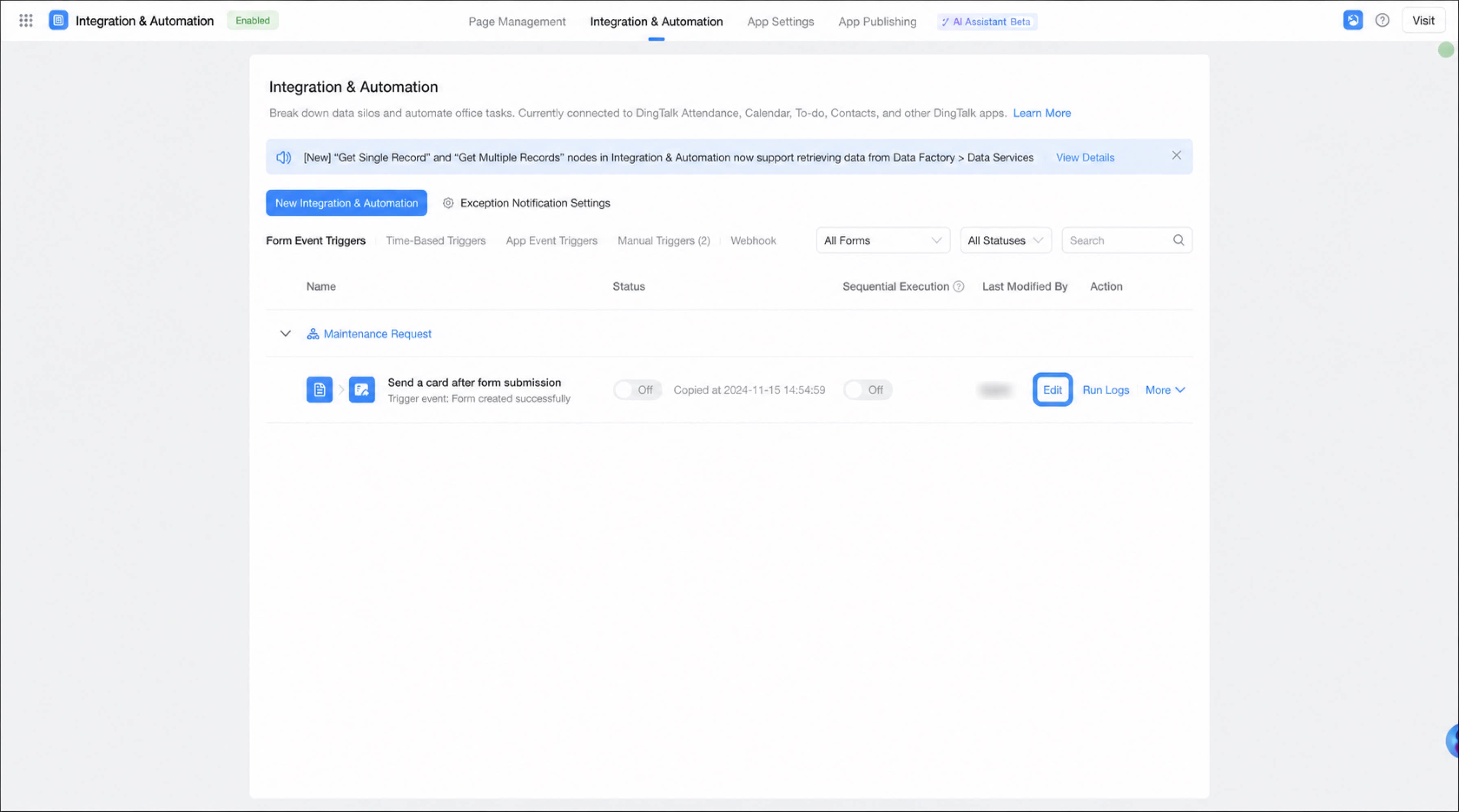
- Click Integration & Automation, select the integration & automation flow you have created, and click Edit.
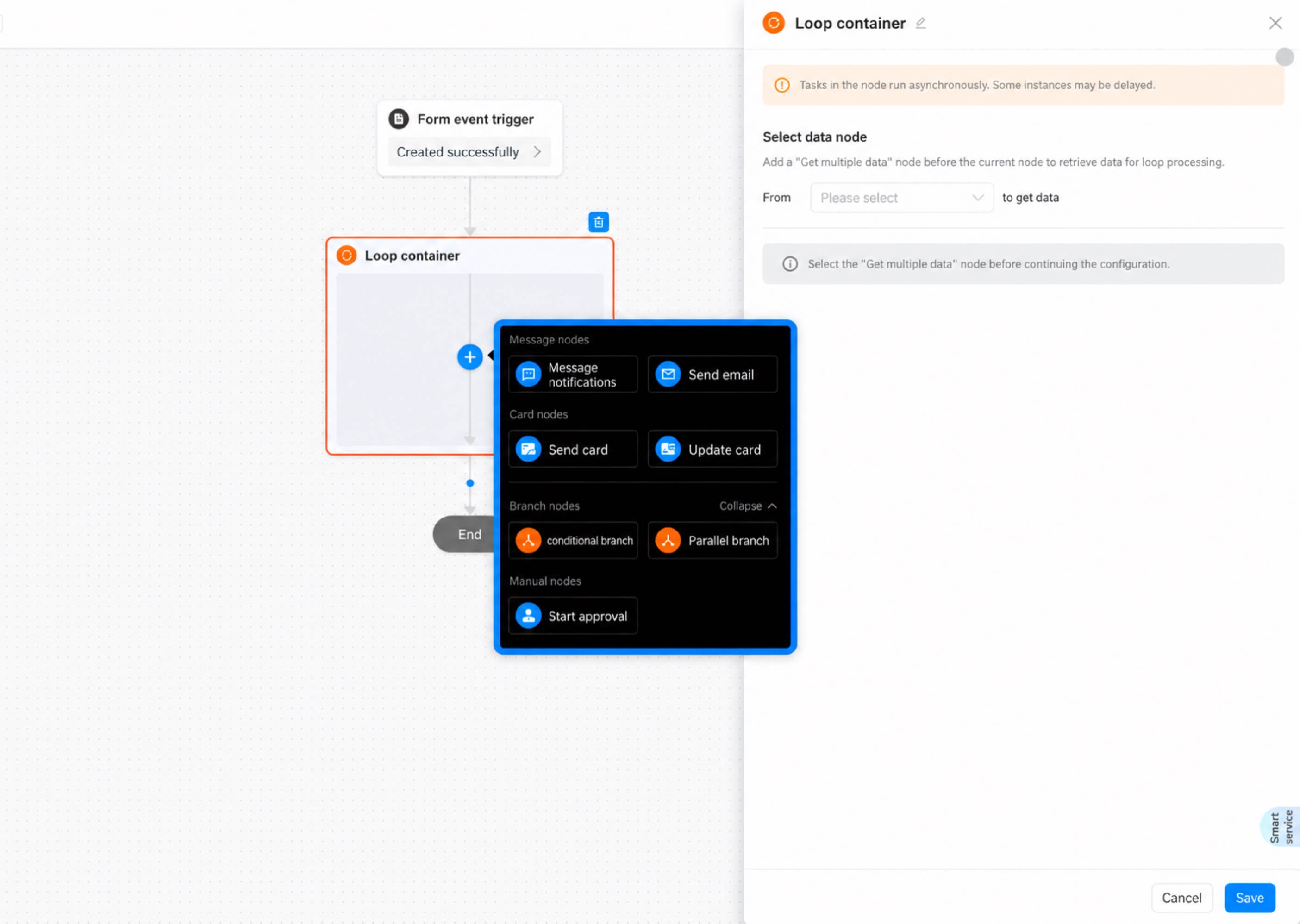
- Move the cursor over the connection line to display the + button. Click + and select the Loop container node.
- In the properties panel on the right, select the data to enter the loop and configure the blocking mode for execution errors.
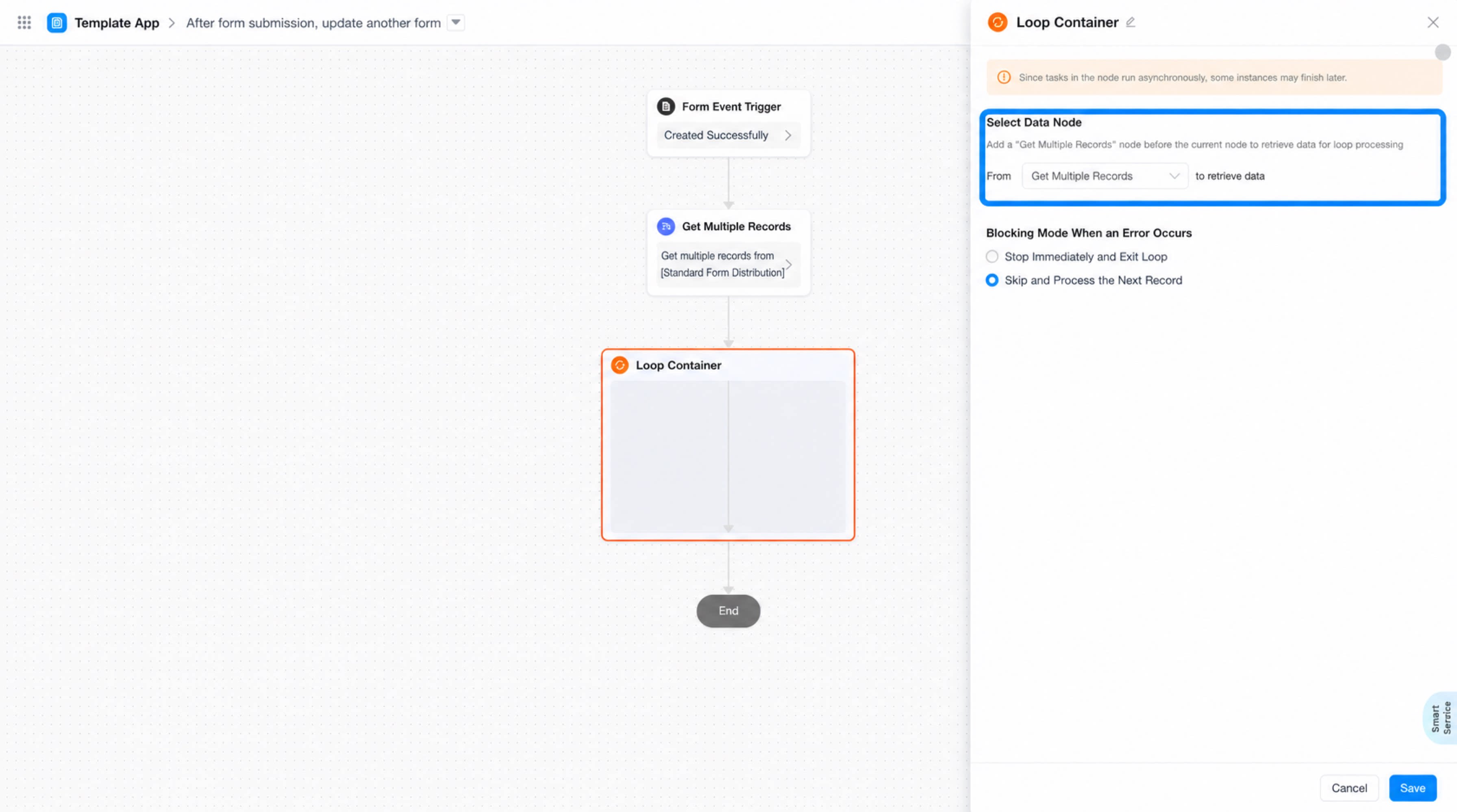
- After configuration, add the nodes that need to process data in a loop inside the loop container.
Data processing limit for the loop container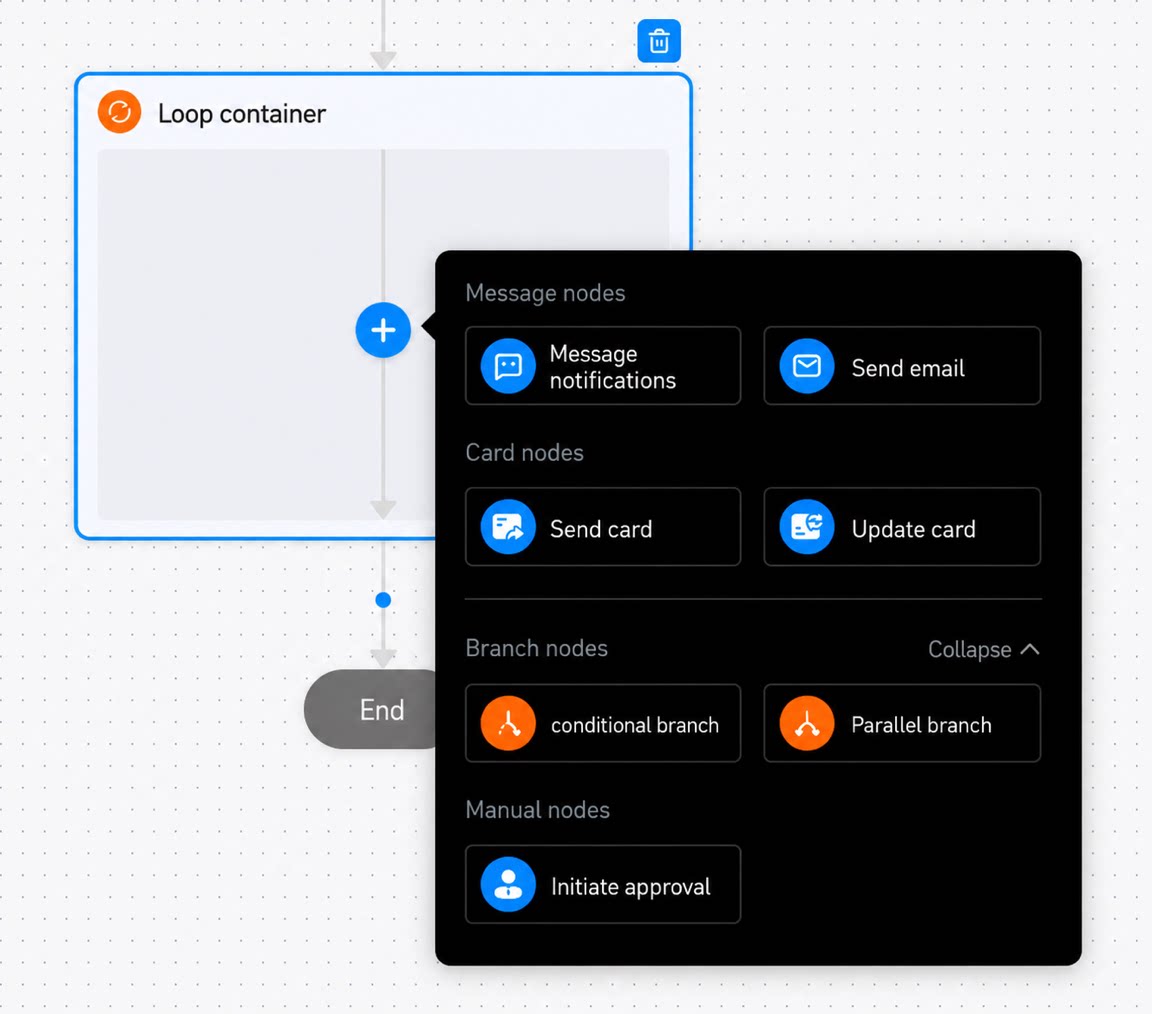 The loop container currently processes up to 100 records. To process more than 100 records, contact your admin or upgrade to the Premium edition/Dedicated edition. This limit is set for performance and typical use case considerations. Routine employee notifications and message push operations usually stay within this range.Note:
- If the loop container in an automation flow processes more than 100 records, the flow fails without an explicit prompt.
- To lift this limit, submit a request through the ticket system. We will evaluate and support your case based on your actual business needs.
Notes
- Each integration & automation flow supports only one loop container.
- Tasks initiated in batches within the loop container are not guaranteed to run in real time. When the data being processed is complex, please wait patiently.
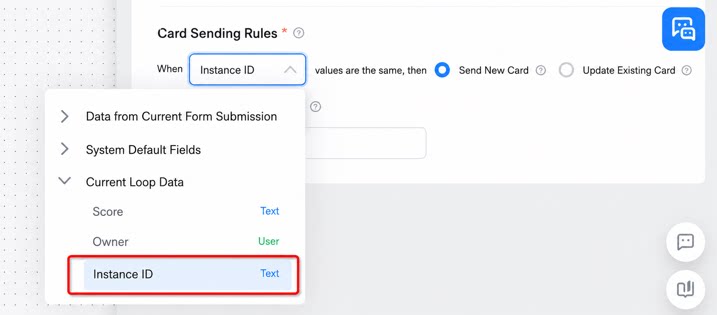
- When sending cards in a loop, set the card sending rule to Instance ID of the data currently being looped. Otherwise, the card content cannot be personalized for each recipient.