

 Chats
Chats Calendar
 Meetings
 Contacts
 Mail
Mail Docs
Docs Drive
Drive AI Table
 AI Minutes
 Attendance
 Approval
 YiDA
YiDA Admin Console
Add a Message Notification
Configure a message notification step to notify users when a workflow ends, starts, or when approval progress needs to be synced.- Sign in to YiDA Workbench and click My Apps.
- Select the app you need and open the App Settings page.
- Click Integration & Automation, select an existing integration & automation flow, and click Edit.
- Move the cursor to the connection line between workflow steps. A + button appears. Click + and select Message Step > Message Notification.
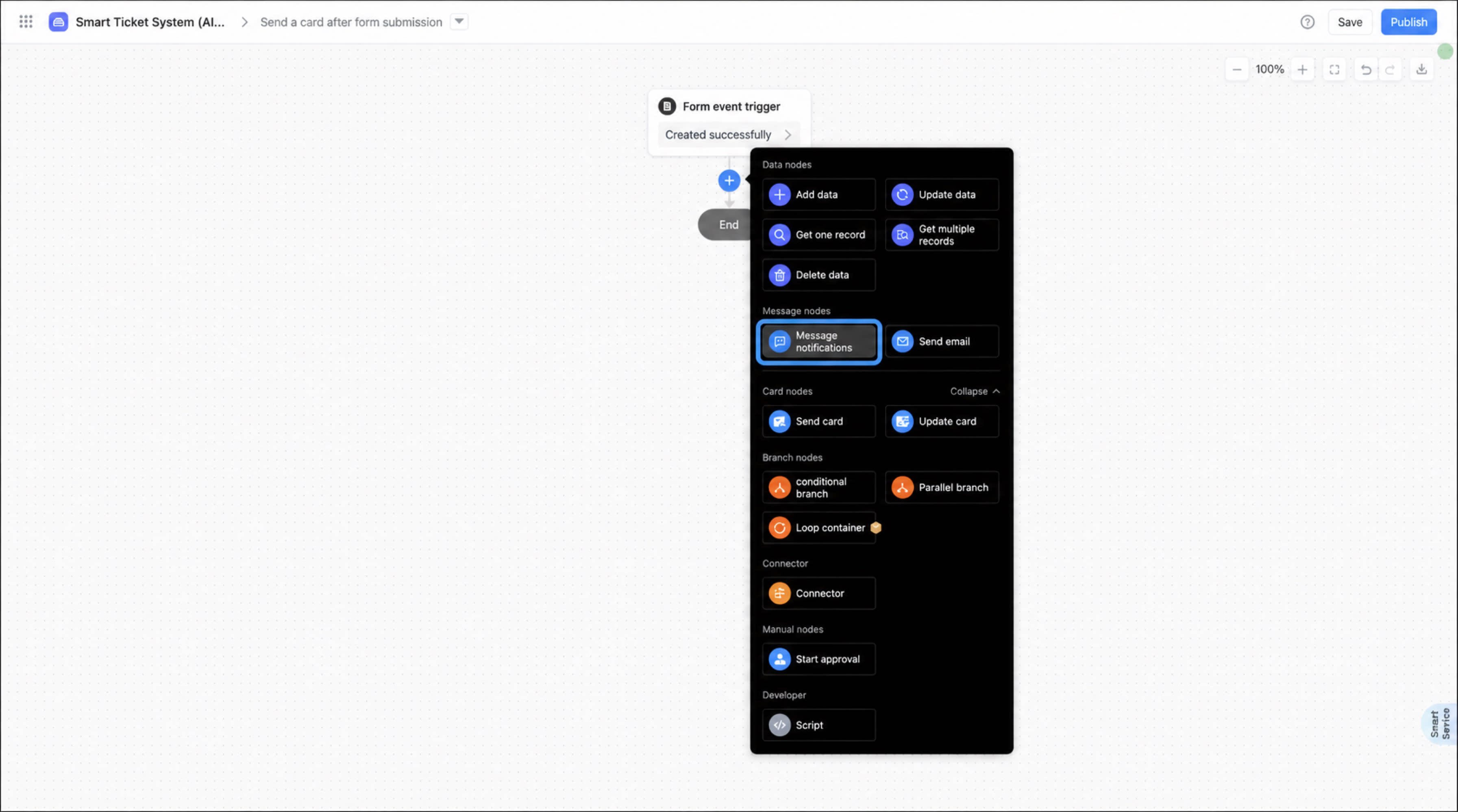
Configure a Message Notification
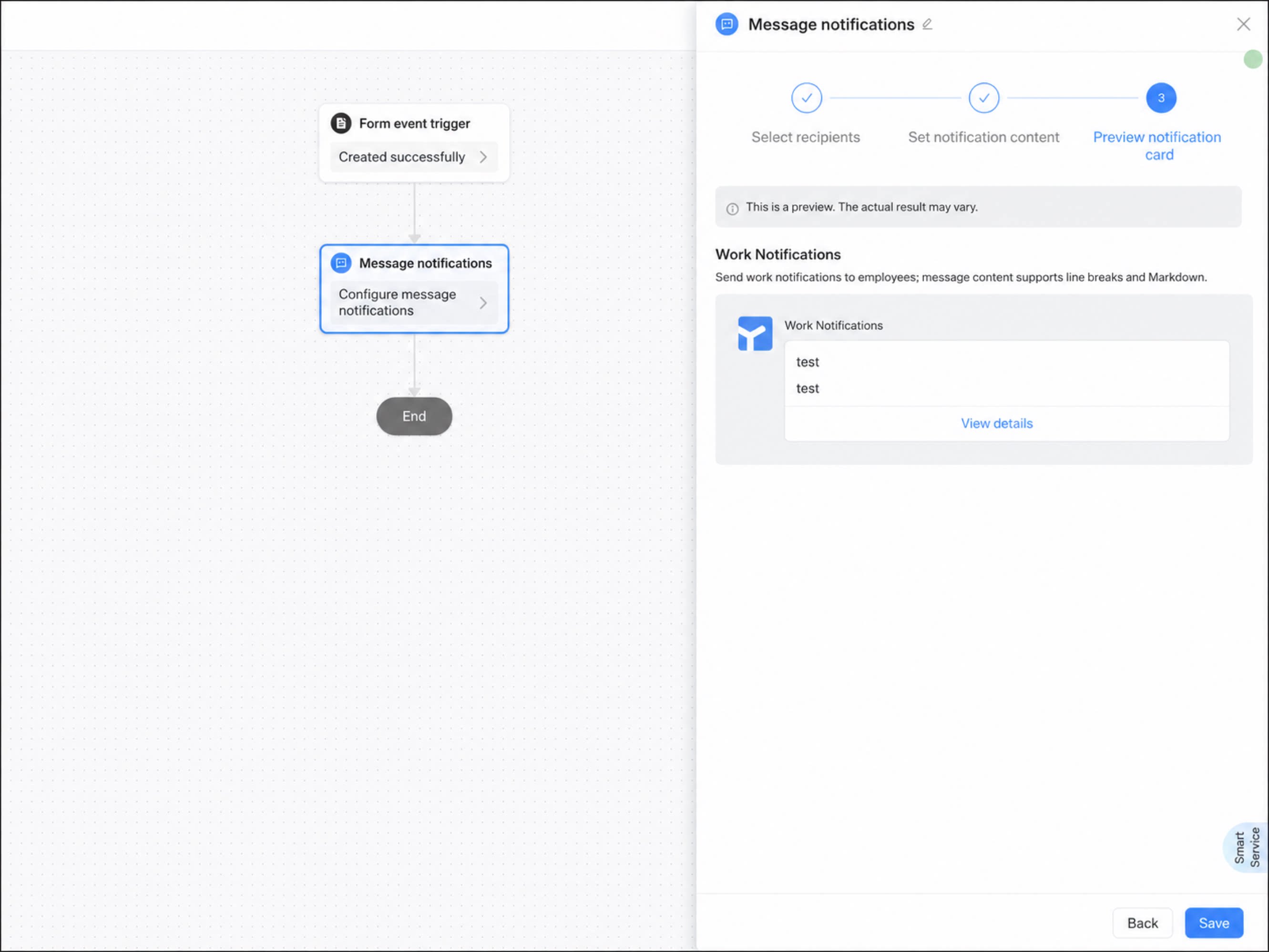
- Select the message notification step. In the step configuration panel on the right, select the Notification Type and Recipients.
| Notification Type | Description |
|---|---|
| Work Notifications | Work Notifications are messages pushed to employees in the name of a specific app, such as birthday greetings or onboarding reminders. • Specified users: Select employees from your organization’s Contacts. • Specified roles: Select a DingTalk role or a YiDA role. Once selected, every user in your organization with that role receives the notification. • Specified user fields: Select user fields from the form or workflow-related users. Note: Work Notifications support Markdown syntax. For the supported syntax types, see DingTalk message notification types. 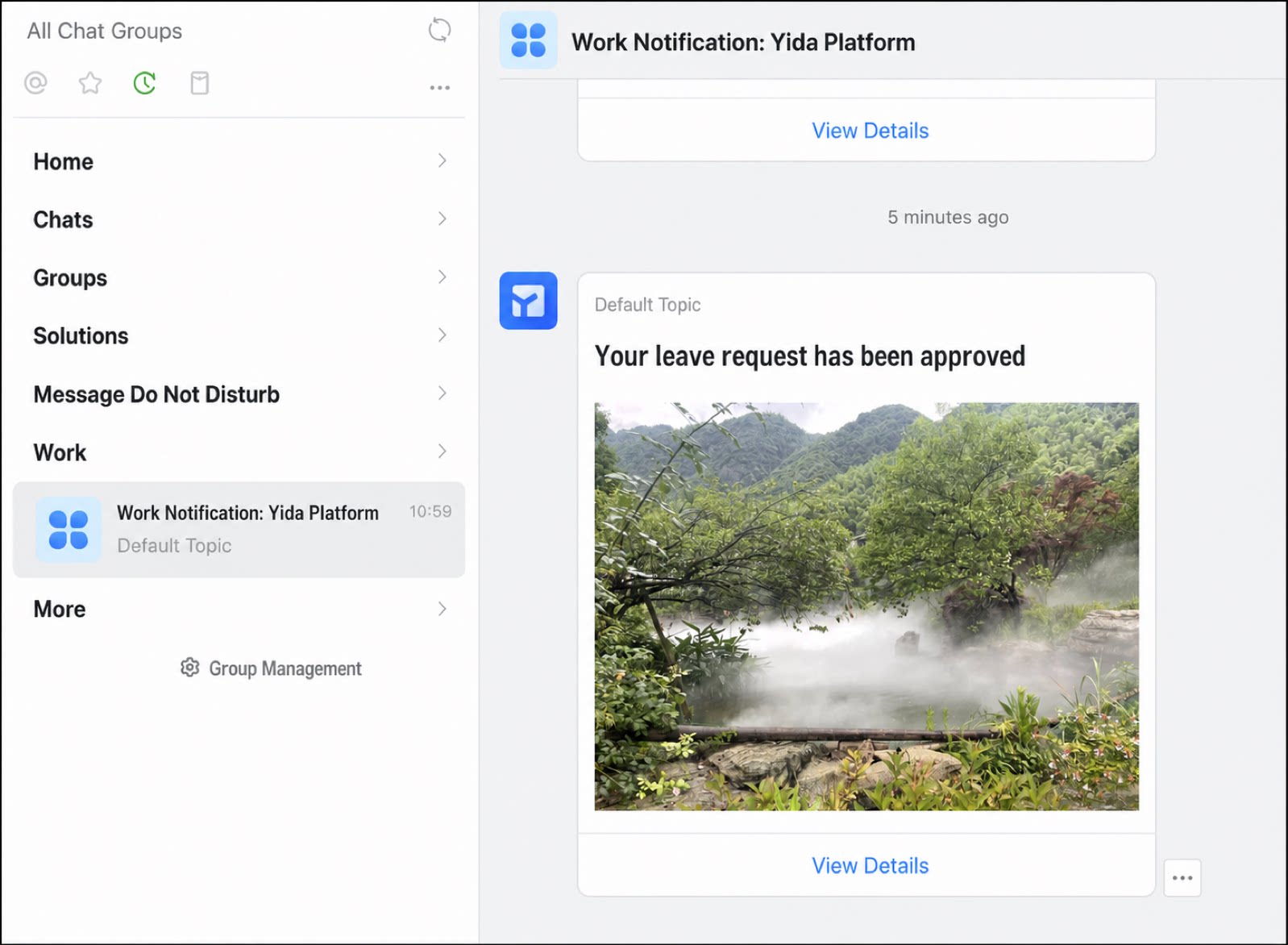 |
| Group notifications | Group notifications are workflow messages sent to a group via a Group bot. Send them using either the Xiaoding bot or a Custom bot. • Send via Xiaoding: The default Group bot Xiaoding pushes the messages. Message content does not support line breaks or Markdown. • Send via Group bot: A Custom bot added in Group settings sends messages using the bot’s webhook URL. Message content supports Markdown syntax. 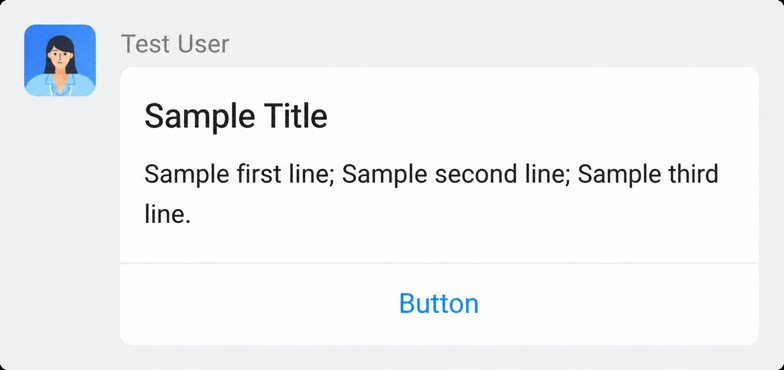 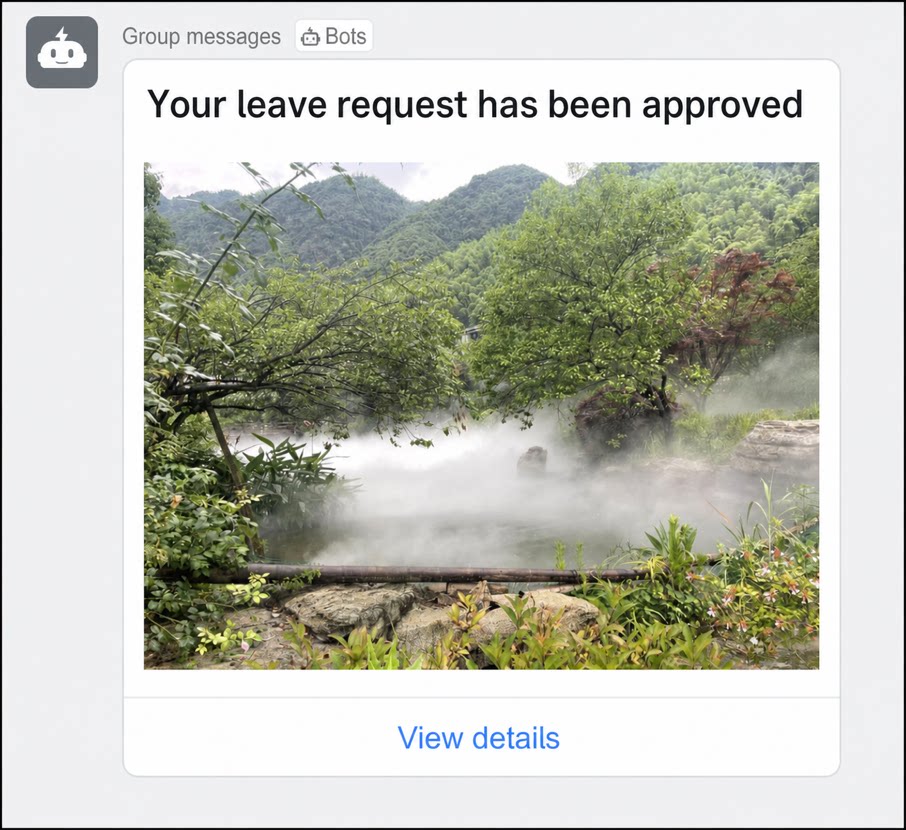 |
1
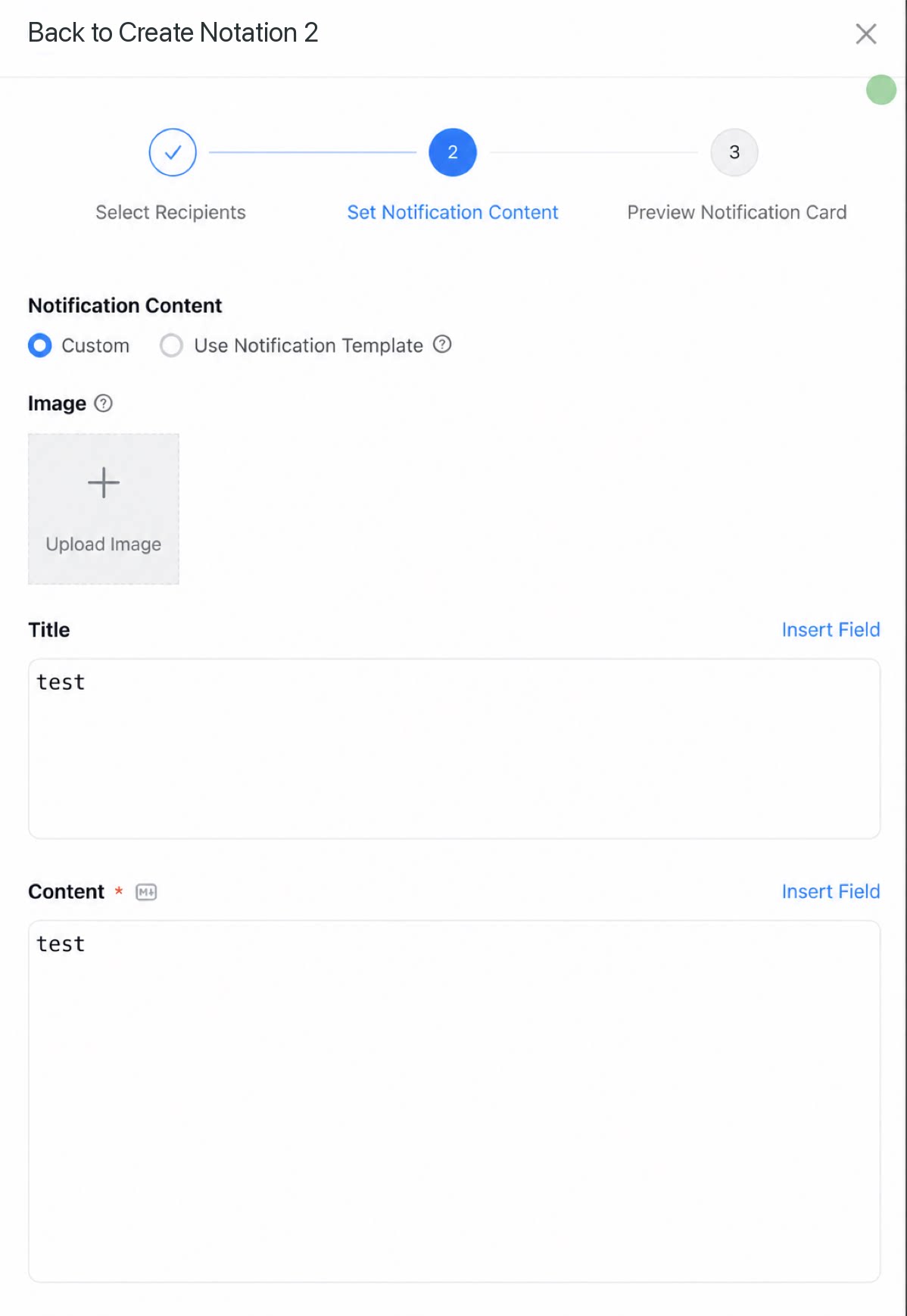
Set the message notification content. Both Custom content and existing notification templates are supported.
2
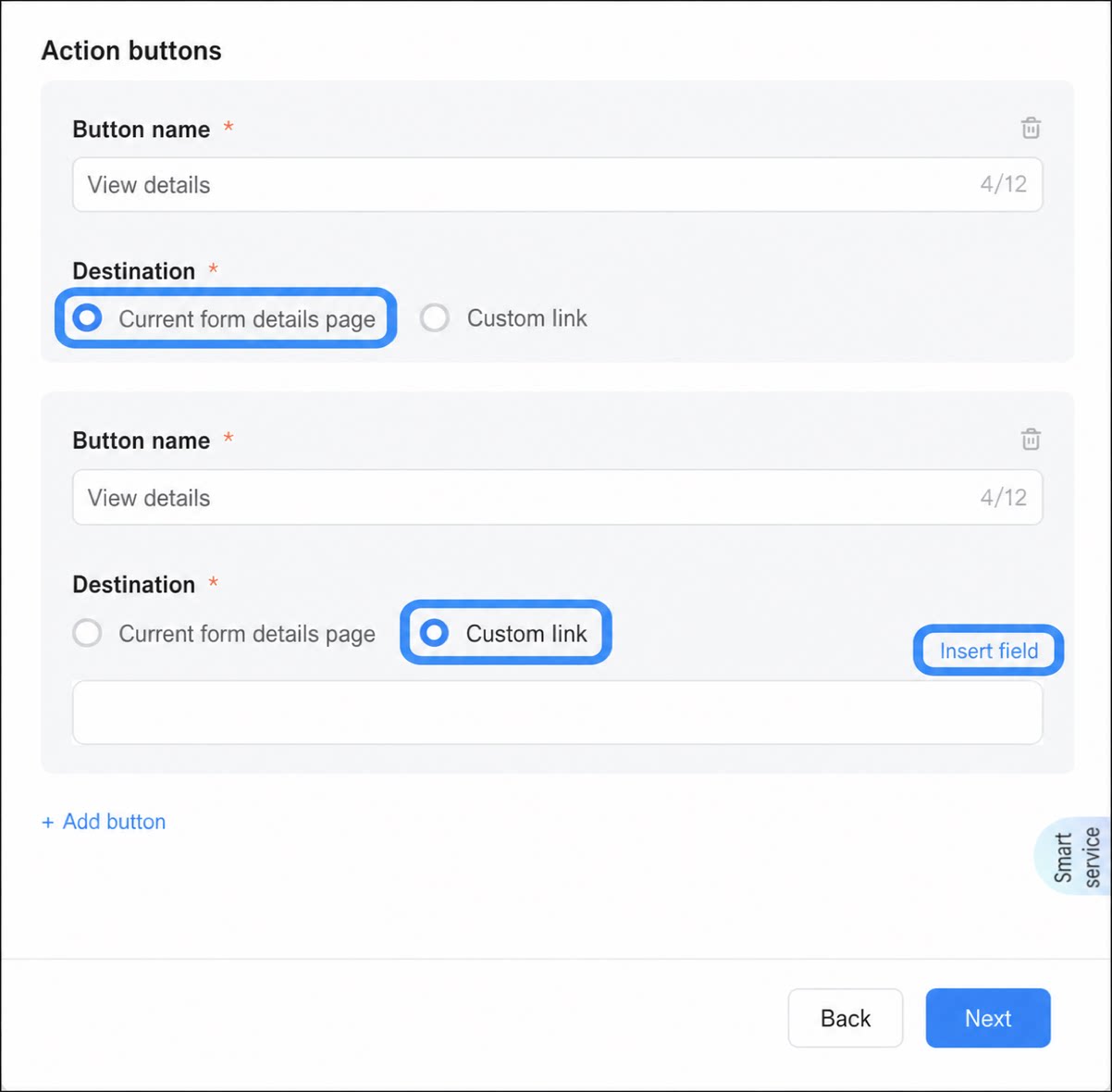
Configure the redirect destination of the button at the bottom of the Card. Redirect to the current form's detail page or to a custom link, and pass form fields as parameters in the custom link.
3
After confirming the configuration, click Save.
FAQ
Q: Why doesn’t the configured message notification take effect? If you add, modify, or delete a message template in a workflow form, click the blue text [Click here] on the page. A new workflow version is created automatically to apply the changes.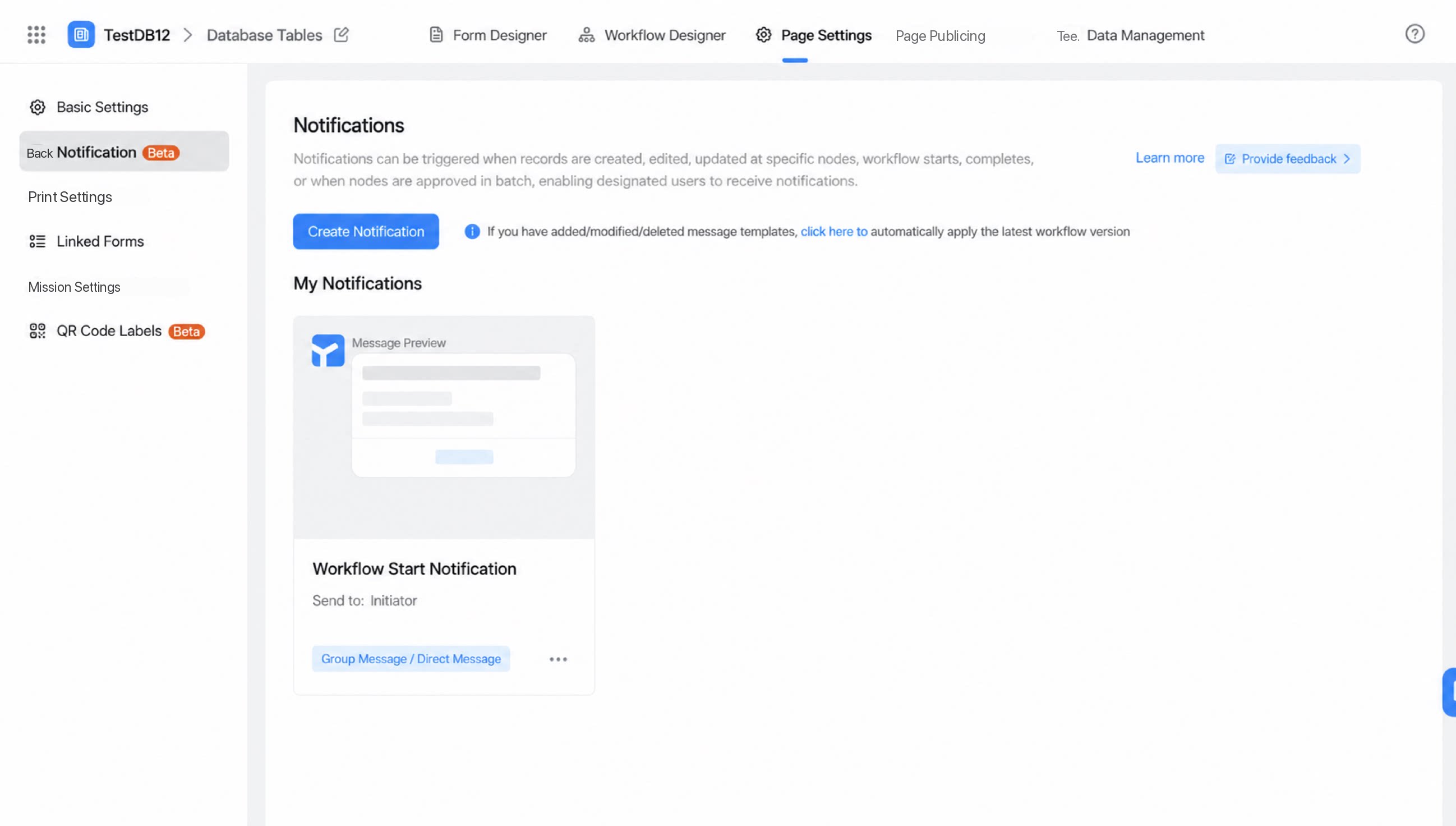
- Workflow instance detail link format
- Form instance detail link format