Chats
Chats Calendar
 Meetings
 Contacts
 Mail
Mail Docs
Docs Drive
Drive AI Table
 AI Minutes
 Attendance
 Approval
 YiDA
YiDA Admin Console
The organization dedicated domain is chosen and configured by the Organization Admin in the YiDA workbench. It represents your organization’s identity and brand on YiDA, and helps strengthen your corporate image and brand recognition.
Basic Concepts
A domain name is a string used on the internet to identify and locate resources such as websites and servers. It is an address made up of a sequence of characters, designed to make websites or servers easy to access and remember. A domain name consists of multiple parts separated by dots (.).
- Top-Level Domain (TLD): The last part of a domain name, indicating its category, country, or region. Common TLDs include .com, .org, .net, .gov, .edu, and .cn.
- Second-Level Domain (SLD): The part before the TLD, customized by the registrant. For example, in aliwork.com, aliwork is the second-level domain.
- Subdomain: The part before the second-level domain, used to further organize and structure a website. For example, in xxx.aliwork.com, xxx is the subdomain.
aliwork.com second-level domain. You can customize the xxx part in xxx.aliwork.com as your subdomain.
Keep the following in mind when modifying your organization dedicated domain:
- Paid editions of YiDA currently allow the custom subdomain to be modified up to three times.
- The organization domain is shared by all apps within the organization. Once the domain is modified, the access URLs of all apps will change.
- If you keep using the old domain to access YiDA, you may be prompted to sign in again. After signing in, you will be automatically redirected to the new domain.
- Any services called from a page using a fixed domain—such as through a Data Source, JS code, or attribute configuration—will stop working. Update them to the new domain or use relative URLs.
- Links in Chats and To-Do items that have already been sent will not change. Sign in again to access them.
Procedure
Follow the steps below to modify the organization dedicated domain.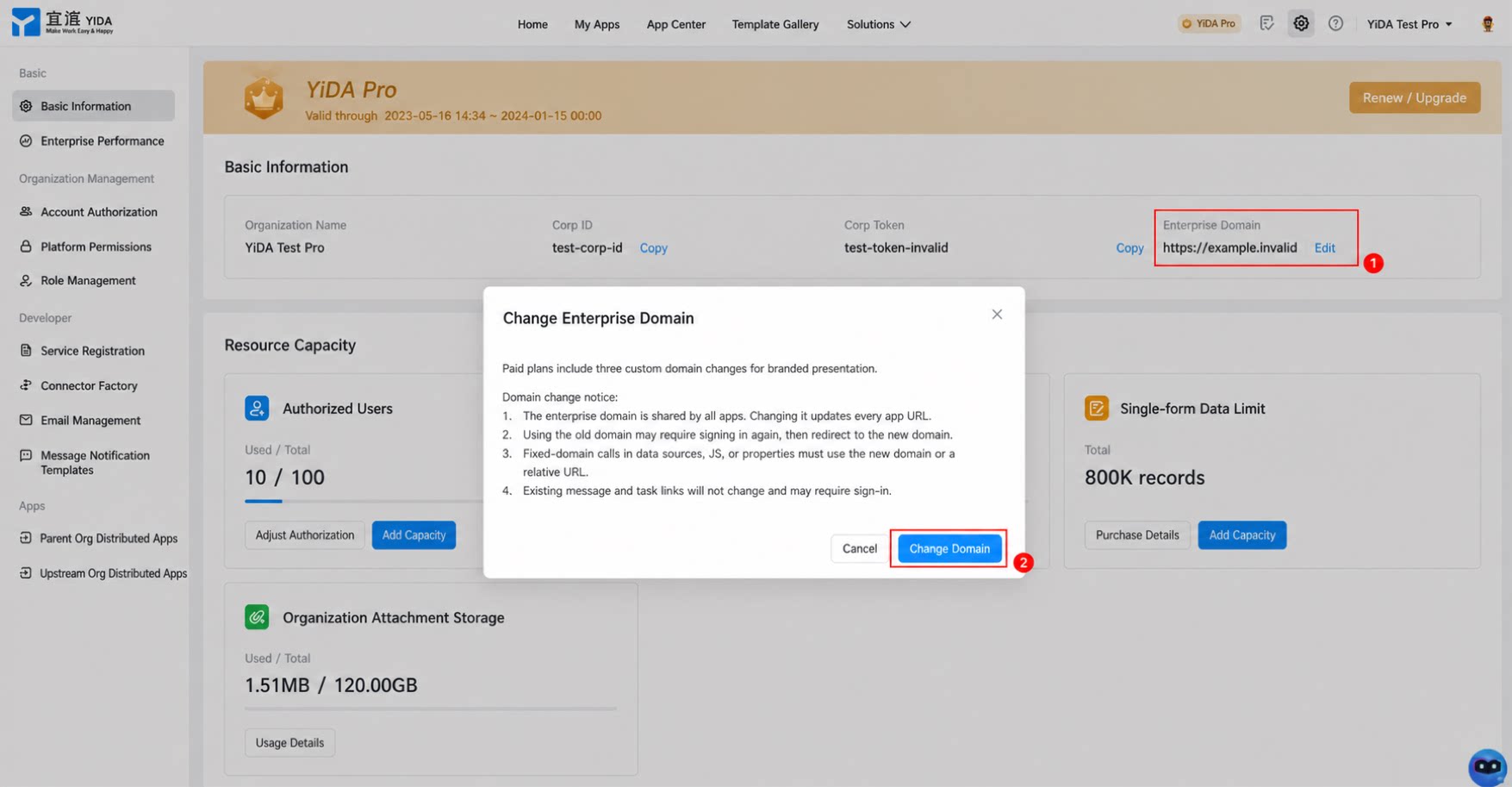
1
Step 1
Sign in to the YiDA workbench as an Admin.
2
Step 2
Click the Platform Management button  in the upper-right corner to open the Basic Information page of platform management.
in the upper-right corner to open the Basic Information page of platform management.3
Step 3
Select Organization Domain, click Modify below, and then click Modify Domain in the pop-up dialog box.
4
Step 4
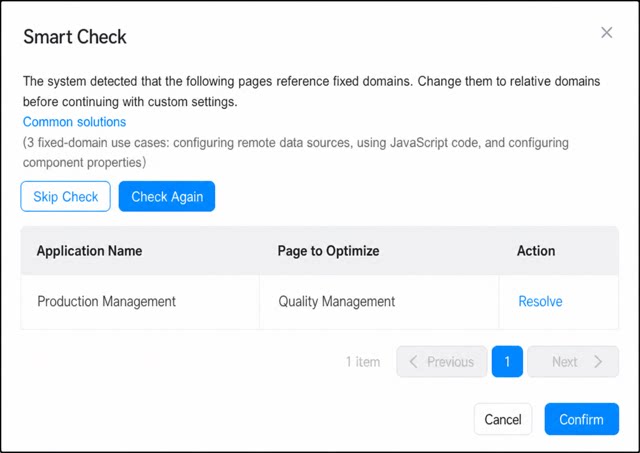
(Optional) In the Smart Detection dialog box, select the pages to be modified, and then update the domain on thosepages.
You can also click Skip Detection to bypass the current detection and proceed directly to the next step to modify the domain.
- Enter the new domain in the new domain input field, and then click Confirm to complete the custom domain modification.
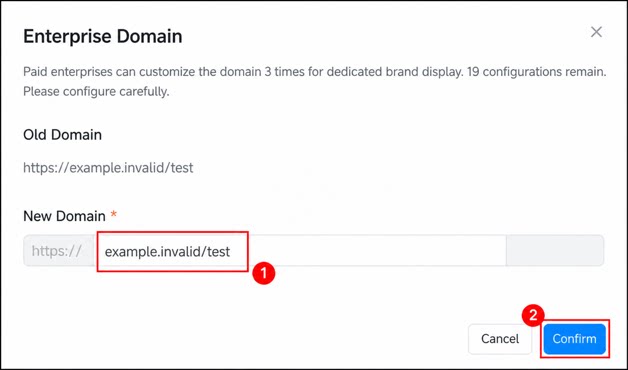
- Make sure all detected pages in every production app have been updated before confirming the change.
- Do not skip the detection. Otherwise, issues such as remote data source errors, JS code errors, or broken page links may occur.
Domain Modification Methods
Common methods for updating references to the organization domain are listed below. Follow these steps or contact the YiDA technical support group for help.- Modify the Data Source:
- JS code:
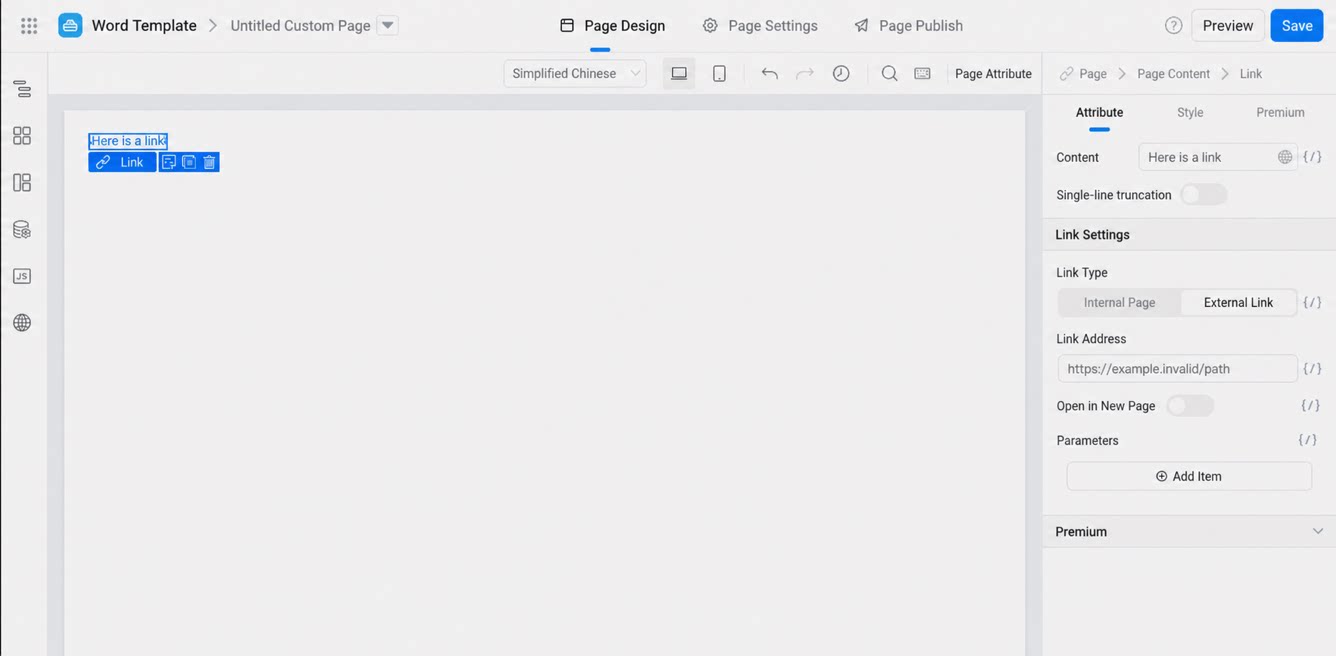
- Attribute configuration: