

 Chats
Chats Calendar
 Meetings
 Contacts
 Mail
Mail Docs
Docs Drive
Drive AI Table
 AI Minutes
 Attendance
 Approval
 YiDA
YiDA Admin Console
1. Introduction
1.1 Feature Overview
A form in YiDA serves as the primary interface for structured data entry and collection within an app.1.2 Use Cases
Forms apply to any scenario that requires data entry in daily work, such as data reporting, registration, application submission, and information collection.2. Form Design Steps
Form design involves three main steps:2.1 Select Components
From the component library on the left, select the components required for the current form to enter and collect information.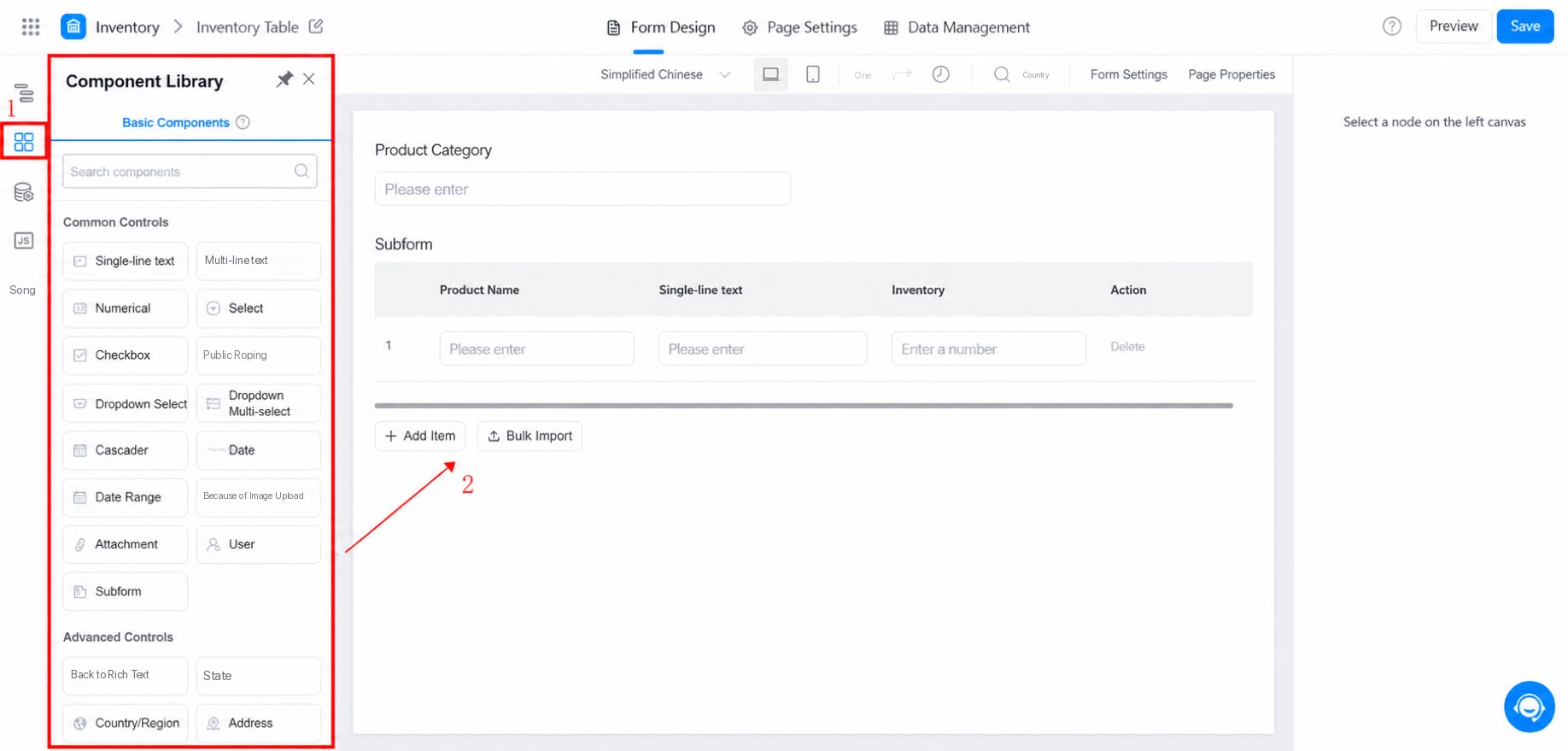
2.2 Configure Component Attributes
Select an added component to configure its attributes. You can modify the component title, add a description, set placeholder text, configure field validation, set field visibility permissions (for workflow forms, configure this in the step), adjust field width, and more to streamline data collection.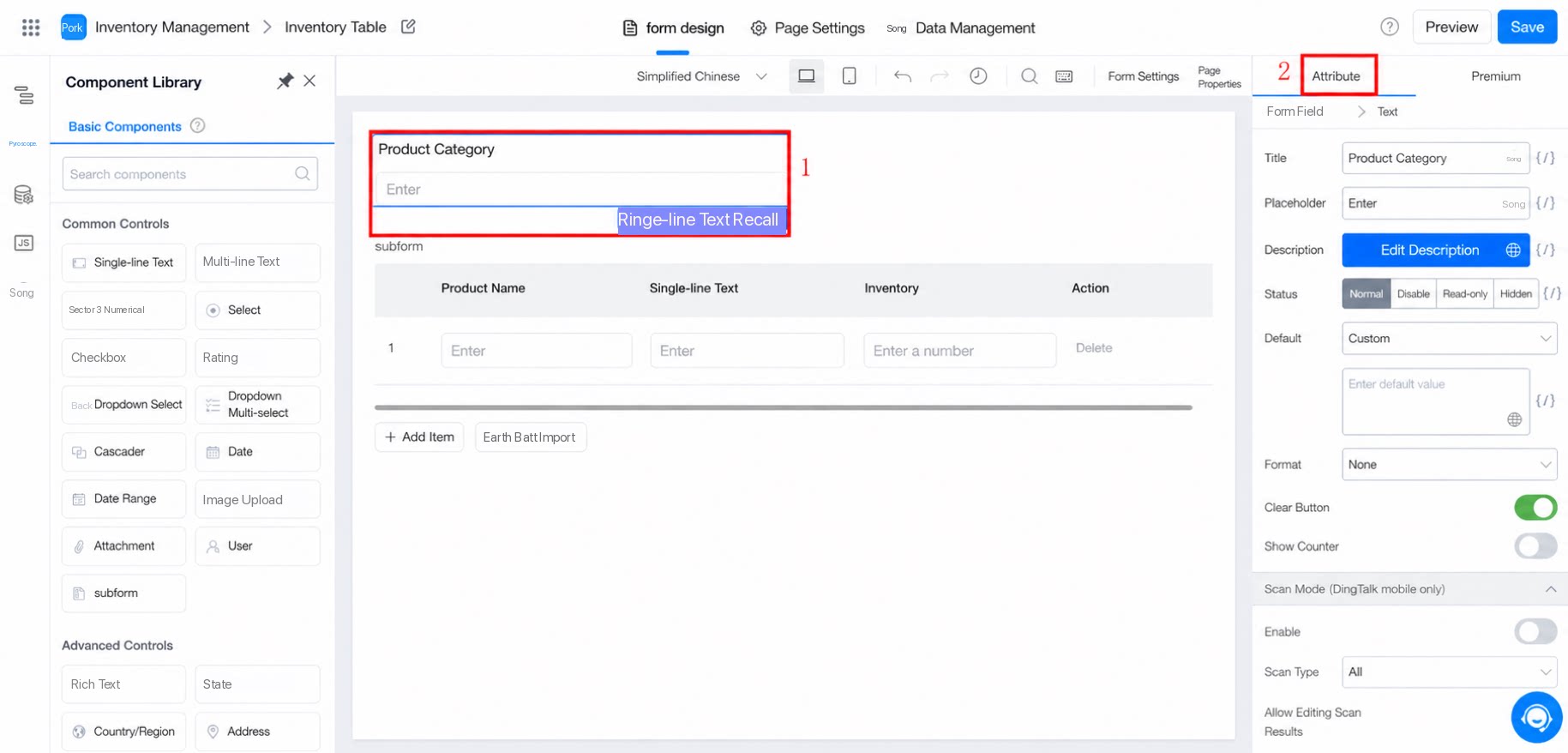
2.3 Set Form Attributes
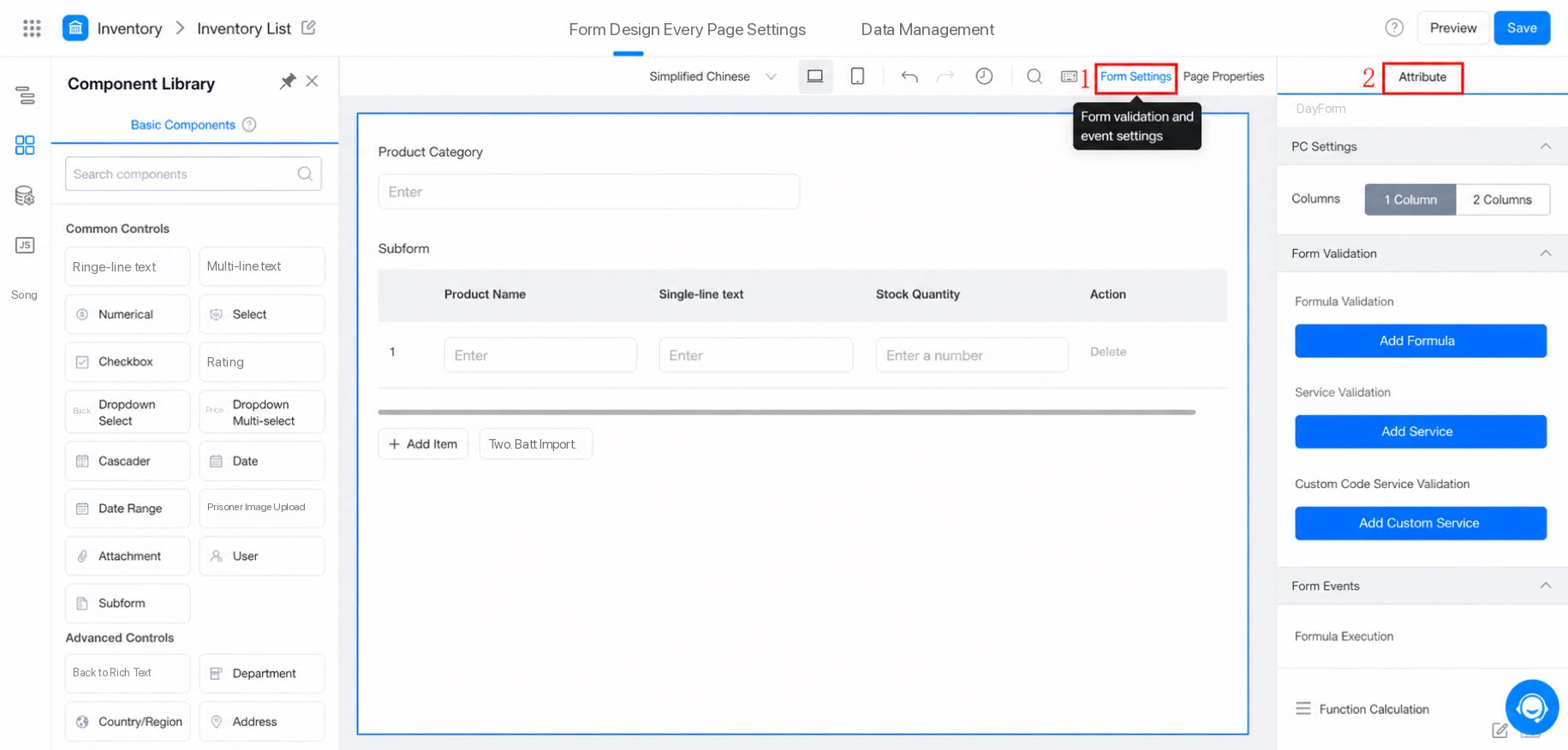
Click a blank area of the form or click Form settings to configure form attributes. You can define submission validation rules, business association rules (configure in the step for workflow forms), form events, PC layout, and premium form settings.3. FAQs
3.1 How do I integrate an ID card reader with YiDA?
3.1 How do I integrate an ID card reader with YiDA?
Peripherals such as ID card readers and barcode scanners are essentially auxiliary input tools and function no differently from a keyboard. To send data from a peripheral to YiDA, place the input data into a Multi-line text field in YiDA. Then process the data based on its structure and your requirements, and assign it to page components for display.
3.2 Is there a limit on the number of forms per app?
3.2 Is there a limit on the number of forms per app?
We recommend keeping the total number of forms and other pages within a single app under 200. Exceeding this limit may degrade app loading performance.