

 Chats
Chats Calendar
 Meetings
 Contacts
 Mail
Mail Docs
Docs Drive
Drive AI Table
 AI Minutes
 Attendance
 Approval
 YiDA
YiDA Admin Console
Prerequisites
Before creating a Space Tabler, first create a workspace. For details, see Create workspace.Steps
1
Step 1
Sign in to the YiDA workbench as an Admin.
2
Step 2
In the top-right corner, click Platform management to open the Platform management page. 
3
Step 3
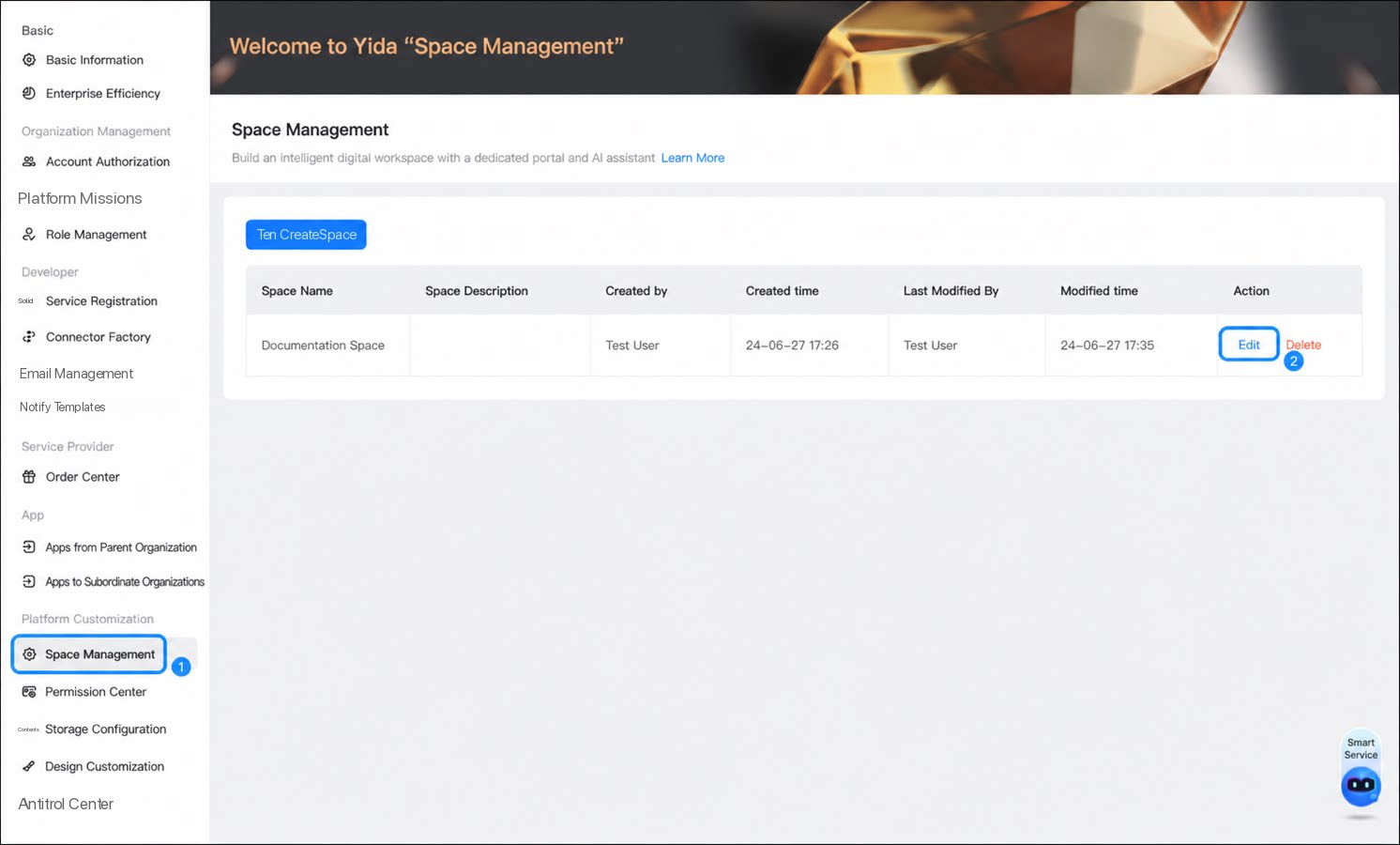
In the left menu, go to Platform-exclusive customization > Space management, select the Space you want to edit, and click Edit.
1
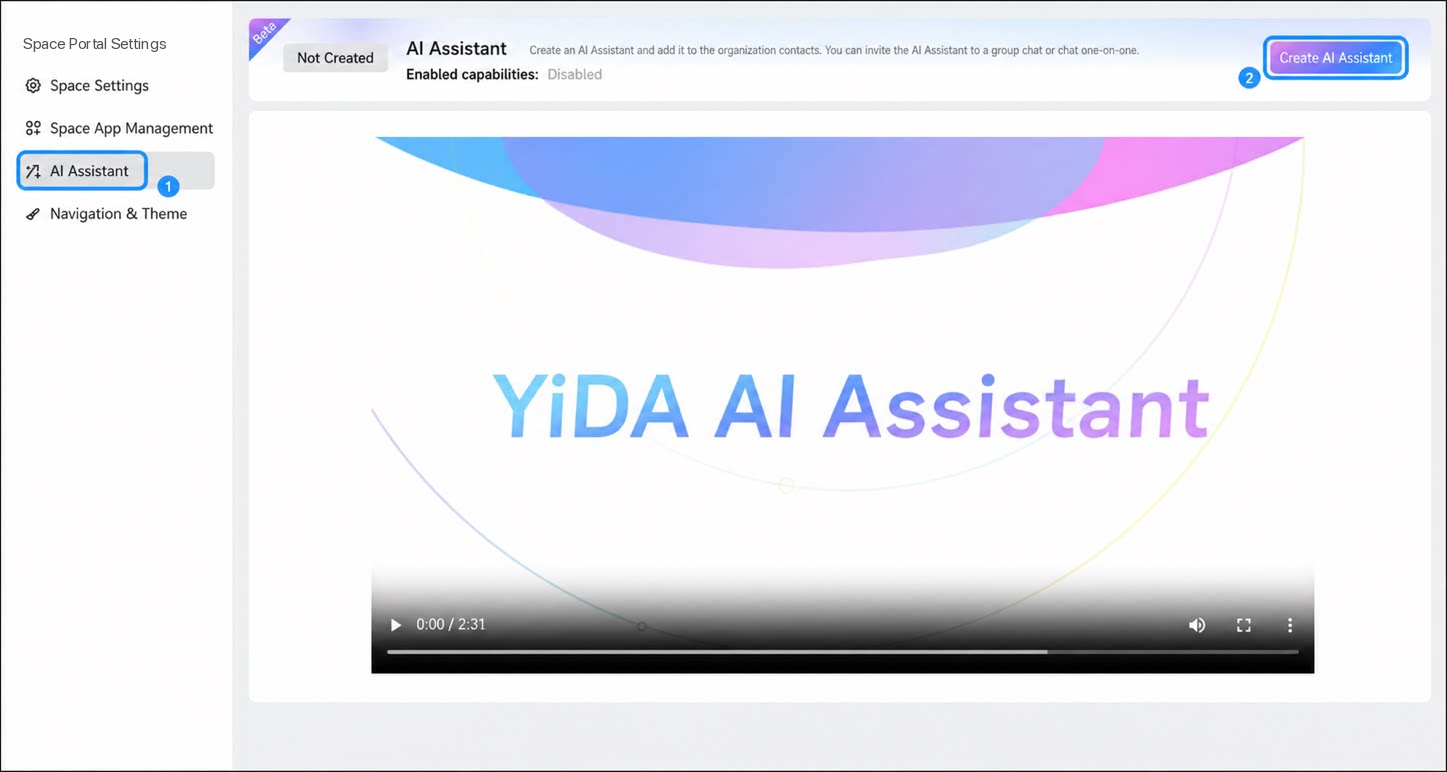
Click Tabler > Create Tabler
2
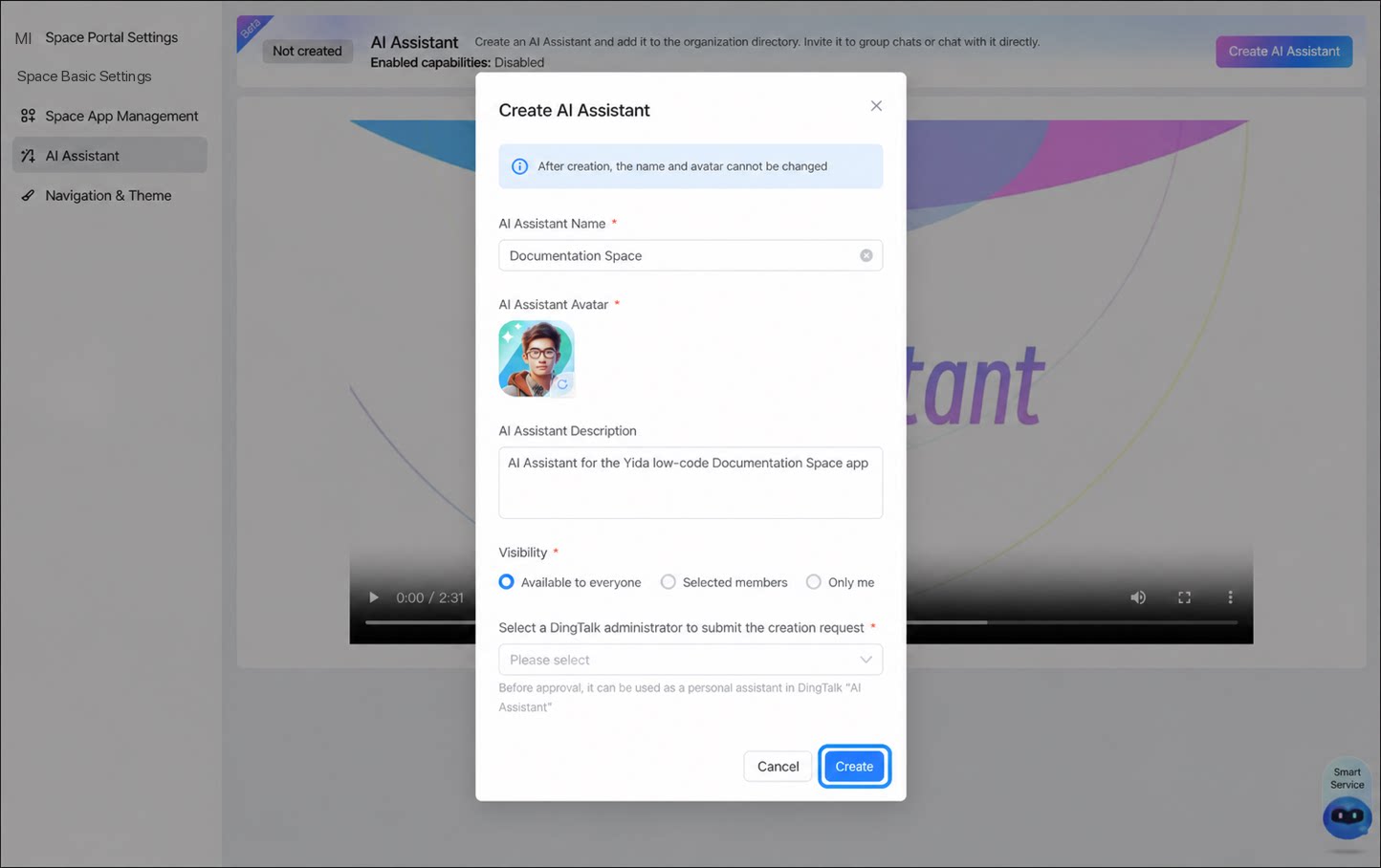
In the pop-up dialog, set the Tabler's name, avatar, description, and visibility scope, then click Create
If you are not a DingTalk Organization Admin, an application request is also sent to the DingTalk Organization Admin when you create the Space Tabler.
3
After creation, you can configure the Space Tabler's capabilities, including intelligent data analysis, intelligent proactive broadcasting, and intelligent form submission
Configure Space Tabler Capabilities
Editing the Space Tabler and enabling its capabilities work essentially the same as for the App-level Tabler. For detailed steps, see YiDA Tabler.
- The App-level Tabler’s data scope is limited to the current app.
- The Space Tabler’s data scope covers all apps in the current Space, enabling cross-app Q&A.