

 Chats
Chats Calendar
 Meetings
 Contacts
 Mail
Mail Docs
Docs Drive
Drive AI Table
 AI Minutes
 Attendance
 Approval
 YiDA
YiDA Admin Console
In gray release
1. Introduction
1.1 Feature Overview
The workspace component visibility feature delivers a personalized experience for every user. It gives organizations a more granular and flexible visibility management tool that safeguards data security while improving efficiency and user experience. With custom visibility settings, organizations can precisely control which users or departments can view specific components. This protects sensitive information and prevents unauthorized access.1.2 Feature Benefits
- Precise access control: Custom visibility settings let organizations precisely control which users or departments can view specific components. This protects sensitive information and prevents unauthorized access.
- Reduced risk: Minimize unnecessary information exposure, lower the risk of information leakage, and ensure that only relevant personnel can see important or sensitive data.
- Personalized portal pages: Employees in different departments or roles see different components, helping them find the information and tools they need faster and boosting productivity.
- Simplified workflows: For specific business scenarios, visibility settings streamline workflows and prevent unrelated personnel from joining unnecessary approvals or reviews.
2. Steps
2.1 Entry Point
- Click a component and configure it in the component’s attribute panel.
2.2 Component Scope
All components in the space portal are currently supported.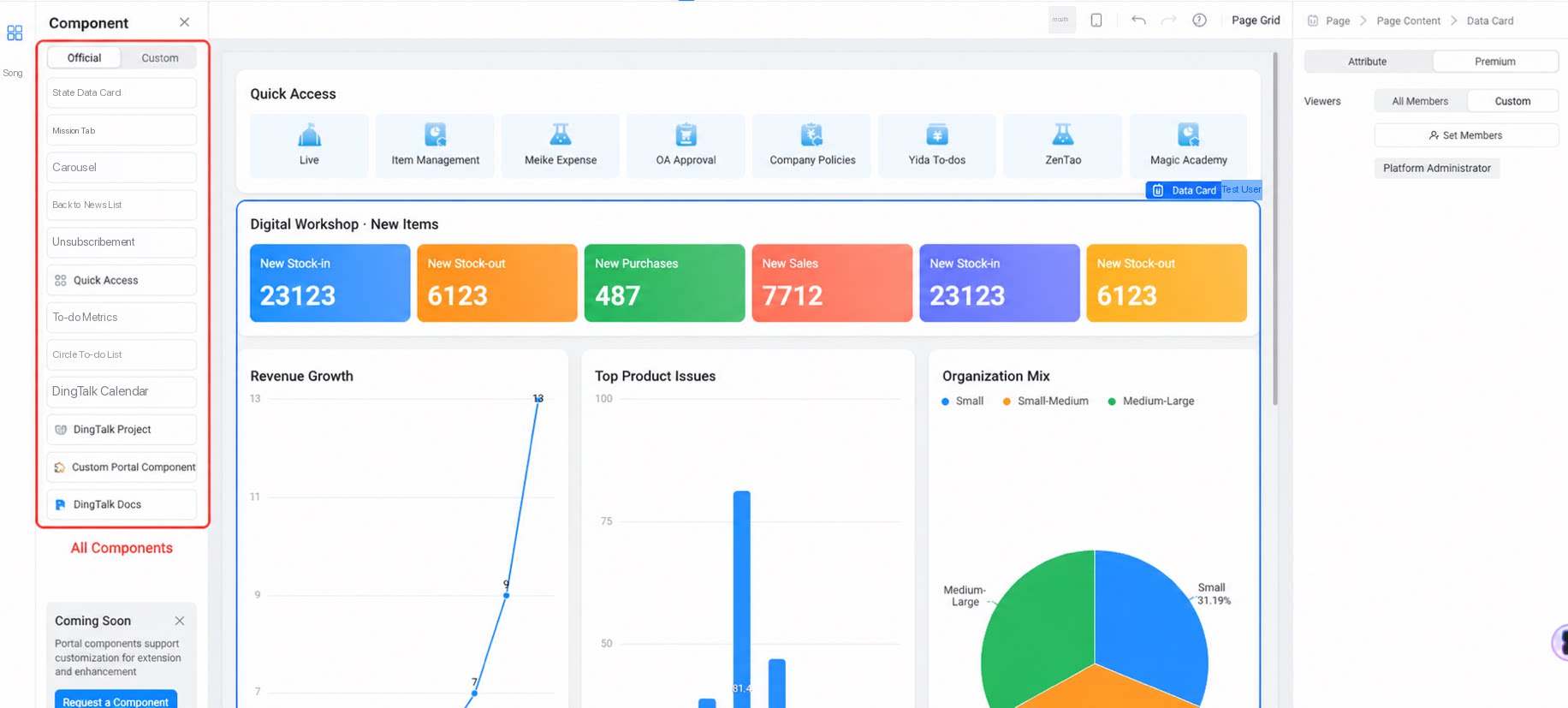
2.3 Key Actions
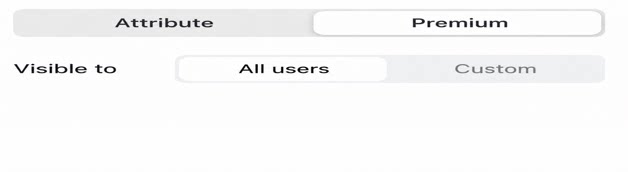
1
Open the component's premium attributes. By default, all users can view the component.
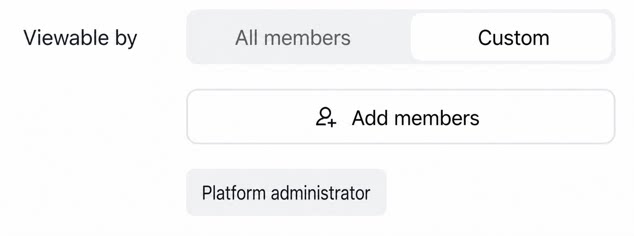
2
Click Custom - Set users to configure the current visible users.
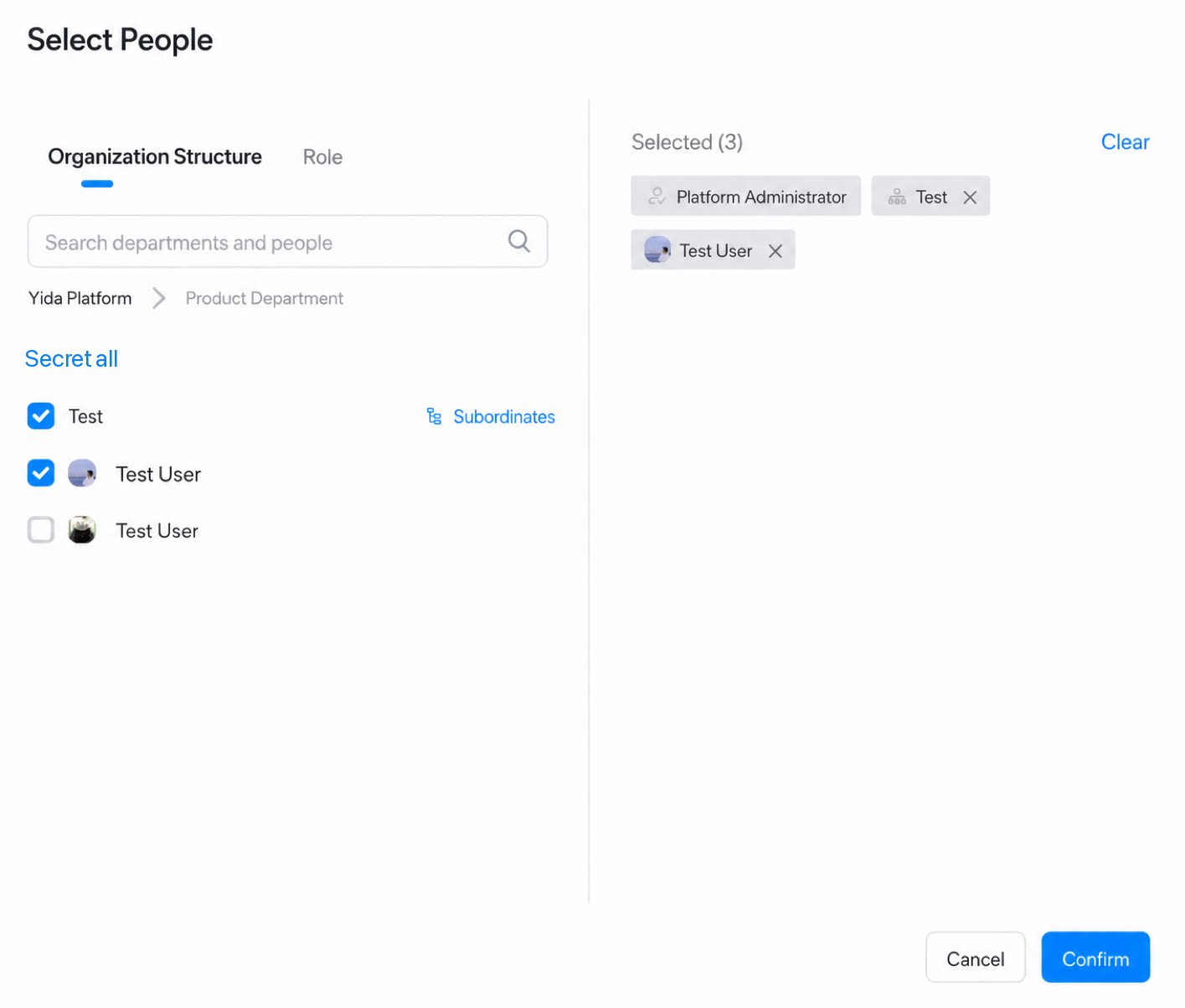
3
Select users - By organization structure.
4
Select users - By role type. You can select DingTalk roles or YiDA roles.
- DingTalk roles: Roles synced from DingTalk are managed in the DingTalk admin console under Contacts.
- YiDA roles: Configure these directly on the YiDA platform.
- Path: Platform management - Organization management - Role management - DingTalk roles / YiDA roles.