Chats
Chats Calendar
 Meetings
 Contacts
 Mail
Mail Docs
Docs Drive
Drive AI Table
 AI Minutes
 Attendance
 Approval
 YiDA
YiDA Admin Console
This topic explains where to enable dedicated storage and how to do so for new or existing apps in YiDA Dedicated edition.
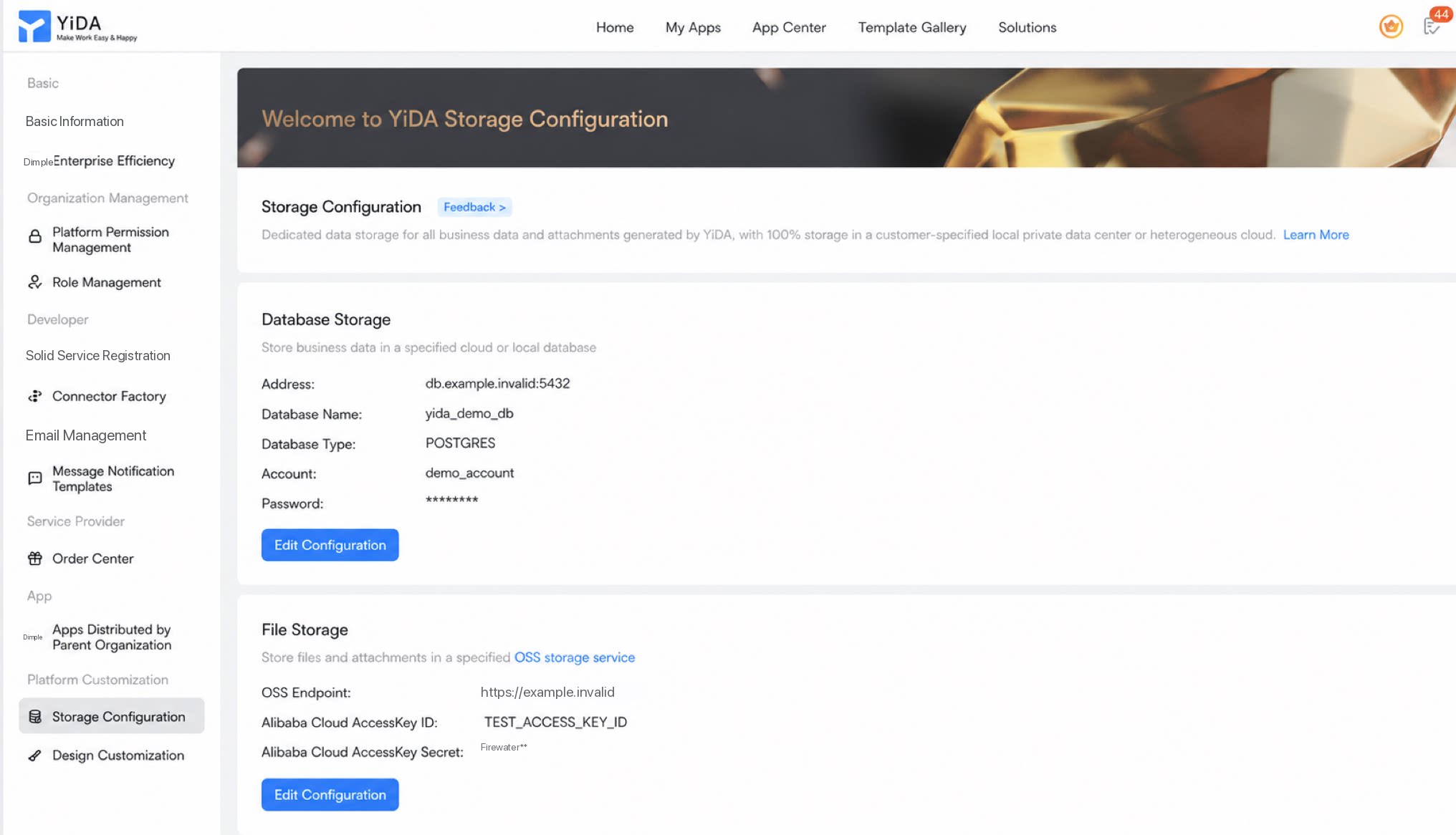
Enable on Demand (App Level)
1. Enable When Creating a New App
When creating a new app, select whether the app’s business data is stored in the public cloud (default) or in a dedicated hybrid cloud database (recommended for core critical data).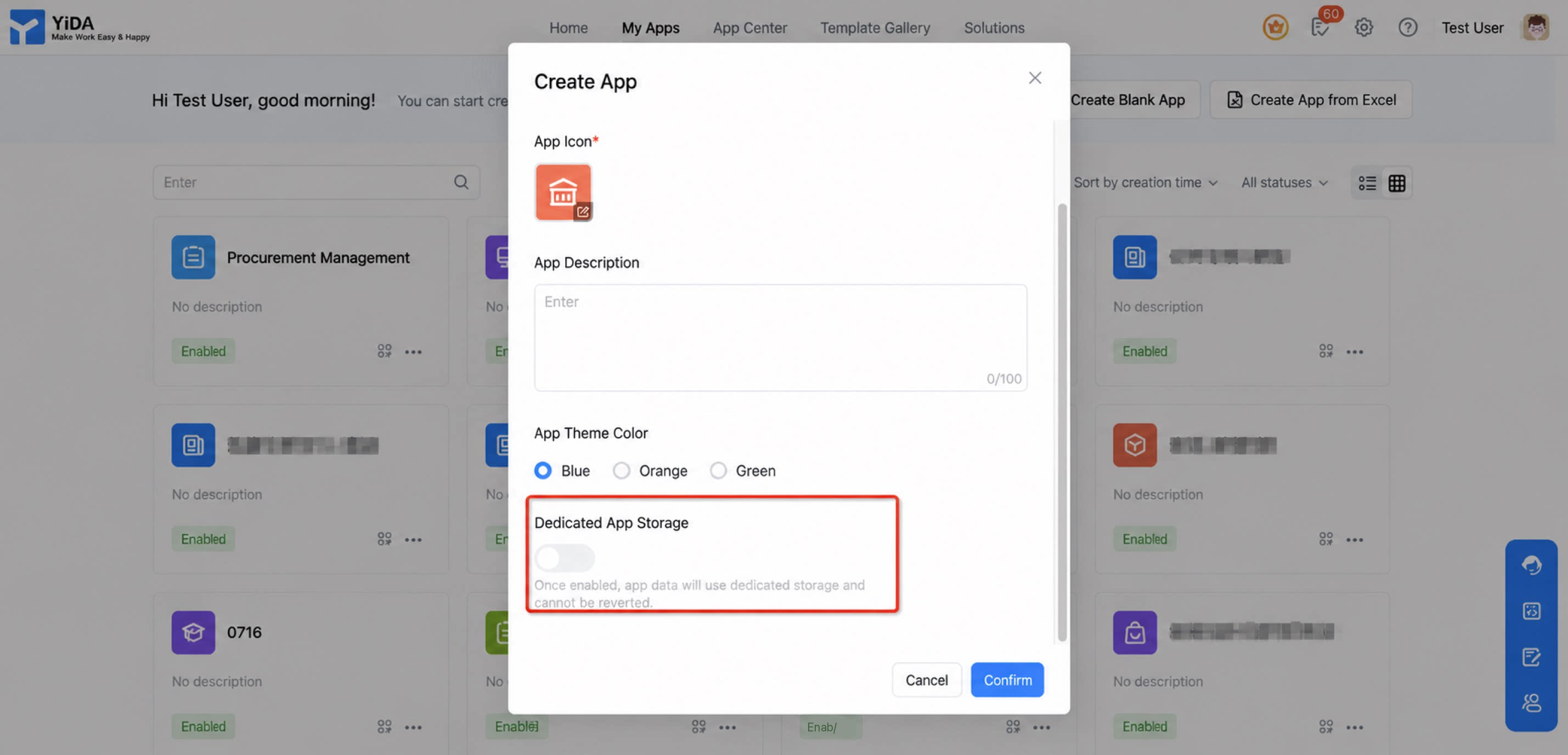
2. Enable Manually for Existing Apps
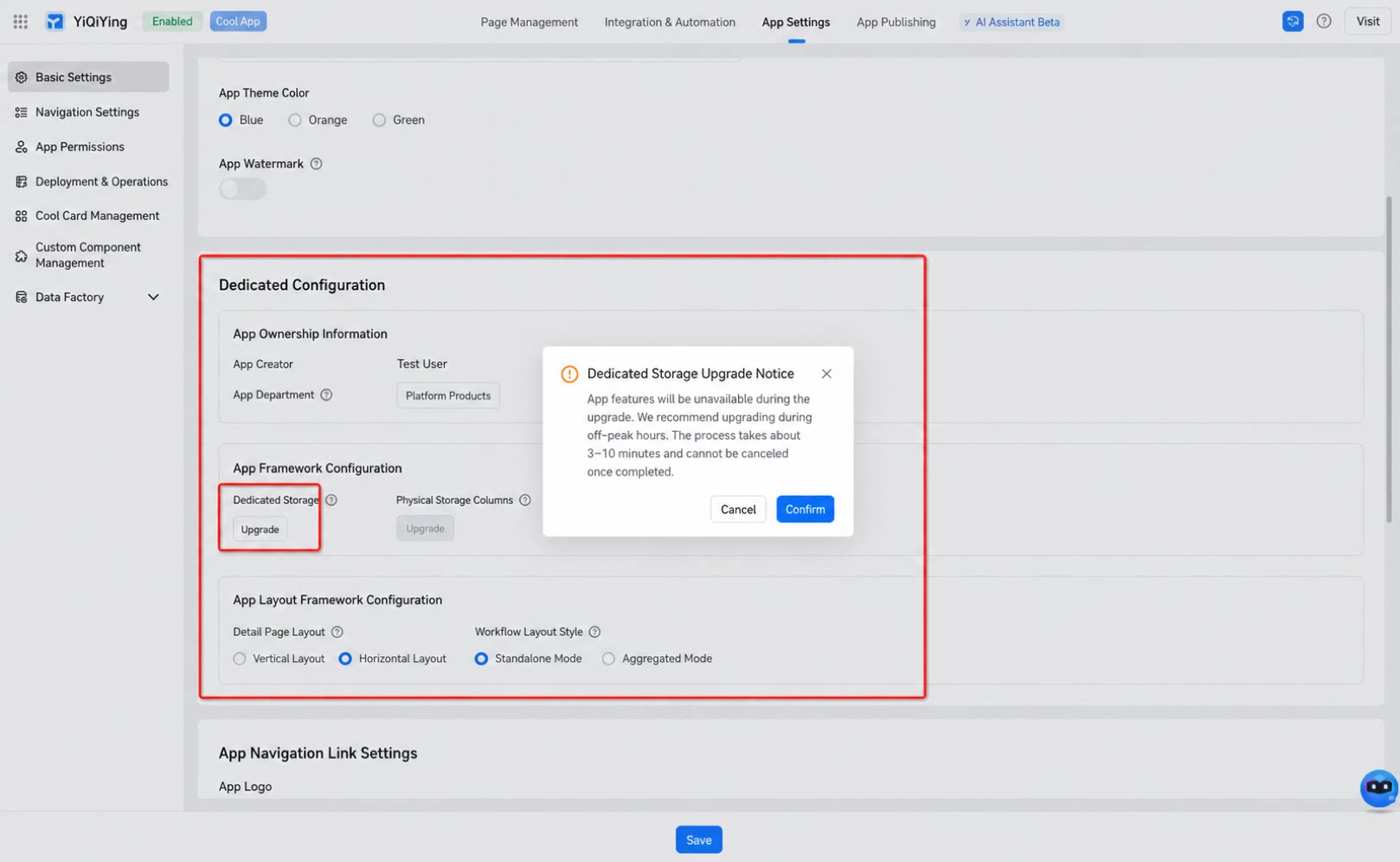
- As the App Admin, go to App Settings > Basic Settings > Dedicated Configuration in the app backend, then select and enable dedicated storage for the app.
- After you enable it, both historical data and future data for that app are stored in the dedicated PostgreSQL database and dedicated attachment OSS configured in platform management.
- App functionality is suspended during the upgrade, so perform this action during off-peak hours. The process takes about 3–10 minutes and cannot be canceled after completion. You can manually stop the upgrade while it is in progress.
3. Upgrade and Stop Operations
- Changing the app’s basic framework configuration is a time-consuming operation. To stop the process midway, halt it manually. After you stop the upgrade, the app’s basic configuration reverts to the original cloud storage settings and operating mode.
- Factors that affect upgrade duration: