Chats
Chats Calendar
 Meetings
 Contacts
 Mail
Mail Docs
Docs Drive
Drive AI Table
 AI Minutes
 Attendance
 Approval
 YiDA
YiDA Admin Console
- Coloring is grid view only — other views don’t support it.
- Anyone with view read access can configure colors.
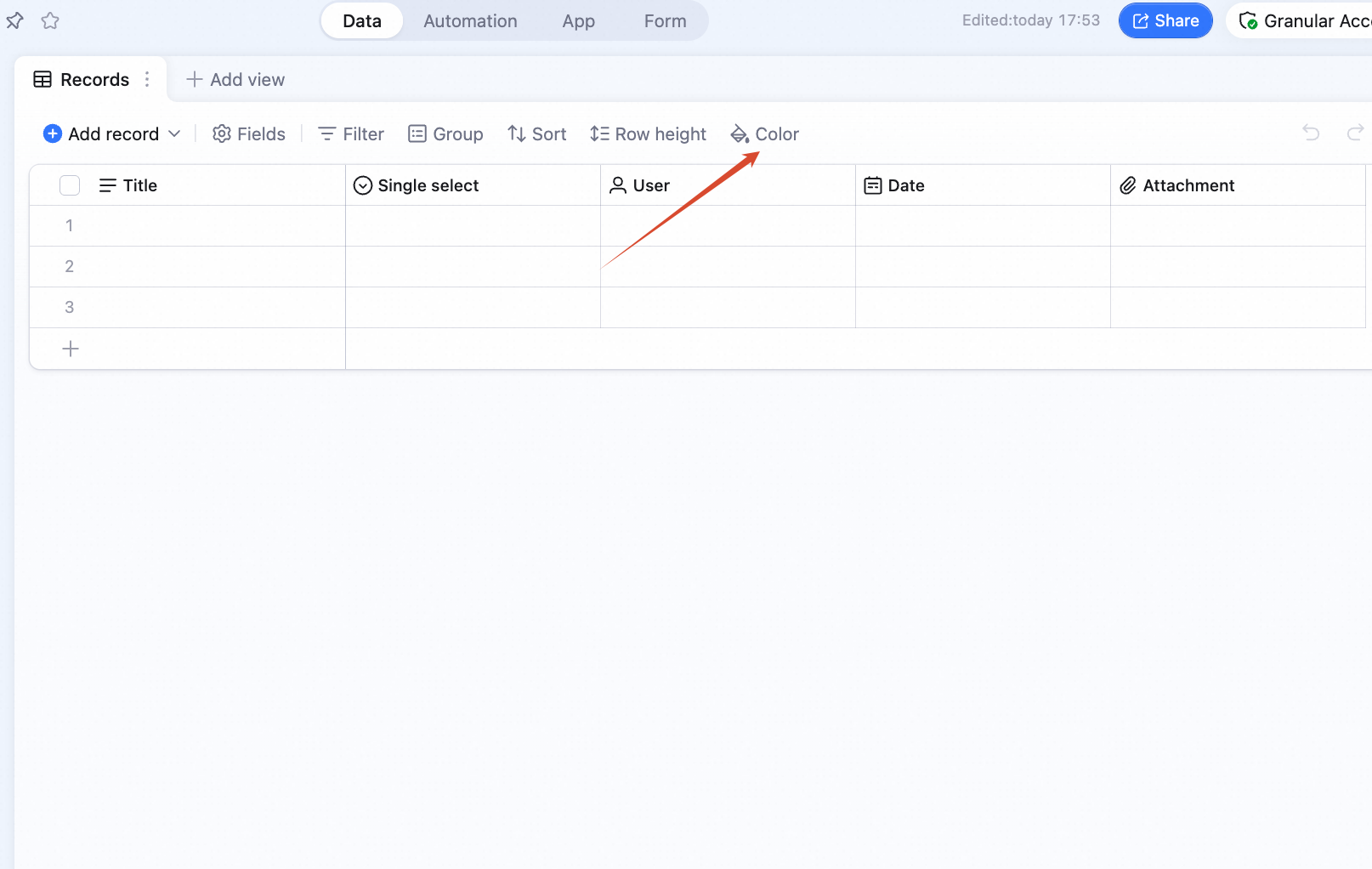
Configure Coloring Rules
Four modes:- Cell: color cells that match a condition.
- Entire row: color rows that match a condition.
- Row marker: mark the left side of matching rows with a color.
- Entire column: color the whole column (no condition).
Cell
Cells that match the condition get colored. Below: cells where User rating equals 5 stars are filled yellow.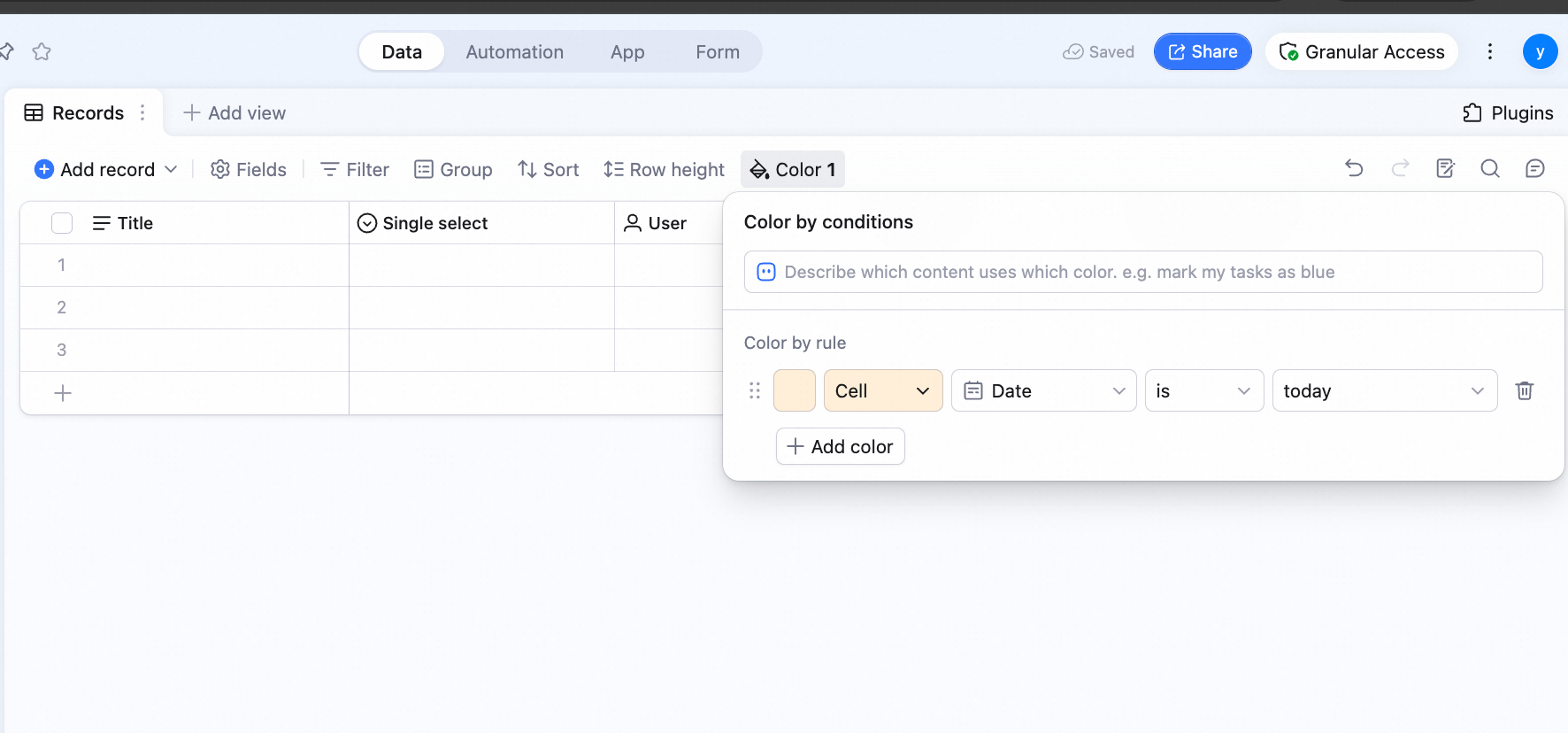
Entire Row
Rows that match the condition get colored. Below: rows where User rating equals 5 stars are filled yellow.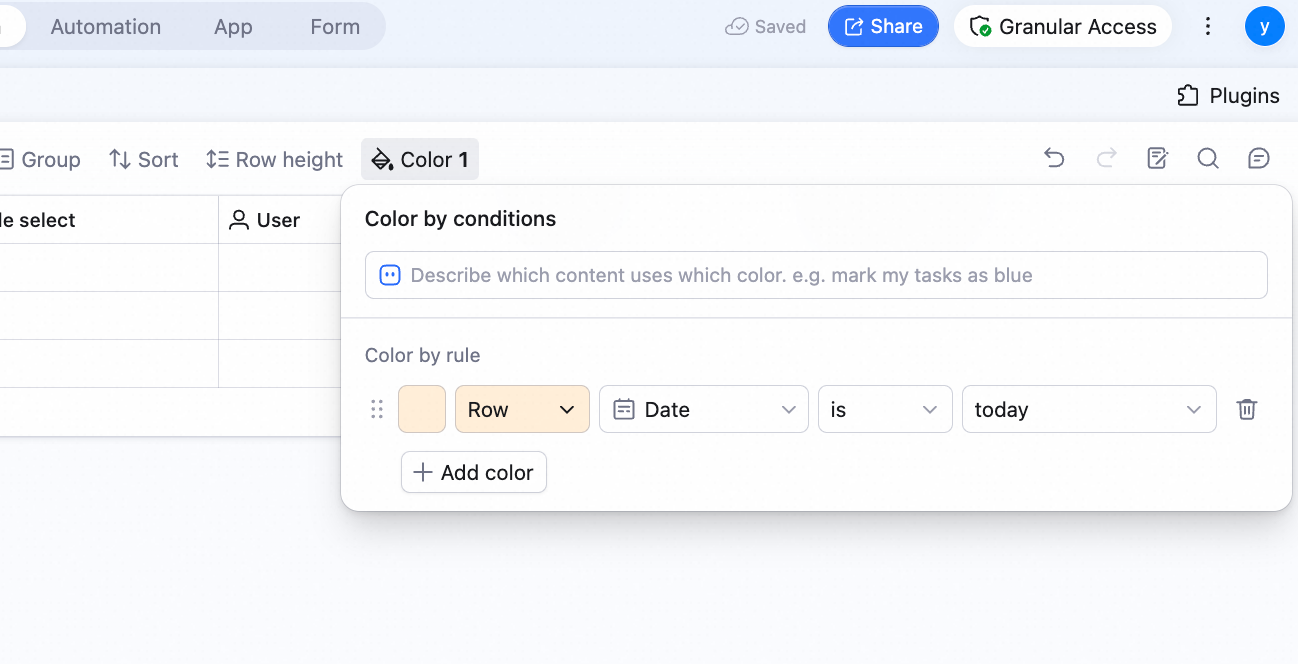
Row Marker
Mark the left side of matching rows with a color. Below: rows where User rating equals 5 stars get a red row marker.Entire Column
A specific column gets colored. Below: the whole User rating column is filled light green.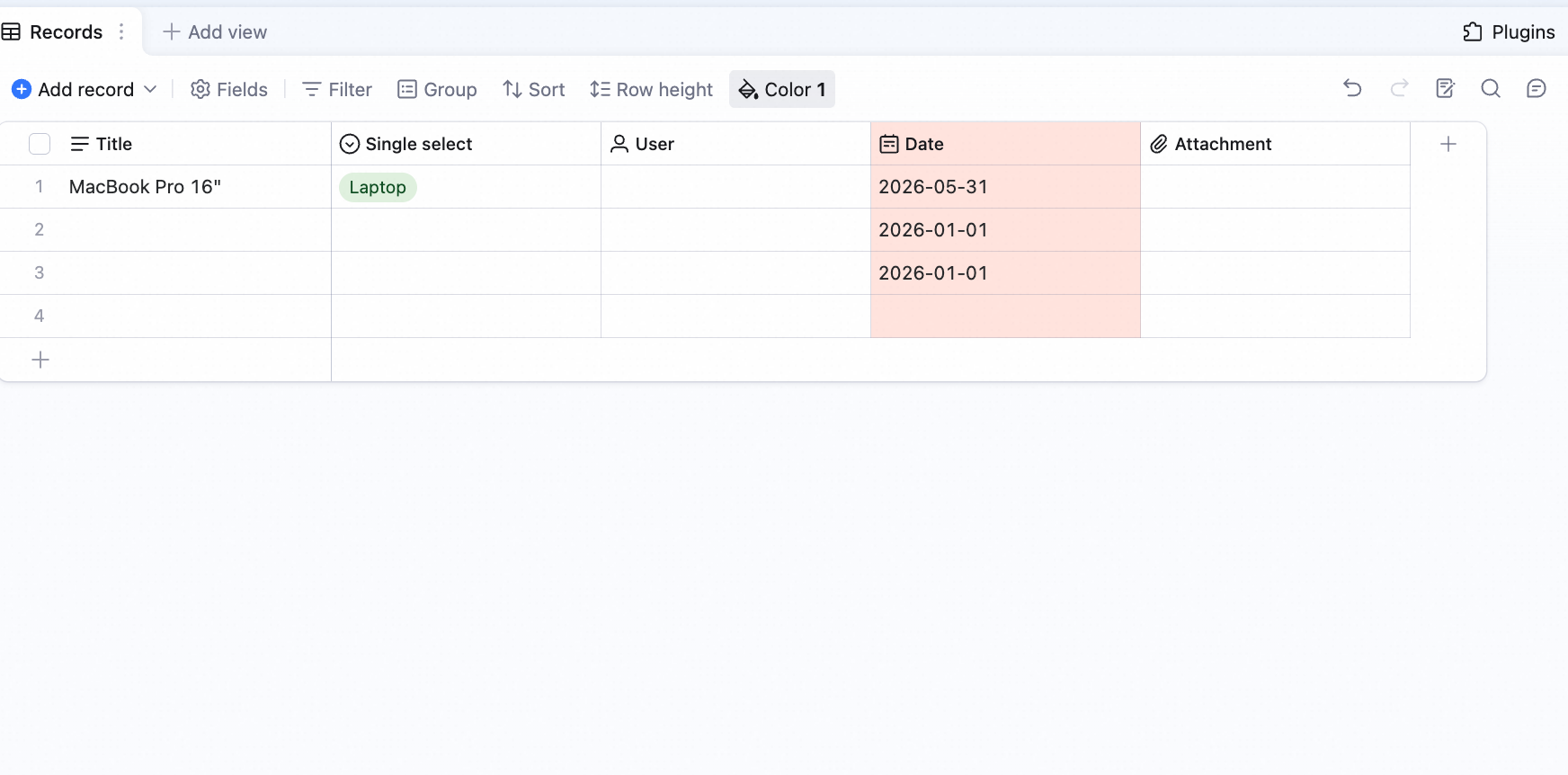
Quick Column Color
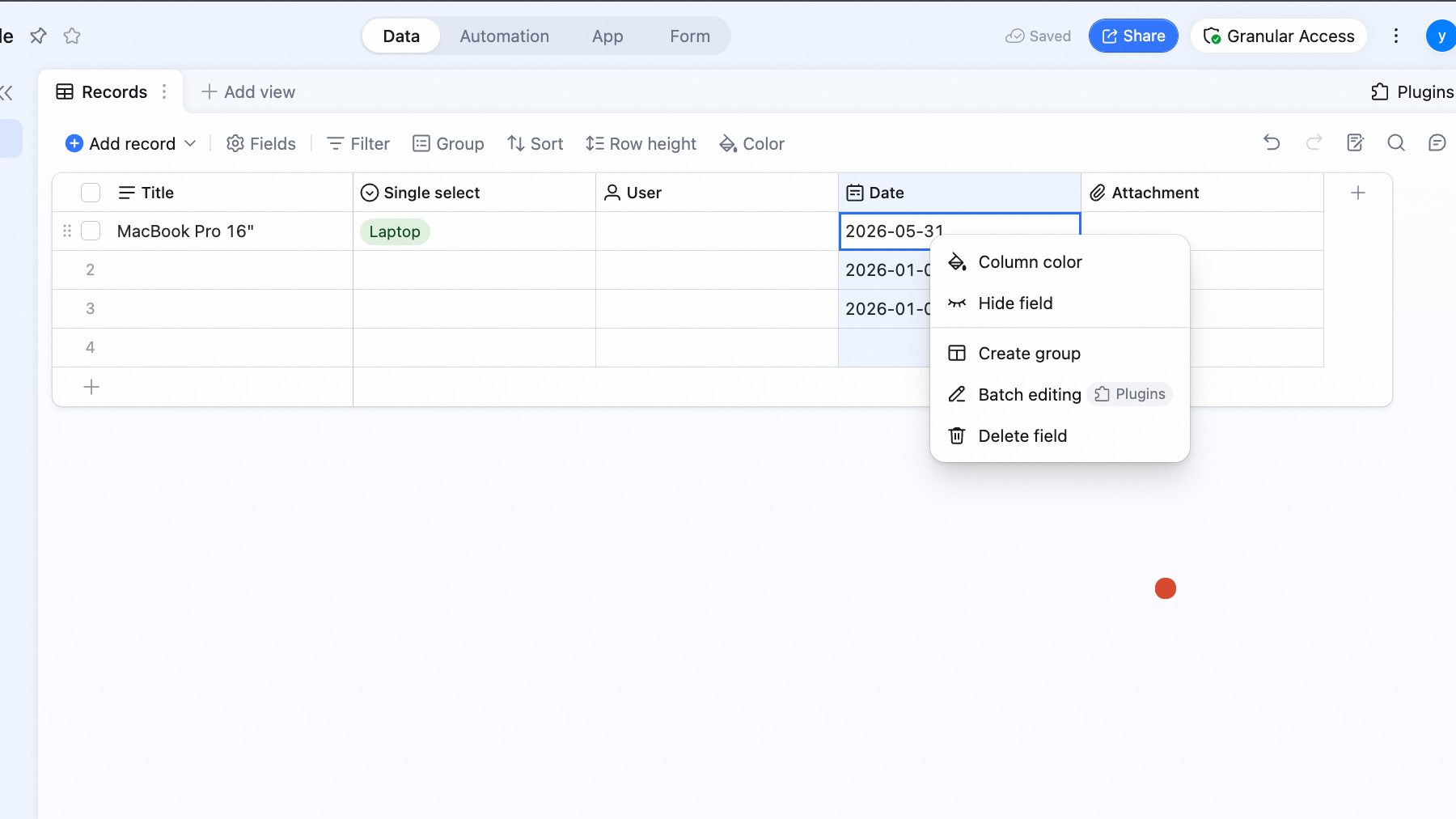
Right-click a field/column header — or click the dropdown to the right of the title — and pick Color column.