Chats
Chats Calendar
 Meetings
 Contacts
 Mail
Mail Docs
Docs Drive
Drive AI Table
 AI Minutes
 Attendance
 Approval
 YiDA
YiDA Admin Console
Filters
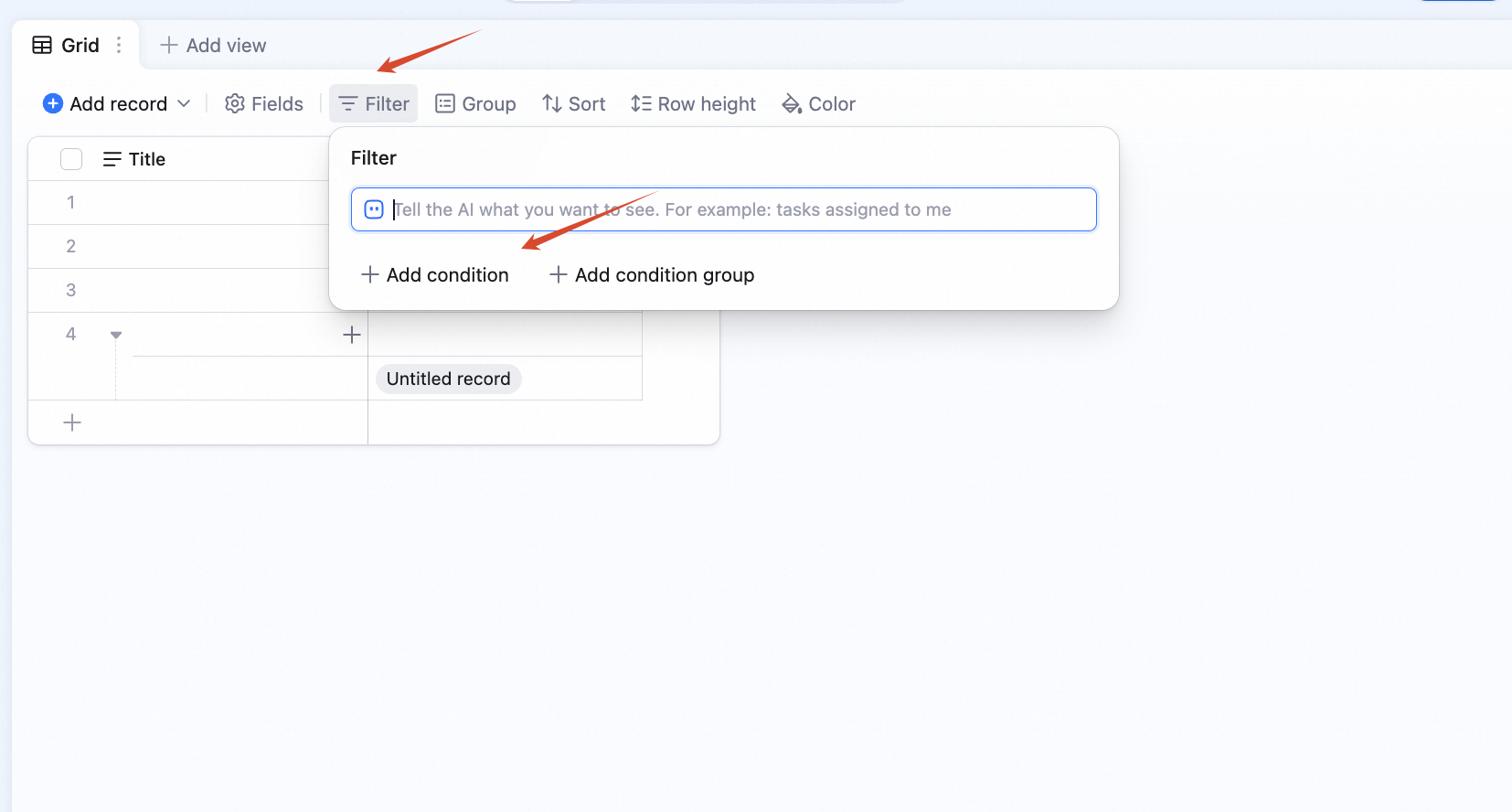
Add a Filter
- Click Filter in the view’s top toolbar.
- Click Add filter.
Remove a Filter
Click the icon to the right of a filter to remove it.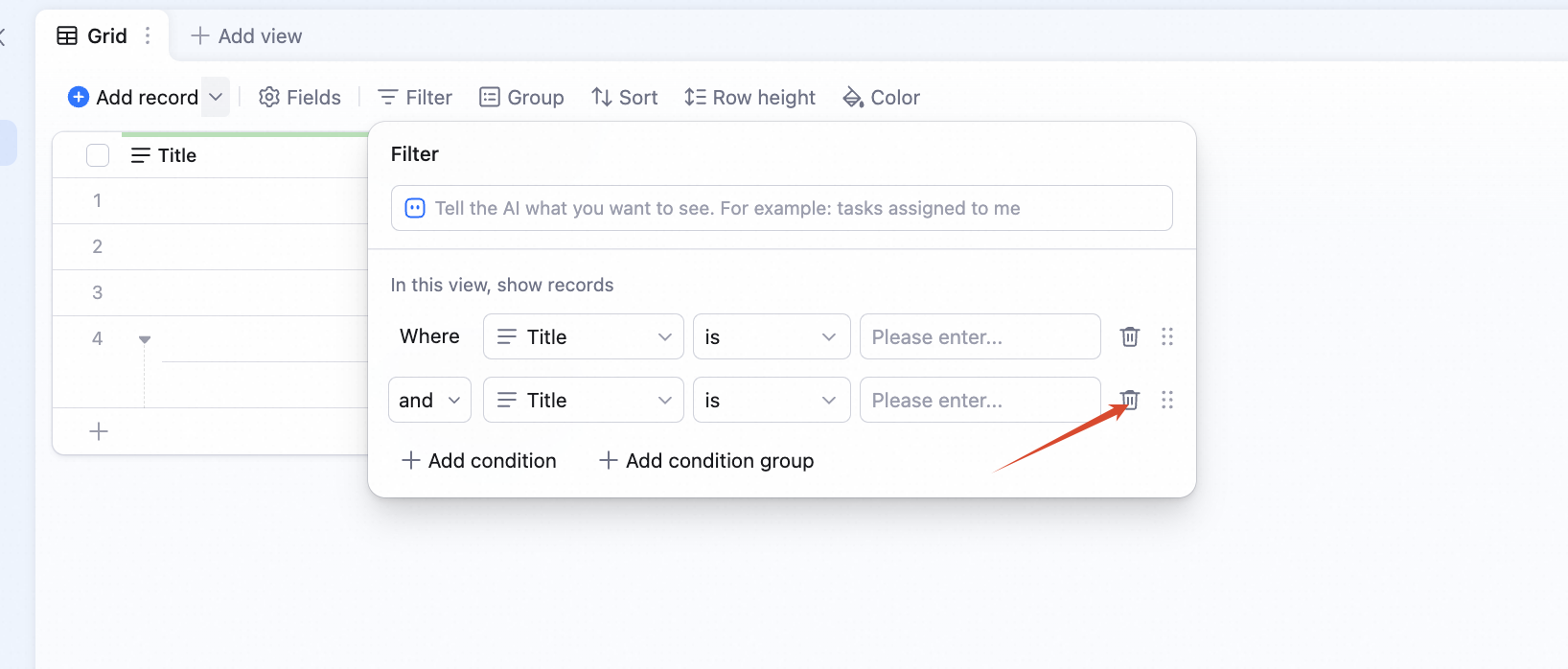
Multi-Condition Filtering
You can add multiple filters and choose AND / OR logic between them.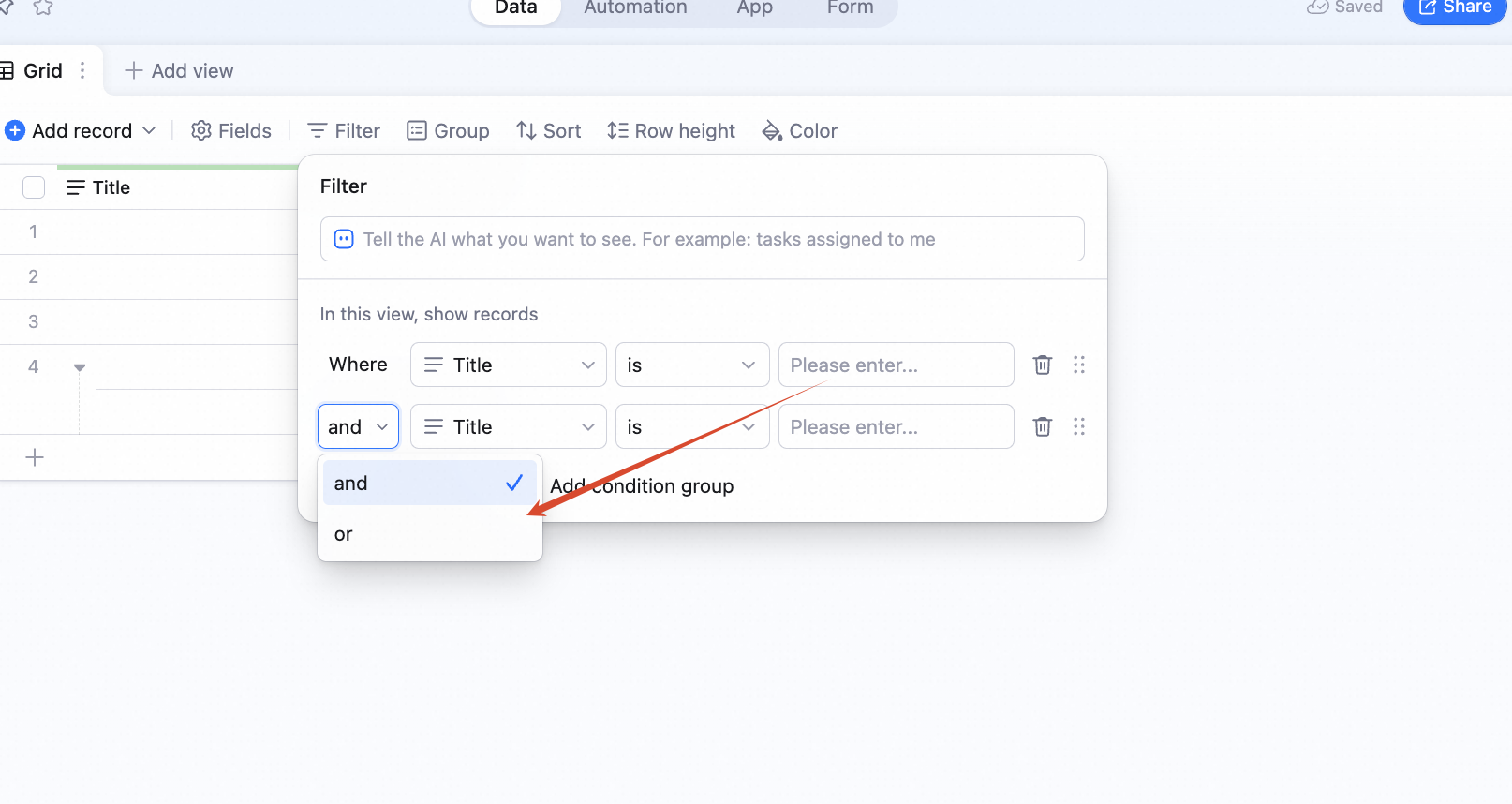
Filter Groups
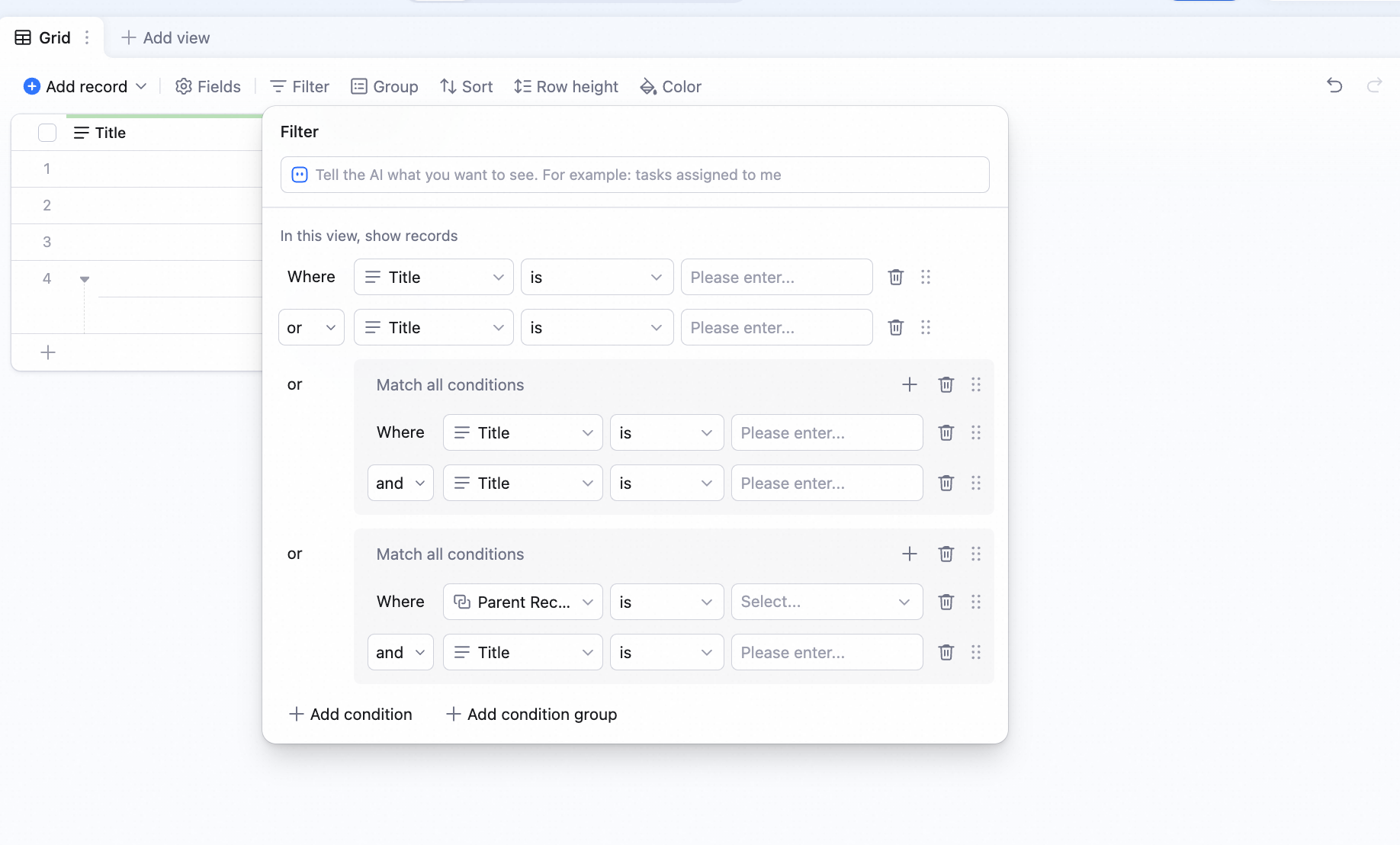
After you understand basic filters, you may encounter scenarios that require multiple result sets or more flexible rule combinations. That’s where filter groups come in.Why Filter Groups?
A standard filter can express one or more simple rules, such as Status = Done or Status = In progress. This works for many cases, but when conditions involve multiple departments, statuses, owners, or rule combinations, flat filters may not be enough. Filter groups let you organize conditions into logical subgroups and connect those groups with AND / OR, helping AI Table return the intended records more accurately.How to Use Filter Groups
Entry
- Click Filter in the view’s top toolbar.
- Click Add filter group.
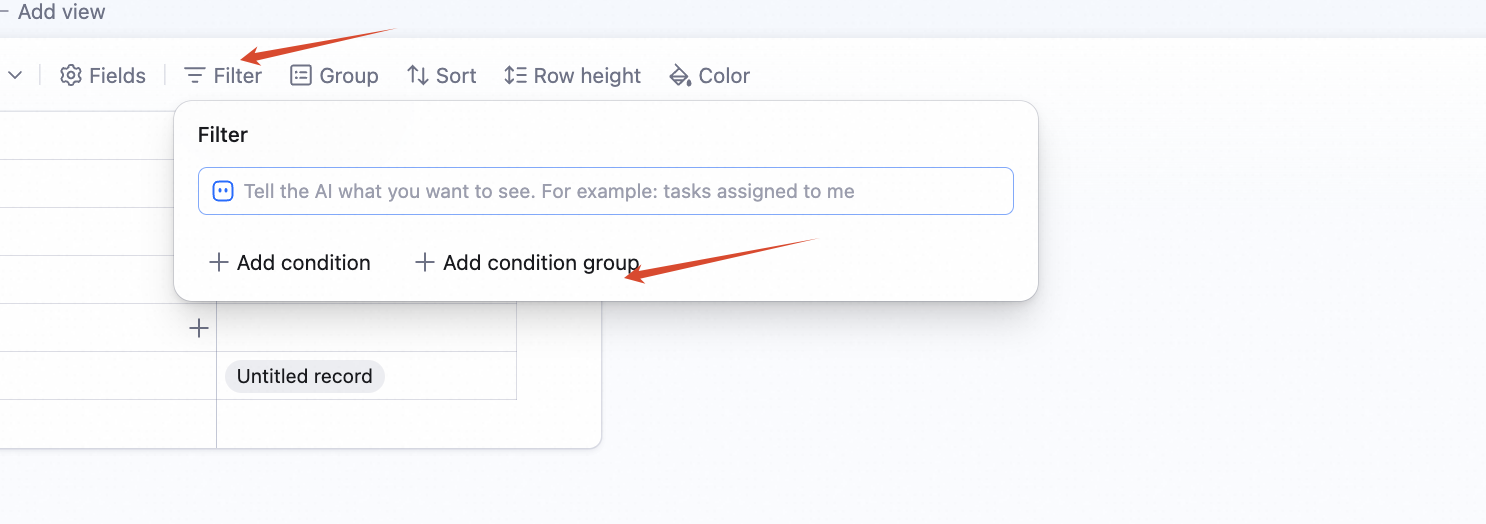
Creating a Filter Group
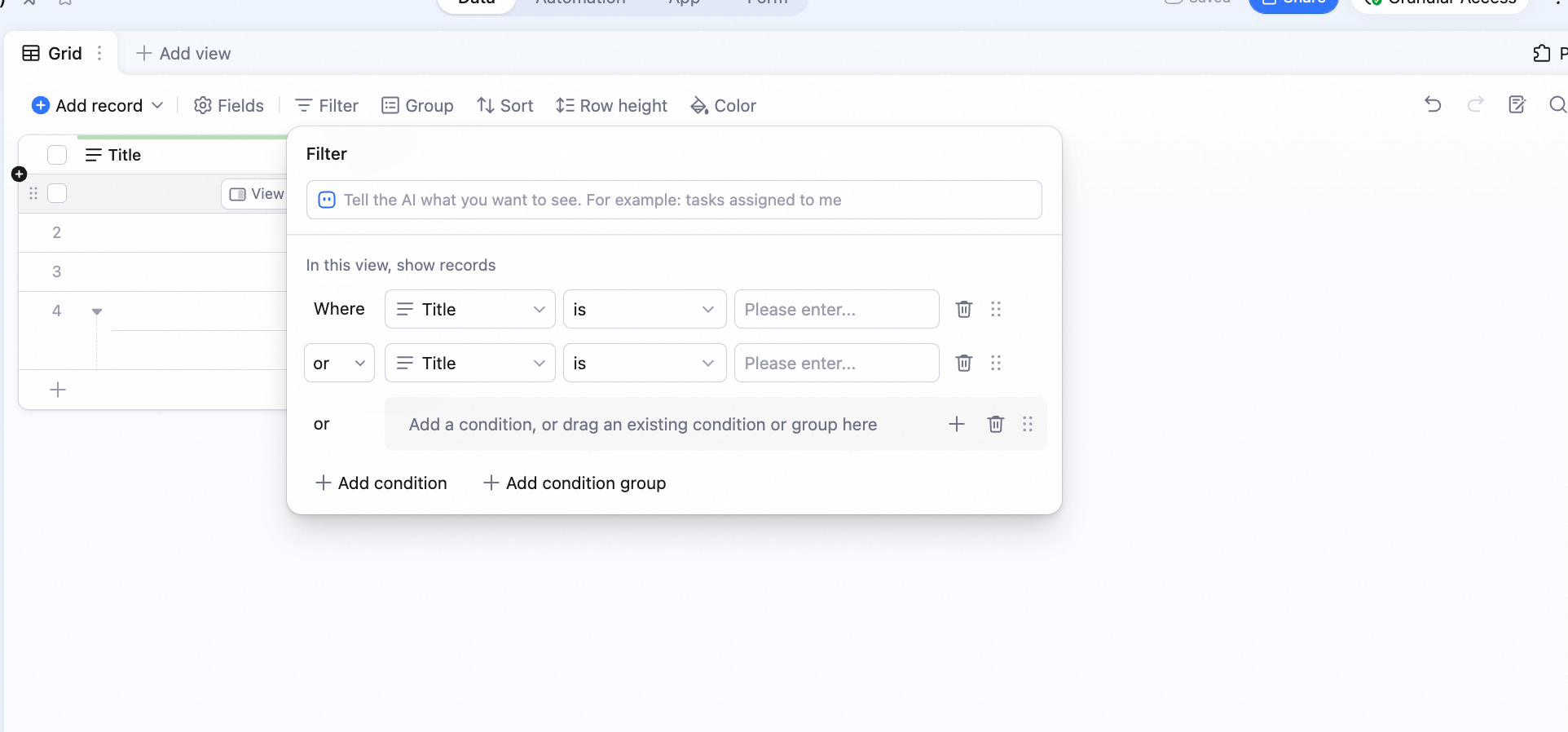
Two ways:- Method 1: from the current set of filters, click + Add filter group to create a new group. AI Table adds a new layer below your current filters — you can keep nesting more granular structure on top of the existing rules.
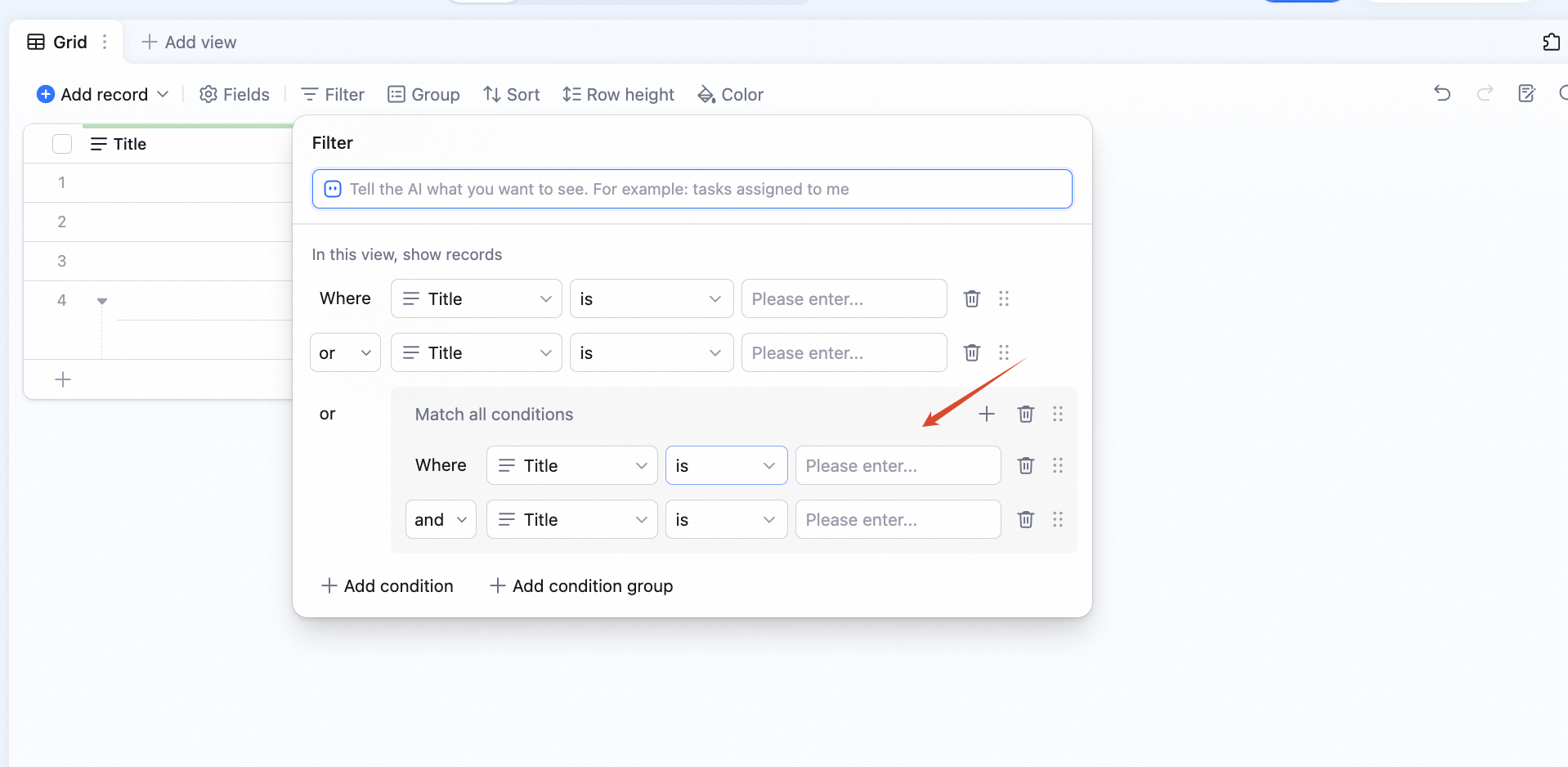
- Method 2: inside an existing group, keep adding new groups. Click the + in the group, then + Add filter group. This creates another layer inside the group — the second nesting level. Max nesting is 2 levels.
Notes
- Max 2 levels of nesting: once at level 2, Add filter group is grayed out — you can’t go deeper.
- 2 levels is enough for most complex needs: combining different group levels with AND / OR gives you flexible composite filters.
- Each group can have multiple filters but only one logic operator: each group is either AND or OR — no mixing within a group.