Chats
Chats Calendar
 Meetings
 Contacts
 Mail
Mail Docs
Docs Drive
Drive AI Table
 AI Minutes
 Attendance
 Approval
 YiDA
YiDA Admin Console
Enter Preview
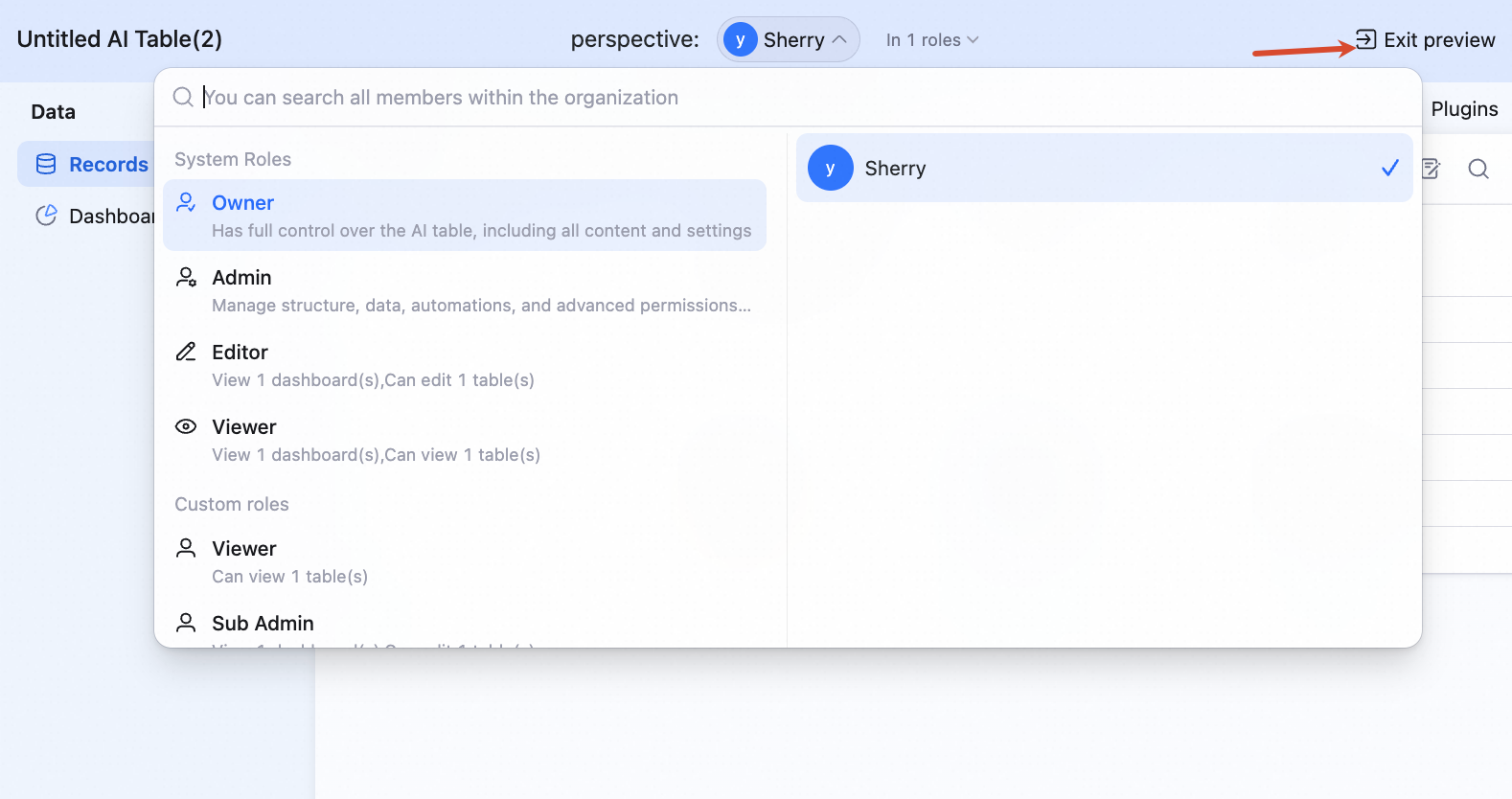
After configuring Advanced Permissions and adding the right members, click Save and preview at the bottom-right to enter preview mode.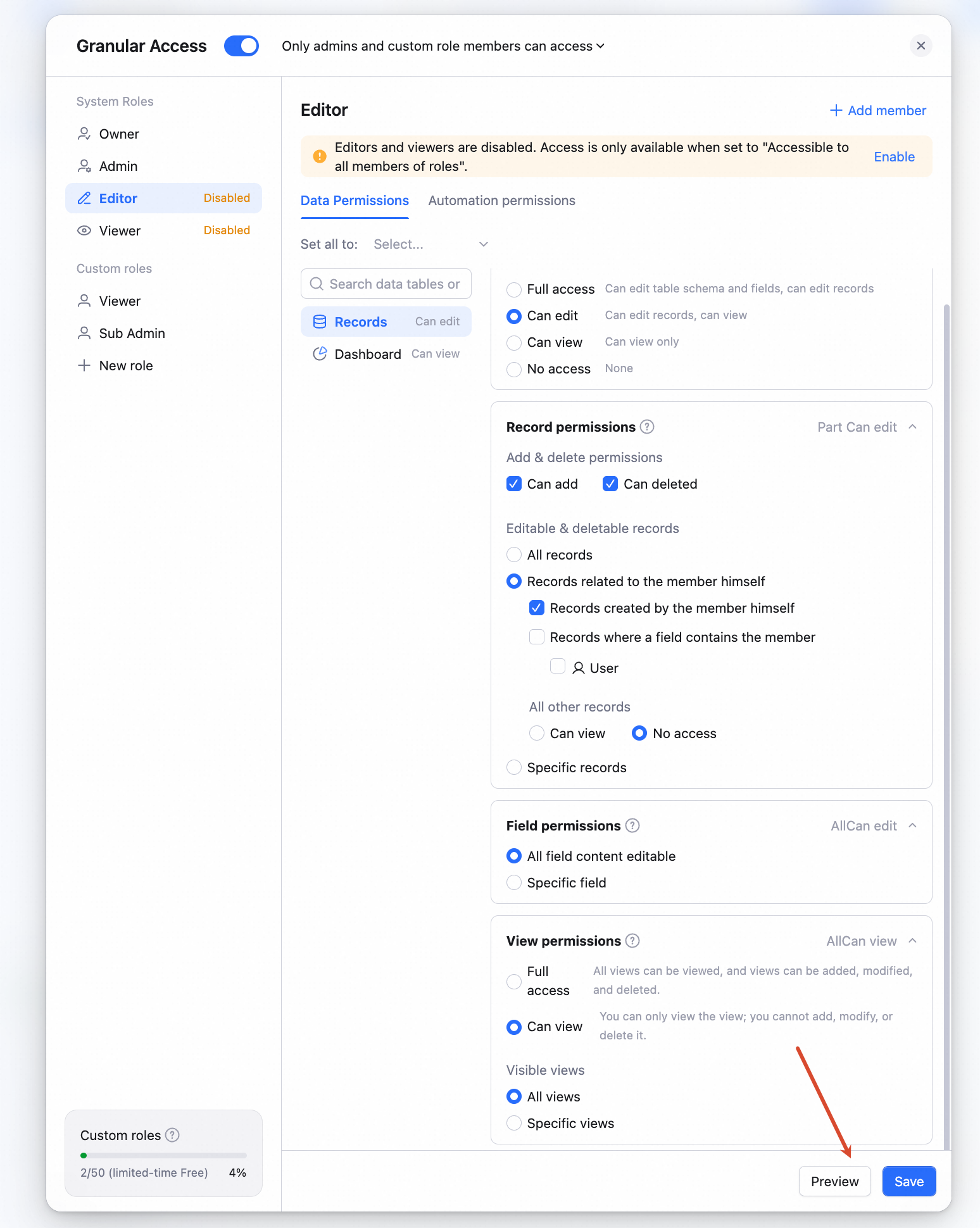 Use the toggle at the top to switch between roles / members and verify your Advanced Permissions setup.
Exit Preview
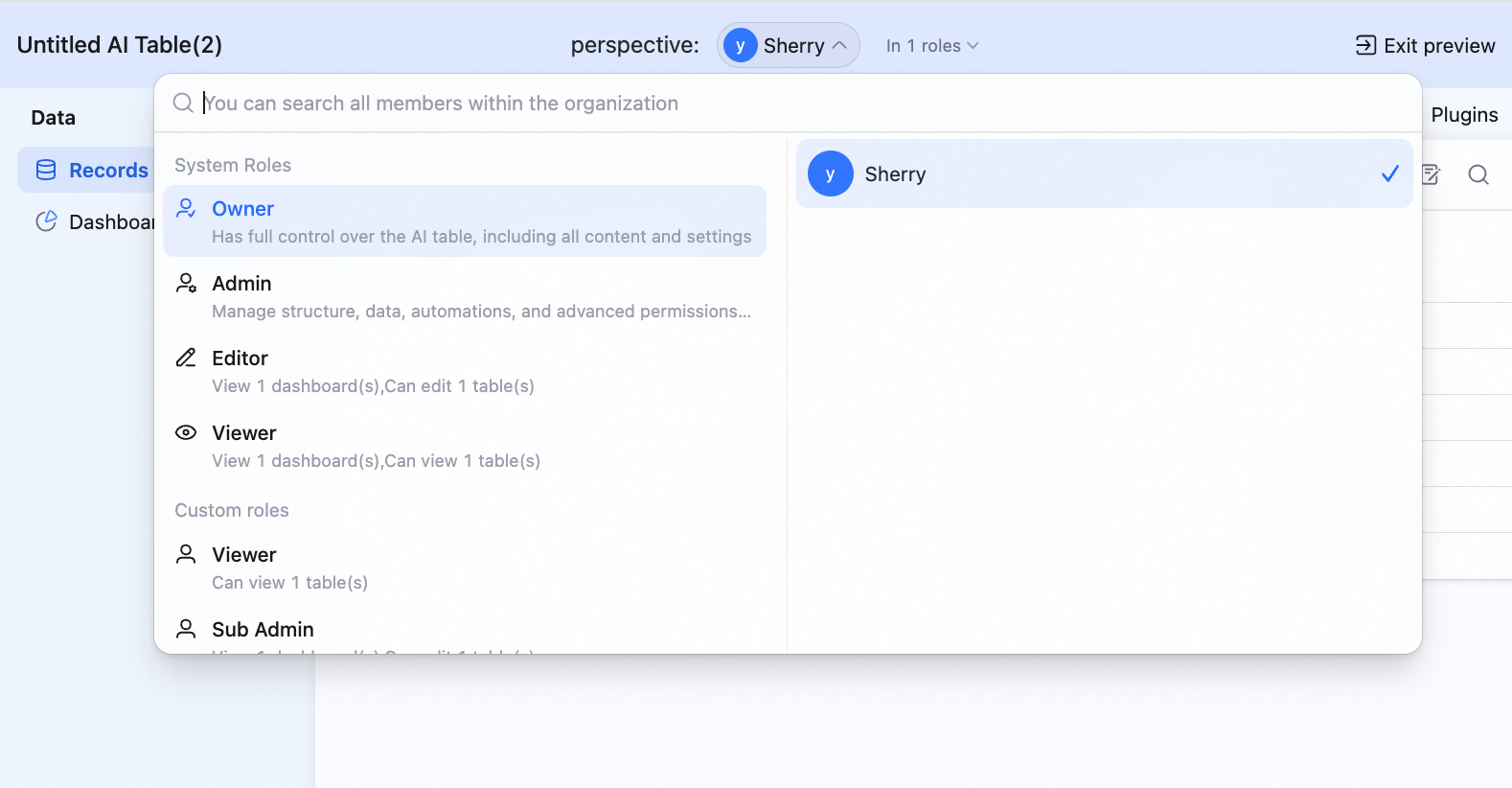
In preview mode, click Exit preview at the top-left to exit.