

 Chats
Chats Calendar
 Meetings
 Contacts
 Mail
Mail Docs
Docs Drive
Drive AI Table
 AI Minutes
 Attendance
 Approval
 YiDA
YiDA Admin Console
Scenarios
When a new collaborator joins an AI Table with Advanced Permissions enabled, they automatically access it at the default role’s permission level — no extra authorization needed. If a custom role is deleted on an AI Table with Advanced Permissions enabled, the role’s former members automatically fall back to the default role’s permissions.How to Set It
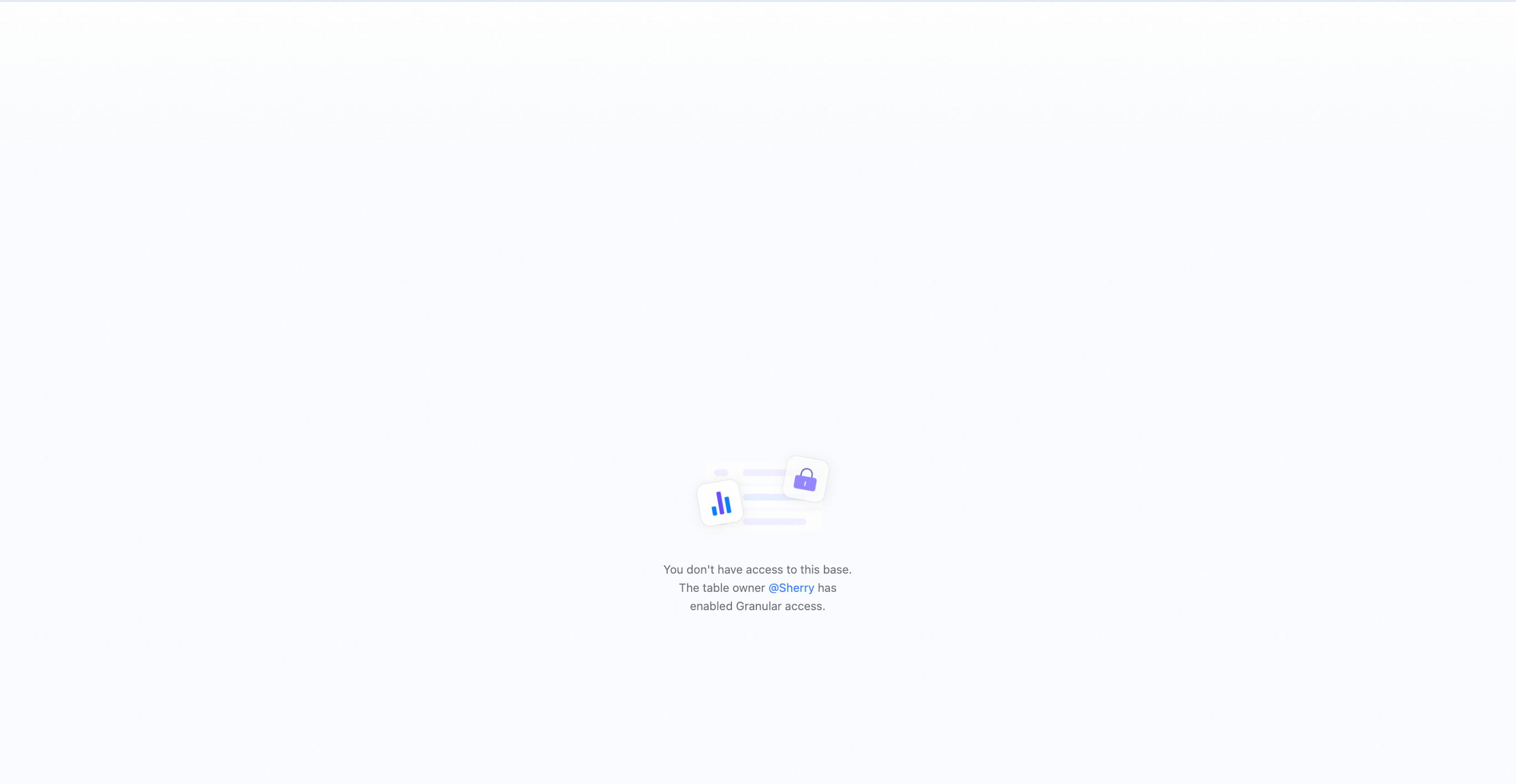
The first time you turn Advanced Permissions on, the Regular User role is set as the default role for collaborators in the Advanced Permissions settings. In the Default role section at the bottom of the Advanced Permissions dialog, pick any custom role you’ve created as the default role. Collaborators without a role access the AI Table at the default role’s permission level. Collaborators who already have a role (including group members) follow their assigned role and aren’t affected by the default role.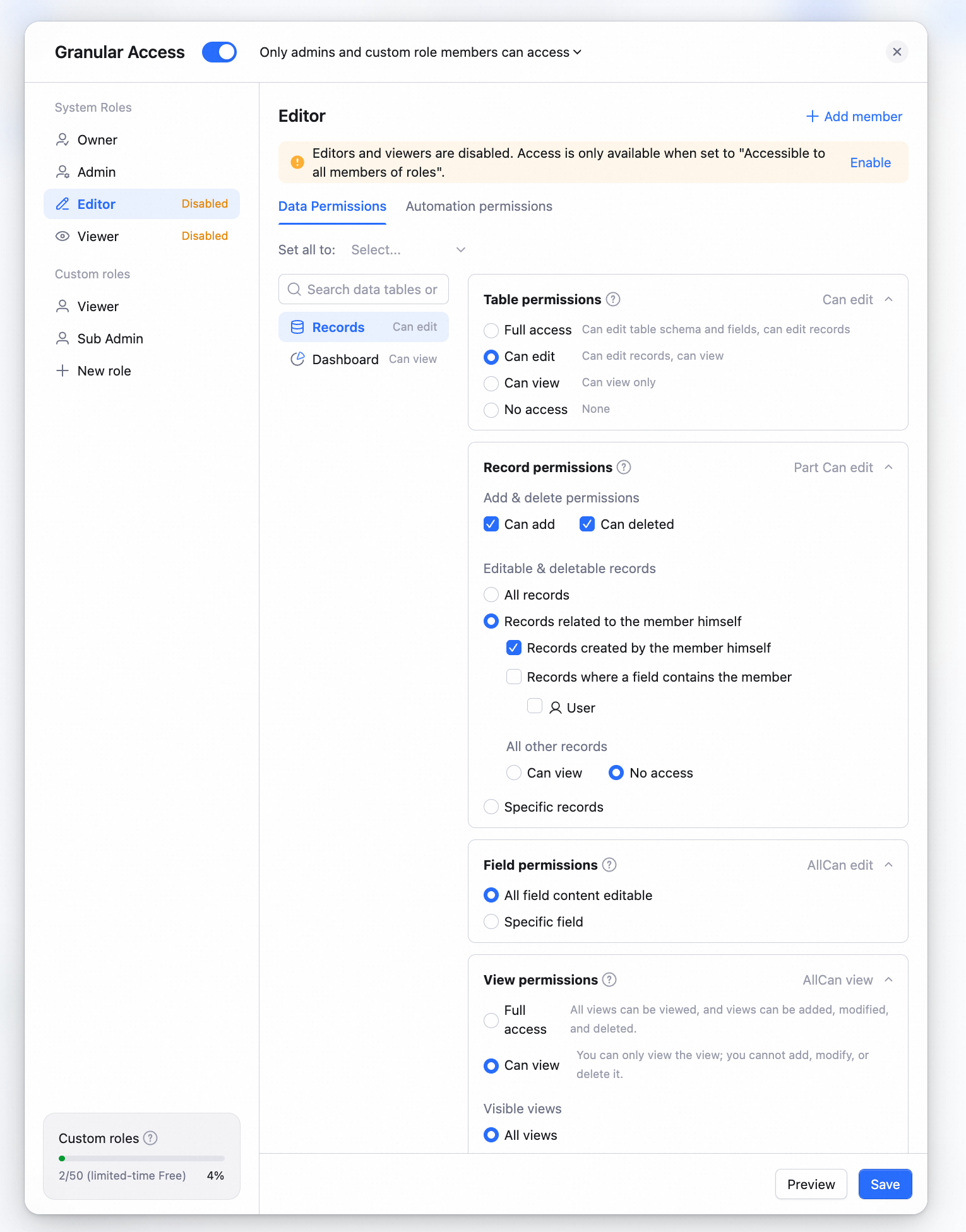 When you set the default role to No access, collaborators who arrive via a link or invite without a specific role can’t see the AI Table content — they have to request Advanced Permission access and be approved before they can view it.
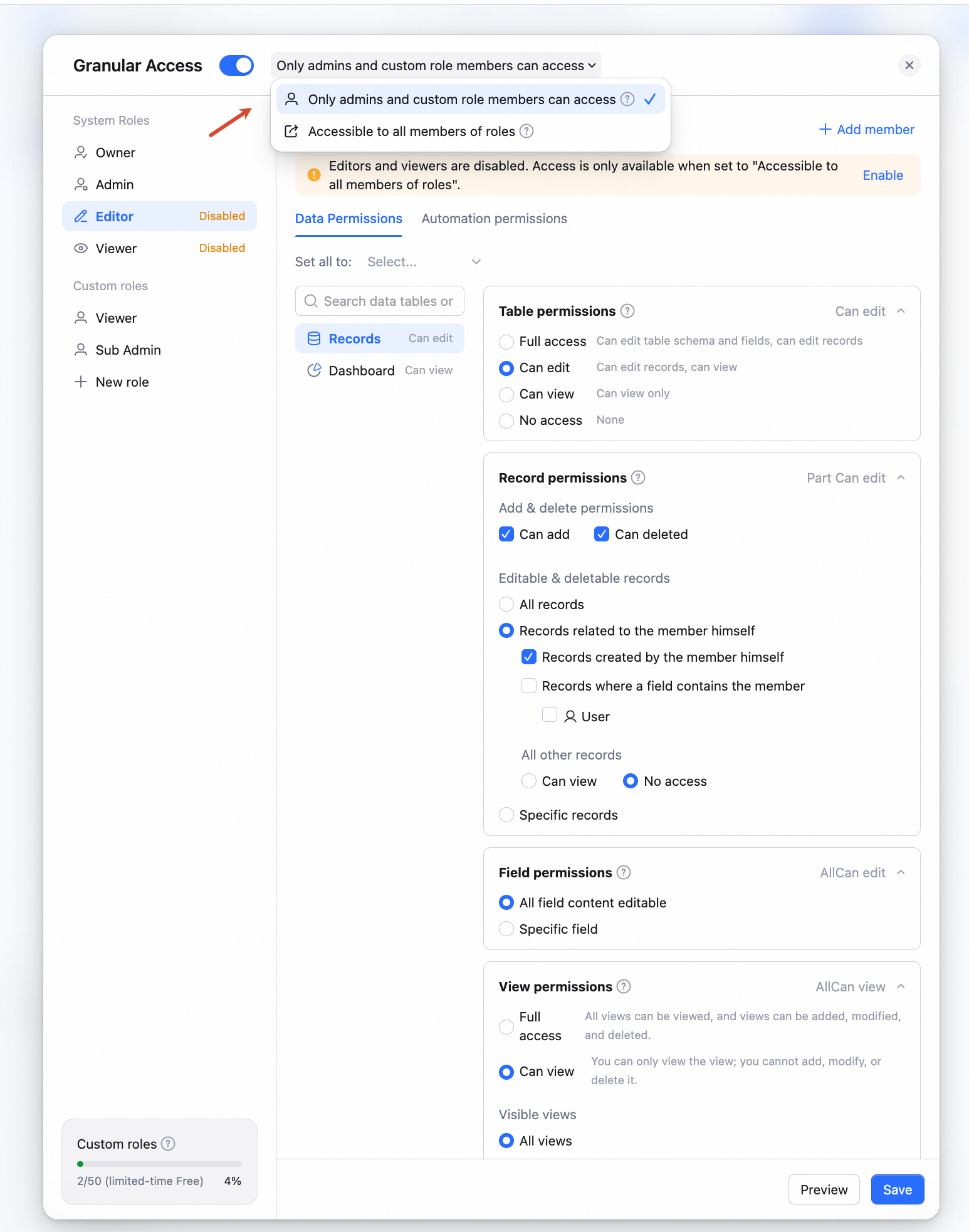
 Note: only one role can be set as the default. On AI Tables that have had Advanced Permissions enabled before, the system won’t suggest the Regular User role again the next time you reconfigure — pick any custom role as the default.