Chats
Chats Calendar
 Meetings
 Contacts
 Mail
Mail Docs
Docs Drive
Drive AI Table
 AI Minutes
 Attendance
 Approval
 YiDA
YiDA Admin Console
Create a Calendar View
Click the + icon next to the view title bar at the top of an AI Table file, then pick Calendar view.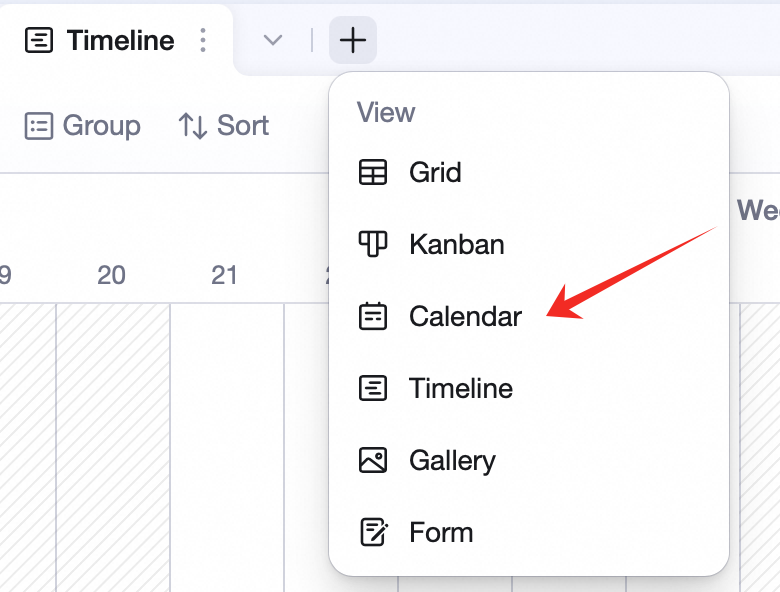 If a date field exists, right-click the date field header and pick Create calendar view by xx.
Configure a Calendar View
Field Management
See Field management.Calendar Config
Click Calendar config in the view toolbar. Start / End date: pick date fields from the table. Title: pick any field — its value shows on the event bar. Color: pick Custom color or Follow field color. Custom offers 6 theme colors. If a single-select field exists, Follow field color matches the event bar color to the selected option’s color.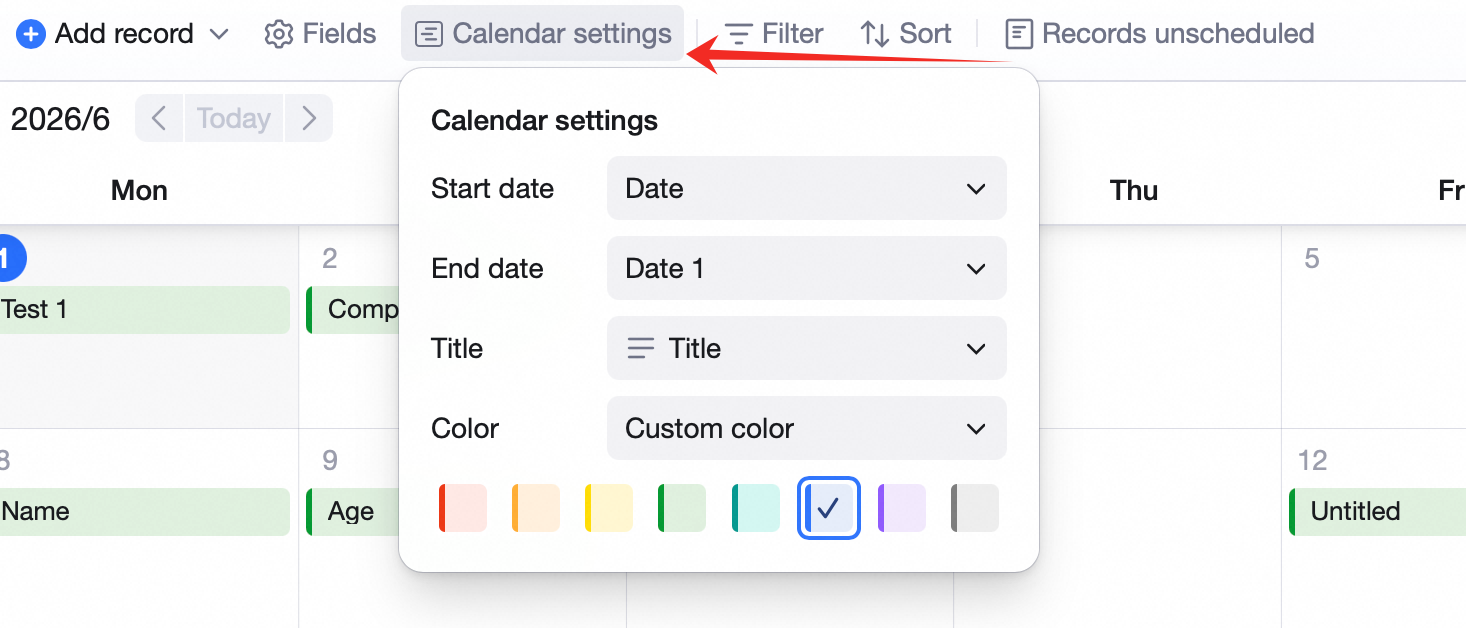
Filter and Sort
Filter and sort records in the calendar — see Filters and filter groups and Sorting.Time Scale
Switch between Month, Week, and Day views.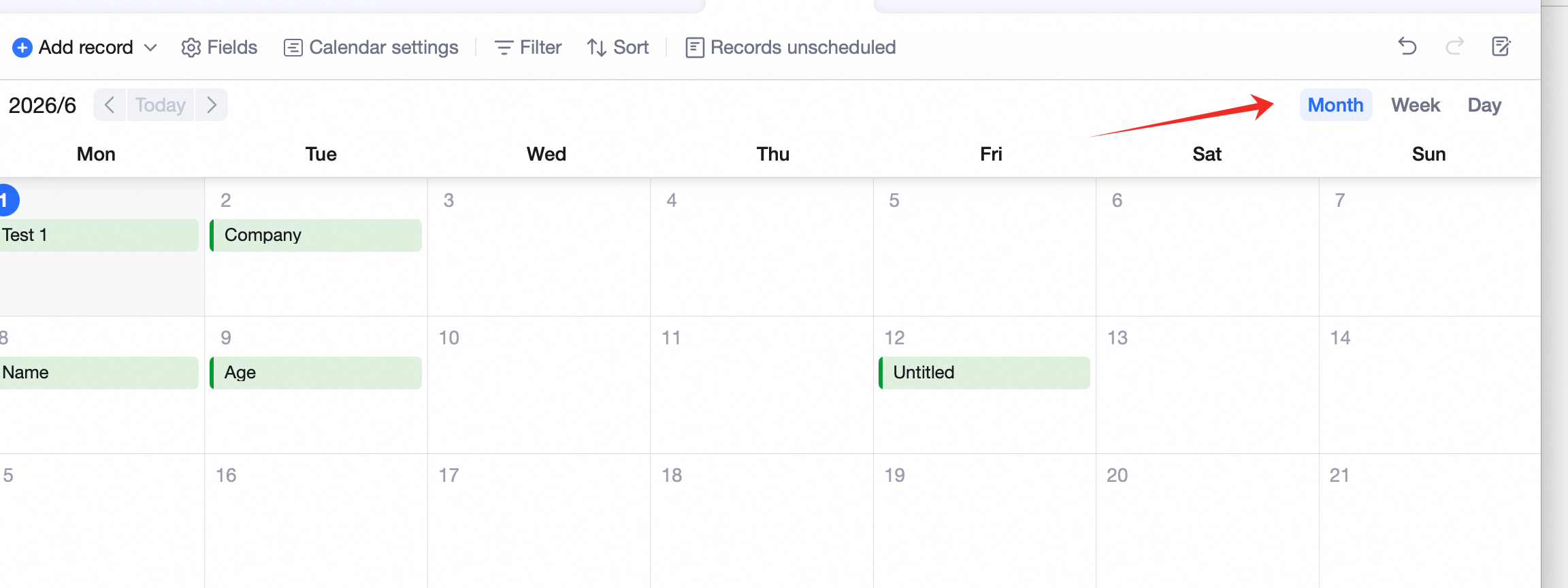
Add a Record on the Calendar
In a cell with existing events, click the + in the top-right. In an empty cell, an add-record button appears — click to add.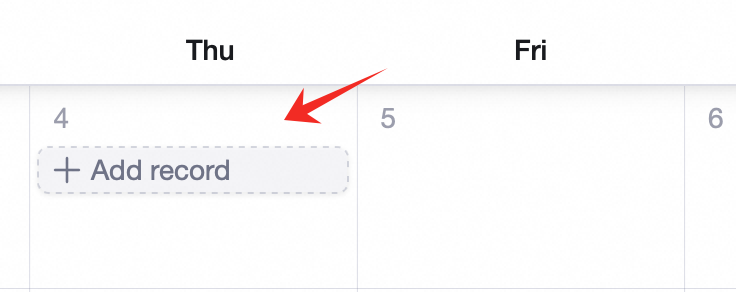 Or double-click empty space in any cell to add a new record.
Records with No Date
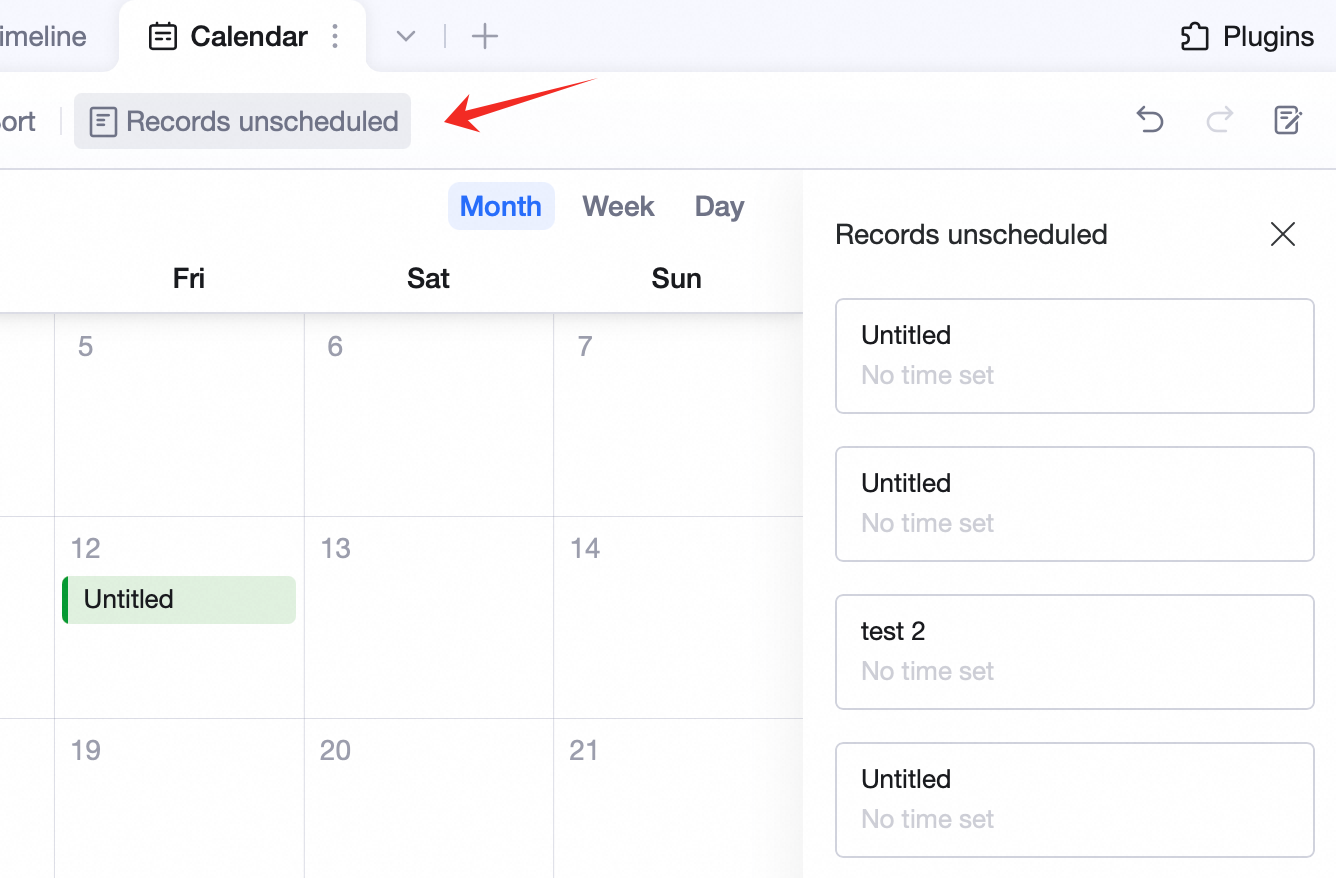
Click Records without date in the view toolbar to list all records missing date info. Click a record to assign date / time.