

 Chats
Chats Calendar
 Meetings
 Contacts
 Mail
Mail Docs
Docs Drive
Drive AI Table
 AI Minutes
 Attendance
 Approval
 YiDA
YiDA Admin Console
Formula Display Formats
Display formats make data come alive — turn formula output into visual elements like progress bars, ratings, currency. In the past, formula results could only show as plain text or numbers. With display formats, the table looks better — and you finally fix the long-standing pain point of “progress bars not auto-updating with data”.Set Display Format
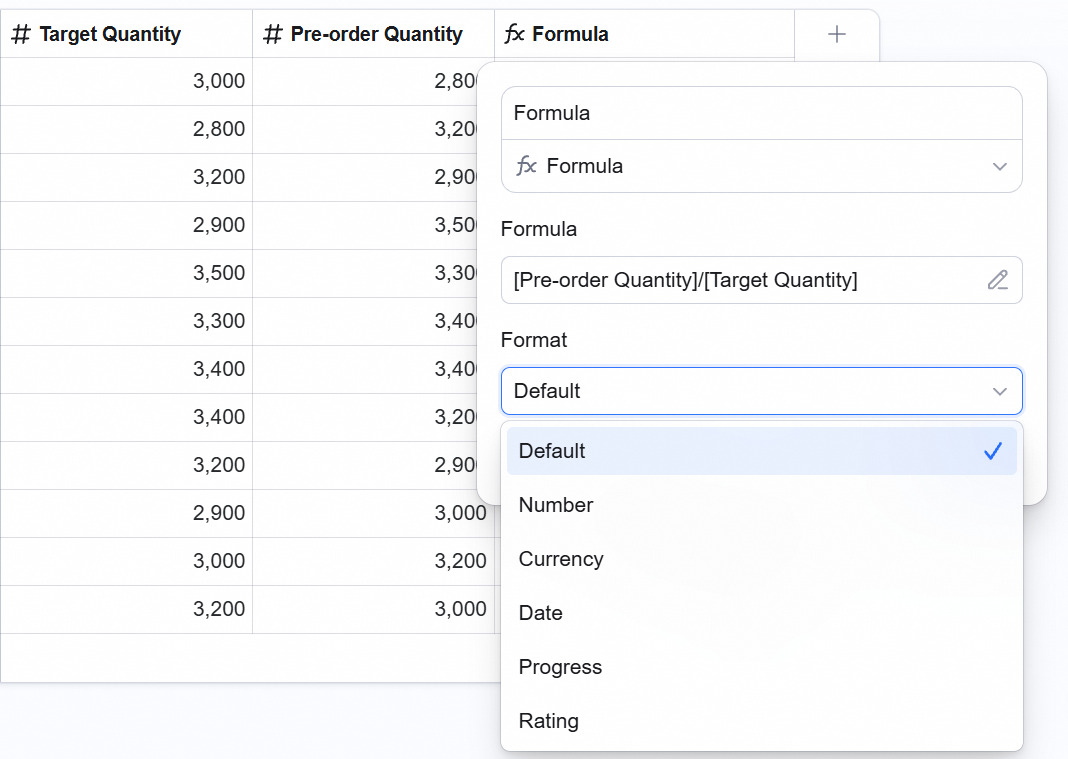
Configure on creation or update an existing formula field.- Click the formula field’s column header to open the config panel.
- Click the Display format dropdown.
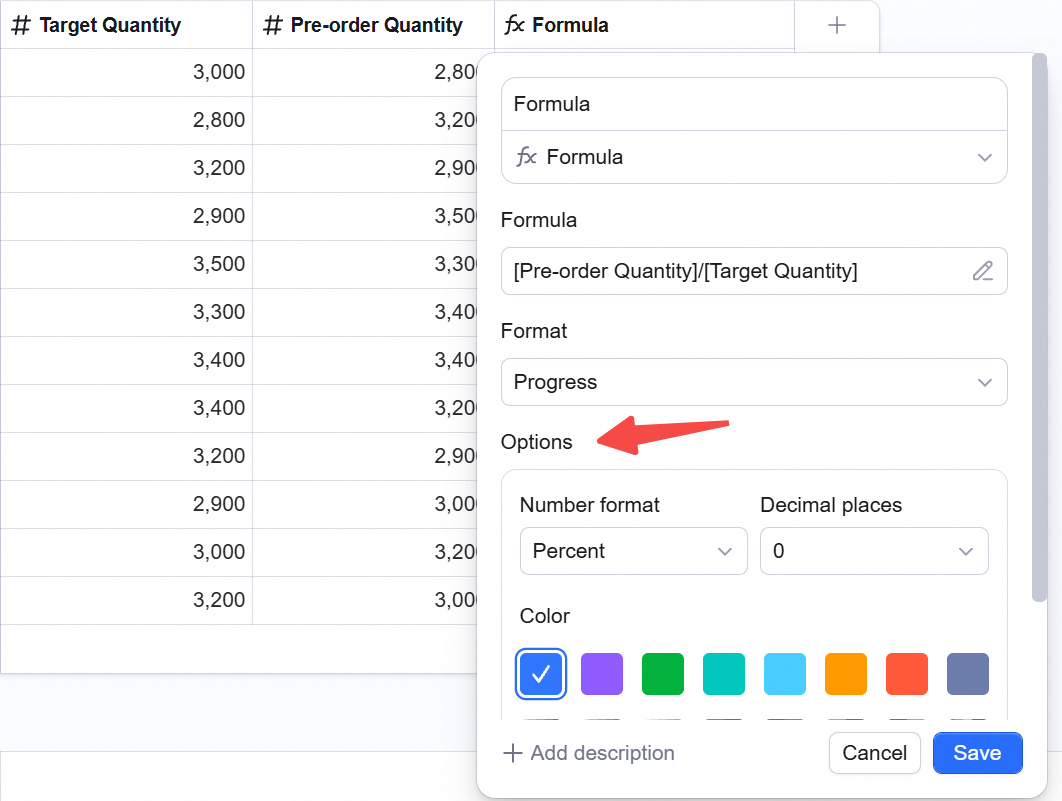
- Pick a style based on the result data type (e.g., Progress).
- Configure params per format (color, format, etc.).
- Click Confirm.
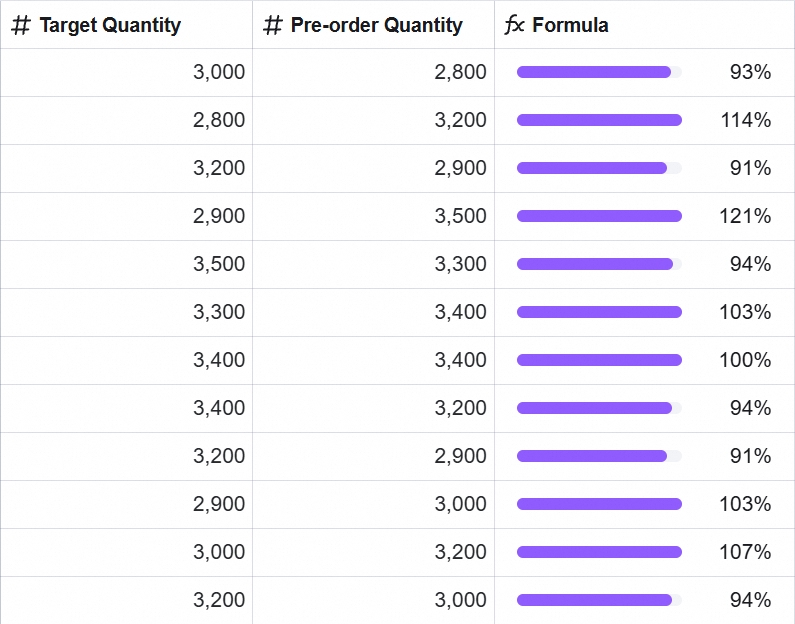
Core Scenarios and Configs
1. Auto-Updating Project Progress Bar
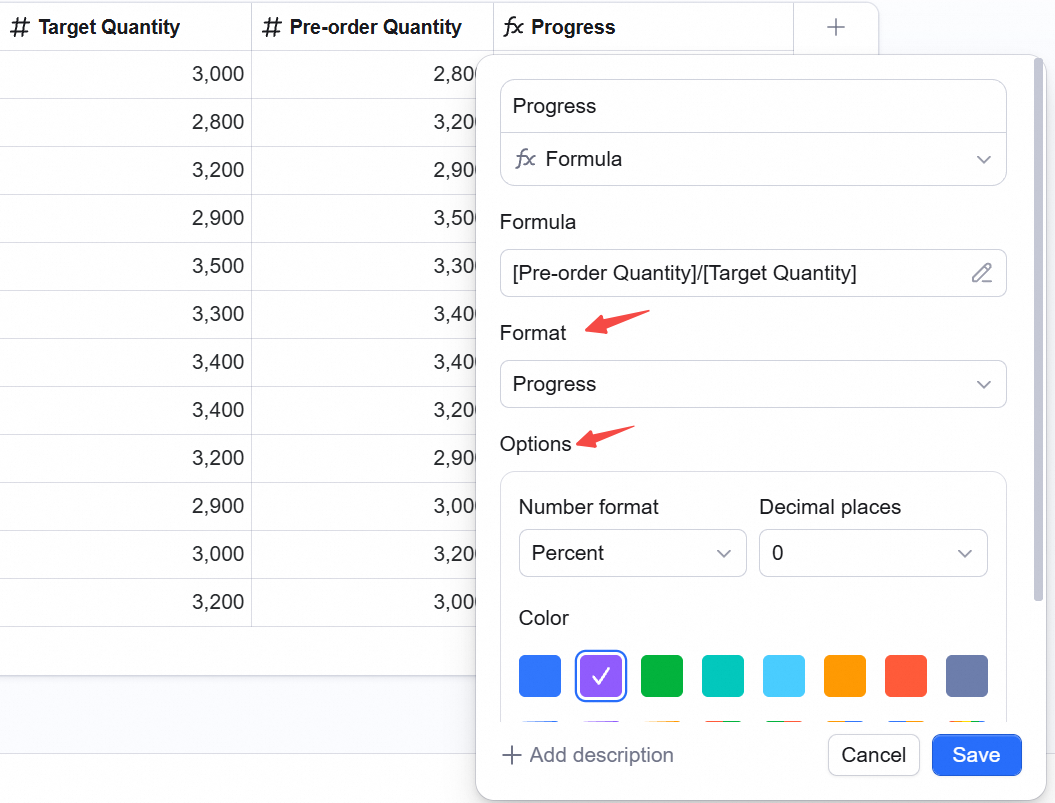
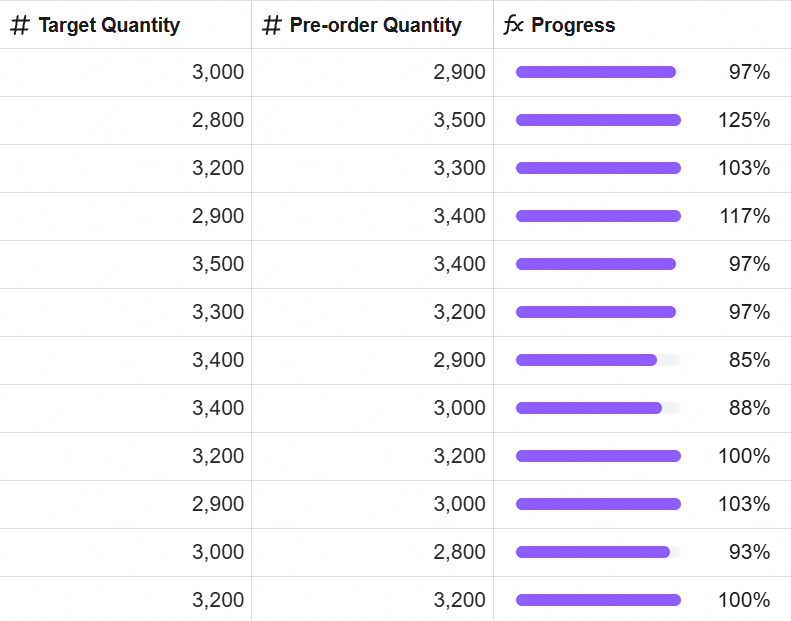
Pain point: with a regular Progress field, you had to drag the percentage manually. When task counts changed, the bar didn’t update — high maintenance cost. Fix: compute completion rate via formula, render as a progress bar.- Formula:
[Pre-order Quantity] / [Target Quantity] - Format: pick Progress.
- Params: enable Custom progress range, set start to
0, target to1(= 100%). - Result: when “completed tasks” updates, the bar moves automatically — no manual edit.
2. Performance / Satisfaction Rating
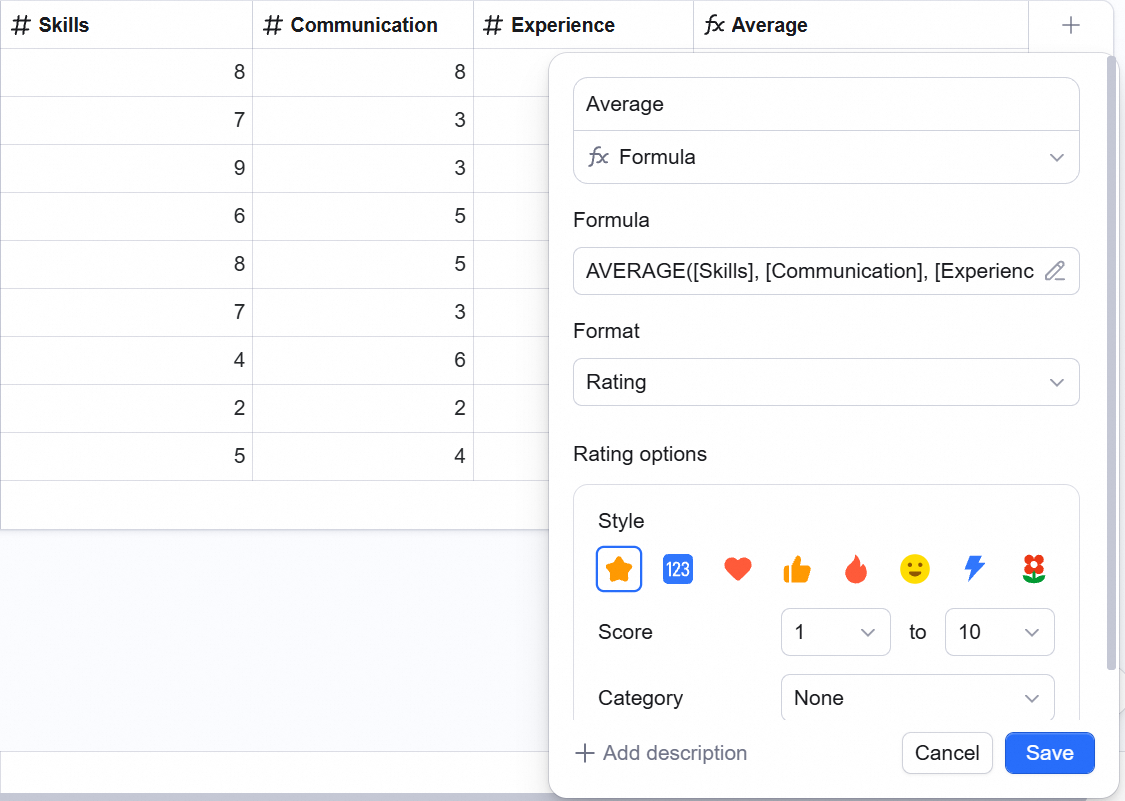
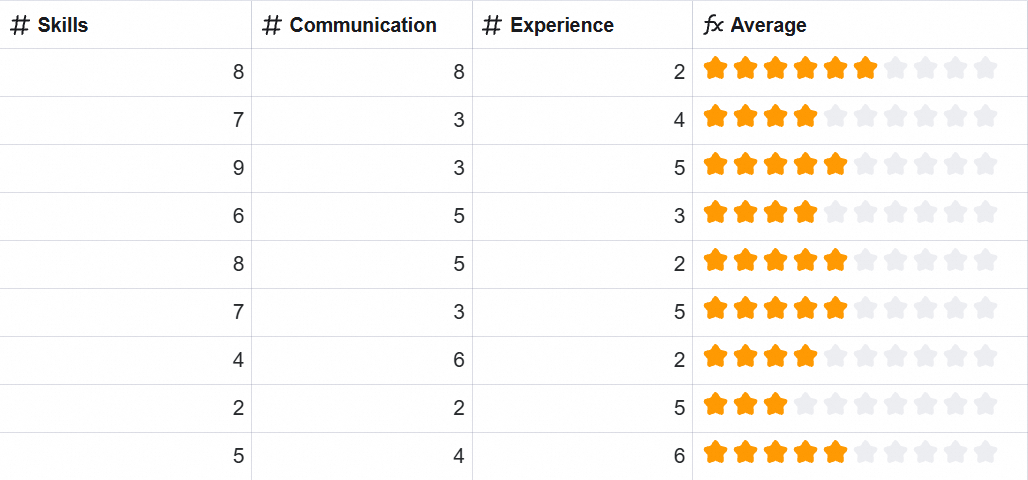
Scenario: weighted average across dimensions (skills, communication, experience) — display as stars.- Formula:
AVERAGE([Skills], [Communication], [Experience]) - Format: pick Rating.
- Params: max value = 10.
- Result: shows as ⭐ — easy to read.
3. Currency Formatting
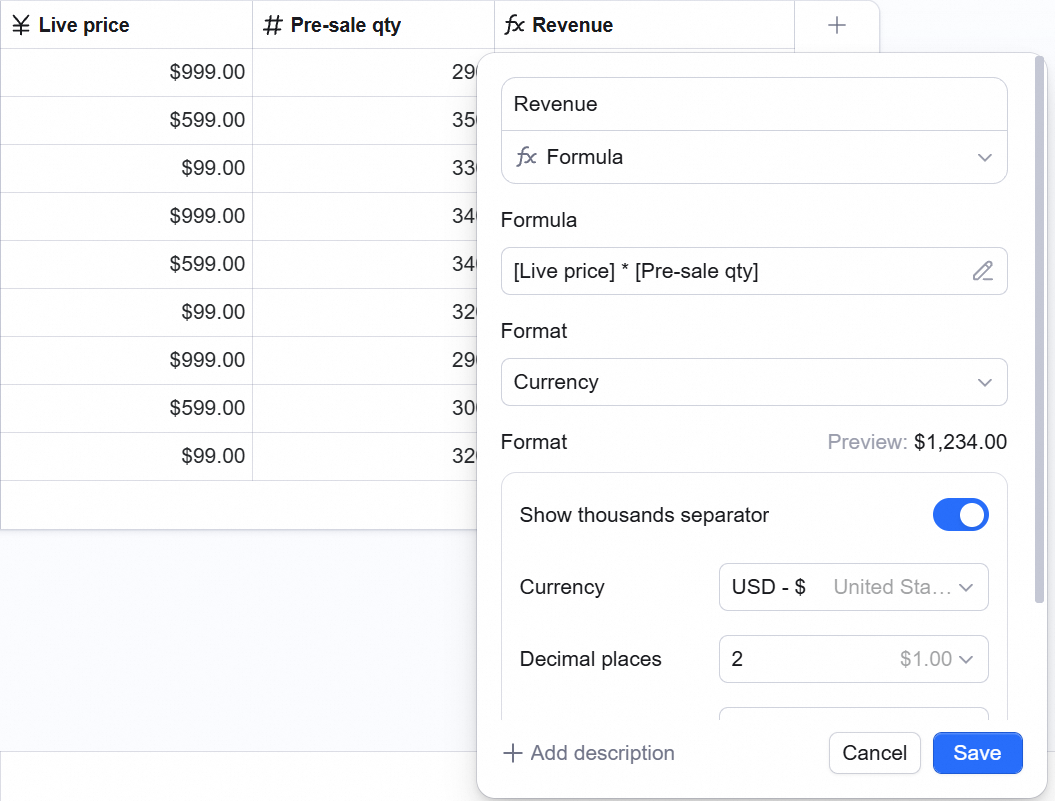
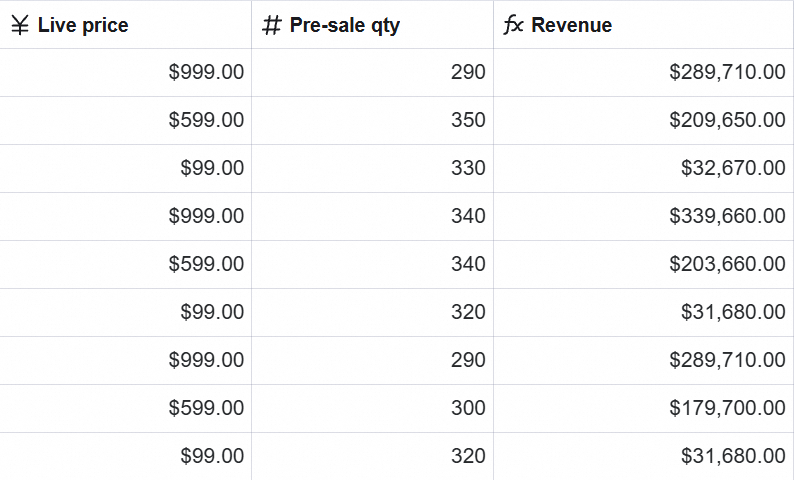
Scenario: sales total comes back as289710 — no symbol, no thousands separator.
- Formula:
[Live price] * [Pre-sale qty] - Format: pick Currency.
- Params: symbol
¥, 2 decimals. - Result:
¥ 289,710.00— clean for finance.
Supported Formats
The system offers different formats based on the formula’s output data type:Notes
1. Type-Match Check
Not every formula can use any format. If output is text (e.g.,CONCATENATE("Name", "Address")), forcing Progress or Rating errors.
- Message: Can’t compute. Please change the format.
- Fix: switch back to Default or Text.
2. Convert to Another Field Type
To freeze the data and stop auto-computing, change field type.- Steps: double-click the header → Field type → pick Number or another type.
- Risk: after conversion, the field loses auto-compute — only the current value remains as static data.
FAQ
-
Q: Why can’t my formula field pick Progress format?
A: Check whether the formula’s output is a number. If it includes text concat (e.g.,
Text), the system treats it as text — can’t render as a progress bar. - Q: Can I drag the formula-generated progress bar like a regular one? A: No. Formula values are strictly governed by the computation — manual edit not supported. For manual progress, use a regular Progress field.
- Q: Why does the formula’s date result show as a long number? A: Dates are stored as timestamp numbers. In Display format, pick Date — it converts to a readable format like “YYYY-MM-DD”.