Chats
Chats Calendar
 Meetings
 Contacts
 Mail
Mail Docs
Docs Drive
Drive AI Table
 AI Minutes
 Attendance
 Approval
 YiDA
YiDA Admin Console
Overview
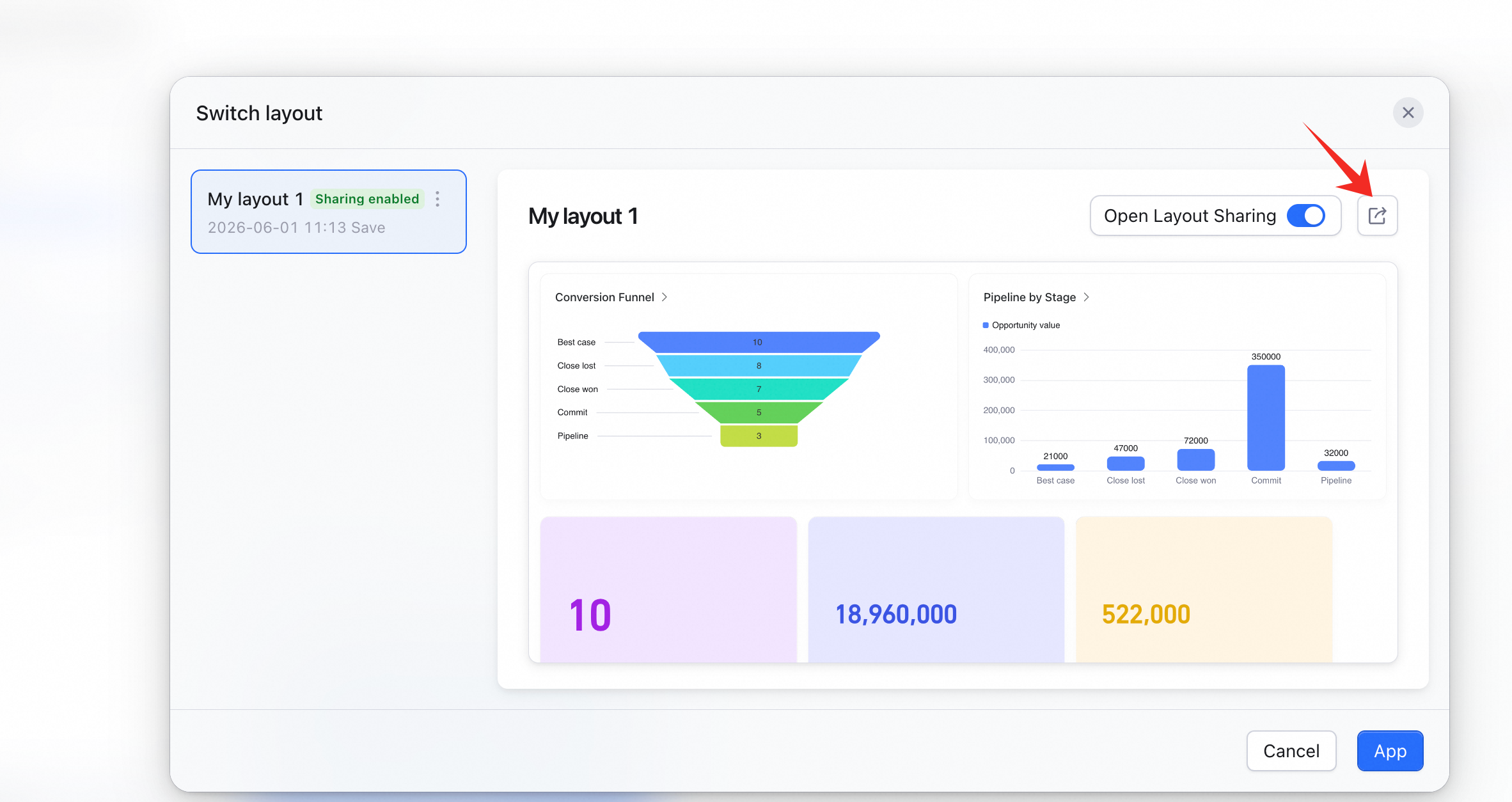
AI Table’s custom dashboard center gives you a single place to track everything that’s moving. Drop in dashboards and forms from different AI Tables, resize and reposition components freely, and run your business from one screen.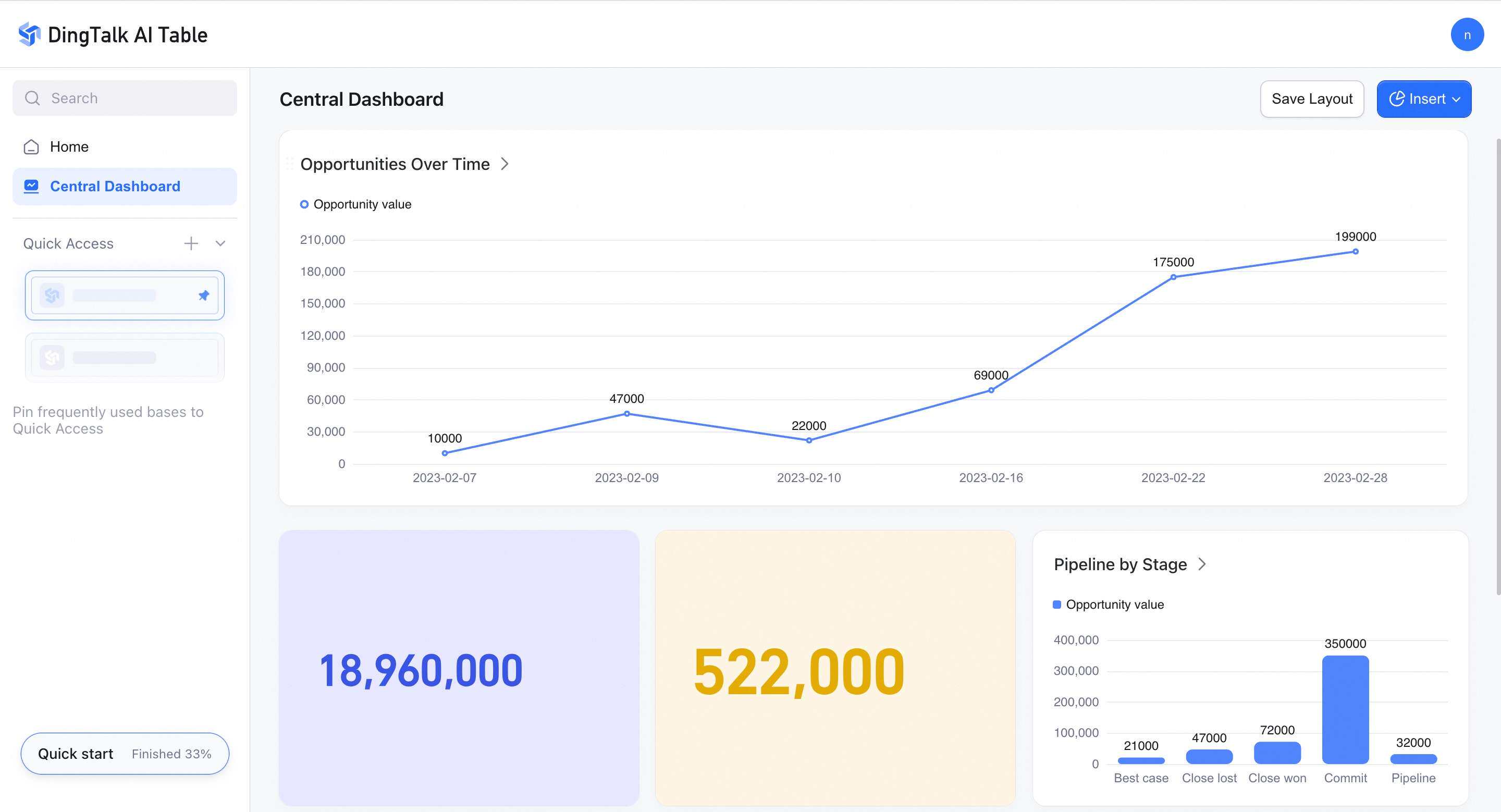
Where to Find the Dashboard Center
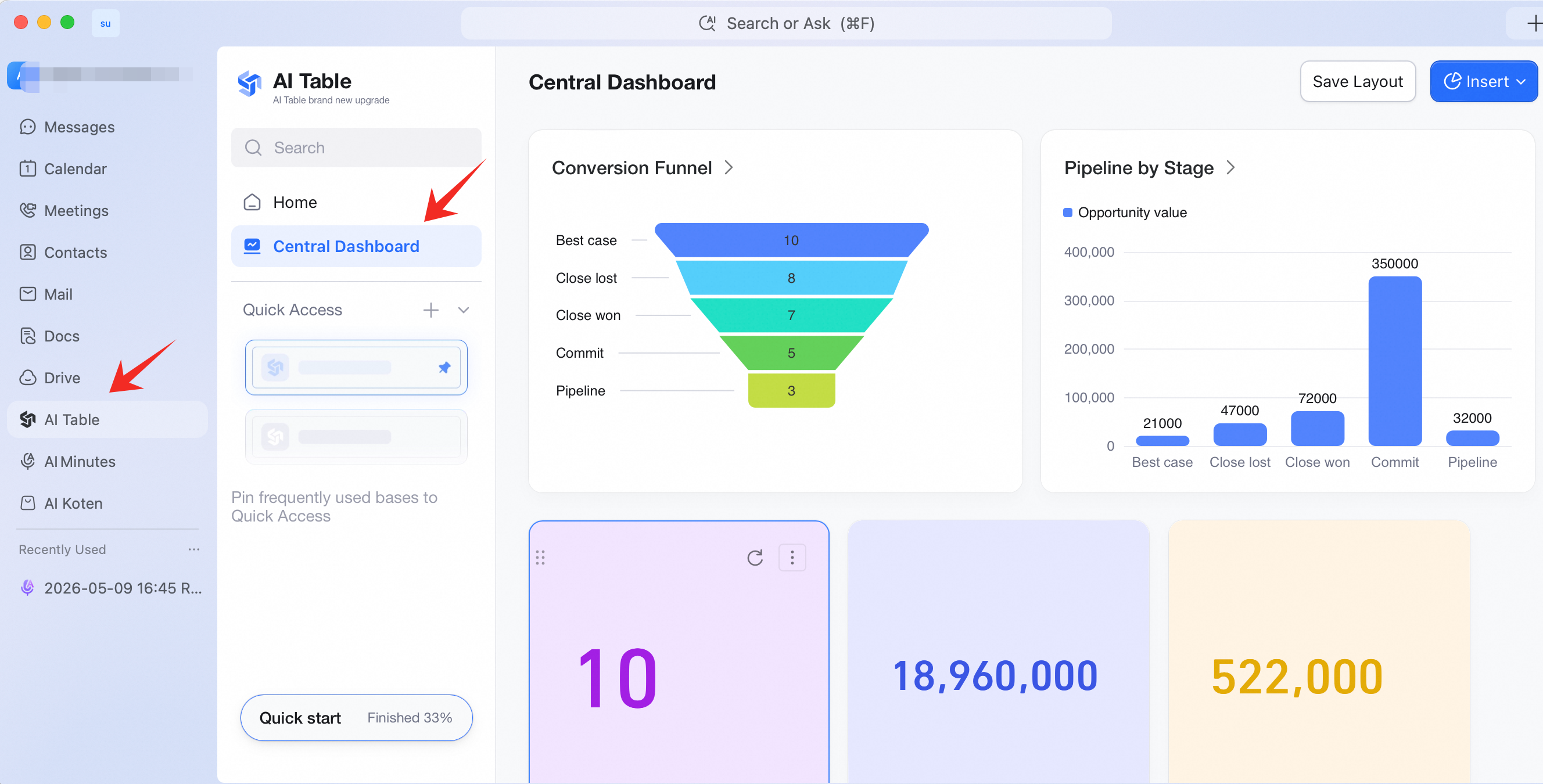
- In DingTalk’s left nav, click AI Table.
- On the AI Table home page, click Dashboard Center in the left nav.
- Click Insert at the top-right, or right-click anywhere in the empty area to start configuring charts.
Configuring Dashboards
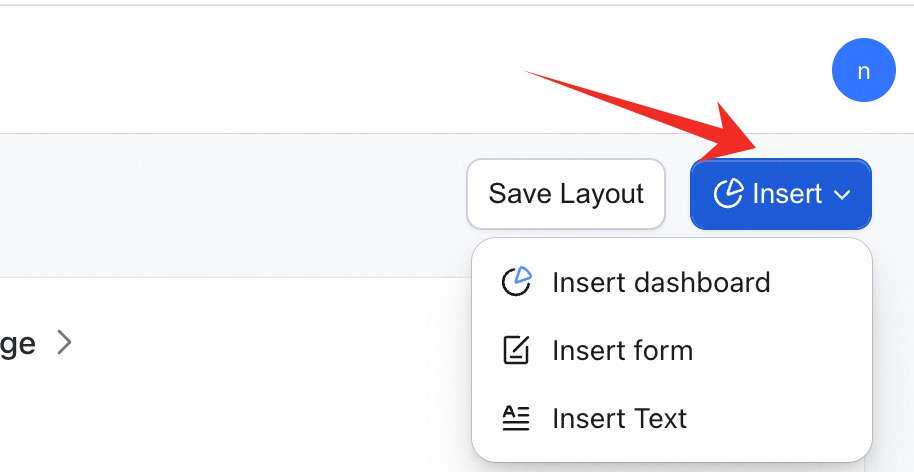
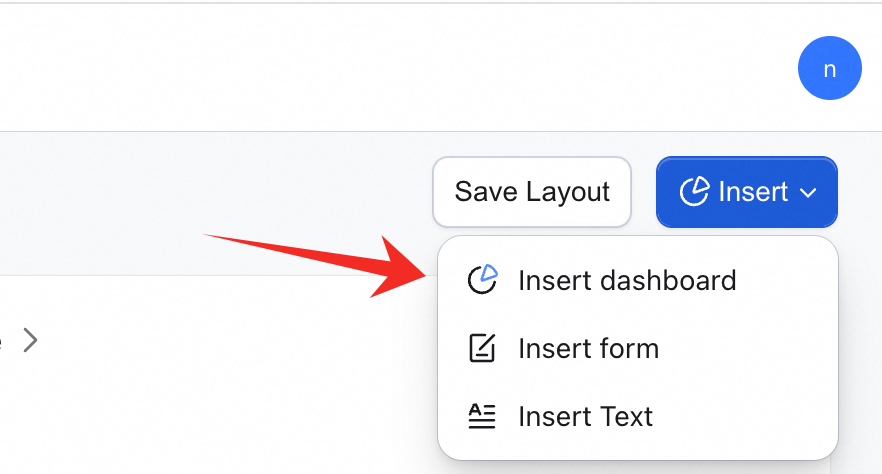
Layouts the dashboard center supports:- Click Insert at the top-right.
- From the dropdown, pick what you want to add: dashboard chart, form, or text.
 Insert a dashboard:
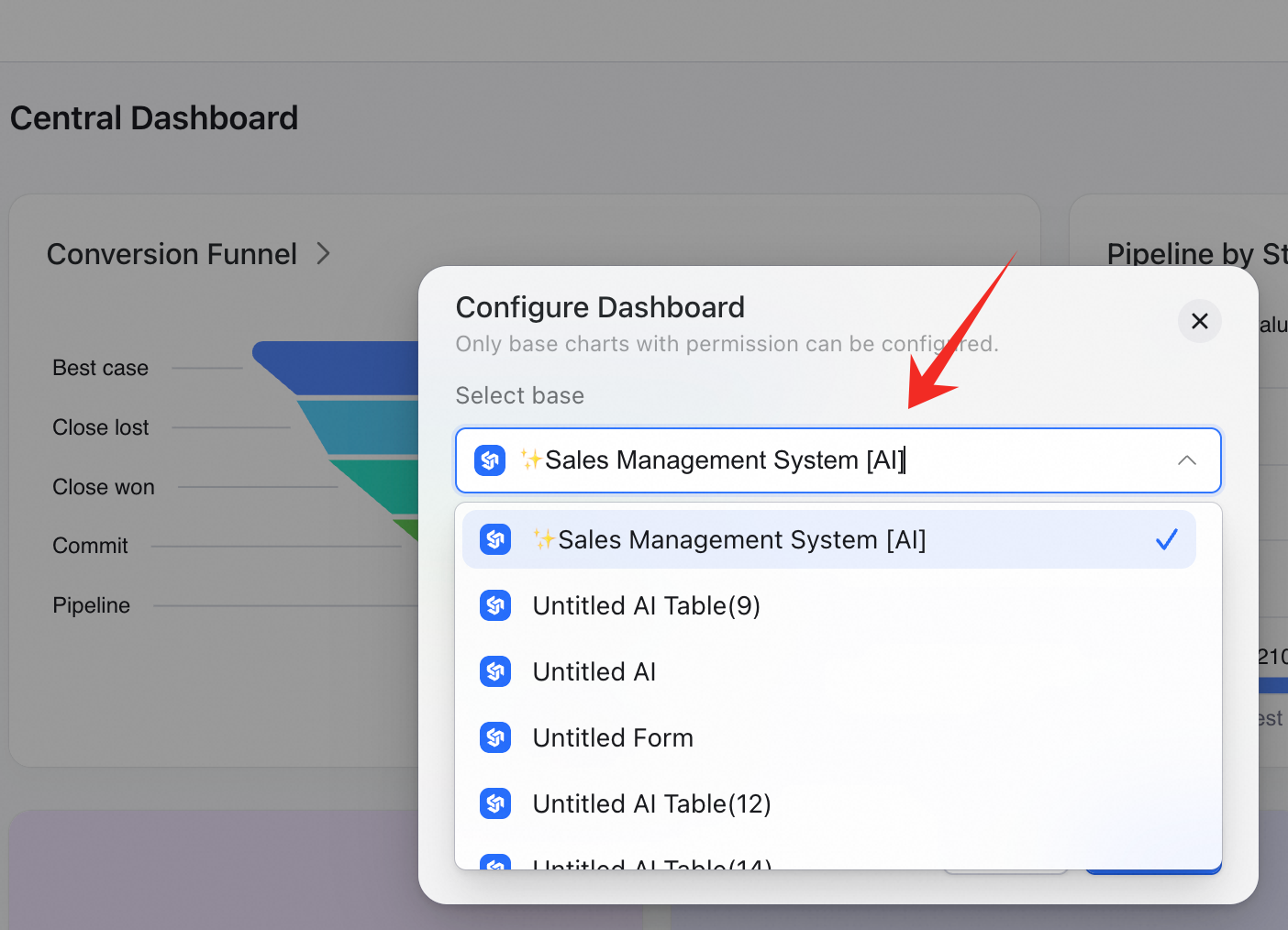
- Click Insert dashboard.
- In the panel that opens, pick a chart from an AI Table you have access to (charts you don’t have permission to won’t show up in search).
- Click Confirm to finish.
 More chart settings:
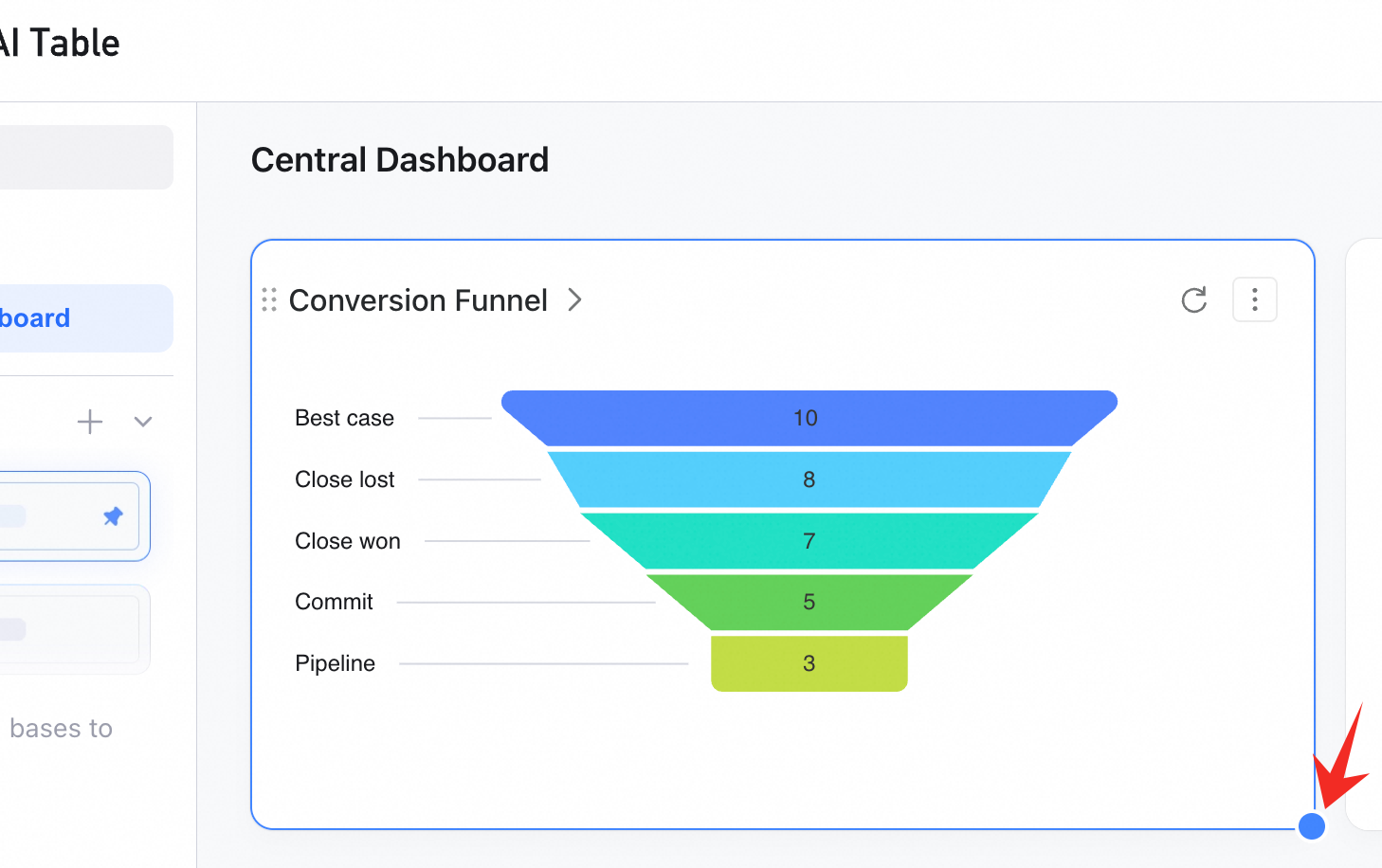
- Hover the chart and open the more menu at the top-right.
- The menu lets you configure the chart — re-pick the dashboard or chart.
- You can also copy / export as image, insert another dashboard / form / text below it, or remove the chart.
- Drag the dot at the bottom-right corner to resize.
Configuring Forms
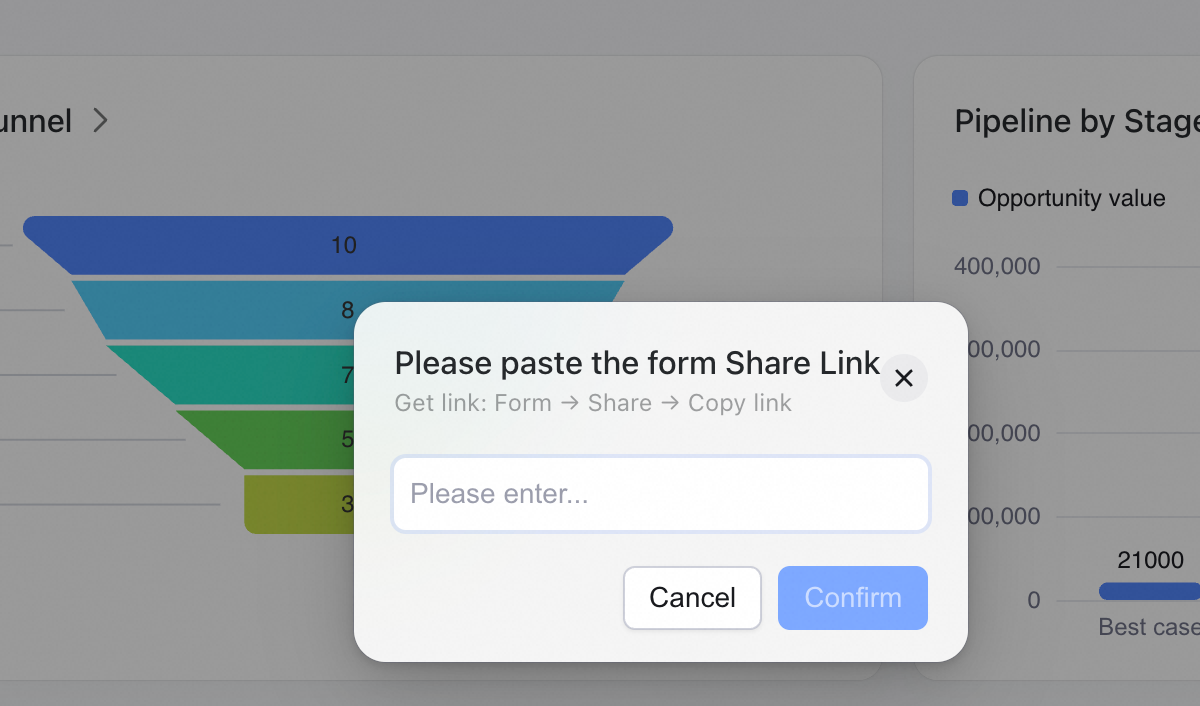
Add a form:- Click Insert at the top-right and choose Form.
- Paste the form link into the panel and click Confirm.
- Drag the dot at the bottom-right corner to resize the form component.
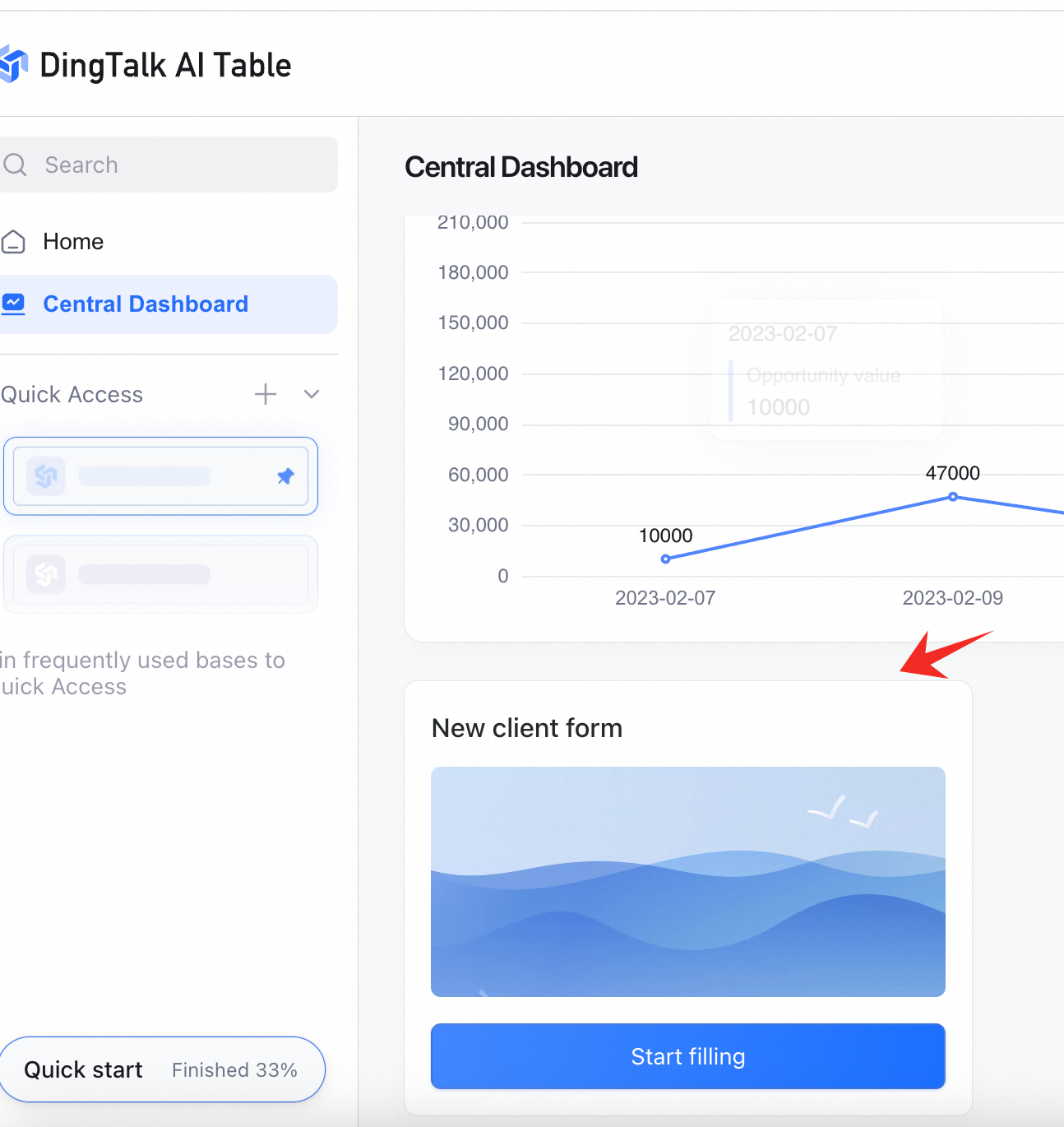 More form settings:
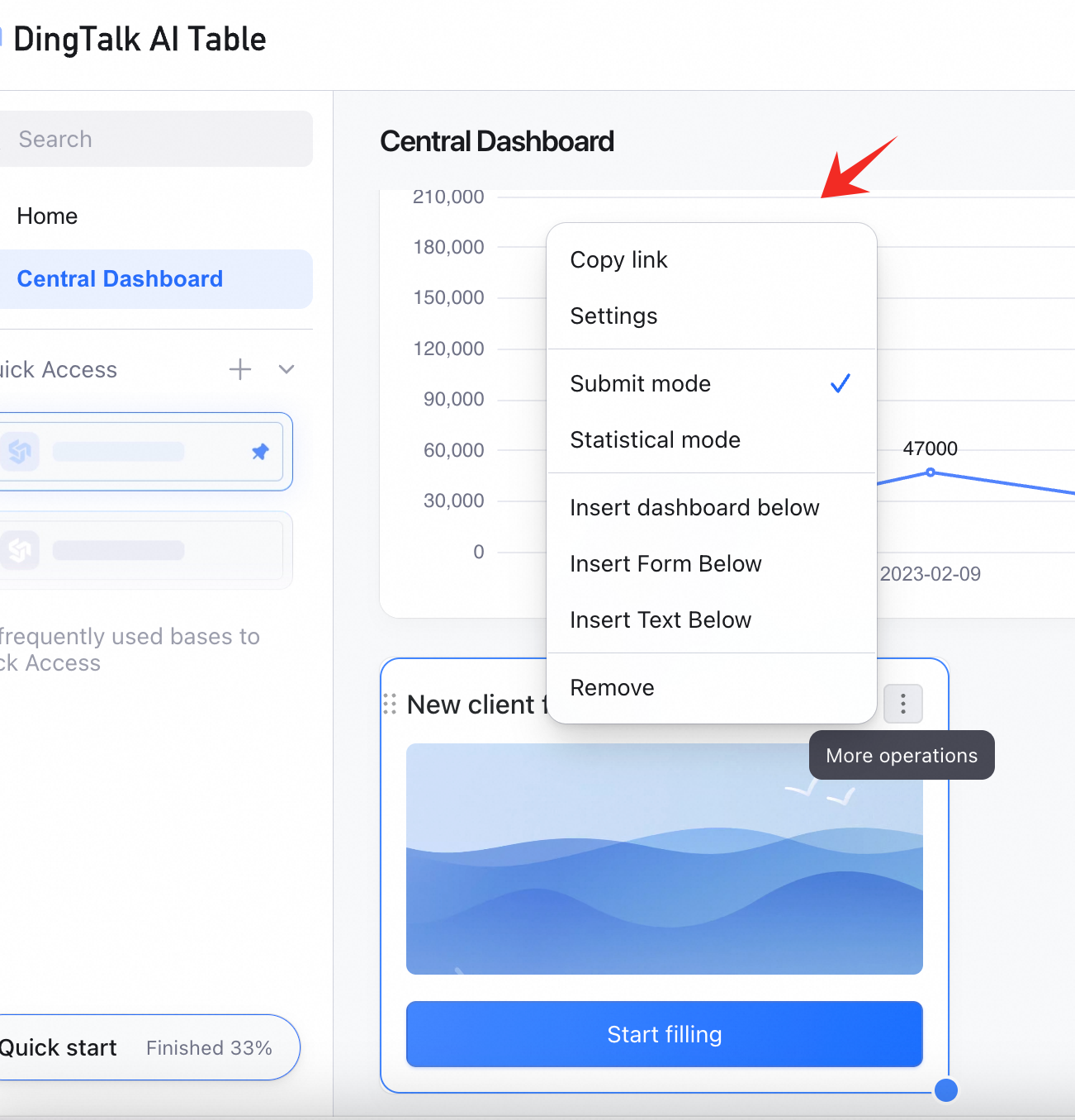
- Click the more icon at the top-right of the form.
- Reconfigure the form — paste a different one if you like.
- Set the form display mode (Fill out or Stats) to fit different collection scenarios.
FAQ
Q: Who Can See the Dashboard Center I Configured?
A: Only you, by default. You can also share the layout to grant view access to others.