Chats
Chats Calendar
 Meetings
 Contacts
 Mail
Mail Docs
Docs Drive
Drive AI Table
 AI Minutes
 Attendance
 Approval
 YiDA
YiDA Admin Console
Grid View
Grid view is for raw data setup and entry. New blank AI Table files default to grid view — start typing data immediately. Familiar spreadsheet feel plus column-level data types so data is standardized at the source.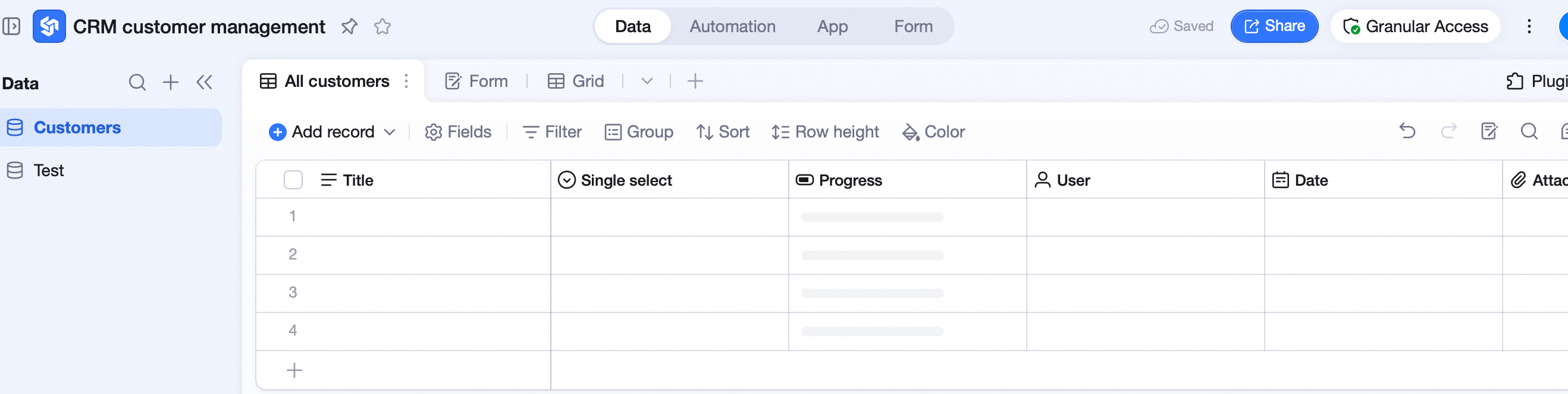 In an AI Table, every table defaults to Grid view.
Grid view lets you edit and view all data and fields fast.
In an AI Table, every table defaults to Grid view.
Grid view lets you edit and view all data and fields fast.
View Config
In grid view: field management, filter, group, sort, row height, cell coloring. See View basic operations.Bottom Statistics
Aggregate each column at the bottom. Available aggregations vary by field type. Most fields support unique count, filled count, empty count, and other basics.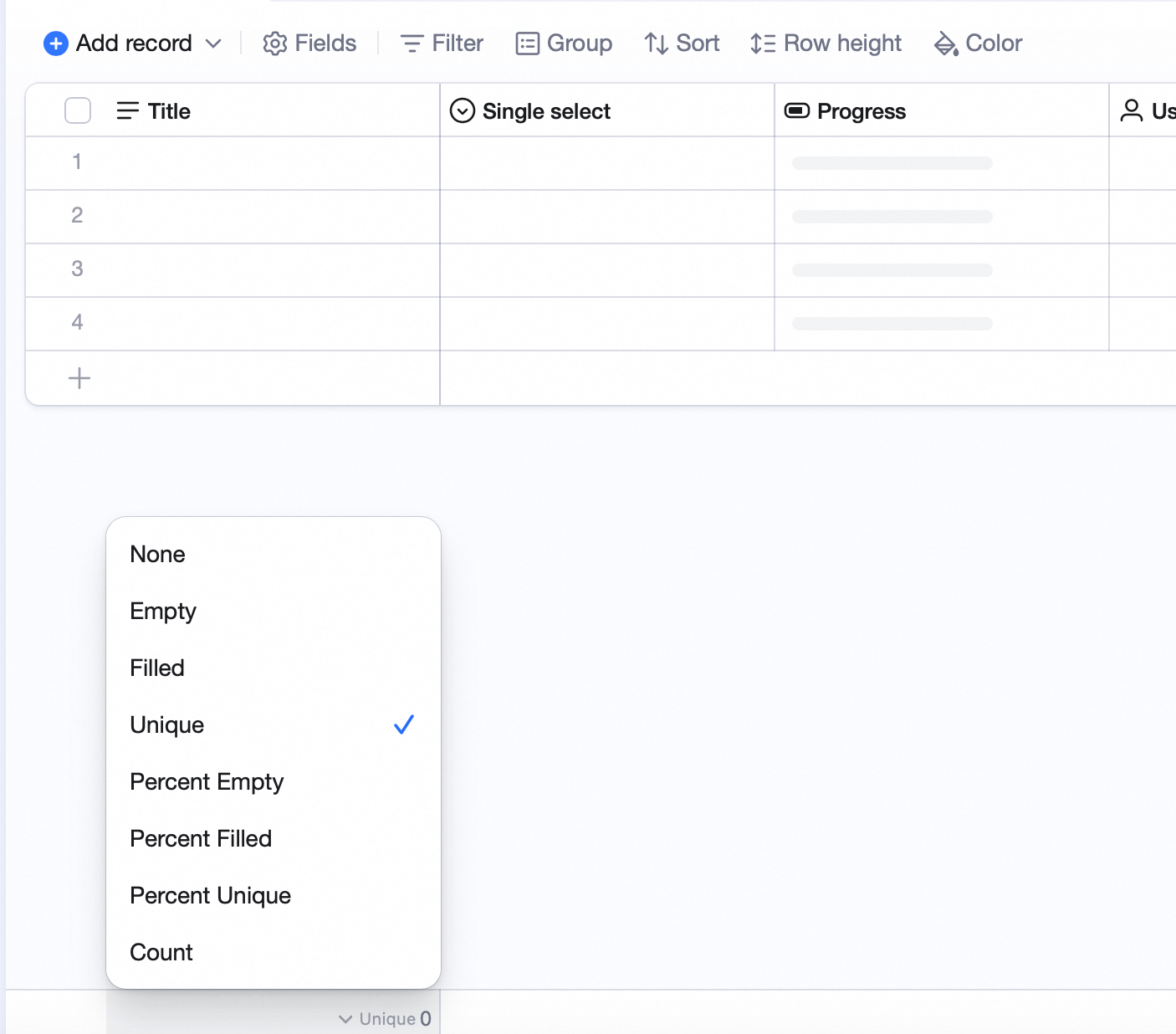 Date fields: time span and more.
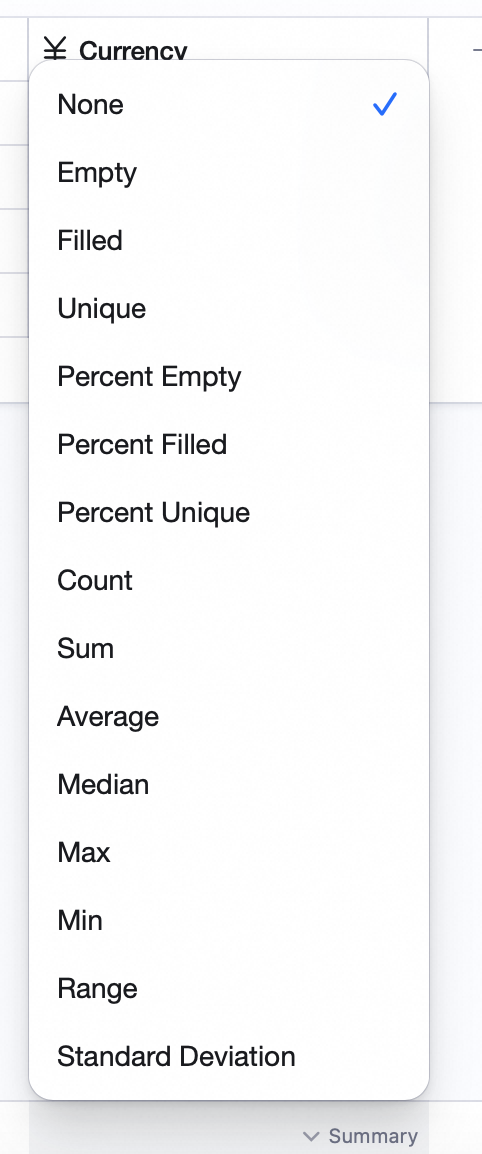
 Number and currency fields: median, range, standard deviation, etc.
Record Hierarchy
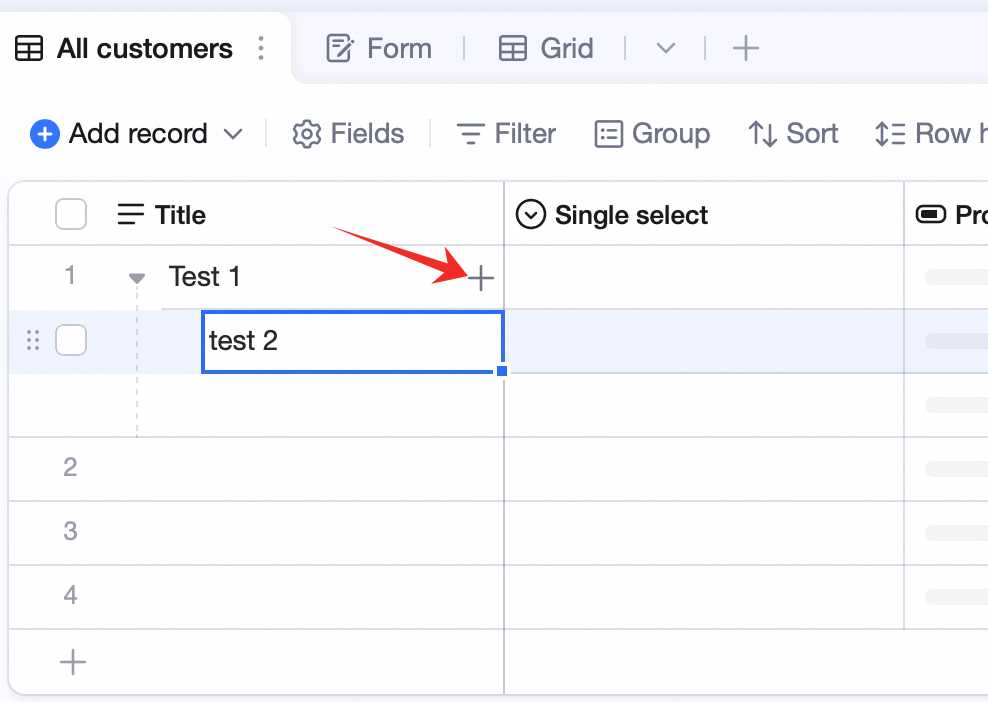
Build parent-child relationships in grid view — clearer structure, easier maintenance and collaboration.Add a Sub-Record
- Select any row in the first column.
- Click + Add sub-record at the right of the cell.
- A one-way link field is auto-created at the end, named “Parent record” by default. It links to the current table; the linkable scope is all records.
- Sub-records do not inherit parent field values.
Delete a Sub-Record
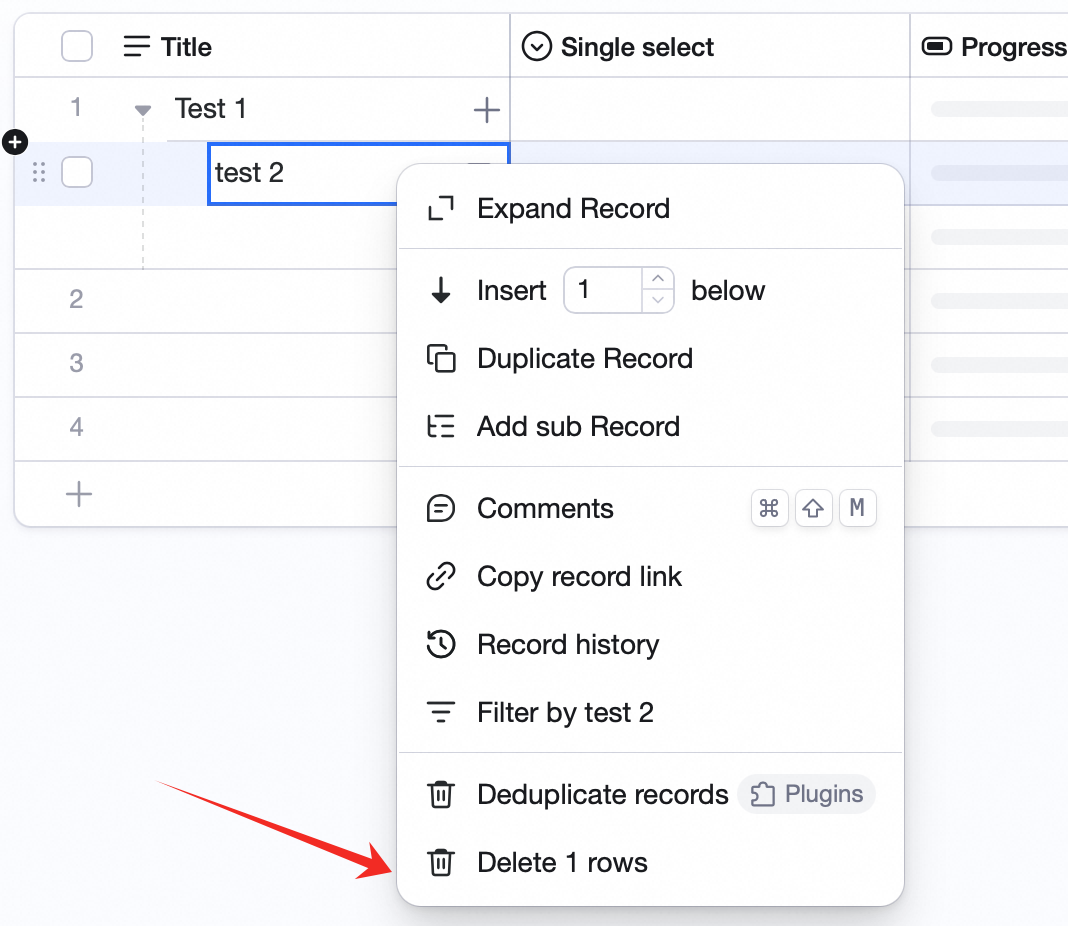
- Right-click the record.
- Click Delete 1 row.
Collapse / Expand Sub-Records
Click the arrow on the left of the cell to collapse / expand.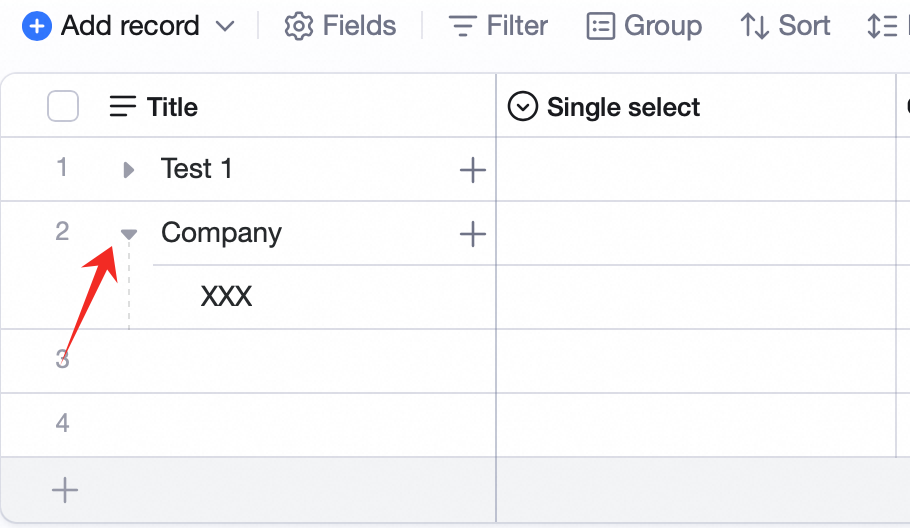
Drag Sub-Records
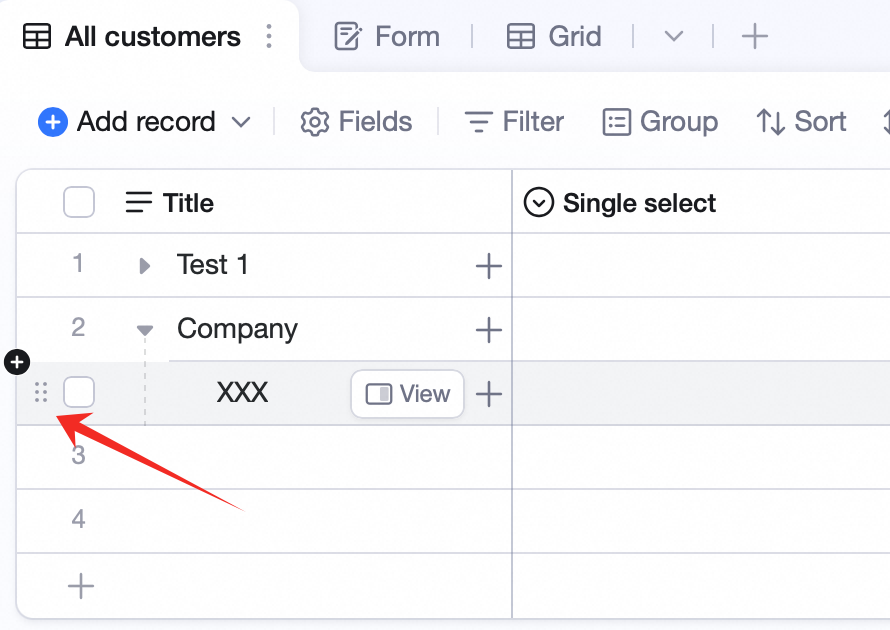
- Hover the icon on the left of the record.
- Hold and drag to move.