

 Chats
Chats Calendar
 Meetings
 Contacts
 Mail
Mail Docs
Docs Drive
Drive AI Table
 AI Minutes
 Attendance
 Approval
 YiDA
YiDA Admin Console
1 What It Does
To make automations match your needs, configure triggers and actions sensibly. This page walks through both.2 How to Use
Create a new automation — the left panel hosts the trigger and action config.2.1 Triggers
“On record create”, “On record change”, “On new/modified record meets condition”, “On button click”, “On form submit”, “Scheduled”, and “On data received”.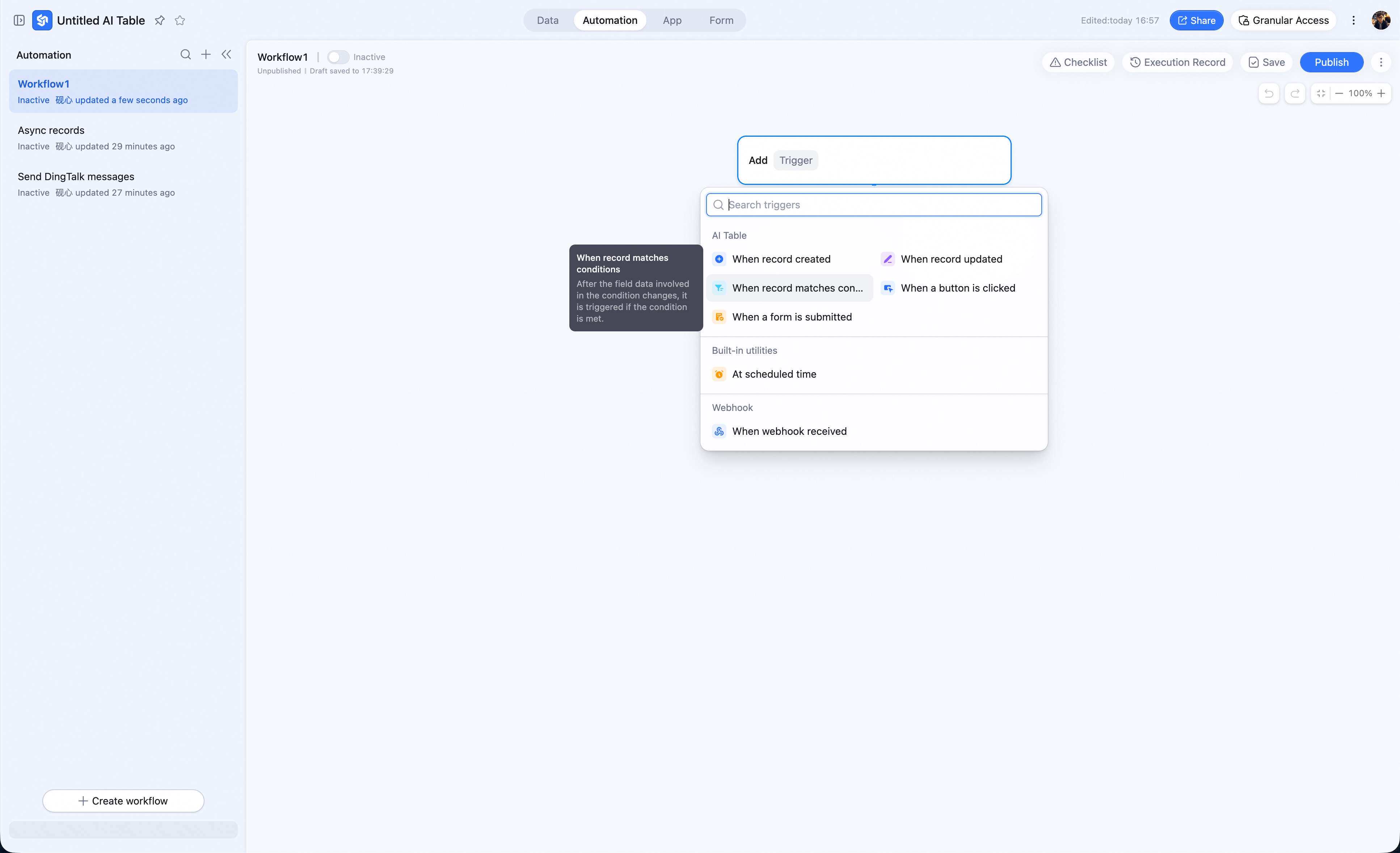
2.2 100+ Action Nodes Covering Every Scenario
We’re working hard to respond to user requests — bridging in-product scenarios and onboarding new ones aggressively:- Smoother integration with DingTalk’s other products: start OA approvals, create / update Teambition tasks, create & generate docs, send corp email, etc.
- Richer AI: call the AI assistant, knowledge learning & retrieval, creative content generation; also Coze, Bailian, and other platform workflows.
- More third-party scenarios: Amap, Wanwu Yiyuan, 1688, Enterprise Wikipedia, etc.
3 Details
3.1 Triggers
3.1.1 On Record Create
Fires when a new record is added to a table. You can add simultaneously-met conditions to constrain the trigger further. Note: clicking New creates a blank row — every field is empty. If a downstream action references any non-system field (i.e. anything other than Created by / Last modified by / Created time / Last modified time) from the just-created record, the value is actually empty and the action will error out. Use case: when a new record is added, ping the owner.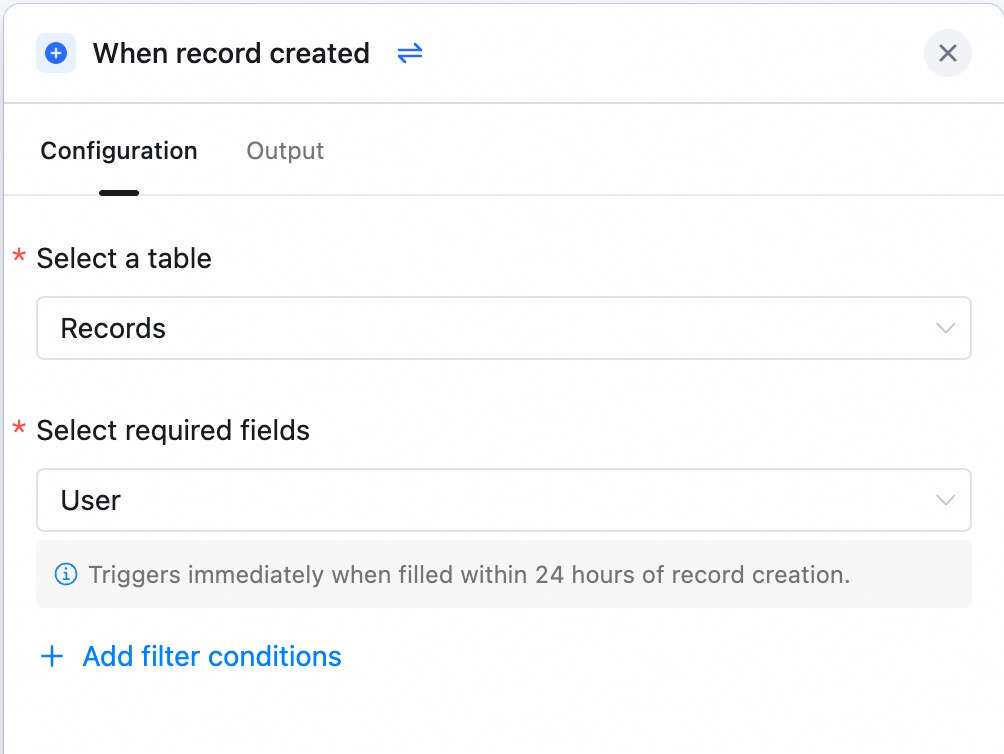
3.1.2 On Record Change
Fires when the specified field changes. You can add simultaneously-met conditions to constrain it further. Fields not supported as the watched field: Button, Auto number, Created by, Created time, and any field expanded from a Person field. Use case: when Task progress flips to “Done”, auto-notify the owner.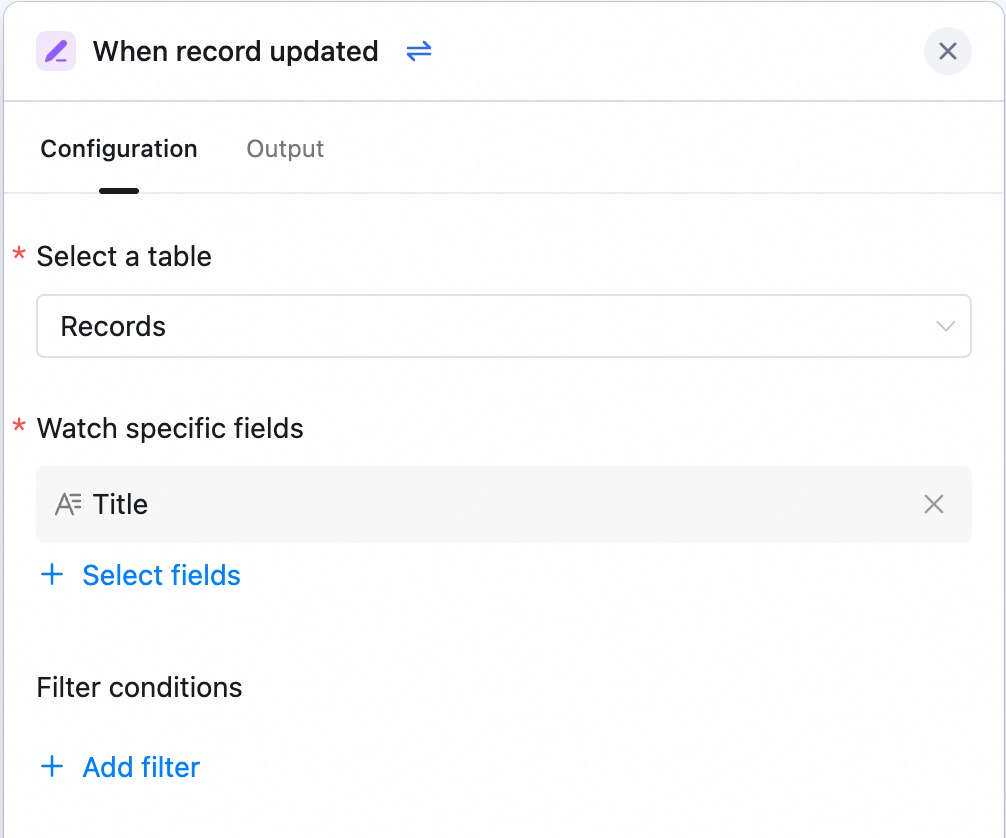
3.1.3 On New/Modified Record Meets Condition
When a newly added or modified record matches the condition, downstream fires. Existing records that already match will not fire. Any field type except Button is allowed in the condition. Note: only changes to the fields you’ve set, that meet the condition, fire — changes to other fields don’t. This is the difference between “On new/modified record meets condition” and “On record change”. To watch any field’s change while requiring a value on a specific field, use On record change.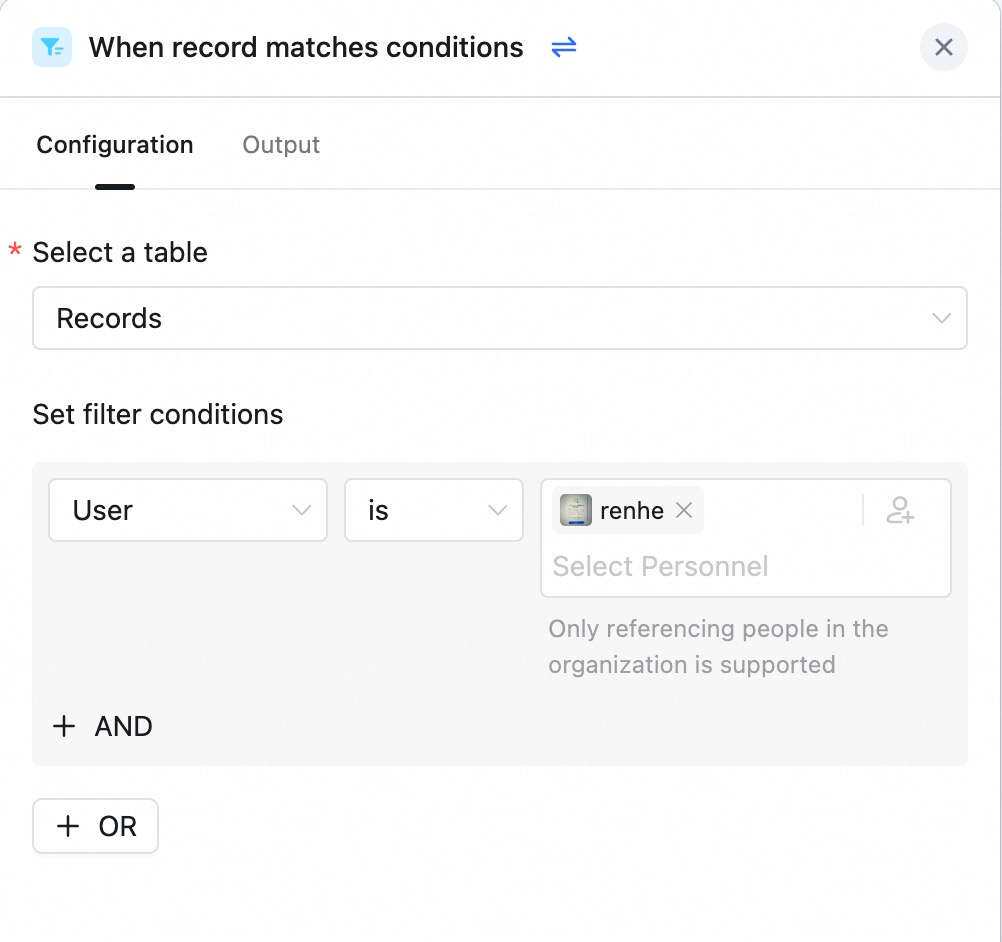
3.1.4 On Button Click
Fires when a button is clicked in the AI Table. “Button” includes both the Button field on a record and the bottom-of-card buttons on a message card. Use case: human-in-the-loop — after a manager approves, send the approval notice.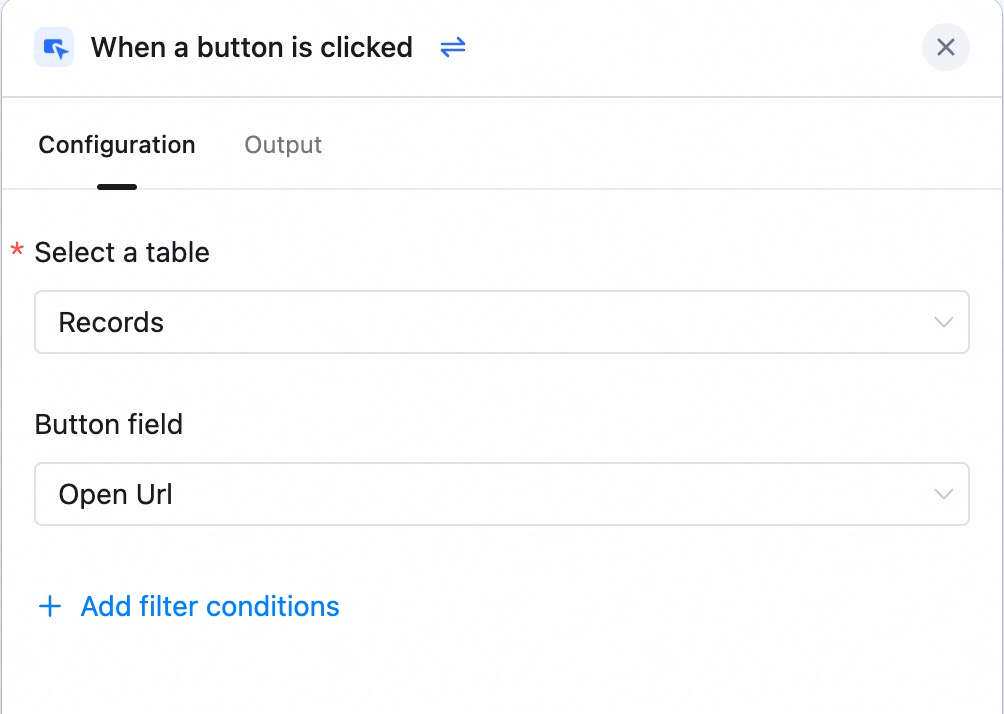

3.1.5 On Form Submit
Fires when a new form record is submitted in AI Table. You can add simultaneously-met conditions to constrain it further. Difference from On record create: the way the new record is added differs — and form submit avoids the empty-value pitfall.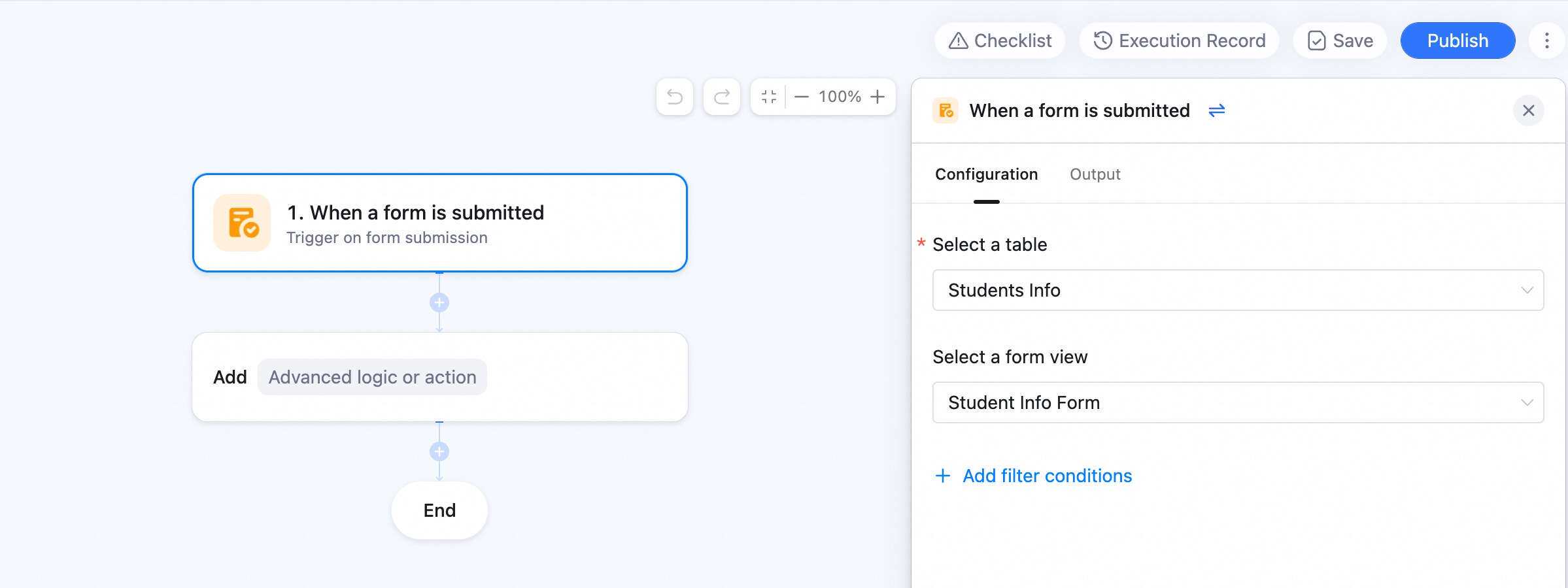
3.1.6 Scheduled
Fires at a specific time. Custom date / time and optional repeat. Note: if you set “the 31st of every month, monthly repeat”, a month without a 31st will skip. Same for February — a date that doesn’t exist in February skips that month. Use case: anything periodic / repeating, e.g. weekly project-progress check.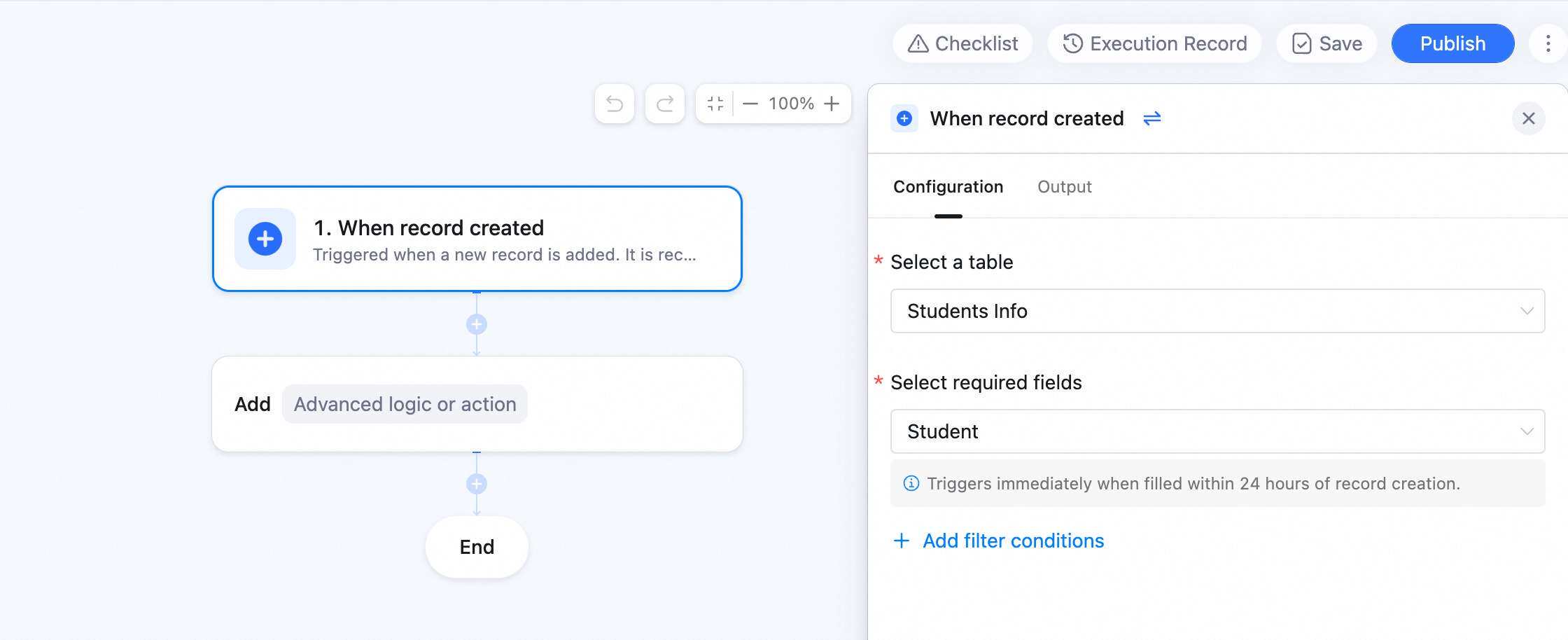
3.1.7 On Data Received
Set up a webhook to receive data from internal or external systems in real time — sync data across AI Tables and from external systems into AI Table. When the upstream system changes, it sends an HTTP POST to the AI Table automation. As soon as the request lands, the automation fires. See: [Webhook] On-data-received setup guide.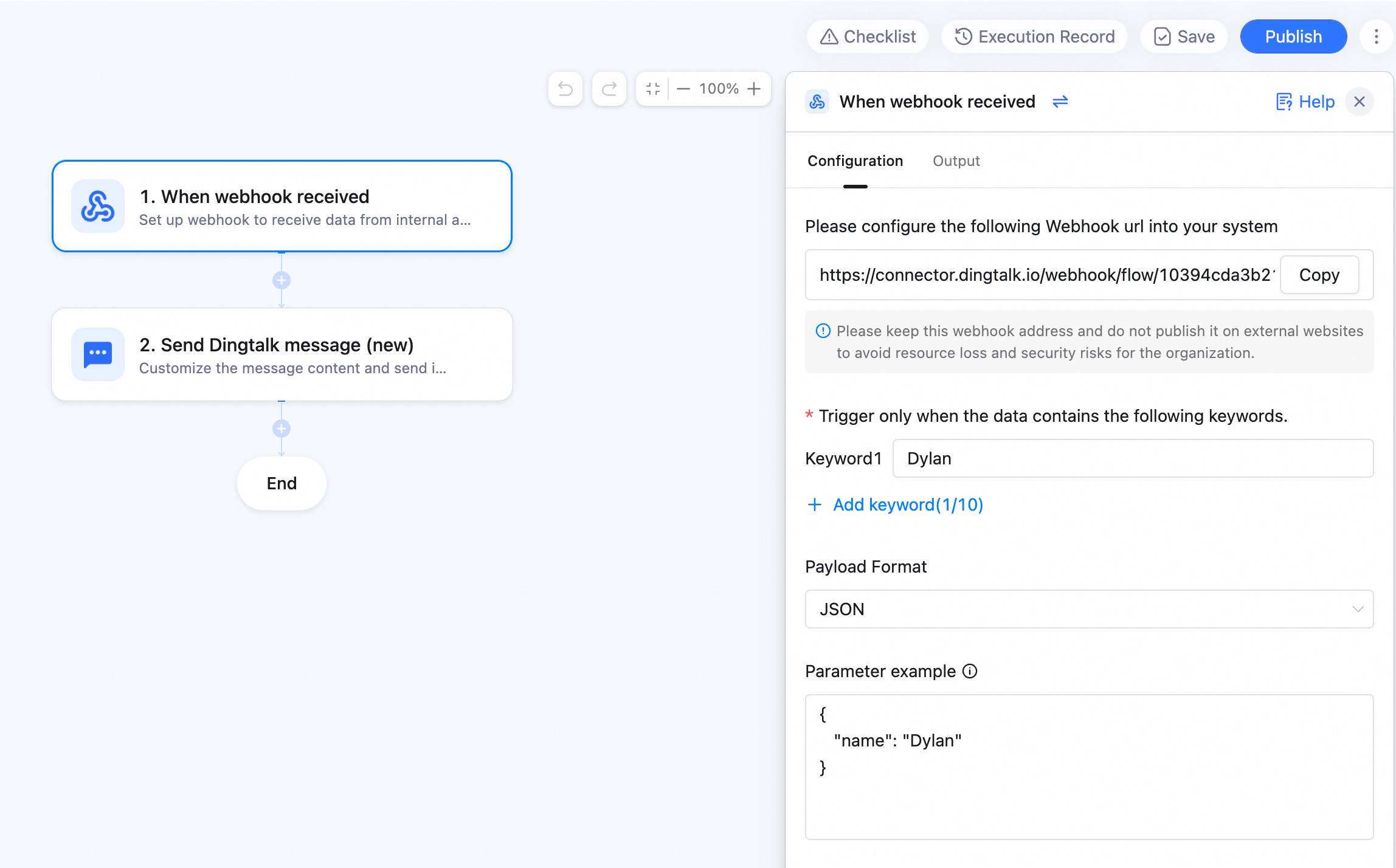
3.2 Actions
3.2.1 Send DingTalk Message
Custom message body, sent via a bot to a specific user or group. Send as User account or Doc automation assistant. The message arrives as a card — customize the title and body, reference AI Table fields, attach images, and add buttons.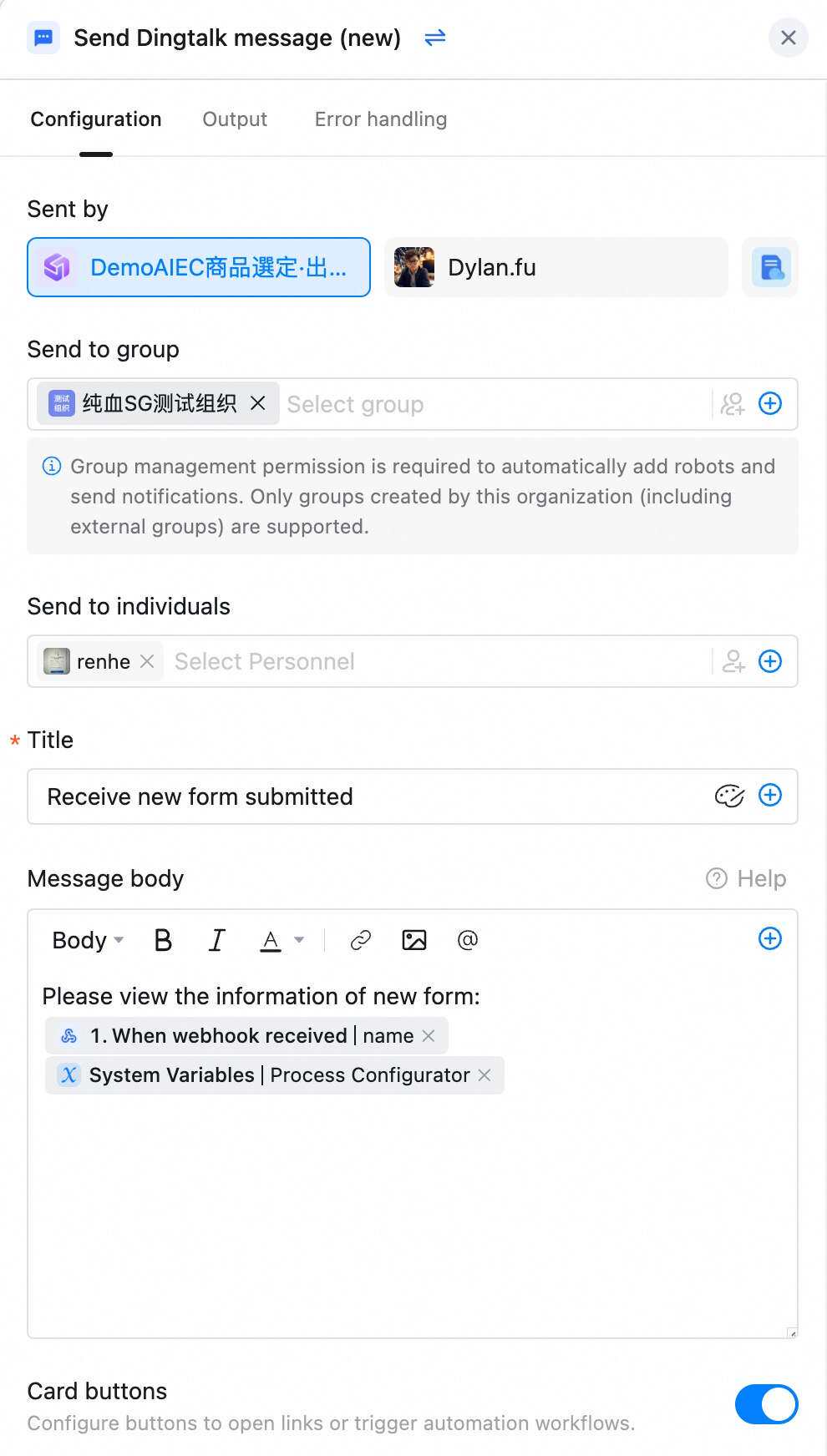
3.2.2 Create Record
Add a row to a table. Use Set field value to fill each field. Field types not settable: Auto number, Lookup, Button, One-way link, Two-way link, Linked reference, Created by, Last modified by, Created time, Last modified time, computed Formula, and any field expanded from a Person field. Also: Attachment, Barcode, and Geolocation fields aren’t settable when configured as “mobile only”.
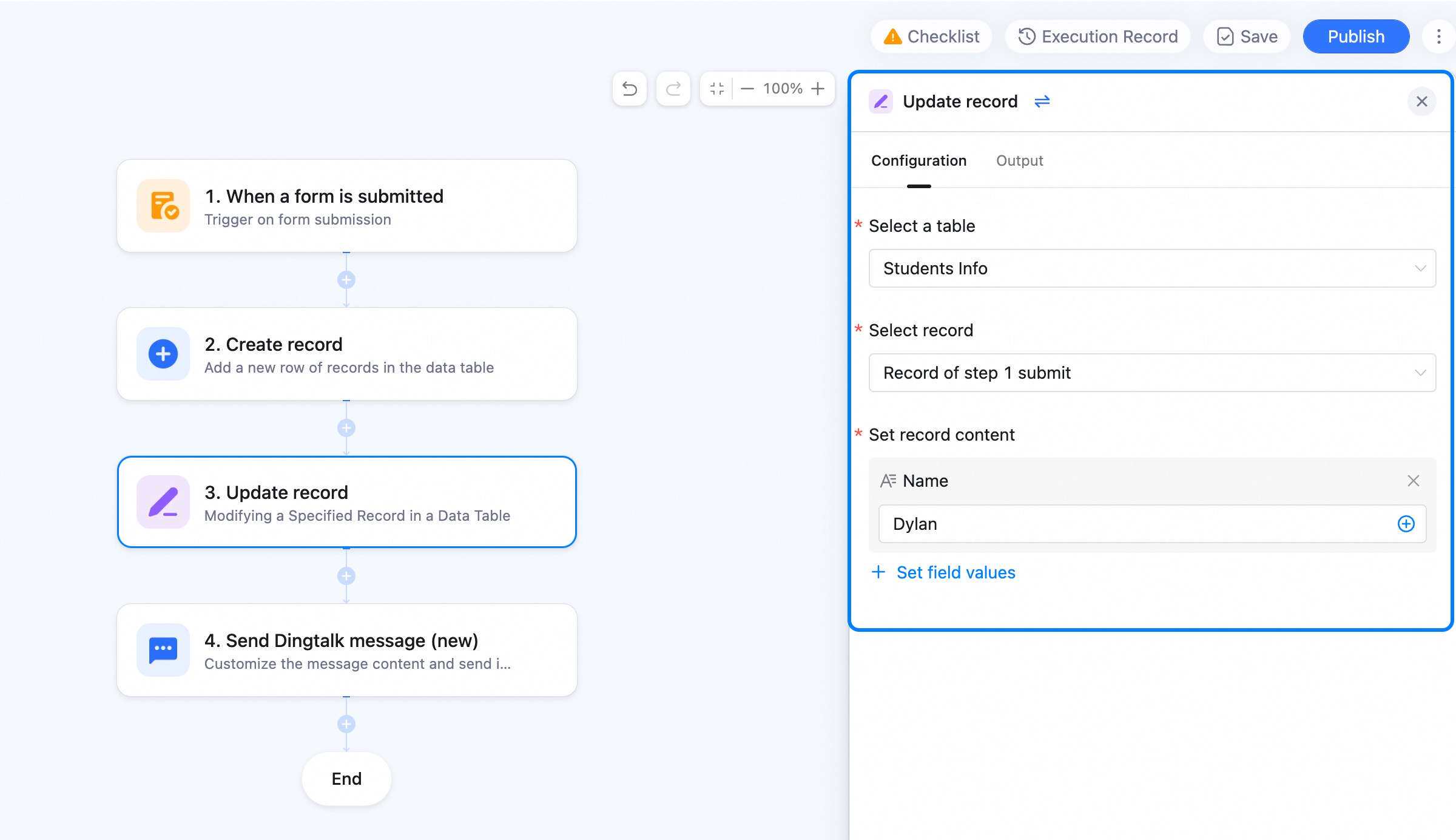
3.2.3 Update Record
Modify specific records in a table.- Update all records, or filter to update only matching ones.
- If Update record uses the same table as the prior step, you can pick the prior step’s record to update.
- Update multiple fields in one record — click Set field value to set each.
3.2.4 Look up Records
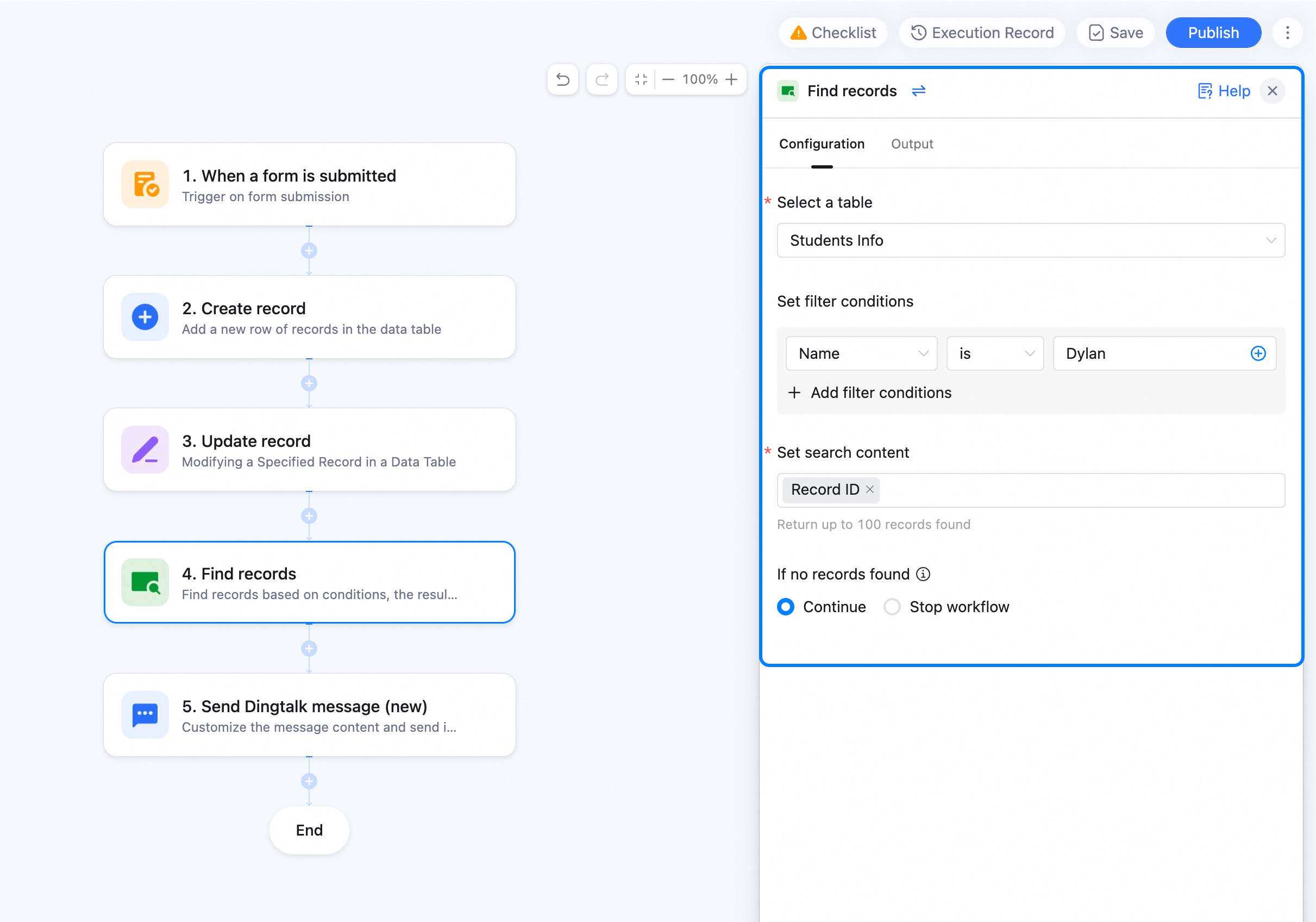
Look up records by condition; the result feeds downstream.- Set the filter — pick all records matching the condition.
- Pick what to look up — the fields you want available downstream.
3.2.5 Conditional Branch
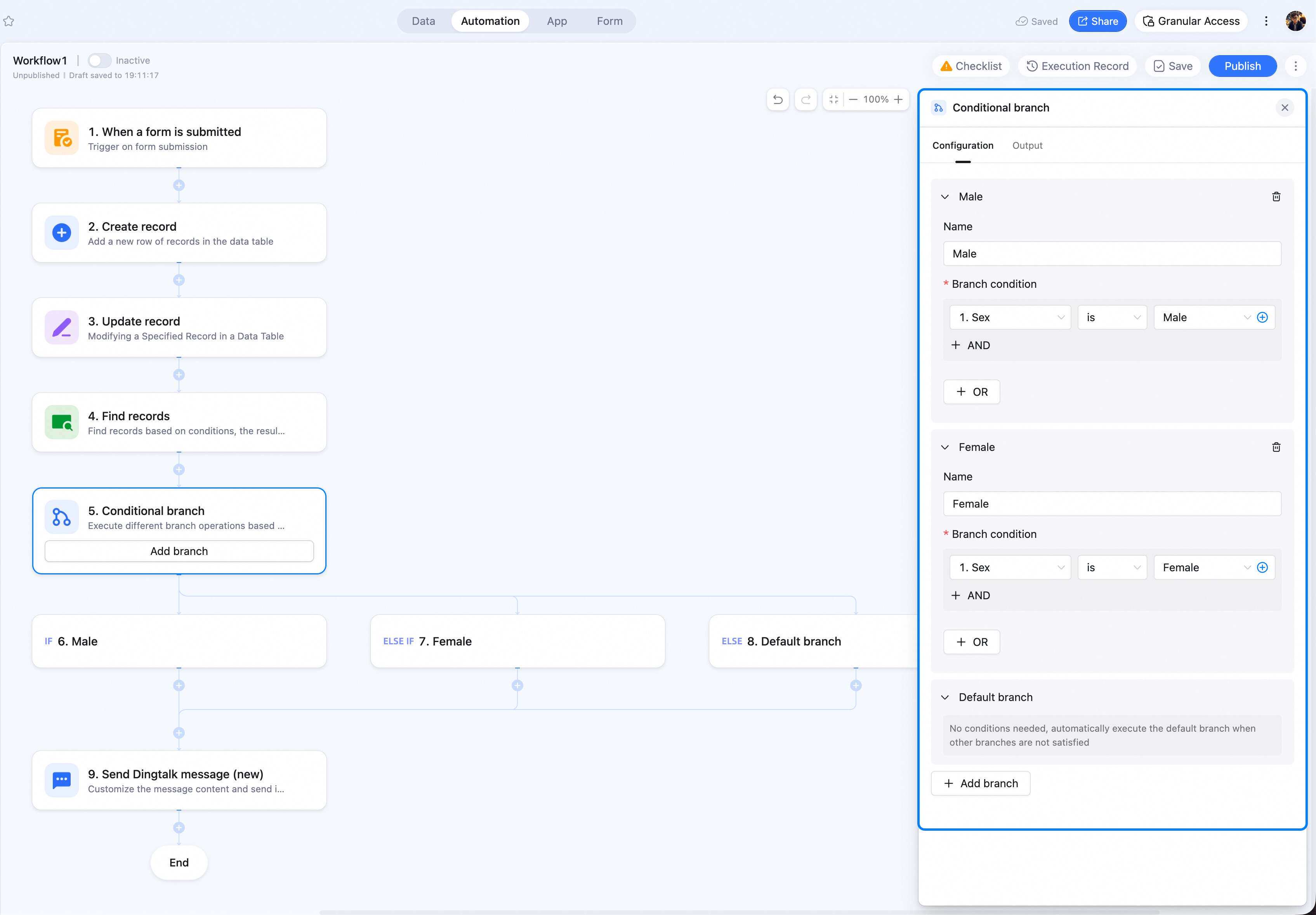
A conditional branch (if-else) is an action AI Table automation can run — based on whether the condition is met, it routes downstream. Set what to do on match and on no-match — and you’ve built multiple branches. Common scenarios:- CRM: route by customer info or opportunity stage. E.g. when company size = “Large”, record into the “Large company” table; otherwise into the “SMB” table.
- Inventory: route by stock state. E.g. when an employee files a goods request, condition = “stock ≥ requested” — if met, approve and decrement stock; if not, notify the requester and DingTalk-message the inventory manager to restock.
- Resume-bank dedup: when a candidate enters the interview-stage table, auto-check the resume bank — if absent, auto-add to the bank.
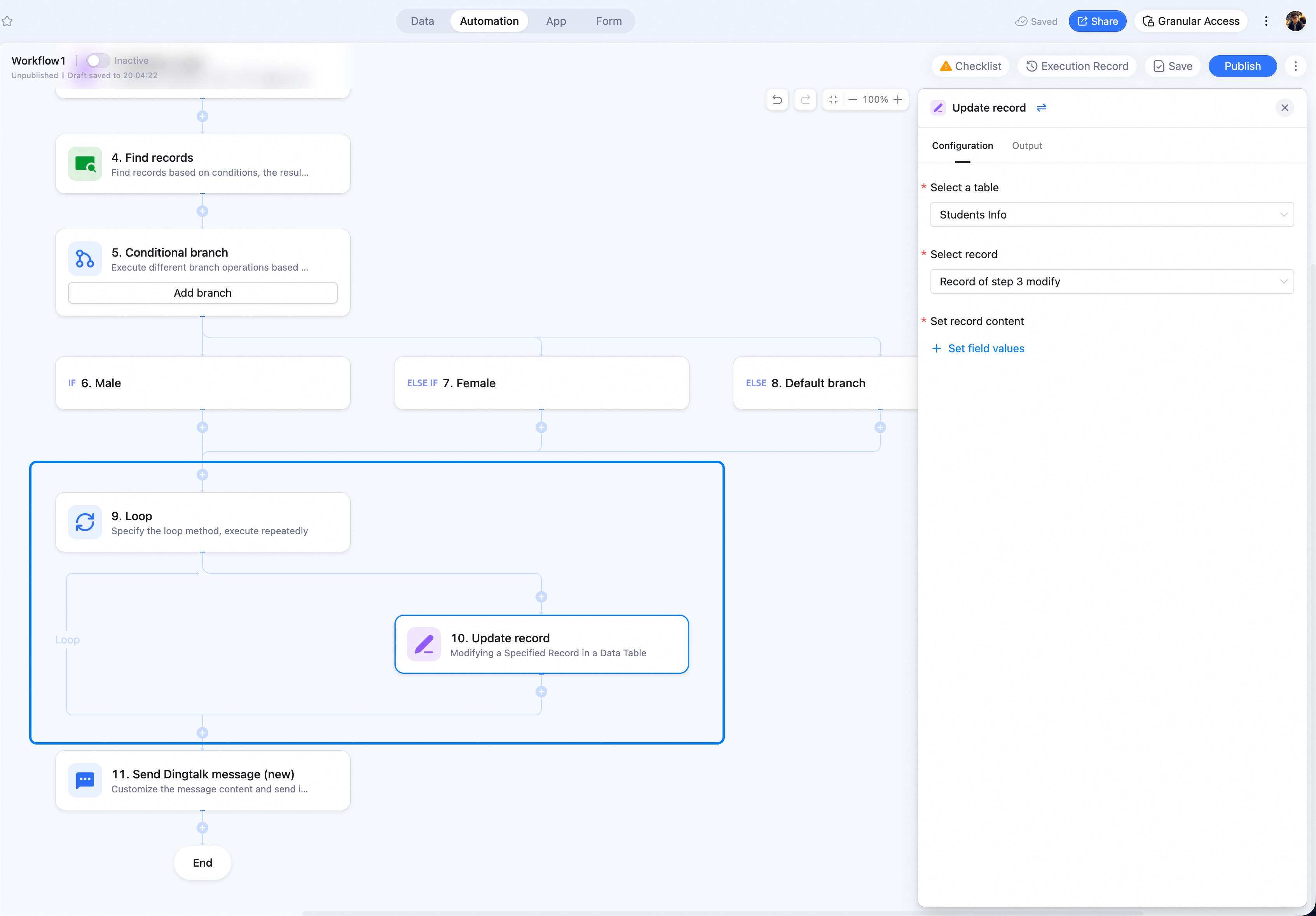
3.2.6 Loop
AI Table automation supports loops. Set rules and it repeats the same operation until done. Common scenarios:- Targeted to-do dispatch: every week, look up tasks with status “In progress” and DM each owner with only their own tasks.
- Per-interviewer record isolation: for all completed interviews today, auto-create a new record for each interviewer to capture their result, and DM them to fill it. They click the card button to fill straight in the AI Table — they don’t see other interviewers’ results, and don’t get notifications about other interviewers.
3.2.7 HTTP Request
Hit a URL — call third-party platforms to process data. Note: this feature is more advanced and may need some programming background plus AI Table experience to fully exploit.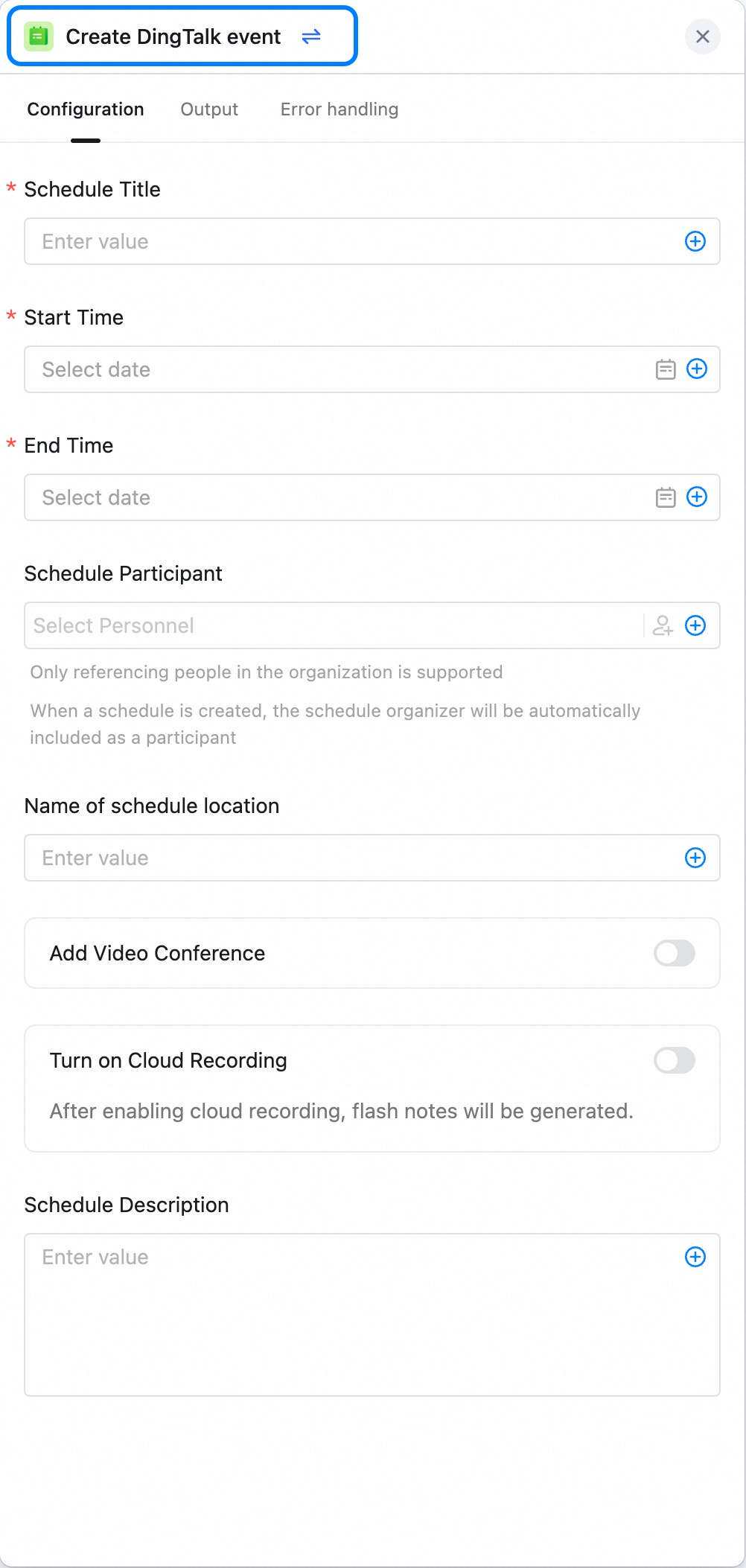
3.2.8 Calendar Event
Based on AI Table content, create a calendar event in the automation — set the title, start / end time, and participants directly. Note: events created via automation default to a 5-minute reminder; the automation panel doesn’t expose this — you have to adjust it inside the calendar event detail.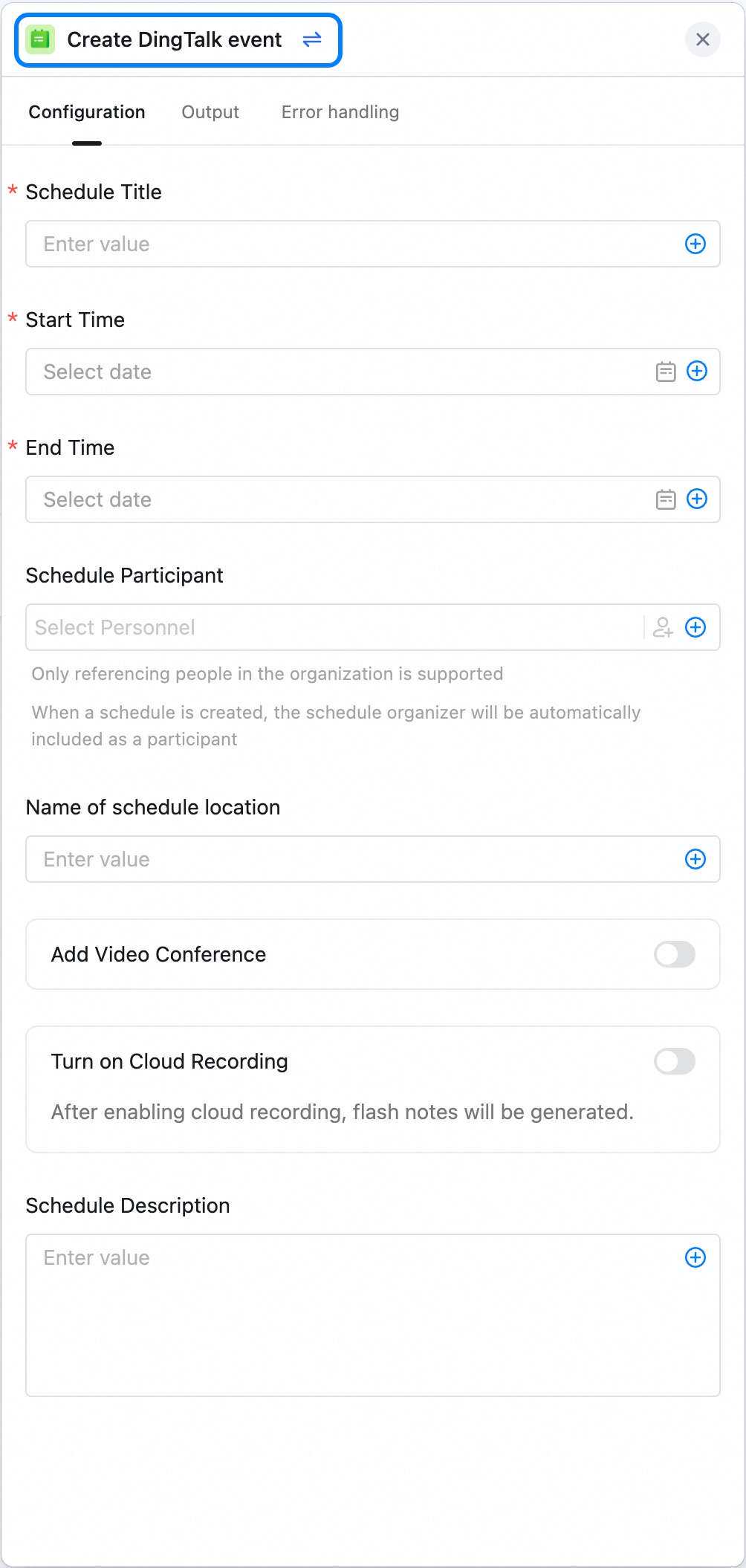 By passing the event ID you can delete a previously created DingTalk calendar event. Get the ID from the Create DingTalk calendar event step variable. Tip:
- Add a Text field named “Event ID” to your AI Table.
- After Create event, add an Update record step — store the generated event ID in the AI Table for later use.