Chats
Chats Calendar
 Meetings
 Contacts
 Mail
Mail Docs
Docs Drive
Drive AI Table
 AI Minutes
 Attendance
 Approval
 YiDA
YiDA Admin Console
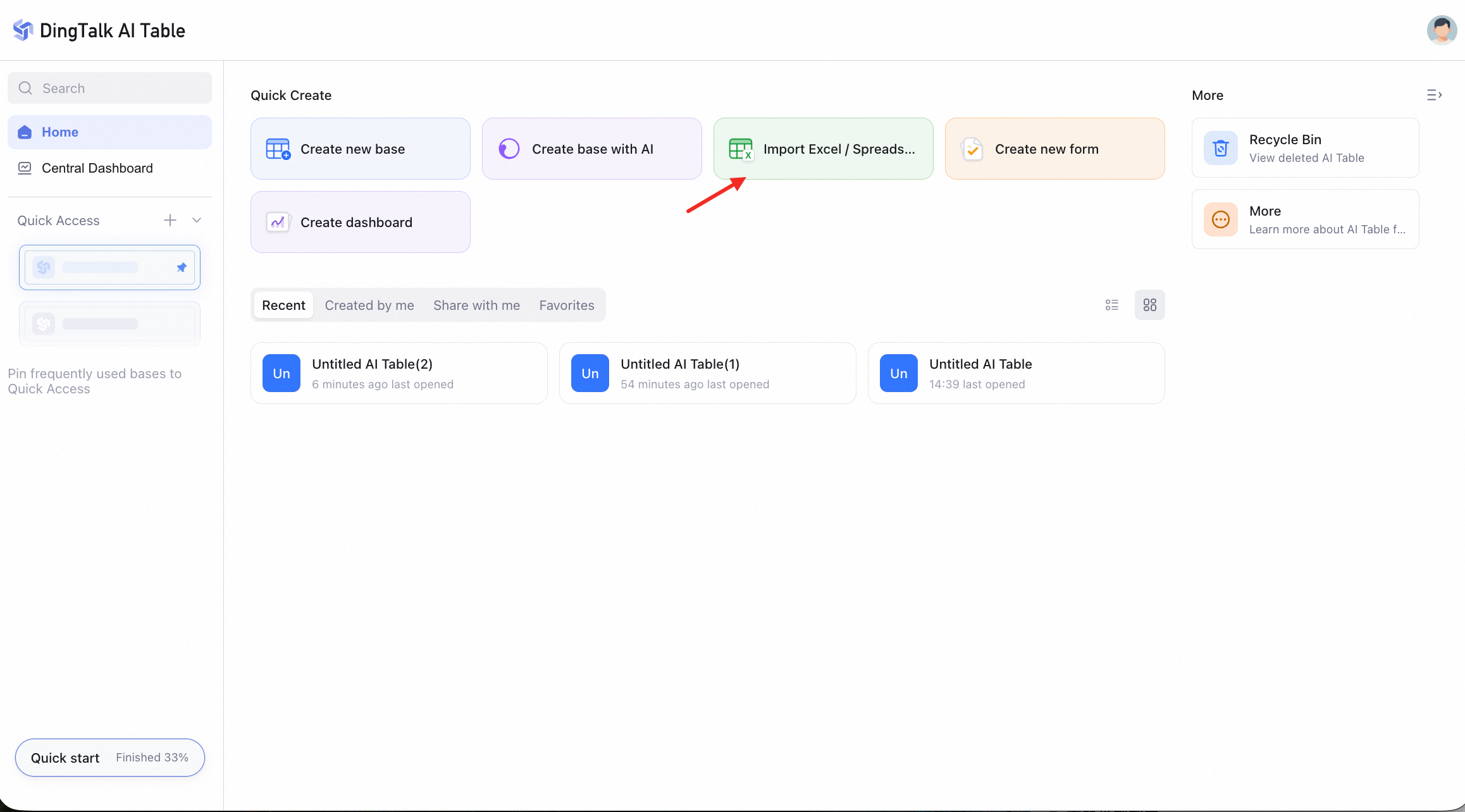
Import an Excel File as a New AI Table
- From the AI Table home page, select Import Excel / online spreadsheet.
- Select an Excel file (
.xlsxor.csv) to upload.
Import into the Current AI Table
- With an existing AI Table open, click + New / Import in the bottom-left corner.
- Choose Import Excel (
.xlsx,.csv) to upload.

Import Excel Data into an Existing Table
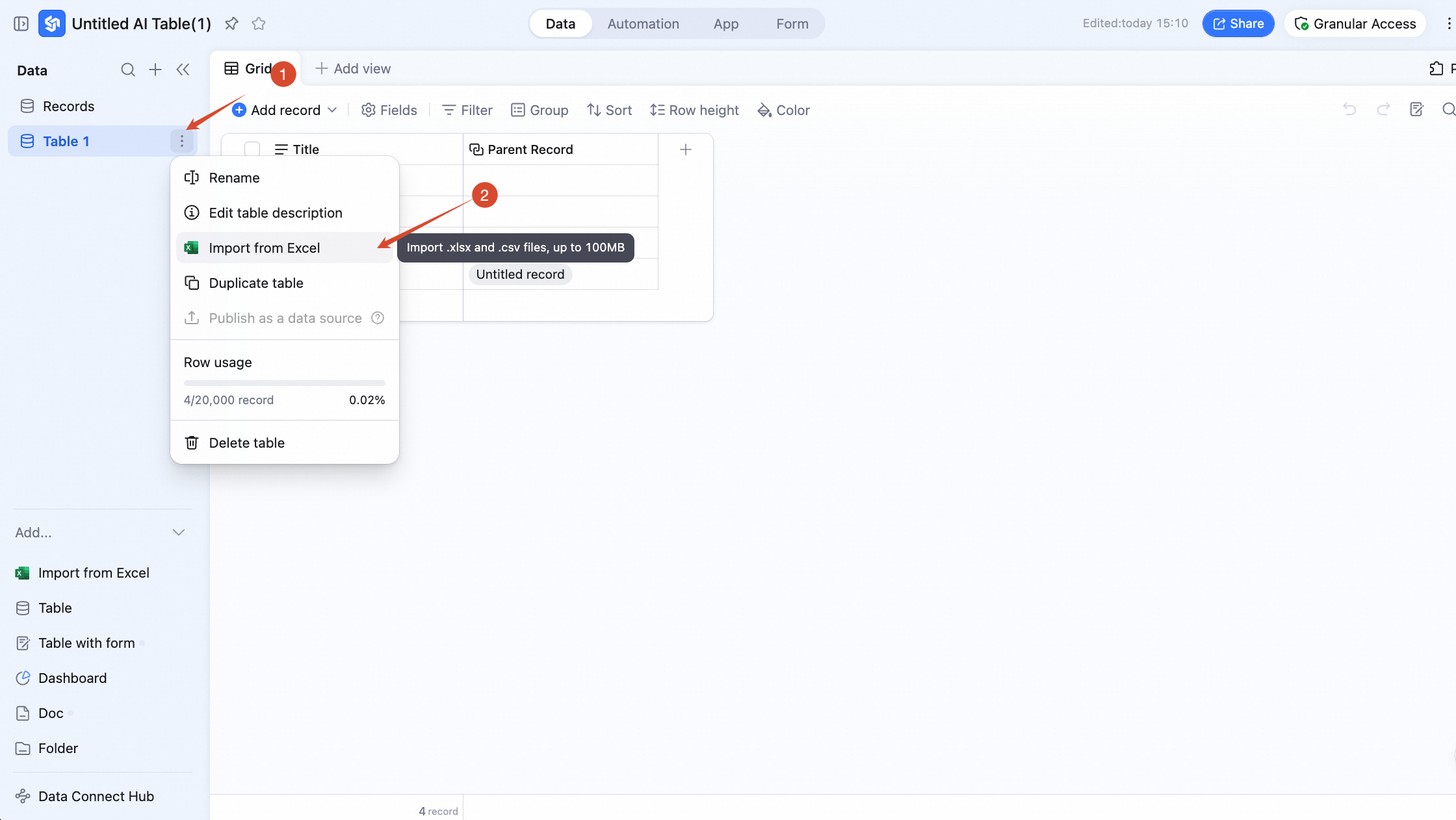
There are three ways to import data from an Excel file into an existing table:- In the left sidebar, open a table’s right-side menu and choose Import Excel.
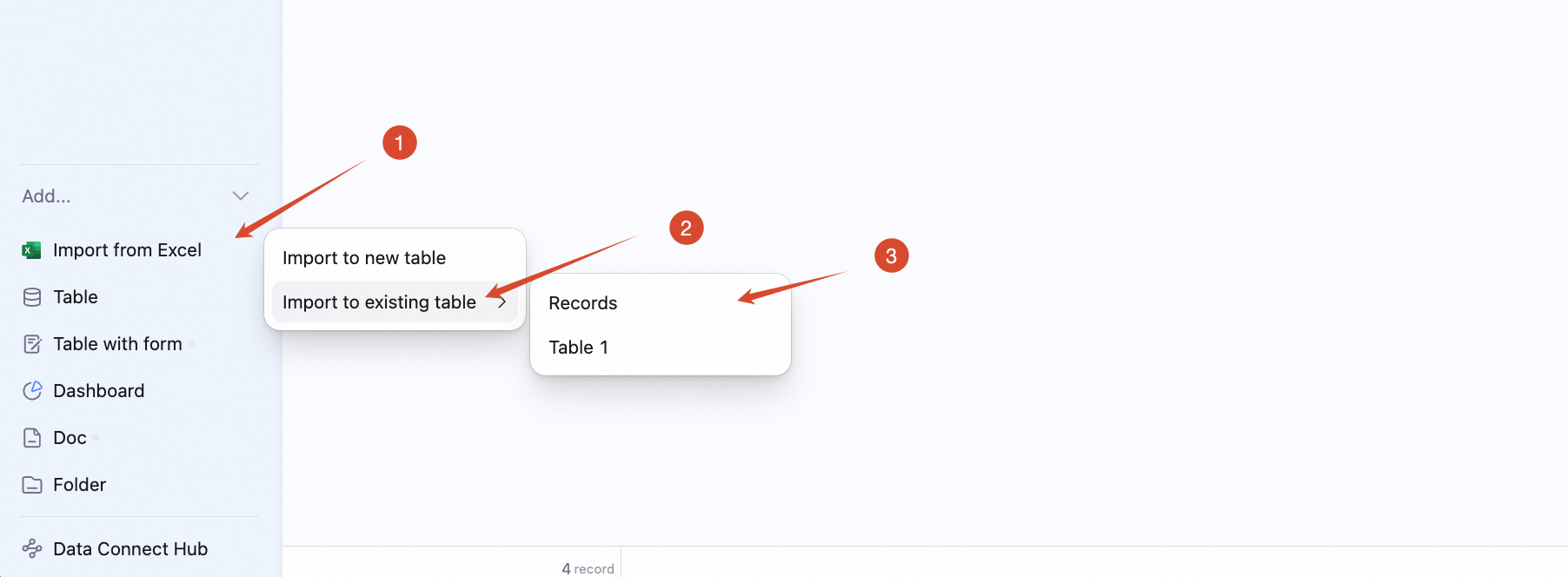
- In the left sidebar, click + Add / Import → Import Excel → Import into existing table, then pick the target table.
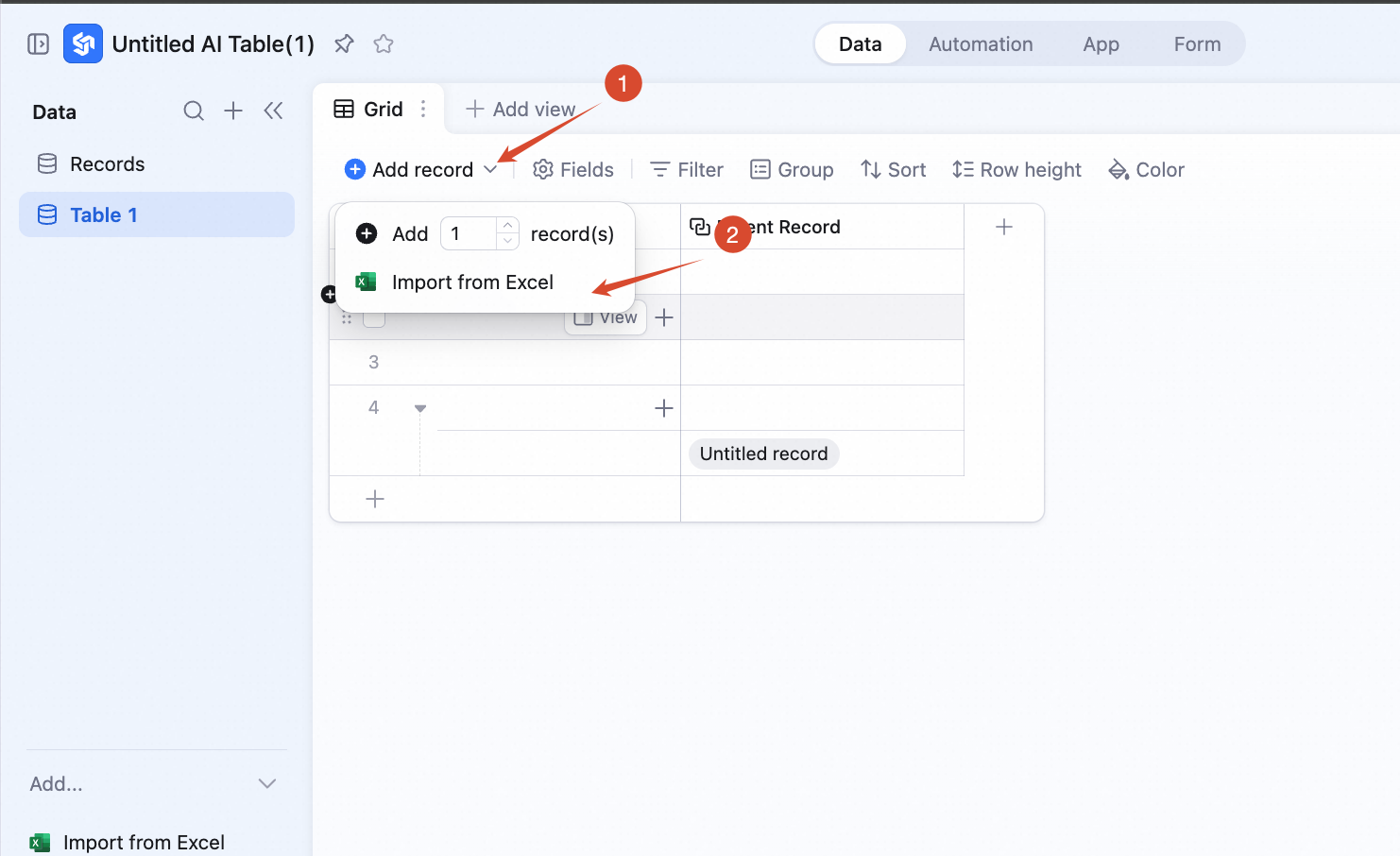
- Inside an open table view, click the arrow next to Add record and choose Import Excel.