Chats
Chats Calendar
 Meetings
 Contacts
 Mail
Mail Docs
Docs Drive
Drive AI Table
 AI Minutes
 Attendance
 Approval
 YiDA
YiDA Admin Console
Overview
In AI Table, configure an automation flow to push the dashboard as an image message on schedule — keep the team aligned on the latest data.Common Scenarios
- Project work groups Schedule project progress or quality dashboards to land in the project group automatically — efficient data sync.
- Exec brief Push core business dashboards daily/weekly to leadership — high-frequency decision context.
- Customer service reports Auto-send a dedicated service dashboard to key customers on cadence — boost transparency and professional image.
Steps
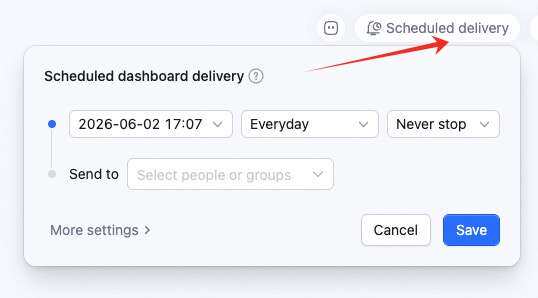
- Click Scheduled push in the dashboard’s upper-right to open the setup. Set the schedule and recipients directly.
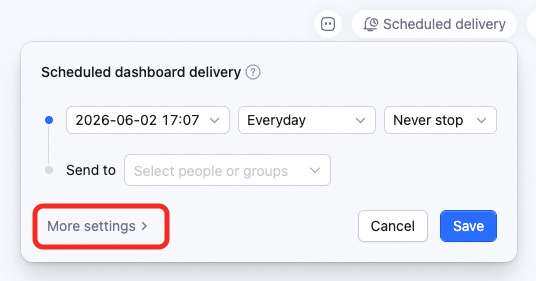
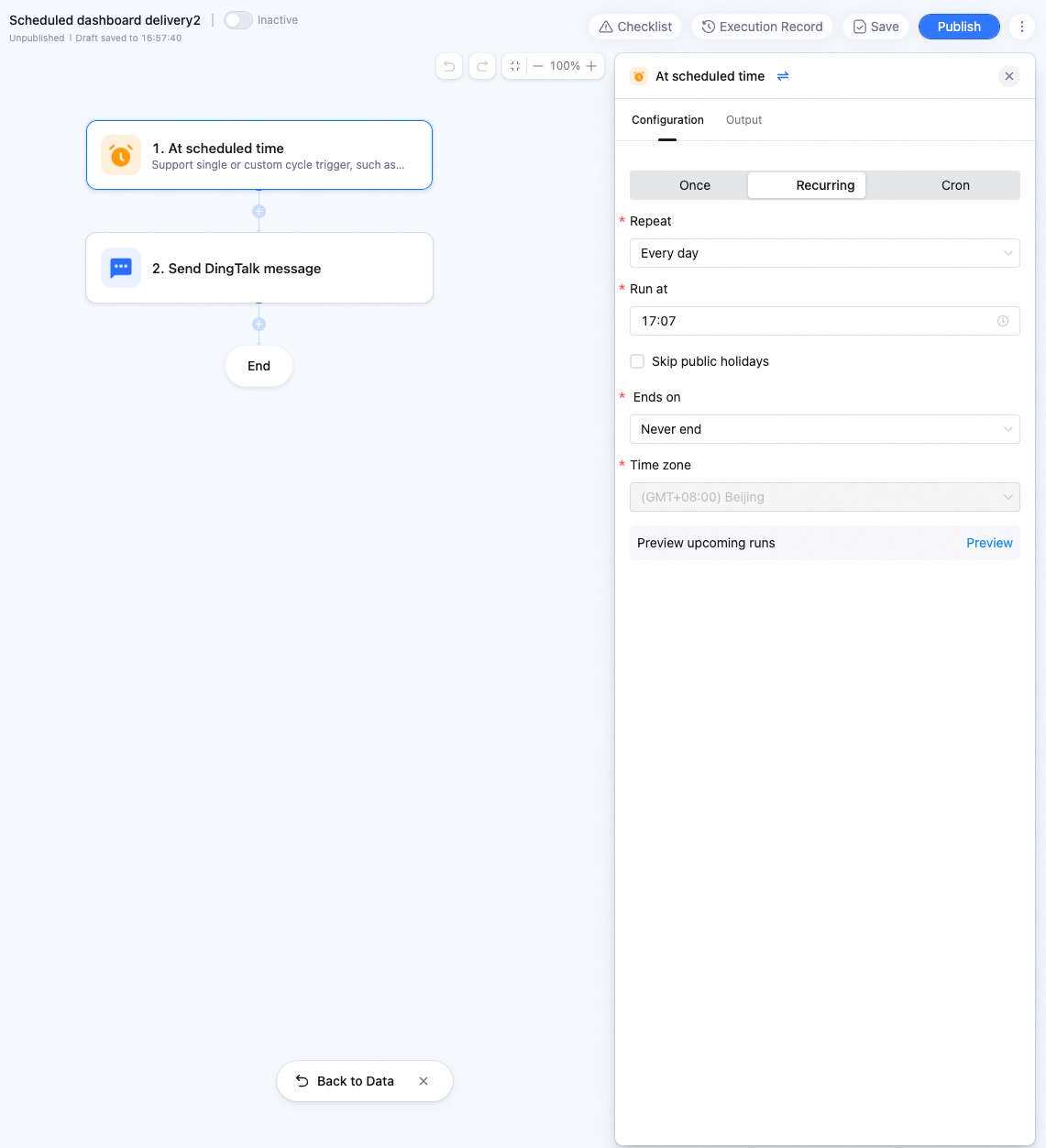
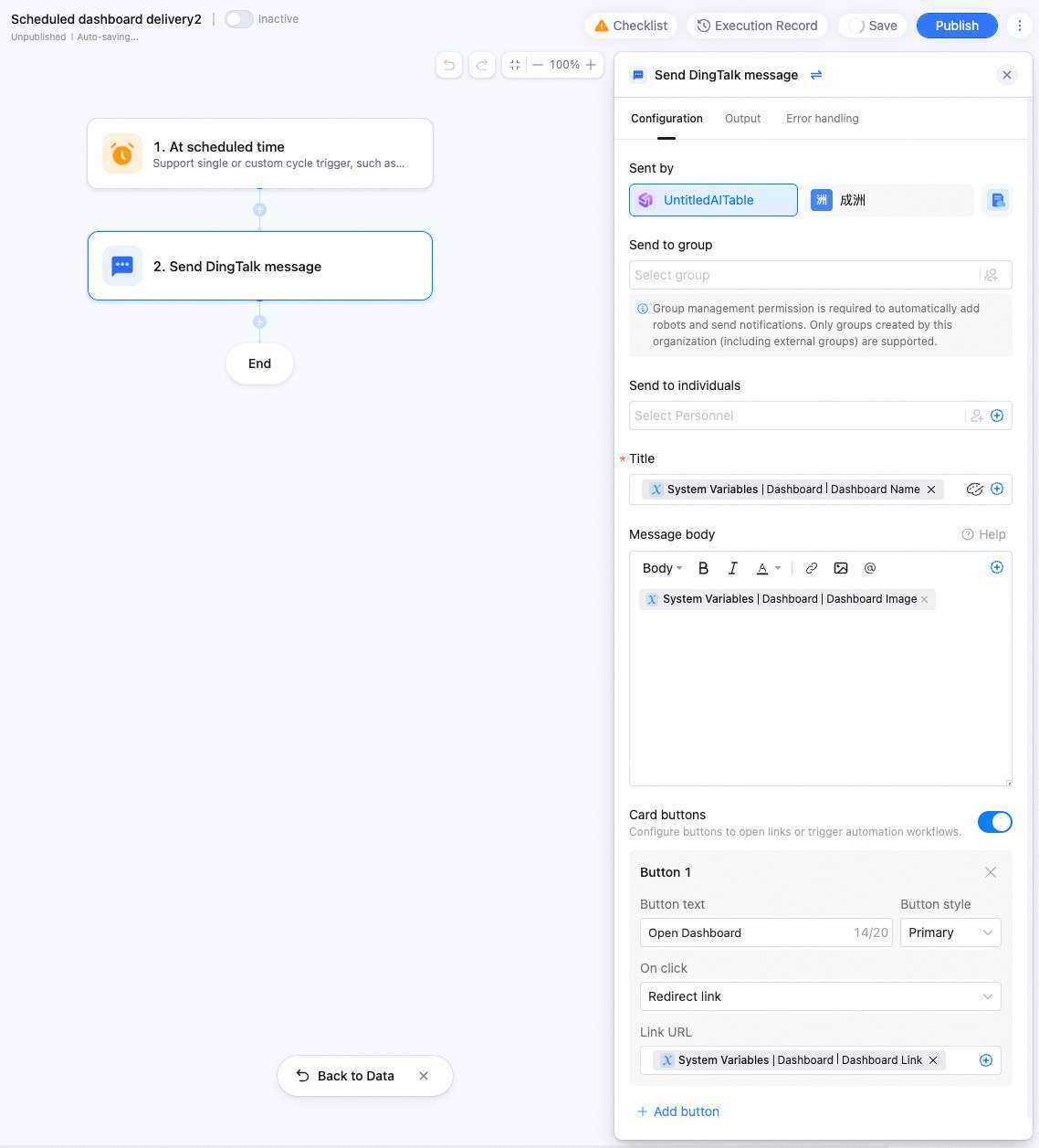
- Click More config to enter the automation editor. Configure trigger conditions (one-time or periodic), recipients, and message body.
- Enable the automation. Recipients receive the dashboard push in DingTalk chat.