Chats
Chats Calendar
 Meetings
 Contacts
 Mail
Mail Docs
Docs Drive
Drive AI Table
 AI Minutes
 Attendance
 Approval
 YiDA
YiDA Admin Console
Plan-Level Differences
Advanced Permissions are available on every AI Table plan — only the number of custom roles you can create differs.Overview
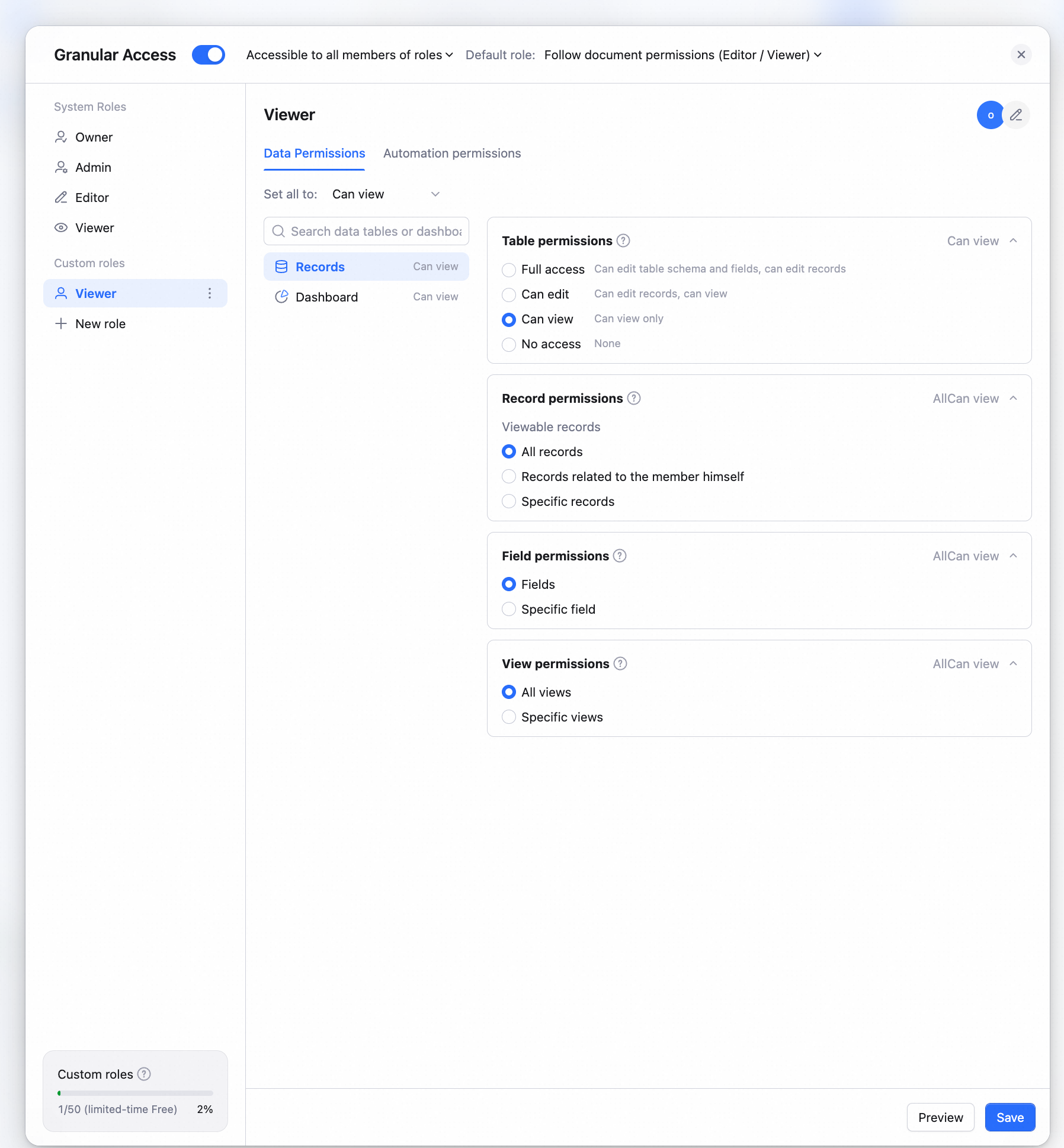
The Owner and Admins of an AI Table can turn Advanced Permissions on or off, and configure roles and members. By creating roles with different settings, admins can assign access and operation permissions on tables, dashboards, views, fields, and records independently — fine-grained permission management that gives you stronger data security guarantees. Common scenarios:- Salespeople can view and maintain only their own customer info — they can’t see other reps’ data.
- Leadership can see overall ops data and roll-up reports, but doesn’t edit individual records.
- Stat fields (amount, score, summed totals) are admin-only — regular members can’t see them.
- Project members only see the projects they’re on.
- Department leads see only their own department’s tables and dashboards.
- Regular collaborators can add or update records, but can’t change table structure.
Glossary
- Owner (default role): the highest-permission holder for an AI Table. The creator is the owner by default; if ownership is transferred, the new recipient becomes the owner.
- Admin (default role): the default management role under Advanced Permissions. Collaborators with the doc-level Manage permission automatically become admins. Admins can edit everything in the AI Table and configure Advanced Permissions, automation, and dashboards.
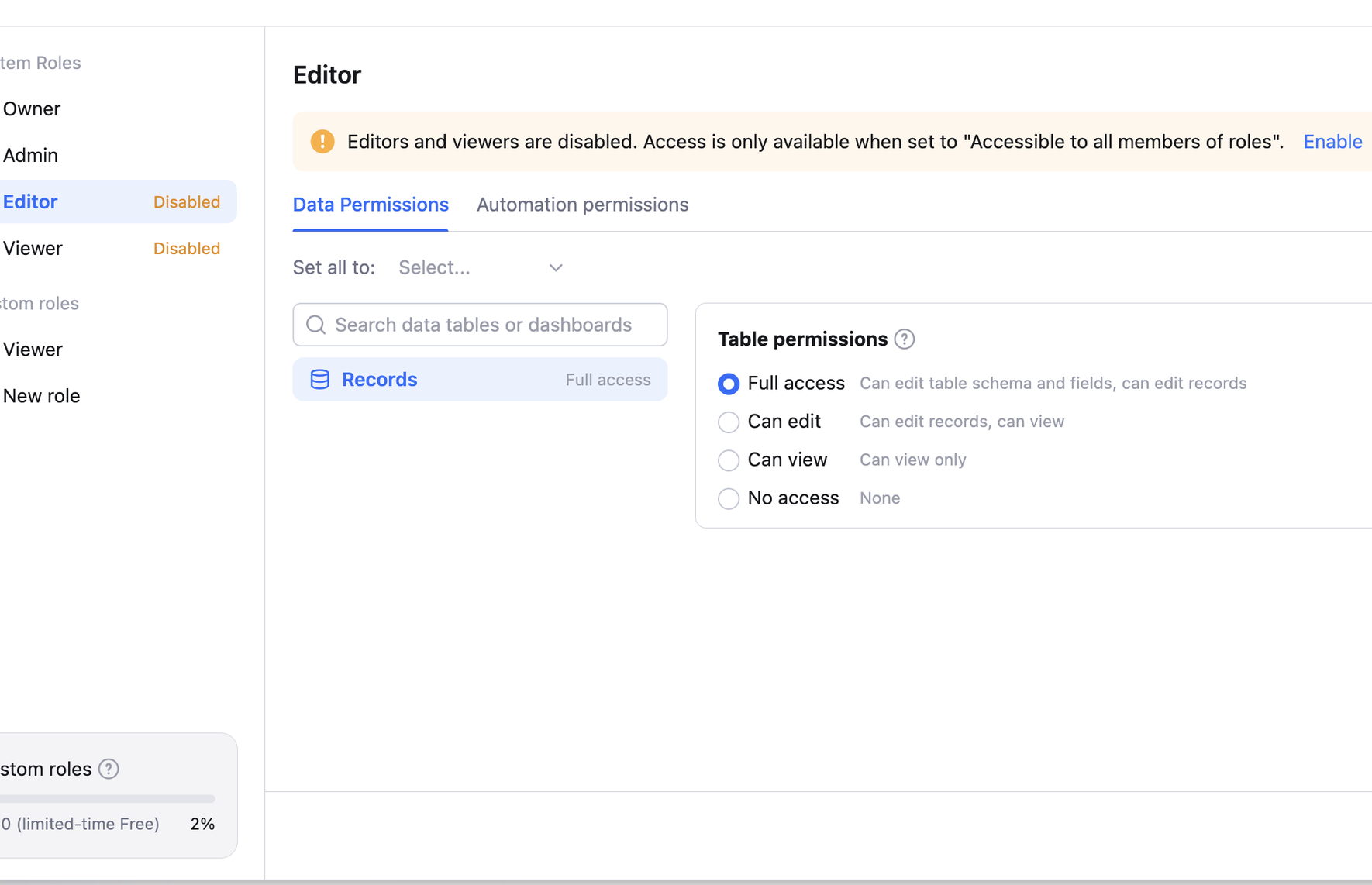
- Editor (default role): editors can view and modify data, including adding, editing, and deleting records. They cannot change table structure or configure Advanced Permissions, automation, or dashboards. Admins can adjust an editor’s effective permissions; the actual capabilities follow the role configuration.
- Viewer (default role): viewers can only view data. They cannot add, edit, or delete records, nor modify table structure, permission settings, automation, or dashboard configuration. Admins can adjust a viewer’s visibility; the actual visible scope follows the role configuration.
- Custom role: a role created by an admin. Each role is a permission group; the permissions configured for the role apply to every member in it.
- Member: the subject of permissions, not necessarily a single person — can be a specific person, a group, or a department.
- Table permission: access and operation permissions on a table in an AI Table.
- Dashboard permission: access and operation permissions on a dashboard in an AI Table.
- Record permission: view and edit permissions on each row in a table.
- Field permission: view and edit permissions on each column in a table.
- View permission: access and operation permissions on views in a table.
Doc Permissions vs Advanced Permissions
Doc Permissions
In the top-right of an AI Table, click Share to set sharing and collaboration for the current AI Table.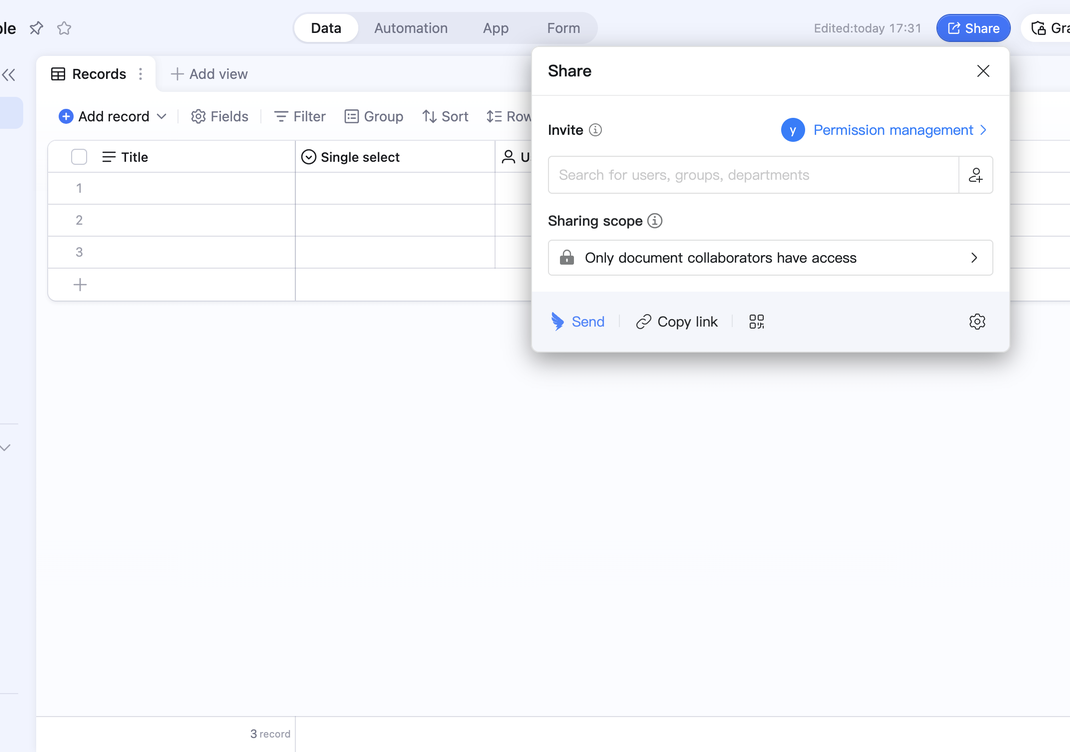 Sharing scope and collaborator permissions can be combined freely; admins also get more granular config options.
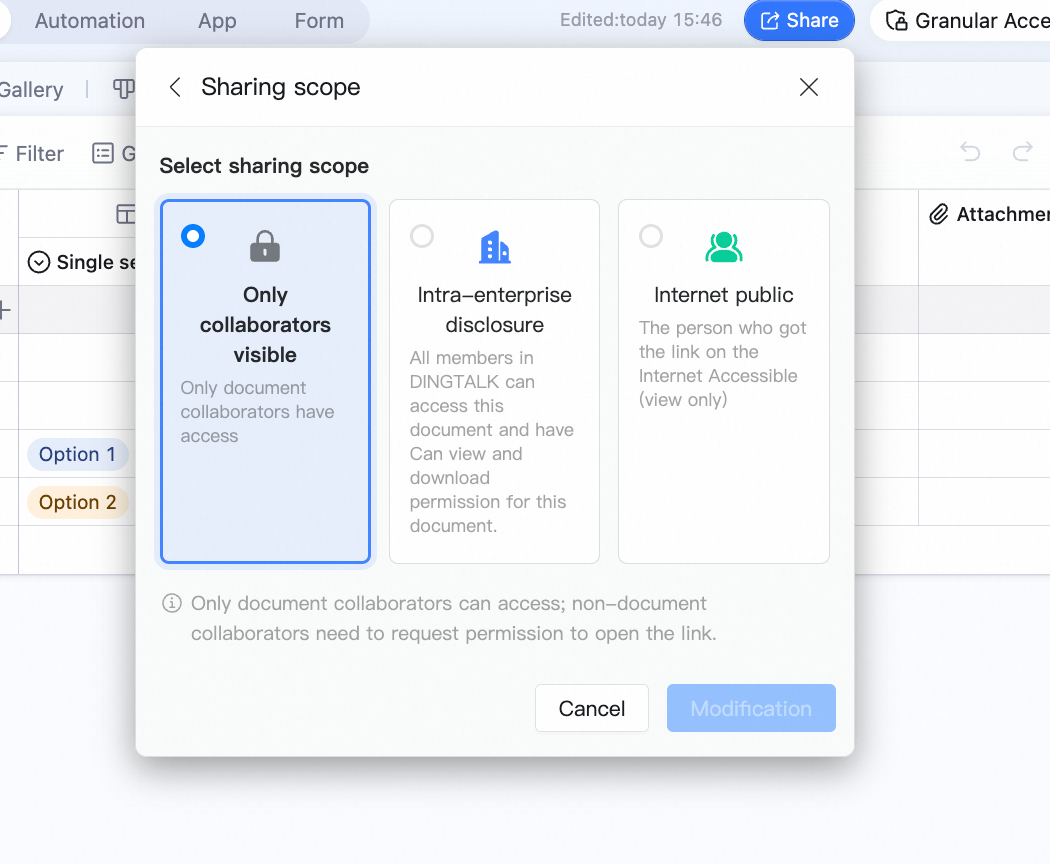
Three sharing scopes: collaborators only, public within organization, public on the internet.
Sharing scope and collaborator permissions can be combined freely; admins also get more granular config options.
Three sharing scopes: collaborators only, public within organization, public on the internet.
 Four collaborator permissions: Manage, Edit, View / Download, View only — assignable to individuals, groups, or departments.
Manage cannot be assigned to people outside the organization.
Four collaborator permissions: Manage, Edit, View / Download, View only — assignable to individuals, groups, or departments.
Manage cannot be assigned to people outside the organization.
Advanced Permissions
The AI Table Owner or any collaborator with the Manage permission can turn on Advanced Permissions. Advanced Permissions complement doc permissions — they let you control access scope and operations more precisely. By creating different roles, you can decide exactly who can view or edit each table, and further control which records, fields (and the corresponding cells), views, dashboards, automations, and apps each member can reach.Doc Permissions vs Advanced Permissions
When Advanced Permissions is on, a collaborator’s effective permissions are the result of combining Advanced Permissions with doc permissions. Within Advanced Permissions, if a member is in multiple roles, record permissions and field permissions are first unioned across roles; that result is then intersected with the member’s doc permissions to produce the effective scope. Examples:Advanced Permission Types
Turning on Advanced Permissions
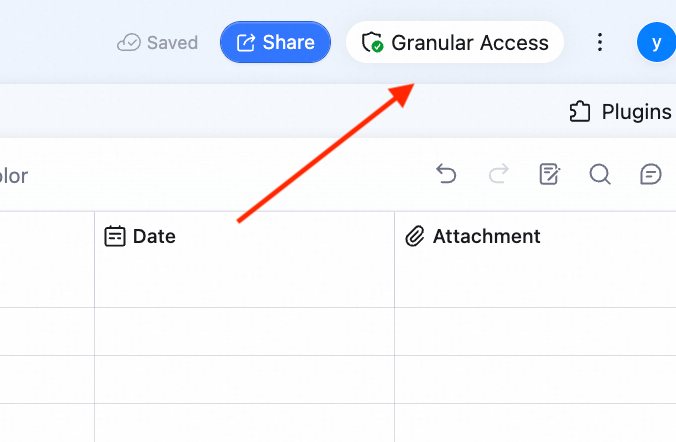
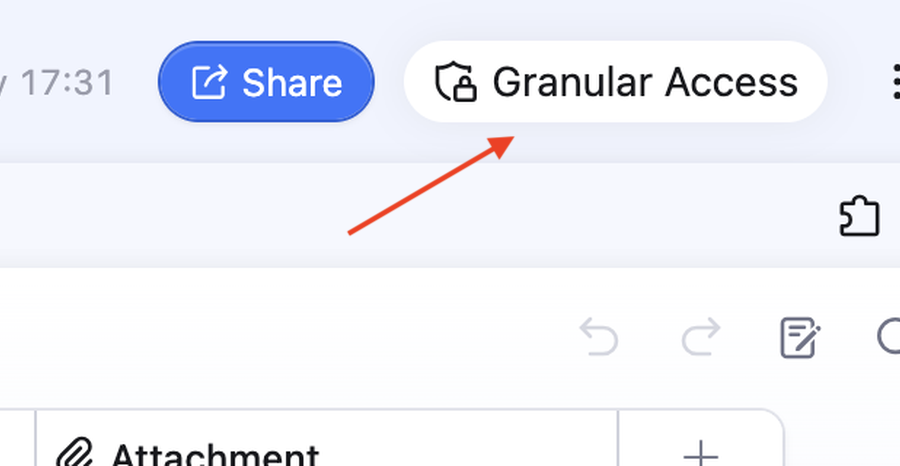
In the top-right of the AI Table, click Advanced Permissions to turn it on.⚠️ Once Advanced Permissions is on, the original Editor and Viewer defaults stop applying — collaborators temporarily lose access to the AI Table until they’re assigned a role.
Turning off Advanced Permissions
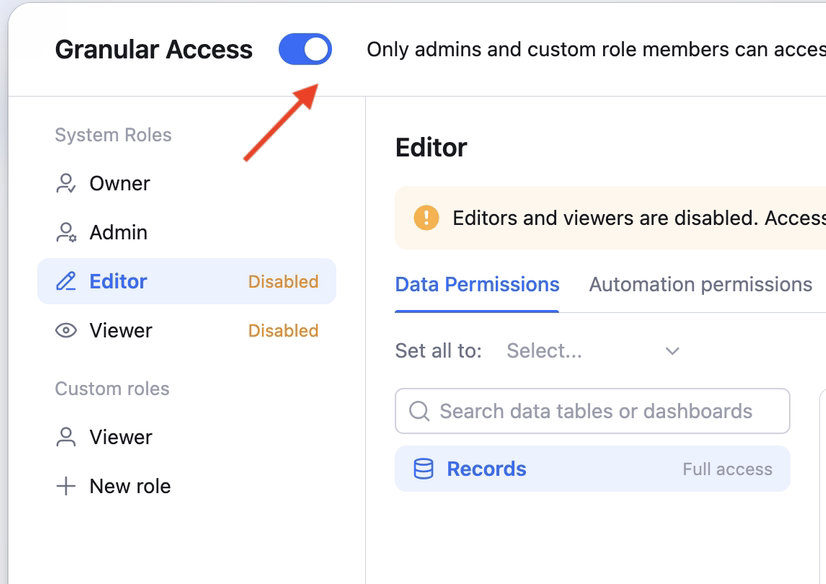
Click the toggle in the Advanced Permissions dialog to turn it off.⚠️ Once off, custom-role permissions stop applying, but the custom roles, members, and configurations are preserved. You can turn Advanced Permissions back on at any time and pick up where you left off.
Adding a Custom Role
In Advanced Permissions, click + Add role on the left.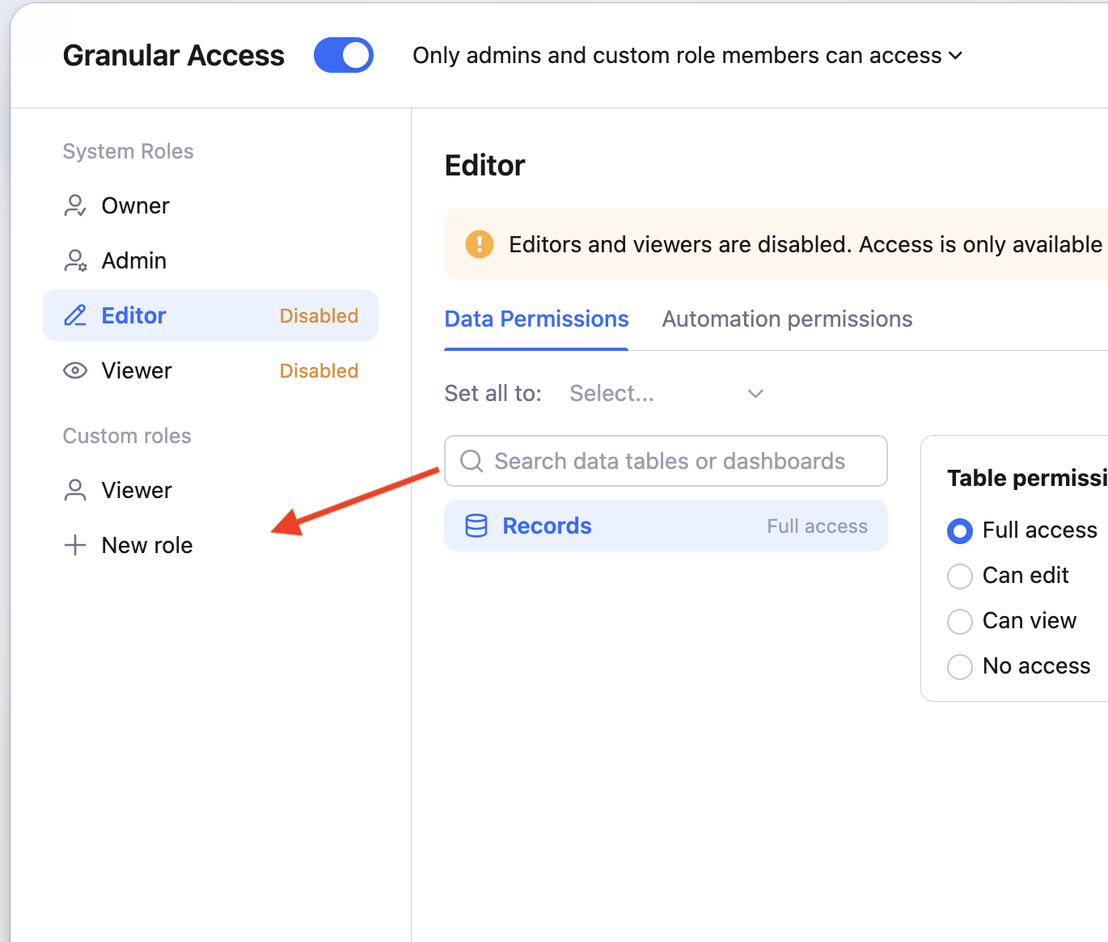 After adding the role, configure its permissions on each table and dashboard. For example, give the Salesperson role access and operation permissions on the Monthly Sales table.
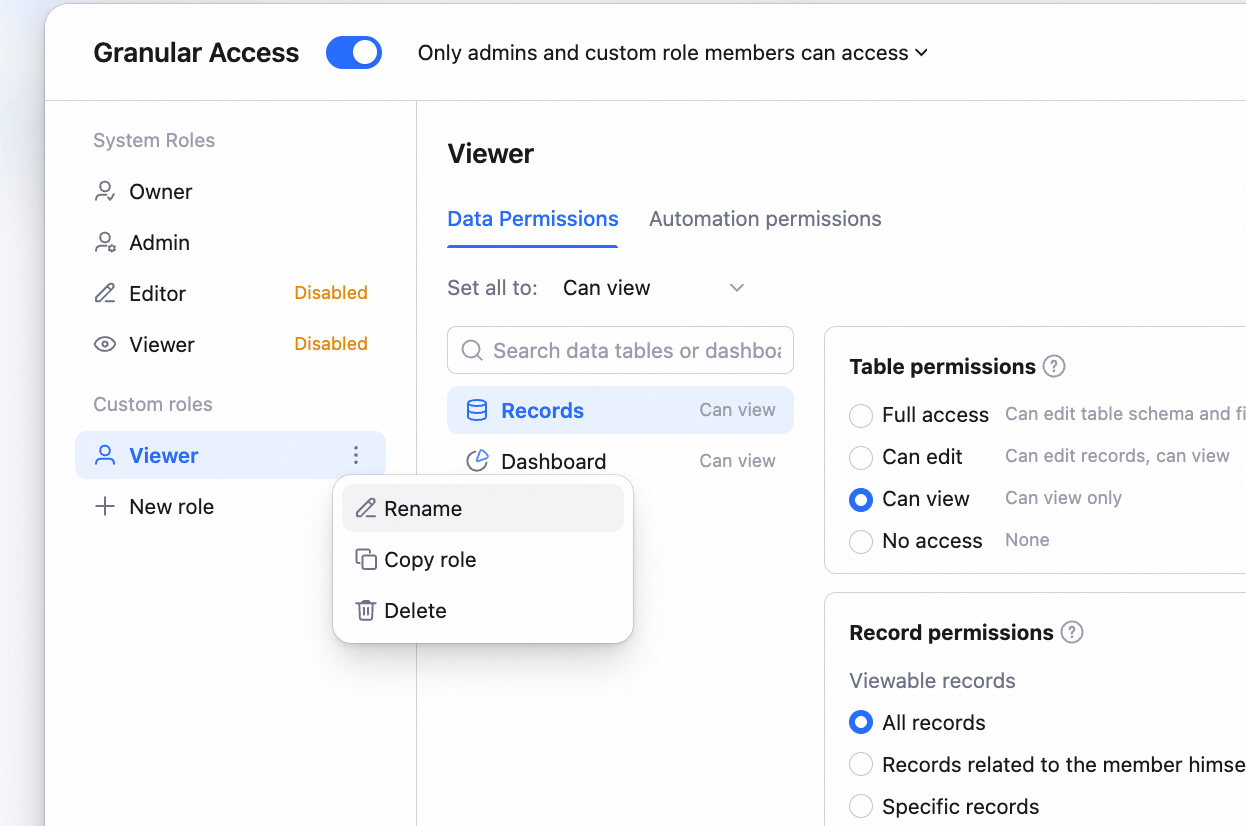
 You can rename, duplicate, or delete custom roles.
Adding Members to a Custom Role
In the top-right of the custom role, click + Add members. You can add specific people, groups, or departments — added members get every permission configured on the role.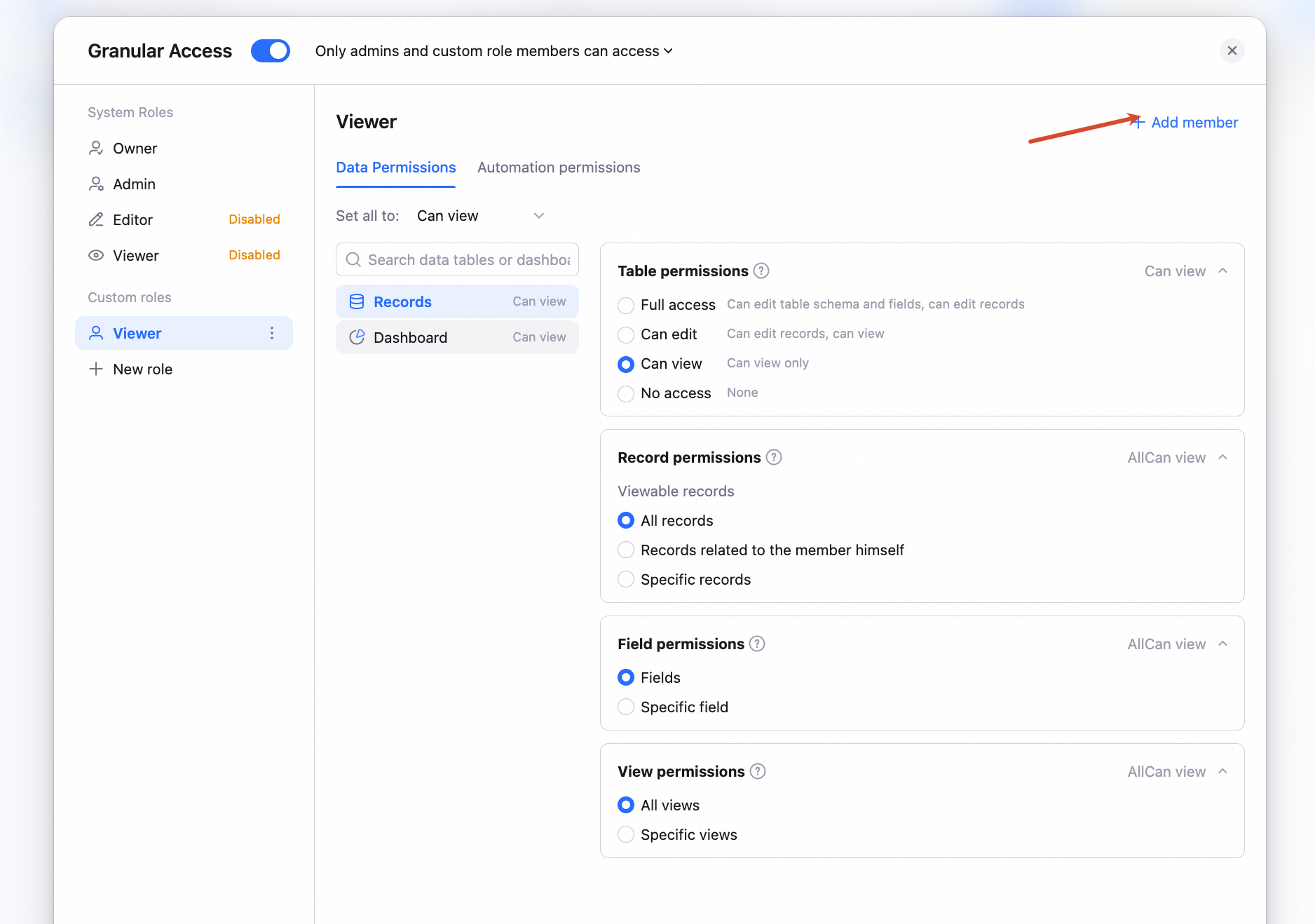
Changing the Role-Wide Access Mode
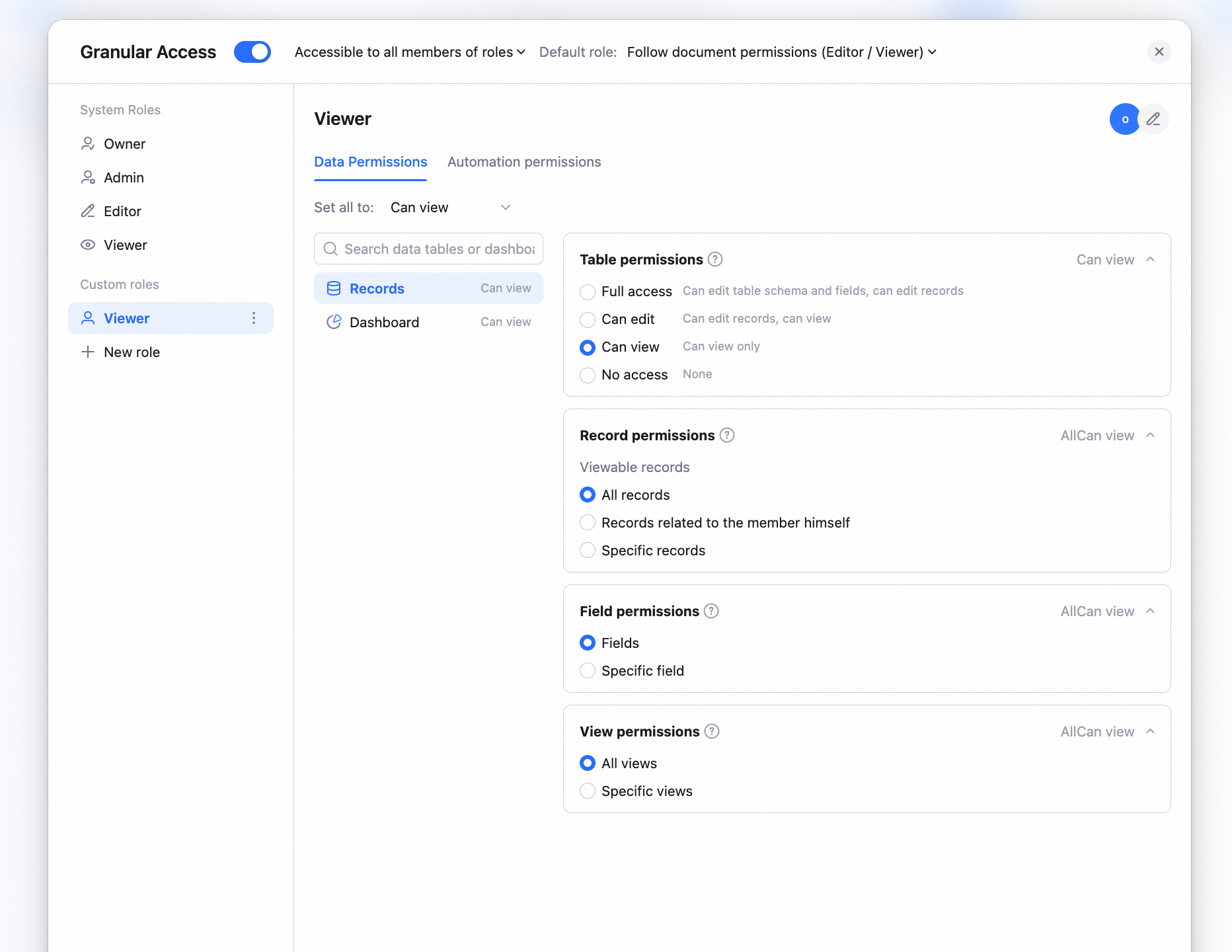
By default, with Advanced Permissions on, only Admins and custom-role members can access the AI Table. Existing Editors / Viewers temporarily lose access until they’re assigned a role.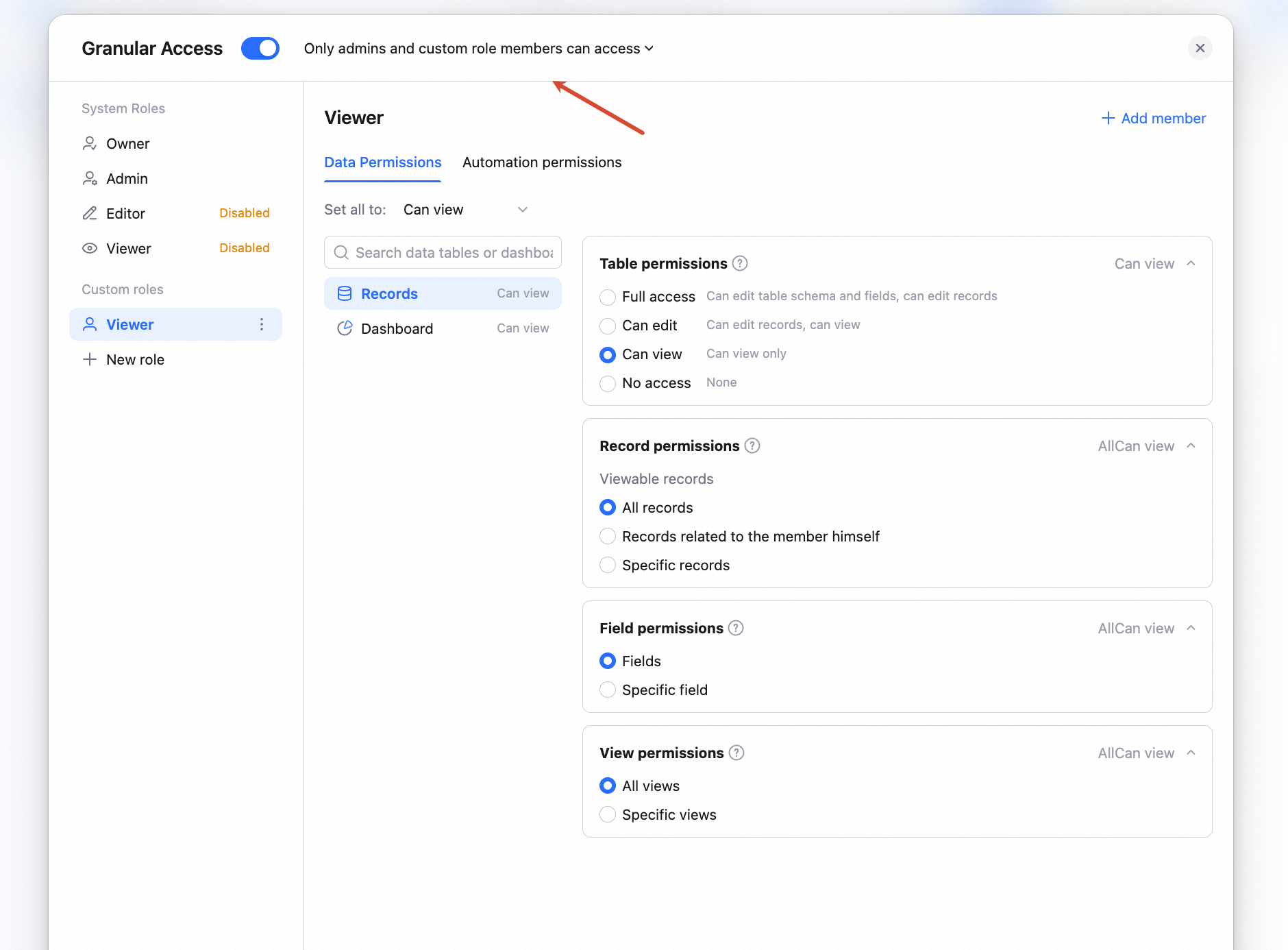 You can switch to All role members can access. In this mode, you set a default role that applies to members not assigned to any custom role. By default that role is Editor or Viewer per their doc permission, but you can pick any custom role.
After this, every member with doc permission but no custom role assignment gets the default role’s permissions intersected with their doc permission.
You can switch to All role members can access. In this mode, you set a default role that applies to members not assigned to any custom role. By default that role is Editor or Viewer per their doc permission, but you can pick any custom role.
After this, every member with doc permission but no custom role assignment gets the default role’s permissions intersected with their doc permission.
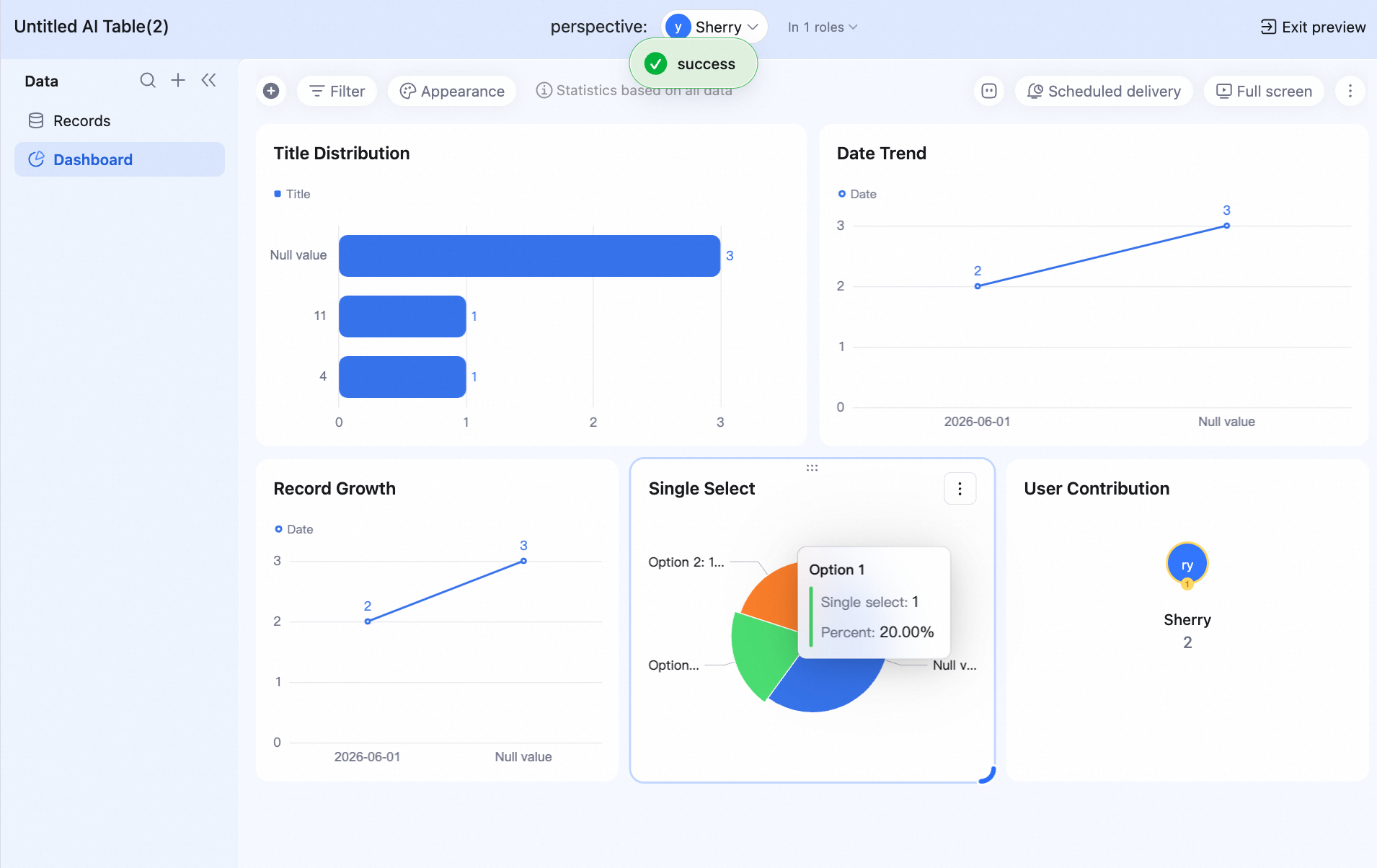
Preview (Member’s Effective Permissions)
Quickly confirm a given member’s final access scope and operation rights under the current configuration. The system combines role permissions with doc permissions and shows you, in real time, what data they can see, what actions they can perform, and what’s restricted — so you can sanity-check after configuring.