Chats
Chats Calendar
 Meetings
 Contacts
 Mail
Mail Docs
Docs Drive
Drive AI Table
 AI Minutes
 Attendance
 Approval
 YiDA
YiDA Admin Console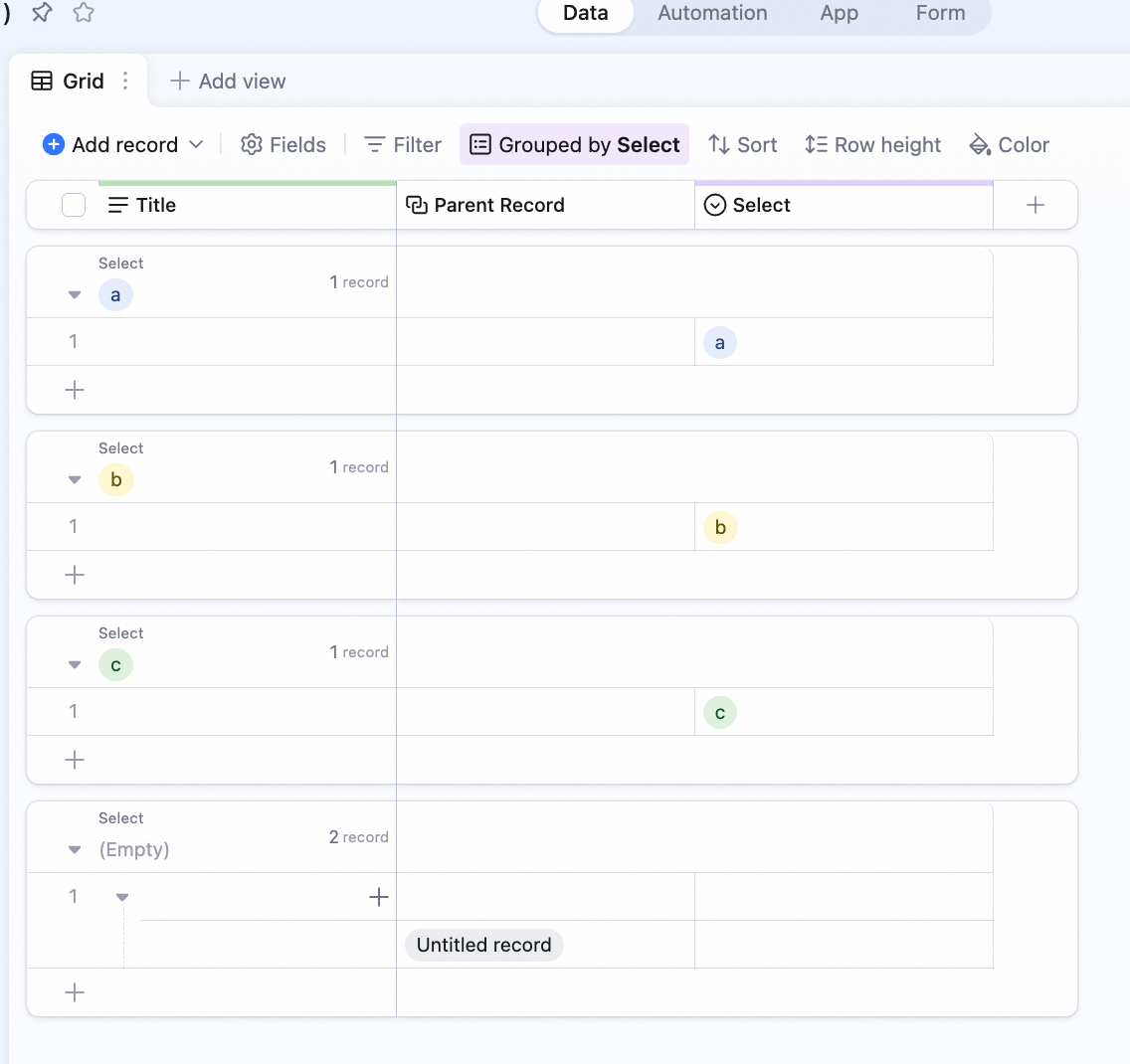
Add a Group Rule
- Click Group in the view’s top toolbar.
- Click Add group rule.
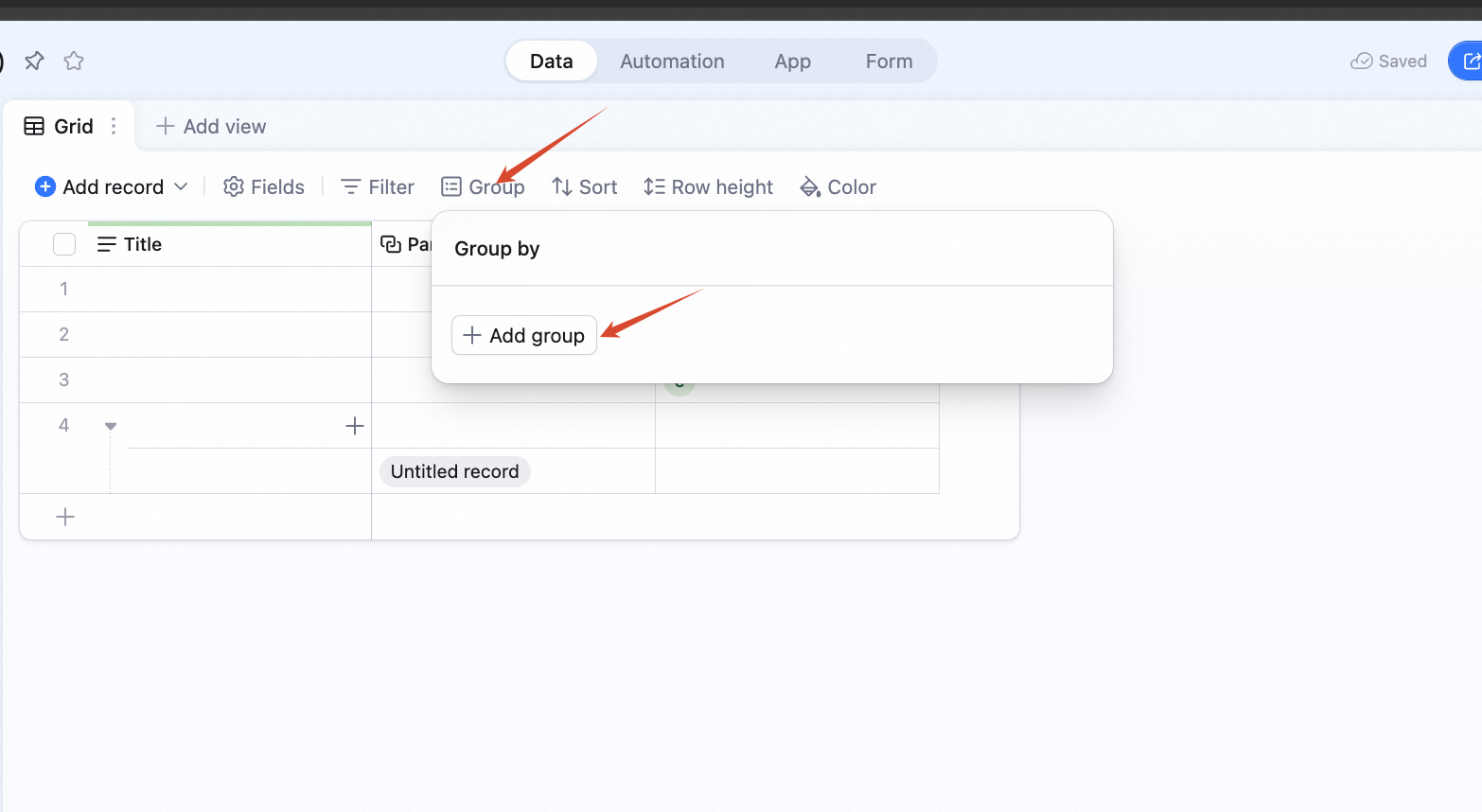 A group rule has two parts: pick the field to group by, then the sort order within each group.
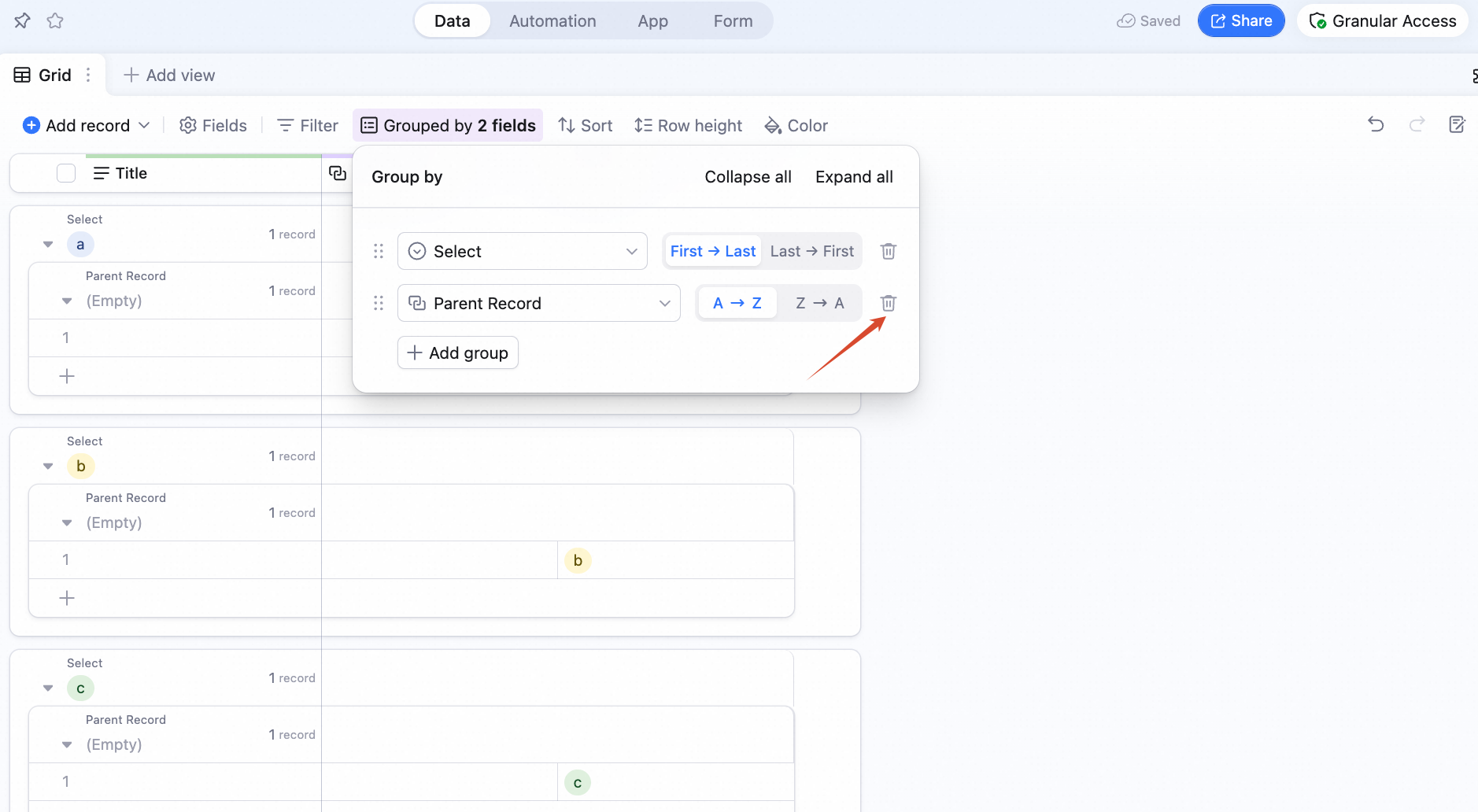
Remove a Group
Click the remove icon next to the grouping rule.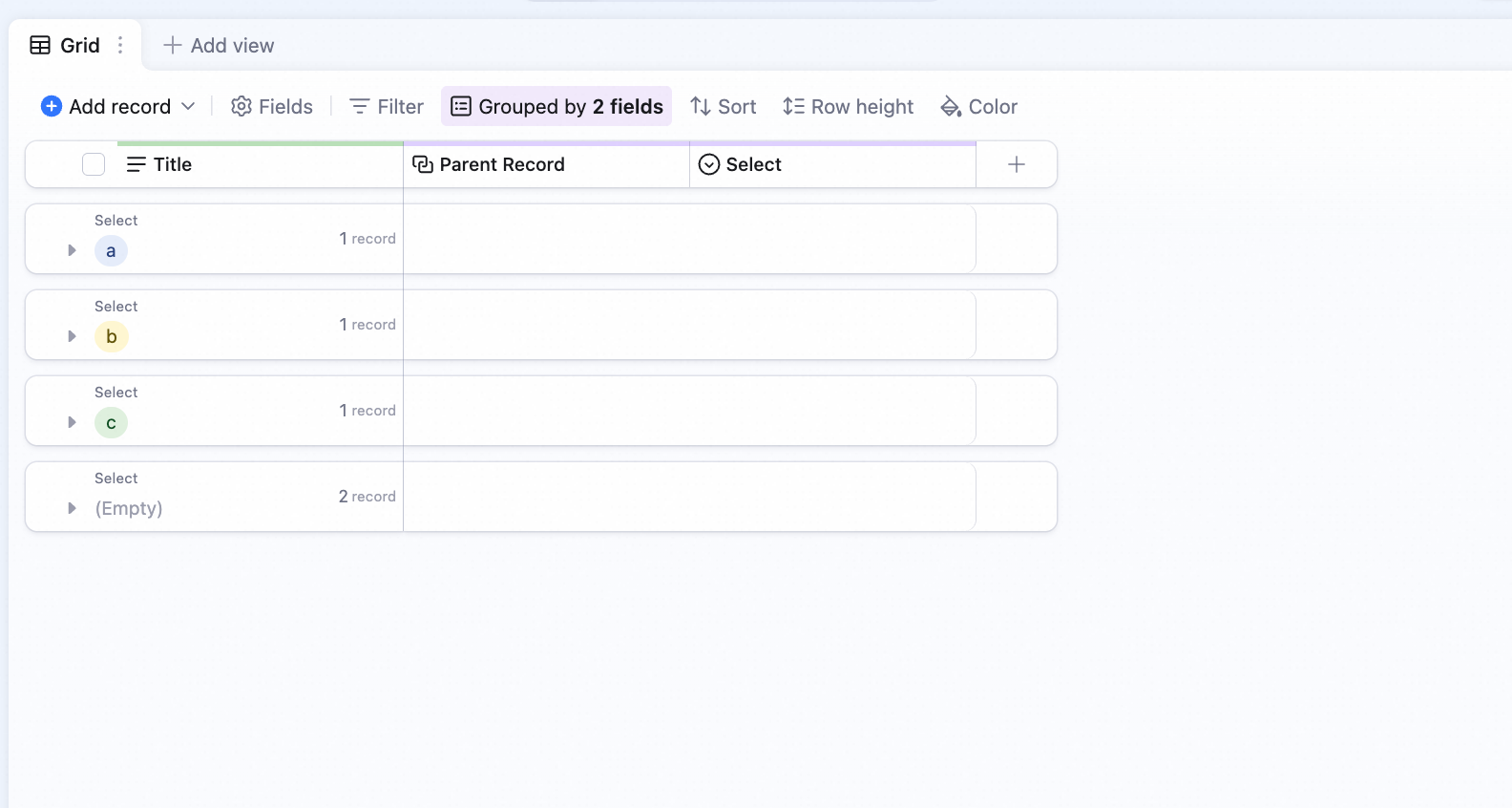
Expand / Collapse a Group
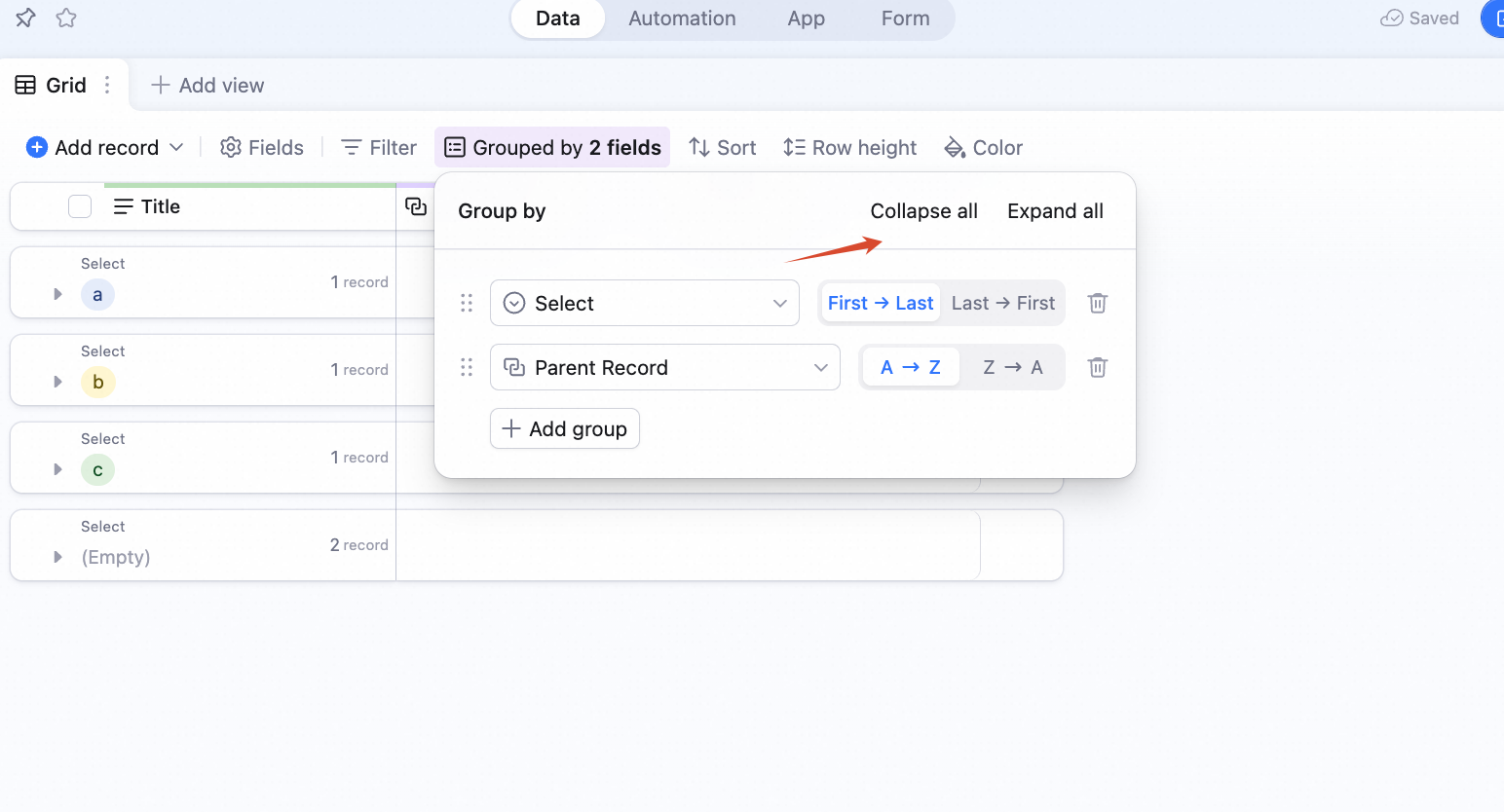
Click the arrow next to a group name to expand / collapse the group.
You can also use Collapse all or Expand all from the group config panel in the toolbar.