

 Chats
Chats Calendar
 Meetings
 Contacts
 Mail
Mail Docs
Docs Drive
Drive AI Table
 AI Minutes
 Attendance
 Approval
 YiDA
YiDA Admin Console
1 Overview
During an AI Table automation run, you can insert data produced by earlier steps. Different field types accept different content. Below is a per-action breakdown of what you can insert.2 Insertable Field Types per Action
2.1 Create Record / Update Record / When Condition Met / On Record Change
2.2 Send Message to User or Group
3 Reference Data from Earlier Steps
Example: when a new inbound item is added to Inbound details, sync a row in Inventory summary containing item name, item code, and quantity.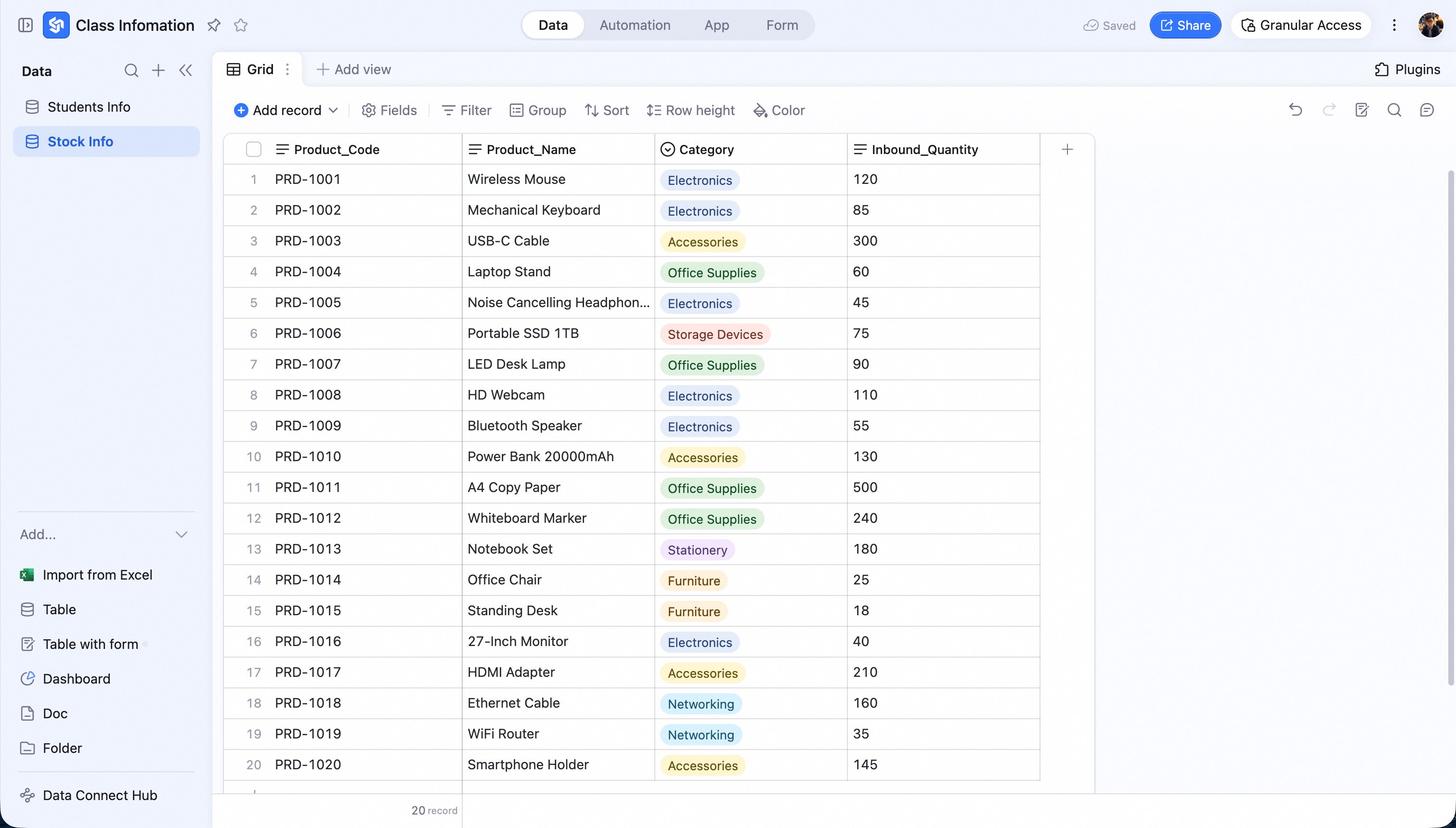 Configure the automation:
- Pick the trigger When a record is created: a new row in Inbound details.
- Pick the action Create record: add a row to Inventory summary.
- Click Set field values and pick the fields you want to fill.
- Click the ⊕ at the right of the input and pick a value from the previous step.