

 Chats
Chats Calendar
 Meetings
 Contacts
 Mail
Mail Docs
Docs Drive
Drive AI Table
 AI Minutes
 Attendance
 Approval
 YiDA
YiDA Admin Console
Plans
AI Table offers different row caps per plan to fit different scales. Every plan keeps hot-row queries snappy — heavy data won’t slow you down.
Note: row counts cover all valid data rows in a table; empty rows don’t count toward your quota. The 10-million-row cap is per table and requires a paid expansion.
Per-Table Row Rules
What Happens When You Hit the Cap
When a table hits its row cap, you can’t add more records. Upgrade or expand to up to 10 million rows.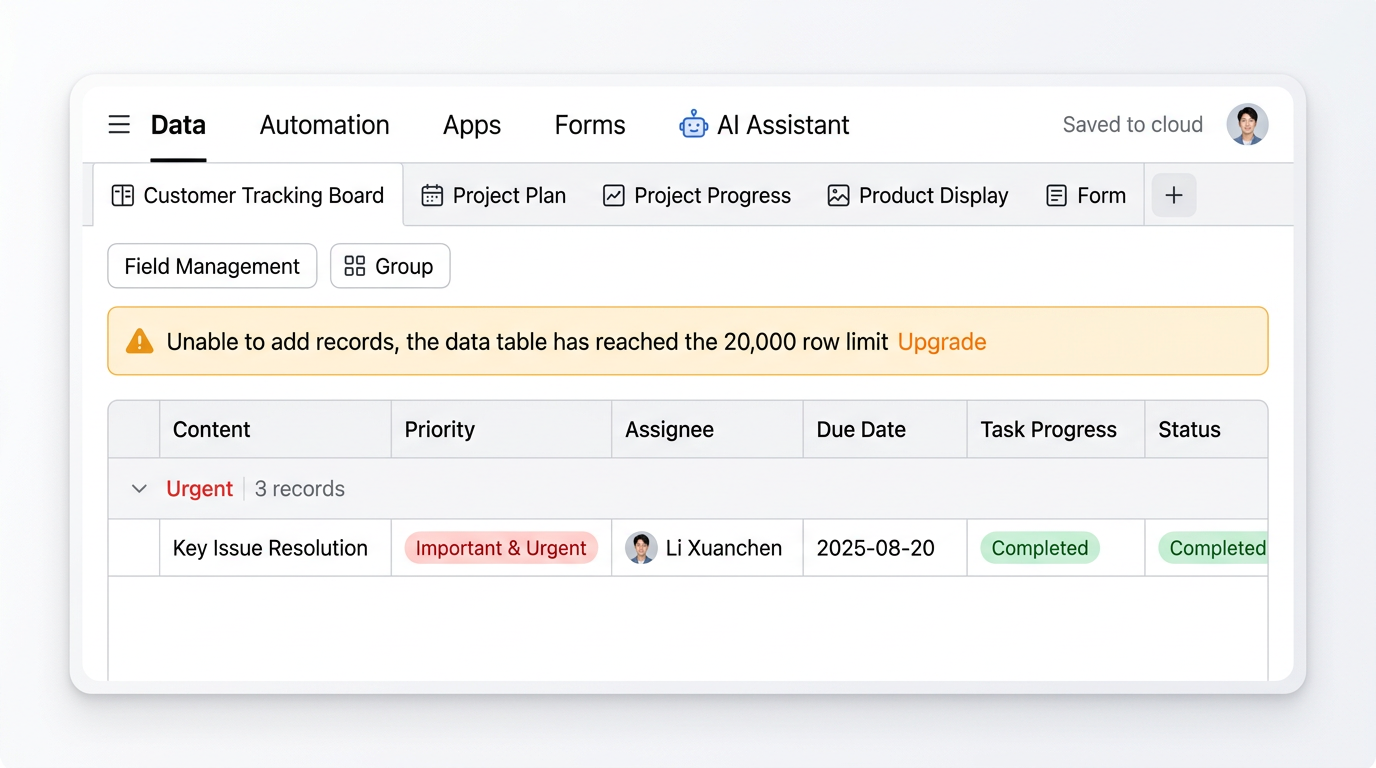
Expansion Details
- Business and Enterprise users can apply to expand a table to 10 million hot rows based on business need — the first smart-table product to support 10 million hot rows.
- Expanded tables still get sub-second query response and keep core features: cross-table links, AI-field analysis, real-time dashboard updates. No manual sharding required.
- Expansion is a paid add-on. Reach out to a DingTalk sales advisor or apply via the website for a quote. Apply for expansion
Edge-Case Row Limits
Sync and Import Limits
What Happens When You Exceed the Cap
- Free-plan users must upgrade to Business / Enterprise, or clean up old data so the table is below 20,000 rows again, before adding more records.
- When form submissions, automation runs, or API calls push the table past your plan’s cap, the system pauses inserts automatically and notifies the table Owner.
- Once over the cap, you can upgrade or expand. Once that’s done, inserts resume. Existing data stays viewable / editable / exportable — unaffected.