Chats
Chats Calendar
 Meetings
 Contacts
 Mail
Mail Docs
Docs Drive
Drive AI Table
 AI Minutes
 Attendance
 Approval
 YiDA
YiDA Admin Console
- The YiDA Free plan does not require enabling App administrators. By default, every user can create apps.
- Paid YiDA plans require App administrators to be enabled separately. Only users designated as App administrators can create apps.
Set App Administrators
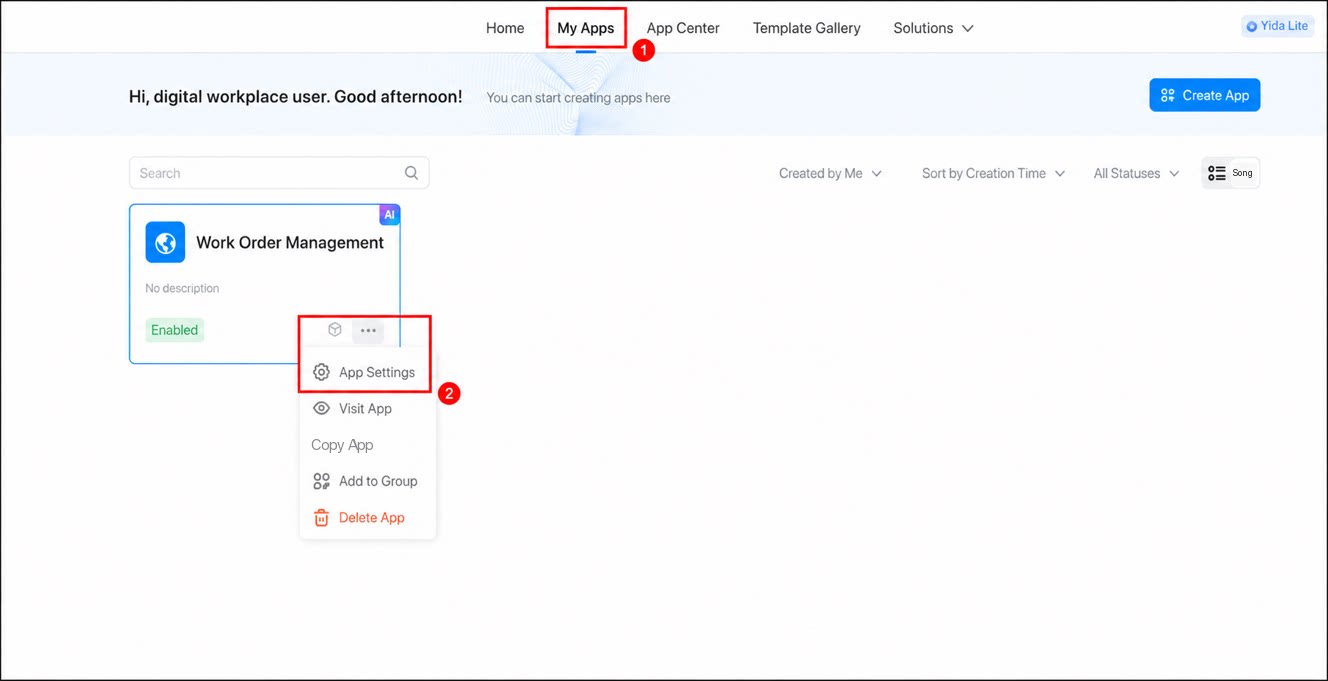
- Sign in to the YiDA workbench and open the My Apps page.
- Select the target app, then choose ··· > App settings.
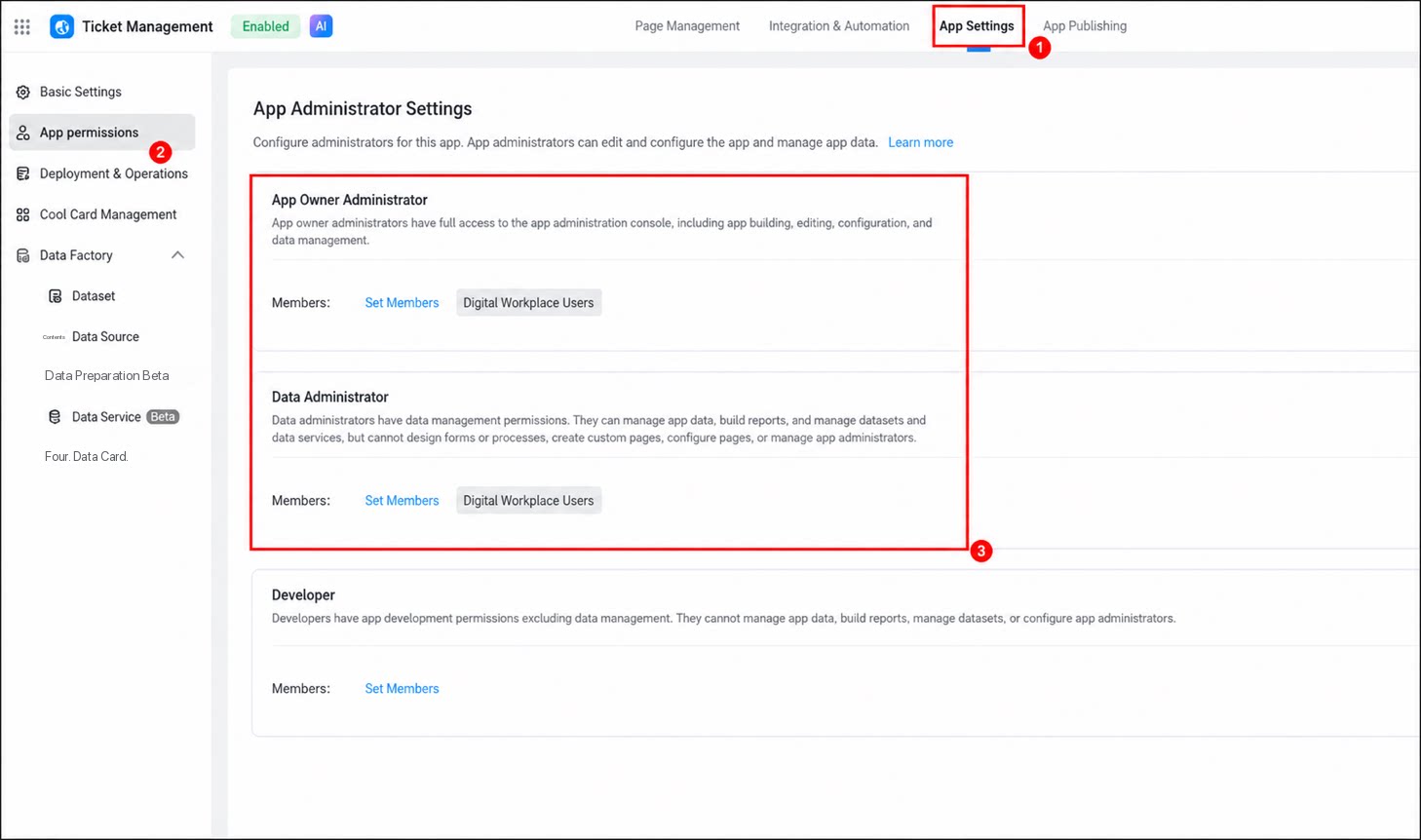
- In the left-hand menu of the App settings page, click App permissions > App administrators.
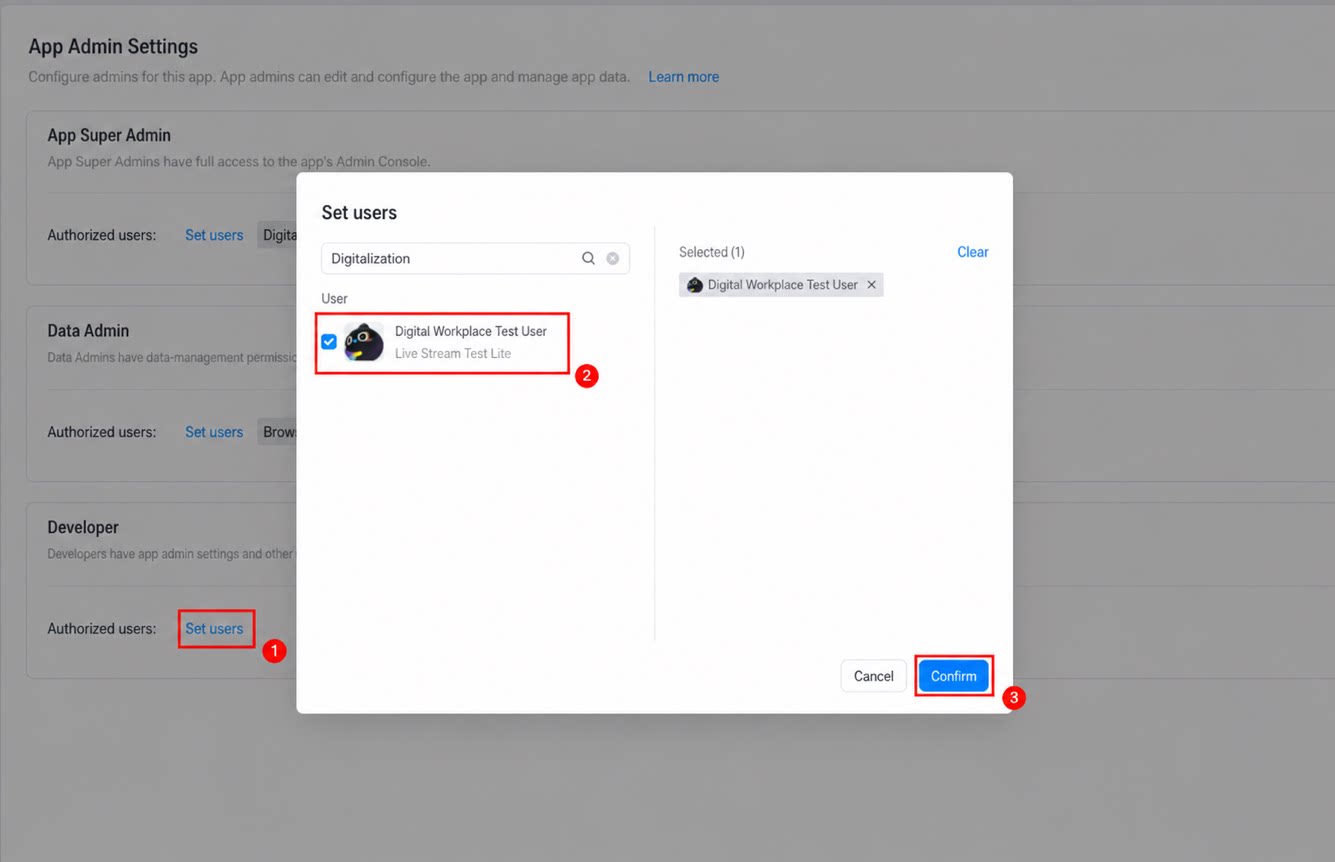
- Click Set users under each role, select the appropriate users, and click Confirm.
Manage Permissions
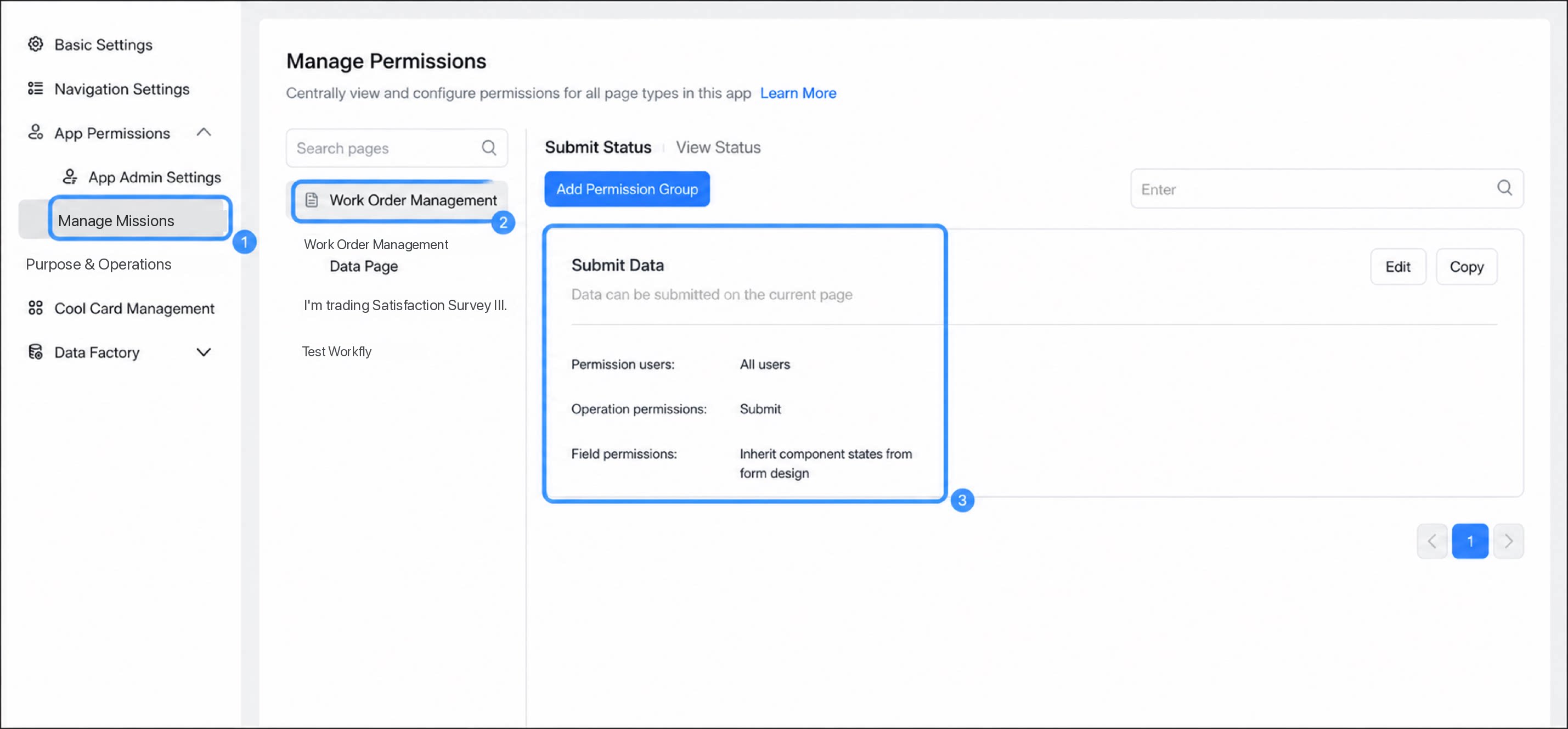
Manage permissions provides a centralized view for configuring permissions across all types of pages in an app.- Sign in to the YiDA workbench, locate the target app, and open the App settings page.
- In the left-hand menu of the App settings page, click App permissions > Manage permissions.
- Find the page whose permissions you want to manage, and edit them on the right.
Permission Details
The permissions available to each user within an app are described below:Platform administrators and App administrators must be configured on the platform management page. For details, see Platform permission management.
FAQ
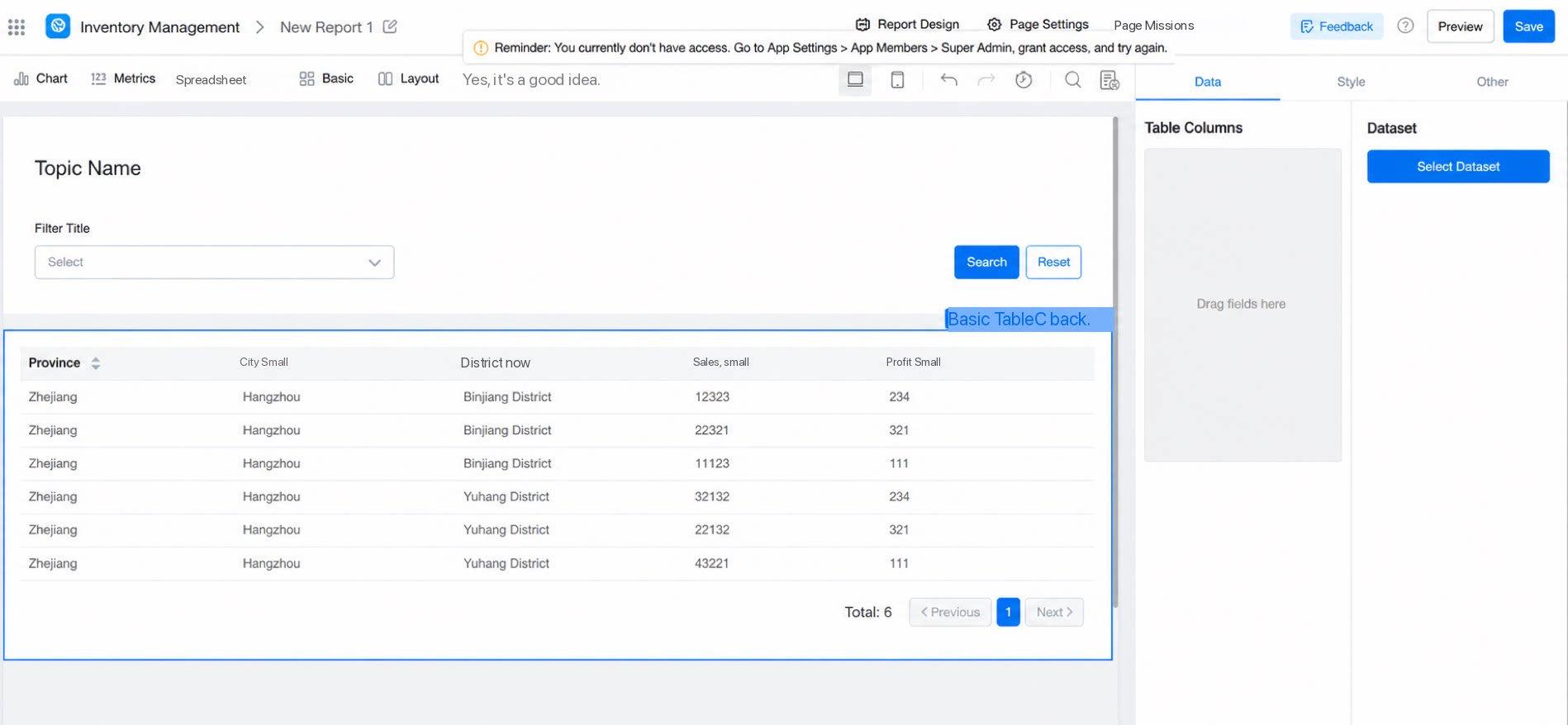
Q: I cannot select a dataset when editing a report on the App page settings. What should I do?